
Video generation extends Scenario's creative capabilities, allowing you to transform static images into dynamic content. This section highlights some practical ways to combine video generation with other Scenario tools for maximum creative impact.
Core Integration Workflows
Leveraging LoRA for Character Consistency
Train custom LoRA models to maintain consistent characters across both images and videos:
Train a character LoRA using Scenario's training tool
Generate consistent character images using your LoRA
Send selected images to video generation
Result: Character animations with consistent character features and style
Example: Generate 5-8 images of your character in different poses using your custom LoRA. Use these as start/end frames for video generation to create consistent animations of your character performing various actions or acting in various scenes, or outfits.
See the article explaining this workflow step by step: Generate Long, Cohesive Videos from Guided Frames
Creating Variants with Edit with Prompts
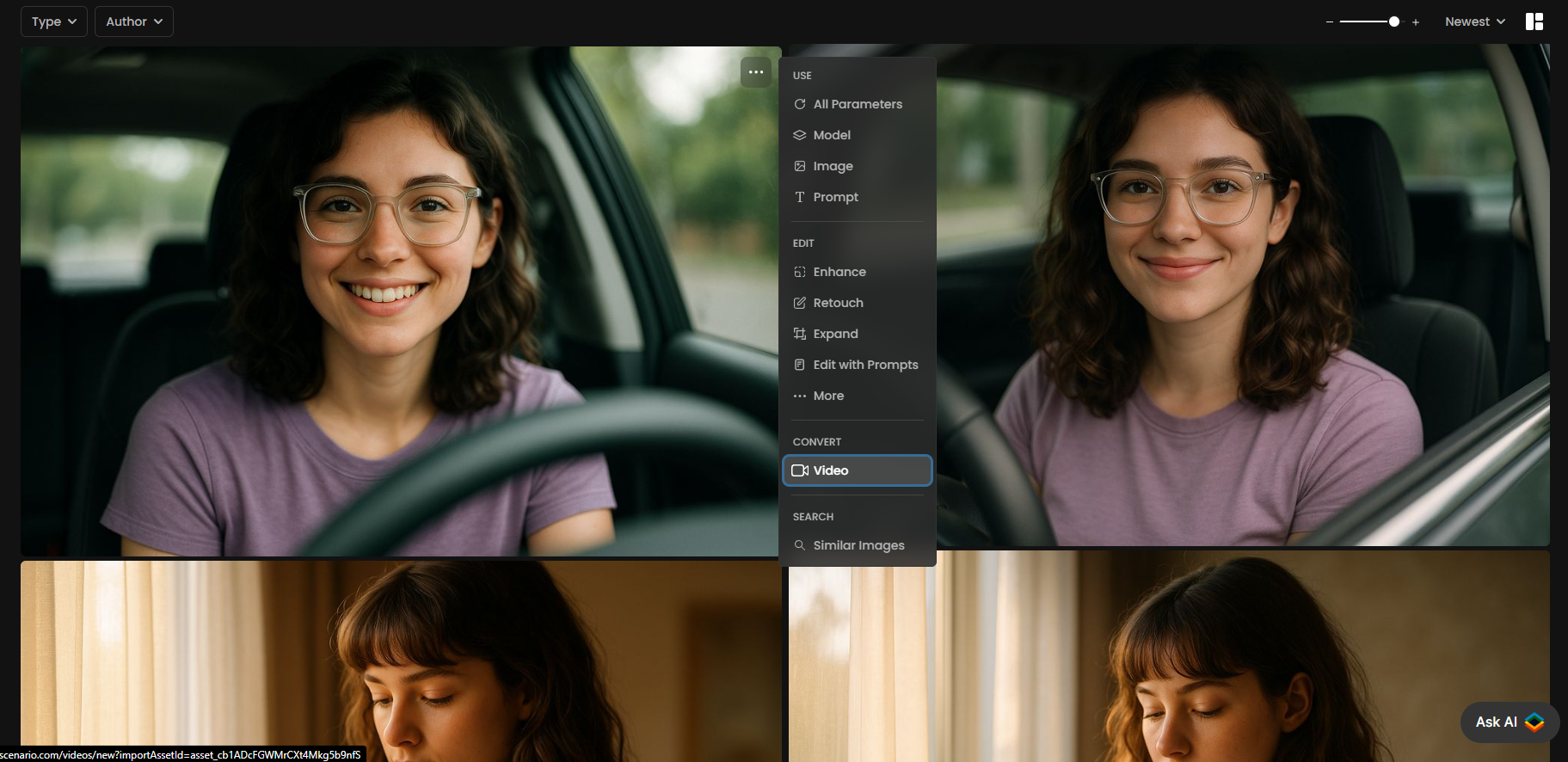
Use Edit with Prompts (Nano Banana/GPT/Flux Kontext) to create image variants that serve as start/end frames:
Generate a base image of your scene or character
Create variants using Edit with Prompts (e.g., change time of day, outfit, pose & more)
Use as start/end frames in video generation
Result: Smooth transitions between different states
The example below uses Edit with Prompts with the GPT model, but this same workflow works very well using the Nano Banana model.
Example: Generate the initial image of a character in its basic form. Then use Edit with Prompts and the GPT agent to gradually transform it into an upgraded or armored version. Use these as the start and end frames in Pixverse V5 to create a smooth character transformation sequence.
See the article explaining this workflow step by step: Generate Controlled Character Animations
Inpainting for Controlled Animation
Combine inpainting with video generation for precise control:
Create your base image
Use inpainting to modify specific elements or create space for movement
Generate video using the original and inpainted images as references
Result: Targeted animation of specific elements while maintaining overall composition
Example: Remove the boy from the scene, then add another character to replace him. Use both as reference frames to create a very controlled transition animation between the two.
Here is the generated video using the two images as the first and last frames:
Outpainting for Controlled Zooming in / out
Combine outpainting with video generation for precise control:
Create your base image
Use outpainting (Expand) to create more space around the character or a bigger scene. You can do several rounds of outpainting. You can edit details of the outpainted images to modify specific elements
The goal is to create more space for movement
Generate video using the original and outpainted images as references (as start/end frames depending on the situation)
Result: Targeted animation where the video will either zoom in or zoom out in a very controlled manner
Example: Generate a character image in a room, then use Expand (outpainting) to expand the view of the room. Use both as reference frames to create a natural zoom in from the expanded view to the original view.
Using Reference Guidance with Kling O1
The Kling O1 suite introduces advanced "Instruction-Based" workflows that use existing videos or static images to anchor the generation process. This is particularly useful for complex projects where you need to preserve motion or composition that standard generation might struggle to replicate.
Video-to-Video Editing (Kling O1 Video Editing)
Unlike standard text-to-video, this workflow allows you to edit an existing clip using natural-language instructions. It is ideal for "reskinning" content because it strictly retains the original motion structure while transforming specific subjects or settings.
Workflow Impact: You can change a character’s outfit or the entire environment while ensuring the character's movement remains exactly as it was in the original footage.
Image-to-Video Animation (Kling O1 Reference Images)
This model uses a static reference image to guide the generation, ensuring the resulting video remains faithful to the source.
Workflow Impact: It strictly preserves original composition, character details, and artistic style. This makes it a perfect companion for your Character LoRA images, as it brings them to life with realistic motion dynamics without causing visual drift.
Cinematic Continuity (Kling O1 Reference Video)
Powered by the Kling O1 Omni model, this tool generates new shots that are specifically guided by an input reference video.
Workflow Impact: The model analyzes the reference footage to preserve essential cinematic language, such as specific camera styles and motion dynamics. Use this to generate "B-roll" or extended scenes that match the exact look and flow of your primary footage.
Video-to-Training Data Pipeline
Use generated videos to create more training data:
Generate videos of your character or object from different angles
Extract a few key frames from the videos
Use these frames to train more robust LoRA models
Result: Enhanced LoRA models with better understanding of your subject from multiple angles
Example: Generate one or more videos where the camera slowly rotates around your character, or where the character shifts poses and expressions. These variations help capture multiple angles and can significantly improve your character LoRA’s consistency in generating side, back, and expressive views.
Below is an edition showing the two videos generated:
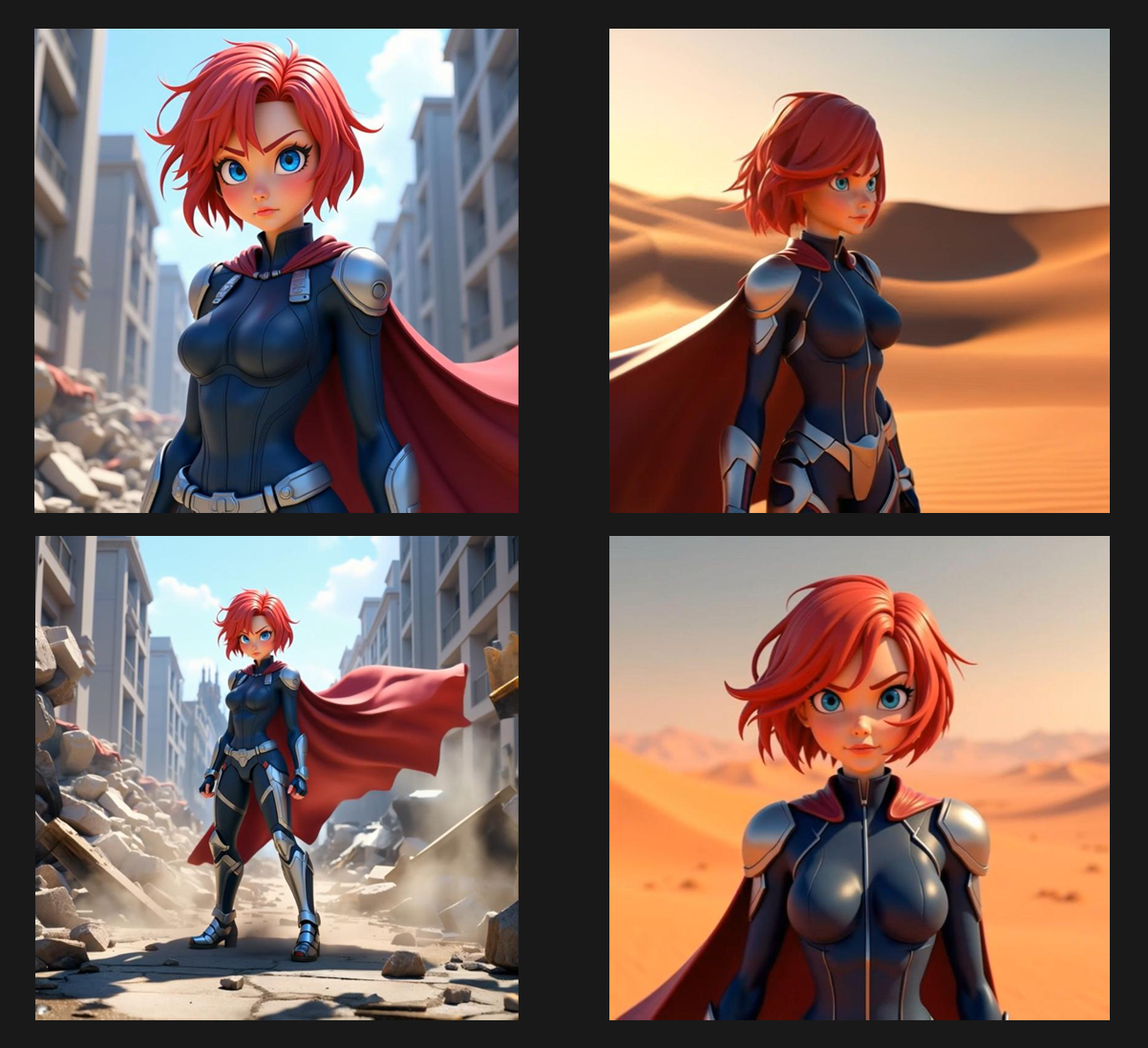
Here are four different images extracted from the video showing the character from different angles and with different expressions.
Data Management
Organize your video generation assets efficiently by using the Scenario tools available to manage data at scale especially in a multi-user setup.
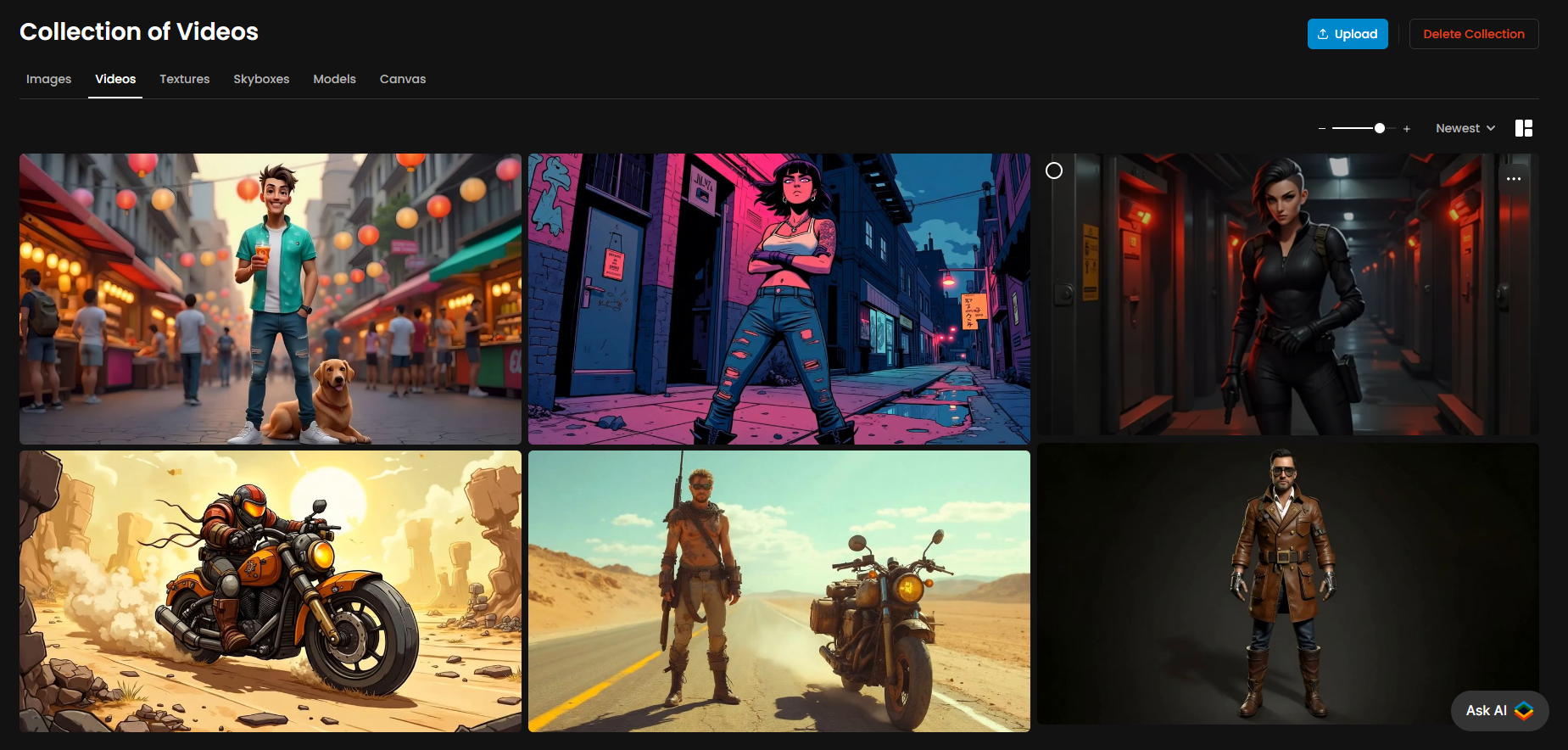
Collections: Group related videos by character, project, or theme
Tags: Apply consistent tags for model type, duration, and content. Easier to retrieve content faster
Search: Find videos quickly using Scenario's powerful search tools
Explore: You can parse previously generated video and use their settings, or input parameters to restart the generation or expand and continue the projects
Batch Processing for Content Series
Process multiple related videos efficiently in a consistent way:
For example, Generate a Collection of consistent character or environment images
Load them one by one in the video generation tool, and use the same video model for consistent results
Apply similar prompts across the collection
Result: A cohesive series of animations with consistent style and quality
Example: Generate 10 different character poses, add them to a Collection, and process them all with the same video model and motion parameters to create a library of consistent character animations.
Was this helpful?