
Introduction
AI video took a significant leap forward with the introduction of Kling O1, a groundbreaking unified multimodal video model developed by Kuaishou Technology. Positioned as the industry's first truly unified creation tool, Kling O1 is engineered on a sophisticated Multimodal Visual Language (MVL) framework that integrates text, images, and video into a single, powerful engine. This approach dismantles a traditionally fragmented workflows of video generation and editing, offering a cohesive, one-stop solution for creators across film, advertising, and social media.
One of the most significant advancements offered by Kling O1 is its ability to solve the long-standing "consistency challenge" of AI video generation. Through its advanced understanding of multimodal inputs, the model can maintain the identity of characters, objects, and scenes with remarkable fidelity across multiple shots and dynamic camera movements.
This article provides a comprehensive guide to its three core functionalities: Reference Images, Reference Video, and Video Editing. We explore how to leverage input images, input videos, and the revolutionary Elements system to unlock unprecedented creative control and produce professional-grade, consistent video content.
The Power of Multimodal Referencing
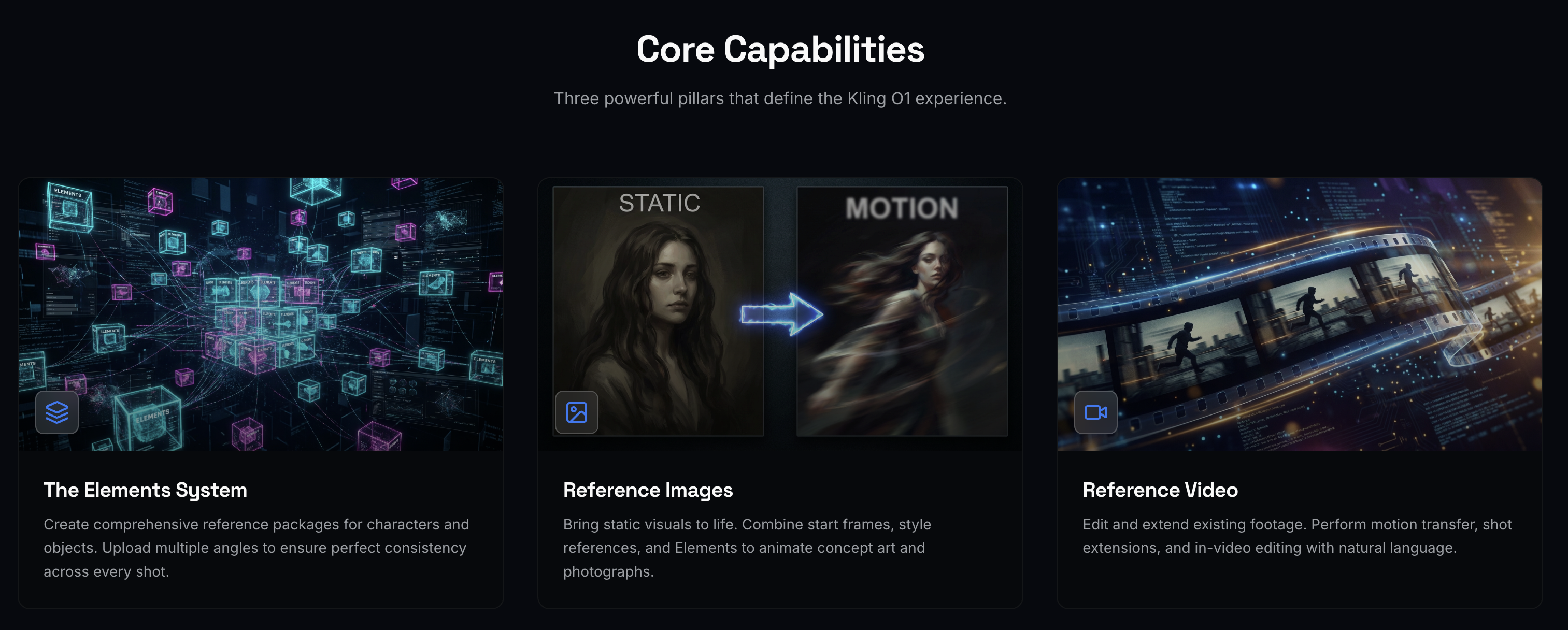
Kling O1's architecture is built to understand and synthesize information from various sources simultaneously. This allows creators to move beyond simple text-to-video generation and adopt a more nuanced, reference-driven workflow. The model can interpret complex prompts that combine textual descriptions with visual references from images and videos, giving it a director-like understanding of the user's intent [2].
There are three primary modes for reference-based generation within the Kling O1 interface, each tailored to a different creative need: Reference Images, Reference Video, and Video Editing.

This dual-mode approach provides the flexibility to either bring a static vision to life or to build upon and transform existing video footage.
Mastering the "Elements" System
The cornerstone of Kling O1's consistency is the Elements feature. An "Element" is a comprehensive reference package that you create to give the model a deeper, multi-angle understanding of a specific character, object, or prop. This is the key to ensuring that your subject looks the same as the camera moves and the scene changes.
How to Create and Use an Element
Creating an Element is a straightforward process within the user interface:
Navigate to the Element Section: In the generation panel, expand the "Element" section.
Add a Primary Image: This serves as the main, most representative image of your subject.
Add Additional Images: Upload 1-4 more images of the same subject from different angles (e.g., side view, back view, close-up). This gives the model a 3D-like understanding of the subject's appearance. You may re-use the Primary Image.
Reference in Prompt: To use the Element in your generation, you simply refer to it in your prompt using the syntax
@Element1,@Element2, and so on.
By using Elements, you are essentially providing the model with a detailed character sheet, which it can then animate while preserving its core features with industrial-grade consistency [5].
O1 Reference Images: Bringing Stills to Life
The “Reference Images“ mode is designed for generating video from one or more static images. It is the prefered choice for animating concept art, turning a photograph into a cinematic clip, or creating a scene by combining multiple visual elements.
Workflow and Capabilities
In this mode, you can combine up to seven image-based inputs. This includes any combination of a Start Frame, individual Reference Images, and multi-image Elements.
Start Frame: Use a single image as the first frame of the video. The model will animate from this starting point based on your prompt.
Reference Images: Provide additional images for style, appearance, or background elements. These are referenced in your prompt as
@Image1,@Image2, etc.Elements: Use the multi-angle Elements you've created for your main characters or objects to ensure they remain consistent throughout the animation.
Example Prompt Structure:
A cinematic tracking shot of @Element1 walking through a futuristic city. The style should be inspired by @Image1, with neon lights and a rainy atmosphere.
This prompt instructs the model to animate the character defined in Element1, placing them in an environment whose style is dictated by Image1.
Epic aerial shot of @Element1 soaring through the clouds above the mountains. The dragon flaps its wings powerfully. The lighting is golden and dramatic, matching the mood of @Image1. Cinematic composition
O1 Reference Video: Editing & Extending Footage
The Reference Video mode unlocks powerful video-to-video capabilities, allowing you to edit, transform, and extend existing video clips. This mode is perfect for post-production tasks, creating sequential shots, or transferring motion from one clip to another.
Workflow and Capabilities
The primary input is a reference video between 3 and 10 seconds long. You can combine this with up to four image-based inputs (Reference Images or Elements) to perform complex modifications.
Key features of this mode include:
Shot Extension: Generate the next or previous shot in a sequence. For example, after uploading a video of a character walking to a door, you can prompt:
Based on @Video, generate the next shot: the character opens the door and walks inside.Motion Transfer: Apply the camera movement or a character's action from the reference video to a new scene. For instance, you can take the camera motion from a drone shot and apply it to a new character or environment defined by an Element or Image.
In-Video Editing: Use natural language to modify the content of the video. This includes adding or removing objects, changing the background, altering clothing, or even changing the time of day. For example:
In @Video, change the red car to a blue car.Keep Audio: The interface provides a simple toggle to preserve the audio from the original reference video, which is essential for tasks like dialogue scenes or music-driven edits.
Example Prompt Structure:
Using the camera motion from @Video, create a new shot featuring @Element1. The background should be a desert landscape like in @Image1.
This powerful combination allows you to direct the AI with a high degree of precision, blending motion from one source with characters and environments from others.
O1 Video Editing: Transforming Content
The Video Editing mode is distinct from Reference Video in that it focuses on modifying the content of the input video itself, rather than generating a new shot based on it. This is true "in-painting" or "video-to-video editing" where the structure of the original video is largely preserved, but specific details are changed.
Context-Aware Transformation Without Masking
Kling O1 Edit operates on a fundamentally different approach than traditional frame-by-frame editing tools. Instead of requiring manual masking and frame-level adjustments, it understands the entire motion structure of your input video and applies transformations that respect camera angles, movement patterns, and spatial relationships. This allows for natural language control over complex edits.
Workflow and Capabilities
Similar to Reference Video, this mode takes a 3-10 second input video (supporting formats like .mp4, .mov, .webm, .m4v, .gif) and supports up to four image-based inputs. Key features of this mode include:
Multi-Reference Editing: Combine up to 4 total elements and reference images in a single transformation. This enables complex character swaps where you can replace a subject with a specific @Element1 while simultaneously transforming the environment to match @Image1.
Motion Preservation: Original camera movements and subject motion remain intact while subjects, settings, and visual style transform according to your prompt.
Natural Language Control: Direct the edit through conversational instructions rather than technical parameters.
Audio Preservation: You can choose to keep the original audio from your source video or generate silent output through the keep_audio parameter.
Example Prompt Structure:
Replace the character with @Element1, maintaining the same movements and camera angles. Transform the landscape into @Image1.
Or for style transfer:
Transform @Video into a claymation style animation.
In @Video, change the season to winter. The grass should be covered in thick white snow, and snowflakes should be falling. Keep the dog and its motion exactly the same, but change the lighting to a cool, overcast winter day
Comparison with Other Models
vs. Sora 2 Video to Video: Kling O1 Edit prioritizes multi-reference element control with up to 4 combined inputs for complex character and environment transformations. Sora 2's remix capabilities emphasize broader creative reinterpretation and style transfer across longer video durations.
vs. Wan Video to Video: Kling O1 Edit's natural language interface eliminates technical parameter tuning, making it accessible for creators who want direct prompt-based control. Wan's video-to-video endpoint offers granular parameter control for users who need precise technical adjustments.
Conclusion
Kling O1 represents a paradigm shift in AI video creation, moving beyond simple generation to offer a unified, multimodal editing and creation suite.
The Reference Images and Reference Video modes, powered by the intelligent Elements system, provide creators with an unprecedented level of control over consistency, motion, and style.
By mastering these reference-based workflows, filmmakers, advertisers, and content creators can significantly streamline their production pipelines, reduce costs, and bring their creative visions to life with a fidelity and coherence that was previously unattainable in the realm of generative AI.
References
[2] Higgsfield AI. (2025). Kling O1 is Here: A Complete Guide to Video & Edit Model. Retrieved from https://higgsfield.ai/blog/Kling-01-is-Here-A-Complete-Guide-to-Video-Model
[3] Zhang, J. (2025). Kling O1 in ComfyUI: The Video Editing Era. Retrieved from https://blog.comfy.org/p/kling-o1-in-comfyui-the-video-editing
[4] Kuaishou Technology. (2025). KLING VIDEO O1 User Guide. Retrieved from https://app.klingai.com/global/quickstart/klingai-video-o1-user-guide
[5] PR Newswire. (2025). Kling O1 Launches as the World's First Unified Multimodal Video Model. Retrieved from https://www.prnewswire.com/news-releases/kling-o1-launches-as-the-worlds-first-unified-multimodal-video-model-302630630.html
Was this helpful?