
The Photoroom suite brings a collection of specialized AI tools to your workflow, allowing you to refine lighting, remove text, and extend your visuals beyond their original boundaries. These tools are designed to streamline post-production, whether you are fixing a cropped subject or preparing assets for social media.
Photoroom Expand
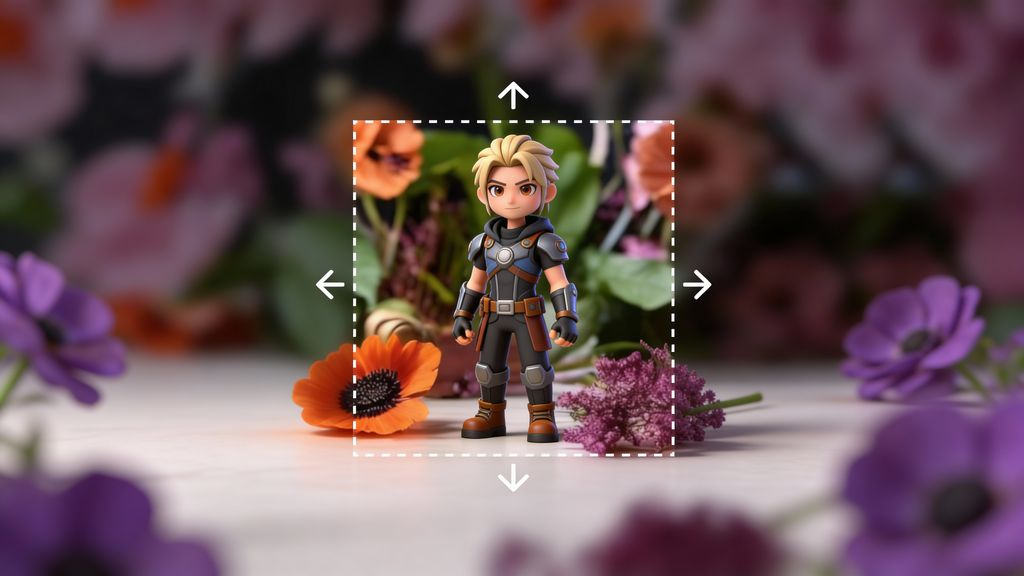
Photoroom Expand (also known as AI Expand) uses outpainting technology to intelligently grow your image's background. This is ideal for changing aspect ratios, such as turning a square product shot into a landscape banner, without stretching or distorting the original content.
How it works: When you resize your image to a larger dimension, the AI analyzes the existing scene and "draws" additional background to fill the empty space.
Key Feature – Variations: After expanding, you can generate multiple "Variations" to choose the background extension that best fits your vision.
Best For: Repurposing content for different social media platforms (e.g., converting a post into a Story).
Try it: https://app.scenario.com/models/model_photoroom-expand
Photoroom Text Remover

The Text Remover is a tool for cleaning up visuals. It identifies and erases text overlays, logos, or date stamps while seamlessly reconstructing the background behind them.
How to use: To remove text from the input image, set the argument
Text Removal Modewith one of the following values:Artificial: artificial text will be automatically removed. Artificial text includes all text added on an image through post-precessing, such as company name, watermarks, discounts, etc.Natural: natural text will be automatically removed. Natural text includes text that naturally occurs in an image such as writing on buildings or clothings, road signs, etc.All: all text (natural and artificial) will be automatically removed.
Best For: Removing watermarks, clearing distracting labels from product shots, or cleaning up street signs in environmental renders.
Try it: https://app.scenario.com/models/model_photoroom-text-remover
Photoroom Relighting
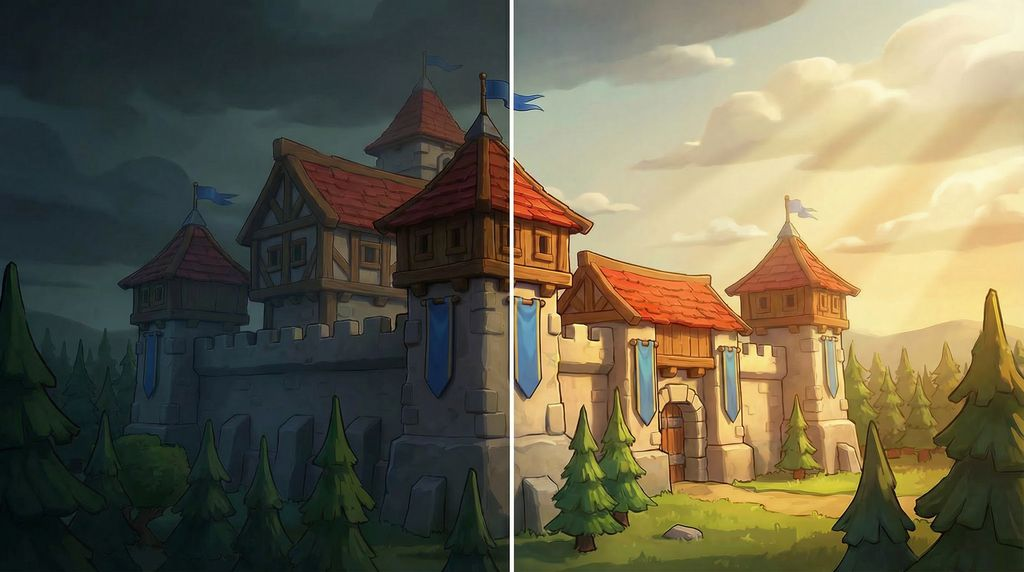
Relighting allows you to adjust the lighting conditions of your image after it has been generated. It can correct exposure issues or change the "mood" of a scene by simulating new light sources.
Lighting Modes:
AI Auto: Automatically balances the light for the best visual result.
Preserve Hue and Saturation: Adjusts brightness while keeping colors strictly accurate—essential for maintaining brand consistency in product photography.
Best For: Fixing under-exposed images or ensuring a subject matches the lighting of a new background.
Try it: https://app.scenario.com/models/model_photoroom-relighting
Photoroom Uncrop
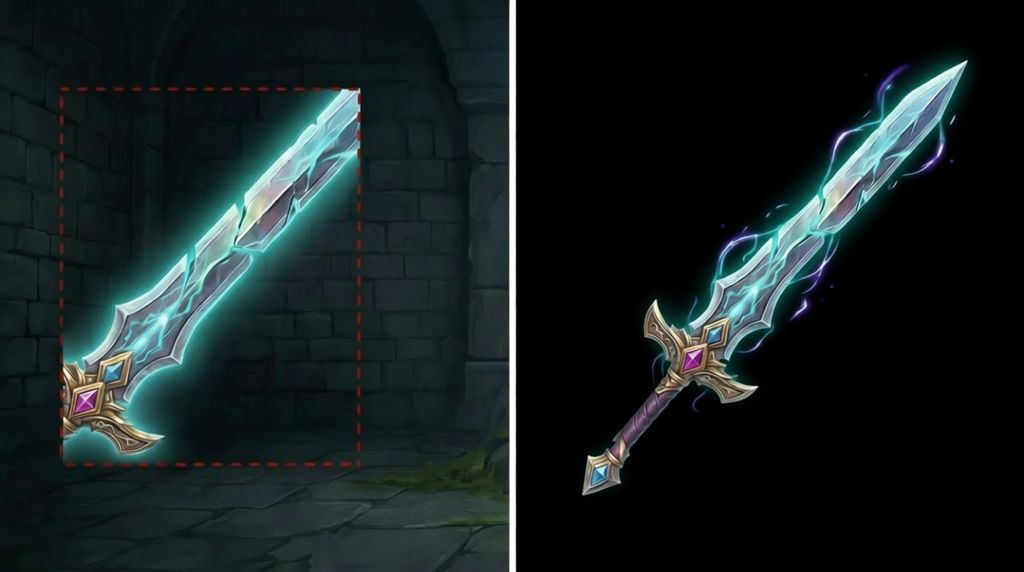
While Expand focuses on the background, Uncrop is specialized for the main subject. If a character’s arm or a product’s edge was clipped by the frame during generation, Uncrop reconstructs those missing parts.
Distinction: Unlike Expand, Uncrop requires background removal to focus specifically on the subject's form. It uses generative AI to "guess" and draw the missing limbs or pieces of an object.
Best For: Saving "near-perfect" generations where the subject was accidentally cut off at the edge of the frame.
Try it: https://app.scenario.com/models/model_photoroom-uncrop
Photoroom Background Removal
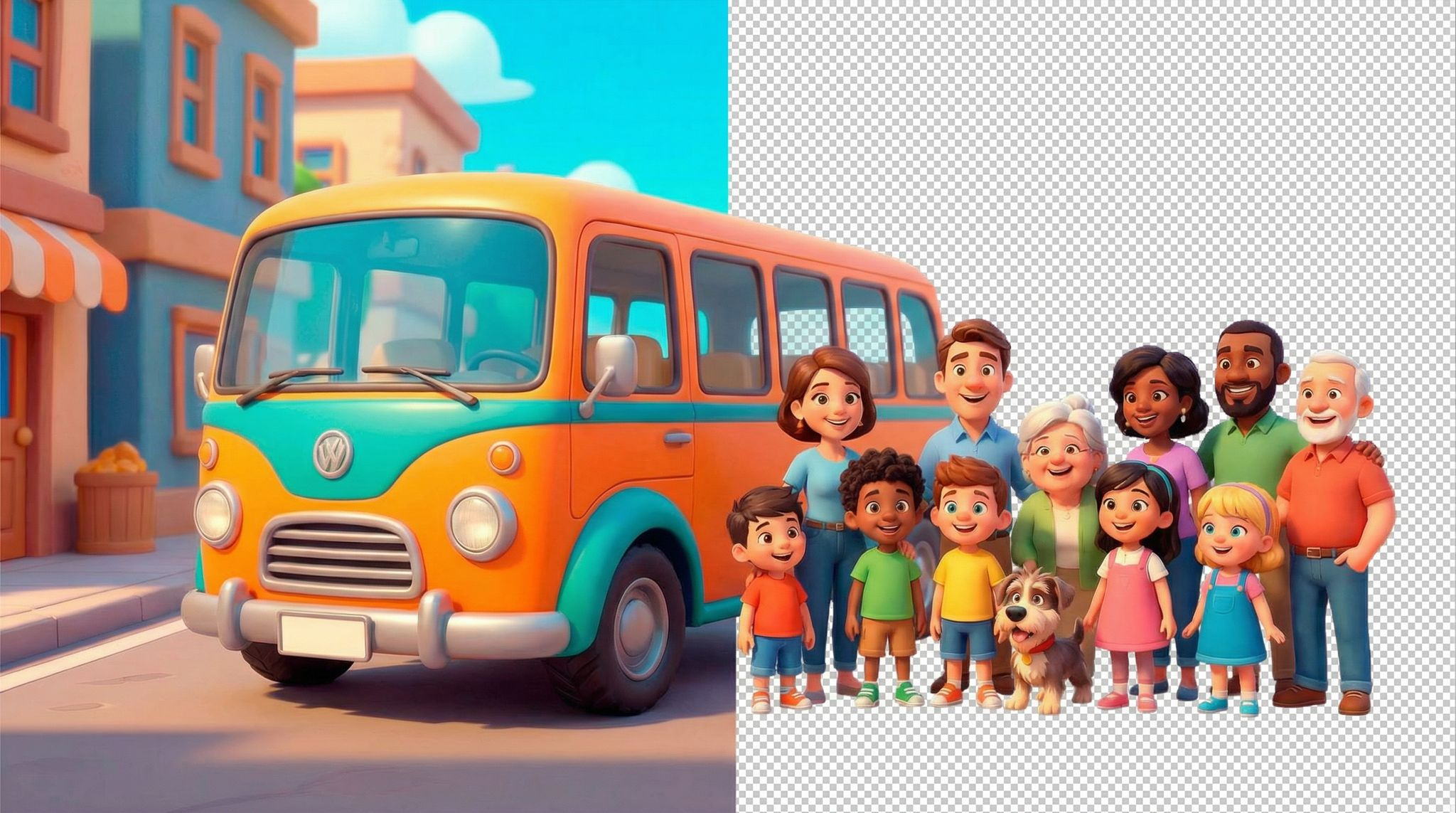
Instantly isolate a subject from its surroundings.
How it works: The AI identifies the primary subject and automatically creates a precise alpha mask, removing the background in milliseconds.
The Shadow Mode parameter (
shadow.mode) is a feature available within the Photoroom Image Editing API (Plus Plan). It allows you to automatically generate realistic, AI-powered shadows for your subject after the background has been removed.Using this parameter ensures your subject looks "grounded" and natural rather than appearing to float on the new background or solid color:
Soft: Generates a subtle, diffused shadow with soft edges. Professional product photography, e-commerce, and lifestyle shots.Hard: Generates a crisp, darker shadow with more defined edges. Dramatic lighting effects or simulating direct sunlight.None: Places a shadow directly underneath the object, disconnected from the base. Creating a "hover" or "3D" effect, common for footwear or electronics.
Best For: Creating "transparent" PNG assets for game UI, web design, or preparing product photos for marketplace compliance.
Try it: https://app.scenario.com/models/model_photoroom-background-removal
Photoroom Background Replacer
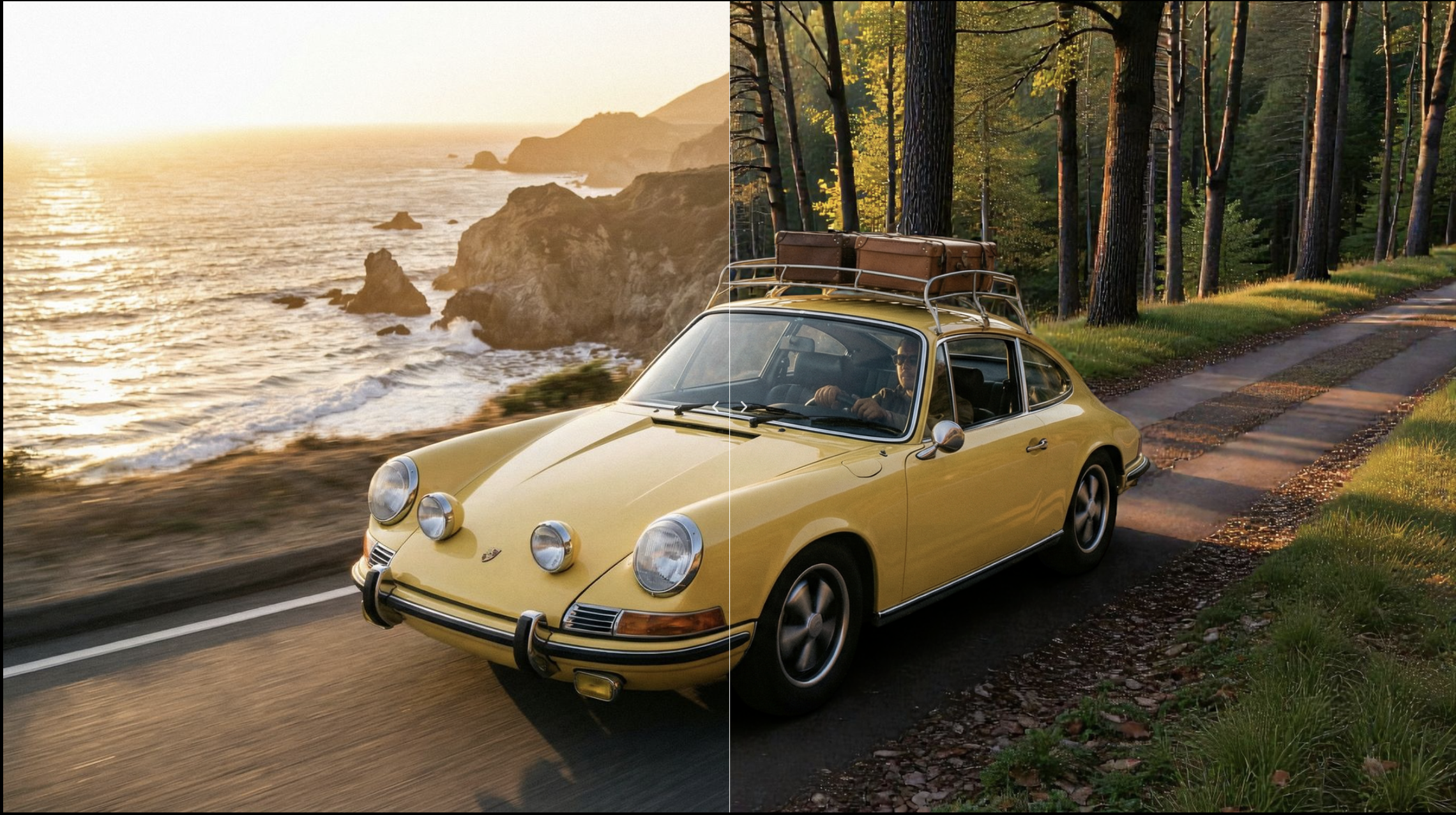
The AI Backgrounds tool uses generative AI to create contextually relevant, professional-grade scenes around your subject. Unlike a static background swap, this tool analyzes your subject’s shape and lighting to generate a cohesive environment from scratch.
Core Capabilities
Text-to-Image: Describe your ideal setting (e.g., "on a wooden table with soft sunlight") to generate a unique background.
Image Prompting (Guidance): You can provide a Guidance Image (reference image) to dictate the composition, colors, or style of the generated background.
Static Background Replacement
You can use Static Backgrounds for simpler requirements:
Image: Places your subject directly onto a pre-existing image file without any generative changes.
Try it: https://app.scenario.com/models/model_photoroom-background-replacer
Access These Features Via API
If you are building automated workflows, these tools are available via the Scenario API
Was this helpful?