
Deep Dive: Using Scenario Apps for E-commerce
Scenario Apps provide essential tools for e-commerce businesses to create compelling product visuals, enhance marketing materials, and streamline content creation. These pre-configured workflows allow users to generate professional-quality images for online stores and promotional campaigns without the need for complex software or extensive photoshoots. This article explores the key Apps in the E-commerce category.
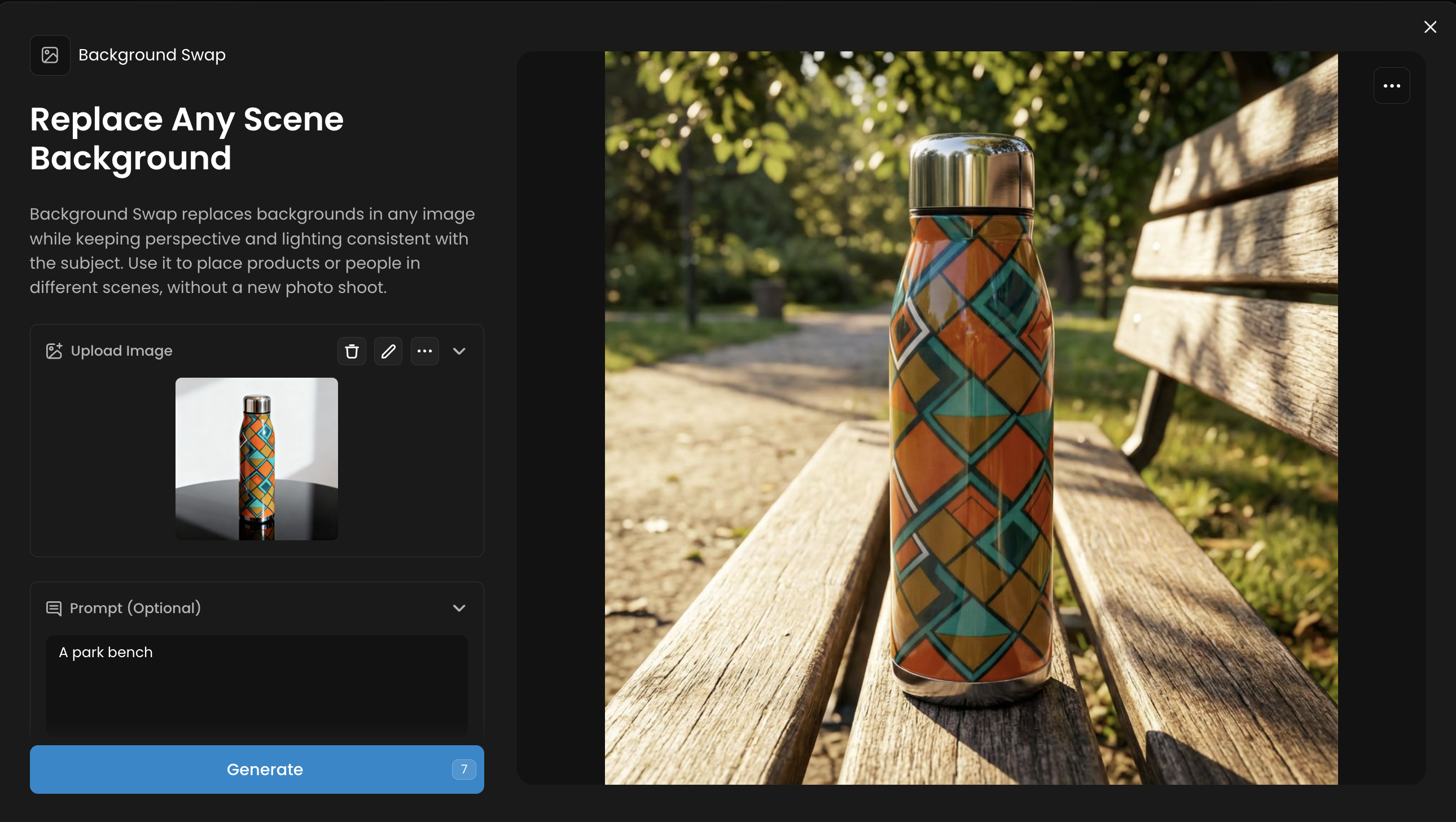
Background Swap
Core Function: Replace Any Scene Background
Background Swap replaces backgrounds in any image while keeping perspective and lighting consistent with the subject. Use it to place products or people in different scenes, without a new photo shoot.
Workflow: Upload an image with a subject and use a text prompt to describe the new background (e.g., "a clean white studio background," "a rustic wooden table"). The App seamlessly replaces the background.
Pro-Tip: This is perfect for creating a consistent look across all your product photos. Use the same background prompt for every product.
Use Case Example: Take photos of your products anywhere and then use Background Swap to place them all on a professional, uniform background for your store.
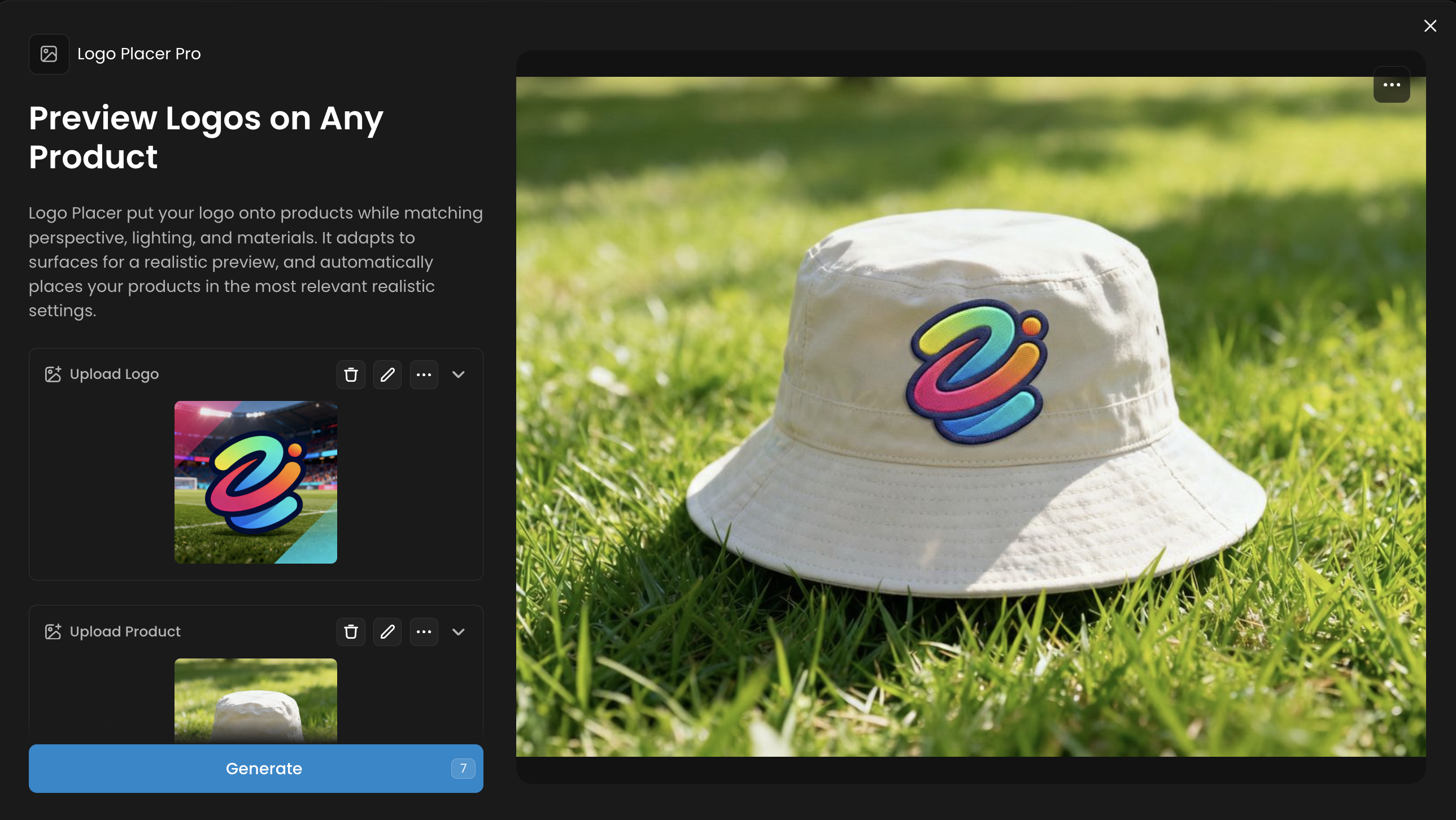
Logo Placer Pro
Core Function: Preview Logos on Any Product
Logo Placer put your logo onto products while matching perspective, lighting, and materials. It adapts to surfaces for a realistic preview, and automatically places your products in the most relevant realistic settings.
Workflow: Upload your logo and a product image. The App automatically places the logo on the product, matching perspective and lighting for a realistic mockup.
Pro-Tip: Use a high-resolution logo with a transparent background (PNG) for the cleanest results. The App works best on well-lit product photos.
Use Case Example: Generate a full catalog of branded merchandise (t-shirts, mugs, hats) for an online store without producing physical samples.
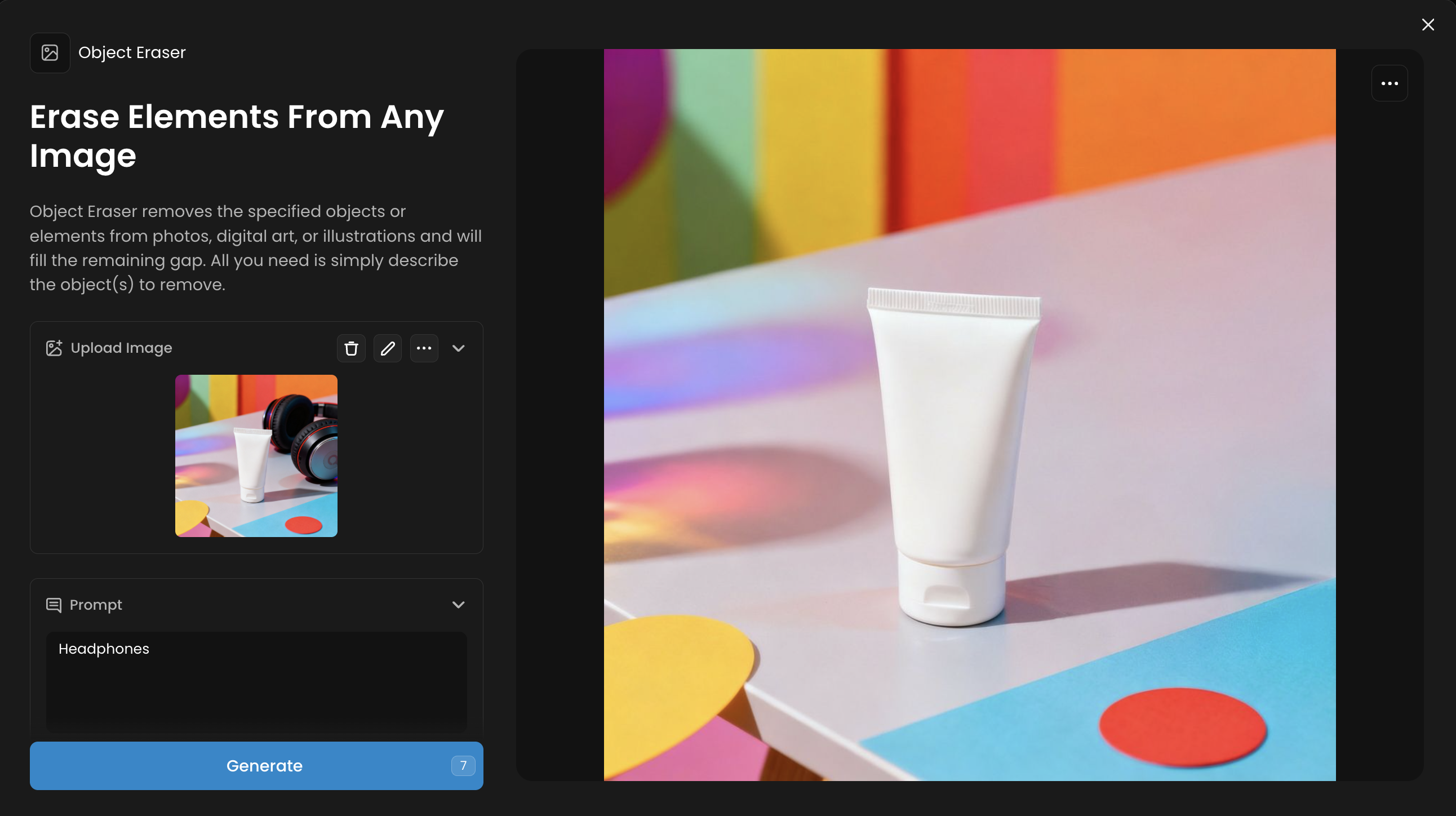
Object Eraser
Core Function: Erase Elements From Any Image
Object Eraser removes the specified objects or elements from photos, digital art, or illustrations and will fill the remaining gap. All you need is simply describe the object(s) to remove.
Workflow: Upload a product photo and use a text prompt to describe the object you want to remove (e.g., "remove the price tag," "erase the distracting reflection").
Pro-Tip: Be specific in your prompt. Instead of "remove the spot," try "remove the small dark spot on the left side."
Use Case Example: Clean up user-generated photos of your product for use in marketing materials by removing any distracting elements in the background.
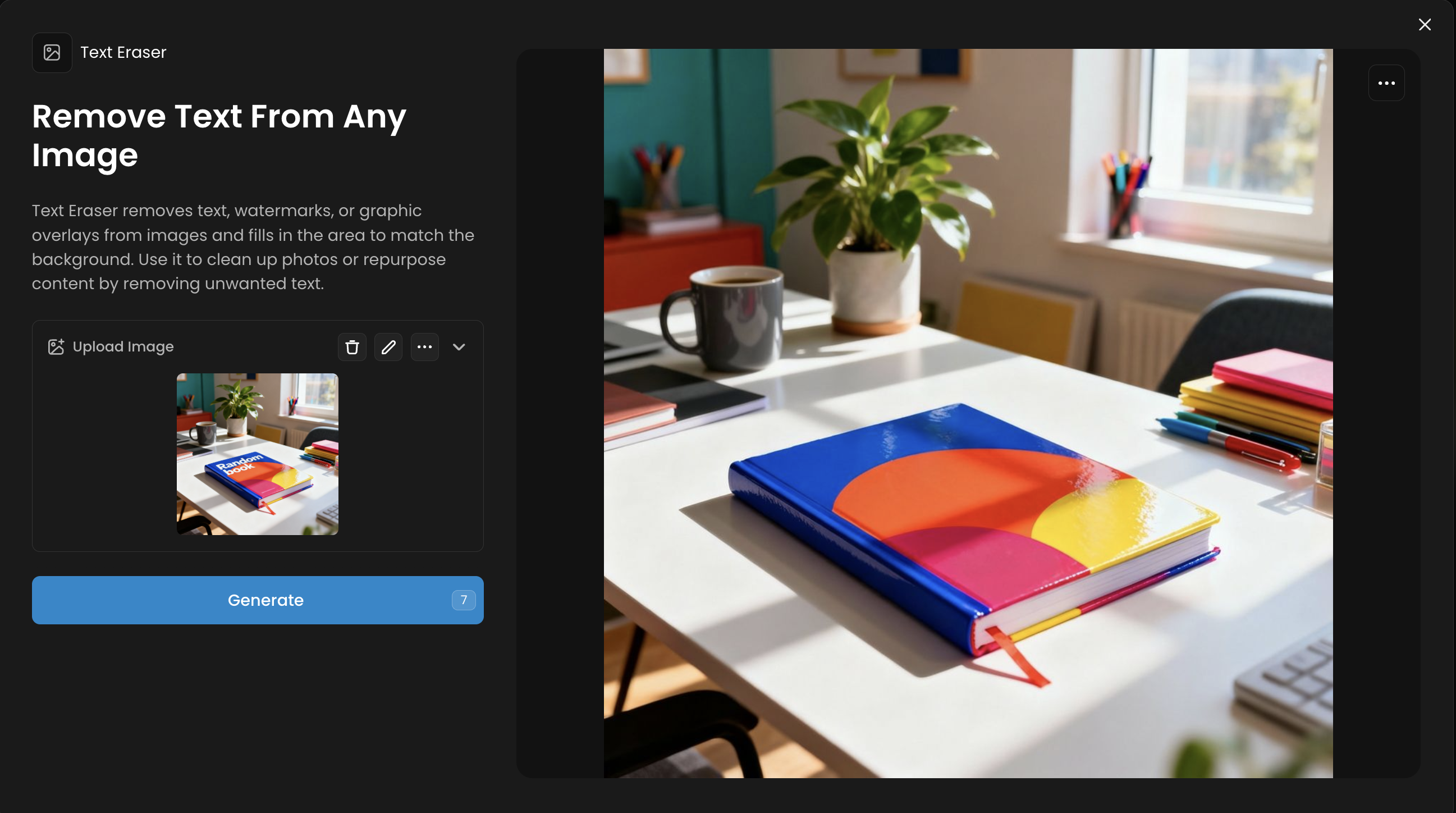
Text Eraser
Core Function: Remove Text From Any Image
Text Eraser removes text, watermarks, or graphic overlays from images and fills in the area to match the background. Use it to clean up photos or repurpose content by removing unwanted text.
Workflow: Upload an image containing text you want to remove. The App automatically detects and removes the text, filling in the background seamlessly.
Pro-Tip: This is incredibly useful for repurposing images that have text overlays, such as supplier photos with watermarks or labels.
Use Case Example: Remove the branding from a stock photo to create a generic lifestyle image for your product.
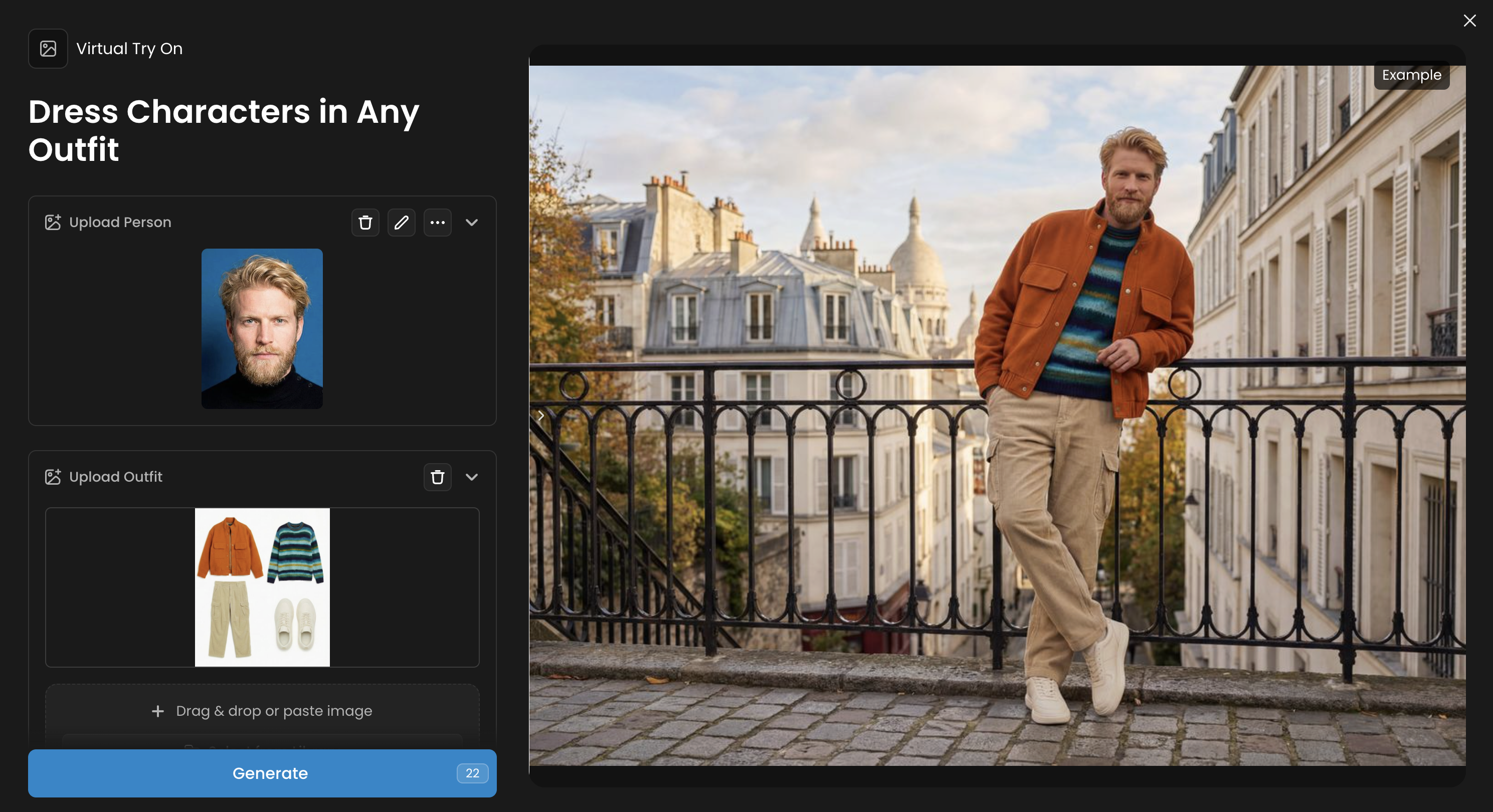
Virtual Try On
Core Function: Dress Characters in Any Outfit
Virtual Try On puts any clothing onto any character. Upload a character photo (portrait or full body) and clothing images, and the AI dresses your character in that outfit with realistic fit and draping, on the same background, on a white background or in a set up that you can define
Workflow: Upload a photo of a model and an image of a clothing item. The App realistically dresses the model in the outfit, adjusting for fit and drape.
Pro-Tip: For best results, use a model in a neutral pose and clothing items on a clean, contrasting background.
Use Case Example: Create an interactive virtual dressing room on your product page, allowing customers to see how different items look on a model.
Was this helpful?