
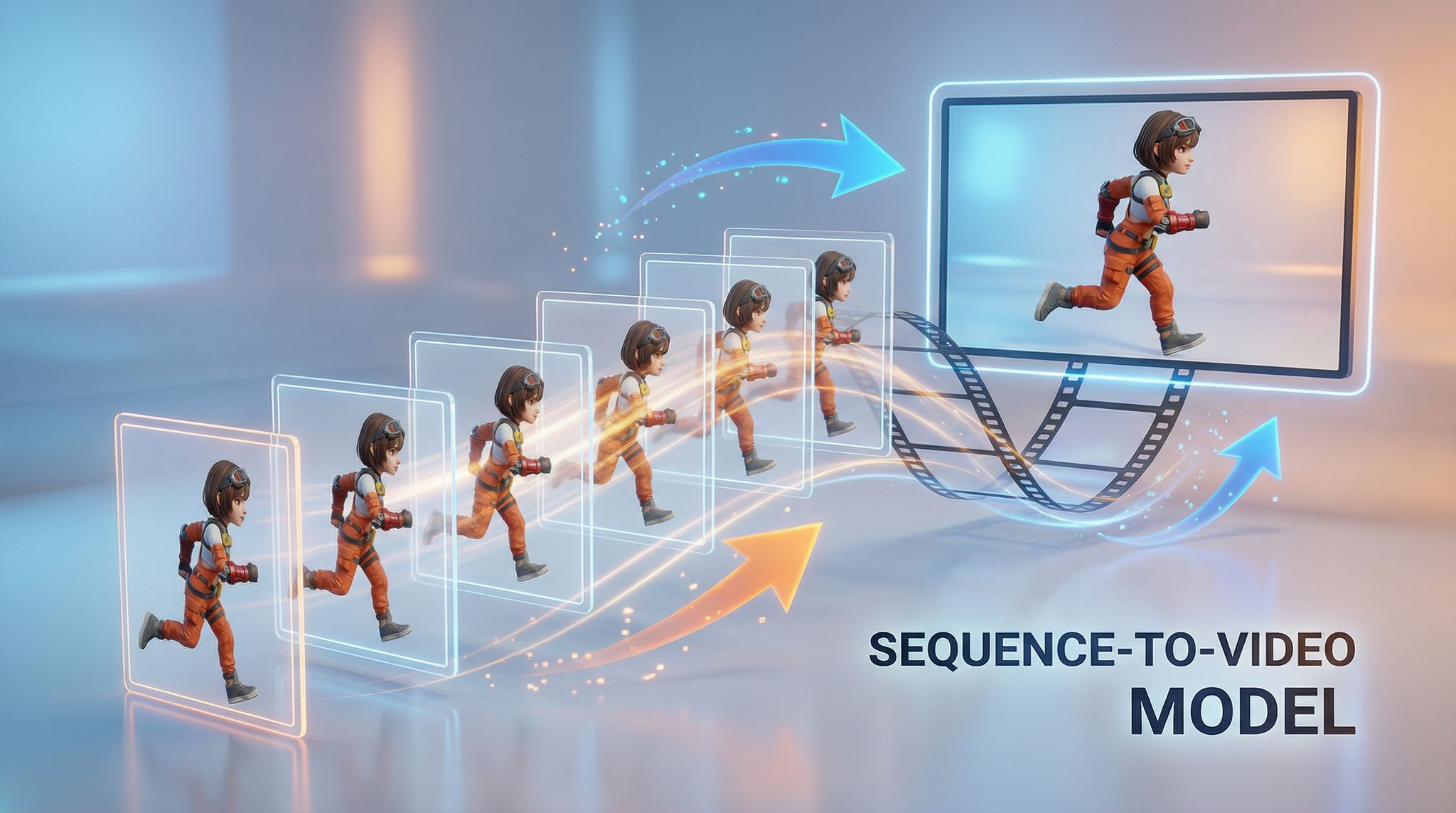
What is Sequence to Video?
Sequence‑to‑Video converts a series of images into a single MP4 or GIF file. It’s ideal for turning character poses, product shots or other sequences into a smooth animation. You can choose the frame rate, which determines how many images appear per second, so you can control the speed and feel of your final video. We also provide an option to loop the sequence multiple times and to add audio tracks with automatic trimming or looping to match the video length.
How to Use Sequence to Video
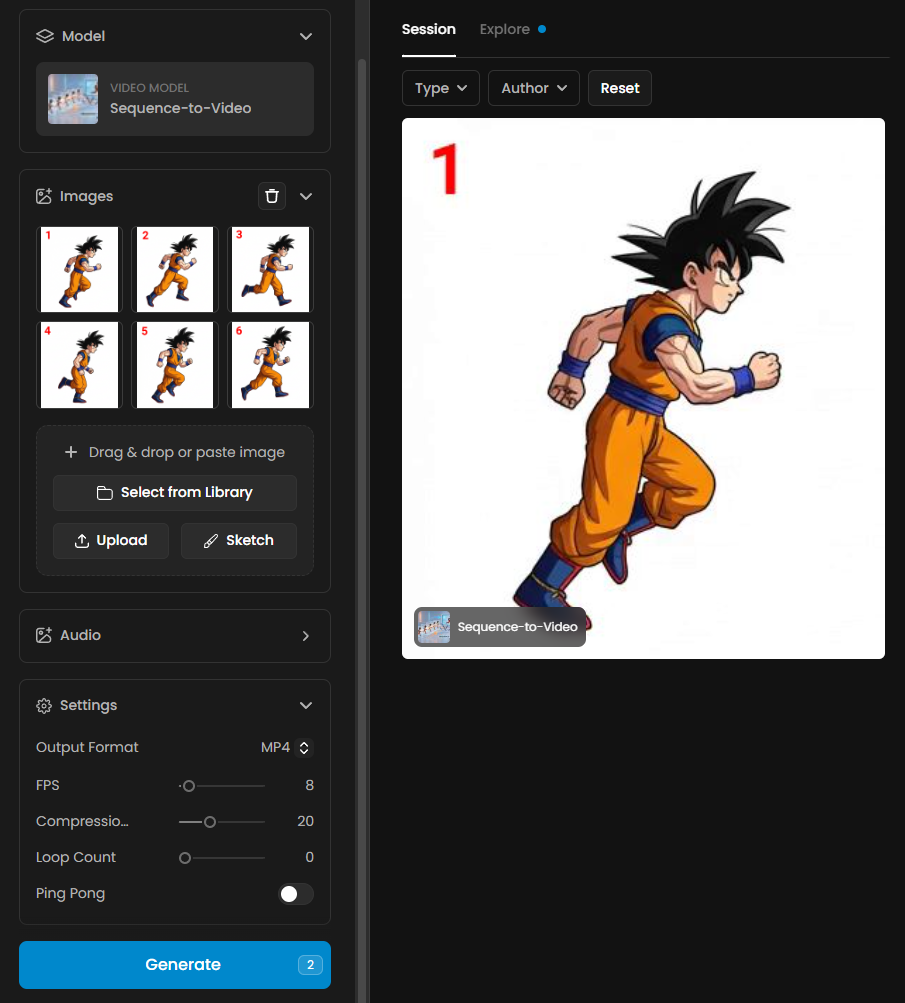
Upload your frames – open the Sequence‑to‑Video tool and select the ordered images you want to combine.
Choose the frame rate – set how many frames are displayed per second. Higher frame rates produce smoother playback but require more images, while lower rates create a choppier, slow‑motion effect.
Select the output format – select MP4 or GIF output format.
Compression - Sets the compression quality of the video. Lower values result in higher quality video but larger file sizes.
Configure looping and playback – specify whether the sequence should loop continuously or a fixed number of times. You can also choose a ping‑pong effect (playing forward then backward) for more dynamic loops.
Add audio - You can add audio to enhance the quality and immersion of your video. Audio only works when generating videos in MP4 format.
Generate and download – review your settings and click Generate. You can preview the result and download it or keep it into your assets library.
Tips & Best Practices
Plan the number of frames. Decide on the desired video duration and frame rate ahead of time. For example, at 24 fps, 120 images will make a five‑second clip.
Organise your images. Upload your frames in the correct order.
Looping variations. Use multiple loops or ping‑pong playback for character poses or motion previews. Adding subtle motion to still images keeps viewers engaged.
Practical Examples
1. Creating an Animation from Image Sequences
Description
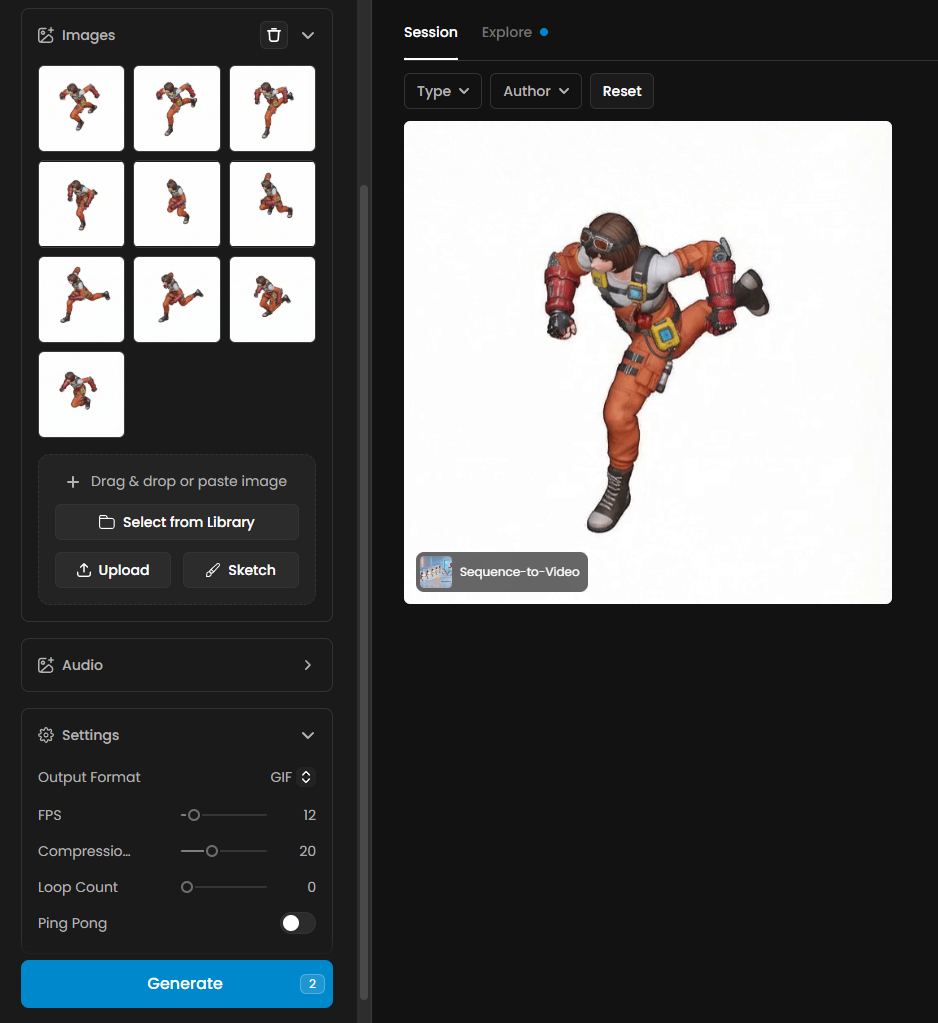
This example demonstrates how the Sequence to Video model converts a set of ordered frames into a playable animation. By importing a sequence of character poses, the tool assembles them into a smooth motion loop. This workflow is ideal for transforming sprite sequences into GIFs or short previews used in prototyping, presentations or game development.
Details and Settings Used
Output Format: GIF
FPS: 12
Compression: 20
Loop Count: 0
Ping Pong: Disabled
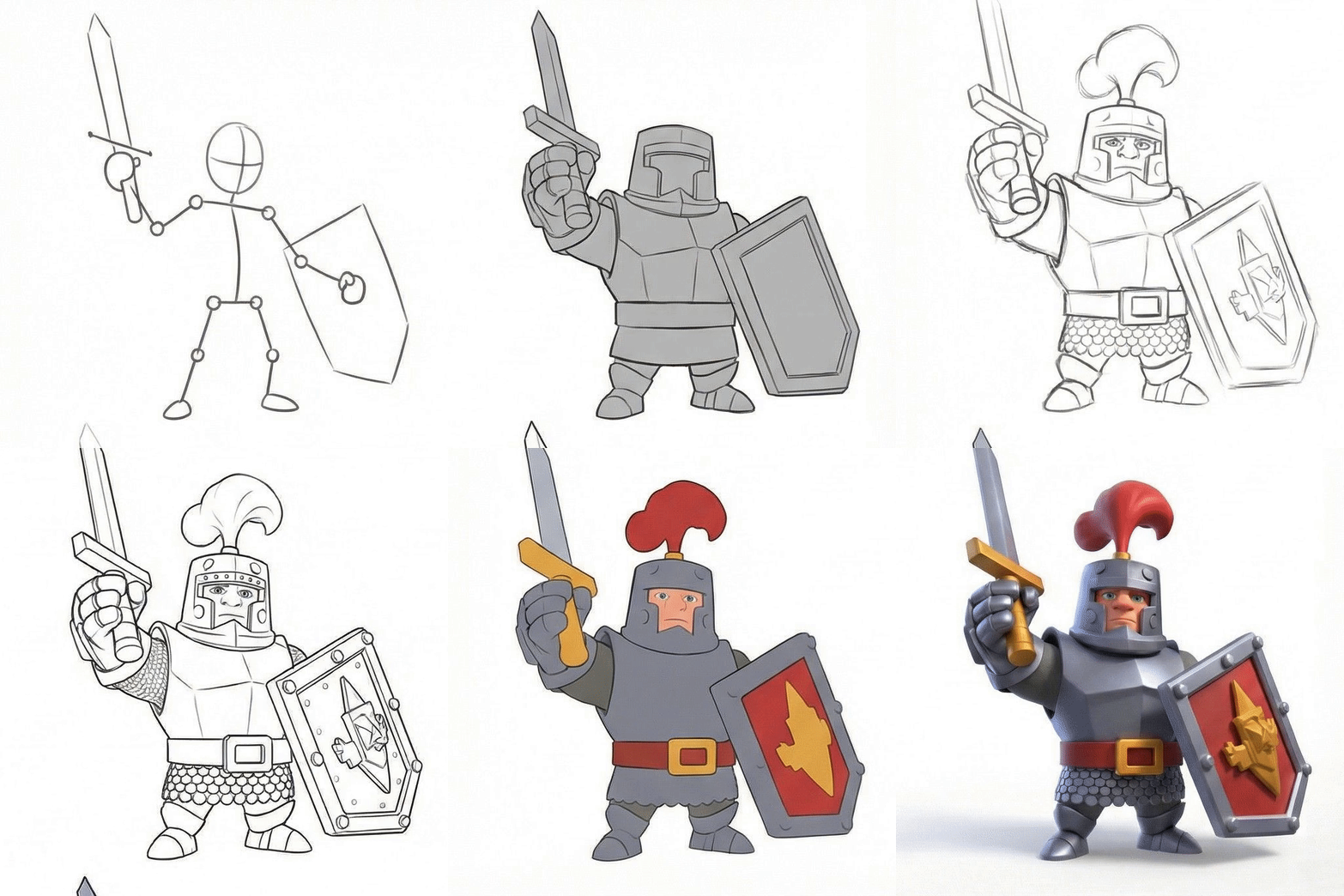
2. Drawing Evolution Sequence
Description
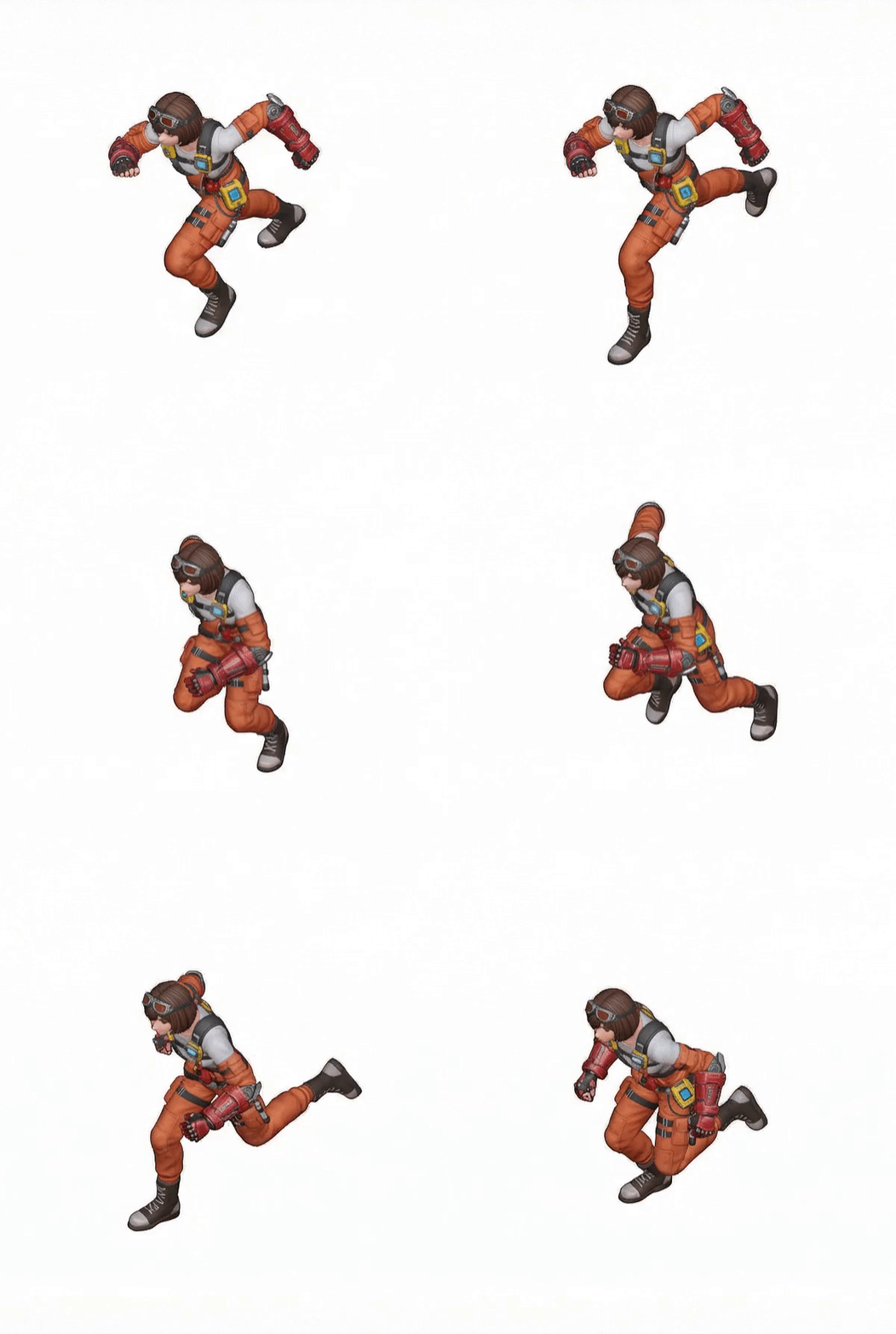
This example shows a progressive sequence illustrating the evolution of a drawing, from rough sketch to a fully rendered character. The model compiles each stage into a short animated loop, allowing a clear visualization of the artistic process. This is useful for tutorials, showcases, or documenting a character’s development.
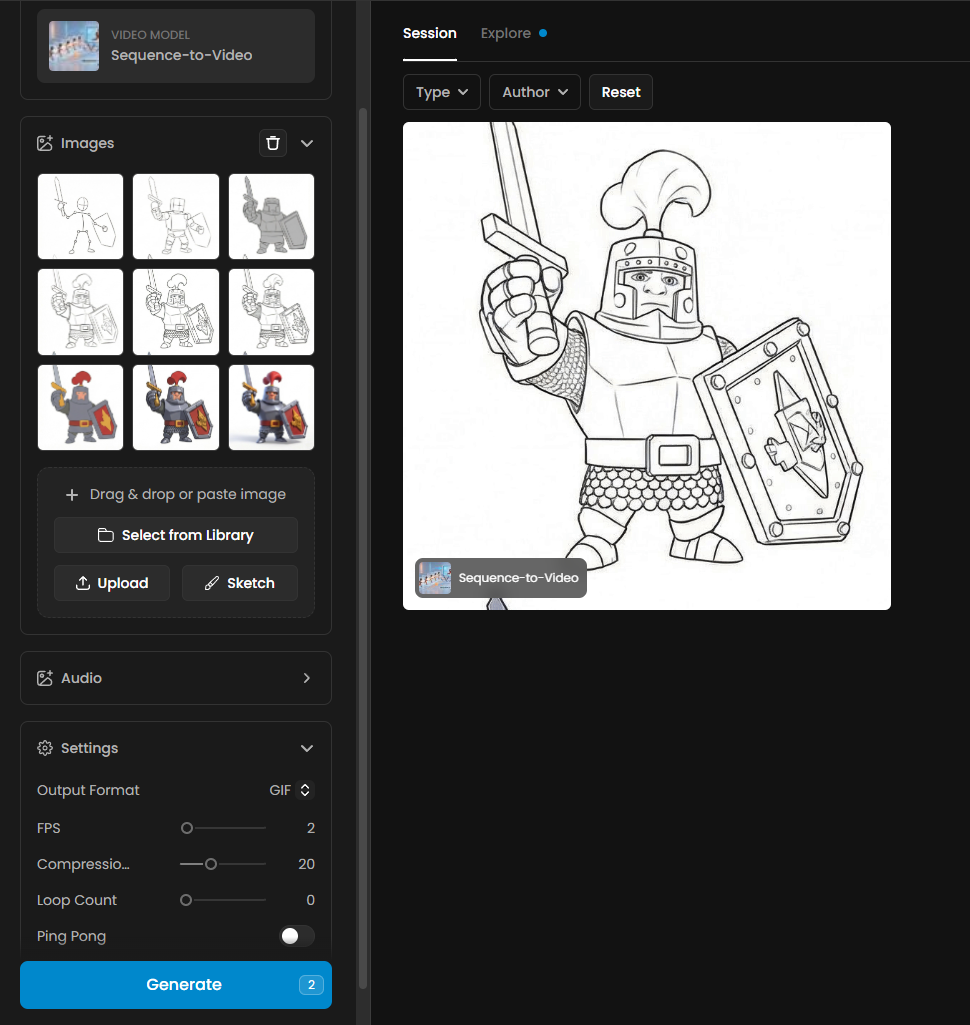
Details and Settings Used
Output Format: GIF
FPS: 2
Compression: 20
Loop Count: 0
Ping Pong: Disabled
Was this helpful?