Skyboxes Basics
Last updated: October 6, 2026
Introducing Skyboxes
Skyboxes are a powerful tool for creating immersive 3D environments, functioning as a 360-degree backdrop that surrounds your scene. Whether designing for games, VR experiences, or virtual tours, skyboxes create the illusion of a vast environment without requiring complex geometry or heavy rendering resources.

Skybox Models
Scenario offers two text-to-skybox generators and a few companion models. Scenario Skybox Flux.1 generates stylized 360 panoramas from a prompt and a preset style. Scenario Skybox GPT generates highly detailed, prompt-faithful panoramas at the size and layout you choose. HY World: Image to Skybox extends a single photo into a panorama, Scenario Skybox Upscale enhances a skybox to high resolution, and HDRi Skybox converts a finished skybox into an HDR environment map. Every generator outputs a seamless equirectangular image (2:1) that wraps around the viewer without a visible seam.
Which Model Should I Use?
Model | Model ID | Input | Best for |
|---|---|---|---|
| Text prompt (optional reference image) | Stylized skyboxes: pick one of 21 preset art styles, explore up to 4 variations per run, then enhance the best preview. | |
| Text prompt (optional up to 10 reference images) | Detailed, prompt-faithful environments (interiors, architecture, readable signage), custom dimensions up to 3840 px wide, and cubemap layouts. | |
| One photo of a place | Extending an existing photo or concept image into a full 360 panorama. See HY World: The Essentials. | |
| An existing skybox | Enlarging a skybox 2x to 8x while keeping the 360 seam continuous (this is the Enhance step below). See The Complete Guide to Upscaling & Enhancing. | |
| An existing skybox | Converting a standard skybox into a high-dynamic-range environment (.exr and/or .hdr), with optional cubemap cross or six-face output, for scene lighting in 3D tools. |
Start with Skybox Flux.1 when you want a specific art style (cartoon, manga, oil painting, neon) and several variations to choose from. Switch to Skybox GPT when the scene has lots of structure or detail to get right, such as an interior, architecture or text on signs, or when you need a cubemap layout. Start from HY World when you already have an image of the place.
The walkthrough in the rest of this article (Style Selection, Skybox Count, Sampling Steps, 360 Scale Level, Seed, then Enhance) follows Scenario Skybox Flux.1, and the Enhance step runs Scenario Skybox Upscale. Finished panoramas can also become explorable 3D scenes with HY World: Skybox to Splat or Marble.
Scenario Skybox Flux.1
Scenario Skybox Flux.1 is built on FLUX.1 and tuned for 360 output. You describe the environment, pick a style, and the model automatically formats the prompt for a panorama, corrects the left and right seam so the image wraps cleanly, and removes the black bands that often appear at the poles. It generates 1536x768 panoramas, up to 4 per run, which you can then enhance to high resolution. You can also upload a reference image to guide the composition.
Key Parameters
prompt
Required. Describe the scene you want to see all around you: the setting, the sky, the lighting and a few landmark elements. Short, concrete descriptions work well, for example "Floating islands with cascading waterfalls in a golden sky, distant clouds, fantasy vista".
style
The art direction of the panorama. Default Cinematic. Options: Standard (neutral, unstyled), Cinematic, Photo, Cloud Skydome, Space, Oil Painting, Pastel, Ink, Claymation, Comic, Cartoon, Manga, Manga Color, Retro Fantasy, Whimsical, Psychedelic, Sci-Fi Concept Art, Fantasy, Cyberpunk, Neon Tron, Enchanted and 3D Cartoon. Each style shapes the palette, lighting and mood, so match it to the prompt (a synthwave prompt with Neon Tron, a temple with Cinematic).
image
Optional reference image used as a starting point for the panorama. Paired with strength (default 0.8, range 0.01 to 1): low values stay close to the reference, high values reimagine it more freely.
negativePrompt
Optional list of things to avoid, such as "people, text, blurry". It only takes effect when negativePromptStrength is above 0 (default 0, range 0 to 10; values between 1 and 4 are usually enough).
numOutputs
Shown as Skybox Count. How many panoramas to generate at once, from 1 to 4 (default 2). Generate several, then enhance the best one.
numInferenceSteps
Shown as Sampling Steps. From 20 to 50 (default 30). More steps give sharper detail but take longer.
geometryEnforcement
Shown as 360 Scale Level. From 0 to 100 (default 0, which applies the recommended level for the chosen style). Raise it only if the seam or the poles look distorted.
seed
Locks the randomness. Reuse the seed of a result you liked to reproduce it, or leave it empty for a new result each time.
Examples
All three panoramas below were generated with Scenario Skybox Flux.1, each with a different style.
Fantasy style: "Floating islands with cascading waterfalls in a golden sky, distant clouds, fantasy vista"

Scenario Skybox Flux.1, Fantasy style · Open on Scenario
Neon Tron style: "A retro synthwave landscape, neon grid floor, glowing wireframe sun, purple and pink sky"

Scenario Skybox Flux.1, Neon Tron style · Open on Scenario
Cinematic style: "An ancient Egyptian temple hall lit by torches, towering columns covered in hieroglyphs, golden light"

Scenario Skybox Flux.1, Cinematic style · Open on Scenario
Scenario Skybox GPT
Scenario Skybox GPT turns a text description into a full 360 backdrop with a high level of detail and close prompt adherence. There is no style preset: describe the look you want in the prompt, or steer it with up to 10 reference images. The model automatically formats your prompt for a seamless panorama and lets you choose the output size and layout, from a standard 2:1 equirectangular image to cubemap strips and crosses, up to 3840 px wide. It is especially strong on interiors, architecture and scenes with signage.
Key Parameters
prompt
Required. Describe the environment all around the viewer, including the lighting and the style you want (photographic, painterly, stylized), since there is no separate style setting.
referenceImages
Optional, up to 10 images. The model draws style, mood or content from them while still following your prompt. See Using Reference Images for Skyboxes for tips on choosing references.
width
Panorama width in pixels, a multiple of 16, up to 3840 (default 2048). The Dimensions menu offers presets: Equirectangular 2:1 at 3840x1920 or 2048x1024, Cubemap strip 6:1 at 3840x640, Cubemap cross 4:3 at 2048x1536, or Auto to match your input. Keep a 2:1 ratio for a standard 360 panorama.
height
Panorama height in pixels, a multiple of 16, up to 3840 (default 1024). Set it together with width, or use one of the presets above.
quality
Detail level and generation time: High (default, best results), Medium and Low (faster), or Auto to let the model decide. Use Low or Medium for quick drafts, then High for the final skybox.
Examples
All three panoramas below were generated with Scenario Skybox GPT at 2048x1024, High quality, from a text prompt only.
Architectural interior: "A grand gothic cathedral interior, towering stone columns, stained glass windows, sunbeams through the nave"

Scenario Skybox GPT, gothic cathedral · Open on Scenario
Fantasy cave: "An underground crystal cavern glowing with purple and blue crystals, reflective pools, mystical light"

Scenario Skybox GPT, crystal cavern · Open on Scenario
Night city with signage: "A rainy cyberpunk alley night market, glowing neon signs, steam vents, puddles reflecting light"

Scenario Skybox GPT, cyberpunk night market · Open on Scenario
Access Skybox Generation
Log in to app.scenario.com, navigate to the left sidebar, click "Skyboxes" and then "+New" to open the Skybox Generation screen.
Interface Overview
The interface is divided into two sections: the left side contains your generation parameters, while the right side displays your results.
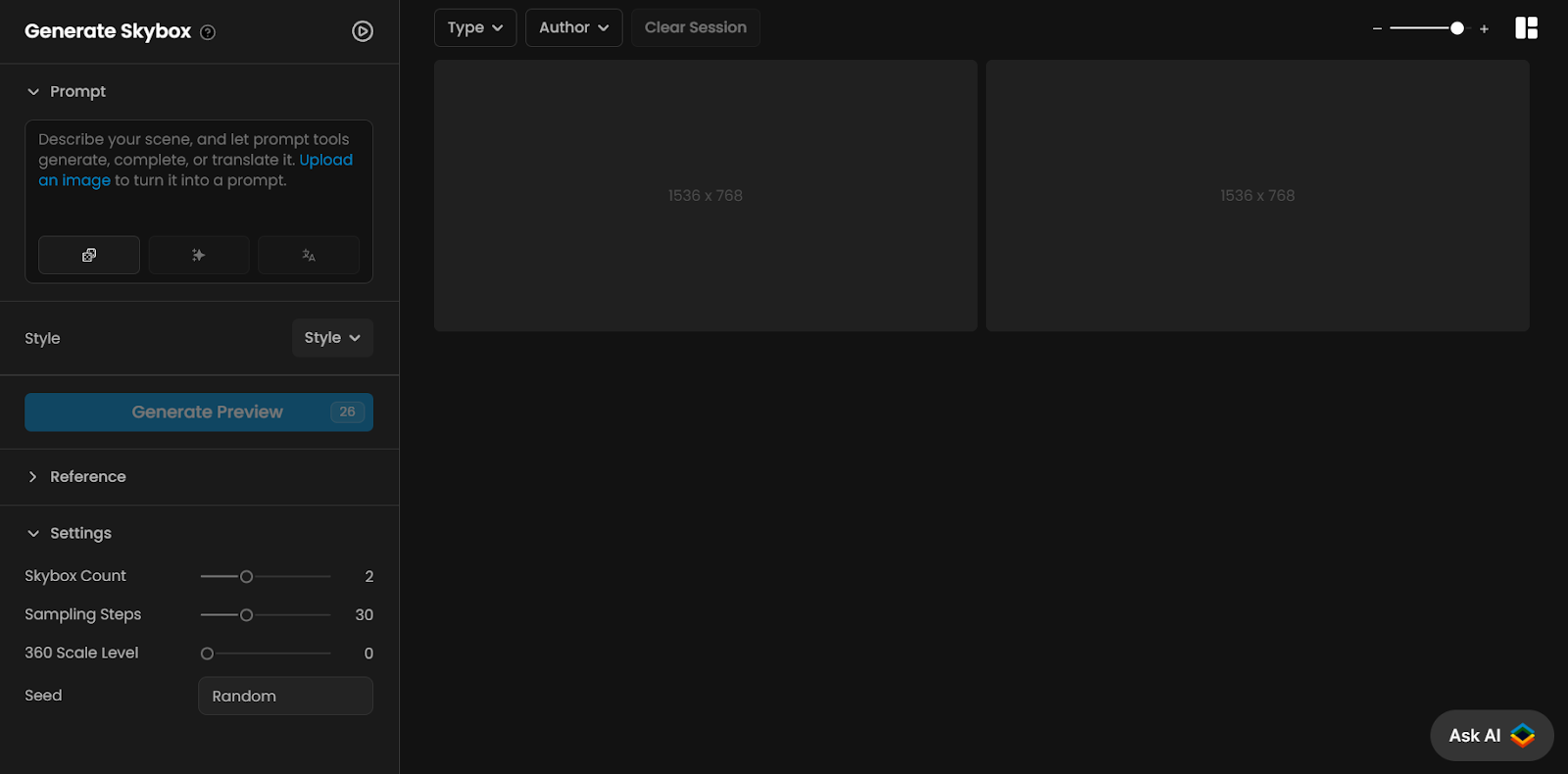
1 - Prompt
Your description of the skybox you want to create. For best results, be specific and detailed:
Basic Example: "A sunset sky"
Effective Example: "A vibrant sunset with shades of orange and pink, soft clouds drifting across the sky, and a distant mountain range"
Use the Prompt Spark tool (the three buttons below the prompt box) to enhance simple descriptions or expand your ideas.
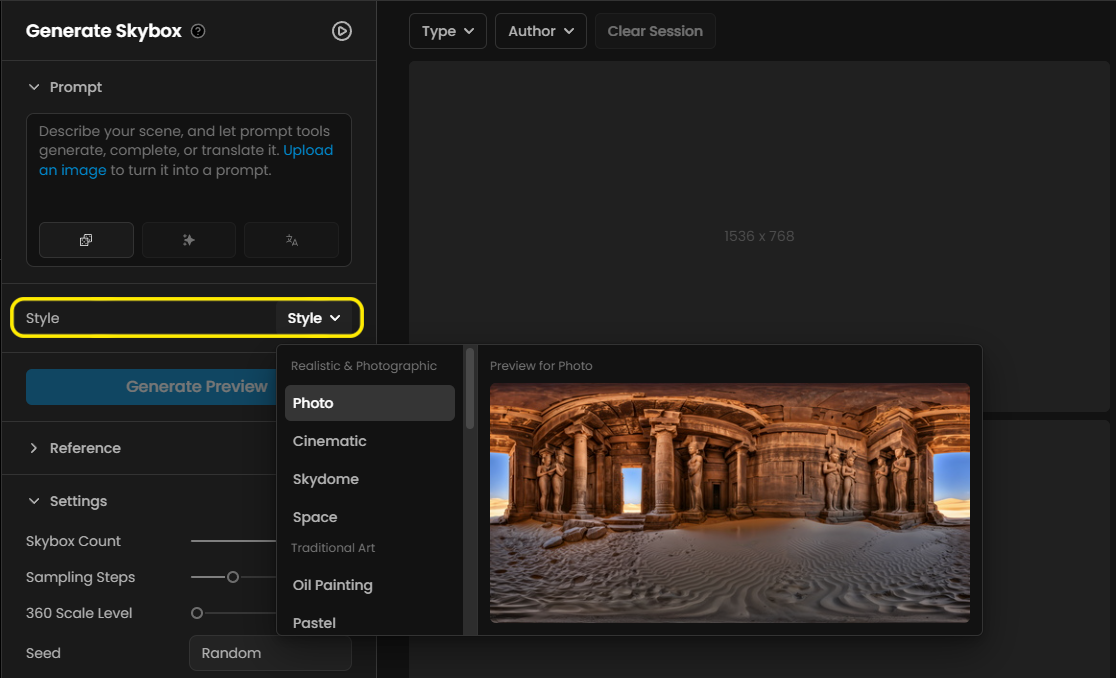
2 - Style Selection
Choose from numerous predefined styles organized into categories:
Realistic & Photographic: Photo, Cinematic, Skydome, Space
Traditional Art: Oil Painting, Pastel, Pen & Ink, Claymation
Stylized & Illustration: Comic, Cartoon, Manga, Manga Color, Retro Fantasy, Whimsical, Psychedelic
SciFi & Fantasy: SciFi, Fantasy, Cyberpunk, Neon/Tron, Enchanted
Digital & 3D: 3D Cartoon
The style affects the visual interpretation of your prompt, helping to achieve consistent aesthetics.
3 - Settings
Additional parameters to customize your skybox generation:
Skybox Count: Choose 1-4 variations per generation (default: 4)
Sampling Steps: Balance between quality and generation speed (default: 30)
Higher values create sharper details
Lower values deliver faster results with less detail
360 Scale Level: Controls the spherical emphasis (default: 0)
Increase to make the 360-degree format more pronounced
Seed: Controls randomness in generation
"Random" creates new variations each time
Specific number ensures more consistent results
4 - Generate
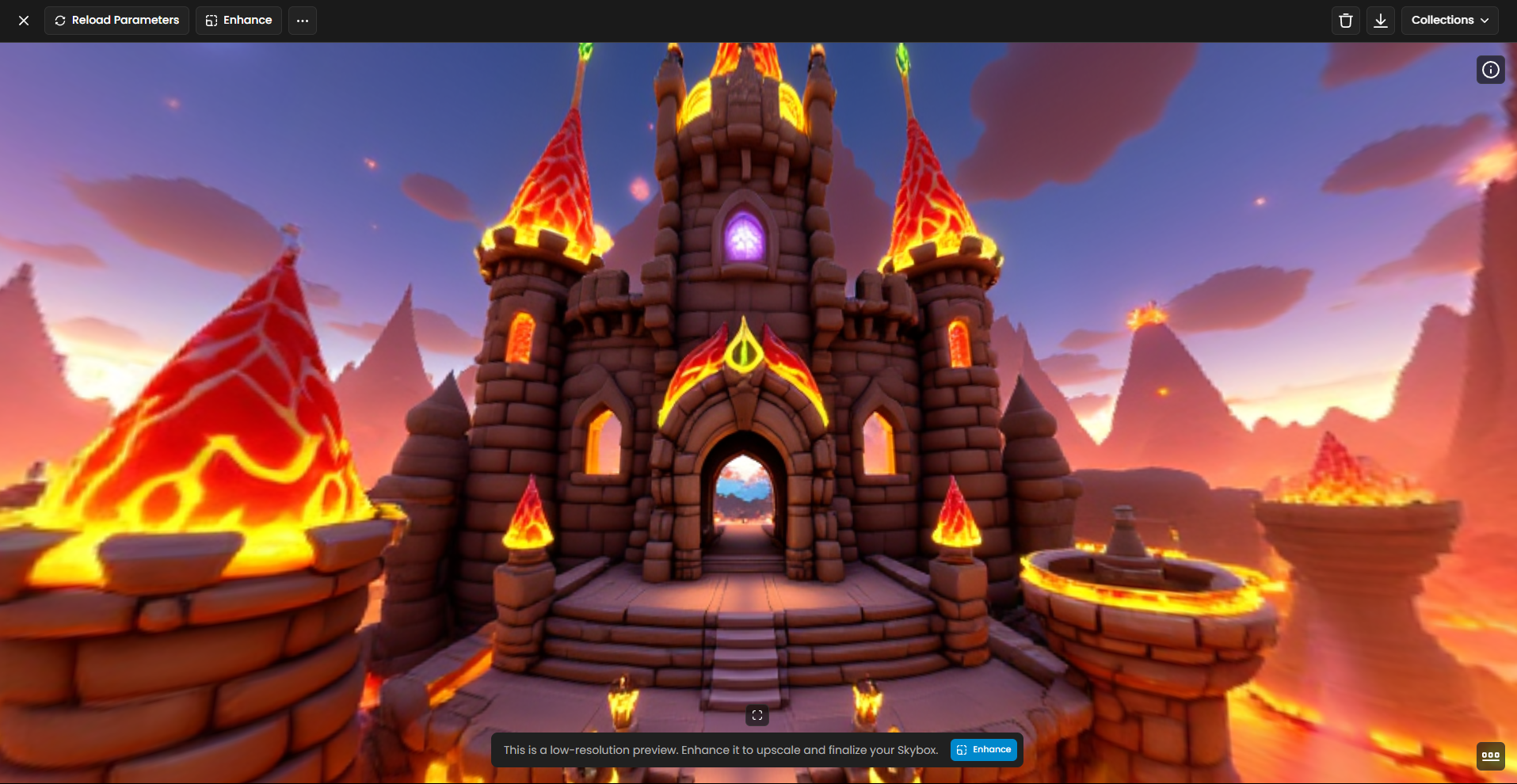
Click "Generate Preview" to create low-resolution preview skyboxes based on your prompt and settings. Once you’ve selected your preferred preview, you can enhance it to a high-resolution version.
Preview Review
Review each preview, checking for:
Centered horizon (horizontally in the middle)
Smooth transitions at the poles (top and bottom)
No visible seams or distortions
Pick the preview that best captures your vision.
Enhancing Your Skybox
Once you've selected a preview, click "Enhance" to transform it into a high-resolution final skybox:
Your original prompt is automatically carried over, but you can refine it for more specific details
You can add a Negative Prompt to specify elements you want to exclude from the final result
Style Images can be added to influence the visual style of your skybox - upload reference images that match your aesthetic vision
Adjust additional settings:
Details Level: Controls the amount of fine detail in your skybox
Seed: Can be changed for variations or kept the same for consistency
Choose an upscale factor:
2x: Basic enhancement
4x: Recommended for most projects
8x: Ultra-high resolution (longer processing time)
The original settings carry over, but these additional controls give you precise command over the final appearance of your skybox.
Organizing and Exporting
After enhancing, organize your work:
Add tags (e.g., "sunset," "desert") to find your skybox later
Save it to a collection for easy access
Download it as a high-res image file, ready for game engines like Unity or Unreal
Skyboxes are still images. Downloaded files do not carry 360 metadata, so in a 360 or VR viewer, choose the equirectangular or 360 mode yourself. Scenario has no 360 video model: video models output standard frames (Veo 3.1 is 16:9 or 9:16), not 2:1 equirectangular video.
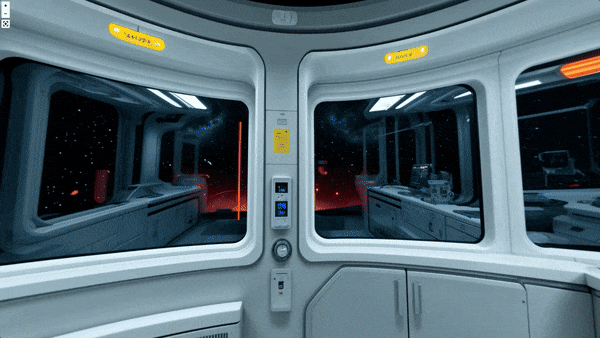
Practical Examples
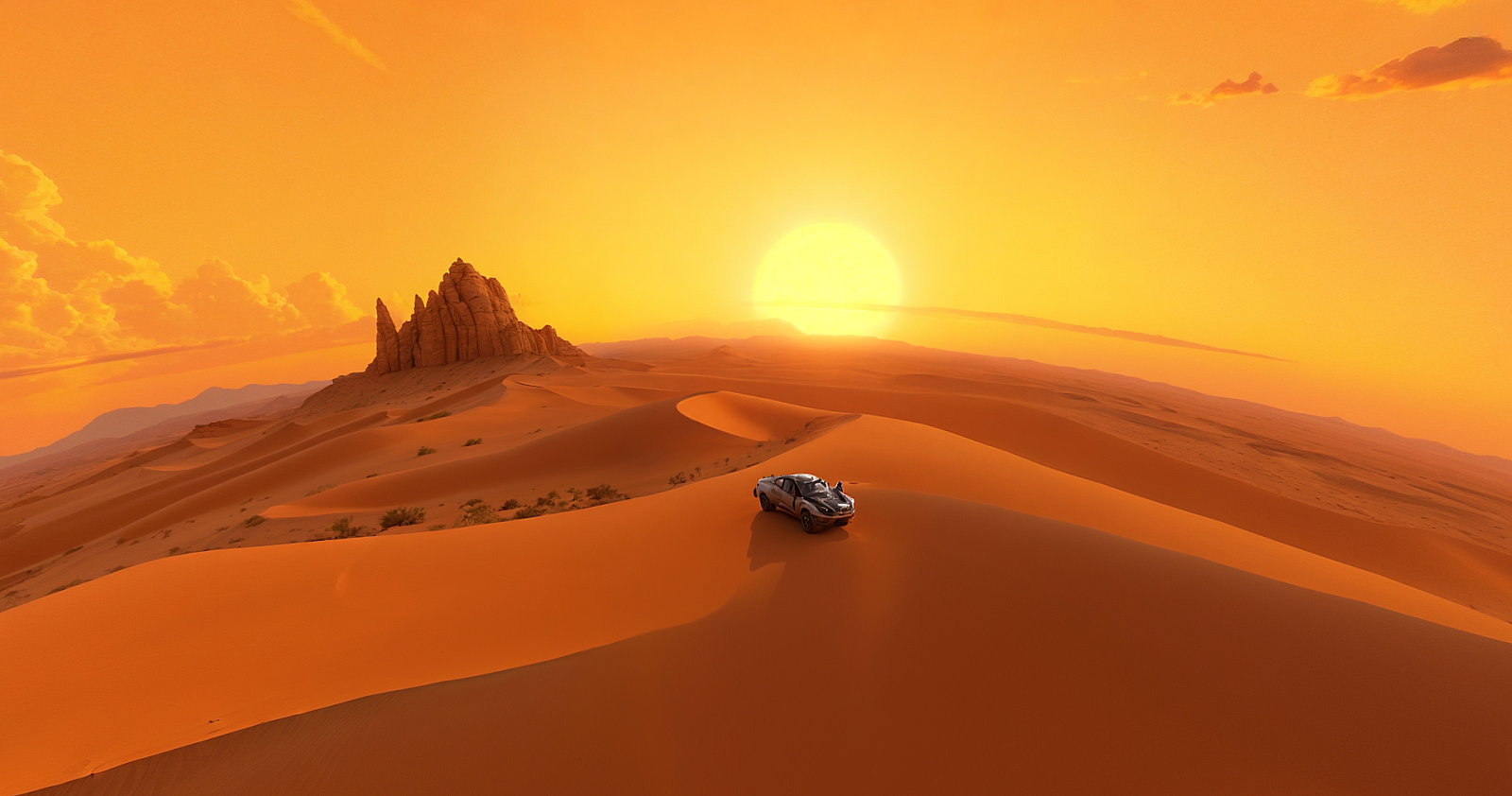
Example 1: Desert Battle Scene
Process: Use the prompt "A desert wasteland at dusk with a fiery orange sky, scattered clouds, and distant sand dunes, in a gritty sci-fi style." Select the Sci-Fi style, set Sampling Steps to 40 for better detail, and generate previews. Enhance the best one with a 4x upscale factor.
Result: A stunning desert skybox with a dramatic orange glow, perfect for a sci-fi battle game or VR experience.
Example 2: Fantasy Forest VR Experience
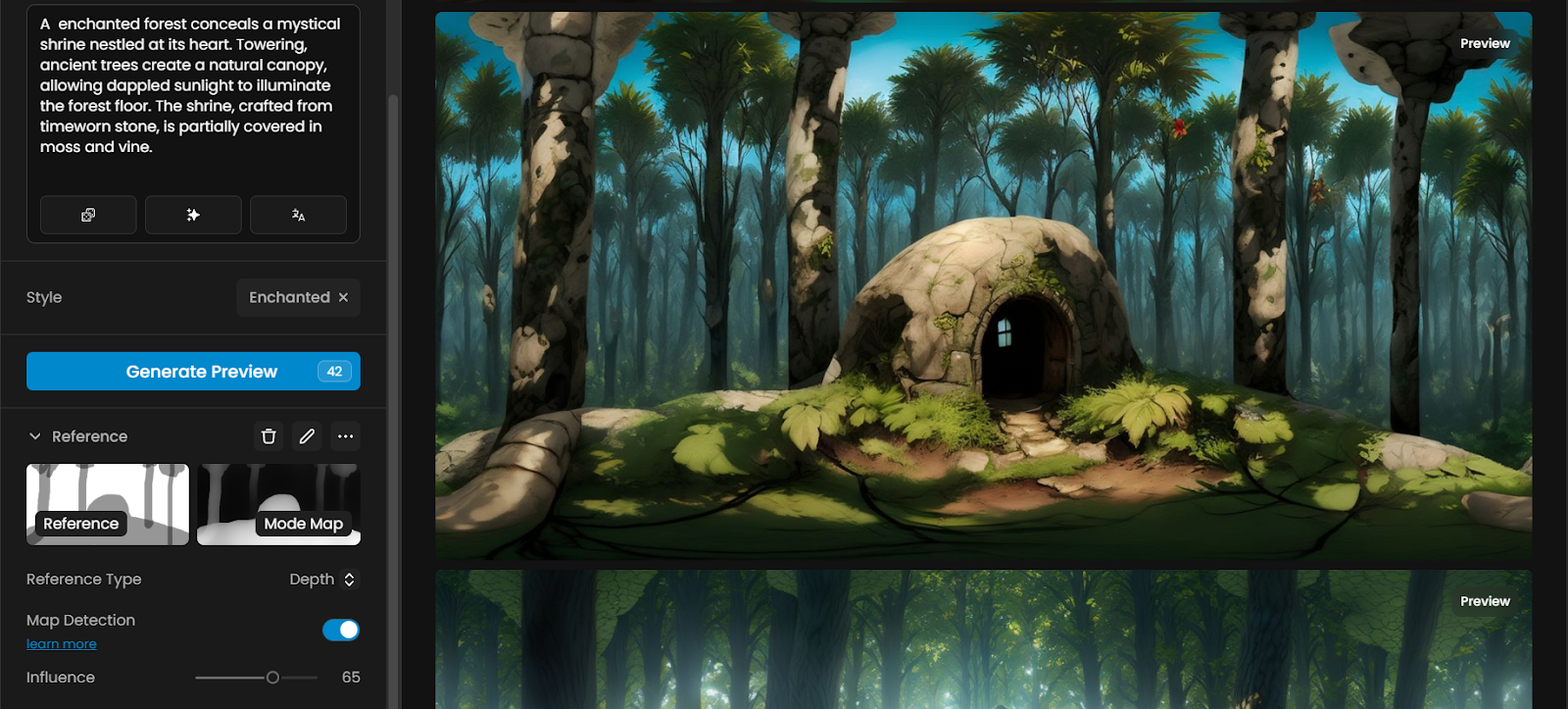
Process: Use the prompt "A enchanted forest conceals a mystical shrine nestled at its heart. Towering, ancient trees create a natural canopy, allowing dappled sunlight to illuminate the forest floor. The shrine, crafted from timeworn stone, is partially covered in moss and vine." Select the Enchanted style, set Sampling Steps to 30, and generate previews. Enhance with a 4x upscale.
Result: A magical forest skybox with a ancient shrine, ideal for a VR relaxation app.