ReconViaGen 0.5: The Essentials
Last updated: May 5, 2026
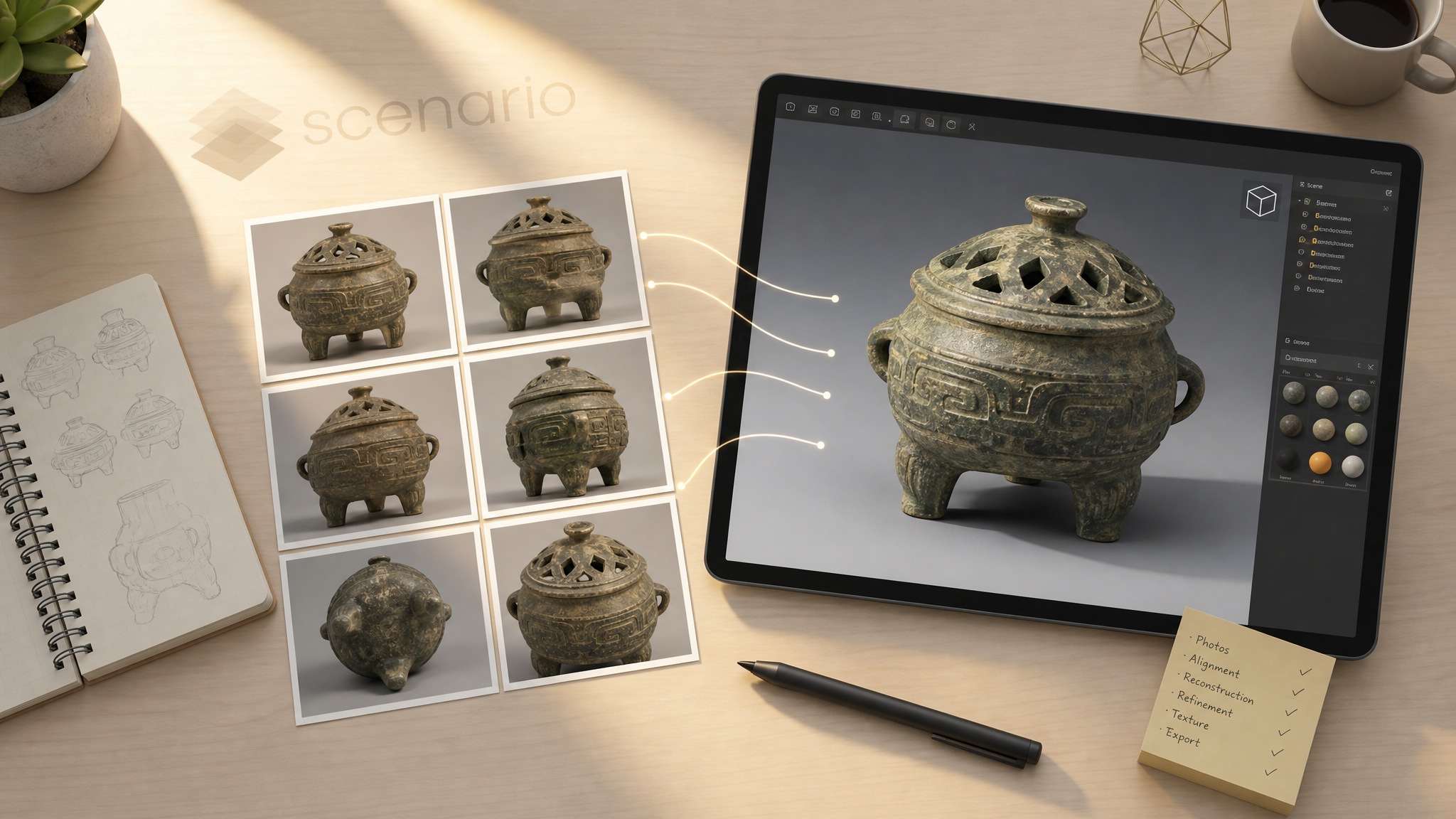
Turn a handful of photos into a textured 3D object you can open in a viewer or game tool, right inside Scenario.
What you get: a single digital double of something real, a toy, a product, a prop, with color baked onto the surface so it looks like the photos you started from.
What you bring: one to eight still images taken around the same item. Think “small photo shoot,” not a random camera roll.
The golden rule: every picture has to be the same object. If a frame sneaks in a different product, a second person, or a messy hand, the result falls apart fast.
What this model does for you
ReconViaGen 0.5 fills the gap between “we only have photos” and “we need something 3D today.” Marketing teams use it to spin a quick turntable feel from packshots. Game and film crews use it to block props before a sculptor touches them. Teachers and museums use it so students can orbit one artifact without building a full scan lab.
You are not promised museum metrology. You are promised a believable mesh and texture set that respects the photos you fed in, which is often enough for pitches, prototypes, and first-pass assets.
What to shoot before you open Scenario
Walk a slow circle or use a turntable. Let each new photo overlap the last one so the sides of the object stay visible. That overlap is what helps the system understand depth.
Soft, even light wins. Harsh spotlights and mirror-like packaging are the usual reasons a first pass looks wavy or melted. If you can tame reflections before upload, you save yourself a rerun.
You do not have to rely on a handheld shoot alone. Several apps focus on turntable capture or can export clean turnaround sheets you can upload as a set. When you are still missing a tricky angle, you can also render an extra view inside Scenario using strong image models such as Gemini 3.1 and GPT Image 2, then mix those renders with real photos. Keep lighting, scale, and materials consistent so every frame still reads as the same object.
If the object is tiny, move closer instead of cropping hard later. If it is shiny, try a polarizer or bounce card before you blame the tool. When you blend AI-made views with photos, sanity-check that the synthetic frames match the real product, not a fantasy redesign.
What happens when you run it on Scenario
You attach your photos, press run, and wait for a downloadable mesh plus color maps. Pull those files into Blender, Unreal, Unity, Keyshot, or whatever your team already trusts.
Start with modest expectations on your first object. Once you like the silhouette, you can push for sharper paint detail or a heavier mesh for offline renders in a second pass.
Fine-tuning in the app (when you are ready)
You never need to touch advanced controls to try the model. When you are ready to go deeper, the screen offers a few friendly levers:
More geometric detail when small edges look soft. Turn it down again if previews get slow.
Sharper surface paint when you plan to zoom in on labels, metal, or fabric weave.
Lighter or heavier mesh density so phones and web viewers stay smooth while cinematic shots can stay dense.
Changing too many things at once makes it hard to learn what actually helped.
Use Cases
Games and interactive: Block props while concept art catches up.
Marketing and e-commerce: Spin lightweight 3D previews from photos you already shot.
Film and animation: Drop proxy volumes into previs without a full scan team on set.
Education and museums: Let learners orbit one object without a photogrammetry rig.
Industrial design: Compare mockups in 3D during reviews when CAD is not ready.
Social and experiential: Prototype AR moments that need believable depth, not perfect anatomy.