Rodin Hyper3D Gen-2.5 Models: The Essentials
Last updated: June 8, 2026
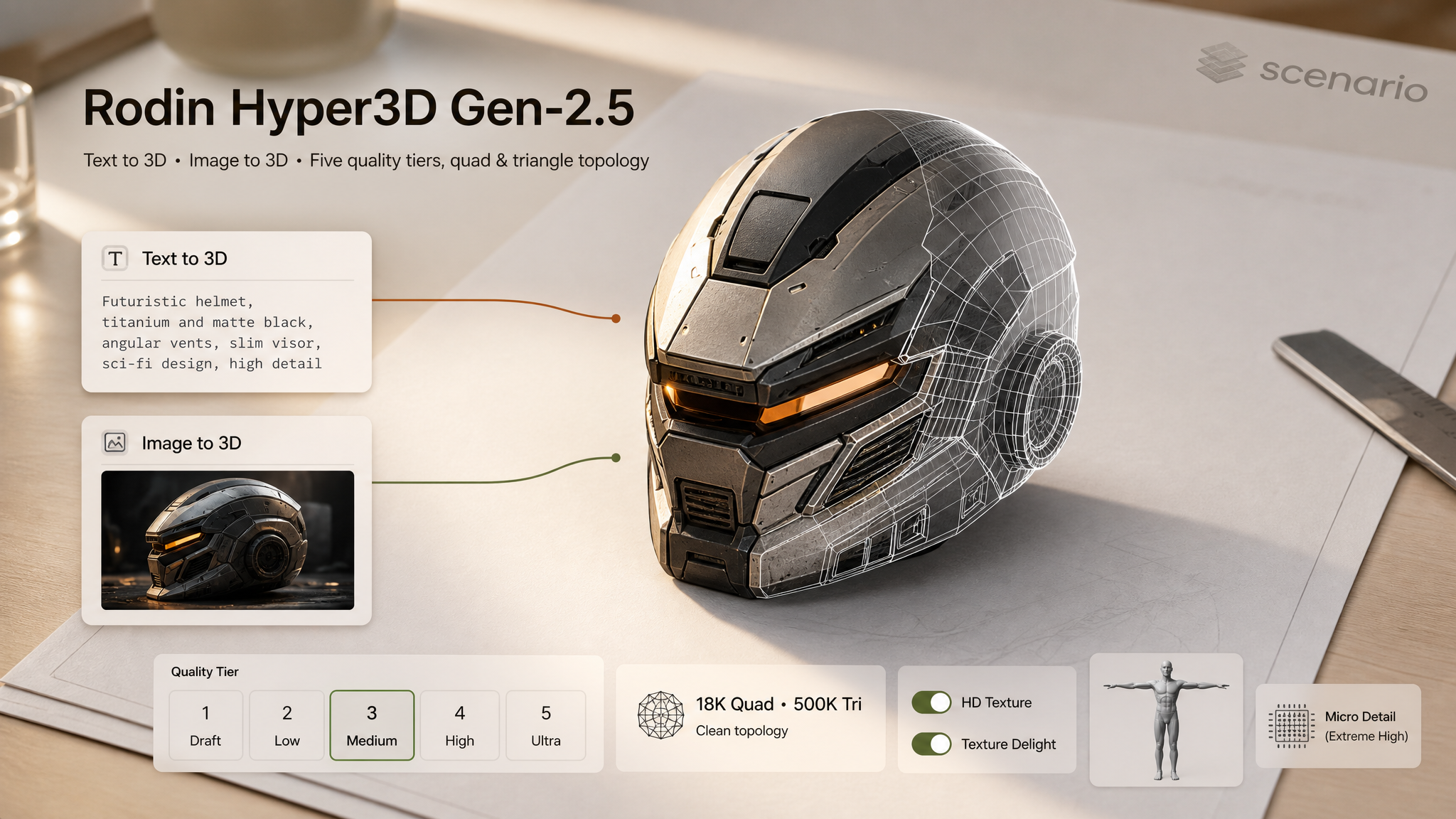
Rodin Gen-2.5 is the latest generation of the Hyper3D / Deemos 3D model family on Scenario. It comes in two variants: Rodin Gen-2.5 Text to 3D (one prompt in, one model out) and Rodin Gen-2.5 Image to 3D (one or up to five reference images in, one model out). Both share the same underlying engine, so the parameter set is almost identical: pick a quality tier, pick your topology, then dial in the optional production controls.
Overview
Rodin Gen-2.5 launched in May 2026 and builds on the SIGGRAPH 2025 Best Paper research from the Hyper3D / Deemos team. Compared to Gen-2, the 2.5 release pushes geometric fidelity into the tens of millions of polygons, exposes a five-step quality ladder instead of a single quality slider, and adds two production controls that creators were asking for: HD Texture (heavier post-processing pass) and Texture Delight (strips baked lighting from textures so the model lights cleanly in your own scene). Generation time for the lower tiers stays in the seconds; the higher tiers trade speed for sculpt-level detail.
Use Text to 3D when you have a clear written concept and no reference. Use Image to 3D when you already have concept art, a product photo, or a multi-view turnaround, especially for characters, props, and e-commerce items where shape fidelity matters. The Image to 3D variant is strongest when fed several angles of the same subject: Rodin reconstructs visible geometry beautifully and tends to guess at surfaces it cannot see, so a front, side, back, and (when relevant) top view will almost always beat a single hero shot. Feeding multiple angles is what unlocks the best of the model.
What It Does
Generates clean, rigging-friendly quad meshes (4K, 8K, 18K, or 50K quads) or high-density triangle sculpts (2K, 20K, 150K, or 500K triangles).
Outputs PBR-textured, Shaded-only, or untextured meshes in standard 3D formats.
Forces characters into T-Pose or A-Pose for easier rigging and animation.
Multi-view input on the Image variant: drop up to five reference images and the model switches into multi-view mode automatically.
Optional HighPack add-on for 4K textures plus roughly sixteen times the polygon count on quad meshes.
How to Use It
Tier: the speed-versus-quality dial. Extreme Low and Low are for rapid look-dev and silhouette checks. Medium is the workhorse default. High is the production sweet spot for most game and e-commerce assets. Extreme High is for hero shots and unlocks Micro Detail; it bills at double the base rate, so reach for it intentionally.
Quality Mesh Option: combined topology type and density. Choose quad (4K to 50K) when the asset will be rigged or subdivided in a DCC tool. Choose triangle (up to 500K) when you want maximum sculpt detail and are not planning to deform the mesh. The Text to 3D variant defaults to 18K Quad (rigging-friendly), while the Image to 3D variant defaults to 500K Triangle (sculpt-grade) to match what most photo references can support.
Add-ons: leave blank for the default, or set to HighPack for 4K textures and a roughly 16x polygon multiplier on quad meshes. Heavier output, closer to final production quality.
Geometry Mode: Faithful follows the prompt or reference image closely. Creative permits more variation and is useful for stylized assets where you want the model to interpret rather than copy. Note that Creative is only active on the Medium and High tiers, so picking it at Extreme Low, Low, or Extreme High has no effect.
Symmetry: set Symmetric for most characters, vehicles, and architectural props. Use Asymmetric for creatures and organic shapes where forced symmetry would look wrong. Auto lets the model decide.
T/A Pose (characters only): turn on for any character you plan to rig. The model will overrule the pose suggested in the prompt or reference image and deliver a clean T or A pose instead.
HD Texture and Texture Delight: turn on HD Texture for hero assets where texture sharpness matters. Turn on Texture Delight when the reference image was lit by a strong key light and you want the baked highlights removed before relighting in your own scene.
Micro Detail: only works on the Extreme High tier. Turn on for sculpts where pore-level or scale-level geometry matters.
Use Original Alpha (Image variant only): preserves the transparency channel of the input image so the model does not invent background geometry from a cut-out reference.
Examples
Game weapon, hero asset (Text to 3D): Prompt: "An ornate genie lamp with curved spout, engraved patterns, and gemstone inlays".
Character in T-pose (Text to 3D): Prompt: "A short stout dwarf blacksmith standing in a T-pose, heavy leather apron over chain mail, big bushy braided beard." Tier High, 18K Quad, T/A Pose on, Symmetric. The T-Pose toggle overrides the pose described in the prompt, ready for skeleton binding.
Hero creature, sculpt-grade (Text to 3D): Prompt: "A coiled hatchling dragon resting on a cracked obsidian egg, wings half-unfolded, individually defined scales." Tier Extreme High, 500K Triangle, HighPack, Micro Detail on, Asymmetric, HD Texture on. Use this combination sparingly for marketing or close-up shots.
E-commerce product (Image to 3D): A clean side-view photo of a sneaker on a white seamless background. Tier Medium, 50K Quad, PBR, Texture Delight on, Balanced symmetry. Texture Delight strips the studio key light so the model lights neutrally in any scene.
Stylized prop (Image to 3D): A hand-painted reference of a chibi fox figurine. Tier Medium, 20K Triangle, Creative geometry mode, Symmetric. Creative mode is the right call for stylized references where strict faithfulness would lose the charm.
Tips for Better Results
Start in Medium for fast iteration on the prompt or reference. Once the silhouette and proportions are right, re-run at High or Extreme High for the final asset.
For Image to 3D, use clean references with even lighting and the subject centered. Cut-outs on white seamless backgrounds work best. Hard cast shadows often bake into the geometry.
Multi-view input dramatically improves shape accuracy. If you have a front, side, and back view, drop all three: the model switches to multi-view mode automatically. The first image in the upload order is also used as the material reference, so put your cleanest, best-lit angle there.
Mention the intended poly style in your prompt ("low-poly stylized", "mid-poly game asset", "high-poly sculpt") so the geometry matches the topology tier you picked.
For characters destined for rigging, always turn on T/A Pose. The output will overrule whatever pose appears in the reference, which is what you want.
Micro Detail is only effective on the Extreme High tier. Turning it on at lower tiers does nothing.
Known Limitations
HighPack on a quad topology multiplies the polygon count by about sixteen. Make sure your downstream DCC tool can handle the file size before committing.
Texture Delight assumes the input was lit by a directional key light. If the reference is already evenly lit, leaving it off is safer.