Advanced Image Generation Settings
Last updated: April 30, 2026
Introduction
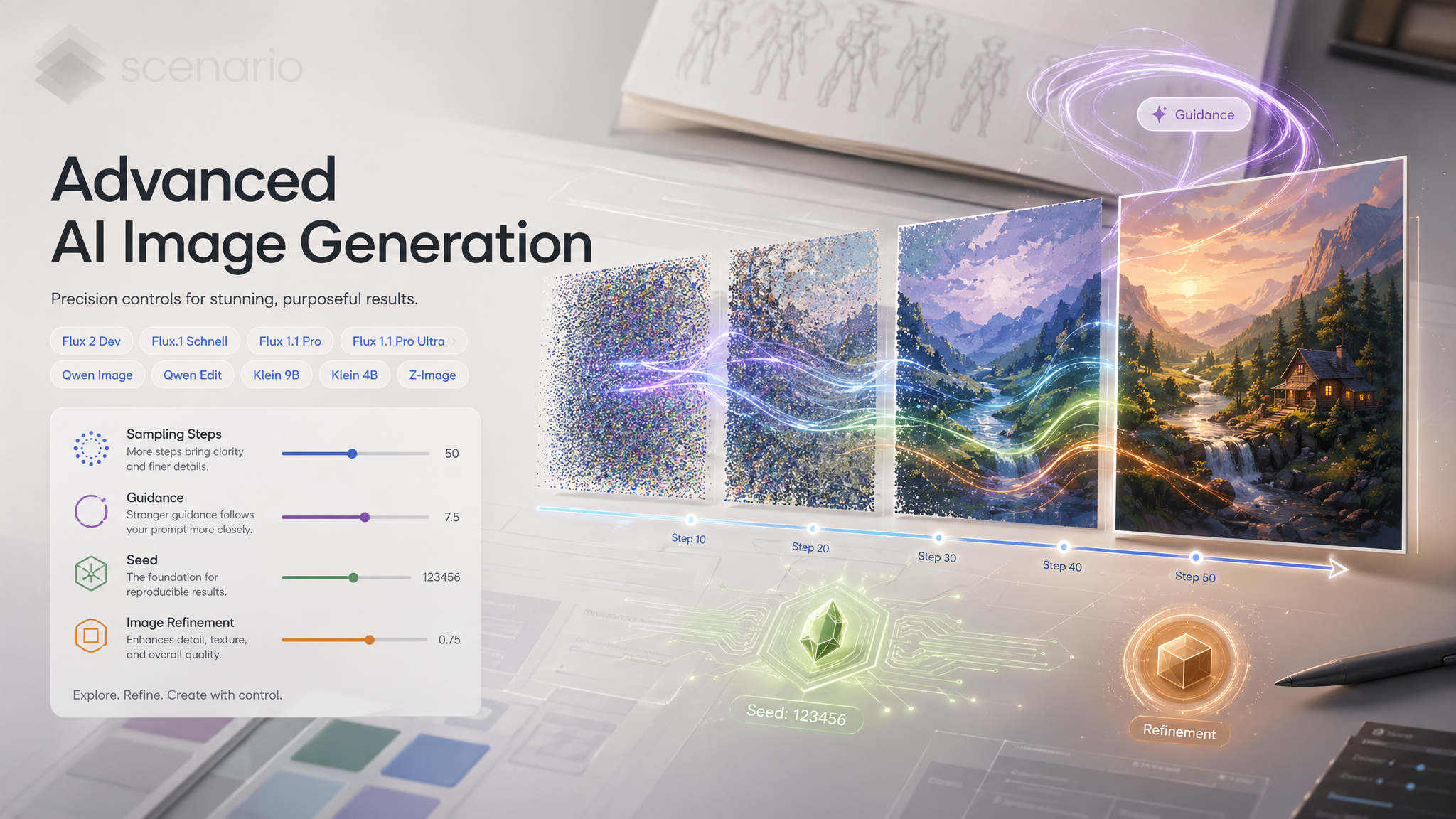
Scenario's image training base models share a common set of generation controls. Understanding what each one does, and when to adjust it, is the fastest way to improve output quality without changing your prompt or retraining your model.
Sampling Steps
Steps controls how many denoising iterations the model runs before delivering the final image. More steps generally means sharper detail and better prompt adherence, at the cost of longer generation time.
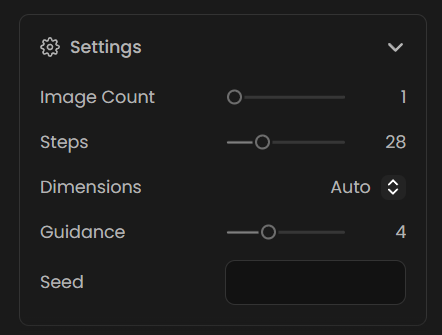
Most models on Scenario default to 28 steps, which is a reliable starting point for the large majority of subjects and styles. The Klein variants (9B and 4B) are distilled models and default to 4 steps by design. They are built for low step counts and produce their best results between 4 and 8 steps. Pushing them higher offers diminishing returns.
Flux 2 Dev, Qwen Image, Qwen Edit, Z-Image: Default 28. Sweet spot is 20 to 35. Go higher only for very detailed subjects like faces, fine textures, or dense patterns.
Flux 2 Klein 9B and Klein 4B: Default 4. Best results at 4 to 8. These are distilled models and do not benefit from higher step counts the same way.
General rule: Start at the default. Only increase steps if the output looks undercooked or lacks fine detail. Doubling steps does not double quality, but it does double generation time.
Guidance
Guidance controls how strictly the model follows your text prompt. Lower values give the model more creative latitude. Higher values push it to stay closer to what you wrote, which helps on specific subjects but can produce oversharpened or flat results if pushed too far.
Flux 2 Dev and Qwen models: Default 4. Range of 3 to 5 covers most use cases. Use 3 for loose, expressive styles. Use 5 when the prompt is detailed and you need it followed closely.
Klein 9B and Klein 4B: Default 1. These distilled models work best at very low guidance. Staying between 1 and 2 is recommended. Higher values produce artifacts on Klein models.
Z-Image: Default 5. Slightly higher than the Flux defaults, which suits Z-Image's tendency toward sharper, more structured outputs. A range of 4 to 7 works well.
General rule: Adjust guidance in small increments of 0.5 to 1. Large jumps make it hard to isolate what changed.
Seed
Every generated image has a seed value that acts as the starting point for the generation. The same seed, prompt, and settings will always produce the same image. Seed works the same way across all models.
To reproduce a result: Copy the seed from the image info panel and enter it on your next run with the same settings.
To iterate on a strong result: Lock the seed and change only the prompt or one setting at a time. This lets you compare changes without introducing unrelated variation.
To explore: Leave the seed field empty to generate a new starting point each run.
Strength (Image to Image)
Strength applies when you use an image as an input (img2img). It controls how much the model transforms the reference image relative to your prompt. A value of 0 leaves the image unchanged. A value of 1 ignores the image almost entirely and generates from the prompt alone.
Strength is available on Qwen Image, Qwen Edit, and Z-Image. It is not a separate slider on Flux 2 Dev, which handles reference image influence differently through its reference image input.
0.3 to 0.5: Light retouching. Keeps the composition, color palette, and structure of the input mostly intact.
0.5 to 0.7: The default range for most edits. Balances faithfulness to the input with room for the model to interpret the prompt.
0.7 to 1.0: Heavy transformation. The prompt takes over. Use this when you want a new image inspired by the input, not a modified version of it.
LoRA Scale
When you generate with a trained LoRA applied, the LoRA Scale slider controls how strongly that model influences the output. Scale is available on all Flux 2 models and Qwen models. It ranges from 0 (LoRA has no effect) to 2 (maximum influence).
0.6 to 0.9: The recommended range for most LoRAs. Strong enough to apply the style or subject clearly, without overwhelming the prompt or introducing artifacts.
Below 0.5: The LoRA influence becomes subtle. Useful when blending multiple LoRAs or when you want the base model to carry most of the generation.
Above 1.0: Use with care. Some well-trained LoRAs benefit from a higher scale on complex prompts, but it can also saturate colors, flatten details, or introduce distortion on LoRAs that were not trained for high-scale use.
When stacking multiple LoRAs: Lower each individual scale proportionally. A good starting point when using two LoRAs is 0.6 each. Adjust from there based on which influence you want to be dominant.
Negative Prompt
Negative prompt lets you describe what you do not want in the output. It is available only on Z-Image. On all other models, guidance through the main prompt is the primary tool for steering away from unwanted elements.
On Z-Image, use the negative prompt to exclude common artifacts ("blurry, low quality, watermark"), unwanted content types ("text, logo"), or compositional elements that keep appearing despite not being requested. Keep negative prompts short and specific. Long lists of exclusions can conflict with each other and reduce overall coherence.
Tips for Better Results
Change one setting at a time. When a generation does not look right, isolate the variable. Adjust steps first, then guidance, then the prompt. Changing multiple settings at once makes it impossible to know what caused the improvement.
The Klein models need fewer steps, not more. If Klein 9B or Klein 4B outputs look noisy or incoherent, the instinct to add more steps is usually wrong. Try lowering guidance to 1 first, and keep steps at 4 to 6.
High guidance is not always better quality. Guidance above 6 often produces oversharpened edges and flat color on Flux and Qwen models. If an output looks artificial or overprocessed, reduce guidance before reducing steps.
Lock the seed when iterating. Once you have a composition you want to refine, fix the seed. Every prompt or setting change then builds on the same starting point, making the iteration faster and more predictable.
Match steps to the complexity of the subject. Simple subjects with flat colors or clean linework look good at 20 steps. Dense scenes, detailed faces, or fine textures benefit from 28 to 35. There is rarely a reason to go above 40 on any of these models.