
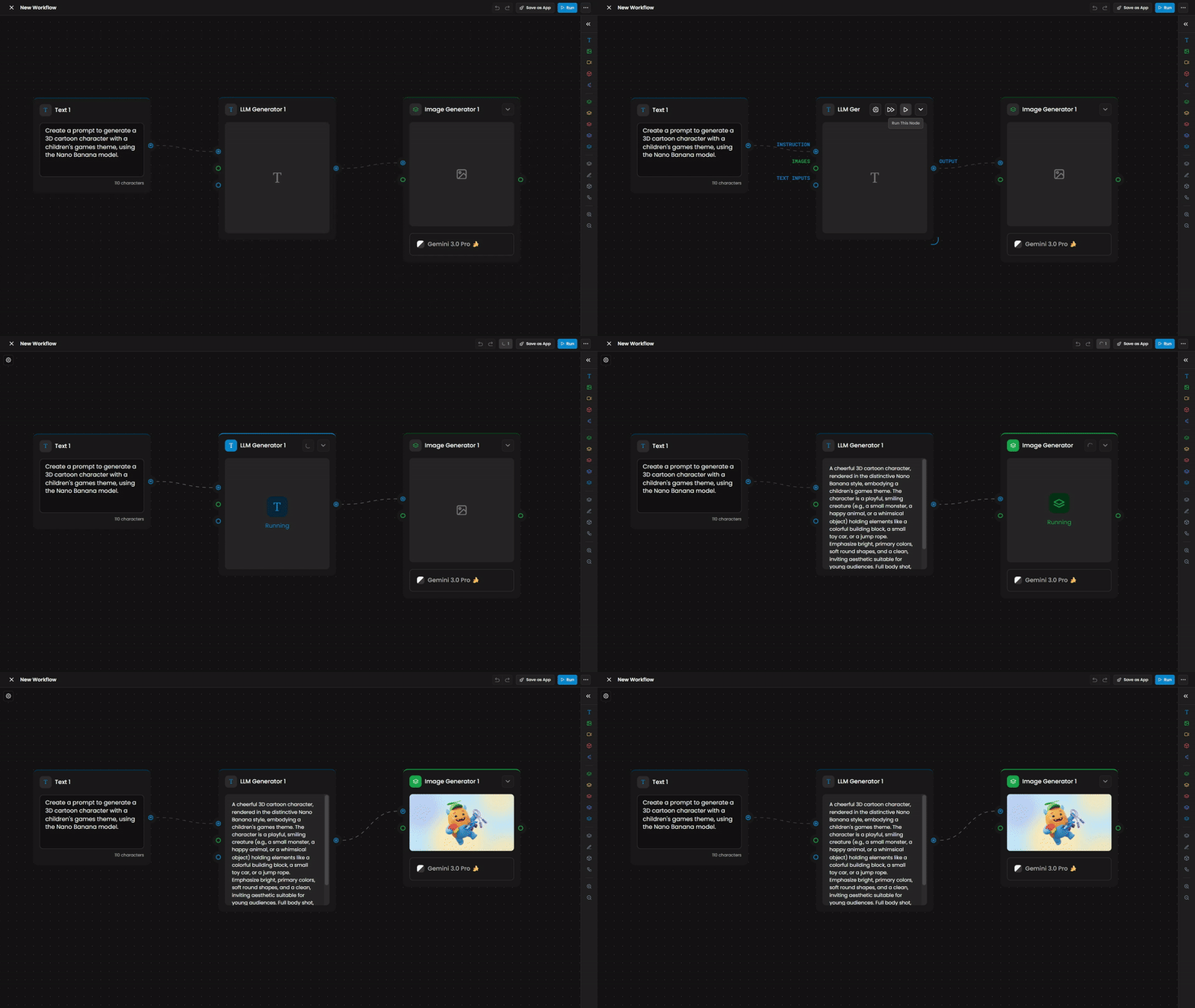
Moving beyond simple automation, Scenario's LLM Generator node acts as a specialized AI agent within your workflow. It doesn't just process data; it reasons across multiple inputs—analyzing text and images simultaneously to generate complex instructions, prompts, or data for other nodes.
1. Multimodal Input Ports
The LLM Generator is designed to "see" and "read" your project context through three primary input ports:
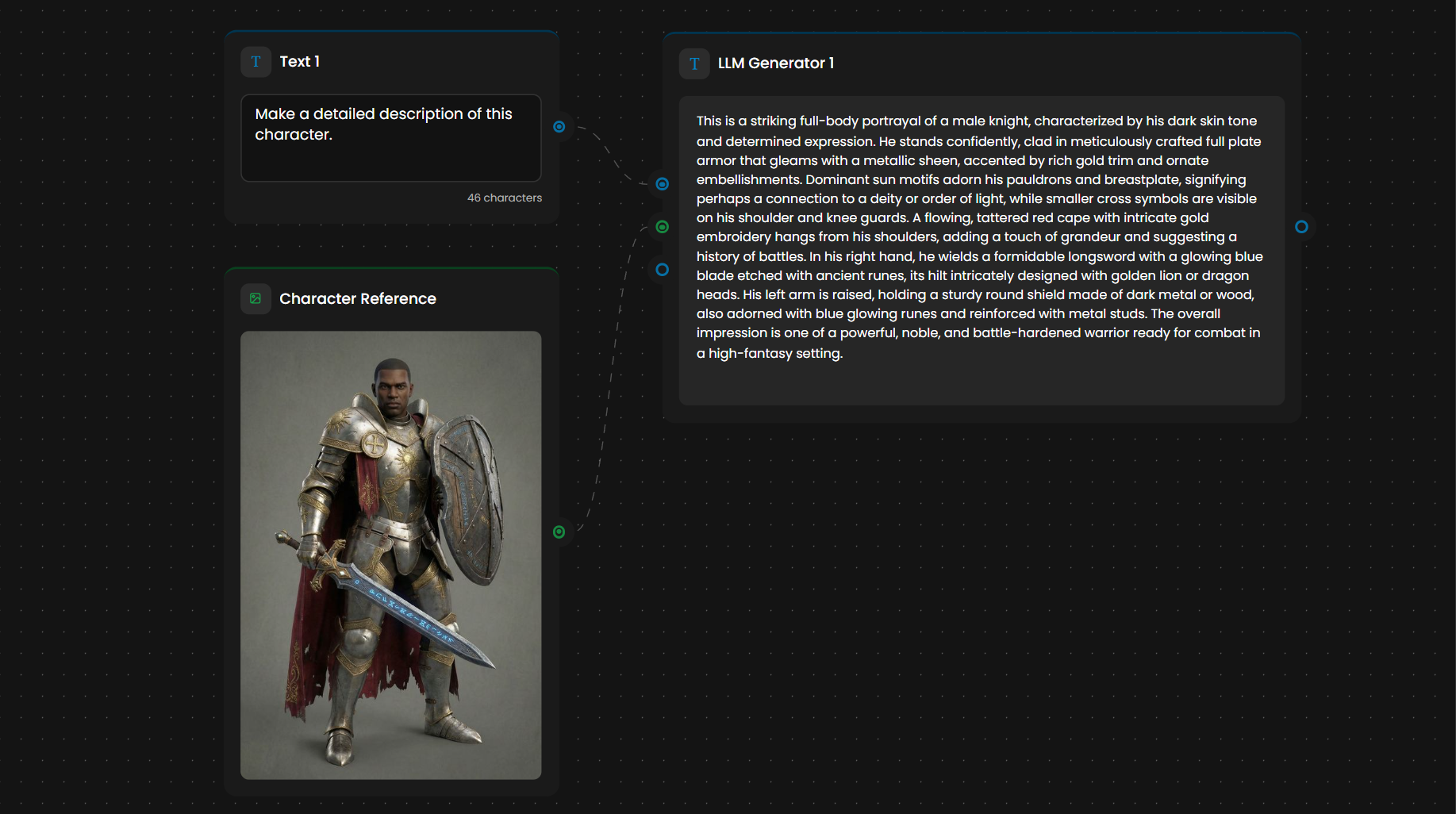
Instruction: This is your primary command to the agent. It tells the LLM exactly how to interpret the other inputs (e.g., "Create a prompt for a character in the same style and universe as the reference image").
Images: By connecting nodes like a Character Reference, you allow the LLM to perform visual analysis. It can identify art styles, armor designs, and color palettes to ensure continuity.
Text Inputs: This port connects dynamic data from other nodes, such as a User Input field, allowing the agent to tailor its output based on specific user requests.
2. Choosing the Agent's "Brain"
You can swap between industry-leading models depending on your needs for speed or complex reasoning.
Google Gemini Suite: Options include the efficient Gemini 2.5 Flash and the cutting-edge Gemini 3 Flash Preview.
OpenAI GPT Suite: Access to powerful models like GPT-4.1 Mini and the high-performance GPT-5 Mini.
3. Configuring Thinking Levels
The Thinking Level setting allows you to balance cost, speed, and intelligence:
Minimal - Fastest: Best for simple formatting or basic text transformations.
Medium - Balanced: Ideal for standard prompt generation and style analysis.
High - Best Reasoning: Necessary for complex world-building, intricate character descriptions, and deep logical branching.
4. Practical Application: Smart Prompt Engineering
A common use case for this node is transforming a simple idea into a professional-grade prompt.
Example Workflow: > The LLM analyzes a "Character Reference" image of a warrior. Based on its Instruction, it generates a highly detailed output: "A female elven battle mage, with long silver hair... wearing agile, form-fitting armor... only the same art style and design as the reference image should be used".
This detailed output is then automatically fed into an Image Generator node, ensuring the final asset perfectly matches your project's aesthetic.
5. Automate Your Creative Direction
The LLM Generator node removes the manual labor of writing repetitive prompts and analyzing references. By setting up a "Style Guard" agent, you can ensure that every image generated in your workflow—from weapons to environments—stays strictly within your project's universe.
Was this helpful?