
Scaling your creative production requires moving beyond manual node management. Scenario's Workflows to Apps feature allows you to encapsulate complex technical logic into a streamlined, user-friendly interface. By turning a workflow into an App, you create a dedicated tool that allows you or your team to generate assets without ever touching a node.
1. Preparing Your Workflow Nodes
The bridge between a technical workflow and a functional App lies in your input nodes. You must define which parameters the user will interact with.
The Pin Icon: Use the pin icon on any input node (Text, Video, 3D, Audio, or Image) to "Mark as an Input." This ensures the field appears in the final App interface.
The Star Icon: This icon determines whether an input is Required or Optional. A filled star means the user must provide that input to run the App.
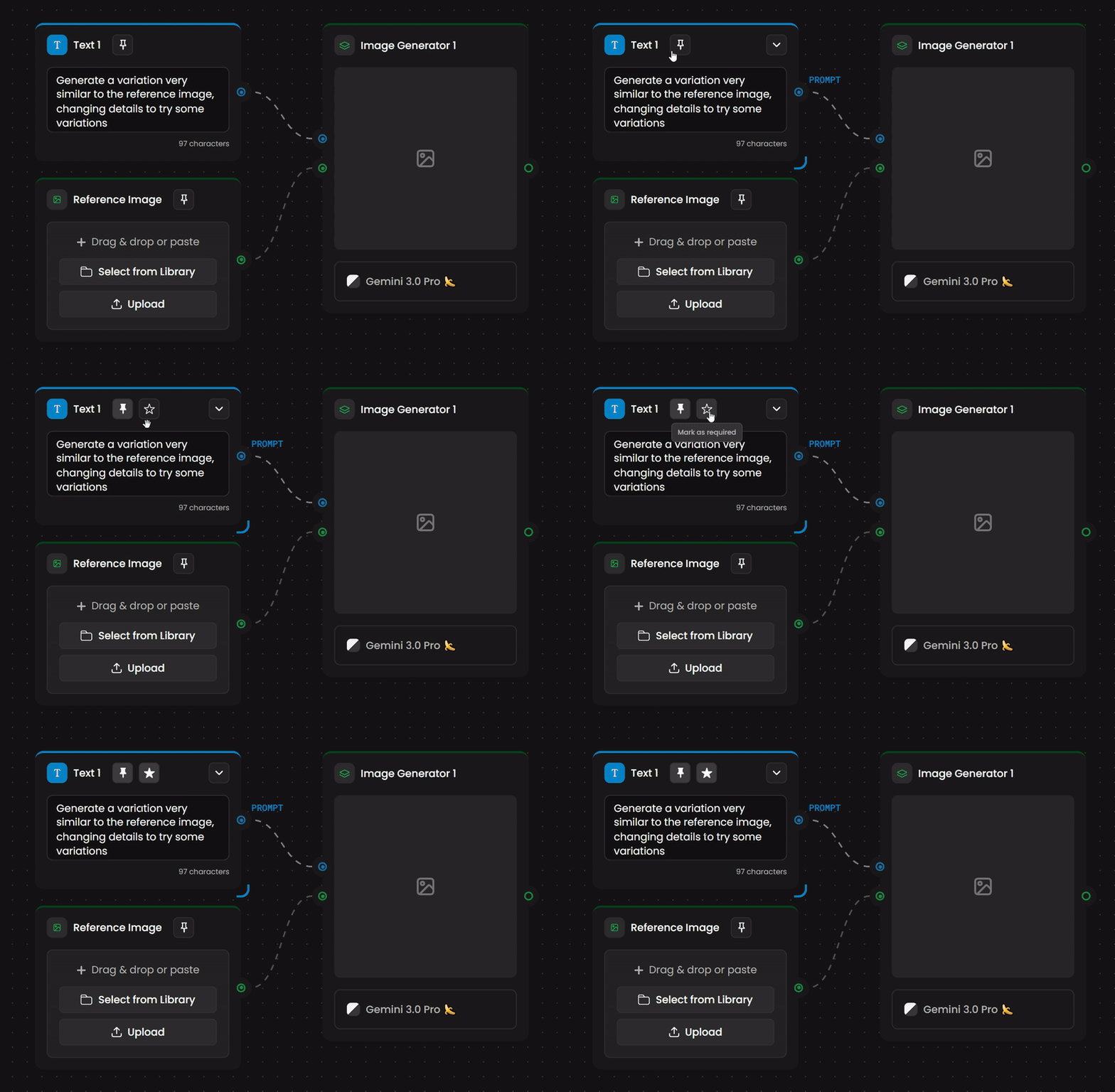
2. Creating Your App
Once your inputs are pinned and your logic is sound, you can package the workflow.
Initiate: Click the "Make an App" button located at the top right of the Workflow editor.
Visual Setup: In the Create App window, you must add an Output Preview image. This serves as the visual example of what the App produces.
Optional Input Preview: You can also add an Input Preview to show users the type of reference image or data they should provide for best results.
3. Navigating to Your Apps
Accessing your custom tools is straightforward through the main dashboard.
Menu Path: Go to the top navigation bar, select Workflows, and then click on Apps.
Project Tab: Within the Apps section, click on the "Project" tab. This is where your private, project-specific Apps are stored. Simply click on your App to launch it.
4. The App Interface
The App view is optimized for rapid generation and comparison.
Inputs (Left Side): All the nodes you pinned during the design phase appear here as clean input fields.
Comparison Preview (Right Side): The right side of the screen features a "before and after" comparison. This allows you to see exactly how the AI transformed your reference or followed your instructions.
Output History: Below the main result, you can view thumbnails of every output you have generated using this specific App, making it easy to track your iterations.
Fast Editing: If you need to tweak the underlying logic, click the "Edit workflow" button in the top right corner to jump back into the node editor.
5. Reverse Engineering: Apps to Workflows
Innovation doesn't always start with a blank canvas. You can study and build upon professional solutions available on the platform.
Platform Apps: Access a library of ready-made AI workflows under the Platform tab in the Apps section.
Edit Workflow: When opening any platform app, click the Edit workflow button in the top right corner.
Learn and Customize: This opens the underlying node structure, allowing you to study how complex workflows are constructed and use them as a foundation for your own custom solutions.
6. Build Your Toolbox
Stop rebuilding technical structures from scratch. Turn your most successful workflows into Apps today to create a personalized, high-speed production line for your creative projects. Experience the power of professional automation with a single click.
Was this helpful?