
The ControlNet workflow described in this article remains fully functional and reliable. However, for improved efficiency and consistency, we now recommend using newer models that handle structural control natively.
Models like Nano Banana Pro and Seedream 4.5 often achieve similar or better results with fewer steps.
Recommended Guides:
- Gemini 3.0 Pro Image: The Essentials
- Seedream 4: The Essentials
Introduction
ControlNet is a series of settings, which gives users targeted and nuanced control of their outputs. Users simply select a reference image, select a mode, and retain important information from their image that other tools fail to keep
When Should You Use ControlNet?
The best time to use ControlNet Modes, also called Modifiers, is when you are trying to emulate the structure, linework, or general architecture of your reference image. Different modes can pick up poses, edges, lines, and even depth.
Getting Started
On the image generation page, open the "Reference Image" section and add your reference image.
You can choose an image from the gallery, upload one, or simply paste it.
Any type of image can be used—from rough sketches to final artwork.
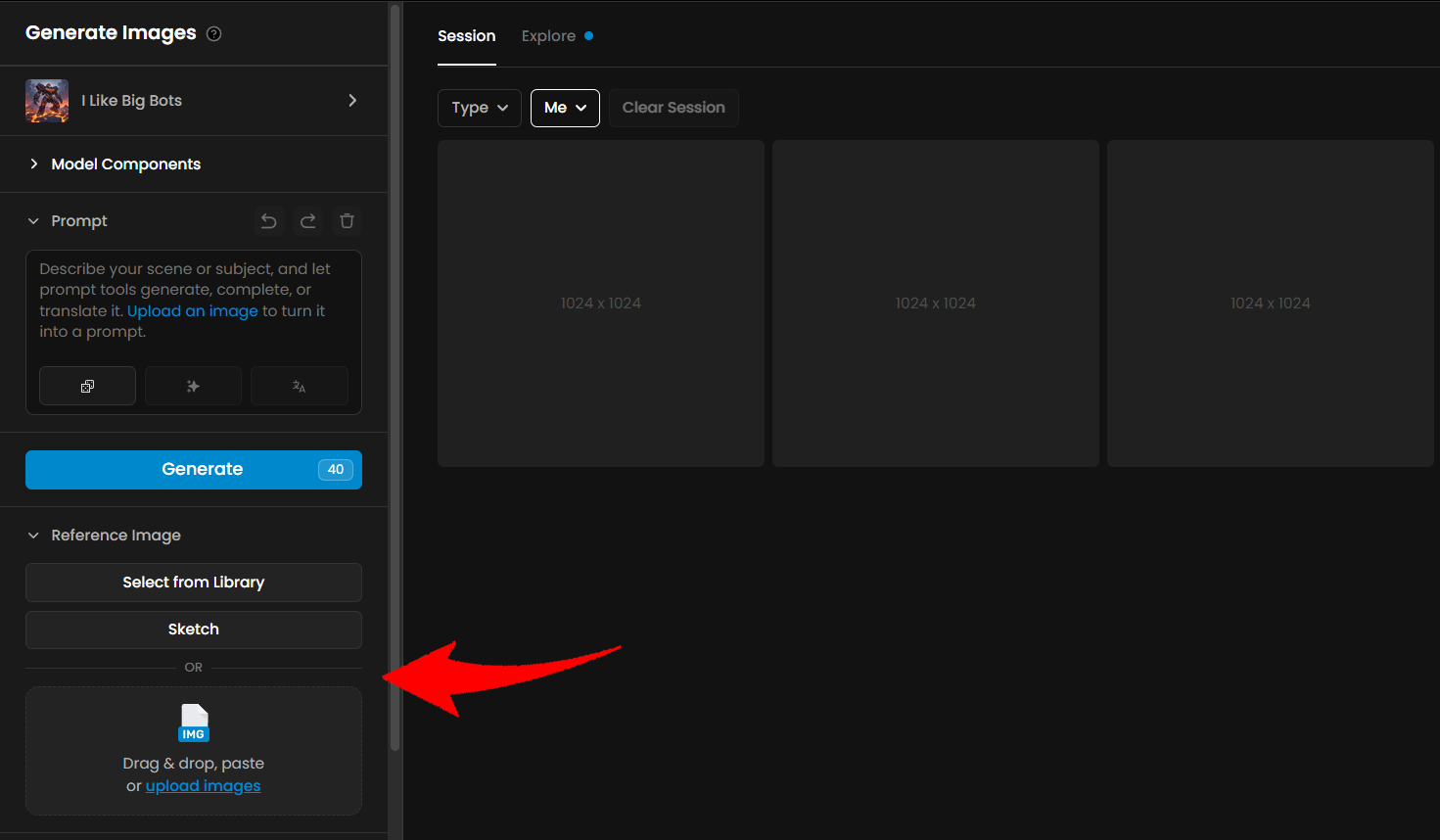
Then, enable the ControlNet mode. After enabling it, you'll be able to choose from several modes such as Depth, Sketch, and others.
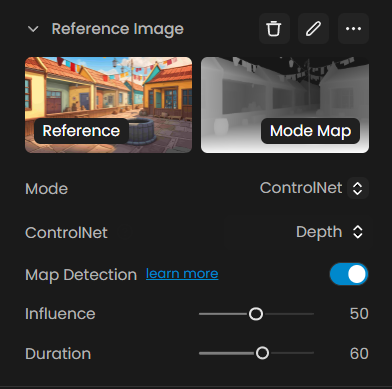
Each of these modes will be explained in detail below.
Common ControlNet Modes
Pose Mode
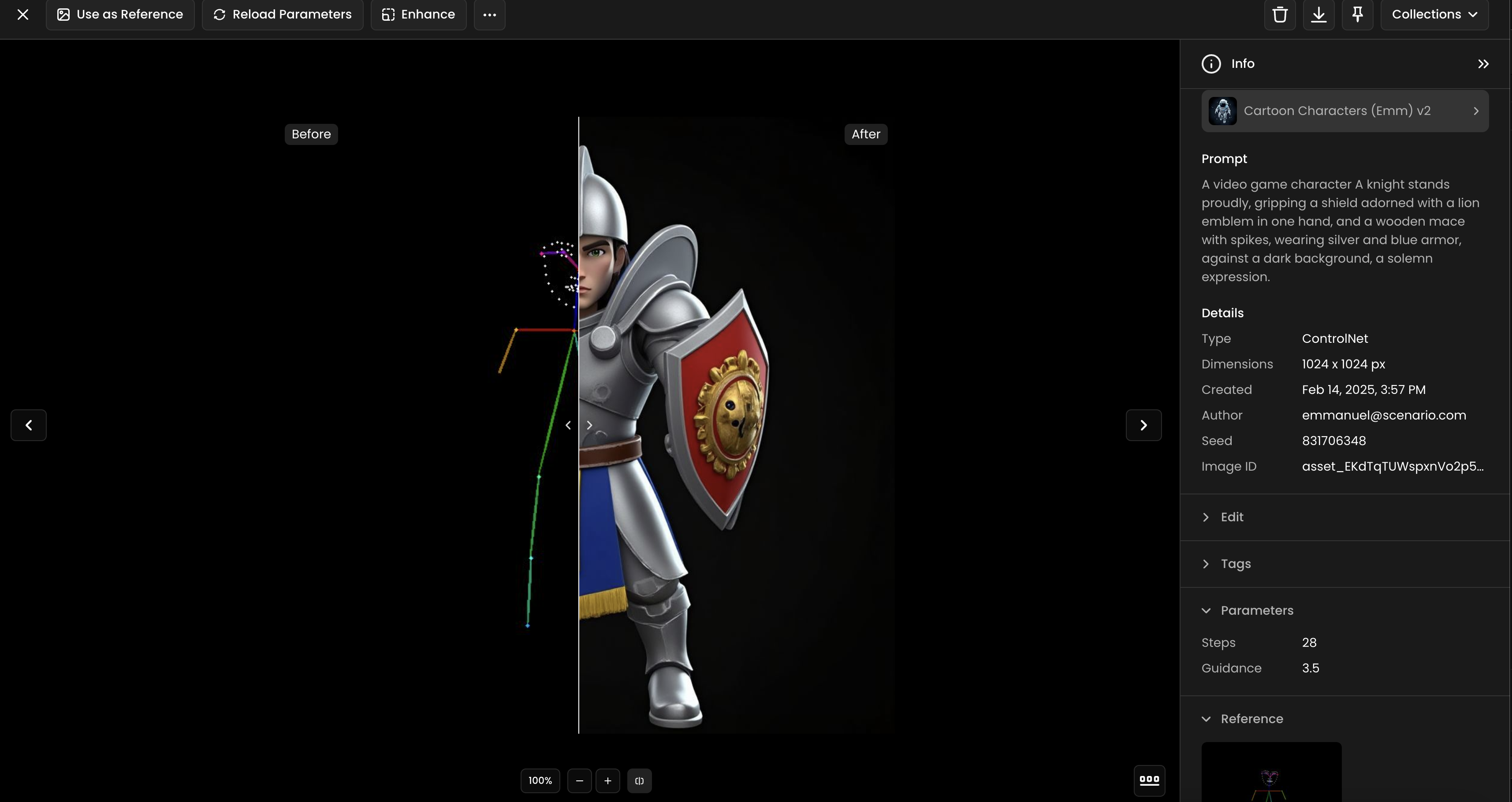
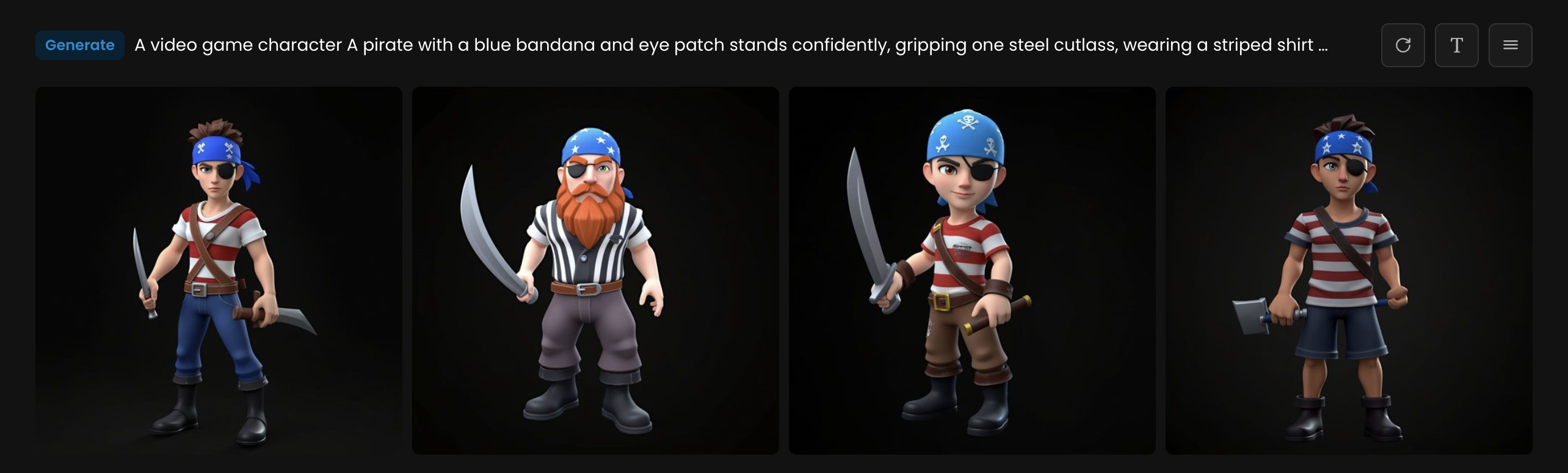
Pose Mode is ideal for character creation. It works best with realistic or semi-realistic human images, as that is what it was trained on. Pose Mode is not as useful for non-character work but is incredibly powerful at detecting faces and poses. It interprets the skeletal structure or the pose of the figures within your reference image, helping you generate images that maintain the same stance or gesture.
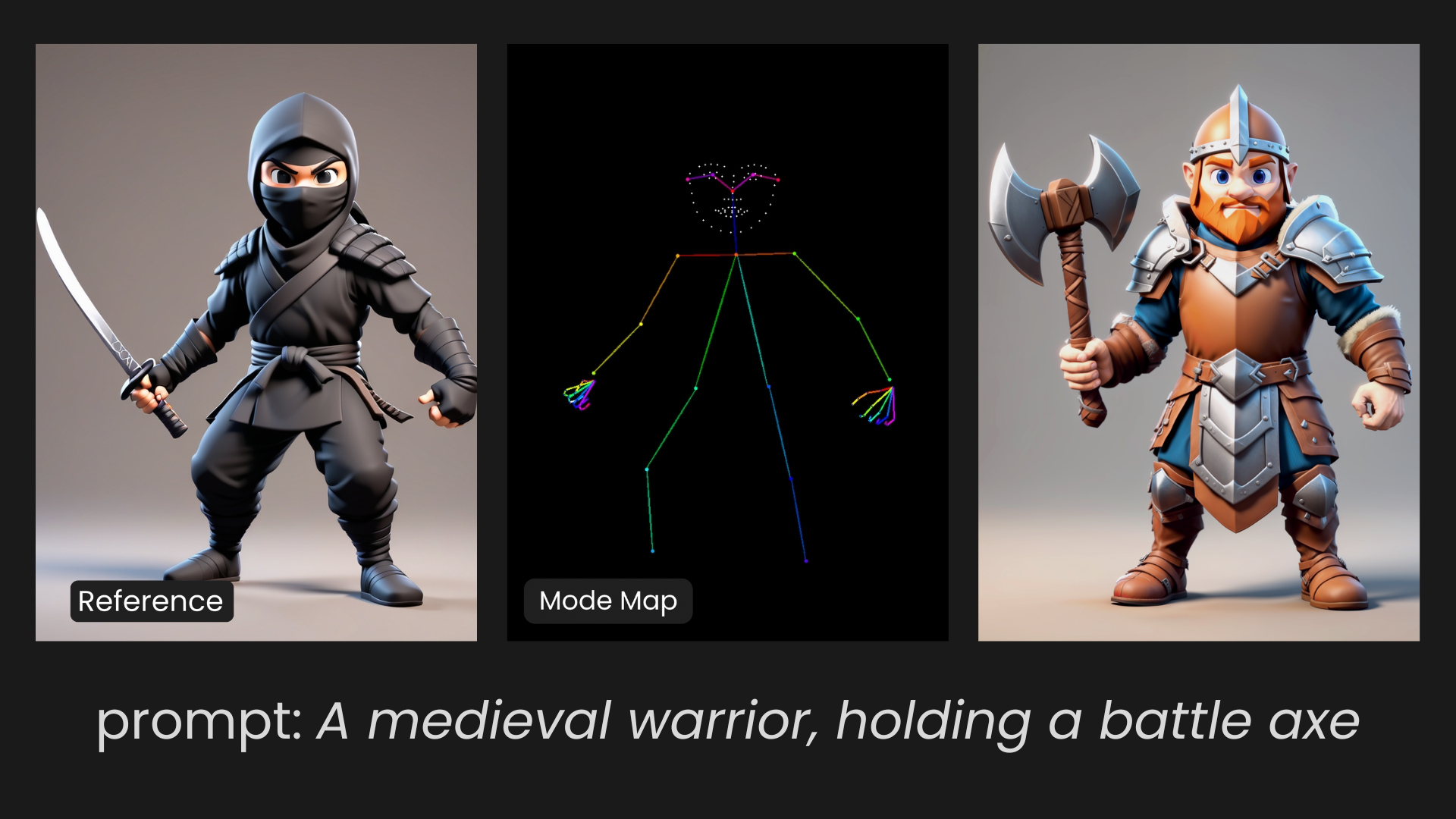
Sometimes, it can be better to erase the hands for a better result:
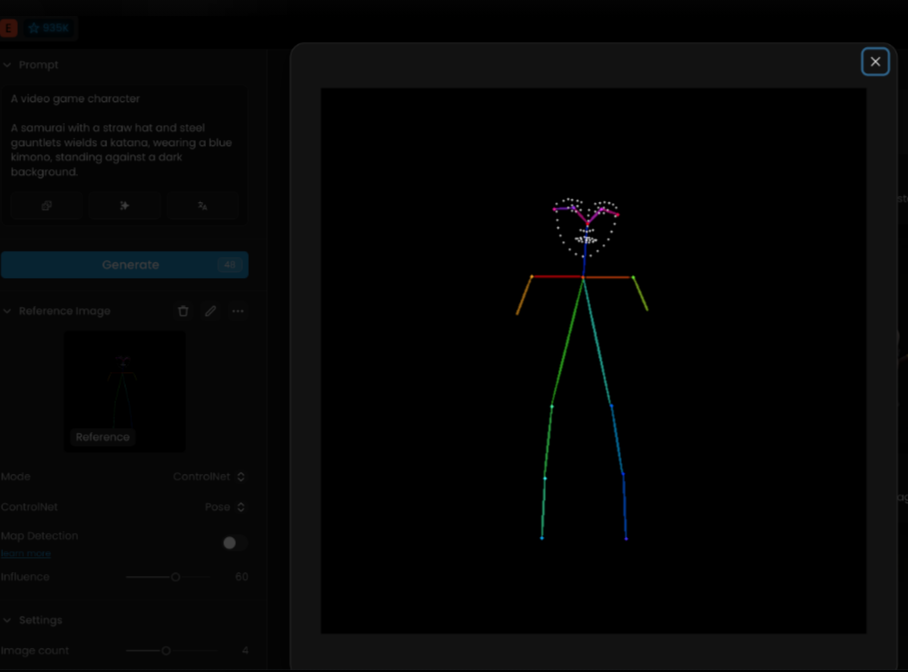
Depth Mode
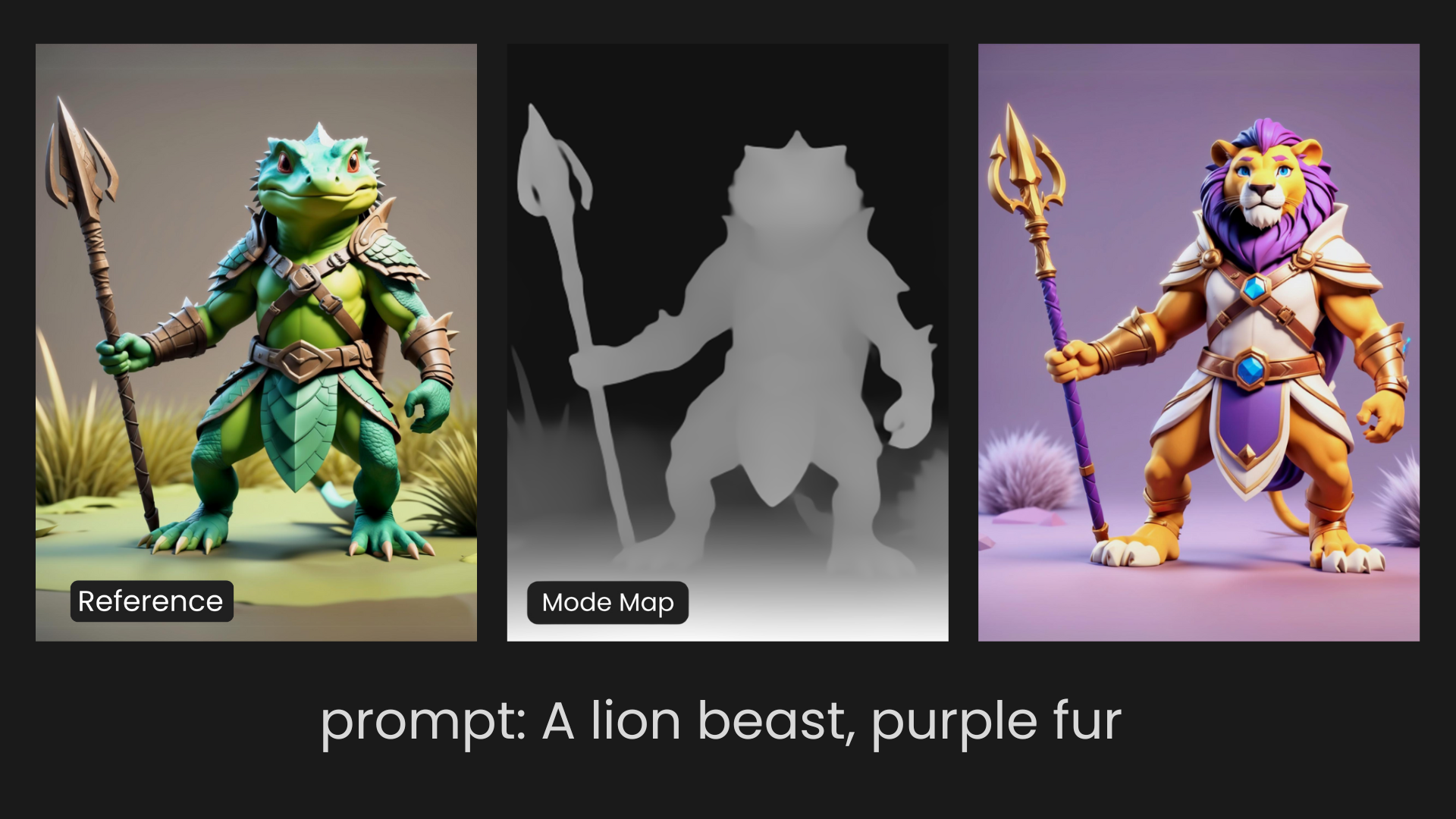
Depth Mode is a wonderful tool for differentiating the background and foreground of your reference image, as well as the various leveled elements in an image. This mode is particularly useful in landscapes or scenes where understanding the spatial arrangement is critical. It retains both the outer structure and many of the finer details, helping create a sense of depth and dimension similar to the original image.
Structure Mode
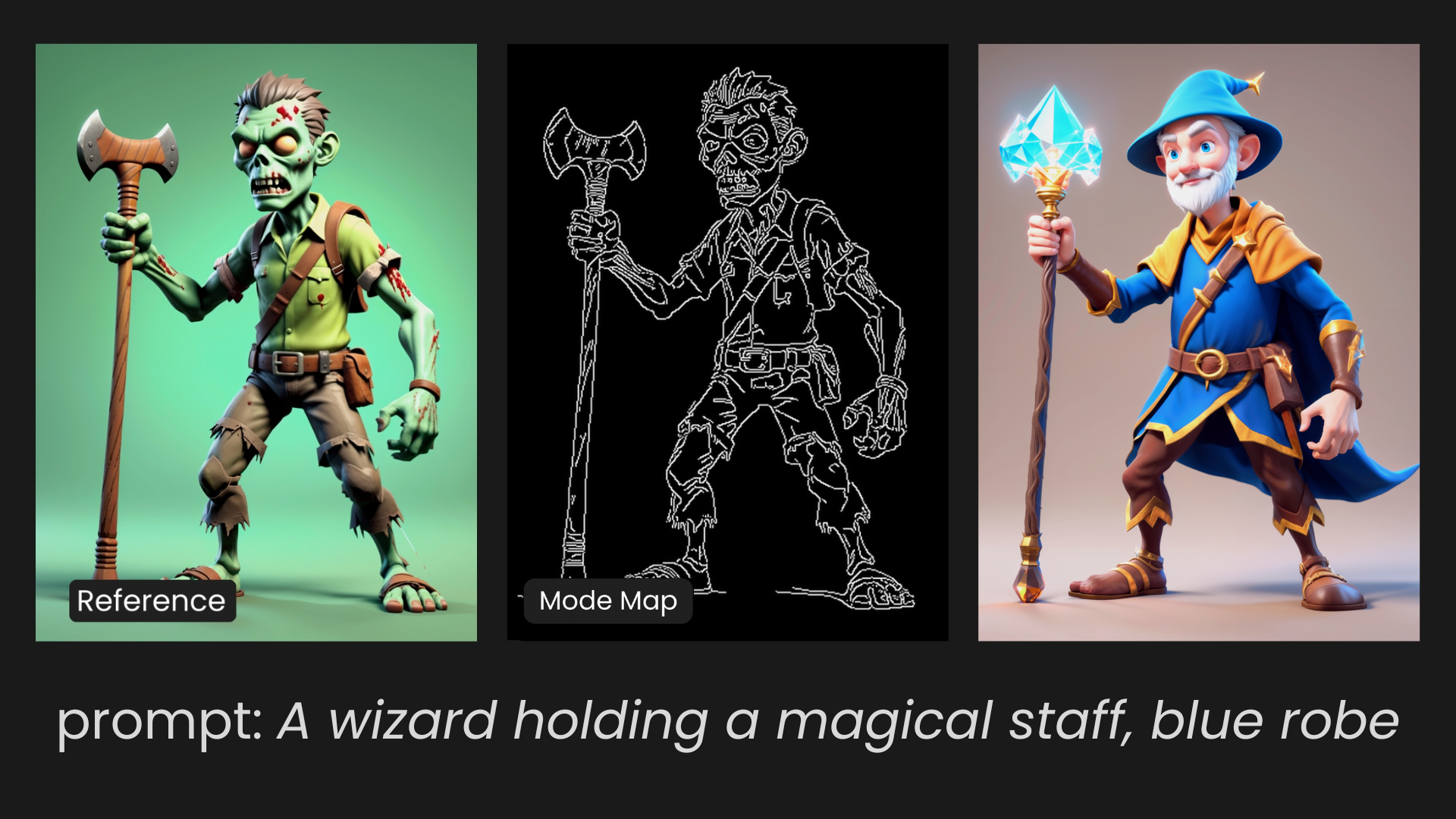
Structure Mode picks out and highlights all the fine edgework in an image, focusing mainly on what it considers the subject. This mode is ideal for replicating architectural forms, intricate designs, or any composition where maintaining the integrity of the edges is crucial. Structure Mode closely resembles the original input in terms of shape and form, but as is true with ControlNet, it will not carry over any of the original reference colors.
Flux Specific ControlNet Modes
These modes are only available when using FLUX.1[dev], FLUX.1[schnell] and FLUX LoRAs models. You can also guide your Control using the prompt, but it is not mandatory.
Blur Mode
Blur Mode serves the purpose of deblurring an image. It enhances the sharpness and clarity of a given image. Useful for recovering details in blurred photos or refining image quality.
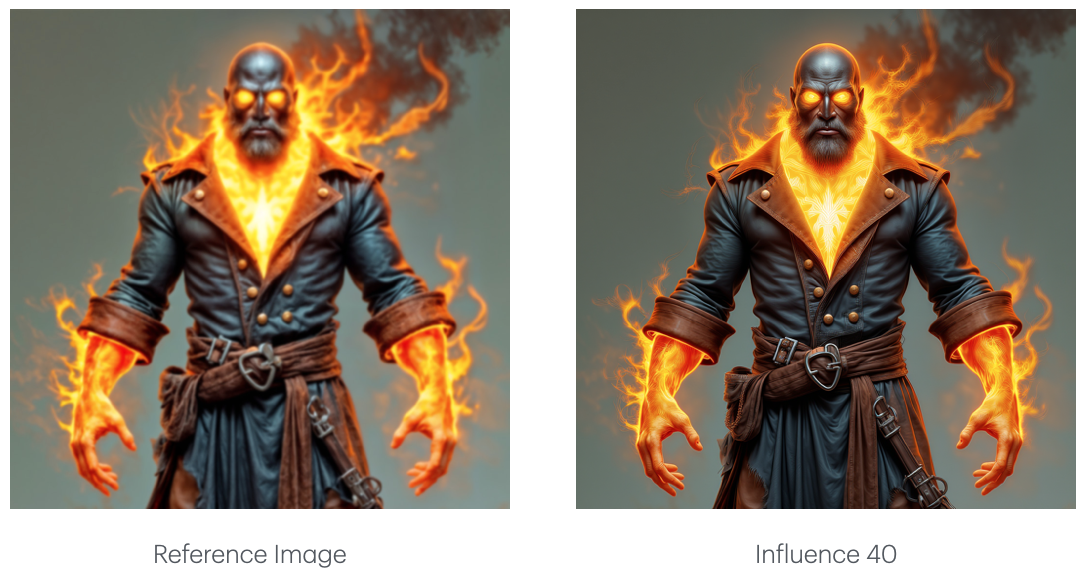
Tile Mode
Tile Mode is designed to generate an image that closely matches the structure and style of a reference tile.
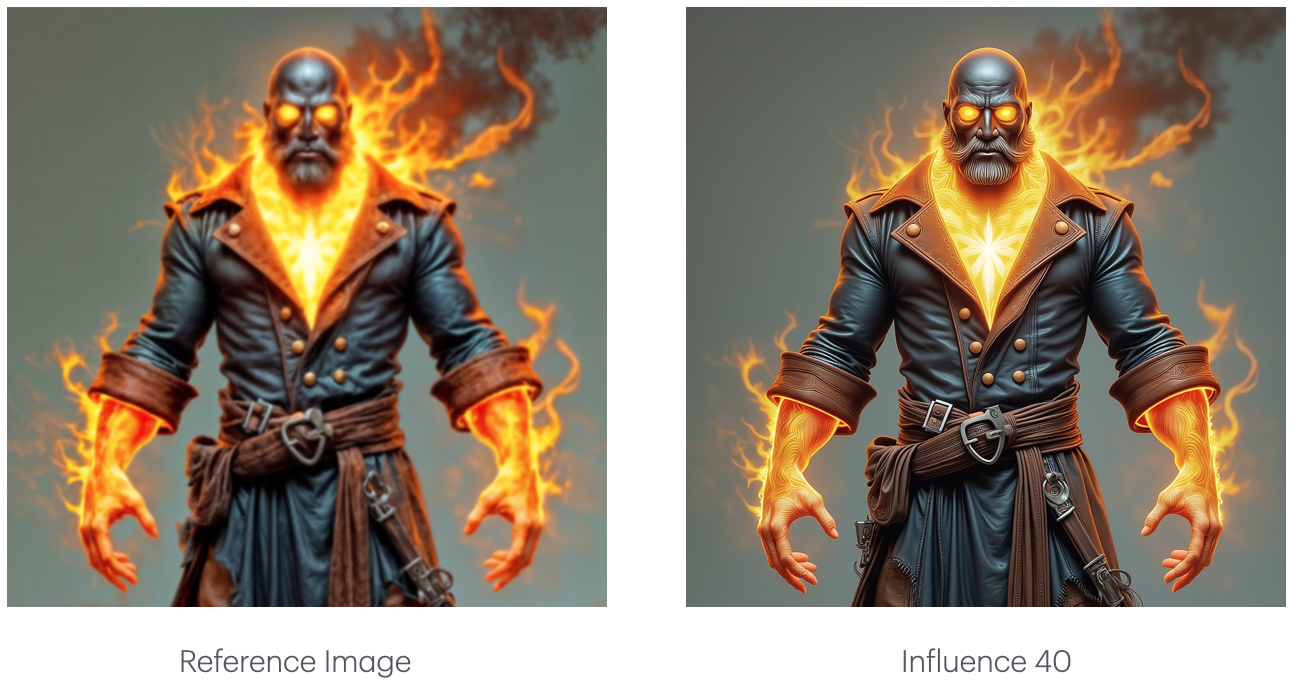
Gray Mode
Gray Mode is used to colorize grayscale images. It adds color to a black-and-white photo, making it an excellent tool for restoring old images or adding a creative touch to monochrome artwork.
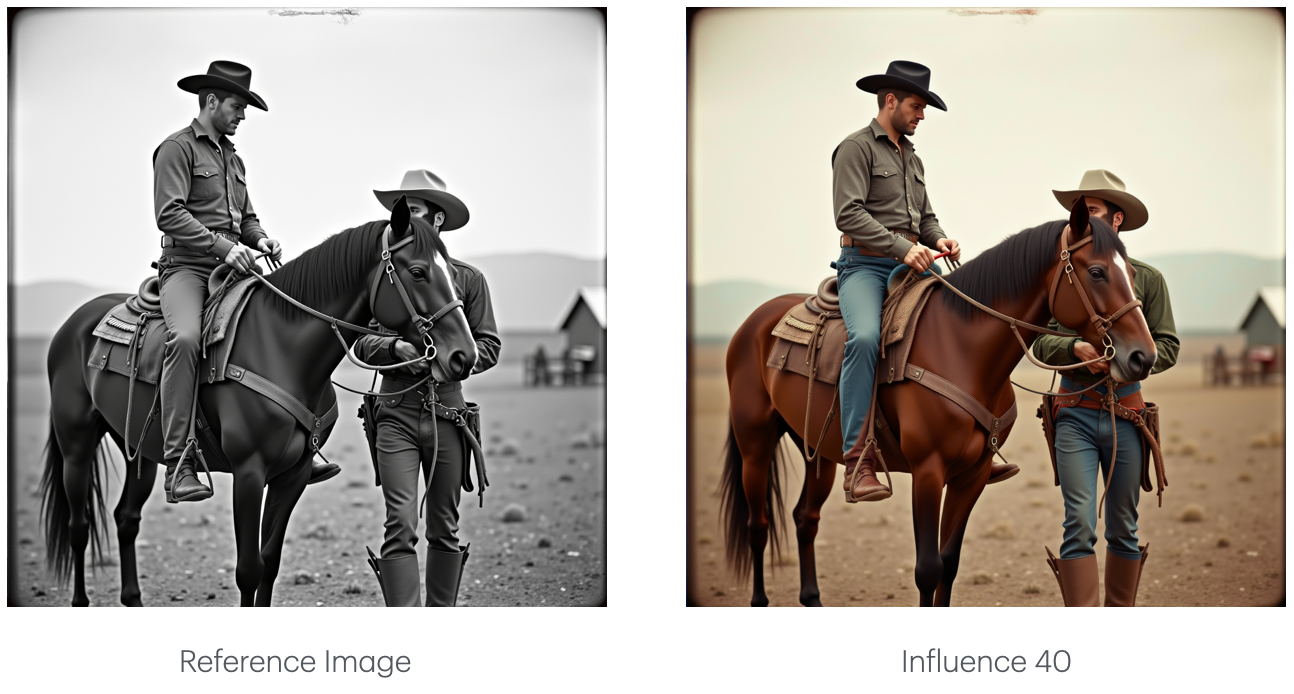
Low-Quality Mode
Low-Quality Mode enhances low-resolution or poorly detailed images by generating a high-quality output. This mode can transform a rough or pixelated source image into a refined, high-quality version.
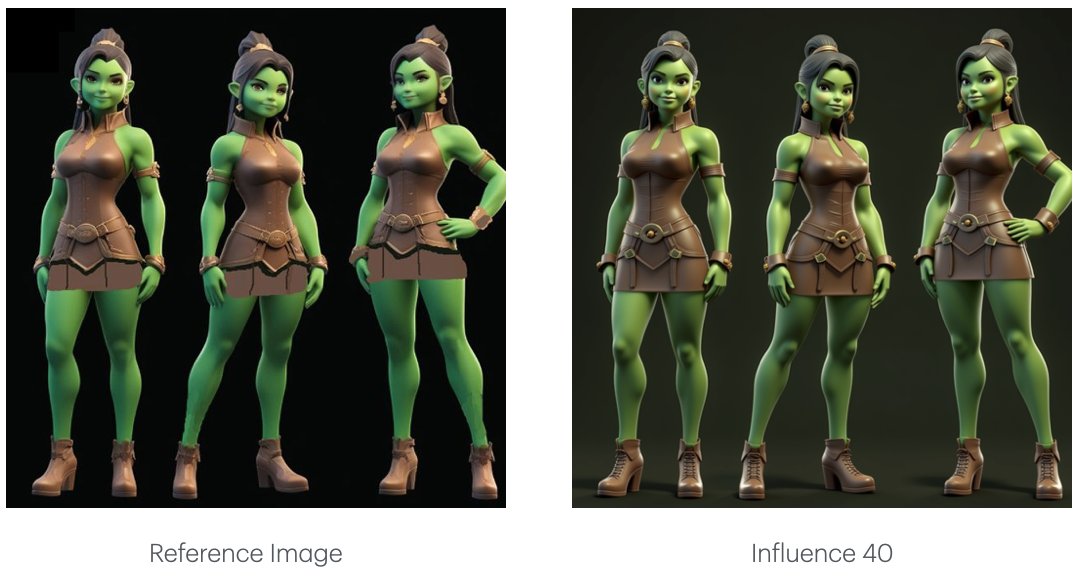
Sketch Mode
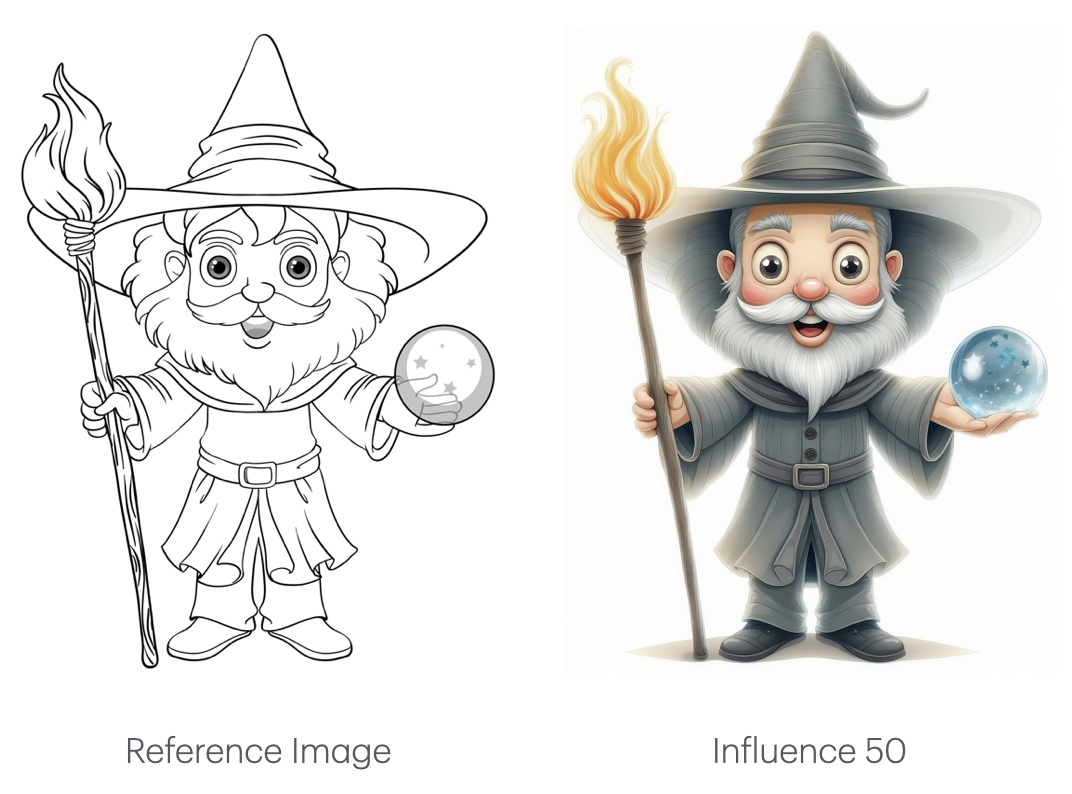
Designed specifically for hand-drawn sketches or line art references. Use it to transform your sketches into rendered images with your own style models in a streamlined "Sketch-to-Render" workflow.
Stable Diffusion Specific ControlNet Modes
These modes are only available when using SDXL, SDXL LoRAs, and SDXL Composition models.
Segmentation Mode
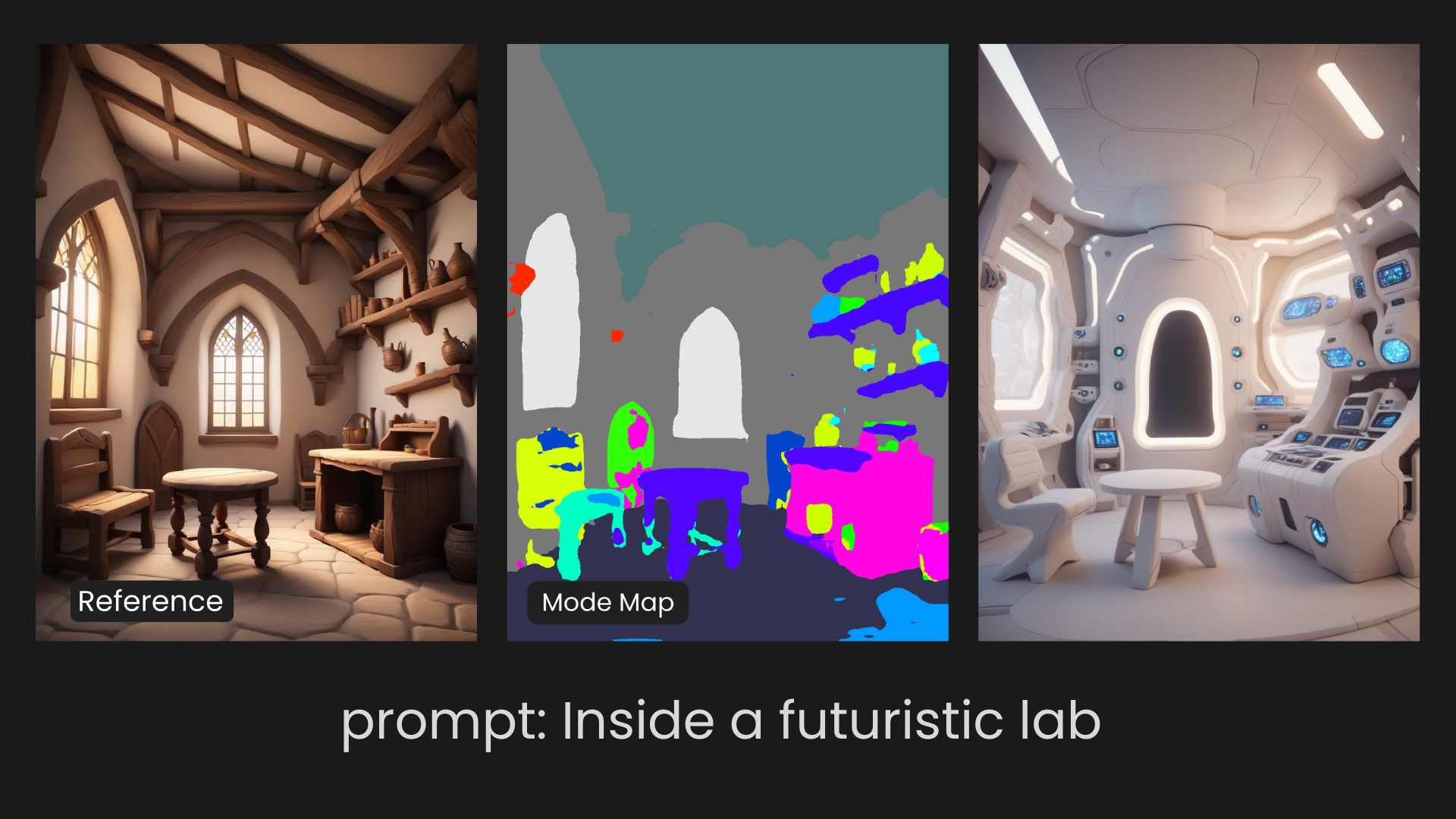
Segmentation Mode identifies the areas of space taken up by subjects in an image, separating different objects and often distinguishing between foreground and background elements. This mode is particularly useful when you need to control how the model interprets different objects within a scene, allowing for targeted manipulation of specific elements within the generated image. However, it relies more on the underlying model for composition details rather than the reference image itself.
Illusion Mode
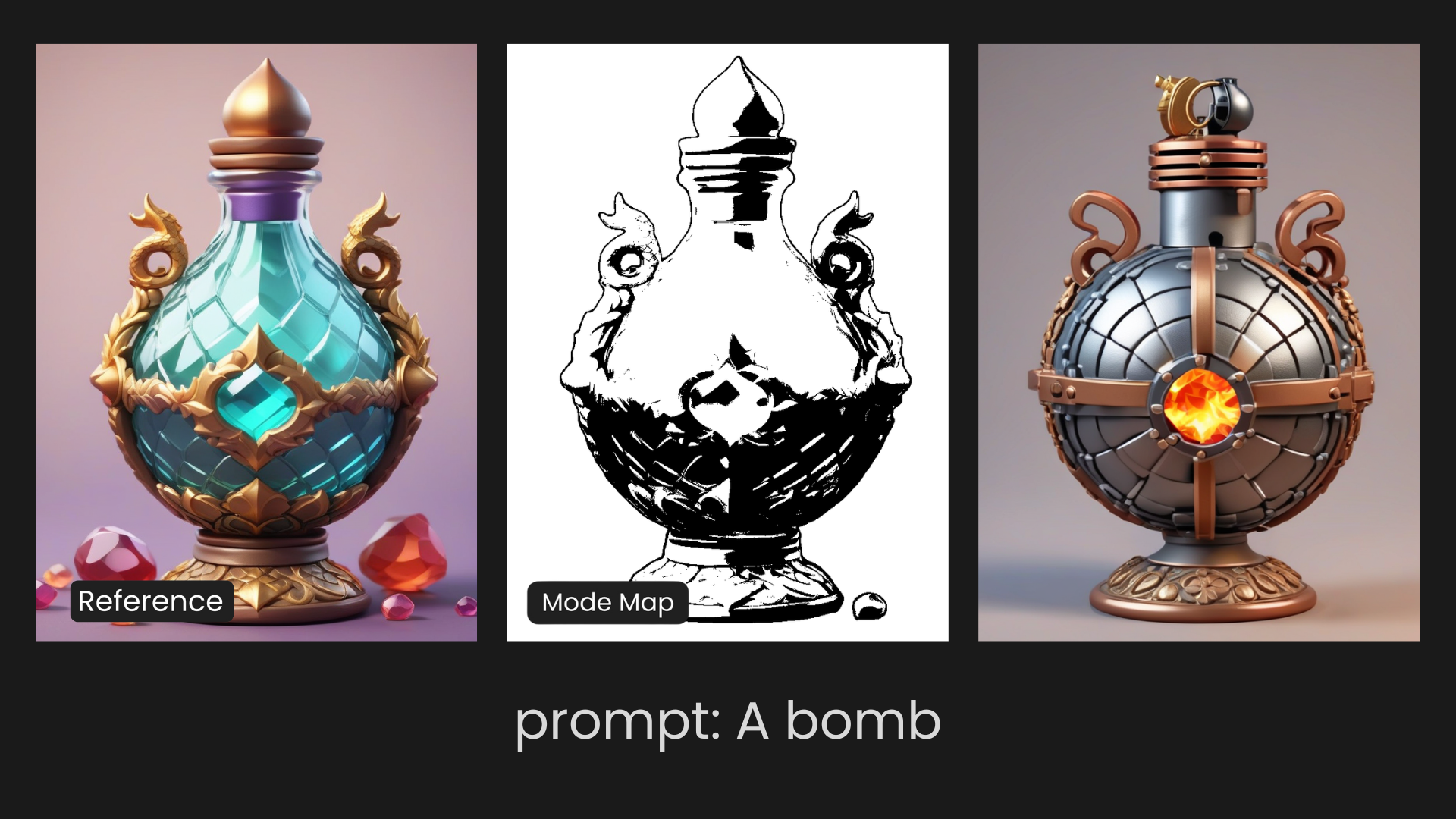
Illusion Mode is designed to seamlessly integrate patterns like graphic elements into an image. It’s ideal for blending these patterns into the background or overall design in a way that feels natural and cohesive. Whether you want to subtly embed a logo or create intricate designs with repeating patterns, Illusion Mode helps to merge these elements smoothly into the final image, making them a part of the overall composition without standing out too much.
Scribble Mode
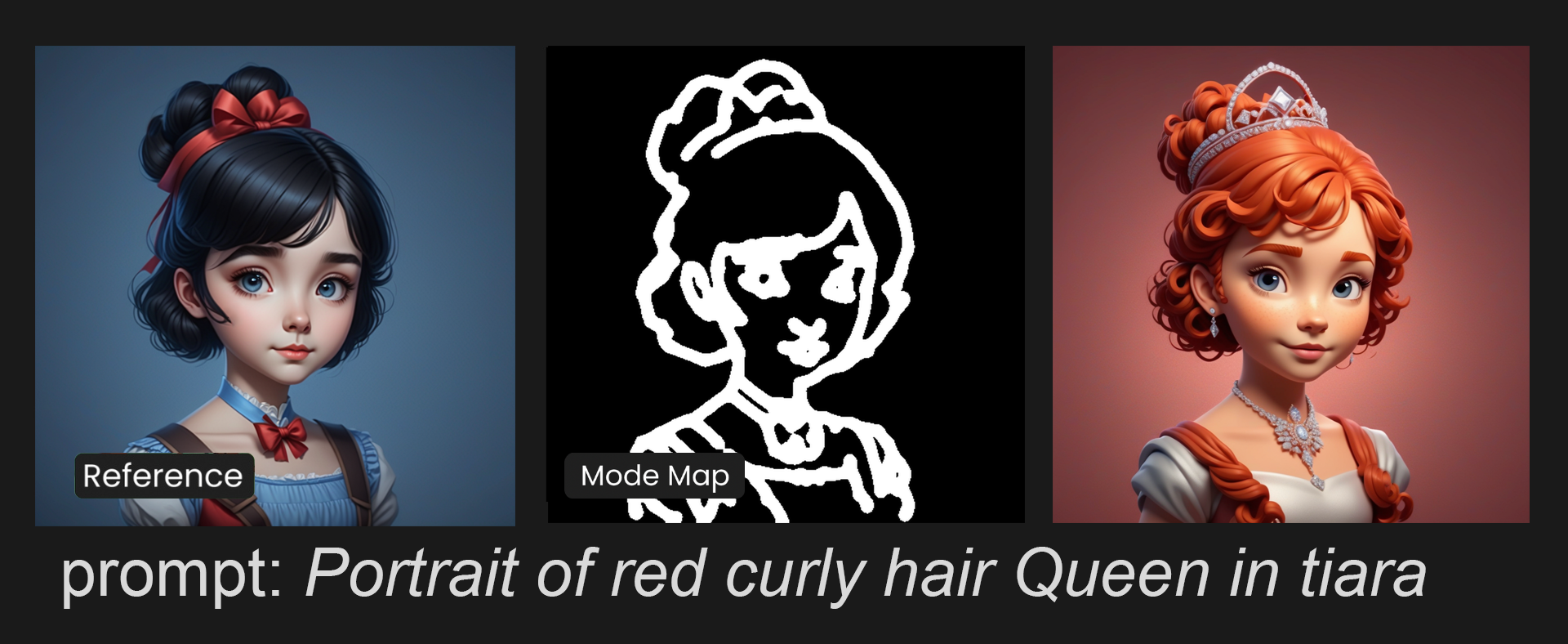
Scribble Mode is a feature that enables users to control and guide image generation by drawing simple sketches or outlines. It’s designed to interpret the basic shapes and patterns from your scribbles, using them as structural guides for the AI to create a more detailed, refined image.
Understanding "Influence" and "Duration"
When working in ControlNet mode, two sliders, Influence and Duration, help you control how much the reference guides the final image.
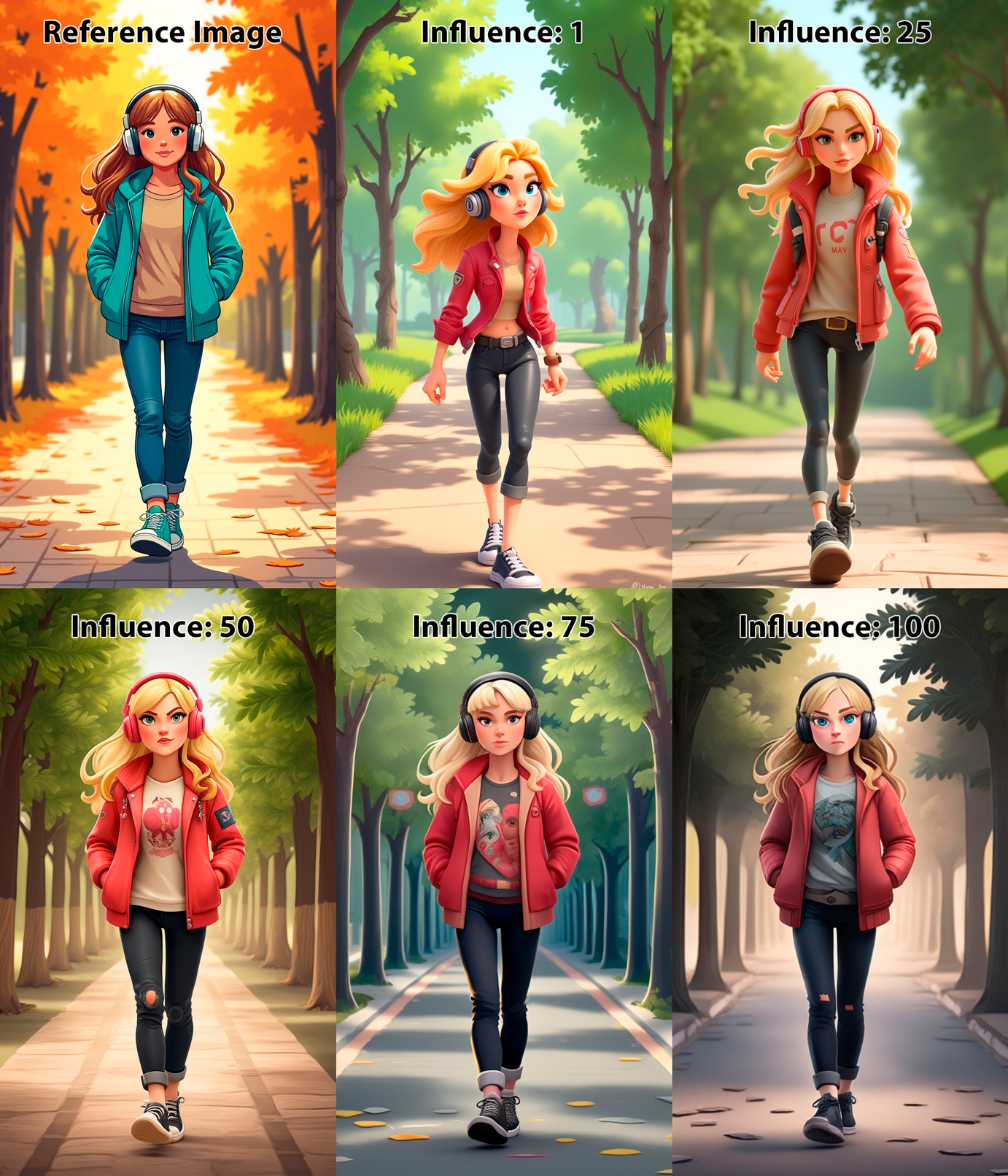
Influence adjusts how strongly the AI follows the reference.
Higher values mean the model sticks closely to the shapes and lines.
Lower values give it more freedom to interpret and stylize the result.
Duration sets how long, across the generation process, the reference influences the image.
For example, a value of 60 means the reference guides the first 60% of the steps, and the rest is shaped more by the text prompt.
These two settings work together to help you find the right balance, whether you want a rigid structure that matches your reference exactly or a looser image with more creative interpretation.
Below is a comparison of images generated with different types of Influence values. Note that low values are very different from the reference and very high values even generate distortions in some cases.
There’s no one-size-fits-all. Tweaking these values(especially Influence) is part of the creative process.
Access This Feature Via API
Single Reference Image:
ControlNet Generation: Scenario API Documentation - POST /generate/controlnet
Dual Reference Image:
ControlNet + Character or Style Reference: Scenario API Documentation - POST /generate/controlnet-ip-adapter
Map Detection: Scenario API Documentation - POST /generate/detect
Was this helpful?