Scenario Caption Studio: The Essentials
Last updated: June 8, 2026
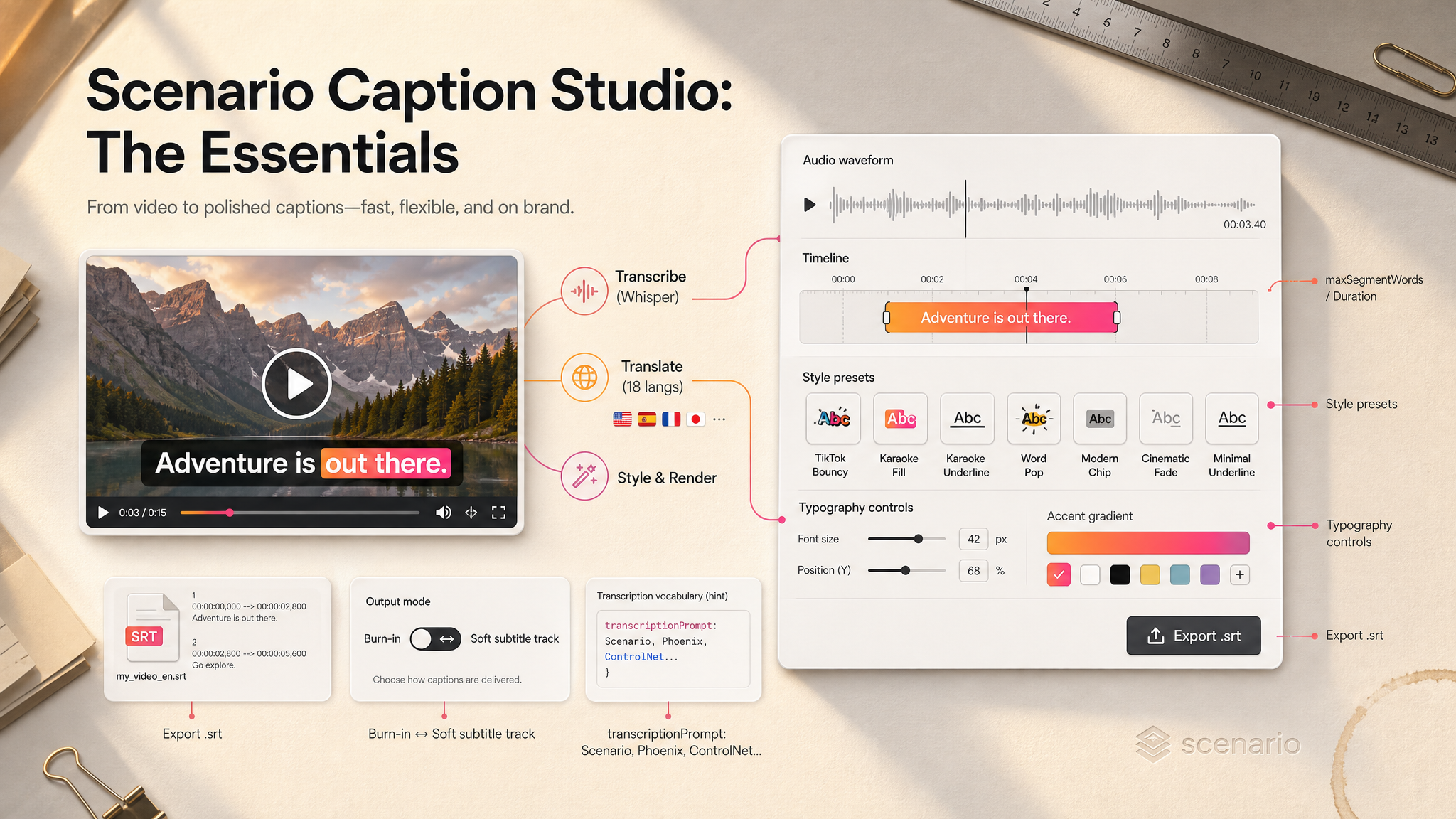
Scenario Caption Studio is the studio-grade captioning model on Scenario. In a single call it transcribes any video with Whisper, optionally translates the result into 18 languages, then renders captions on top with one of 7 ready-made presets or a custom style you describe in plain English. Every typography control is exposed, so the same call that pulls the speech can also decide where the captions sit, what colors they pulse with, and whether they bake into the picture or ride along as a toggleable subtitle track.
Showcase examples are coming. This launch article focuses on the model's capabilities and controls. Pinned example videos covering the 7 presets, multilingual translation, custom style prompts, and soft vs burn-in output will be added once the showcase batch is generated on the Public Data project.
Which Model Should I Use?
Model | ID | Input | Best for |
|---|---|---|---|
Caption Studio Editing |
| Video (+ optional SRT) | Transcribe, translate, style, and render captions on a video in one call |
Auto Subtitles Editing |
| Video | Simpler, fixed-style subtitling when you do not need preset or typography control |
Speech to Text Generation |
| Audio or video | Get an SRT or TXT transcript with no rendered video |
ElevenLabs Dubbing Editing |
| Audio or video | Replace the spoken voice in 30 languages (voice cloning), not the captions |
Use Caption Studio when the final deliverable is a video with styled, on-screen text. Use Auto Subtitles for a fast, low-config caption pass. Use Speech to Text when you only need the timed transcript file. Use ElevenLabs Dubbing when the change is in the audio (a new spoken language), not in what is written on screen.
How to Use the Model
How Caption Studio Works
Caption Studio takes a single video and runs four stages back to back inside one job: transcribe the audio with Whisper, optionally translate the text into a target language, apply a caption style (preset or custom), and render the final video. You only need to supply the video. Everything else has sane defaults, so the minimum input looks like this:
video:            asset_xxx              // the source clip
stylePreset:      ""                     // default look
targetLanguage:   "auto"                 // keep the spoken language
outputSubtitles:  "video_image"          // burn-in
From there you can layer in a preset, a custom style prompt, translation, a custom SRT, or any of the typography controls. The job returns the captioned video by default, with an optional .srt export and an advanced theme file for power users.
Picking a Style Preset
The fastest path to a polished result is one of the 7 presets. Pick the one that fits the format and the energy of the clip:
TikTok Bouncy: animated, high-energy text designed for vertical short-form. Great for UGC, talking-head explainers, and product reactions.
Karaoke Fill: words light up as they are spoken, filling the caption with the accent gradient. The classic music-video look.
Karaoke Underline: same word-by-word highlight, but as an underline instead of a fill. Cleaner on busy backgrounds.
Word Pop: each word pops in on its own beat. Pair with
maxSegmentWords: 1for a true word-at-a-time karaoke effect.Modern Chip: rounded pill-shaped background behind the text. Strong contrast against any footage, brand-friendly.
Cinematic Fade: subtle fade in and out, low animation. Best for trailers, documentaries, and any cut where the captions should not steal focus.
Minimal Underline: thin underline under the active words. Quiet, editorial, good for tutorials and long-form content.
Leave stylePreset empty for the default look. Set it once and the model handles the rest, but every preset still respects your color, position, and pacing overrides.
Writing a Custom Style Prompt
If none of the presets match what you want, describe the look in plain English with stylePrompt and Caption Studio will build a matching style. Combine it with a preset to refine that preset, or use it on its own.
stylePrompt: "Bold yellow text with a thick black outline,
words highlight cyan as they are spoken,
soft drop shadow, position centered, large size."
The prompt is interpretive: describe color, motion, weight, outline, and timing. Avoid technical CSS or naming a font by file name. If you need full deterministic control over the rendered theme, use themeTsx instead (advanced).
Translating Captions
Set targetLanguage to any of 18 codes (en, es, pt, fr, de, it, nl, pl, tr, ru, ar, hi, bn, zh, ja, ko, vi, id) to have the captions rendered in that language. Leave it on auto to keep the spoken language. A common pattern is to localize a single source video into several captioned editions by running the model once per targetLanguage value.
Bring Your Own SRT
If you already have a reviewed, timed transcript, upload it as the subtitles input. Caption Studio skips the transcription stage entirely and styles your file directly. This is the path to take when timing has to be frame-accurate, when an editor has manually corrected the text, or when the source audio is too noisy for clean automated transcription.
Tuning Caption Pacing
Three knobs decide how much text appears at once and how fast it changes:
maxSegmentWords: most words per caption. Set to1for one-word-at-a-time karaoke. Set higher for documentary-style longer cues.maxSegmentChars: hard character cap before a caption splits.maxSegmentDuration: longest a single caption can stay on screen, in seconds.
Picking the right pacing matters more than picking the preset. For vertical short-form, lean on maxSegmentWords between 2 and 4. For long-form narration, raise the duration and characters so the viewer is not flooded with breaks.
Burn-in vs Soft Subtitle Track
outputSubtitles decides how the captions live in the final file:
Burn Into Video (
video_image, default): the styled captions are baked into the picture, so the look is preserved everywhere the video plays. Captions cannot be turned off.Soft Subtitle Track (
video_data): captions ship as a separate track inside the video file. The viewer can toggle them, but they show as plain text without the preset styling.
Pick burn-in for social platforms, marketing pages, and any context where the caption look is part of the brand. Pick soft track for accessibility deliverables, internal review files, or pipelines that recompose captions downstream.
Locking Down Names and Jargon
Whisper occasionally misspells proper nouns, brand names, and acronyms. Two knobs help:
transcriptionPrompt: short hint with the names, brands, or technical terms used in the clip. The transcriber treats it as a vocabulary bias.modelSize: jump from themediumdefault tolarge-v3when accuracy matters more than speed.
transcriptionPrompt: "Scenario, Phoenix, ControlNet, txt2img, GLB, ComfyUI"
modelSize: "large-v3"
Parameters
This section describes every input the model accepts. Defaults marked here apply when the field is left empty.
Input
video
The source video. Required. Any video asset on Scenario works. There is no separate aspect-ratio control on Caption Studio: the output inherits the source dimensions, so feed it the framing you want to publish.
subtitles
Optional. Upload an existing .srt to bypass the transcription stage. When supplied, Caption Studio uses your timing and text verbatim and applies the chosen style on top.
Translation
targetLanguage
Default auto. One of 18 ISO codes (en, es, pt, fr, de, it, nl, pl, tr, ru, ar, hi, bn, zh, ja, ko, vi, id). Set to auto to keep the spoken language; set to any code to translate.
Style
stylePreset
One of seven values (tiktok-bouncy, karaoke-fill, karaoke-underline, word-pop, modern-chip, cinematic-fade, minimal-underline) or empty for the default look. The preset chooses the animation and base typography; color and layout overrides still apply.
stylePrompt
Up to 8000 characters. Plain-English description of the caption look you want. Combine with a stylePreset to refine the preset, or use it alone to define a style from scratch.
themeTsx
Up to 200000 characters. Advanced: a custom caption theme that replaces the preset entirely. Use this when you need byte-level control or are reusing a theme across many videos. If you also pass a stylePrompt, it refines the theme.
Segment Pacing
maxSegmentDuration
Seconds, range 0.1 to 600. Longest a single caption can stay on screen.
maxSegmentChars
Range 1 to 500. Hard character cap before a caption splits into the next one.
maxSegmentWords
Range 1 to 100. Set to 1 for one word at a time (great for karaoke). Higher values produce longer cues.
Typography
fontColor
Hex code, default #FFFFFF. Main caption color.
accentColorStart and accentColorEnd
Hex codes, defaults #FF8A3D and #FF3D8A. The two ends of the accent gradient used by karaoke and pop styles. Set them to the same color for a solid accent, or to different colors to create a gradient.
textPosition
One of top, middle, bottom. Default bottom. Vertical placement of the captions on screen.
fontSizePx
Pixels, range 12 to 200. Leave empty for automatic sizing based on the video resolution.
maxLines
Range 1 to 6, default 2. Most lines a caption can wrap onto before it splits into a new segment.
textWidthPct
Range 10 to 100. Percent of the screen width captions can fill.
Transcription Quality
transcriptionPrompt
Up to 2048 characters. Comma-separated names, brands, or technical terms to bias the transcriber so they are spelled correctly.
modelSize
One of tiny, tiny.en, base, base.en, small, small.en, medium, medium.en, large-v2, large-v3. Default medium. Larger sizes are more accurate but slower. The .en variants are English-only and run faster on English audio.
Output Settings
outputVideo
Boolean, default true. Return the finished video with captions burned in (or with a soft track, depending on outputSubtitles).
outputSrt
Boolean, default false. Also return the captions as a standalone .srt file alongside the video.
outputTsx
Boolean, default false. Also return the caption theme used to render the video, so you can reuse the exact look on later runs.
outputSubtitles
One of video_image (default) or video_data. Controls whether the captions are burned into the picture or shipped as a toggleable subtitle track. Only applies when outputVideo is true.
compressionLevel
Range 15 to 51, default 23. Output quality. Lower numbers mean higher quality and larger files.
Use Cases
Short-form social: drop a TikTok / Reels / Shorts cut in, pick TikTok Bouncy or Word Pop with
maxSegmentWords: 1, and ship a retention-optimized version in one call.Multilingual marketing reels: run the same source video once per
targetLanguageto ship localized editions side by side, all rendered in your brand colors.Course recordings and tutorials: use Minimal Underline or Cinematic Fade with a higher
maxSegmentDurationso the captions read clean over slides and screen recordings.Gameplay highlights and let-plays: pair Karaoke Fill with hype-moment colors to punch up reactions, jump-cuts, and clutch plays.
Podcast-to-video and talking-head shorts: Modern Chip with a brand accent gives every clip the same recognizable look across a feed.
Trailers and promos: Cinematic Fade with
textPosition: topkeeps the caption out of the lower-third area used by titles and supers.
Tips for Better Results
Match the preset to the format. Bouncy and Word Pop earn their keep in vertical short-form. Cinematic Fade and Minimal Underline are calmer and better for long-form content, trailers, and tutorials.
For karaoke-style captions, set
maxSegmentWords: 1. Without it, the karaoke fill still works but you get phrases instead of one word at a time, which is rarely what you want for music or reaction edits.Bias the transcriber when the clip has proper nouns. A short
transcriptionPromptwith the brand names, product names, and jargon used in the clip saves a manual SRT fix pass downstream.Bring your own SRT when timing matters. If an editor has already cut the dialog to picture, upload that SRT instead of re-transcribing. The renderer will follow your timings exactly.
Use
large-v3for high-stakes clips. The defaultmediumis the right speed-quality trade-off for most content; promote tolarge-v3for accents, technical jargon, or anything customer-facing where a misspelling would be visible.Pick the output mode by destination. Burn-in for social and brand-facing video where the look matters. Soft subtitle track for accessibility deliveries and review copies where viewers expect to toggle captions.
Test the accent gradient before batching. Setting
accentColorStartandaccentColorEndto the same value gives a solid accent; setting them to two different colors gives a gradient. The look is hard to predict on extreme color pairs, so run one clip first and lock the values before processing a series.
Known Limitations
No aspect-ratio control on the model. Caption Studio inherits the source video dimensions. Re-frame the clip before running it if you need a different aspect ratio.
Translation quality depends on transcription first. If Whisper mishears the source, the translated captions will repeat the mistake. For accent-heavy or jargon-heavy content, raise
modelSize.One-word-at-a-time mode can break layout with very long words. A 20-character word at high
fontSizePxmay overflow thetextWidthPctbox. Either lower the font size, raise the width, or accept the wrap on those segments.Custom
themeTsxis advanced. Hand-authoring or pasting an unknown theme is not guaranteed to render. Start from a preset, export withoutputTsx: true, then iterate on that file.Auto language detection is best-effort. When two languages are mixed in the same clip, the auto path chooses one. Set
targetLanguageexplicitly to lock the output.