Sync-3 Lipsync - 4K Lip Sync for Any Video
Last updated: September 23, 2026
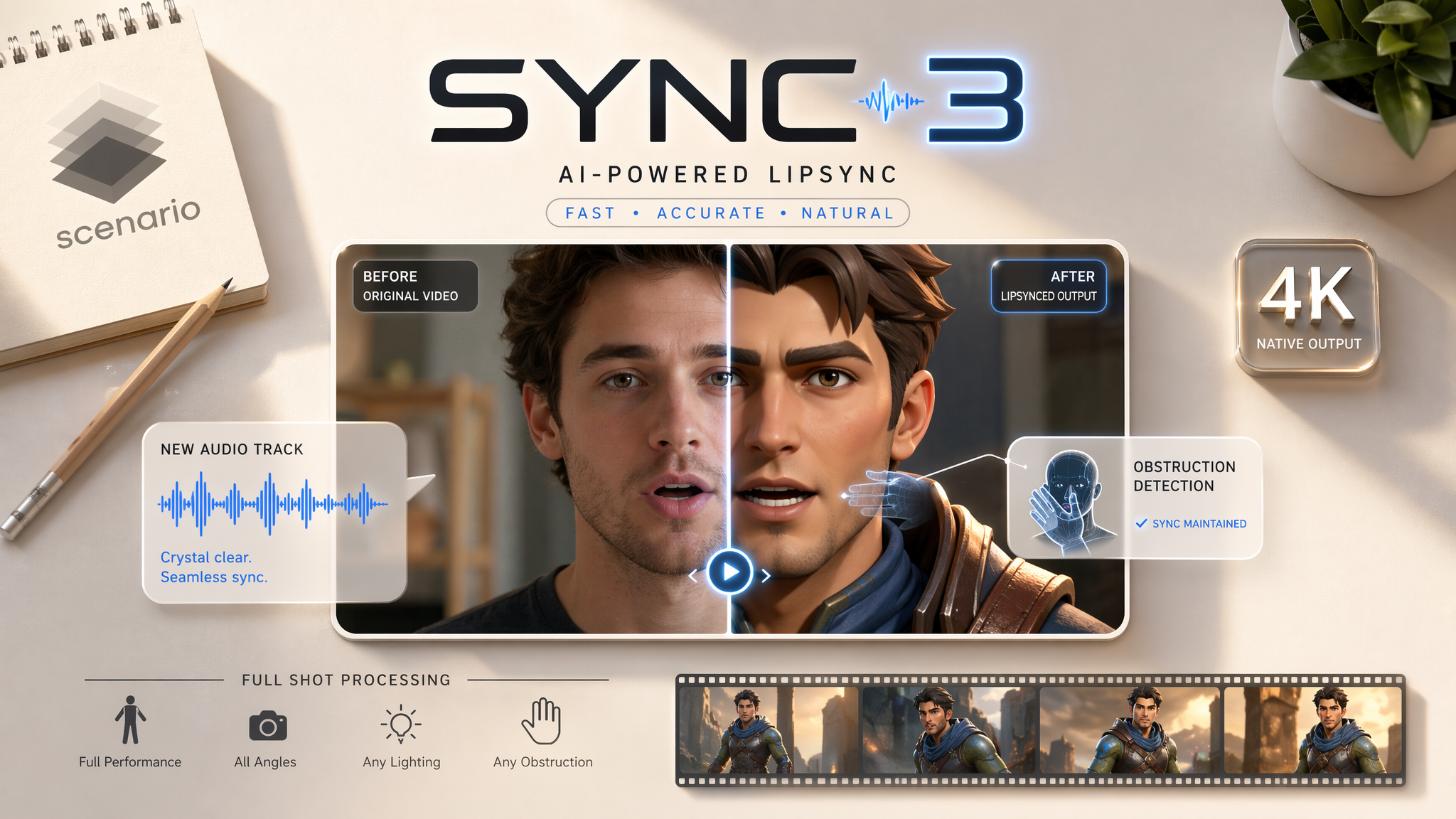
Sync-3 is a professional-grade AI lipsync model that synchronizes mouth movements in any video to match a new audio track. Developed by Sync Labs, it delivers 4K native output, full-shot processing, and built-in obstruction detection - making it the premier choice for production-quality results on real people, game characters, and animated figures.
The Sync-3 family on Scenario has two models from Sync Labs that share the same lipsync engine: Sync-3 Lipsync re-syncs the mouth in an existing video to a new audio track (dubbing, voice-over, ADR), and Sync-3 Avatar Image to Video brings a single still image to life as a talking character driven entirely by an audio track, with no source footage needed.
Which Model Should I Use?
Model | ID | Input | Best for |
| Video + Audio | Dubbing and localization, fixing dialogue on filmed or generated footage, NPC narration over existing idle animations. Up to 4K, five sync modes for duration mismatches. | |
| Image + Audio | Talking avatars, virtual presenters, mascots, and narrated characters when you only have a portrait, illustration, anime frame, or 3D render. |
Rule of thumb: if you already have a video of the character, use Sync-3 Lipsync so the original motion and camera are preserved. If you only have a still image, use Sync-3 Avatar Image to Video; the clip length is set by your audio.
Overview (Sync-3 Lipsync)
Sync-3 replaces or synchronizes the lip movements in an existing video with a new audio track. Instead of re-filming scenes or investing in costly dubbing sessions, you simply provide a video and an audio file, and Sync-3 handles the rest.
Why choose Sync-3?
Silent Lip Animation: Unlike older models, Sync-3 can animate characters that were not speaking in the original clip by "opening" silent lips to match audio.
Full-Shot Support: Processes the entire frame rather than requiring close-cropped face shots.
Obstruction Detection: Automatically manages hands, microphones, or objects that partially cover the mouth.
Common Use Cases:
Localization: Translating content into new languages with dubbed audio.
Correction: Fixing filming errors where the wrong take was used.
Game Development: Creating NPC narration from static or idle character animations.
How to Use Sync-3 Lipsync
Step 1: Prepare Your Video
Visibility: Use shots where the face is clearly visible; front-facing angles produce the sharpest results.
Lighting: Ensure the mouth area is well-lit and avoid rapid camera pans or cuts.
Style: Works with humans, stylized characters, and 3D avatars.
Note: Sync-3 is designed for speech, not singing. Musical content will result in generic rather than phoneme-accurate movements.
Step 2: Prepare Your Audio
Quality: Use clean audio with minimal background noise or music.
Pacing: A natural speaking pace is ideal.
TTS Tip: If using AI-generated audio (e.g., ElevenLabs), use punctuation like exclamation marks and capital letters in your script to trigger more expressive lip movements.
Step 3: Choose a Sync Mode
The syncMode parameter determines how the model handles duration mismatches between your video and audio.
Mode | Behavior | Best For... |
cut_off (Default) | Trims the audio to match the video length. | Fixed video length where the audio end is non-critical. |
loop | Repeats the video from the start to fill the audio. | Short ambient clips or looping background characters. |
bounce | Plays video forward then reverse (back-and-forth). | Idle animations or walking cycles. |
silence | Adds silence to the audio to match a longer video. | When you want the subject to stop speaking partway through. |
remap | Adjusts video playback speed to match audio exactly. | When both full video and audio content must be preserved. |
Step 4: Run the Model
Connect your assets, select your mode, and run. Sync-3 delivers native 4K output without the need for manual cropping.
Sync-3 Avatar Image to Video
Sync-3 Avatar Image to Video turns one portrait into a talking character. You upload a still image and a voice track, and the model animates the mouth (with natural accompanying facial motion) so the character speaks the audio. There is no source video and no text prompt: the output is driven only by the image and the audio, and the video runs the exact length of the audio.
It works across styles: real photographs, digital illustrations, anime artwork, and 3D character renders, which makes it useful for mascots, avatars, virtual hosts, and narrative characters that only exist as a single reference image.
How It Works
Step 1, the image: pick a clear, front-facing portrait where the face and mouth are well lit and unobstructed. Head-and-shoulders framing gives the model the most detail to work with. The output keeps the framing of your image.
Step 2, the audio: upload clean speech with little background music or noise. The audio length sets the video length, so trim it to exactly what you want the character to say.
Step 3, run: the model returns a video of your character speaking the audio, ready to drop into Video Studio or Caption Studio, or to chain in a workflow.
Examples (Sync-3 Avatar Image to Video)
All clips below were generated with Sync-3 Avatar Image to Video from a single still image plus a voice track. Turn the sound on to check the sync.
Anime illustration: a battle-worn hero delivers a line, from one 2D frame · Open on Scenario
3D render: a sci-fi android speaks, showing the model on stylized, non-human faces · Open on Scenario
Photoreal portrait: a news anchor reads a bulletin, a virtual presenter use case · Open on Scenario
Fantasy character art: an elven queen narrates, ideal for game or story characters · Open on Scenario
Parameters (Sync-3 Avatar Image to Video)
The model has only two inputs, both required. There are no sync modes, resolution, or duration settings.
image
Required. The photo or artwork of the character to bring to life; their mouth is animated to match the audio. Accepts photos, illustrations, anime, and 3D renders. A single, clearly visible, front-facing face gives the most accurate articulation.
audio
Required. The voice or speech track to lip-sync to. The output video is the same length as this audio, so the audio duration is what controls clip length.
Tips for Best Results
Duration Match: Try to match video and audio lengths before processing; the closer they are, the more natural the result.
The 20% Rule: For mismatches, use remap. A video sped up or slowed down by 10% to 20% is rarely noticeable but keeps the sync coherent.
Camera Angle: Eye-level, front-facing shots provide better articulation than profile or upward-angle shots.
Avatar, pick the right portrait: for Sync-3 Avatar Image to Video, use an image with a neutral or relaxed expression and no hands or props over the mouth. The model starts from this frame, so a face that is covered or frozen in an extreme expression limits how natural the speech looks.
Avatar, trim the audio first: since the clip length always equals the audio length, cut leading and trailing silence before uploading to avoid a character that sits silent at the start or end.
Still image or video? If you can generate a short idle video of the character first (with any image-to-video model), running it through Sync-3 Lipsync gives you more body and camera motion than animating a still with Sync-3 Avatar.
Known Limitations
Singing: Not optimized for musical content; movements will be generic.
Extreme Angles: Near 90-degree side views or profile shots significantly reduce tracking accuracy.
Length: Generation time increases with duration. For videos over 60 seconds, consider splitting the content into segments and concatenating them post-generation.
Avatar motion is face-focused: Sync-3 Avatar Image to Video animates the face from a still; it does not add camera moves or full-body action. For gestures or scene motion, animate the image with a video model first and then use Sync-3 Lipsync.
Avatar has no controls: there are no sync modes, resolution, or duration settings on the Avatar model; output length follows the audio and framing follows the source image.
One face per image: for predictable results with the Avatar model, use images containing a single character. Group shots may animate the wrong face.