Audio and video editing tools overview
Last updated: October 14, 2026
Overview of the seven built-in audio and video editing tools in the Scenario web app.
The short version
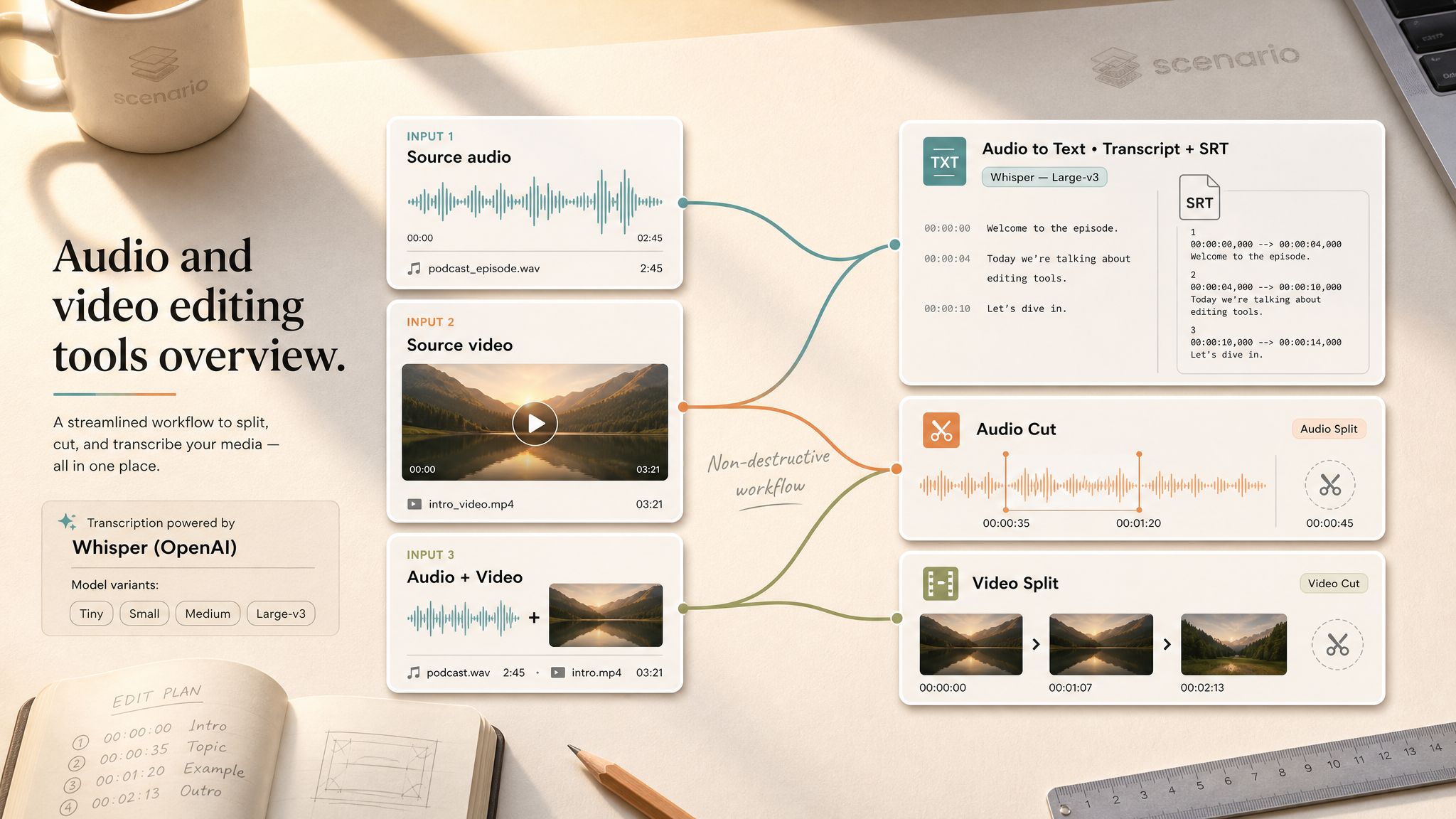
Audio to Text transcribes any audio or video file to a plain transcript and SRT subtitle file. Supports 99 languages and optional translation to English.
Audio Cut extracts an exact segment from an audio file using a start and end time. The source file is not modified.
Audio Split divides one audio file into multiple segments at defined timestamps. N cut points produce N+1 clips.
Video Cut extracts an exact segment from a video file. Audio is preserved by default.
Video Split divides one video into multiple segments at defined timestamps. Audio is preserved across all clips.
Reverse Video plays a video backwards, reversing picture and sound together. No prompt or settings needed.
Note
These editing tools deduct Scenario credits. Open the Account menu in the Scenario web app to view the credit balance. The source asset is never modified: each operation produces a new asset.
All seven tools run as non-destructive operations. Run them individually or chain them in sequence. A common workflow is to split a long clip, cut the needed segment, then transcribe it for subtitles or a script pass.
Audio to Text
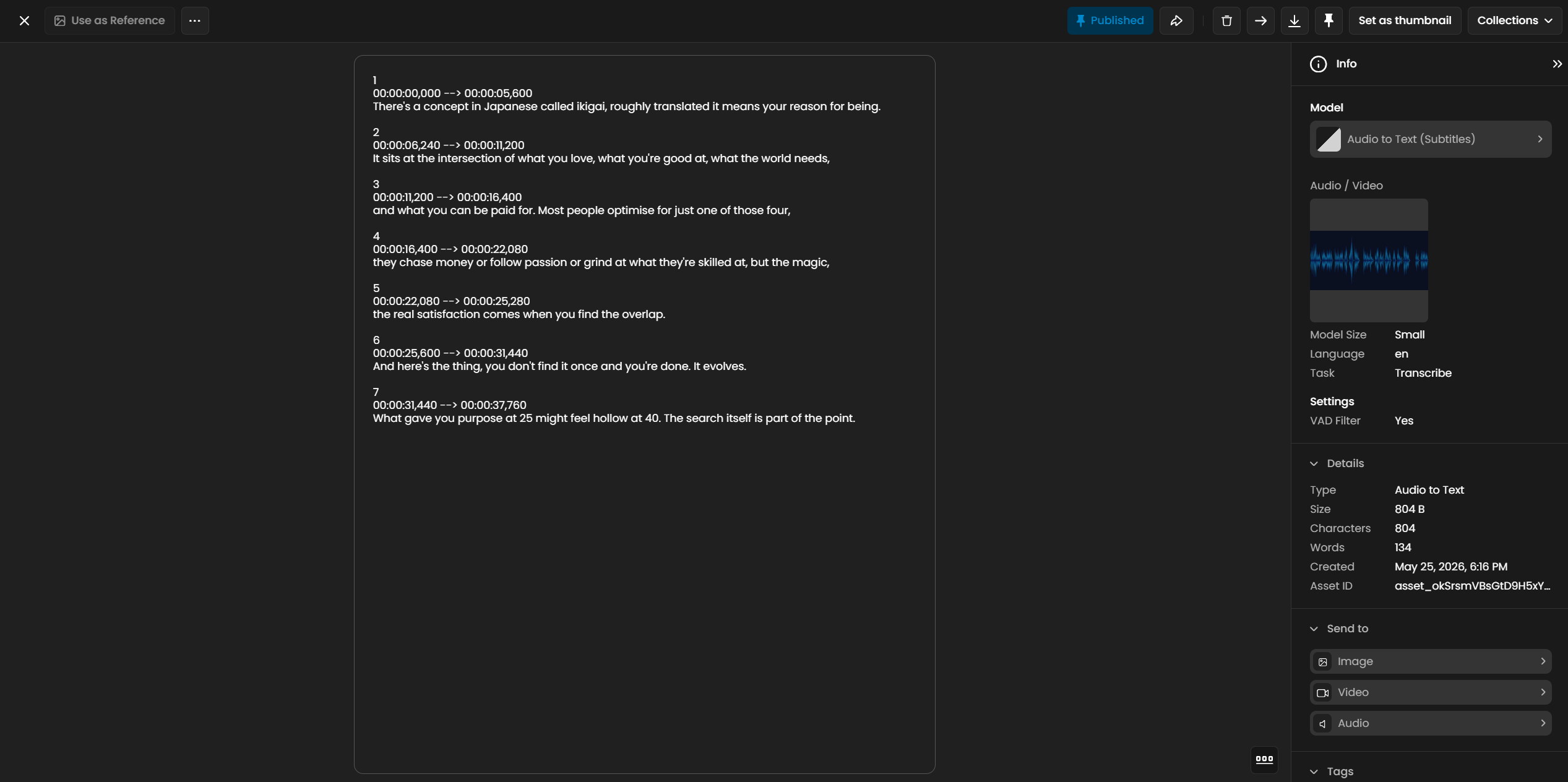
Audio to Text converts any audio or video file to a written transcript. It uses Whisper, OpenAI's open-source speech recognition engine. The output includes a plain text transcript and a timed SRT subtitle file, both delivered as assets.
The model auto-detects language or accepts an explicit language code. Set the task to translate to receive an English transcript from a non-English source, useful for localizing recorded content without re-recording.
Key settings
File: any audio or video asset. Audio tracks embedded in video files are extracted automatically.
Model size: Tiny through Large-v3. Tiny is fastest and least accurate. Large-v3 is most accurate and slower. Use Small or Medium for most production work; reserve Large-v3 for long-form or noisy recordings.
Language: an ISO 639-1 language code (for example,
enfor English,frfor French) or leave blank for automatic detection. Setting the language explicitly improves accuracy and speed.Task: transcribe returns the text in the source language. Translate returns an English transcript regardless of source language.
Initial prompt: optional text to prime the model with context, terminology, or spelling for domain-specific words (product names, technical terms). Not part of the output.
Voice activity detection: on by default. Filters out silent sections before processing. Disable only when silence at the start or end of a clip is meaningful.
Audio Cut
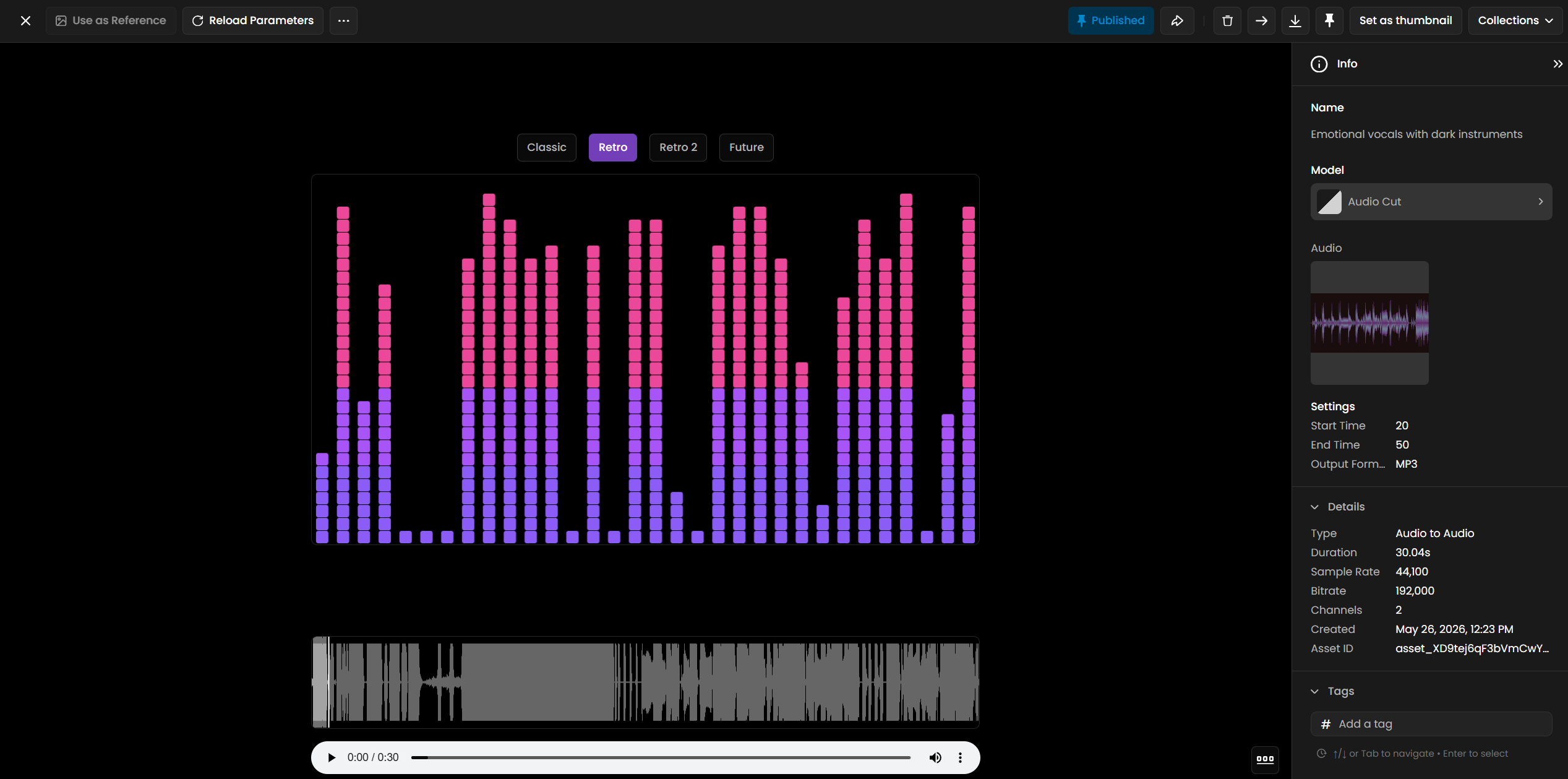
Audio Cut extracts a segment from an audio file using a start time and end time in seconds. The source file is not modified. The output is a new audio asset containing only the selected range.
Use it to isolate a chorus from a full song, extract a clean line from a recorded session, or pull a specific section of a voiceover for a shorter deliverable.
Key settings
Audio: any audio asset in the project.
Start time: the timestamp in seconds where the extracted clip begins.
End time: the timestamp in seconds where the extracted clip ends.
Output format: MP3, WAV, OGG, or M4A. When not specified, the source format is preserved.
Audio Split
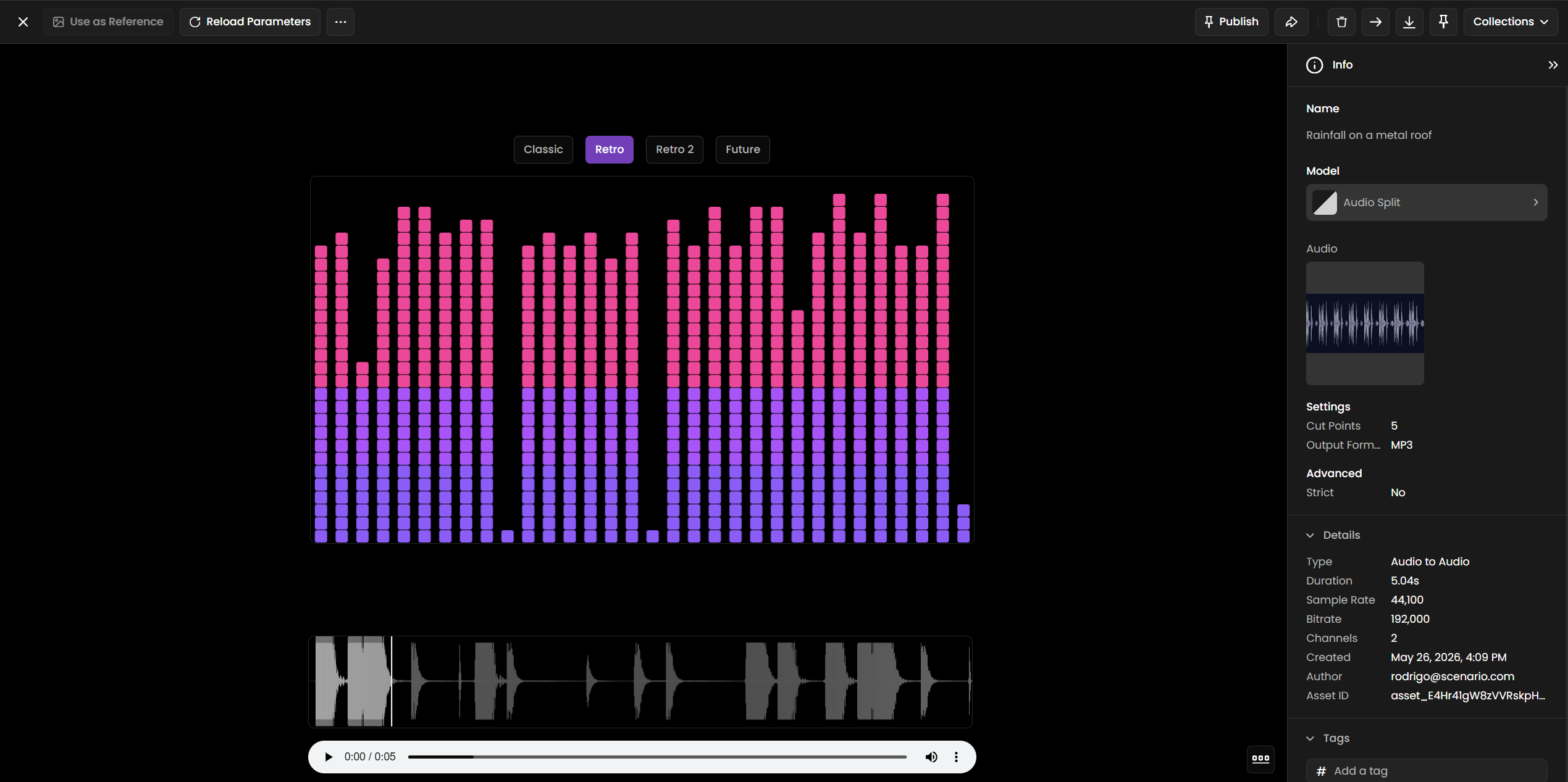
Audio Split divides one audio file into multiple segments at a set of timestamps. Provide a list of cut points in seconds. The model returns N+1 clips: one for each interval between cut points, plus one for the remaining tail.
Use it to break a long recording into chapters, split an album into individual tracks, or divide a multilingual voiceover by language section.
Key settings
Audio: any audio asset in the project.
Cut points: a list of timestamps in seconds, sorted from earliest to latest. One cut point produces 2 segments. Three cut points produce 4 segments.
Output format: MP3, WAV, OGG, or M4A. When not specified, the source format is preserved across all segments.
Strict mode: when enabled, the job fails if cut points are unsorted, duplicated, or outside the file's duration. When disabled, the model normalizes malformed cut points automatically.
Video Cut
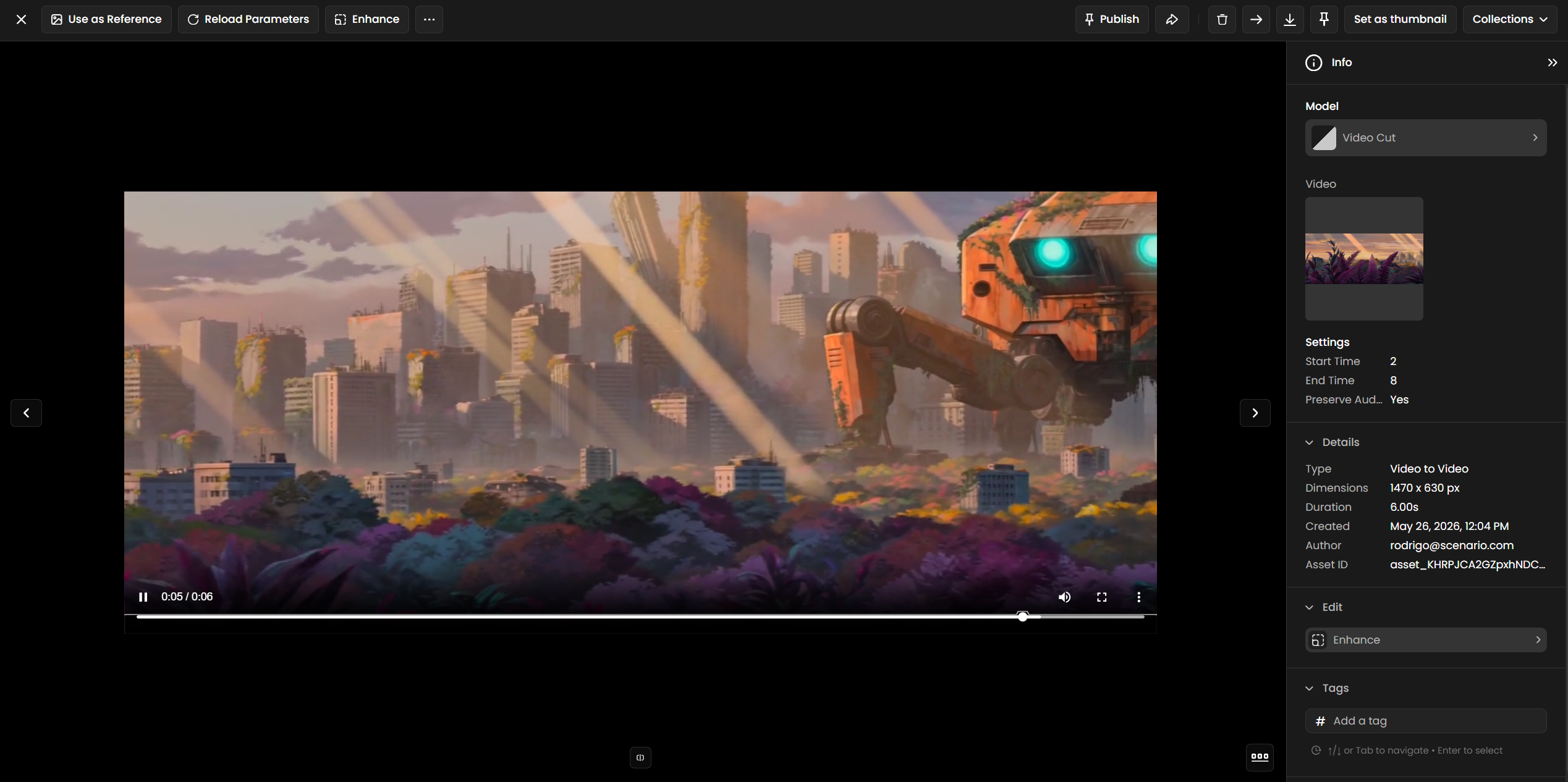
Video Cut extracts a precise segment from a video file using a start time and end time. The source clip is not modified. Audio is preserved in the output by default.
Use it to isolate a key scene from a longer recording, extract a loopable action from a cinematic clip, or prepare a segment for further processing.
Key settings
Video: any video asset in the project.
Start time: the timestamp in seconds where the extracted segment begins.
End time: the timestamp in seconds where the extracted segment ends.
Preserve audio: on by default. Includes the audio track from the source video in the output. Disable to produce a silent clip.
Output format: MP4, MOV, or WebM. When not specified, the source format is preserved.
Video Split
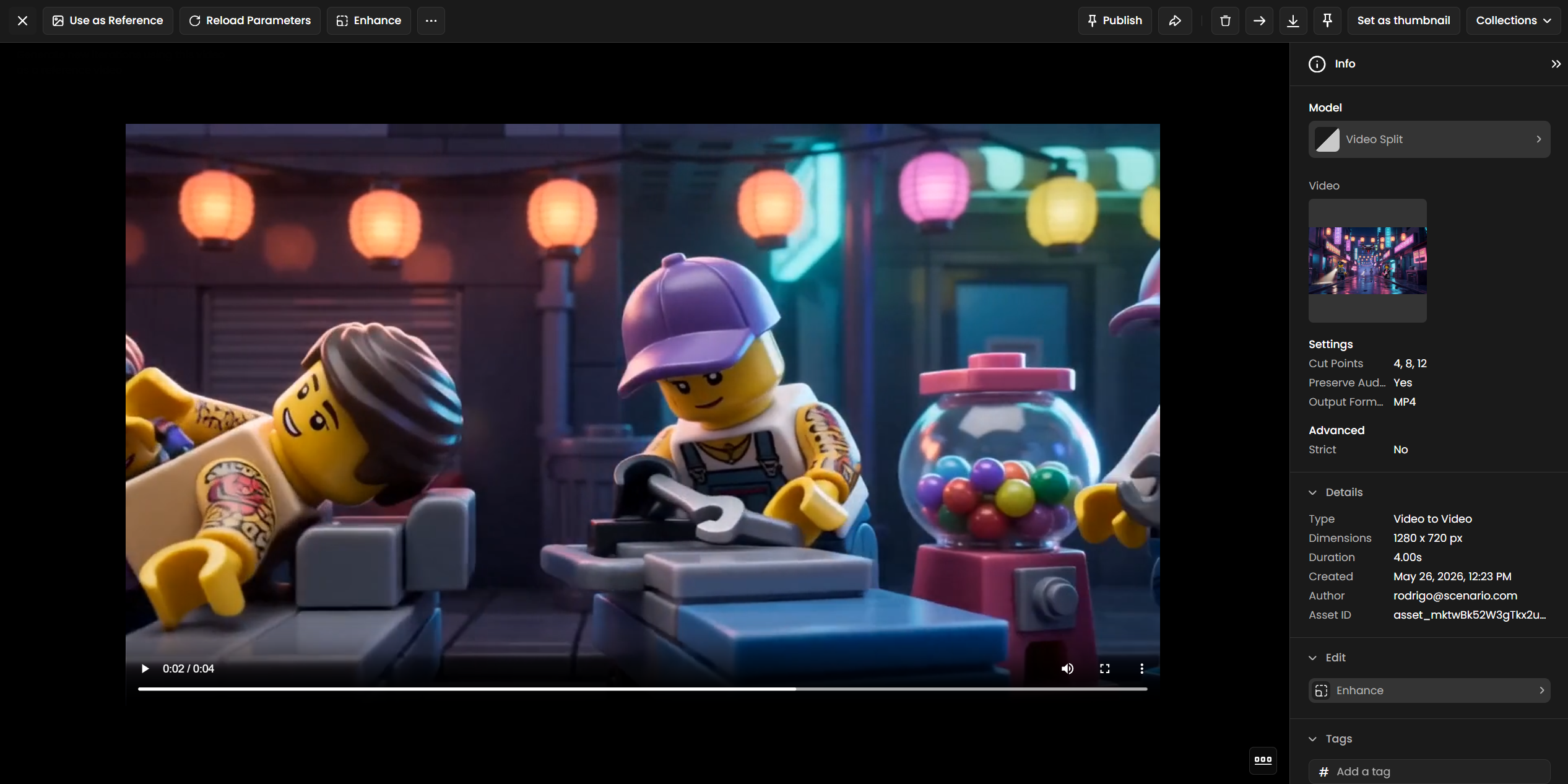
Video Split divides one video into multiple segments at a set of timestamps. Provide a list of cut points in seconds. The model returns N+1 video clips in sequence. Audio is preserved across all segments by default.
Use it to split a cinematic clip by scene, divide a long recording into social media cuts, or isolate acts and chapters from a full-length production.
Key settings
Video: any video asset in the project.
Cut points: a list of timestamps in seconds, sorted from earliest to latest. One cut point produces 2 segments. Three cut points produce 4 segments.
Preserve audio: on by default. Carries the audio track into every output segment.
Output format: MP4, MOV, or WebM. When not specified, the source format is preserved across all segments.
Strict mode: when enabled, the job fails if cut points are unsorted, duplicated, or outside the video's duration. When disabled, the model normalizes them automatically.
Reverse Video
Reverse Video plays any clip backwards in a single step. Both the picture and the audio track are reversed together. There is no prompt and no settings to tune: drop in a video and the model returns a new asset that runs from the last frame to the first. The source clip is not modified.
Use it to build rewind effects, turn a one-way action into a back-and-forth loop (play the original, then the reversed copy), or reverse action beats in game trailers, social content, and motion graphics. Resolution, frame rate, and duration match the source.
Key settings
Video: the only input. Any video asset in the project, in MP4, MOV, WebM, M4V, or GIF format. If the clip has an audio track, the audio is reversed along with the picture.
Example
Before: an 8-second macro shot of a raindrop striking a red petal and erupting into a crown splash.
Source clip (text to video) · Open on Scenario
After: the same clip through Reverse Video. The splash now gathers itself back into a single drop that lifts off the petal.
Reversed with Reverse Video · Open on Scenario
Video to Mask
Scenario Video to Mask converts an existing clip's luminance into a grayscale mask clip. Use continuous tones for soft mattes, a threshold for hard regions, or inversion for title reveals and transitions. Supply an opaque luminance source, choose the settings, then inspect the result over the whole clip.
Explicit alpha mode is currently rejected by the video backend despite appearing in its options. Auto did not extract alpha in testing. This tool converts channel values; it does not track or segment subjects.
Video to Mask: automatic luminance conversion
The opaque green leaf on white is converted to grayscale over time. This demonstrates luminance conversion; it does not extract transparency.
Source video
Video to Mask output
sourceChannel=auto; invert=false
Open source on Scenario · Open result on Scenario
Video to Mask: turn moving light into a hard region
The moving light crosses the threshold, producing an animated bright region. The source and output both contain 240 frames at 1280 by 720.
Source video
Video to Mask output
sourceChannel=luminance; invert=false; threshold=128
Open source on Scenario · Open result on Scenario
Video to Mask: reverse a title reveal
The animated dark title becomes a light title on black after thresholding and inversion. The tested clip retains its 10-second duration.
Source video
Video to Mask output
sourceChannel=auto; invert=true; threshold=192
Open source on Scenario · Open result on Scenario
Key settings
file
Required source asset. The conversion reads existing channel values; it does not detect or segment objects and needs no text prompt.
sourceChannel
Use luminance or auto with opaque footage. Avoid alpha mode, which is currently unsupported by the backend.
threshold
Optional value from 0 to 255. Leave unset to retain continuous grayscale. Set it for a binary result; the image tests mapped values equal to the threshold to black and values above it to white. Inspect boundary values when exact cutoffs matter.
invert
Set true to swap light and dark regions after conversion. Default false. The title examples demonstrate inversion.
Confirm mask polarity and frame alignment in the downstream compositor. These examples validate the conversion, not compatibility with every video editor.
Choosing the right tool
Situation | Tool |
|---|---|
Transcribe a recording or generate subtitles | Audio to Text |
Extract one section from a longer audio file | Audio Cut |
Divide one audio file into multiple clips | Audio Split |
Extract one section from a longer video | Video Cut |
Divide one video into multiple clips | Video Split |
Play a clip backwards or build a rewind loop | Reverse Video |
Prepare a segment for character replacement | Video Cut, then P-Video Replace |
Add subtitles to a generated video | Audio to Text (with video file as input) |
Break a podcast or session into chapters | Audio Split |
Workflow examples
Subtitle pipeline: generated video to SRT
Generate a voiceover-led product video with a text-to-video model. Run Audio to Text with the video as input and the language set explicitly, for example, en with model size Medium. The model returns a plain transcript and a timed SRT file. Import the SRT into a video editor or upload it alongside the video for platform subtitles.
Music library: isolate the best part of a generated track
Generate a 2-minute song. Identify the 30-second section with the strongest hook. Run Audio Cut with startTime set to the hook start and endTime set to the hook end, for example, 80 and 120 for a 40-second extract. The result is a standalone clip at the same quality as the original.
Post-production: scene-by-scene review pipeline
Generate a 15-second cinematic sequence. Run Video Split with cut points at the scene transitions, for example, [5, 10]. Review each segment independently. Trim each segment with Video Cut. Feed the tightest segments into P-Video Replace to swap characters or P-Video Animate to apply recorded motion to a still character.
Localization: transcribe and re-dub
Record a 60-second product walkthrough in English. Run Audio to Text with the task set to transcribe. Send the transcript to a translator. Record the translated voiceover. Run P-Video Avatar with the new audio to generate a lip-synced version of the on-screen character speaking the translated script.
Tips and limitations
Audio to Text: accuracy improves when the source audio is clean. Recordings with heavy background music or overlapping speakers benefit from noise reduction before transcription. Short clips under 30 seconds run well on Small; use Medium or Large-v3 when accuracy matters more than speed. Add product names and technical terms to the initial prompt: the model uses the prompt to bias output toward those words. Set the language explicitly on multilingual or short clips; auto-detect can drift when the opening seconds differ from the main content. The translate task produces English only; for other target languages, use transcribe and run the output through a separate translation step.
Audio Cut and Audio Split: timestamps use seconds as decimals: 1:30 to 2:15 maps to startTime 90 and endTime 135. The source asset is never overwritten. Provide cut points in ascending order; strict mode enforces this. Cut points outside the file's duration are ignored in non-strict mode; in strict mode they fail the job. Use non-strict mode when timestamps are imprecise. All split segments share the same output format; run Audio Cut on individual segments to export different formats.
Video Cut and Video Split: output segments preserve source resolution and frame rate. Neither tool re-encodes video, so there is no quality loss from the cut itself. Keep preserve audio on unless the downstream tool requires a video-only file: restoring audio later requires a new source track. Split before cut: use Video Split for rough sections, then Video Cut for precise in and out points. Avoid GIF for video content: GIF does not support audio and reduces color depth; use MP4 or WebM instead. Strict mode suits programmatic splits with precise timestamps; leave it off for manual creative work with imprecise marks.
Reverse Video: the whole clip is reversed, including any audio, so speech and music will play backwards. To reverse only part of a clip, isolate it first with Video Cut. For a seamless back-and-forth loop, place the original and the reversed copy one after the other in a video editor. Motion that reads naturally in both directions (splashes, smoke, falling objects, crowds) makes the most convincing rewinds.
None of these tools modify the original source asset. Chain split, cut, and transcribe steps in a Workflow: each step produces a new asset while the full source remains available for alternate edits.