Audio Extract: The Essentials
Last updated: June 8, 2026
Covers Audio Extract
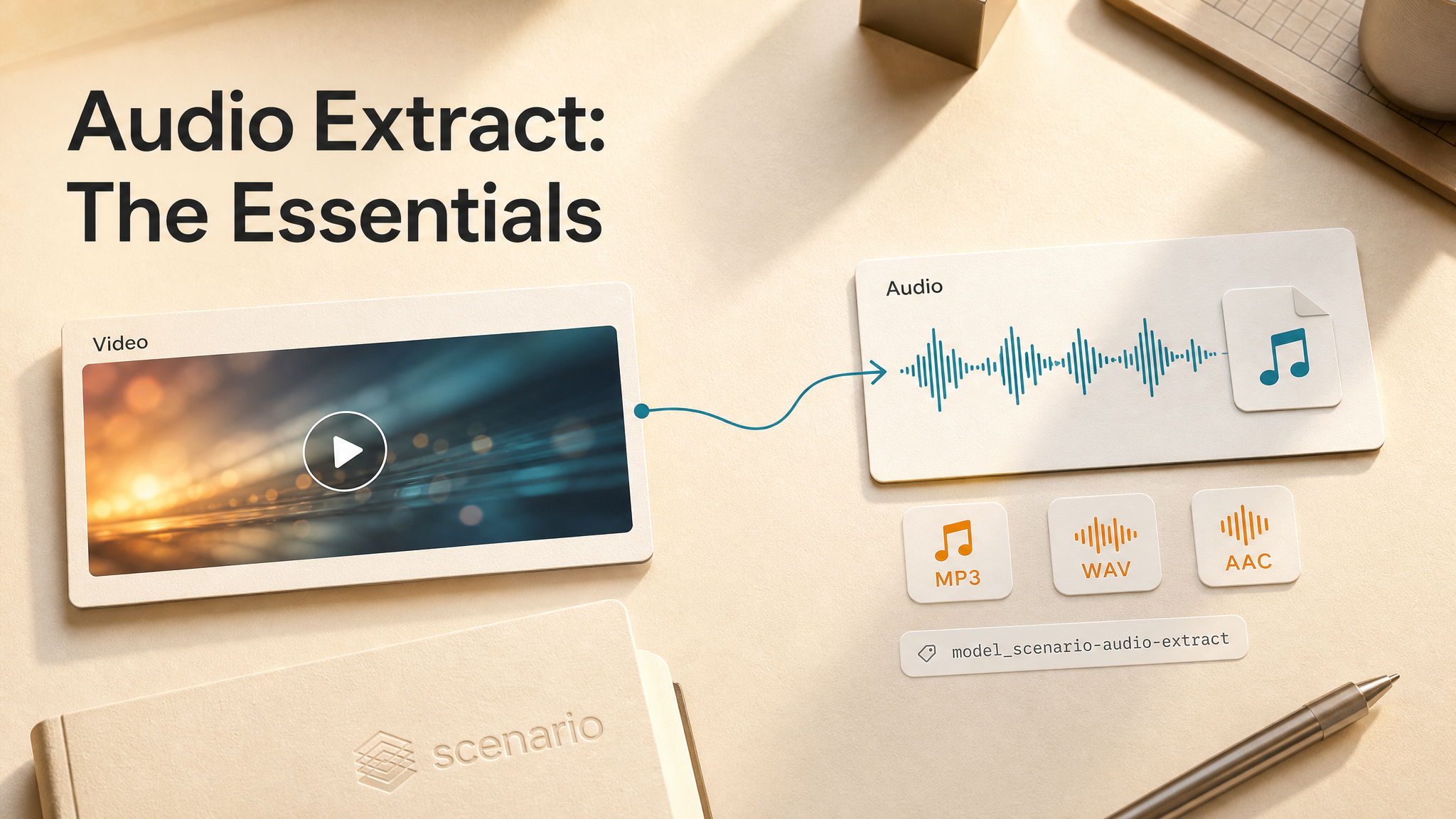
Audio Extract pulls the existing audio track out of a video file and saves it as a standalone audio asset. The mix stays as recorded: no voice isolation, no transcription, no AI remixing. Export MP3, WAV, or AAC, with an optional loudness-normalization pass for uneven clips.
Parameters
Audio Extract
Parameter | Required | Default | Options | Description |
|---|---|---|---|---|
Video | true | — | Any Scenario video asset | The video file to extract audio from. The existing audio track is pulled out as-is. |
Output Format | false |
|
| MP3 for broad compatibility, WAV for lossless editing, AAC for a quality and size balance. |
Normalize Loudness | false |
| true / false | Adjust volume to a broadcast-safe level. Re-encodes the audio when enabled. |
Recommended output formats
Format | When to use |
|---|---|
MP3 | Default. Fast handoff to editors, social pipelines, or Speech to Text. |
WAV | Lossless editing, DAW import, or archival before further processing. |
AAC | Smaller files when MP3 compatibility is not required. |
How Audio Extract Works
Upload or select a video asset, pick an output format, and run the model. Scenario reads the embedded audio track and writes a new audio asset linked to the source video. Output duration matches the source clip length (for example, a 6 second LTX video yields a 6 second audio file).
The tool does not interpret speech, remove music, or generate new sound. What you hear in the video is what you get in the file, unless you enable Normalize Loudness.
Using Audio Extract With Other Audio Tools
A common pipeline on Scenario:
Video asset
  → Audio Extract (full track, MP3 or WAV)
    → Audio Cut (trim to the line you need)
    → Speech to Text (subtitles or transcript)
    → ElevenLabs Voice Isolator (clean speech only, if the mix is noisy)
Extract first when the only copy of the audio lives inside a video. Skip extraction when you already have a standalone audio asset or when you only need isolated speech (Voice Isolator accepts video directly but changes the content).
Use Cases
Game capture and trailers: Pull SFX, dialogue, and score from a gameplay or cinematic video before trimming or remixing in Audio Cut.
Marketing and social: Extract narration or music beds from finished MP4 exports for podcast clips, ad variants, or audio-only posts.
Film and previs: Save temp dialogue or scratch audio from animatic videos as WAV for the sound team.
Education and training: Turn screen recordings or lecture videos into MP3 files students can listen to offline.
AI video pipelines: Demux native audio from LTX, Veo, or other generated clips before transcription or voice cleanup.
E-commerce: Extract product-demo voiceover from hero videos for reuse in radio-style ads or IVR prompts.
Tips for Better Results
Pick the format for the next step. MP3 is the default for quick handoffs. WAV tested cleanly for lossless editing. AAC produced smaller files on a Veo3 clip with speech.
Enable Normalize Loudness for uneven levels. Test on a quiet cinematic clip with ambient music. Compare against the same source with normalization off before batching a long list.
Expect the full clip length. Output duration matched each source video in testing (roughly 6 to 10 seconds on LTX and Veo3 inputs).
Listen before you publish. Auto-generated asset descriptions on outputs were often wrong (for example, labeling a living-room clip as typewriter keys). Trust your ears, not the caption.
Extract before you trim or transcribe. Audio Cut and Speech to Text expect audio input. One extraction step avoids re-uploading outside Scenario.
Known Limitations
No voice isolation. Music, ambience, and dialogue stay in the mix. Use ElevenLabs Voice Isolator when you need speech only.
No transcription. Audio Extract outputs audio, not text. Use Speech to Text for subtitles or transcripts.
Requires an audio track in the video. Some generated videos ship without audio. Extraction cannot invent sound that is not in the file.
Normalize Loudness re-encodes. Turning it on changes levels and re-encodes the audio. Leave it off when you need a bit-perfect copy of the source mix.
Preview format can differ from export. WAV and AAC assets may preview as MP3 in the app. Download the original file for the true codec.
Plan access may apply. This model carries access restrictions on some workspaces.