TripoSplat: The Essentials
Last updated: July 28, 2026
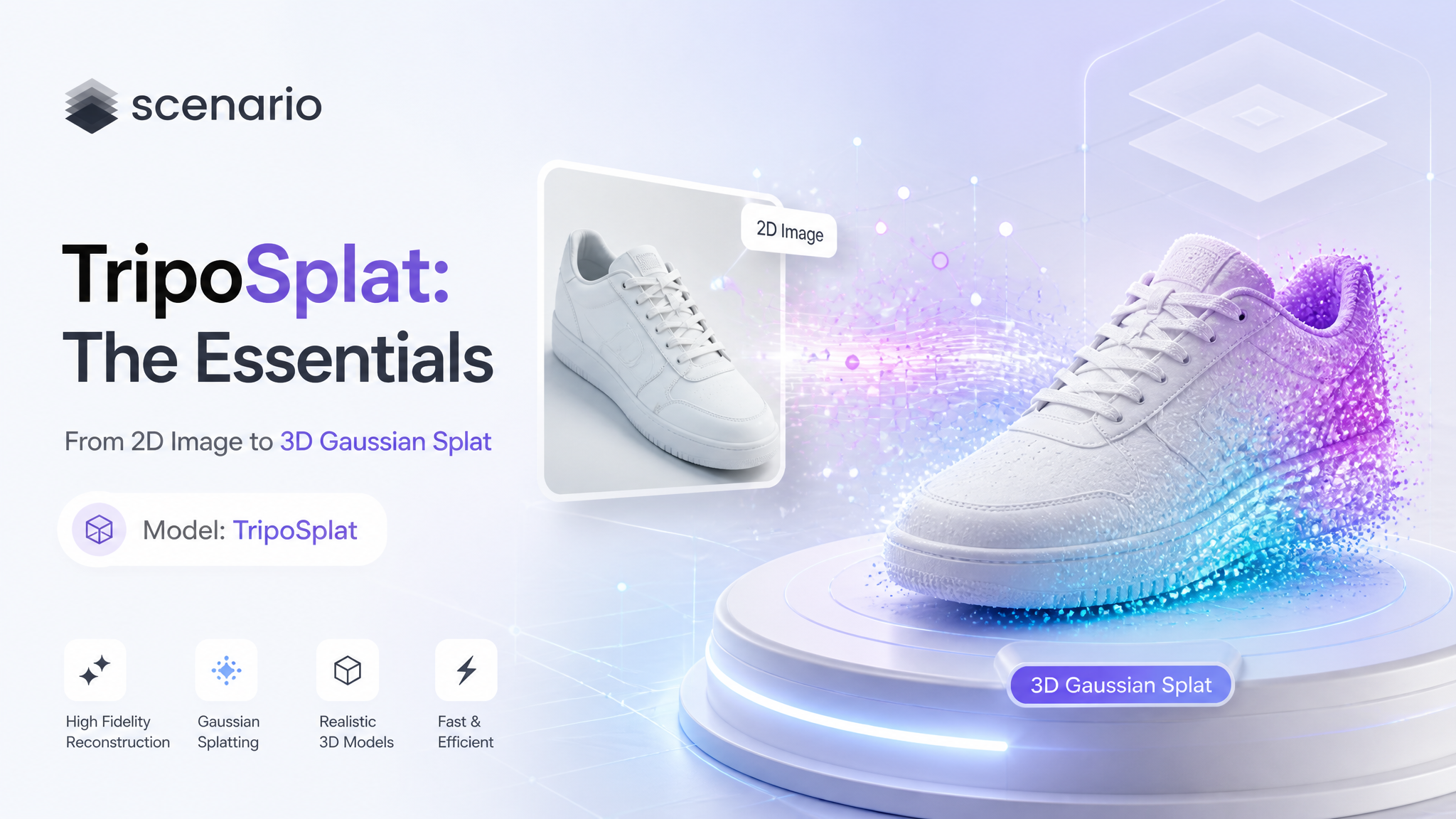
TripoSplat turns a single photo of one object into a real 3D Gaussian splat. Feed it one clean product shot and it reconstructs the full volume, including the sides the camera never saw, as a cloud of colored Gaussians you can orbit, zoom, and drop straight into a real-time splat renderer. It is the only image-to-3D model on Scenario that outputs a splat instead of a polygon mesh.
Which Model Should I Use?
Scenario has several single-image 3D models. The split is simple: TripoSplat gives you a Gaussian splat, everything else gives you a textured polygon mesh. Pick by what your pipeline consumes.
Model | ID | Output | Best for |
|---|---|---|---|
TripoSplat |
| Gaussian splat (.spz preview + .ply) | Photoreal previews, turntables, neural-rendered scenes, splat pipelines |
Tripo 3.1 |
| Textured mesh (GLB) | Game and DCC assets that need clean topology and UVs |
Hunyuan 3D 3.1 Pro |
| High-detail mesh | Fine geometry and PBR materials for hero assets |
Rule of thumb: if you need to rig, retopologize, or hand it to a modeler, generate a mesh. If you want the fastest path to a photoreal, viewable 3D object for a preview or a real-time splat viewer, use TripoSplat.
How to Use the Model
How TripoSplat Works
TripoSplat takes exactly one input: an image. There is no text prompt. It removes the background automatically, then uses a flow-matching sampler to infer the object's full 3D shape and color from that single view. The result is a set of 3D Gaussians (up to 262,144 of them), delivered as a compact .spz for instant preview plus the original .ply you can download and load elsewhere.
Because there is no prompt, the input photo does all the work. A well-framed, unambiguous 3/4 angle of a single object gives the model the most to go on. The white leather sneaker below was reconstructed at 262,144 Gaussians with 30 sampler steps.
Preparing Your Input Image
One clear subject, plainly lit, on a simple background. Avoid scenes, clutter, or multiple objects: the model reconstructs whatever it reads as the main object, so anything ambiguous confuses the result. Product-style photos work best. The vintage twin-lens camera below came from a single studio shot and reconstructed its two lenses and film-advance knob cleanly at 40 steps.
Reading the Output
Every generation returns a splat with vertex colors and a turntable camera, previewed in the Scenario viewer. The .spz is a compressed splat built for fast loading; the .ply is the full-resolution original for download and use in external splat tools. The game-ready treasure chest below was generated at default settings and shows how well hard-surface props with distinct materials (wood, iron, brass) hold up.
Parameters
TripoSplat exposes one required input and a handful of optional dials. Defaults are already strong; reach for these when you want more detail or reproducibility.
image
Required. A single, clear photo of one object. The background is removed automatically, so a plain studio shot is ideal. This is the only thing that steers the result: there is no text prompt.
numGaussians
Target number of 3D Gaussians, from 32,768 to 262,144 (default 262,144). Higher means more detail and a heavier file; lower gives a lighter splat for soft or simple shapes. The plush and low-frequency props in our batch looked clean at 131,072, while detailed hard-surface subjects like the knight helmet below were run at the full 262,144.
steps
Number of flow-matching sampler steps, from 1 to 50 (default 20). More steps is slower but more faithful. The default 20 is fine for simple forms; we pushed to 30 to 40 for intricate subjects. The amethyst geode below, with its many small facets, was run at 40 steps.
guidanceScale
Classifier-free guidance strength, from 1.0 to 10.0 (default 3.0). 1.0 disables CFG. Moderate values keep the splat close to the photo; we nudged it to 4.0 on fine-detail subjects like the geode and the faceted perfume bottle below. Very high values can destabilize the result, so raise it in small steps.
shift
Flow-matching timestep schedule shift, from 1.0 to 6.0 (default 3.0). Values above 1.0 weight more of the schedule toward the high-noise end. Leave at the default unless you are troubleshooting reconstruction quality.
erodeRadius
Alpha-matte erosion radius in pixels after background removal, from 0 to 8 (default 1). It trims a thin fringe left by the cutout. Raise it a little if you see haloed edge Gaussians around the object; set 0 to disable.
seed
Set a seed for reproducible results; leave blank for a random one. Fixing the seed lets you change one dial at a time and compare fairly.
Use Cases
E-commerce: turn a single catalog photo into a spinnable 3D product view for a store page or configurator.
Games: block out props like chests, barrels, and helmets as splats for fast previews and set dressing before committing to mesh production.
Marketing: build photoreal turntables of packaging, bottles, or collectibles for ads and landing pages.
Film and previz: capture reference objects as 3D splats to place and light in a scene without modeling them by hand.
Education and museums: digitize artifacts, minerals, or specimens from one clean photo for interactive viewing.
AR and real-time: feed the splat straight into a Gaussian splat renderer for lightweight, photoreal real-time display.
Tips for Better Results
Show one object only. A single, unambiguous subject reconstructs cleanly; scenes and multiple objects confuse the model.
Shoot a 3/4 angle. An angle that reveals more than one face gives the model more to infer the hidden sides from than a flat front-on shot.
Keep the background plain. Automatic removal works best against a simple, even backdrop; busy backgrounds can leave stray edge Gaussians.
Light it evenly. Soft, even lighting reconstructs more faithfully than hard shadows or strong specular hotspots.
Raise steps for intricate subjects. The default 20 is fine for simple forms; 30 to 40 helped on the camera, geode, and helmet.
Lower numGaussians for soft shapes. Plush and low-frequency objects look just as good at 131,072 and produce a lighter file.
Fix a seed when tuning. Lock the seed, change one dial, and compare, so you can tell what actually moved the result.
Known Limitations
Single-view inference. The model guesses the sides it cannot see, so the back of an object can differ from reality. Choose the angle that best implies the whole shape.
No text control. The only input is the image. You cannot describe or correct the object in words; change the photo instead.
One object per run. Multiple objects, or a subject fused with its surroundings, will not separate well. Isolate the subject before generating.
Transparent and mirror-like surfaces are hard. Clear glass and highly reflective materials can read as solid or noisy; expect to retry or accept some approximation.
Splat, not mesh. The output is a Gaussian splat, so it does not carry editable topology, UVs, or PBR materials. If you need those, use a mesh model like Tripo 3.1 or Hunyuan 3D.
Very thin structures. Wires, blades, and fine antennae can lose definition. Favor subjects with some volume for the cleanest results.