Auto Subtitles - The Essentials
Last updated: April 30, 2026
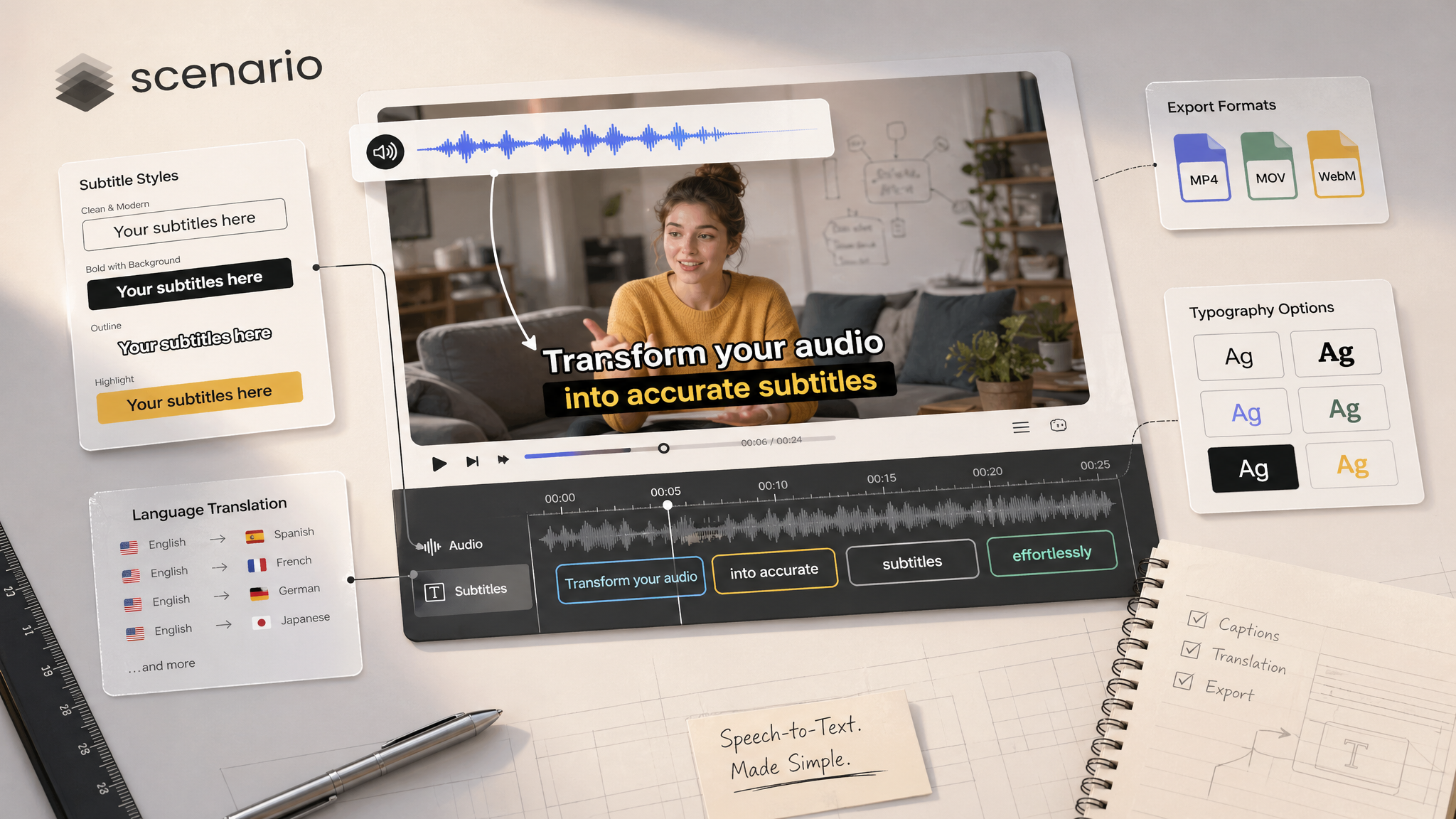
Auto Subtitles by Scenario turns speech in your video into text that appears on screen, timed to what people say. You get a finished file you can post, pitch, or drop into an edit without a separate captioning app.
Overview
Upload a video and the tool listens to the audio track, writes what it hears, and draws the lines on your footage. You stay in control of readability: font, size, colors, and whether each line sits on a solid bar or uses an outline so the picture still shows through.
You can keep the spoken language or translate the whole track to English. You can also steer word choices with an optional short text hint if you use special names or jargon. When you are done, download a new video in MP4, MOV, or WebM that already includes the captions.
What It Does
Burns captions into the video file so they always show, even on platforms that hide separate caption tracks
Times lines to the audio so text appears when people speak
Lets you style text and backgrounds for phones, trailers, and noisy viewing environments
Offers automatic language detection or a manual language pick
Lets you either transcribe in the original language or translate speech into English
Exports a new video in MP4, MOV, or WebM with your chosen look
How to Use It
Start with your video
Every run needs an input video. Clear speech and a clean audio track produce the cleanest captions. Heavy music or crowd noise can make lines less precise, so plan a quick pass after the first export if the audio is rough.
Make the text readable
Choose a font family and size that match where people will watch. Larger type and high contrast help on small screens. Scenario ships a solid list of common fonts so you can match a brand look without leaving the app.
Style colors and backgrounds
Pick the main text color and the border color. Then choose how the border shows up. One mode draws an outline and optional shadow so viewers still see the scene behind the letters. The other mode draws a filled box behind the text, which can help when the background is busy. You can also soften the border or box with a transparency slider so the picture peeks through.
Set how carefully the tool listens
Under the hood, Scenario uses an automatic speech engine with several strength presets, from very light to very deep. Lighter presets run faster and use lighter usage. Deeper presets can catch tricky audio or accents better, and may cost more usage. Pick the smallest preset that still sounds accurate to you, then step up only if you hear mistakes.
Language and translation
Leave the language field empty when you want the app to guess the spoken language. Enter a short language code when you already know it, which can help with mixed or noisy clips. Use transcribe when you want subtitles in the same language people speak. Use translate when you want every line rewritten in English for an international cut.
Optional vocabulary hint
If you have product names, character names, or niche terms, add a short optional prompt so the first pass leans toward the words you actually use. Keep it concrete and short.
Keep each line a comfortable length
You can cap how many seconds a single caption stays on screen and how many characters fit on one line. Shorter cues help people read on TikTok-style vertical video. Longer cues can work for slower narration. If you skip these limits, Scenario picks sensible defaults and splits on natural pauses when it can.
Export quality and file type
Compression level balances file size against picture sharpness: lower numbers mean a sharper file and a larger download, higher numbers mean a smaller file with softer detail. Pick MP4, MOV, or WebM depending on what your editor or platform expects.
Examples
Social vertical with bold captions
A 9:16 product demo where viewers scroll with sound off.
Goal: High contrast and large type
Border: Outline style so the product stays visible
Segments: Shorter on-screen time and fewer characters per line
Trailer with cinematic narration
A 16:9 teaser with a single voiceover.
Task: Transcribe in the original language
Listening preset: Step up one level if names or soft speech drop words
Optional hint: Add character and place names in one line
Global team interview
A conversation in another language that your English stakeholders must follow.
Task: Translate to English
Language: Set manually if auto-detect struggles with code-switching
Border: Opaque box if the background is busy
Tips for Better Results
Export a short test first. Run one minute of audio before you commit a long file. Fix listening level and styling before you spend full usage.
Write the optional hint like a cheat sheet. List proper nouns and unusual spellings in plain text so the first pass matches your brand.
Favor outline mode for scenic footage. Let viewers see the environment while they read.
Use the opaque box for noisy backgrounds. Busy shots make thin outlines harder to read.
Tighten line length for fast speech. Quick dialogue reads better when each caption holds fewer words.
Match export format to your editor. Pick MP4 for broad compatibility, MOV for many pro timelines, WebM when your pipeline asks for it.
Known Limitations
Burned-in text is permanent in the pixels. You cannot toggle captions off in the exported file. Keep a copy of the original video if you need a clean master.
Accuracy depends on audio quality. Loud music, echo, or overlapping speakers can create wrong words. Plan time to regenerate with a stronger listening preset or a manual language lock.
Translation mode targets English. It is built for turning speech into English subtitles, not for arbitrary language pairs.
Access. This model may be gated by your Scenario plan. If a run fails, check workspace access and limits.