Pixal3D
Last updated: May 19, 2026
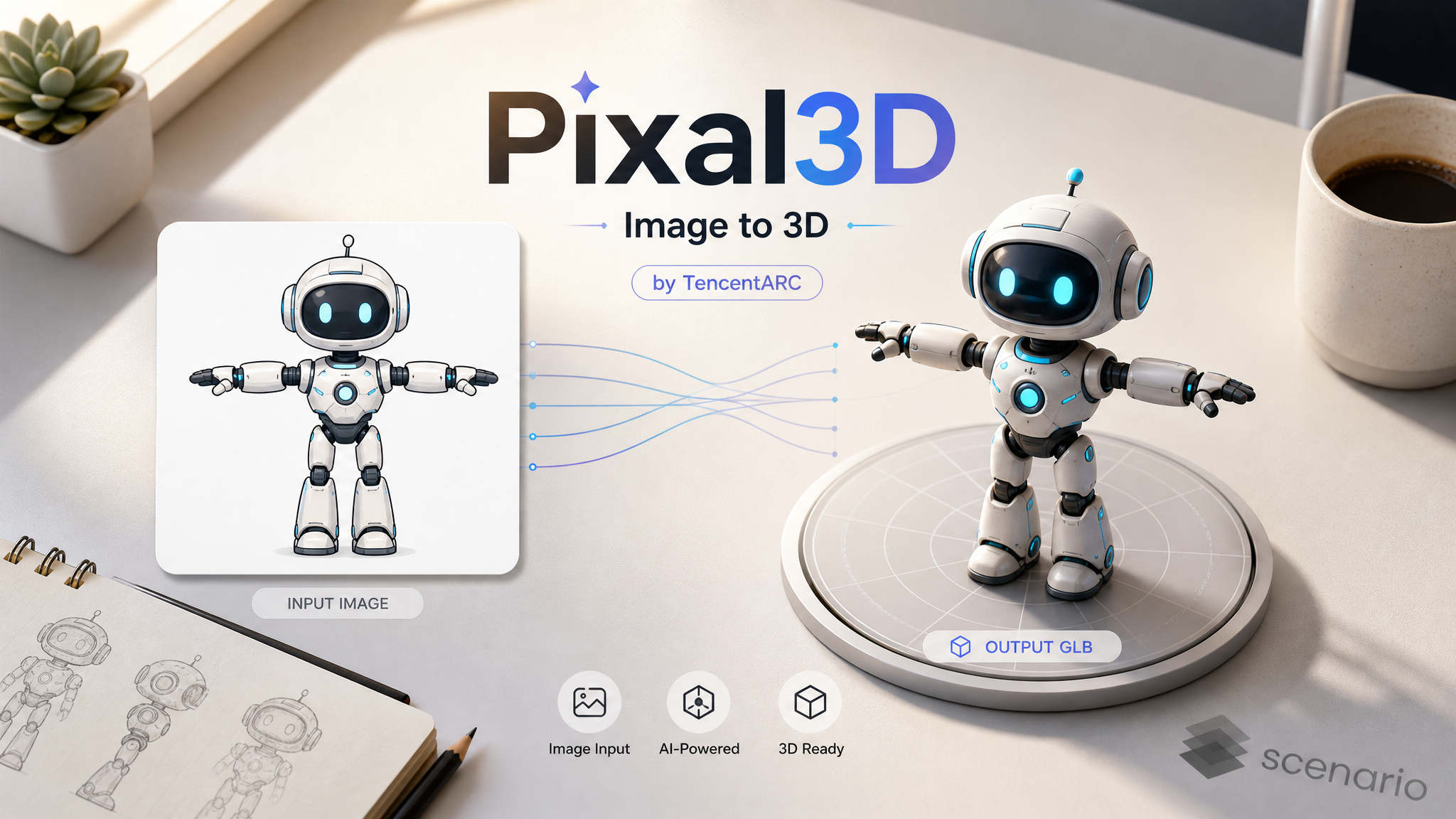
What is Pixal3D?
Pixal3D is an image-to-3D model developed by TencentARC. Upload a single image and it generates a fully textured 3D mesh, ready to use in your game engine, scene, or 3D pipeline. It works well across a wide range of subjects, from characters and creatures to props, vehicles, and everyday objects.
How to use it
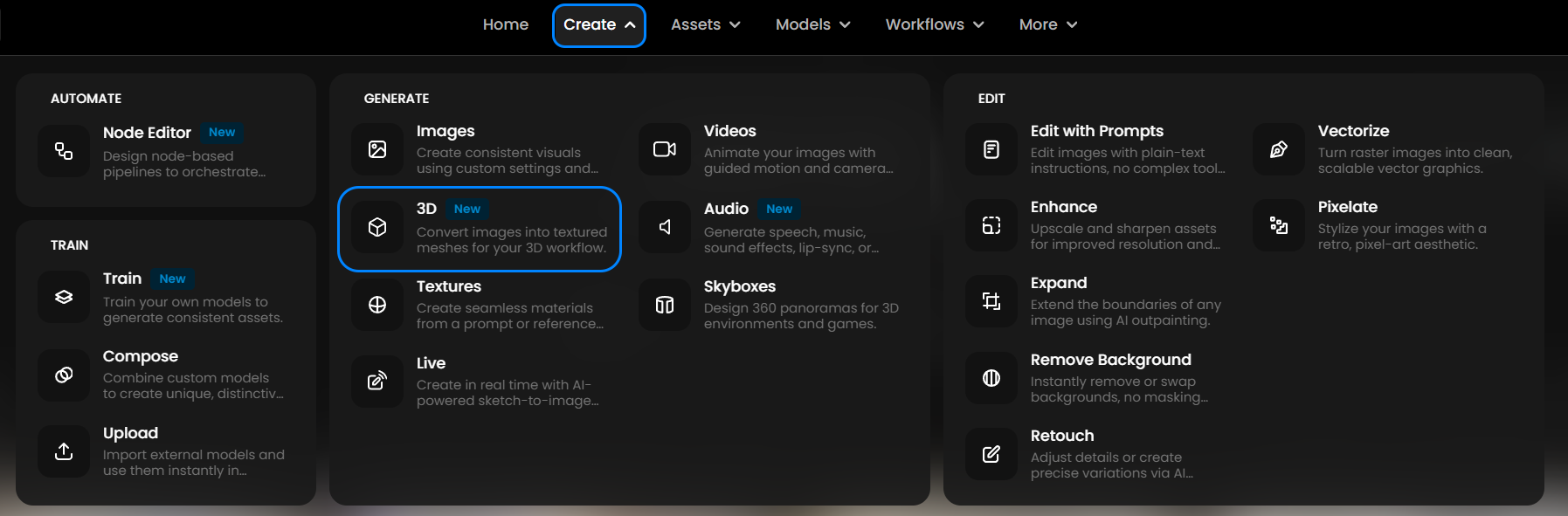
Open the Create > Generation > 3D and select Pixal3D from the model list.
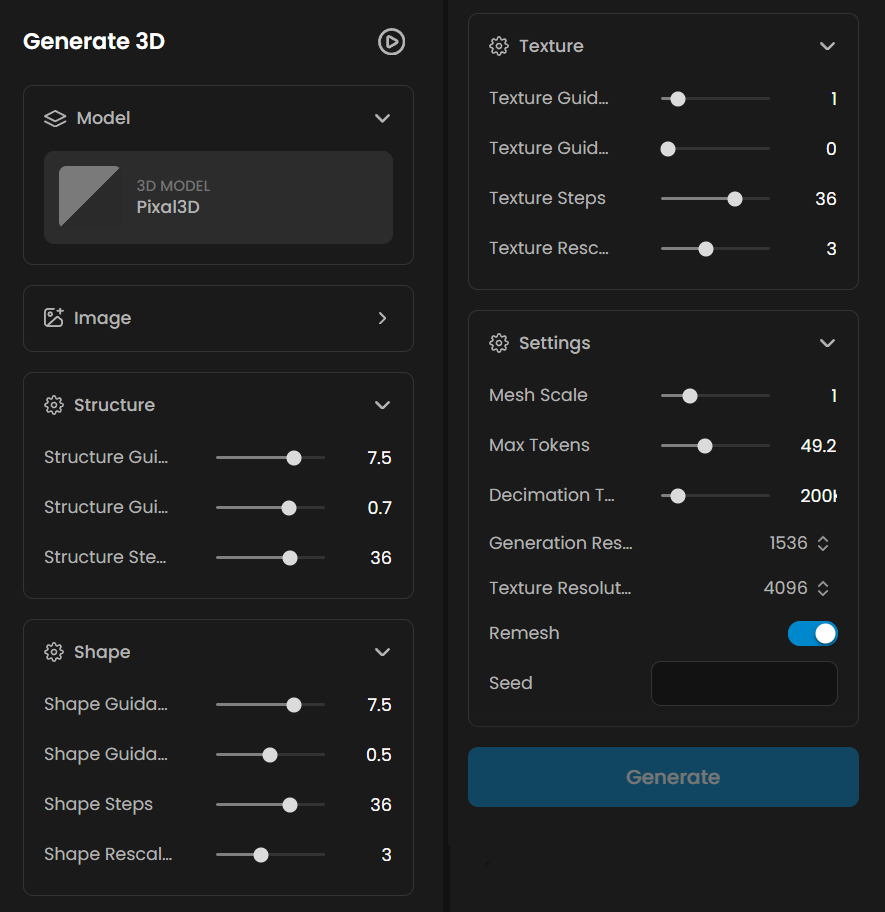
Upload your reference image using the Image input.
Adjust settings if needed (see below), then click Generate.
Once complete, download your model as a GLB file with baked texture.
Tips for best results
Use a clean background. White, light gray, or transparent backgrounds give the most accurate geometry. Dark or gradient backgrounds can reduce depth accuracy.
One subject per image. Pixal3D works best with a single, isolated object or character. Multi-object scenes are not supported.
Clear silhouette. Make sure the edges of your subject are sharp and well-defined.
Neutral or diffuse lighting. Avoid strong shadows or specular highlights, as these can be baked into the geometry instead of the texture.
Neutral pose for characters. T-pose or A-pose gives the cleanest results. Dynamic action poses can work but may produce less accurate geometry on limbs.
Settings
Resolution
Controls the texture resolution of the final model. Options are 1024, 2048 (default), and 4096. Higher resolution produces sharper textures but increases generation cost.
Generation Resolution
Sets the internal geometry resolution during generation. Choose 1024 (default) for faster results or 1536 for finer surface detail.
Max Tokens
Controls how much geometric detail the model can capture. The default is 49,152. Increase up to 131,072 for highly detailed or complex subjects.
Decimation Target
Sets the target number of vertices in the final mesh. The default is 200,000. Lower values produce smaller, lighter files. Increase up to 2,000,000 for production-quality meshes with fine detail.
Remesh
When enabled (default), rebuilds the mesh topology for cleaner, more uniform triangles. Recommended for most use cases.
Seed
Set a specific seed to reproduce a previous result. Leave blank for a random seed each time.
Advanced controls (Structure, Shape, Texture)
Each of the three generation stages has its own guidance strength, guidance rescale, and sampling steps. These are fine-tuning options for experienced users. The defaults work well for most images.
Limitations
Flat 2D illustrations (like pixel art or simple vector graphics) may produce shallow geometry with limited depth.
Does not have a dedicated low-poly output mode. For lighter meshes, reduce the Decimation Target setting.