Image to Layers and Video to Layers: The Essentials
Last updated: June 8, 2026
Covers Image to Layers and Video to Layers
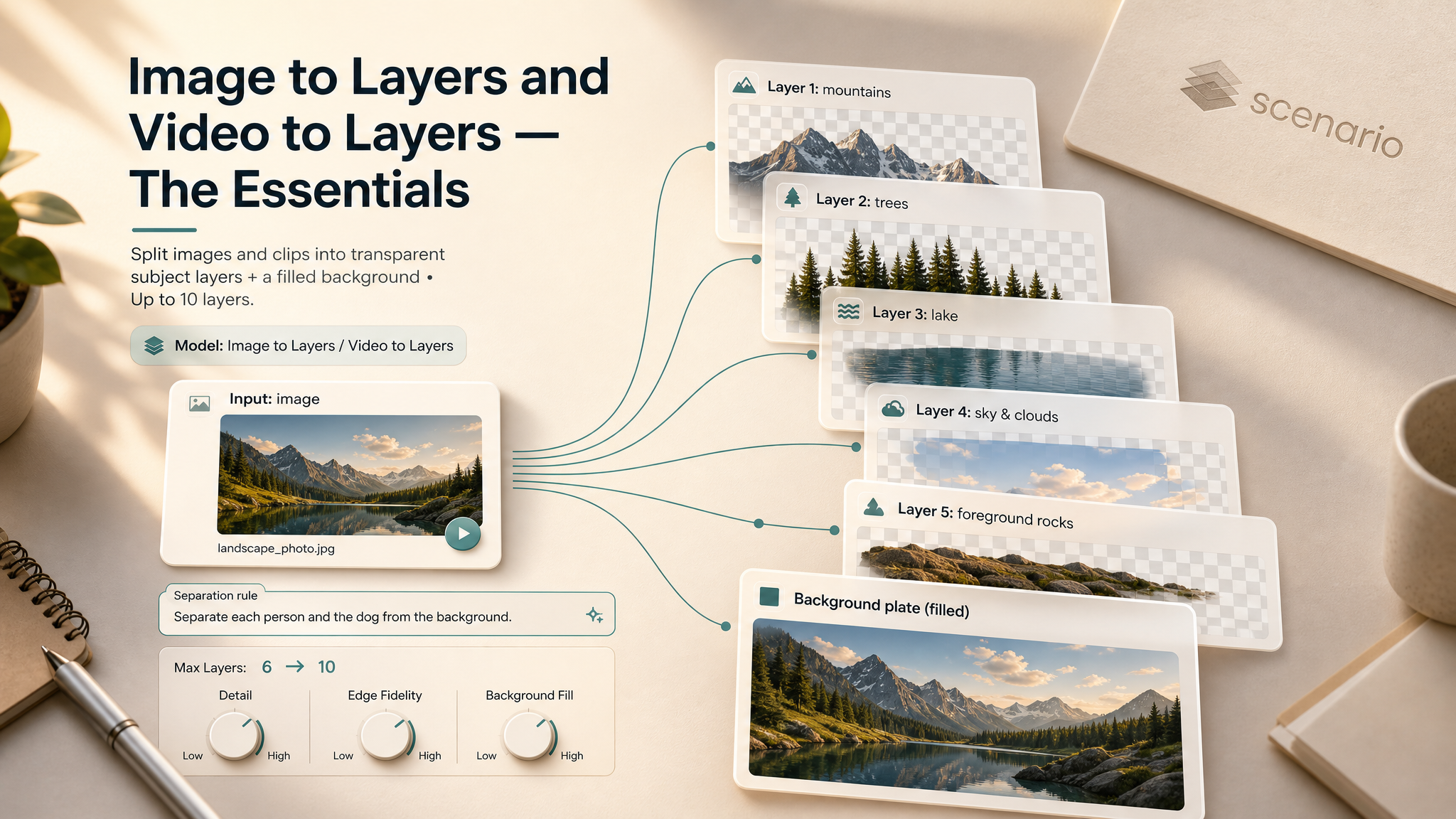
Image to Layers and Video to Layers split any image or video into clean, independent layers from a natural-language instruction. Describe how to divide the scene and get back transparent subject layers plus a filled-in background plate.
The short version
Write a separation rule, not a scene caption ("split the two people and the dog" works; "two people walking a dog" does not).
Up to 10 extracted layers plus the background per run. The tool may stop early to save cost.
Same parameters on both models. Pick the model that matches your file type: still image or video.
Parameters
Both models use the same three controls. Only the input field changes: still image on Image to Layers, video on Video to Layers.
Image or Video
The file you want to split. On Image to Layers, upload or select any standard image. On Video to Layers, upload or select any standard video clip. Video cost scales with duration and resolution, so trim long footage to the segment you need before running.
Separation Instruction
The most important field. Describe how to divide the content, not what the content is.
Compare these two lines:
"Two people walking down a street with a dog" (scene description, does not work)
"Split the two people, the dog, and the background separately" (separation rule, works)
Write the rule as a real sentence. Name objects ("the cat and the lamp"), roles ("foreground vs background"), or rules ("each person and their clothing separately"). English keeps results most consistent. Up to 2000 characters.
Max Layers
The ceiling on how many layers the tool will produce. Default is 6, which means up to six extracted layers plus the background (seven outputs total). Range is 1 to 10.
The model may stop early if it decides nothing else is worth separating or if it cannot find the objects you described. That is intentional and saves cost. Set the cap to roughly the number of things you actually want: more layers means a higher bill, not necessarily a better main result.
How Image to Layers Works
Upload or select an image, write the separation instruction, set Max Layers, and run the model. Each extracted subject returns as a PNG with transparency. The background plate fills in whatever was removed so you can recomposite or restyle without holes.
The instruction accepts plain English sentences. Name objects ("the cat and the lamp"), roles ("foreground vs background"), or rules ("each person and their clothing separately"). The model may return fewer layers than Max Layers if it finds nothing else worth separating.
Image examples
Isolate the hero subject: Product photo of a sneaker on a busy table.
Separation Instruction: Isolate the sneaker from everything else.
Max Layers: 1
Output: sneaker on transparency plus the table as background. Drop into a clean mockup.
Separate each character: Group photo with three people in front of a landmark.
Separation Instruction: Separate each of the three people from the background.
Max Layers: 3
Output: three person layers and a clean landmark plate for per-character compositing.
Extract every object on a desk: Top-down cluttered workspace.
Separation Instruction: Extract every object on the desk as its own layer.
Max Layers: 10
Output: up to ten object layers plus the desk surface. Stops early if fewer distinct items exist.
How Video to Layers Works
The workflow matches Image to Layers: video in, instruction, Max Layers, run. Outputs are video layers with alpha plus a background plate, ready for editing, VFX, or any pipeline that consumes layered footage.
Trim long clips to the action you need before running. Cost scales with duration and resolution, and clips with many scene changes produce noisier layers than one continuous shot.
Video examples
Foreground action vs background: 10-second dancer in a hallway.
Separation Instruction: Split the dancer from the background scenery.
Max Layers: 1
Output: dancer with alpha and an empty hallway plate for background swaps or split grades.
Multi-subject sports footage: Two players passing a ball.
Separation Instruction: Isolate each player and the ball as separate layers.
Max Layers: 3
Output: three alpha layers plus the field background for replays and overlays.
Using the Two Models Together
Both models share the same logic and parameter names. Switch between them by file type only: stills go to Image to Layers, footage goes to Video to Layers.
Typical downstream steps on Scenario: feed an extracted subject into a relighting or restyle model, send layers to Animate, or export to your editor. For video-first pipelines, extract layers, grade the background plate separately, then recomposite in Scenario Video Studio or an external NLE.
Use Cases
Compositing and VFX: Separate subjects from the environment to relight, restyle, or place them in a new scene.
E-commerce: Isolate products from busy reference shots for cutouts and packshots.
Game and animation pipelines: Extract characters or props as layered assets for parallax, motion design, or rigging.
Social and marketing: Turn raw footage into multi-layer assets for highlight reels, animated overlays, and platform-specific re-edits.
Post-production: Split a clip into foreground action and background plate for per-layer grades, retiming, or effects.
Education: Break diagram or demo footage into labeled layers for interactive presentations.
Tips for Better Results
Write a separation rule, not a scene caption. The model needs to know how to divide, not what is in the picture.
Match Max Layers to what you need. Setting 10 when you want one subject adds cost without improving the main result.
Name targets explicitly in ambiguous scenes. Prefer "the red car and the cyclist" over "the main subjects".
Re-run with tighter language before manual masking. If a subject clips or merges, refine the instruction and generate again.
Keep video clips focused. One continuous action separates more cleanly than long montage cuts.
Trim video before running. Shorter clips reduce cost and keep layers aligned to the action you care about.
Chain with other Scenario tools. Use extracted layers as inputs to relight, animate, or compose models in the same project.
Known Limitations
Extraction quality follows source clarity. Fine hair, motion blur, and heavy occlusion may need a tighter instruction or a cleaner source.
Early stop before Max Layers is intentional. The model stops when it finds no more meaningful splits, which saves cost.
Ten layers is the ceiling. For busier scenes, run twice with different instructions on different subsets.
Video cost scales with duration and resolution. Trim to the segment you need before generating.
Instruction language: English keeps results most consistent, though other languages may work.