Reframe images with Scenario Smart Reframe
Last updated: May 25, 2026
Introduction
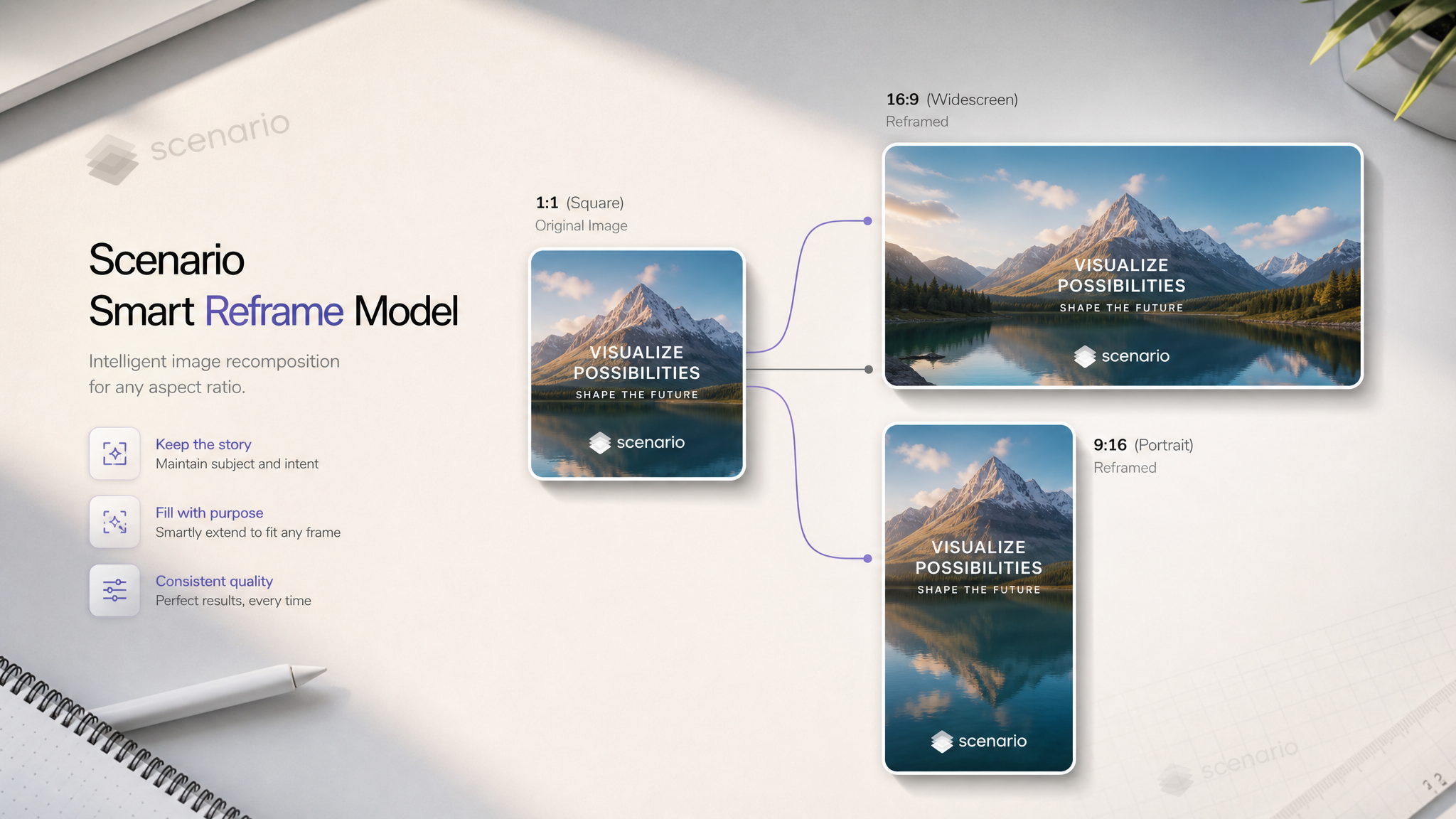
Reframe images to exact target dimensions with Scenario Smart Reframe, preserving art style, subject identity, on-image text, brand elements, color palette, and camera angle.
Smart Reframe resizes and recomposes the frame instead of stretching or cropping. The output looks intentional, not resized. Use it to turn a square social post into a wide banner, convert portrait to landscape, or prepare the same asset for multiple platforms without recreating it from scratch.
Reframe an image
In the Scenario web app no menu superior selecione Models > Tools.
Select Scenario Smart Reframe.
Upload the source image using the Image input.
Set target Width and Height. Select a preset for common aspect ratios — 1:1, 16:9, 9:16, 4:3, and more — at 1K, 2K, and 4K sizes.
Adjust additional settings as needed. See Settings below.
Select Generate.
Settings
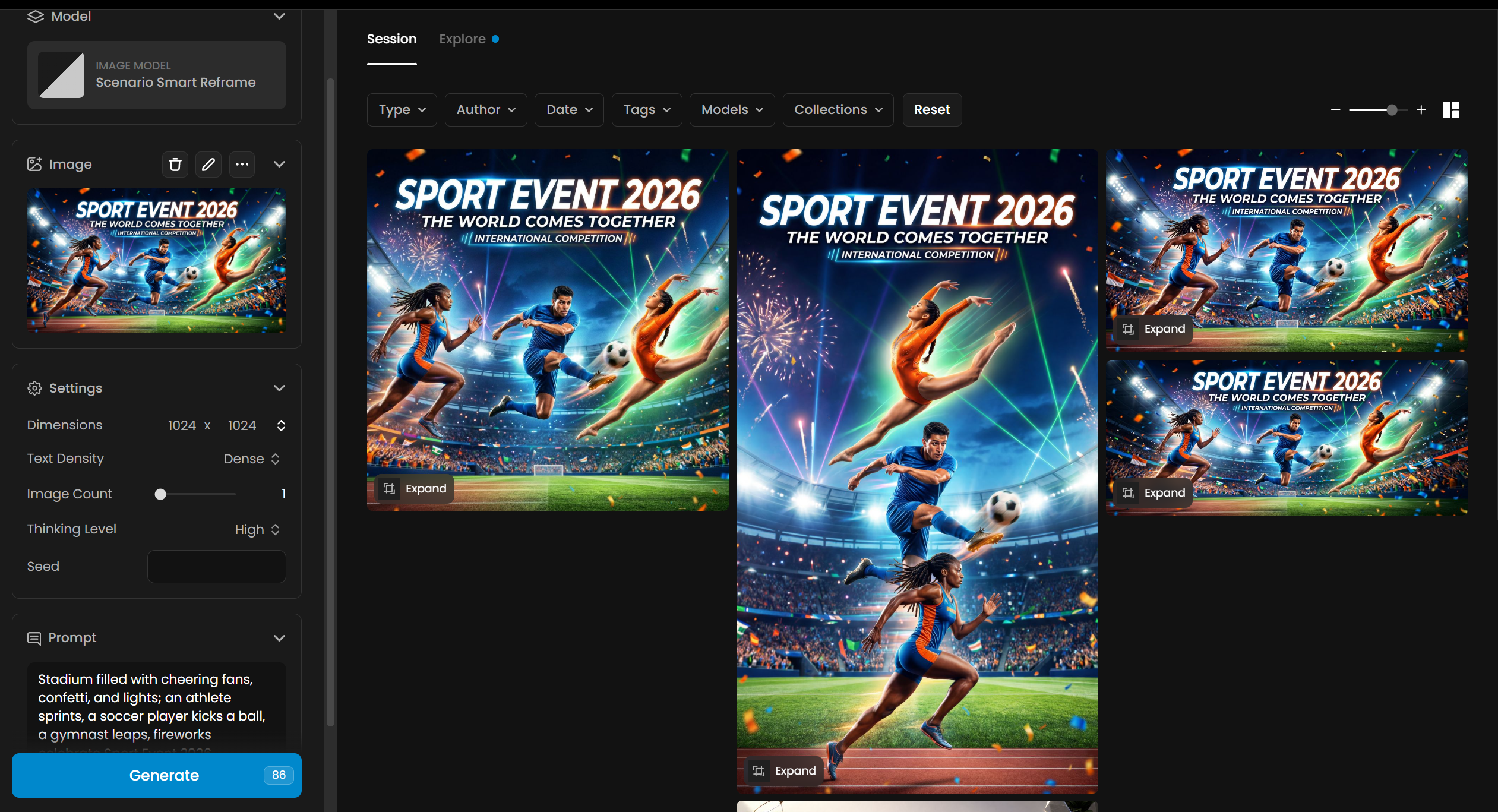
Width and Height — the exact pixel dimensions of the output. Type any value or choose a built-in preset. The combined pixel budget must stay within the renderer's 4K capacity for the chosen aspect ratio — up to 17 million pixels total. Targets more than 50% away from any supported aspect ratio are rejected.
Prompt (optional) — an art-direction hint to guide recomposition. Describe what should fill extended areas, set a mood, or reinforce brand style. Leave blank for fully automatic reframing.
Text Density — tells Smart Reframe how much on-image text the source contains.
Sparse (default): hero shots, character ads, and simple banners with a logo and tagline. Faster and lower cost.
Dense: product infographics, dashboards, and layouts with multiple text blocks or zones. Adds a structured layout-decomposition step for more accurate text handling. Higher cost.
Image Count — number of output variants per request (1 to 8). Art-direction stages run once; only the final render repeats for each variant. Multiple options in one job cost less than separate runs.
Thinking Level — controls how much reasoning the model applies during art direction.
High (default): more thorough analysis. Best for complex or ambiguous inputs.
Minimal: faster and lower cost. Best for straightforward reframes with simple composition. Biggest savings appear in Dense mode.
Seed — set a specific seed to reproduce a result. When generating multiple variants, each uses a sequential seed value (seed, seed+1, seed+2, and so on).
Common use cases
Use case | Recommended settings |
|---|---|
Adapt a hero image from 16:9 to 9:16 for mobile | Text Density: Sparse, Thinking Level: High |
Resize a product banner with lots of text and pricing | Text Density: Dense, Thinking Level: High |
Generate multiple format variants at once | Image Count: 4–8, Thinking Level: Minimal |
Convert a square social post to a wide banner | 21:9 or 16:9 preset, Text Density: Sparse |
Tips and limitations
Start with a high-quality source image. Smart Reframe preserves original fidelity — a clean, sharp input produces the best output.
Match Text Density to the layout. Sparse on a text-heavy layout produces inaccurate results.
Use the prompt for brand consistency. Describe the color scheme or environment to guide how extended areas are filled.
Generate 3 to 4 variants in a single job when comparing compositions. Image Count is more efficient than separate runs.
Target dimensions more than 50% away from any supported native aspect ratio are rejected.
Wide or tall extreme crops (for example 20:1 banners) may produce inconsistent results in extended areas.
Complex transparent overlays or layered design elements may not fully survive recomposition.
The reframed image is ready to download or use in the next step of a Workflow. For sharper series consistency, combine Smart Reframe with [reference images](url) or a trained Custom Model.