Florence-2 Grounding: The Essentials
Last updated: November 13, 2026
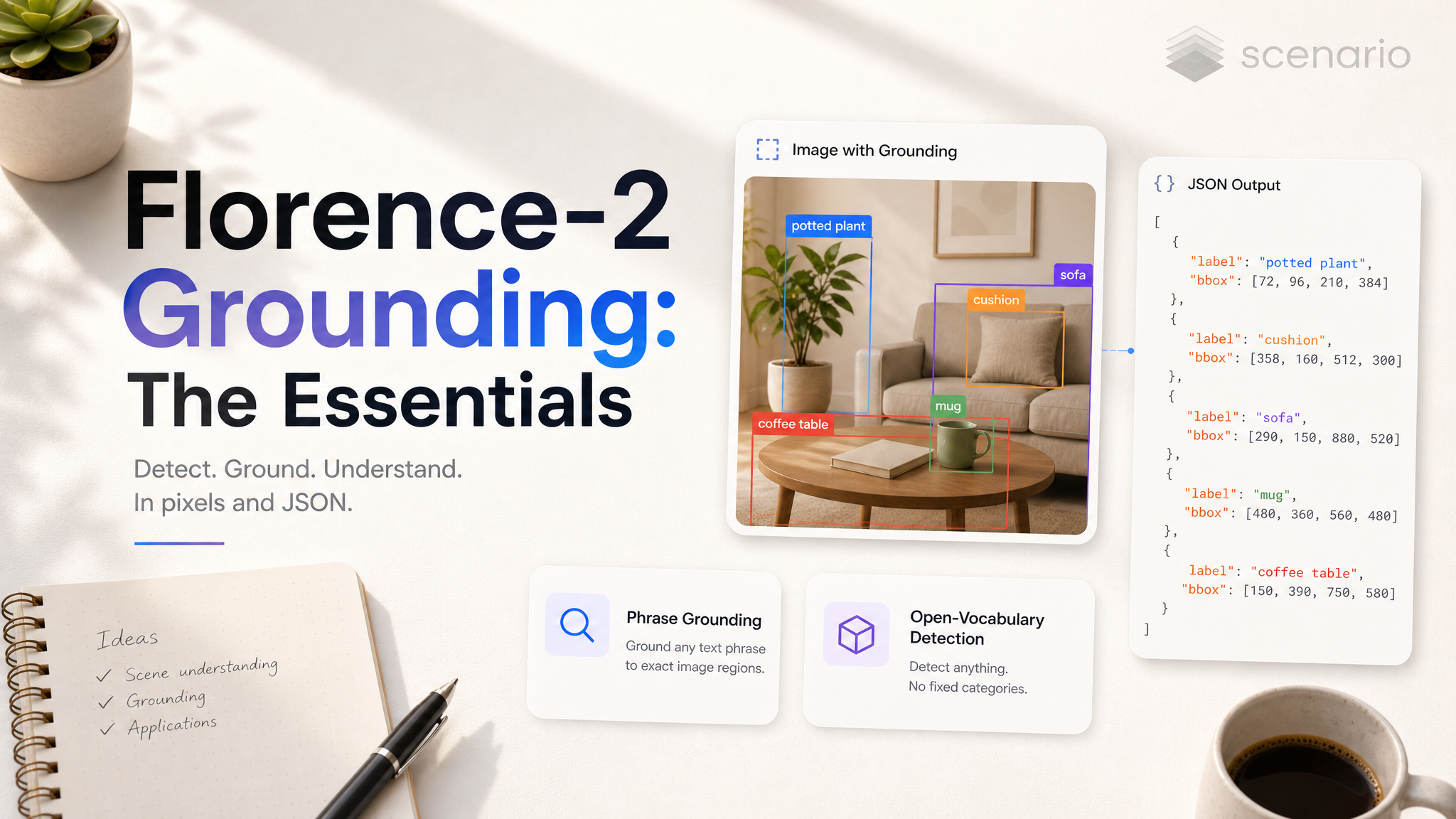
Florence-2 Grounding finds things in an image and tells you where they are. You give it an image and a short text, and it returns a labeled bounding box, in pixels, for each thing the text names. It runs Microsoft's Florence-2 vision model, and it does not change the image: the result is a text asset holding JSON, ready for a script, a pipeline or an API call to read.
Use it to cut a sheet of props, icons or stickers into separate pieces, to place a crop or an overlay on an object, or to label the objects of an image for a dataset. It answers where an object is, not whether it is there: it returns a box for each thing you ask for even when the image does not contain it, so ask only for objects you know are in the image.
Which Task Should I Use?
The model has two tasks. They read the prompt differently.
Task | What you write | What you get | Best for |
|---|---|---|---|
Phrase grounding (default) | A short caption, such as "a pink potion bottle next to a shield" | One box per phrase of the caption, labeled with the phrase | Locating two or three different objects in one call |
Open-vocabulary detection | The name of one object, such as "crown", not a sentence | A box for each instance of that object it finds | Finding every copy of one kind of object |
With a single word as the prompt, both tasks give the same result.
How to Use the Model
Open Florence-2 Grounding in the web app, or call it through the API with the model ID model_microsoft-florence-2-grounding. Add the image, write the prompt, pick the task, and run it. Every example below used the same input, a sheet of six fantasy stickers: crossed swords, a shield and a potion bottle on the top row, a crown, a dragon head and a treasure chest on the bottom row.
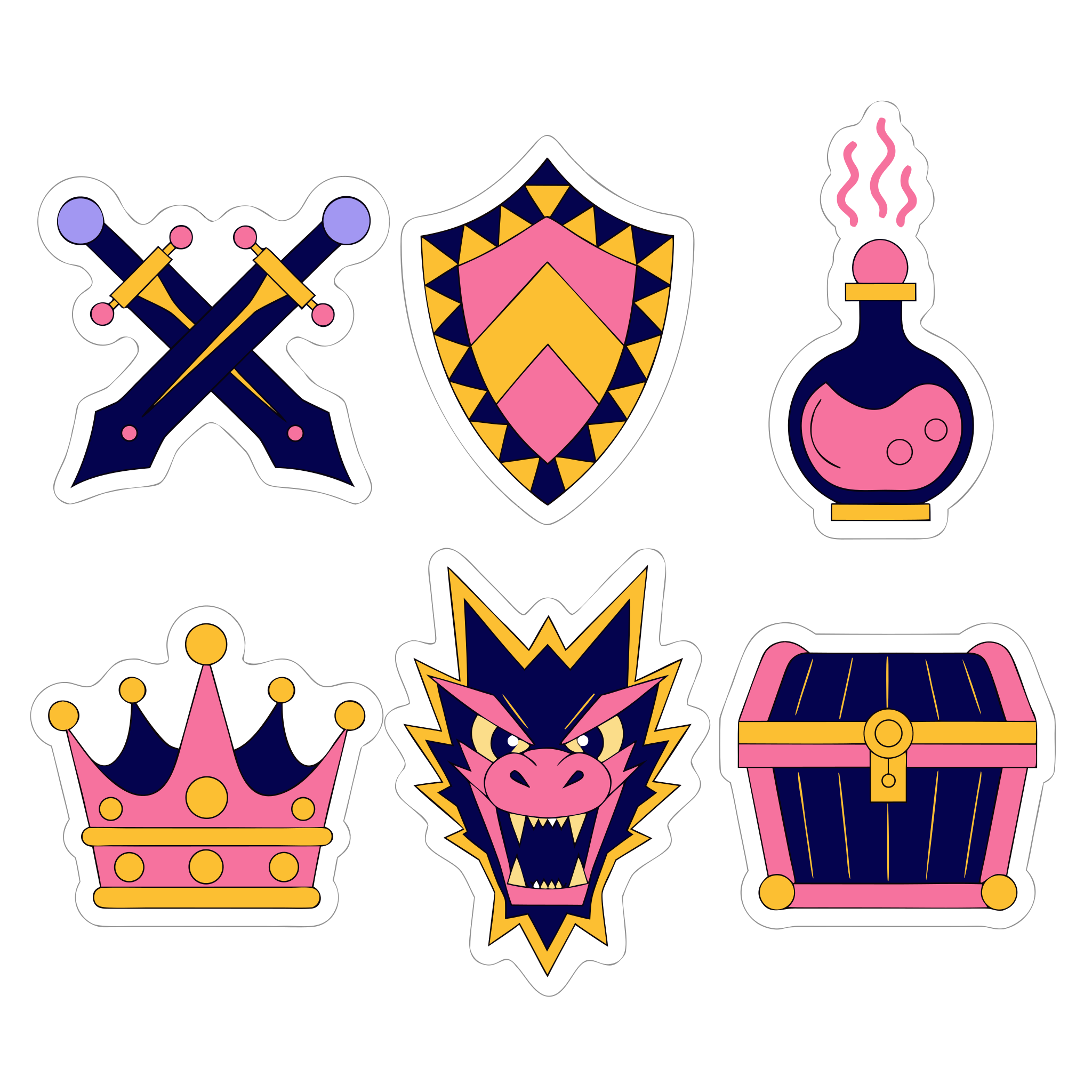
The input of every example: a 2048 by 2048 sticker sheet of six fantasy props · Open on Scenario
All the examples used the default model variant, Florence-2 Large (fine-tuned). Each shows the prompt, the settings and the JSON the model returned, unchanged.
Reading the result
The result has five fields:
detections: the list of boxes. Each has alabel(the phrase or object name it answers) and abox, written[x1, y1, x2, y2]: the top-left and bottom-right corners, in pixels, counted from the top-left corner of the image.widthandheight: the size of the input image, in pixels. The boxes use this size, so they line up with the original file.model_id: the variant that ran.found:truein every example in this article, including the one that asks for an object the image does not contain. Do not use it to check whether an object is present.
Phrase grounding: one box per phrase
Phrase grounding splits the caption into phrases and finds each one. Here the caption names two props, and both boxes are correct: the potion bottle at the top right and the shield at the top center.
a pink potion bottle next to a shieldSettings: Task Phrase grounding.
{"found": true, "detections": [{"label": "a pink potion bottle", "box": [1436, 185, 1866, 1016]}, {"label": "a shield", "box": [748, 250, 1305, 988]}], "width": 2048, "height": 2048, "model_id": "florence-2-large-ft"}Keep captions short. On the same sheet, a caption listing all six props returned eleven boxes, several of them with the wrong label, while captions of two or three phrases grounded correctly. To locate many objects, run one call per object or per small group.
Open-vocabulary detection: every instance of one object
Open-vocabulary detection reads the whole prompt as the name of one object. Asked for a crown, it returns one box, on the crown sticker at the bottom left.
crownSettings: Task Open-vocabulary detection.
{"found": true, "detections": [{"label": "crown", "box": [54, 1133, 719, 1739]}], "width": 2048, "height": 2048, "model_id": "florence-2-large-ft"}Check the boxes, not the count
The model always answers with at least one box, and on a sheet of similar stylized items it can box more than you asked for. Two runs on the same sheet show both cases.
An object that is not in the image still gets a box. There is no dog on the sheet, yet the model boxed the dragon head and labeled it "a dog".
a dogSettings: Task Open-vocabulary detection.
{"found": true, "detections": [{"label": "a dog", "box": [728, 1029, 1328, 1870]}], "width": 2048, "height": 2048, "model_id": "florence-2-large-ft"}Similar items can all match. Asked for a treasure chest, the model returned five boxes, one on each sticker but the crossed swords. Only the last one, [1354, 1164, 1983, 1747] at the bottom right, is the chest.
treasure chestSettings: Task Open-vocabulary detection.
{"found": true, "detections": [{"label": "treasure chest", "box": [723, 1025, 1330, 1870]}, {"label": "treasure chest", "box": [750, 248, 1309, 988]}, {"label": "treasure chest", "box": [54, 1131, 719, 1745]}, {"label": "treasure chest", "box": [1436, 183, 1870, 1016]}, {"label": "treasure chest", "box": [1354, 1164, 1983, 1747]}], "width": 2048, "height": 2048, "model_id": "florence-2-large-ft"}When you need one object from such a sheet, describe it (its color, its material, its position) rather than only naming it, and look at the boxes before you crop.
Parameters
The web app shows the label in parentheses; the API uses the name in the heading.
image
Required (Image). The image to search, up to 30 MB. The boxes are in this image's pixels, as in the 2048 by 2048 sticker sheet above.
prompt
Required (Prompt), up to 400 characters. For phrase grounding, a caption such as "a white tiger lying on a rock"; each phrase gets its own box, as in the potion and shield example. For open-vocabulary detection, the name of one object, such as "tiger", as in the crown example. A prompt that contains < or > makes the job fail.
task
Required (Task). phrase_grounding (Phrase grounding, the default) or open_vocabulary_detection (Open-vocabulary detection). See Which Task Should I Use? above.
modelVariant
Optional (Model variant). florence-2-base (Florence-2 Base), the smaller checkpoint; florence-2-large (Florence-2 Large), the bigger one; or florence-2-large-ft, the default, shown as Florence-2 Large (fine-tuned) and trained further on locating a described object such as "the dog on the left". On simple prompts the three give close results; the fine-tuned variant is the most accurate on detailed descriptions. Every example above used the default.
Cost
Each call costs a flat 5 CU, in the web app and through the API, whatever the task or the model variant.
Use Cases
Splitting a reference sheet: locate each prop, icon or sticker on a sheet, then crop it out in your own tool or script with the box coordinates.
Crops and overlays in a pipeline: find where an object sits so an automated step can crop to it, center it, or place a label or a highlight on it.
Dataset labeling: draft bounding-box annotations for objects you know are in each image, then review them.
Several objects in one pass: a short caption with two or three phrases returns a box for each, labeled with its phrase.
Tips for Better Results
Ask only for what is there. The model boxes something for every phrase, present or not.
Keep captions to two or three phrases. Long lists of objects come back with extra boxes and wrong labels.
Describe, do not just name, when items look alike. A color, a material or a position ("the pink potion bottle", "the dog on the left") helps the default fine-tuned variant pick the right one.
Use one object name for open-vocabulary detection. It treats the whole prompt as one object, so a sentence does not help.
Check the boxes before you crop. On sheets of similar stylized items, the number of boxes is not a reliable count.
Known Limitations
No absence check. It returns a box even for an object that is not in the image, and
foundstaystrue.Boxes only. It returns rectangles, not masks or outlines, and it does not crop or edit the image.
Input limits. Images up to 30 MB; prompts up to 400 characters, without
<or>.