GPT Image: The Essentials
Last updated: October 19, 2026

Introduction
Covers the full GPT Image lineup on Scenario, led by OpenAI’s newest and most capable release: GPT Image 2.5 Flare (model_openai-gpt-image-2-5-flare) and GPT Image 2.5 Sunburst (model_openai-gpt-image-2-5-sunburst). Also covers the previous flagship, GPT Image 2 (model_openai-gpt-image-2), still a strong option and the basis for the shared parameters, resolution presets, and workflows documented below. GPT Image 1.5, an older and lighter release, is covered briefly at the end.
GPT Image 2.5 Flare
GPT Image 2.5 Flare is OpenAI’s fast tier of the GPT Image 2.5 line, tuned for quick turnaround on everyday generation and editing: social creative, product photography, packaging mockups, game key art, infographics, and character-driven scenes. It uses the exact same parameter set as GPT Image 2 (see Parameters below), so any workflow you already built for GPT Image 2 drops in directly.
Example: Product ad
Prompt: Clean modern skincare product advertisement featuring a frosted glass pump bottle labeled 'GLOW SEASON' in elegant thin gold lettering, standing upright on a soft pastel peach pedestal, surrounded by a few water droplets and a soft blurred citrus slice in the background, gentle diffused studio lighting with a warm glow, soft gradient backdrop from cream to blush pink, minimal luxury cosmetic ad aesthetic.

Example: Social / meme content
Prompt: Funny reaction-meme style flat illustration of a confident orange tabby cat wearing small round black sunglasses and giving a thumbs up, sitting upright against a bright solid yellow background, bold thick black outline comic style, big bold white text with black outline at the top reading 'MONDAY MOOD'.

Example: Game key art
Prompt: Cozy isometric pixel-art key art for a farming simulation video game, showing a small farmstead at golden sunset with a red barn, glowing pumpkins and corn, a character watering plants, chickens near a fence, warm orange and pink sky gradient, charming 16-bit inspired pixel art style.

Example: Stylized art range
Prompt: Charming claymation stop-motion style character of a friendly round robot made of visible sculpted clay with fingerprint textures, standing in a miniature tabletop workshop set with tiny clay tools and gears scattered around, warm soft studio lighting like a classic stop-motion film set.

Example: Character / action
Prompt: Extreme low-angle action shot of a skateboarder mid-air performing a kickflip high above a concrete skate ramp, silhouetted against a vivid orange and pink sunset sky, dynamic freeze-motion capturing dust kicked up from the ramp below, high-energy action sports photography style.

Example: product photo edit (before / after)
Prompt: Edit this product photo for e-commerce: replace the plain gray studio background behind the white sneaker with a smooth vibrant gradient studio backdrop that transitions from coral pink to soft orange, add a subtle glossy reflection of the sneaker on the floor beneath it, keep the sneaker itself, its angle, and its proportions exactly unchanged.
Before  | After  |
GPT Image 2.5 Sunburst
GPT Image 2.5 Sunburst is OpenAI’s most capable GPT Image model, built for precision. Reach for it when a job demands exact detail: dense infographics and dashboards with legible numbers, technical exploded diagrams, intricate character and movie-style scenes, and edits that must preserve geometry exactly. It shares the exact same parameter set as GPT Image 2 (see Parameters below).
Example: Dense infographic / dashboard
Prompt: Clean modern business dashboard mockup graphic titled 'QUARTERLY SALES OVERVIEW', featuring a bar chart comparing four quarters with exact numeric value labels, a donut chart broken into labeled segments, and three KPI number cards reading exact figures, flat minimal white and navy blue UI design with crisp precise typography throughout.

Example: Technical exploded diagram
Prompt: Highly detailed technical exploded-view diagram of an espresso machine, all major components separated and floating in precise vertical alignment: water tank, boiler, pump, portafilter group head, and drip tray, thin precise black leader lines connecting each part to clean labels, crisp white studio background, engineering blueprint meets product-ad aesthetic.

Example: Cinematic character / action
Prompt: High-octane car chase movie still of two sleek unbranded sports cars drifting side by side around a tight corner in a rain-slicked neon-lit city street at night, dramatic Dutch tilt camera angle, motion blur streaking on the spinning wheels, moody cyberpunk color grade of deep blue and hot pink.

Example: Experimental art style
Prompt: Gothic cathedral stained glass window depicting a coiled dragon wrapped around a stone spire, rendered in deep jewel-toned segments of ruby red, emerald, and cobalt blue separated by heavy black leading lines, dramatic light streaming through from behind, intricate medieval gothic tracery framing the scene.

Example: Original character design
Prompt: Original superhero movie still featuring a fully custom armored hero in matte gunmetal and violet plating, no cape, bracing against a massive incoming shockwave with a glowing hexagonal energy shield projected from one gauntlet, dynamic three-quarter low camera angle, wholly original costume design distinct from any known franchise.

Example: precision signage edit (before / after)
Prompt: Edit this blank storefront photo with precision: add clean dimensional lettering signage above the entrance reading 'CORNER BAKERY' in a warm serif font with a small bread-loaf icon beside it, keep the brick facade, window shapes, door position, and camera framing exactly unchanged.
Before  | After  |
Overview
GPT Image 2 is designed for workflows that require both creative generation and precise editing. Unlike prompt-only models, it accepts reference images as direct inputs, enabling style transfer, character consistency, and targeted region editing within a single generation call.
The model uses a built-in reasoning pass before generating, which improves prompt adherence on complex scenes, multi-object compositions, and text-in-image requests. It is well suited for production use cases across games, marketing, product visualization, and concept development.
On Scenario, GPT Image 2 is available as a third-party model. All generation jobs are billed based on resolution and quality setting. No fine-tuning or LoRA training is supported for this model.
What It Does
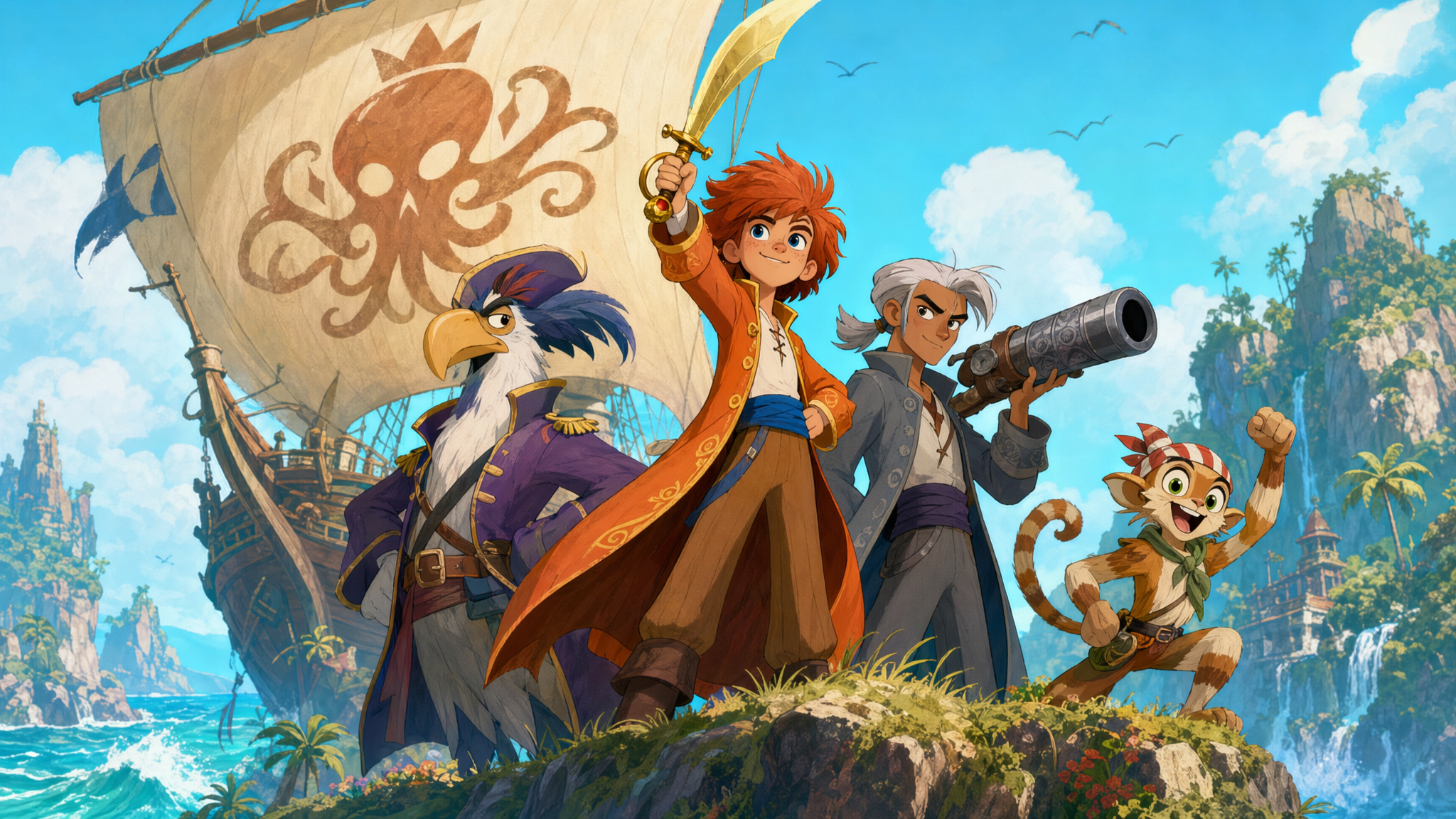
Text to image (txt2img): Generate images from a written prompt. Supports complex scenes, multi-subject compositions, and text rendered inside the image.
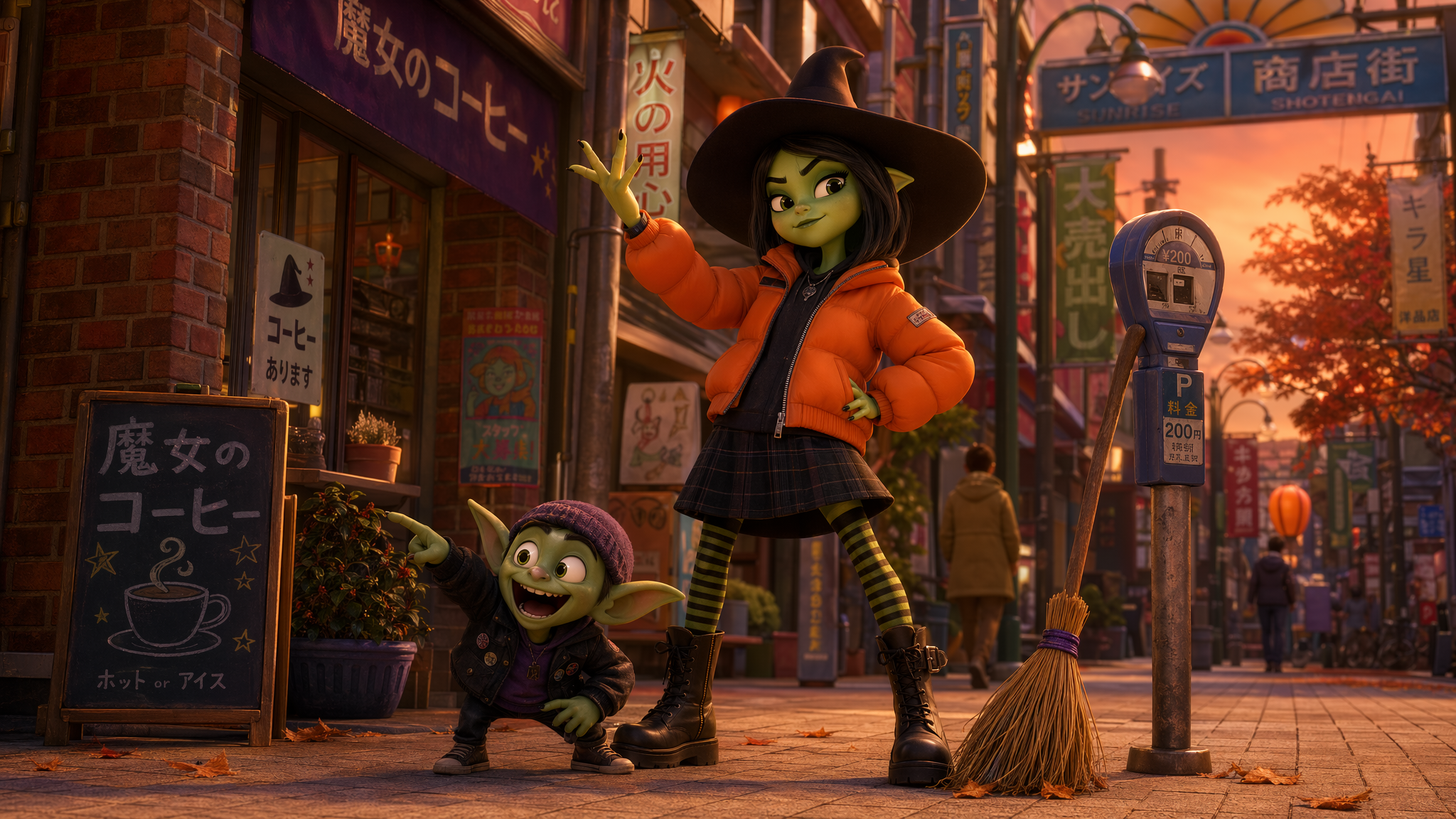
Image editing with references (img2img): Provide up to 10 reference images to guide the output. The model uses these to match style, character appearance, object shape, or composition.
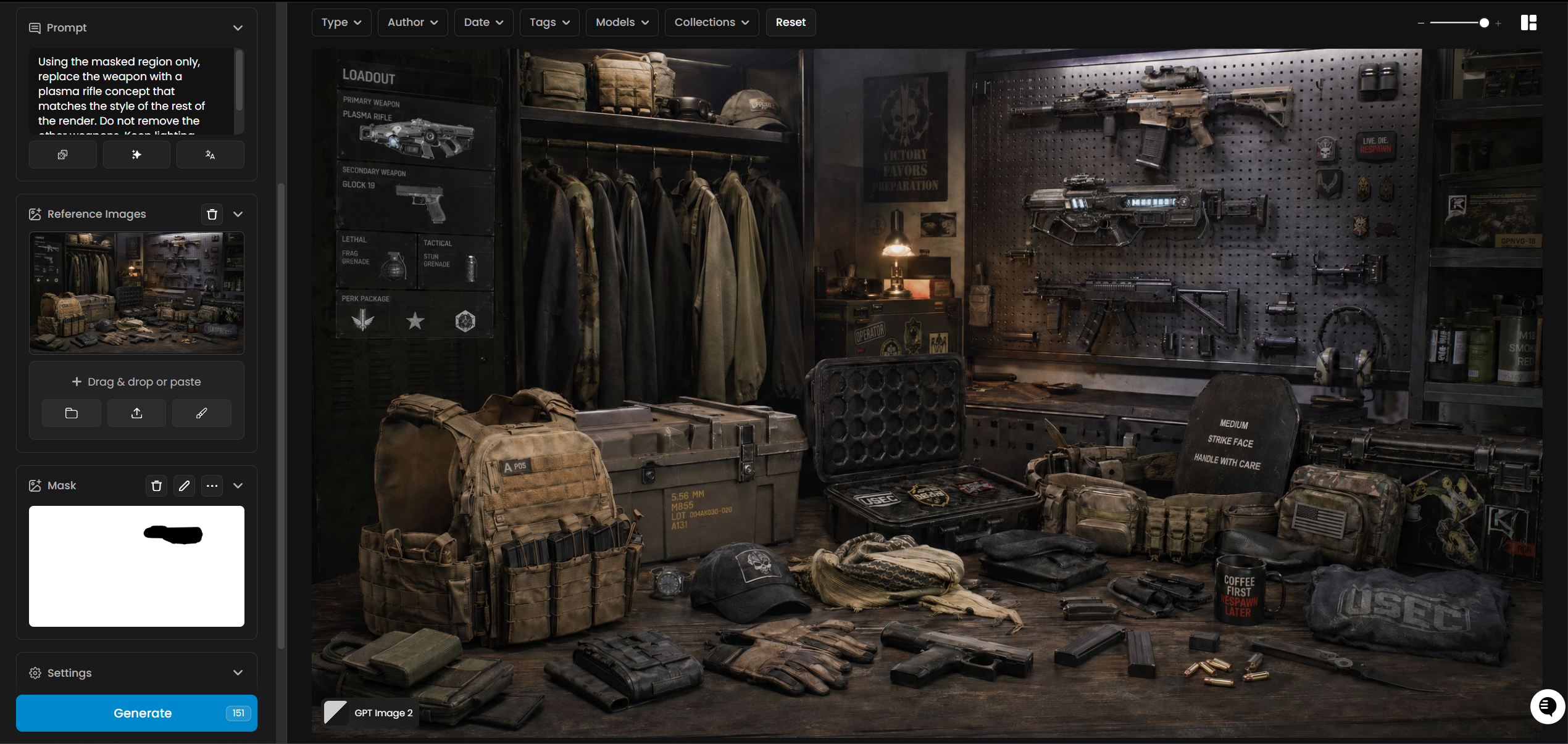
Inpainting with masks: Supply a reference image and an alpha-masked image to target a specific region for editing while leaving the rest of the image unchanged.
Key Features
Up to 10 reference images per generation for context-guided editing
Alpha-mask inpainting for surgical, region-specific edits
Flexible output resolution: 16px to 3840px per edge, in multiples of 16
Aspect ratios up to 3:1 (for example, 3840x1280 or 1280x3840)
Four quality presets: auto, low, medium, high
Generate up to 10 images per request with the Image Count parameter
Strong text rendering inside images, including multilingual content and infographics
Opaque, auto, or transparent background modes (transparent on GPT Image 2.5 Flare and Sunburst only)
Transparent Backgrounds
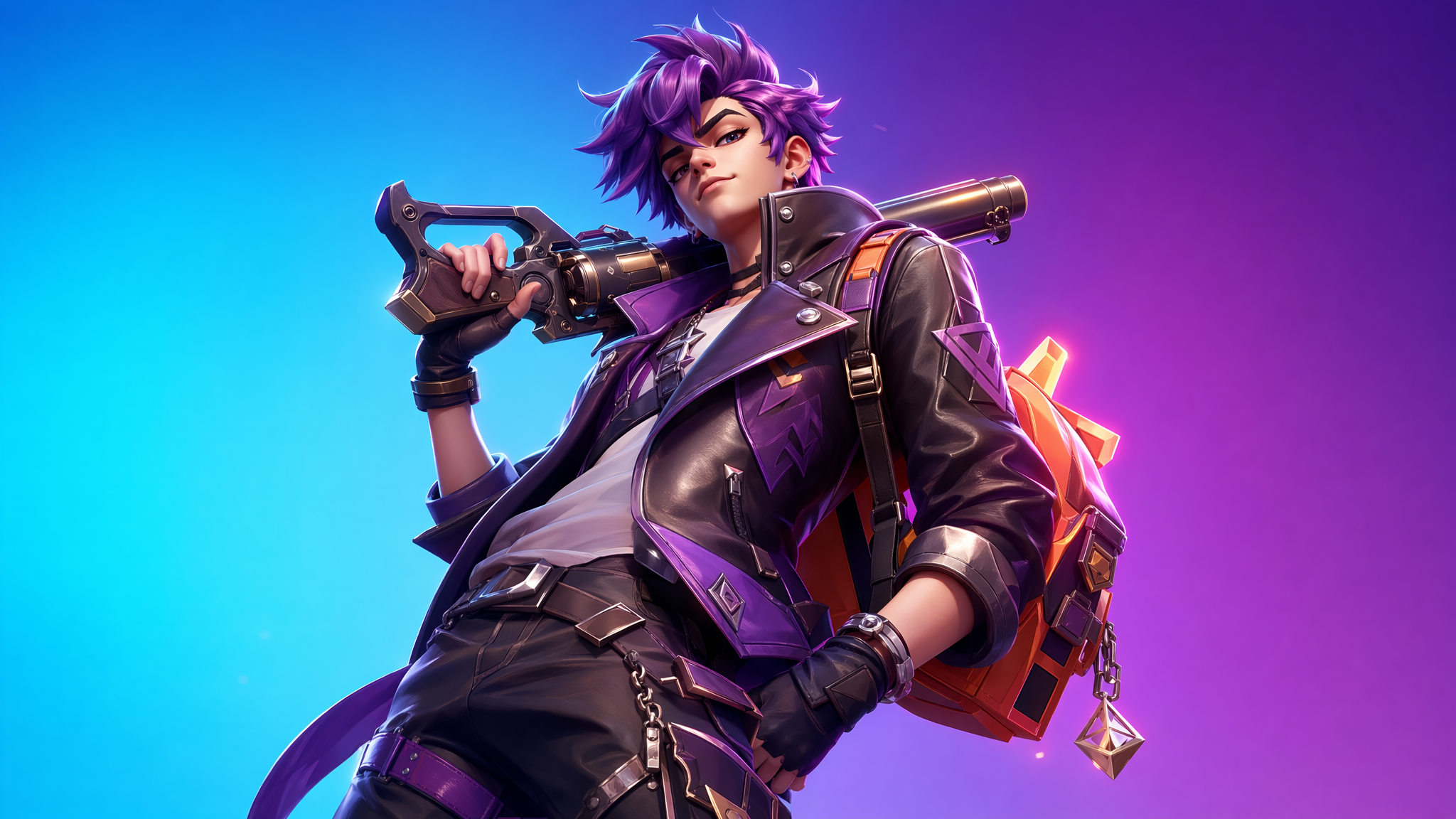
GPT Image 2.5 Flare and GPT Image 2.5 Sunburst can generate images with a real alpha channel instead of a solid backdrop. Set Background to transparent and the model isolates the subject on its own, no separate background removal pass needed. Pick either 2.5 Flare or 2.5 Sunburst for cutouts, and spot-check the edges on fine detail (hair, fur, thin metal, wispy smoke) before shipping to production. If the edge quality does not hold up, fall back to a dedicated background removal model.
GPT Image 2 no longer supports transparent backgrounds: OpenAI withdrew the preview on September 30, 2026.
Transparent backgrounds are a strong fit for game icons, UI elements, product cutouts for e-commerce listings, stickers, and any asset that needs to drop straight into a layout without a background to mask out.
Example: fantasy game icon (background: transparent)
Prompt: A single ornate healing potion bottle rendered as a premium fantasy game inventory icon, in isometric three-quarter perspective. The bottle is blown glass with a warm amber-red glow from the swirling liquid inside, sealed with a weathered cork bound by a tarnished brass ring and a thin leather cord. Small bubbles rise through the liquid, and a faint magical wisp curls from the cork's edge. Render in a polished stylized game-art style with crisp specular highlights along the glass curvature, soft rim lighting from the upper left picking out the bottle's silhouette, and subtle ambient occlusion where the glass meets the brass band. The bottle is centered, fully isolated, with no ground plane, shadow catcher, or background elements, ready to be composited directly into a game HUD or inventory slot.

Parameters
Here is a quick rundown of what each setting does and how to get the most out of it.
Prompt
This is the only required field. Write a description of the image you want to generate or edit. The model reads the full prompt and reasons over it before generating, so longer and more detailed prompts generally produce better results. You can use up to 32,000 characters. A good structure to follow is: scene or setting first, then the main subject, then stylistic details, then any constraints or exclusions.
Reference Images
You can upload up to 10 images to guide the generation. These can be a character you want to keep consistent, a visual style you want to match, an object you want to place in a new scene, or the base image you want to edit. When you use more than one reference image, mention each one by number in your prompt so the model knows how to use them. For example: "Image 1 is the product. Image 2 is the background scene. Place the product from Image 1 into the environment of Image 2."
Mask
The mask is used for inpainting, which means editing only a specific area of an image while leaving everything else untouched. It must be the same file format and exactly the same pixel dimensions as your reference image, and it must have an alpha channel. The area you paint as transparent (alpha 0) is what the model will regenerate. Everything that is opaque (alpha 255) stays as is. When exporting from Photoshop or GIMP, make sure to save with transparency preserved, otherwise the mask will not work.
Image Count
You can generate up to 10 images in a single request. The default is 1. Generating multiple images at once is a good way to explore different interpretations of the same prompt without running separate jobs. A count of 4 is a practical starting point when you want to compare directions.
Width and Height
Both values must be multiples of 16 and can go up to 3840px per edge. The aspect ratio cannot exceed 3:1. The easiest approach is to use one of the built-in resolution presets in the UI, which are already sized correctly. If you set a custom size, keep in mind that outputs above 2560x1440 are treated as experimental and quality may vary more than at standard sizes.
Quality
There are four levels: low, medium, high, and auto. Low is fast and works well for drafts and ideation. Medium covers most production needs. High is the right choice when your image includes small text, a detailed face, a dense infographic, or anything going directly into a final deliverable. Auto lets the model decide based on the complexity of the prompt.
Background
Controls how the output background is generated. Auto lets the model decide. Opaque forces a solid background. Transparent renders the subject with a real alpha channel and no backdrop, ideal for icons, stickers, and product cutouts (GPT Image 2.5 Flare and Sunburst only). See the Transparent Backgrounds section above for example prompts and output, and check edge quality on fine detail (hair, fur, thin metal) before using the result in a final deliverable.
Supported Resolution Presets
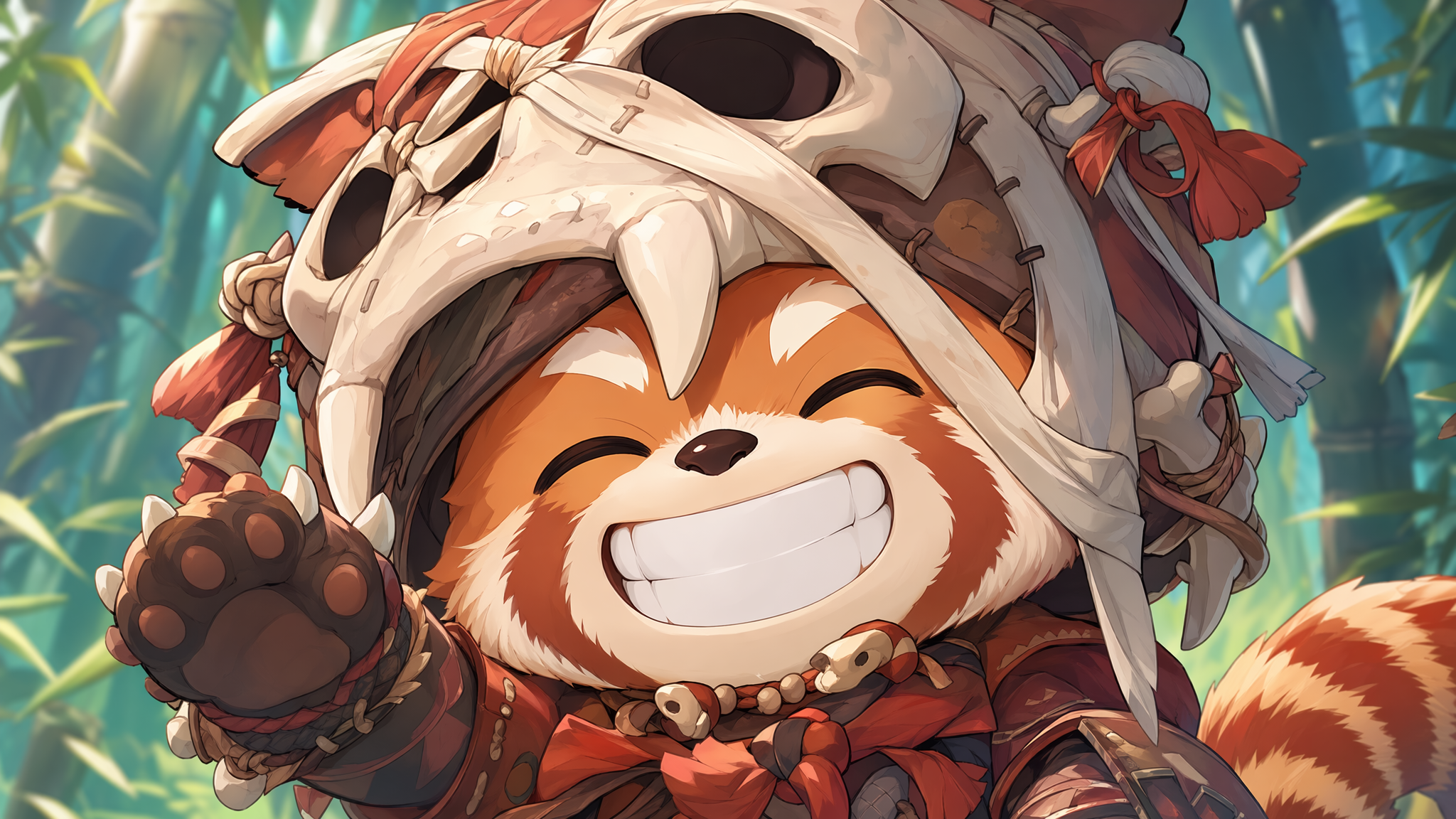
The Scenario UI includes the following presets, which cover the most common formats. You can also enter custom dimensions as long as they follow the constraints above.
9:16 Portrait (2160x3840): Mobile wallpapers, vertical social content.
2:3 Portrait (1024x1536): Trading cards, book covers, character sheets.
1:1 Standard (1024x1024): Social media posts, icons, product shots.
1:1 Large (2048x2048): High-resolution square assets, seamless textures.
3:2 Landscape (1536x1024): Environment art, banners, thumbnails.
16:9 HD (2048x1152): Game backgrounds, presentation slides, cinematics.
16:9 4K (3840x2160): Hero images, large-format print, ultra-HD assets.
Keep in mind that both dimensions must be multiples of 16, the maximum edge is 3840px, the aspect ratio cannot exceed 3:1, and outputs above 2560x1440 are experimental.
Inpainting with Masking Guides
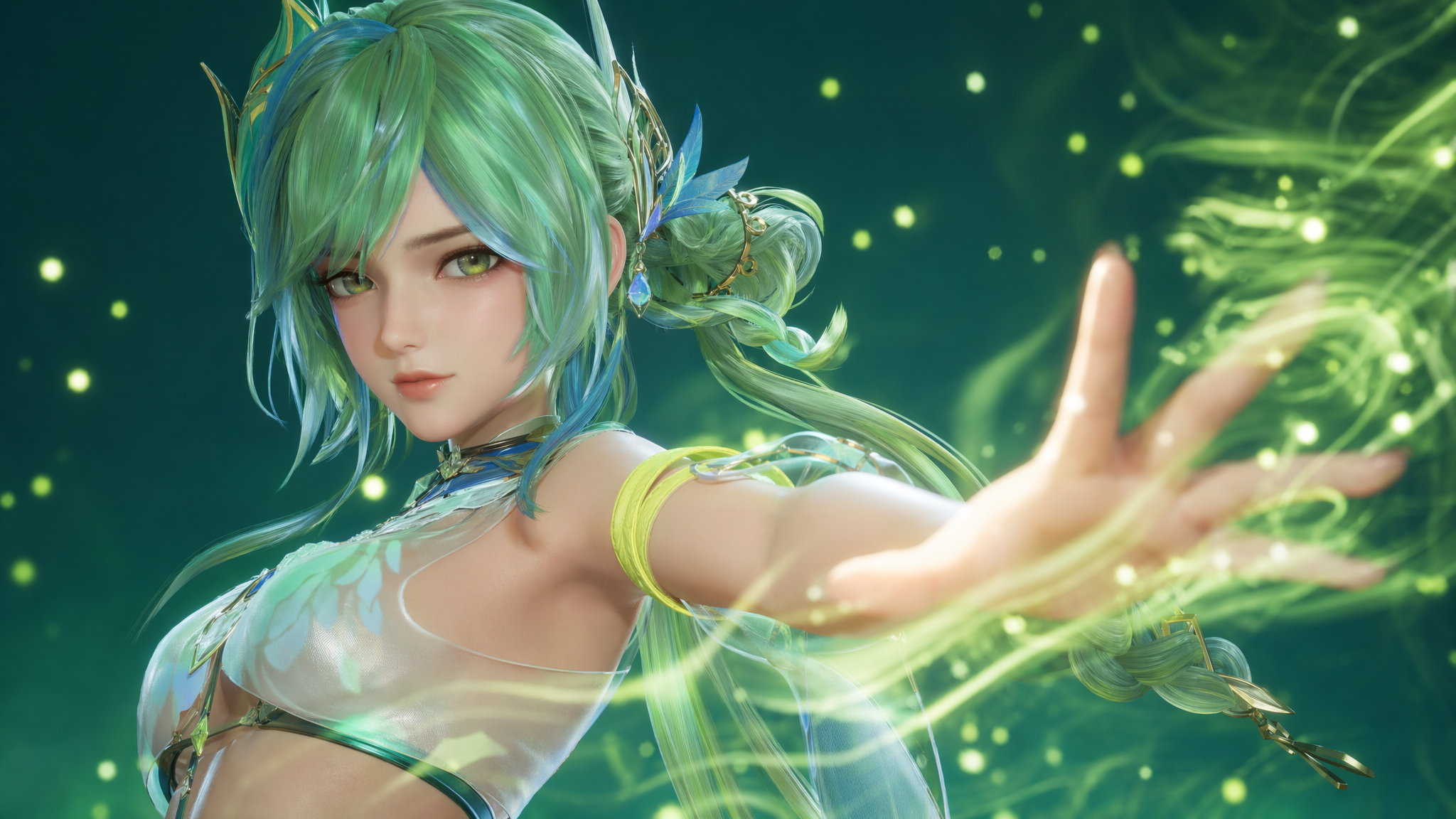
Inpainting allows you to edit a specific region of an image while keeping the rest unchanged. To define this region, you can use a black-and-white mask image, where the white shape marks the area you want to change or fill. It is important to know that this mask serves only as a visual reference guide for positioning and scale—the final generation is not an exact match to the mask's precise boundaries.
Production Workflows
The patterns below are demonstrated with GPT Image 2, but since 2.5 Flare and Sunburst share the same parameters, the same patterns work unchanged on either of them. Copy them verbatim, then swap asset numbers to match your uploads.
1. Environment kitbash
Prompt: Image 1 is the layout sketch. Image 2 is the material mood board. Build a single 16:9 environment concept with readable silhouettes, physically plausible scale, and color grading that matches Image 2. No characters.
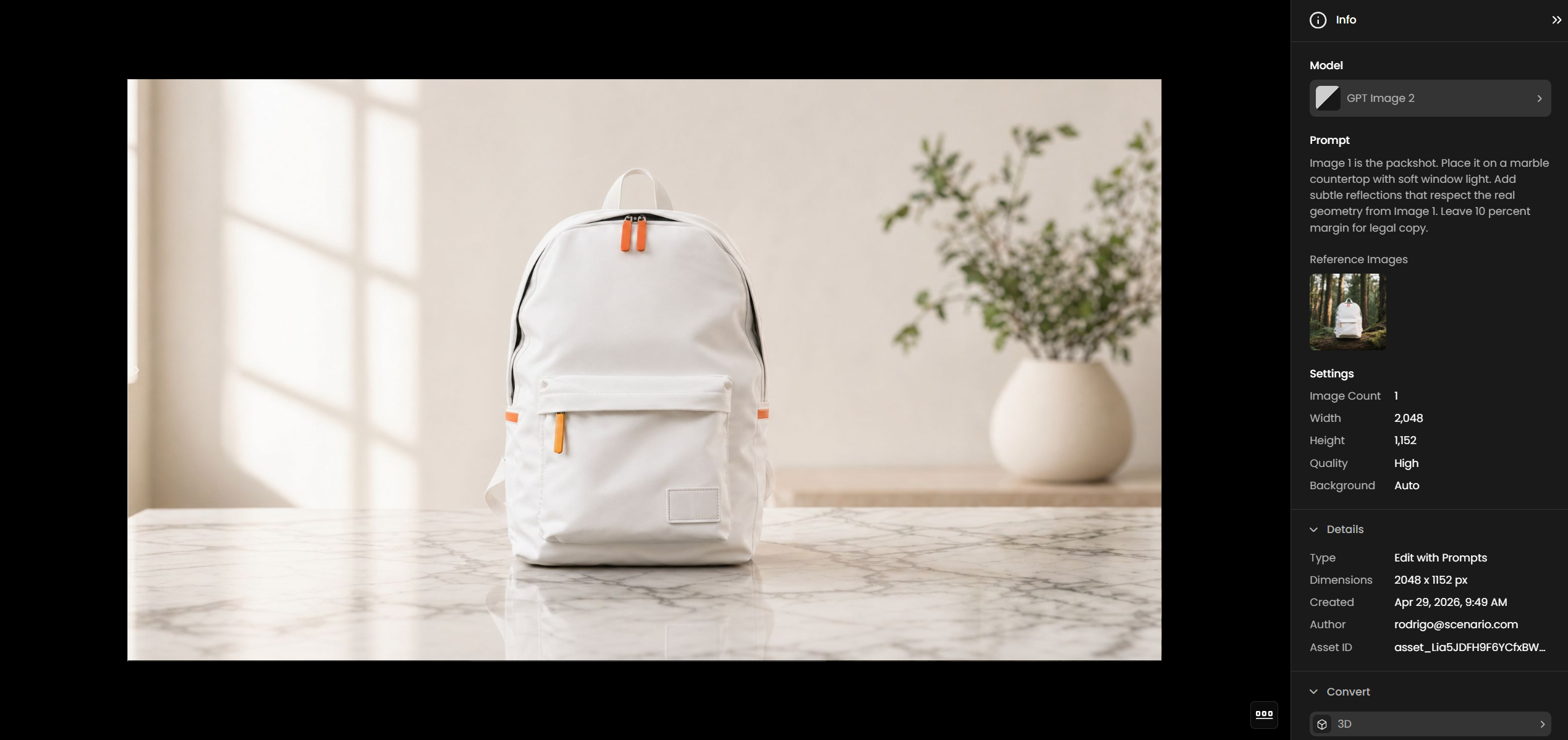
2. SKU-accurate product mockup
Prompt: Image 1 is the packshot. Place it on a marble countertop with soft window light. Add subtle reflections that respect the real geometry from Image 1. Leave 10 percent margin for legal copy.
3. Game asset inpaint
Prompt: Using the masked region only, replace the weapon with a plasma rifle concept that matches the style of the rest of the render. Do not remove the other weapons. Keep lighting unchanged.
Reference Roles Cheat Sheet
Role | When to use | Example prompt fragment |
Identity | Face, body, wardrobe lock |
|
Style | Brushwork, film stock, palette |
|
Object | Hero prop or product |
|
Environment | Set, architecture, biome |
|
Choosing a GPT Image Model
Reasoning depth: GPT Image 2 runs a stronger planning pass before pixels land, which helps dense scenes, multi-subject blocking, and long prompts.
Reference capacity: GPT Image 2 supports richer many-image conditioning (up to 10 references) for comp work; GPT Image 1.5 is lighter for quick iterations, but it is being retired (see the GPT Image 1.5 section below).
Text in image: GPT Image 2 is the safer default for posters, UI mocks, and packaging proofs; still proofread output.
When to stay on 1.5: Only while you migrate. GPT Image 1.5 is being retired and stops working on December 1, 2026, so move new and existing work to a GPT Image 2.5 model.
GPT Image 2.5 Flare: The recommended fast option for everyday generation and editing (social creative, product shots, game art) when you want great results without waiting on the slowest quality tier.
GPT Image 2.5 Sunburst: The recommended top pick overall. Reach for it when accuracy matters most: dense infographics, technical diagrams, and edits that must preserve exact geometry.
Character Consistency Playbook
Upload the same turnaround every time you extend a storyline.
Lock seed once a hero frame looks correct, then iterate prompts in small deltas.
Mirror critical traits in text (hair length, costume seams, prop silhouette) even when references exist.
For comic or serial content, generate a master neutral pose, then reuse it as Image 1 for each new scene.
Tips for Better Results
Structure your prompt clearly. Start with the scene or setting, then describe the subject, then add stylistic or technical details. For example: "A sunlit forest clearing at golden hour. A lone fox sits on a mossy rock. Photorealistic, shot on a 85mm lens, shallow depth of field."
Use quality: low for drafts, quality: high for finals. Low quality is fast and sufficient for concept exploration. Switch to medium or high when working with small text, detailed faces, infographics, or final deliverables.
For text inside images, use quotes or ALL CAPS. Spell out difficult words or brand names letter-by-letter in your prompt. Use medium or high quality for reliable text rendering.
For photorealism, say so explicitly. Include "photorealistic," "real photograph," or "shot on a camera" in your prompt. This activates the model's photorealistic rendering mode.
Use Image Count 4 when exploring options. Generating multiple outputs at once is faster and cheaper than running separate jobs, and gives you more directions to compare.
When editing with references, label each image in the prompt. Write "Image 1 is the character reference. Image 2 is the environment. Place the character from Image 1 into the environment of Image 2." This reduces ambiguity.
State what should NOT change. If you are editing part of an image, explicitly tell the model to preserve the rest: "Change only the background. Keep the subject, lighting on the subject, and camera angle exactly the same."
For character consistency across multiple generations, re-upload the character reference image on each subsequent generation and repeat the key descriptors (hair, outfit, proportions) in the prompt to prevent drift.
For clean transparent cutouts, describe the subject only. Use GPT Image 2.5 Flare or GPT Image 2.5 Sunburst, set Background to transparent, and write the prompt around the subject itself (materials, lighting, pose) rather than a scene. Avoid ground planes, tables, or backdrops in the prompt text since the model already knows there is no background to render.
Known Limitations
GPT Image 2 does not support transparent backgrounds. OpenAI withdrew the preview on September 30, 2026. Use GPT Image 2.5 Flare or GPT Image 2.5 Sunburst for transparent cutouts. On either 2.5 model, fine detail such as wispy smoke, hair strands, or thin glowing edges can occasionally pick up faint haloing or soft edges in the alpha channel, so inspect the cutout at full resolution before using it in a final deliverable, and fall back to a dedicated background removal model if the edge quality does not hold up.
Complex prompts can take up to 2 minutes. High-detail prompts at large resolutions may have longer generation times. This is expected behavior, not an error.
Resolutions above 2560x1440 are experimental. Quality and consistency may be more variable at 4K resolutions. Test at 2K first and upscale if needed.
Mask format must exactly match the reference image. The mask and reference image must use the same format and identical pixel dimensions. Mismatches will cause the request to fail.
Character consistency requires repetition. The model does not retain context between separate generation sessions. Re-supply reference images and repeat character descriptors on every new generation to maintain consistency.
Text rendering is improved but not perfect. For very dense text, complex layouts, or non-Latin scripts, use quality: high and inspect the output before use in production.
The safety system can flag borderline prompts. Prompts describing close-up beauty portraits or ambiguous wording (for example "wet-look hair" or "flowing gown") can occasionally be blocked as sexual content even when the intent is a standard fashion or beauty shot. If a generation is rejected, rephrase toward more literal, fully-clothed, editorial language and retry.
Use Cases
Games: Generate character concept art, environment backgrounds, item icons, and UI elements. Example prompt:
Image 1 is the clan armor concept. Build an isometric squad shot with three variants, 2048x1152, hand-painted textures, no text.Use reference images to maintain consistency across a character's appearance in multiple scenes.Marketing and advertising: Create product mockups, lifestyle visuals, and ad creatives. Use inpainting to swap backgrounds or update product colorways without regenerating the full image.
Film and pre-production: Produce storyboard frames, mood boards, and set design references. Use multiple reference images to blend lighting style, costume, and environment into a single coherent output.
Education and documentation: Create infographics, diagrams, and illustrated guides. Use quality: high for any image that includes text labels or structured layouts.
E-commerce and product visualization: Place a product in a new context or environment by using it as a reference image and describing the target scene in the prompt.
GPT Image 1.5 (Legacy)
GPT Image 1.5 (model_openai-gpt-image-1-5) is OpenAI’s earlier, lighter GPT Image release. OpenAI is retiring it from its API. It is now unlisted on Scenario, so it no longer appears in the model catalog, but workflows, apps and API integrations that already use it keep working until it stops working on December 1, 2026 (GPT Image 1 stops on October 23, 2026). After that date, generations with it fail; images you already generated stay in your library. Switch to GPT Image 2.5 Flare or Sunburst above before then. Both support transparent backgrounds, which GPT Image 2 does not. API integrations replace model_openai-gpt-image-1-5-editing with model_openai-gpt-image-2-5-flare or model_openai-gpt-image-2-5-sunburst; the 2.5 models set the output size with size or width and height instead of aspectRatio, do not take inputFidelity, and add higher quality levels and resolutions up to 4K, so check the cost of your new settings before you switch. See the dedicated GPT Image 1.5: The Essentials article for its full parameters and examples.