Scenario Genie - Your Wish is a Command
Last updated: October 8, 2026
Scenario Genie is an AI assistant built into every page of the Scenario web app.
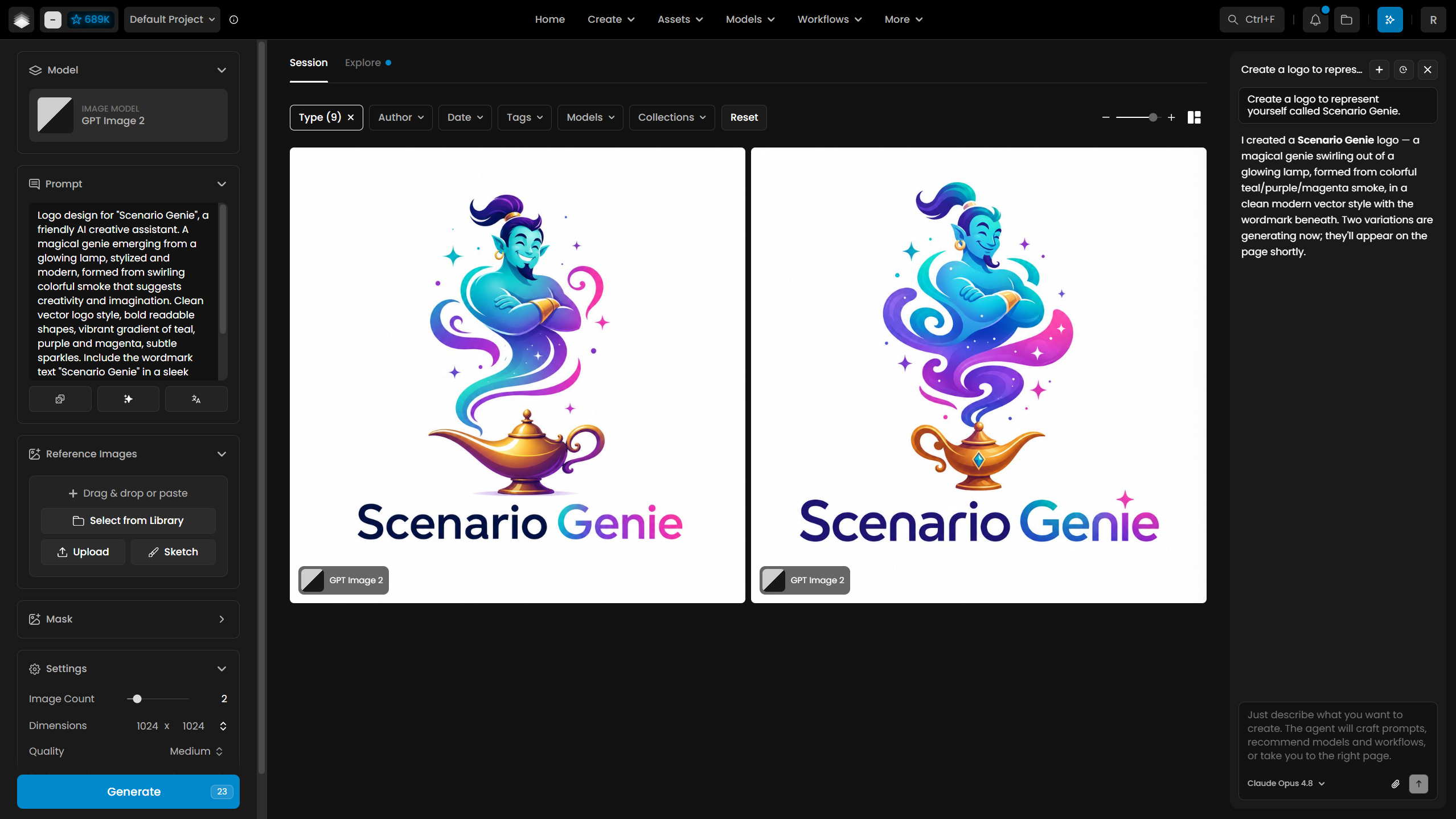
Instead of hunting for the right tool, the right model, or the right settings, you just describe what you want, and Scenario Genie does the work: it can write prompts, pick and configure models, fill in the inference settings, run the job, track progress, and take you to the exact page you need.
Scenario Genie also knows your context: the rules and instructions you have set, and what it remembers about you and your project (its memory), so it acts the way you have already told it to, without you repeating yourself. And it is not limited to a blank page: give it something that already exists, an image, an asset ID, a piece of text, and it will look at it, pull it in, and use it as a starting point.
Think of it as an AI creative assistant who also knows every button and every option of Scenario. This article explains what Scenario Genie can do, how to open it, and how to get the most out of it.
Available everywhere on Scenario
Scenario Genie lives in a side panel that is available on every page of Scenario, and it stays open as you move around the app. Whether you are on the Create page, browsing your Assets, looking at Collections, or reading a model page, Genie is one click away and keeps the context of your conversation.
That availability is about where Scenario Genie shows up, not what it can see. Your conversations, history, and memory are scoped to the project you are working in, so switching projects gives you a clean, project-appropriate context.
Note: Scenario Genie differs from the Scenario Node Agent inside the Workflows editor. The Node Agent helps you build node graphs; Genie is the app-wide assistant this article is about.
How to start Scenario Genie
There are three ways to bring up the panel:
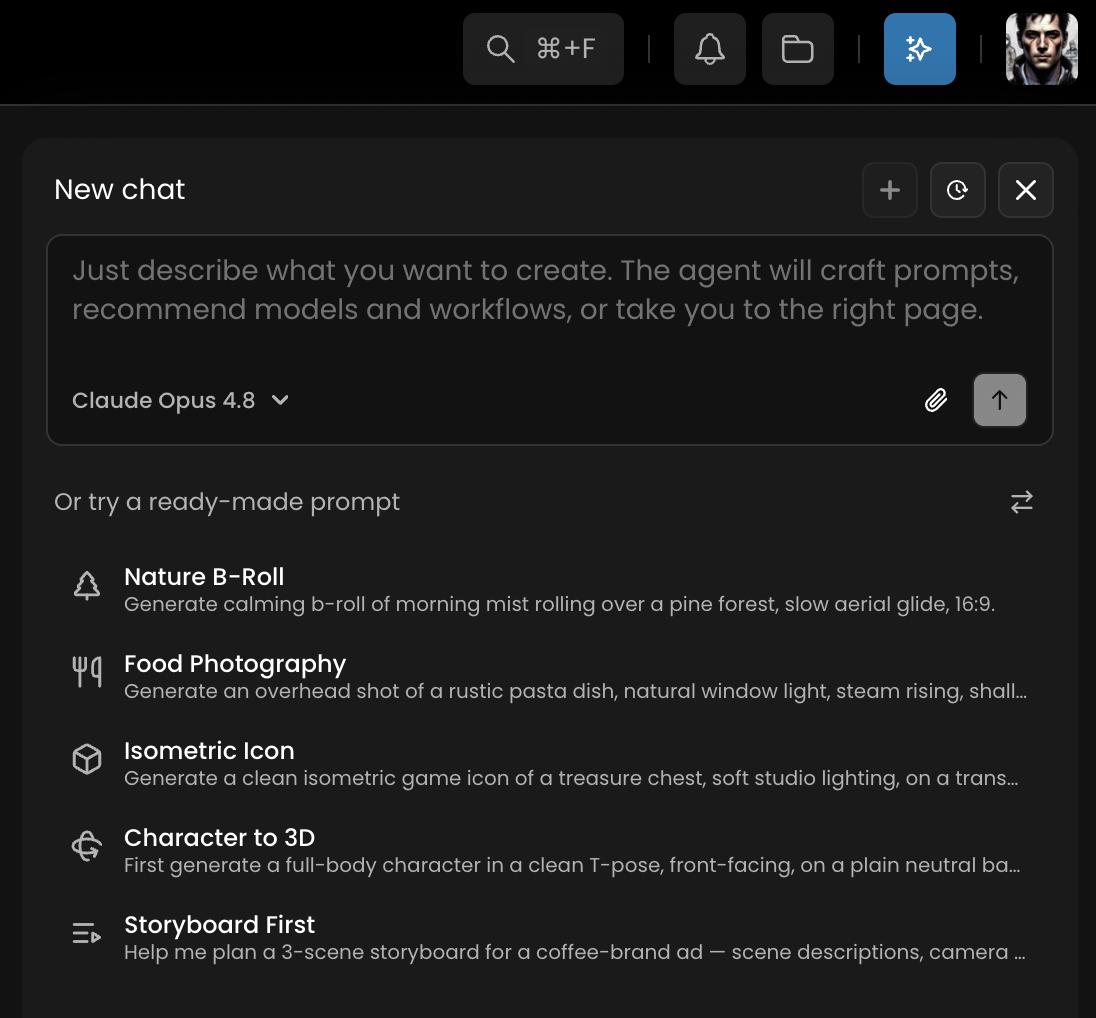
Click the Blue "Genie" button (the sparkles icon) in the top bar.
Press Cmd+K (macOS) or Ctrl+K (Windows/Linux) to toggle it from anywhere.
The panel slides in from the right. It is resizable, and you can keep it open while you work.
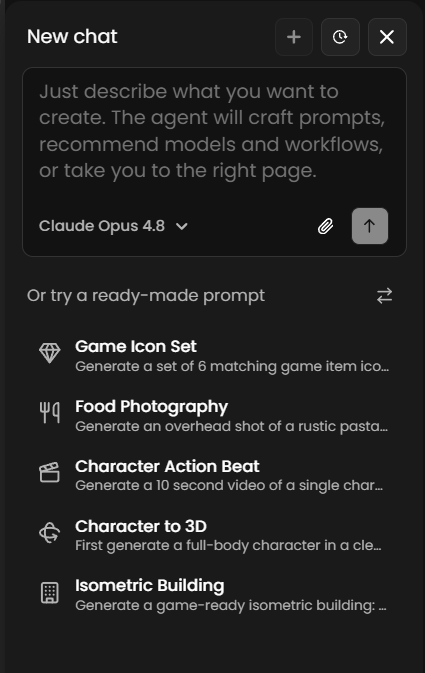
When you open it, you will see the message box with the prompt: "Just describe what you want to create." Below it, Genie offers a set of ready-made prompt templates to get you started (with a shuffle button to see more).
What Genie can do
Genie works in two modes depending on where you are, and it switches automatically:
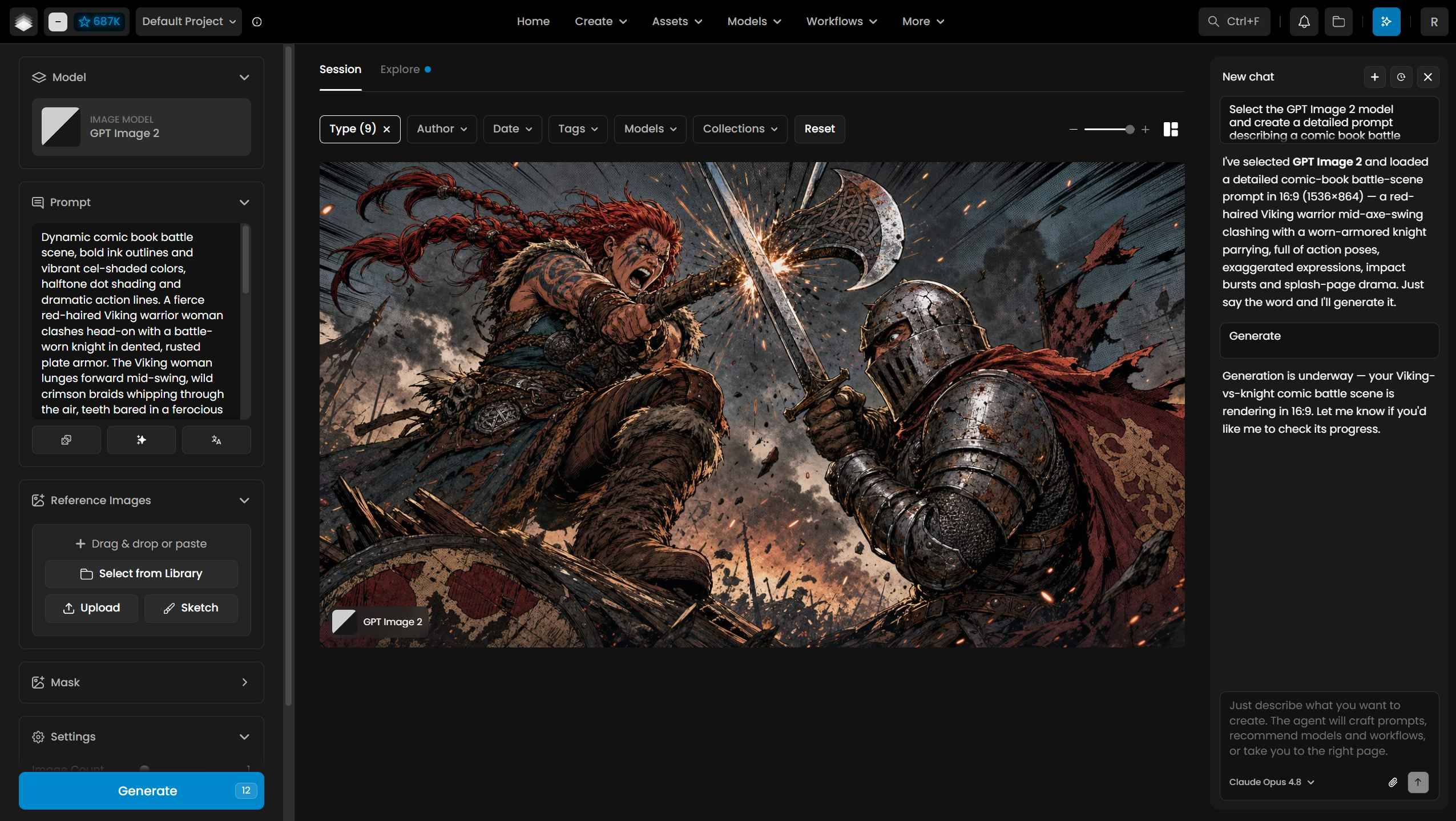
On a creation page, it drives the form for you: choosing the model, writing the prompt, setting parameters, and running the generation.
On any other page, it answers questions, recommends models and workflows, and navigates you to the right place to do the job.
Here is the full picture of what it can handle.
Generate anything, from one conversation
Scenario's Create page is unified across modalities, and Genie generates across all of them just by choosing the right model:
Images (including with your own custom-trained models & LoRAs)
Video (including Video Editing, Upscaling & more)
Audio (TTS, music, SFX)
3D (including 3D tools for Remeshing, Retexturing)
Text (LLM)
Tools
You don't have to know in advanced which model to use. Ask for "a cinematic hero shot of a red sports car at dusk" (for instance) and Genie recommends a fitting model, writes a detailed prompt, sets resolution and aspect ratio, and generates, all in the same chat session. Recommendations are based on your context, ELO scores, and overall model ranking.
Edit and enhance images
Image editing lives on the same Create page, so Genie treats these as just another model choice and can set them up inline:
Upscale / enhance (increase resolution and detail)
Remove background
Vectorize
Edit from a prompt (describe the change you want)
Textures (seamless, tileable textures)
Skyboxes (360 degree panoramas)
Expand (outpaint beyond the original frame)
Pixelate
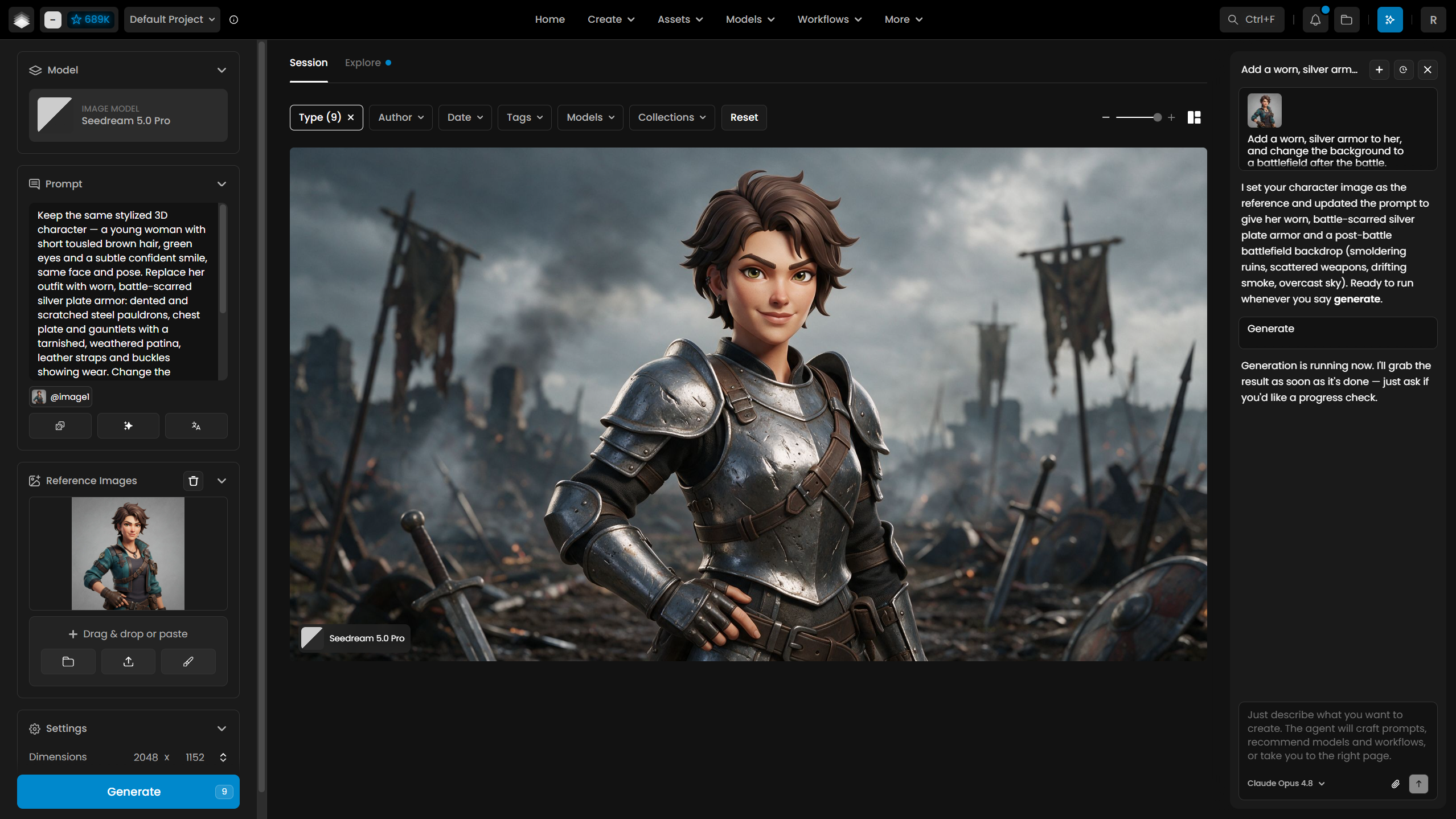
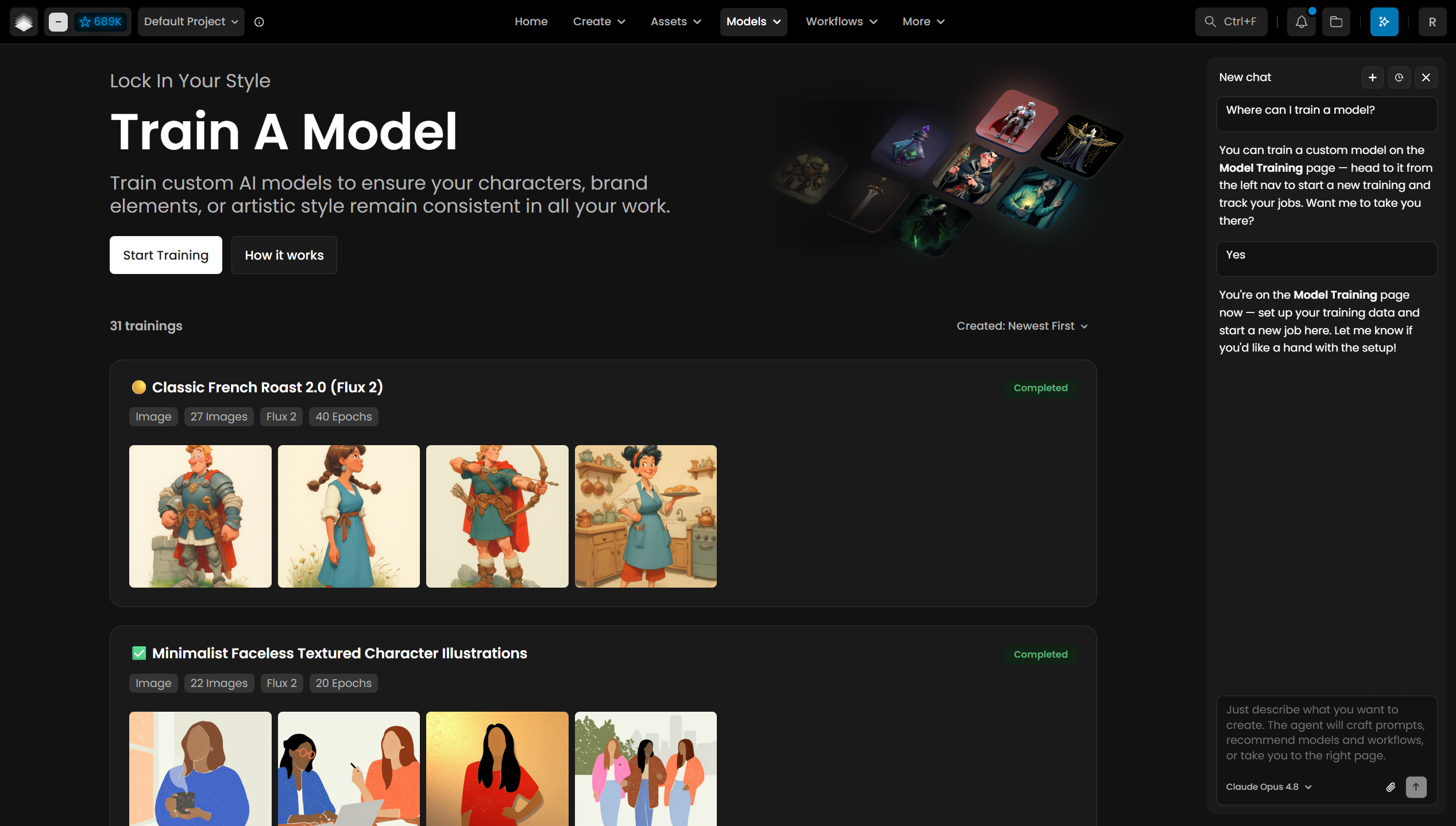
Custom model training
When you want to train your own model or LoRA, Genie points you to the Training page (Models → Trainings), where you can start a training run and track its progress. It guides you there rather than launching training silently on your behalf.
Multi-step pipelines
For anything that needs multiple steps, branching, or reusable automation, Genie sends you to the Workflows node editor, which is built for that kind of pipeline.
Find, browse, and organize
Genie is also a fast way to move around and manage your work:
Search models and assets, and get recommendations tailored to what you're doing
Browse Models, your Assets library, Collections, and Explore (trending content)
Upload an image from a URL and turn it into an asset Genie can then use as a reference
View your images directly: Genie can actually look at an asset to reason about it (for example, to suggest edits or describe what's there)
Track generation jobs it started, and report back when they finish
Work from your own references
You are not limited to text. You can give Genie assets to work from:
Click the paperclip to attach: Upload from device or add from your Library.
Drag and drop an asset onto the panel ("Drop an asset to attach it").
Attached assets can be used as init references, or the subject of an edit.
Ready-made templates to learn from
If you're not sure what to ask, the template gallery is the fastest way to see what's possible. Templates include starting points like:
Hero Product Shot
Character Reference Sheet
Seamless Texture
Character to 3D
Turnaround to 3D
Pick one, then tweak it in plain language. Templates are a great way to learn how detailed, well-structured prompts are built, because you can see exactly what Genie fills in.
Memory: Genie knows and learns from your context
Genie doesn't start from zero every time. It reads shared context at the start of each conversation and remembers useful things about how you work, so you stop repeating yourself.
There are layered memory scopes (organization, project, and personal Genie Memory), and Genie can save durable facts on its own or when you ask it to ("remember that I prefer portrait compositions"). For the full explanation of how the layers combine, how to review or edit what's saved, and how to pause it, see the dedicated Genie Memory, Organization & Project Memory article.
Choosing the model behind Genie
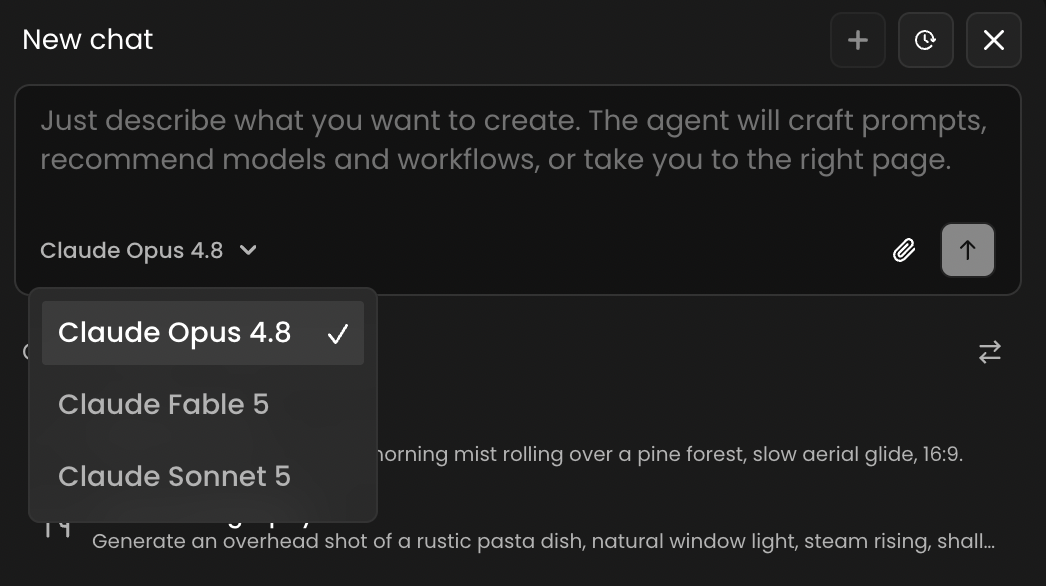
The panel includes a model picker so you can choose which underlying language model powers Genie, from the active assistant models available to your team. This affects Genie's reasoning, not the image/video/3D models it selects for your generations.
Conversations and history
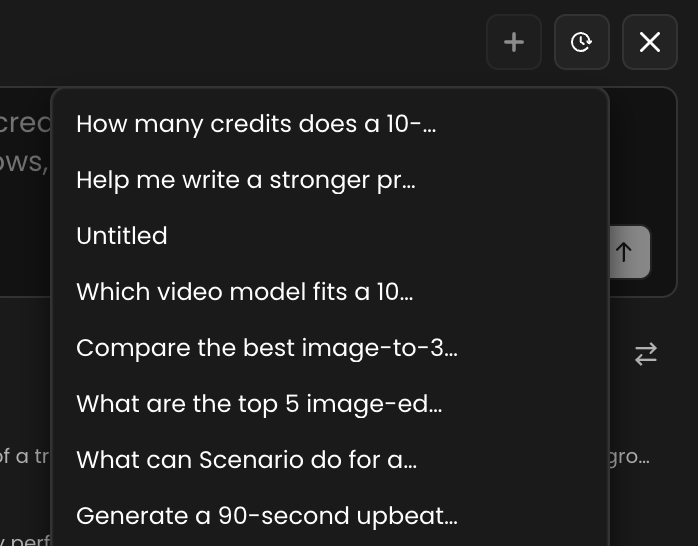
Each conversation gets an auto-generated title so it's easy to find later.
Use New conversation to start fresh, and the history popover to reopen a past thread.
Long conversations auto-compact when they reach the context limit. You'll see a small banner counting down ("N% until auto-compact") before it happens, so nothing is lost by surprise.
Plans, permissions, and usage
A few things worth knowing about access and cost:
Plan gating on models. Some models require a higher plan. Before Genie picks a specific model, it checks your plan tier and won't select something you can't use. If your best options are gated, you'll see a note like "Some recommended models require the X plan" with an Upgrade link.
Scenario Genie messages use Compute Units (CU), and the cost grows with the length of the chat. Genie is charged for the text it reads and writes, on top of the CU for any image, video or other generation it runs for you. Each message re-reads the conversation so far, so a long chat with many steps costs noticeably more per message than a short one. You can follow your balance in the top bar while you work.
Keep Genie's cost down. Start a new chat for each new task instead of continuing a long one, and ask for one change at a time. The model picker next to the message box sets which Claude model Genie uses: Sonnet costs the least, Opus costs more and Fable, the most capable, costs the most. Models your plan cannot run show a lock icon. For routine requests, Sonnet is usually enough.
Roles and API scopes. The Editor role includes Scenario Genie by default. If you use the API, there is a dedicated Assistant scope (No access / Read / Write) for viewing and creating assistant threads, covered in API keys and scopes.
How to get the best results
Scenario Genie is powerful, but a little technique goes a long way:
Describe the outcome before the tool. Say "make this logo a clean vector" instead of hunting for the vectorize page. Genie knows where to go.
Be specific. Subject, style, mood, lighting, aspect ratio, and intended use all help it write a stronger prompt and pick a better model. "A moody, top-down seamless stone-floor texture for a dungeon level" beats "a texture."
Attach references when you have them. A reference image removes a lot of guesswork. Use drag & drop or Asset IDs
Iterate in the same thread. Once you have a result, refine in plain language: "warmer light," "tighter crop," "try it in 3:4." Genie keeps the context.
Ask it to generate only when you're ready. Genie sets up the form and shows you the plan; it runs the actual generation when you explicitly ask, so you stay in control of what costs CU.
Let it remember the important things. If you keep repeating a preference, tell it once: "remember that our characters are always stylized." It will apply that going forward.
Use it to navigate. Even when Genie can't do something inline (training, workflows, skyboxes), it's still the fastest way to get to the right page.
Good things to know
Genie won't invent values it isn't sure about, and it won't force a generation that's blocked. If something is missing, it will ask or take you where you can set it.
It won't pretend to do something a page can't do. Instead of faking it, it navigates you to the correct tool.
It's built with strong safeguards against prompt injection: content from images, web pages, or assets is treated as data, never as instructions that could override you.
FAQ
Where is Genie available?
On every page of the app. Open it with the Genie button or Cmd/Ctrl+K.
Can Genie generate images for me directly?
Yes, on the Create page it fills the form and runs the generation when you ask.
Can it train a model for me?
It guides you to the Training page and helps you set up, but you launch the training run there.
Does it cost anything to use?
Yes. Genie messages consume Compute Units, based on the text Genie reads and writes, so long chats cost more. See Plans, permissions, and usage above for how to keep the cost down.
Does Genie remember me between conversations?
Yes, through Genie Memory. See Genie Memory, Organization & Project Memory to learn how it works and how to control it.
Is my conversation shared with my team?
Conversations are scoped to the project. Genie Memory about you personally is private to you.