How to Choose the Right Model(s)
Last updated: May 25, 2026
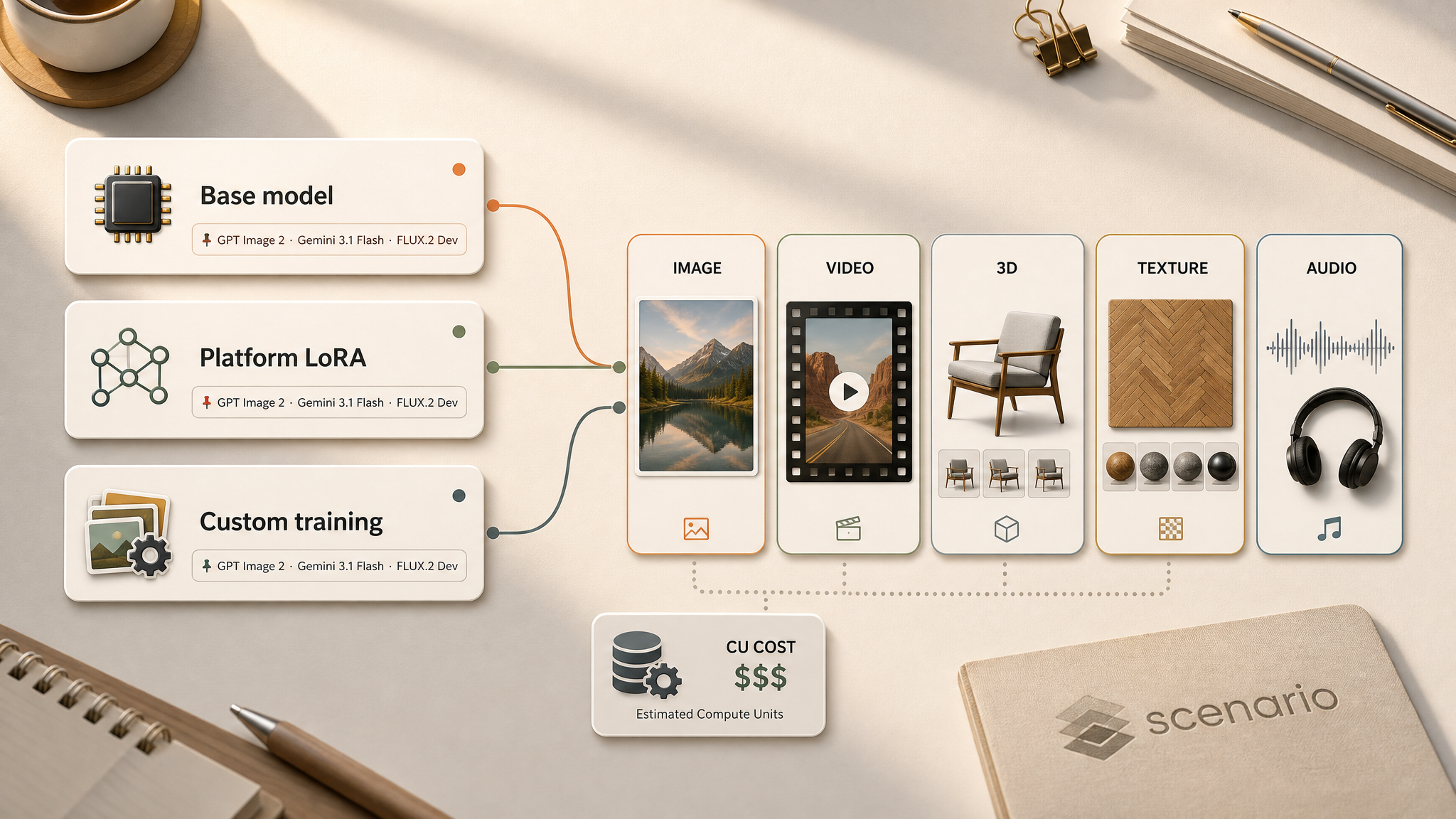
A staged decision guide for Scenario users — start simple, test often, then move toward more specialized or custom options.
The short version
Images: base model → platform LoRA → custom training.
Video: pick T2V or I2V first, then match resolution and motion needs.
3D: prototype fast, then refine with multi-view or production models.
Textures: platform texture models first; train custom for proprietary styles.
Audio: match the category — music, TTS, SFX, or dubbing — before picking a model.
Compare CU cost in the generator before committing credits. See Model Costs for Asset Generation.
When generation first starts on Scenario, model choice can feel overwhelming. The key is to approach it in stages — from the simplest option to the most customized.
Image generation
Start by clarifying the creative goal. Is the target look stylized or photorealistic? Is the subject simple, or does it need complex composition and fine detail? Does the project need a unique branded style, or will a general-purpose model suffice?
Step 1 — Start with base models
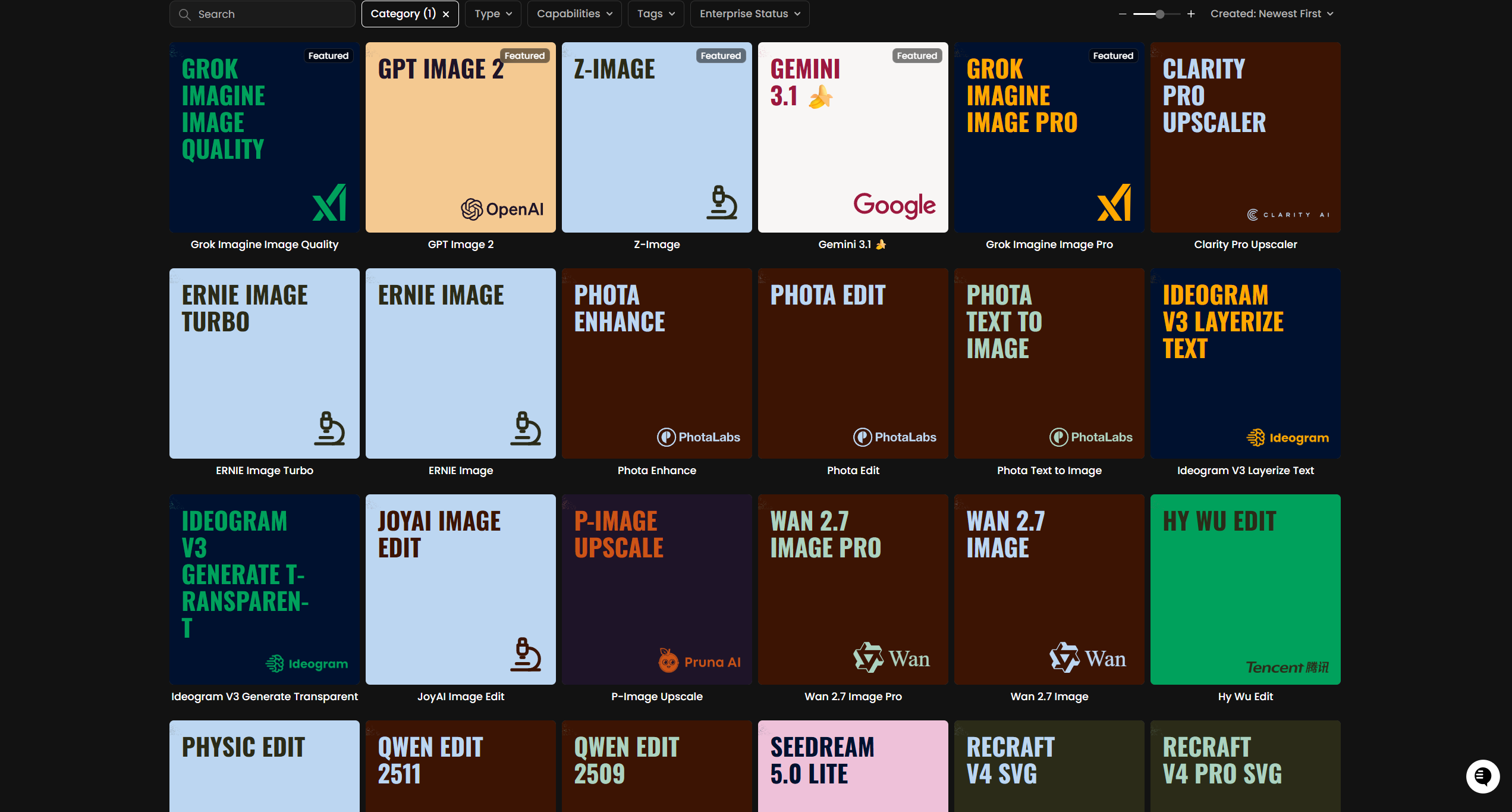
In most cases, the fastest starting point is a base model. Scenario offers dozens of base models across multiple providers.
For first tests, try quality-focused models such as GPT Image 2, Gemini 3.1 Flash, or FLUX.2 Dev. For rapid iteration at low cost, try P-Image or Z-Image Turbo.
Keep prompts simple at first. Refine them to push output toward the target vision. If one base model misses the mark, switch to another before moving to advanced options.
Check pinned examples and model descriptions in the picker — they show each model's strengths before spending credits.
Step 2 — Evaluate platform models (LoRAs)
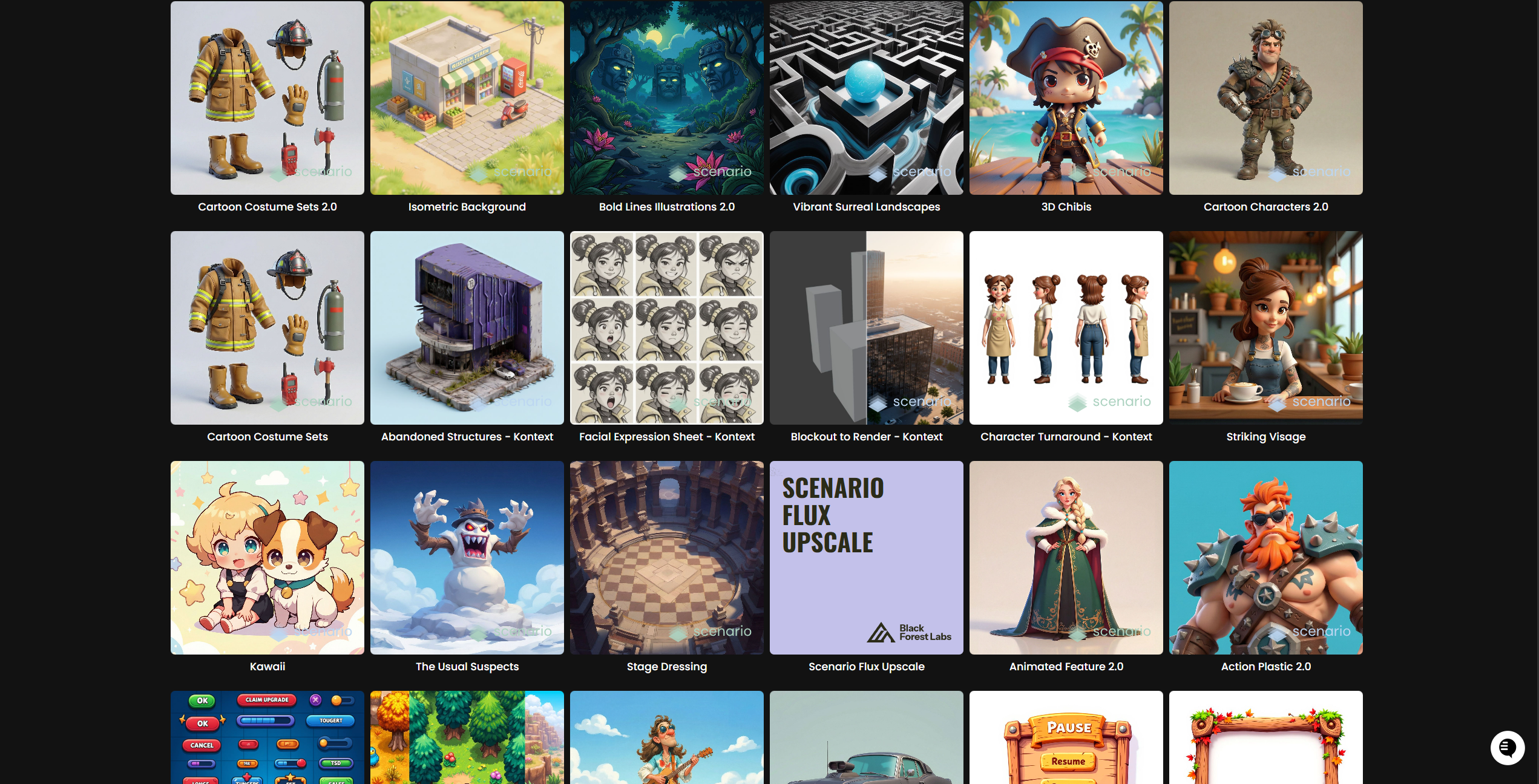
If base models still miss the style, explore Scenario's platform models. These pre-trained LoRAs cover character designs, stylized art, props, UI assets, and more.
Each platform model includes pinned example images. Review them to confirm the style before generating.
Step 3 — Train your own models
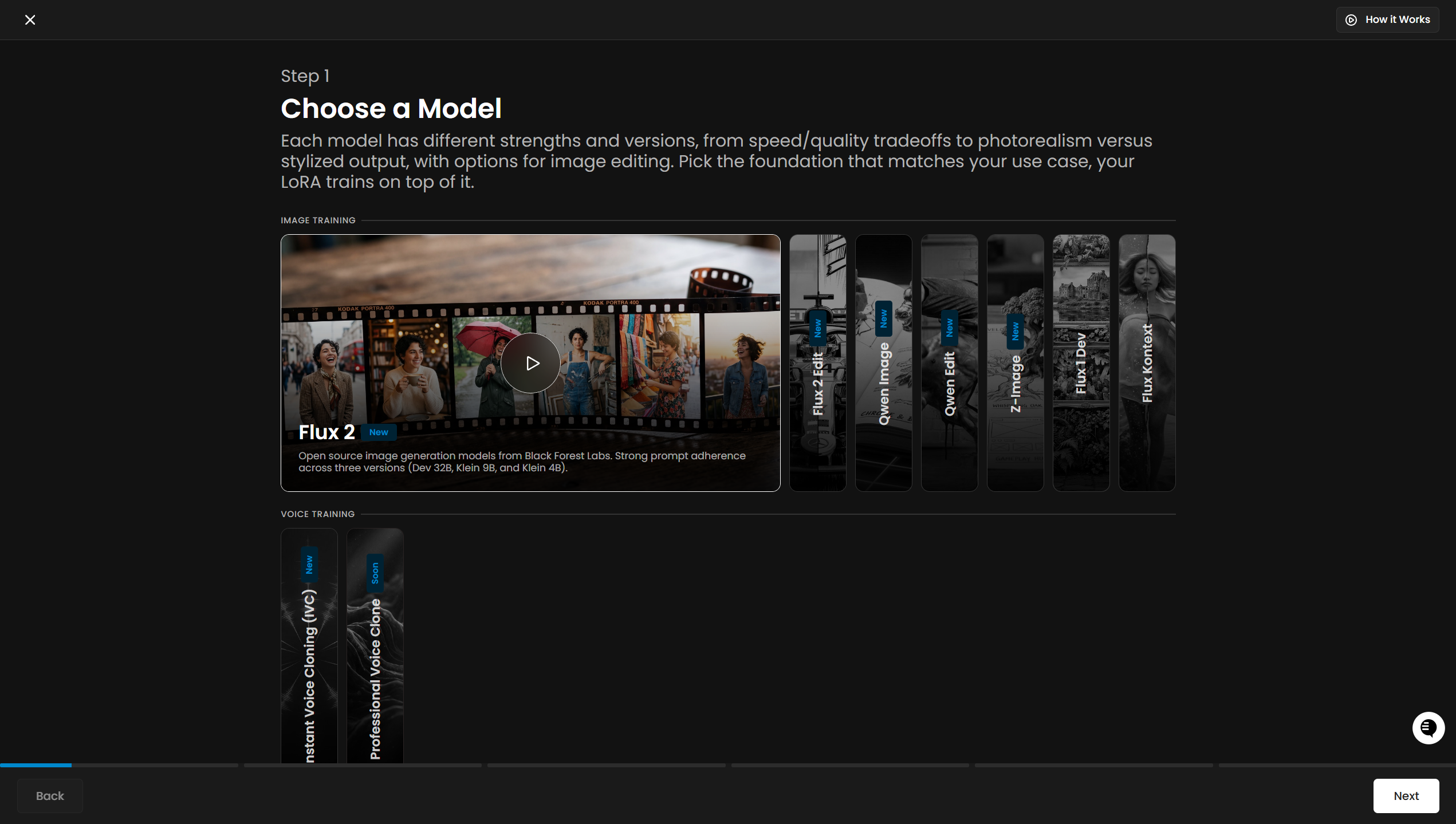
When neither base nor platform models match the need, train a custom model. With 5–50 high-quality images (20 on average works well), create a style or character LoRA that reproduces a consistent, on-brand look across every generation.
Training is the most flexible option — and the highest CU investment. Preview the cost on the Start Training button before launching. Base families include FLUX.2, Qwen Image, and Z-Image.
Model choice is only part of the equation. Testing, experimenting, and refining prompts have equal impact on the final output. Prompt Spark helps improve prompt structure quickly.
Tip: Even when custom training is the end goal, start with a base model first. It saves time and credits while clarifying direction before committing to training.
Video generation
Start by deciding whether the clip builds from scratch (text-only) or animates an existing image.
Text-to-Video (T2V) — creates motion purely from a text prompt. Best for concept visualization without a base image.
Image-to-Video (I2V) — animates an existing image while preserving its style and composition.
Hybrid models — support both T2V and I2V inputs for maximum flexibility.
When choosing a video model, weigh four dimensions:
Visual quality — fast 480p/720p clips for concept tests, or 1080p/4K for final delivery.
Motion quality — smooth camera movement, realistic physics, or stylized animation.
Style matching — realism, animation, or stylized aesthetics.
Audio — some models generate native audio in the same pass.
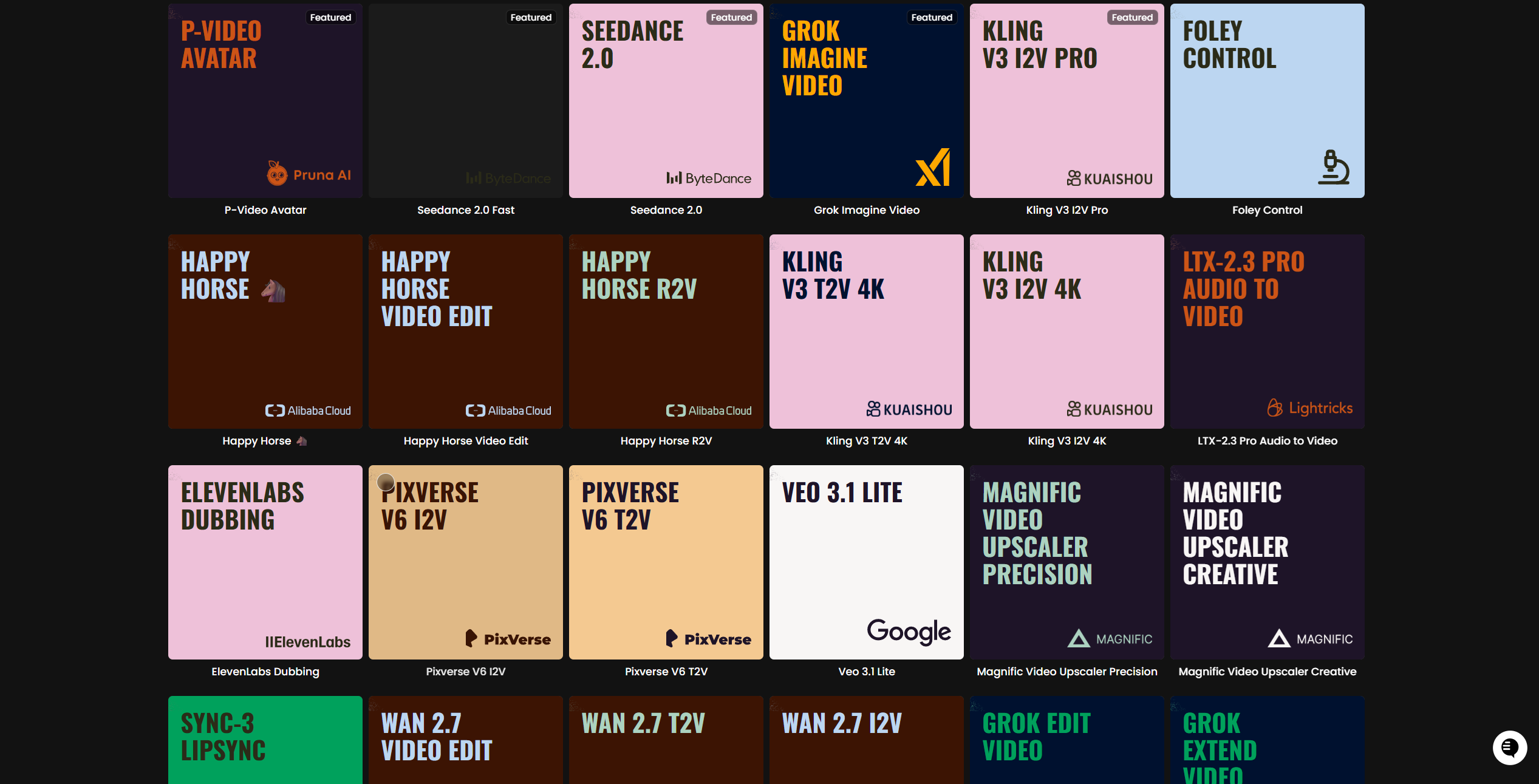
For general-purpose drafts, test models such as Seedance, Kling V3, or Wan 2.7. For fast low-resolution previews, try P-Video or Luma Ray 2 Flash. Move to specialized models when the project demands a specific aesthetic or resolution tier.
Craft prompts with explicit movement cues — "slow pan," "rotating," "hair swaying" — plus visual style and camera/lighting notes. Prompt Spark helps refine video prompts faster.
Generative 3D
Scenario's 3D tools create textured models with PBR materials from a single image or prompt. The workflow mirrors image and video generation — start simple, then move toward specialized models and settings.
Decide first whether the output is a quick concept for prototyping or a production-ready asset.
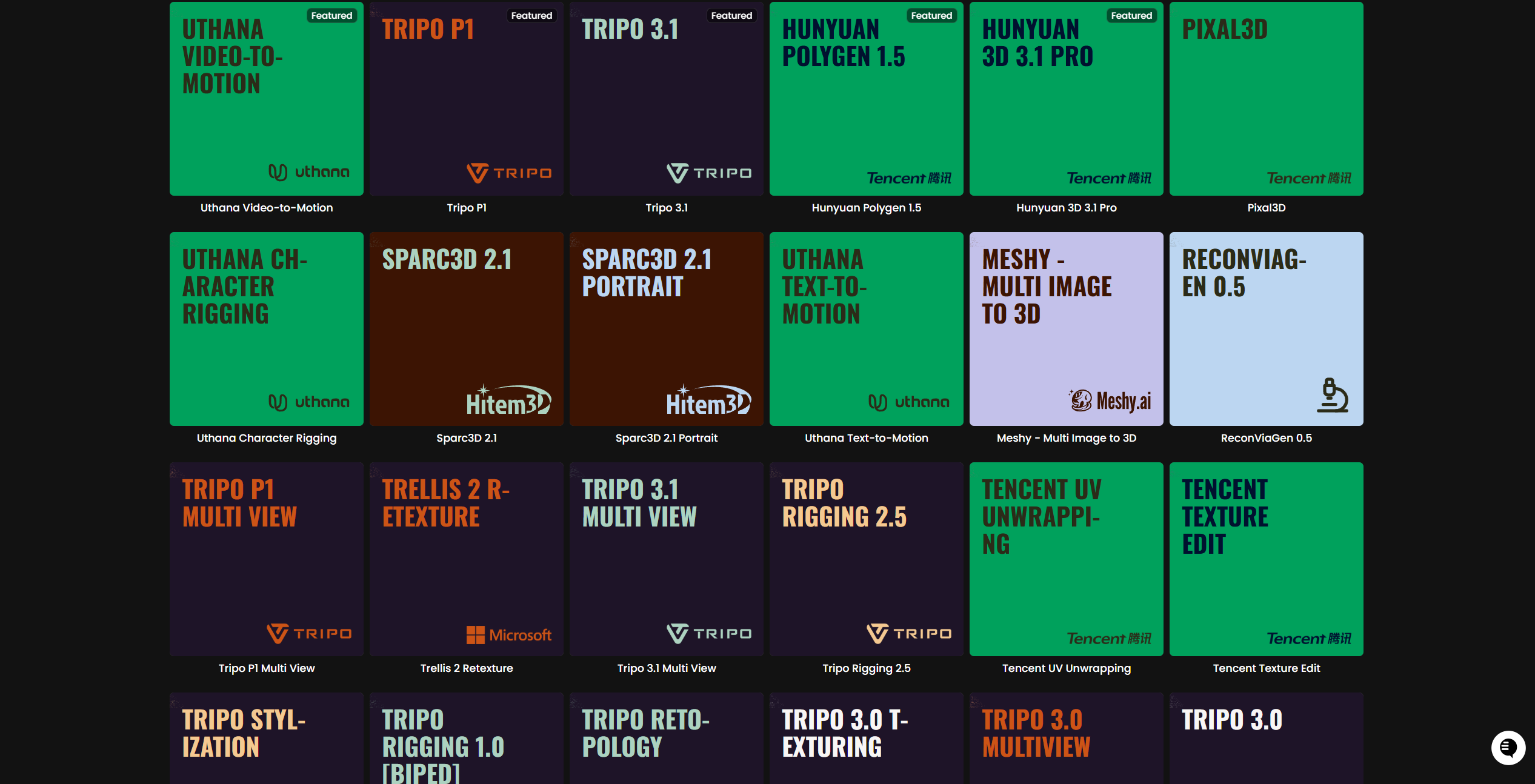
For fast iteration, start with default models such as Trellis, Tripo 3.1, or Rodin Hyper3D. For higher fidelity, try Hunyuan 3D 3.1 Pro or Trellis 2. For modular pieces, explore PartCrafter. For better geometry, use multi-view workflows that capture the subject from several angles.
Input quality drives output quality. Use clear, high-resolution reference images with well-defined shapes and textures. To maintain style consistency across formats, generate a 2D reference in Scenario's image tools, then feed it into the 3D generator.
After generation, review the output in the 3D viewer. Adjust polygon count, texture resolution, or export format to fit the pipeline. For refinement, iterate on specific views or run multi-view generation to improve symmetry and detail.
Best practices:
Use reference images that show proportions and key details clearly.
Supply multiple angles when possible to reduce distortion.
Match the model to the use case — realism-oriented models for photoreal assets, stylized-capable models for cartoon or game art.
Audio generation
Scenario supports four audio categories: music, text-to-speech (TTS), sound effects, and video translation / dubbing. Identify the category first — each has different models and parameters.
Music
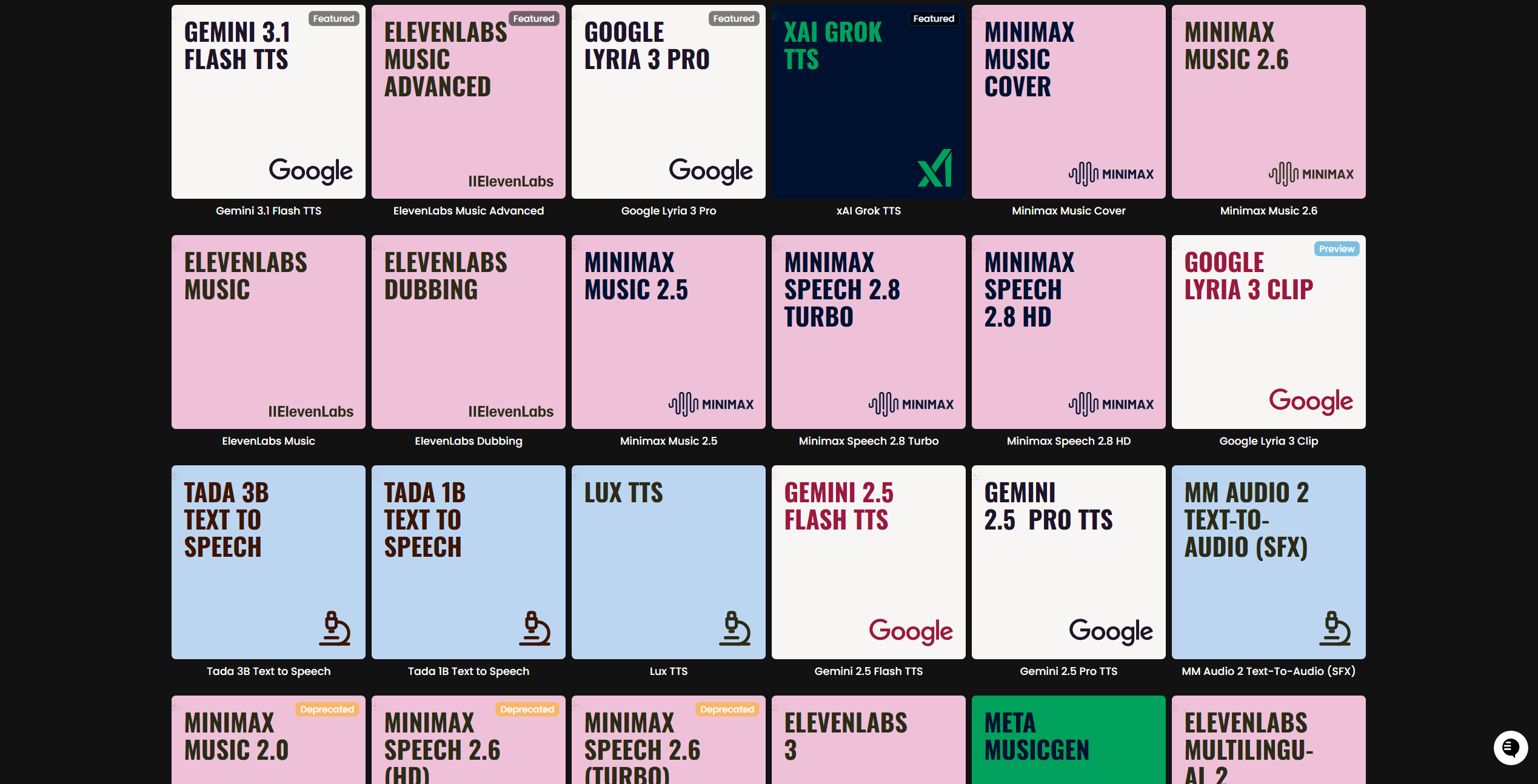
For short expressive clips, try Google Lyria 3. For full songs with vocals and structure, try Minimax Music 2.6 or ElevenLabs Music Advanced. For ambient loops and atmospheric textures, try MM Audio 2 or Meta MusicGen.
Text-to-speech
For broadcast-quality final delivery, try Minimax Speech 2.8 HD or Lux TTS (48 kHz voice cloning). For fast drafts and low latency, try ElevenLabs Turbo v2.5 or Tada 1B. For multilingual narration, try Tada 3B or ElevenLabs Multilingual v2. For emotion-controlled delivery, try Gemini 3.1 Flash TTS.
Sound effects
For seamless looping SFX and textures, try ElevenLabs Sound Effects 2. For ambient and environmental audio, try MM Audio 2.
Video translation and dubbing
To dub existing video into other languages with lip sync, try HeyGen Video Translate or ElevenLabs Dubbing. These suit tutorials, promotional videos, and character cutscenes that need localization without reshooting.
For the full model list, parameter guides, and category-specific workflows, see Introduction to Audio Generation.
Seamless textures
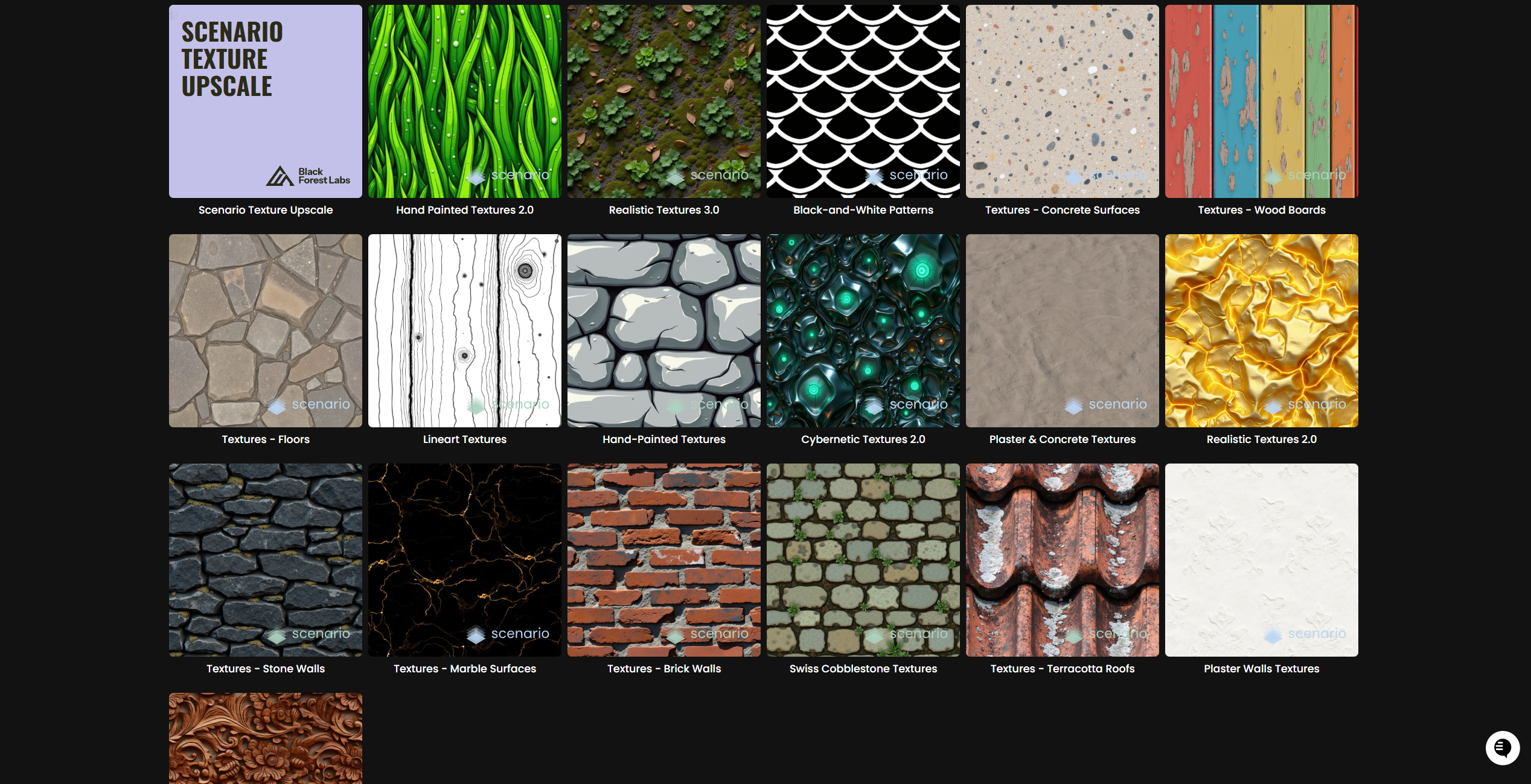
Scenario's texture models create seamless, tileable materials — photoreal (wood, stone, fabric) or stylized (cartoon, painterly, game-specific looks).
Step 1 — Start with platform texture models
Browse pre-trained texture models by material category — stone, fabric, wood, metal, organic. Each produces loopable patterns ready for PBR maps or design work.
Step 2 — Train custom texture models
For a proprietary style or exact art-direction match, train a custom texture model with 5–20 high-quality square textures. Keep lighting neutral and surfaces clean for perfect tiling.
Scenario offers a comprehensive range of generative models — images, video, 3D, textures, and audio — in a unified creative workflow. Whether the path starts with a base model, a platform LoRA, or custom training, the process stays the same: begin simple, test often, and refine until results are consistent and production-ready.
Progress in stages and leverage the full toolset to move from concept to polished asset faster while keeping creative control.
Related articles: What models are available on my current plan? · Model Costs for Asset Generation · Introduction to Audio Generation · Introduction to Workflows · Pricing & Plans