Building Creative Pipelines in Scenario
Last updated: May 26, 2026
Where to start
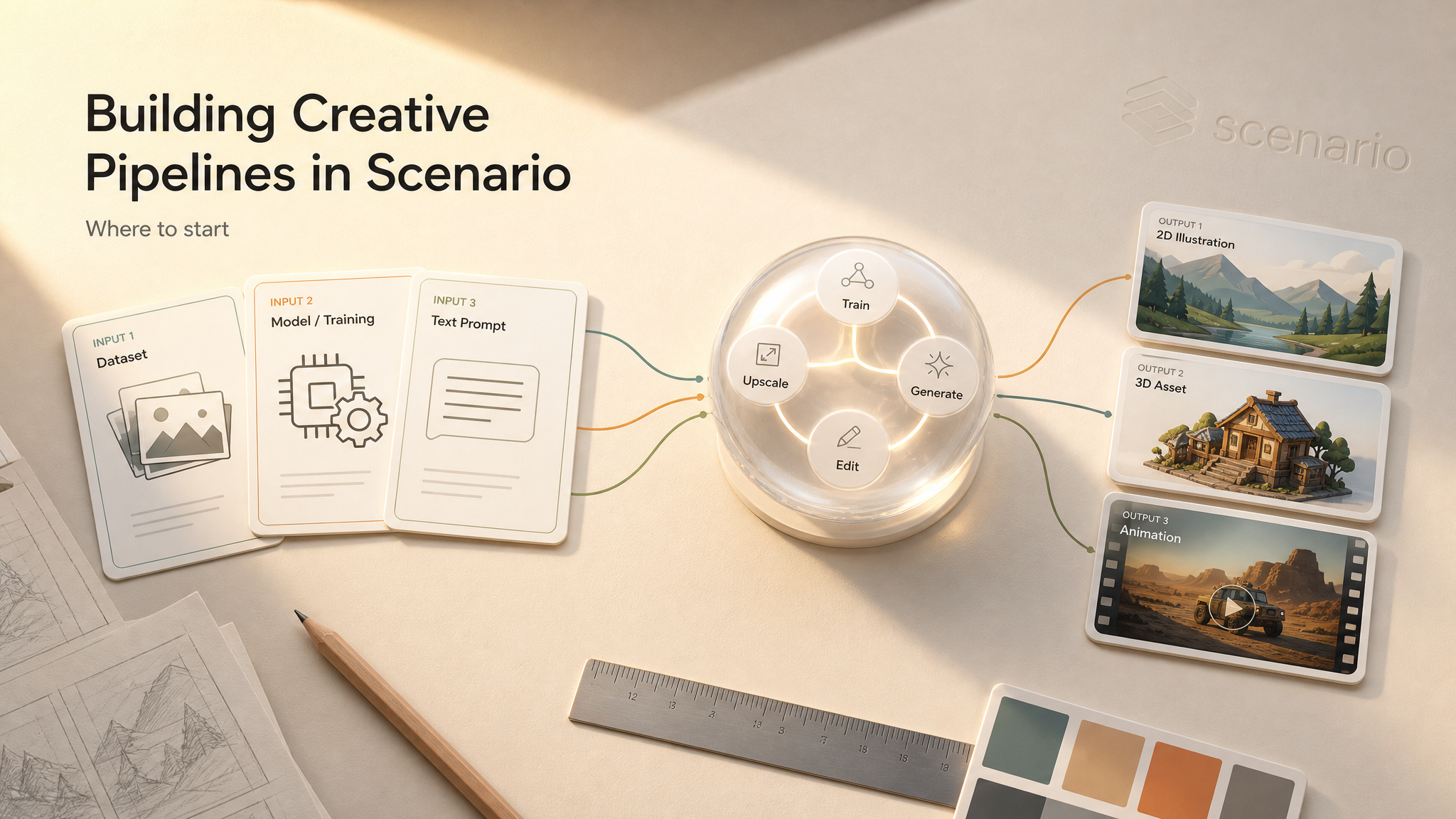
This article describes a creative pipeline - the sequence of steps from model selection through generation and refinement.
For the visual node-based Workflow editor, see Introduction to Workflows.
For one-click task tools built from workflows, see Introduction to Scenario Apps.
AI models can produce strong results from a single prompt - but professional production needs consistency across dozens or hundreds of assets. Scenario supports repeatable pipelines that move from training through generation, editing, and delivery in one environment.
The short version
A creative pipeline can be as simple as one model and one generation step, or as complex as train → generate → edit → upscale.
Run steps manually in the generator, or automate them as connected nodes in the Workflow editor.
Start without training (platform or base models) or start with custom training for maximum style lock.
Editing can happen at any stage — not only at the end.
Three ways to work on Scenario
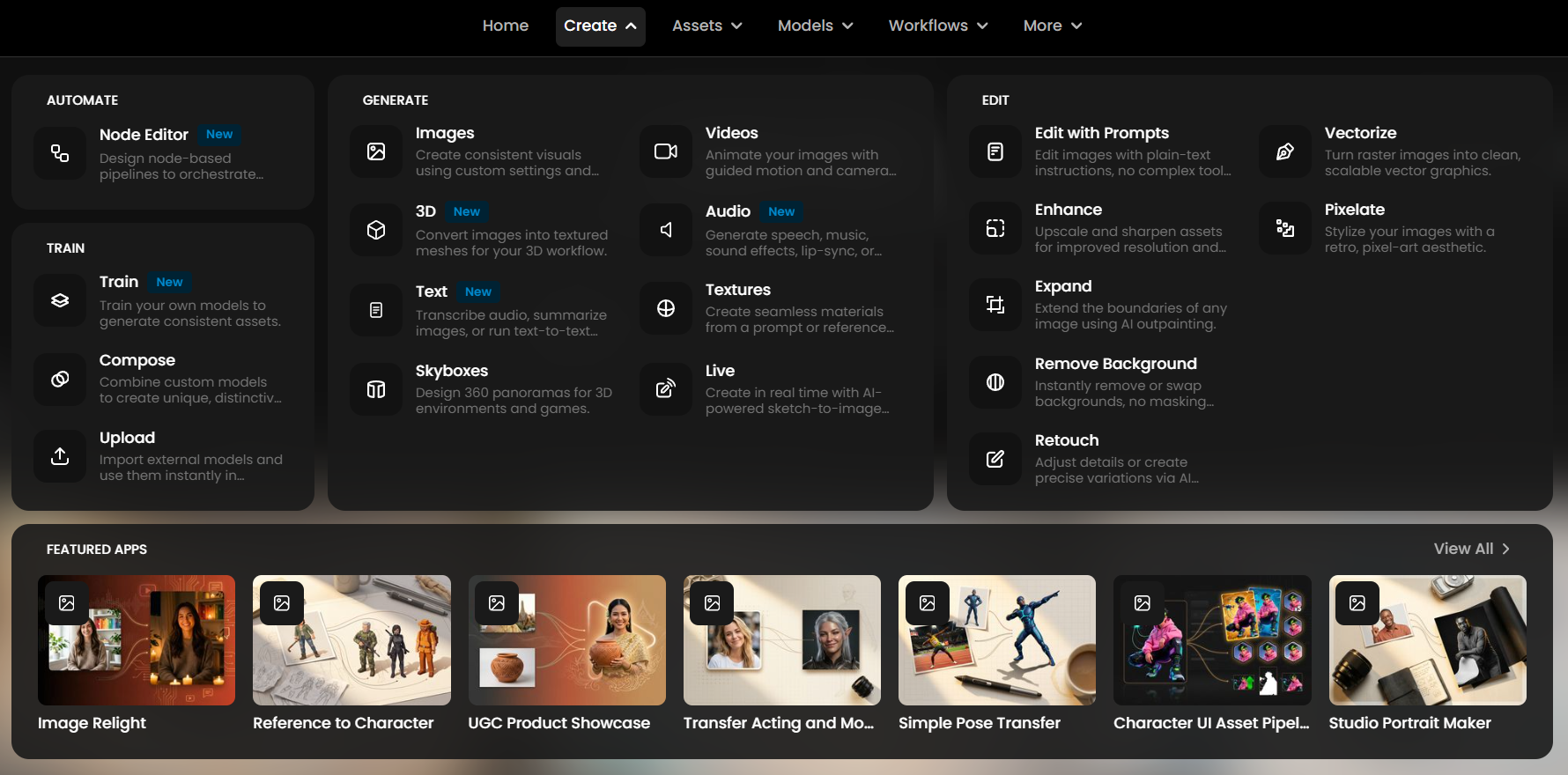
Scenario offers three surfaces that map to different pipeline needs:
Generator — single operations: one model, one output. Best for exploration and one-off assets.
Workflows — node-based editor that chains models and tools into automated, reusable pipelines. Best when the same sequence runs repeatedly or with different inputs.
Apps — simplified interfaces built from workflows. Best for common tasks (background removal, character portraits, batch processing) without exposing the full node graph.
The rest of this article walks through the creative pipeline itself — the logic behind production-grade output. Once the steps are clear, implement them manually in the generator or automate them in the Workflow editor.
How creative pipelines work
Pipelines are flexible. A typical end-to-end flow on Scenario often looks like this:
Train or select a model
Start with a model trained on proprietary art, or choose from Scenario's library — base models (FLUX.2, GPT Image 2, Gemini, Qwen, and others) or platform LoRAs.
Custom-trained models lock brand and style consistency across every generation.
Generate with advanced settings
Use text prompts, reference images, pose reference, style reference, and img2img controls to match creative intent.
Preview CU cost in the generator before running. See Model Costs for Asset Generation.
Edit and refine
Polish outputs with prompt-based editing (GPT Image 2, FLUX Kontext, Gemini), Retouch (inpainting), Expand (outpainting), or Scenario Live for real-time sketch-to-image.
Apply Enhance and Upscale to finalize at higher resolution — especially when using the same custom model that generated the source image.
Beyond 2D: video, 3D, and audio
Video, 3D, and audio pipelines often start from processed 2D assets. The same train–generate–edit sequence applies before converting to motion, meshes, or sound.
Common patterns:
Video — refine a 2D concept, then animate with image-to-video. Control first and last frames for seamless transitions between clips.
Video editing — add or refine elements with dedicated video models, then upscale for delivery.
3D — generate or edit 2D concept art, then pass it to an img-to-3D model. Use multi-view inputs for better geometry.
Audio — generate music, narration, or SFX as a final step, or dub existing video for localization.
For model selection by modality, see How to Choose the Right Model(s). To chain video steps in the Workflow editor, see the video workflow guides in the Workflows collection.
Flexible combinations
Start without training — use ready-made base or platform models to generate and edit immediately.
Start with training — build a custom LoRA for maximum consistency across a project.
Chain multiple models — switch between models at any stage of the pipeline.
Edit at any stage — retouch mid-pipeline, not only on final outputs.
Automate in Workflows — once the manual sequence works, recreate it as connected nodes for batch runs and team reuse.
Example: consistent character generation
A full pipeline for a style-consistent character model, from training through final delivery:
Prepare training images and train a character model
Start with at least 5 owned images, or generate references with a platform model and a well-crafted prompt.
Configure and launch training
Create a new model, add training images, adjust captions if needed, and review the CU estimate on Start Training before launching.
Test and refine the model
After training, test prompts and fine-tune until outputs match the training set. Pin the best results so Prompt Spark can reuse their prompts.
Control generations with reference images
Add a reference image and use pose reference to place the character in a specific position. Use img2img for subtle composition variations, or style reference for specific clothing and props.
Retouch with inpainting and Scenario Live
Use Retouch to add, remove, or correct elements with sketches and layers. With Scenario Live, sketch on the canvas while the image updates in real time based on the model and prompt.
Expand with outpainting
Extend the scene while keeping style consistent. Change orientation and aspect ratio by filling empty areas with generated background.
Enhance and upscale
Finalize at higher resolution with the Enhance tool. Choose Precise, Balanced, or Creative presets to control how much detail the upscaler adds.
When this sequence runs repeatedly, rebuild it in the Workflow editor: Image Generation → Retouch → Expand → Upscale nodes connected in order. Publish as an App if teammates need a simplified interface.
Next steps
Scenario supports high-quality, consistent visuals with the flexibility to refine and scale production efficiently.
Automate the pipeline — Introduction to Workflows
Share as a one-click tool — Introduction to Scenario Apps
Pick models by task — How to Choose the Right Model(s)
Check plan access and CU cost — What models are available on my current plan?
Related articles: Introduction to Workflows · Introduction to Scenario Apps · How to Choose the Right Model(s) · Model Costs for Asset Generation