Krea: The Essentials
Last updated: October 21, 2026
Covers Krea 3, Krea 3 Edit, Krea 2 Medium, Krea 2 Large, Krea 2 Medium Turbo, Krea 2 Turbo, and Krea 2 Turbo Style.
Krea 3 is Krea's newest image generation on Scenario and the place to start for most new work. It turns a detailed prompt into a polished image, from editorial photos and product shots to anime, storybook, and pixel art, and it renders crisp, readable text on posters, signs, and labels. Krea 3 Edit applies plain-language instructions to one to eight images, so you can recolor, relight, swap text, remove objects, or combine references while everything you did not mention stays as it was. Both run on two engines: Berry for quality and Jam for speed.
The Krea 2 family is still available and is covered further down: five models that split illustration, photorealism, speed, and style transfer across separate models, including Krea 2 Turbo Style for applying a reference image's style to a new scene.
Which Model Should I Use?
Model | ID | Image Inputs | Best for |
|---|---|---|---|
| None, text prompt only | Polished images from a detailed prompt, including readable text on posters, signs, and labels | |
| Required, 1 to 8 images to edit or combine | Targeted edits: recolor, relight, text swaps, object removal, combining images | |
| Optional style references, up to 10 | Illustration, anime, painterly concept art | |
| Optional style references, up to 10 | Photorealism, raw camera aesthetics | |
| Optional style references, up to 10 | Medium's look, faster iteration | |
| None | Fastest general purpose generation, photoreal or illustrated | |
| Required style references, 1 to 3 | Style transfer from reference images onto a new scene |
Start from the outcome, not the model. Need a finished image, especially one with words in it (a poster headline, a product label, a shop sign): Krea 3. Need to change an existing image without regenerating it from scratch: Krea 3 Edit. Need a specific illustrated or anime look with direct control over aspect ratio and creativity: Krea 2 Medium. Need a photograph-grade result with grain and motion blur: Krea 2 Large. Need either of those fast for quick concepting: the matching Krea 2 Turbo variant. Need to lock in someone else's visual style (a moodboard, a brand look, a piece of concept art) and apply it to a brand new scene: Krea 2 Turbo Style, the only model in the family where a style reference is mandatory.
How to Use the Model
Every model in this article reads a single natural language prompt field, not a list of keywords. Krea models respond best to a full descriptive sentence or paragraph that covers the subject, the medium or rendering style, the lighting, and the composition, the way a photographer or art director would brief a shoot. Short, keyword-style prompts under-use them.
Krea 3: Text to Image
Krea 3 turns a detailed prompt into a finished image across photography, product shots, and illustrated styles. It is the model in this family to use when the image has to carry words: put the exact text in quotation marks in the prompt and say where it goes. Pick the engine per run with model (Berry for quality, Jam for speed), set the frame with imageSize, and raise thinkingLevel to Medium when a prompt packs in a lot of text or detail.
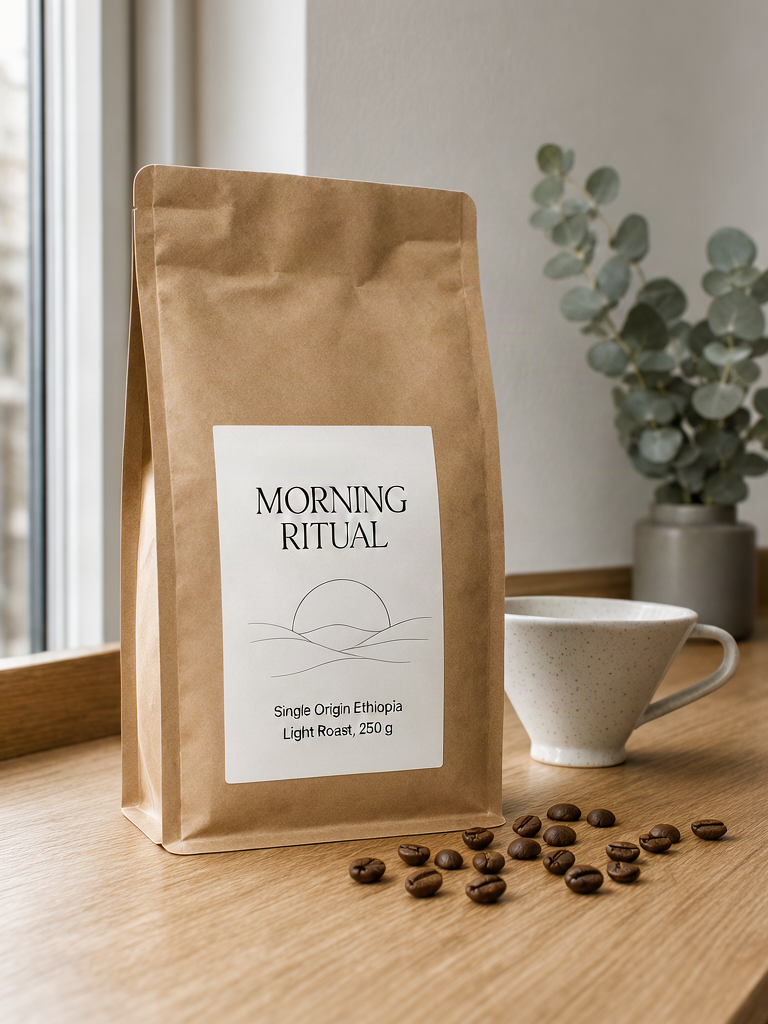
Krea 3, Berry, imageSize portrait_4_3, thinkingLevel medium: the label lines “MORNING RITUAL”, “Single Origin Ethiopia” and “Light Roast, 250 g” came straight from the quoted words in the prompt · Open on Scenario
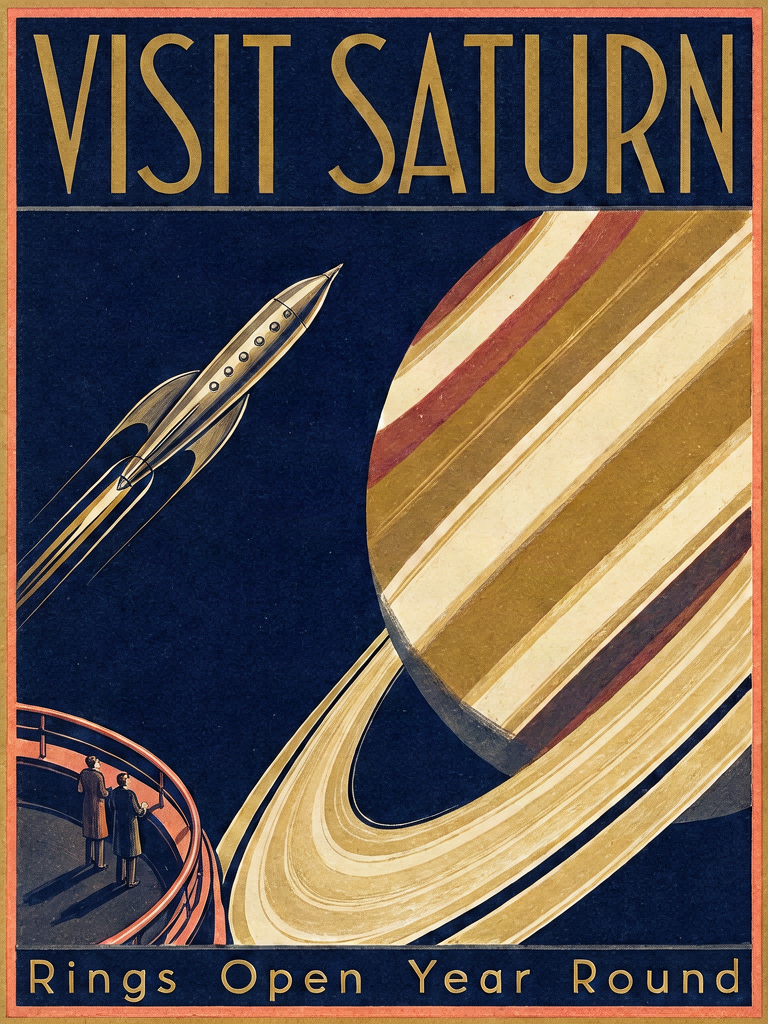
Krea 3, Berry, imageSize portrait_4_3, thinkingLevel medium: the headline “VISIT SATURN” and the footer “Rings Open Year Round” are set as part of the Art Deco layout, not pasted on · Open on Scenario
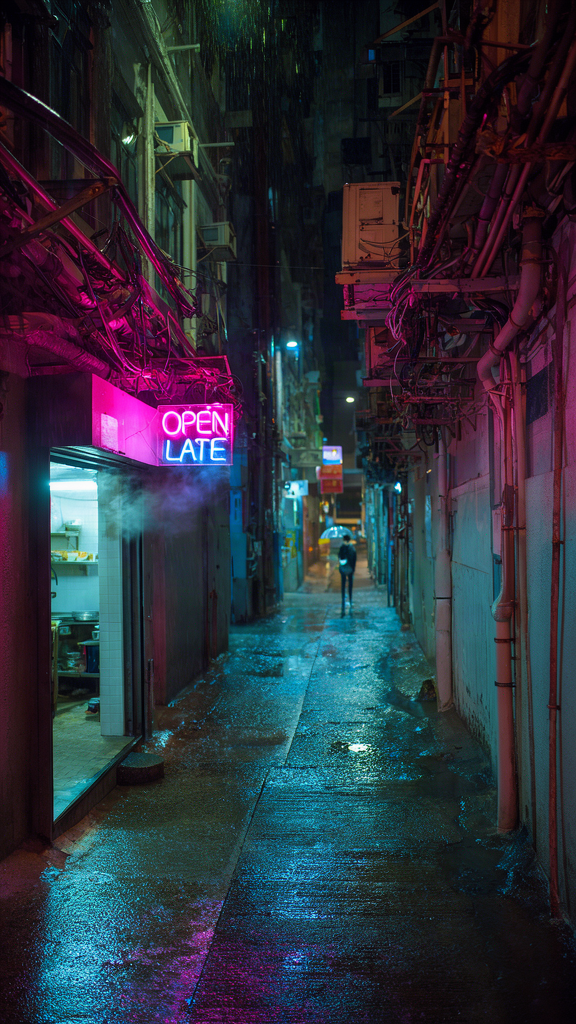
Krea 3, Jam, imageSize portrait_16_9, thinkingLevel medium: a legible “OPEN LATE” neon sign and wet-pavement reflections from the faster Jam engine · Open on Scenario
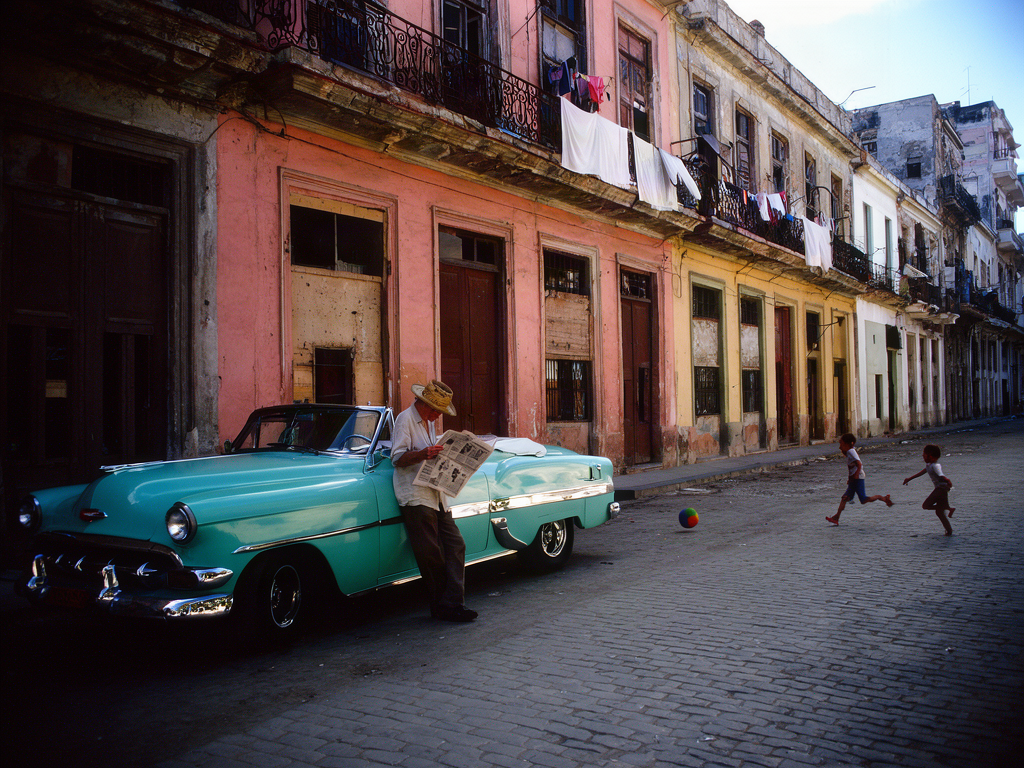
Krea 3, Berry, imageSize landscape_4_3: an editorial street photograph with natural light, period detail, and children caught mid-run · Open on Scenario
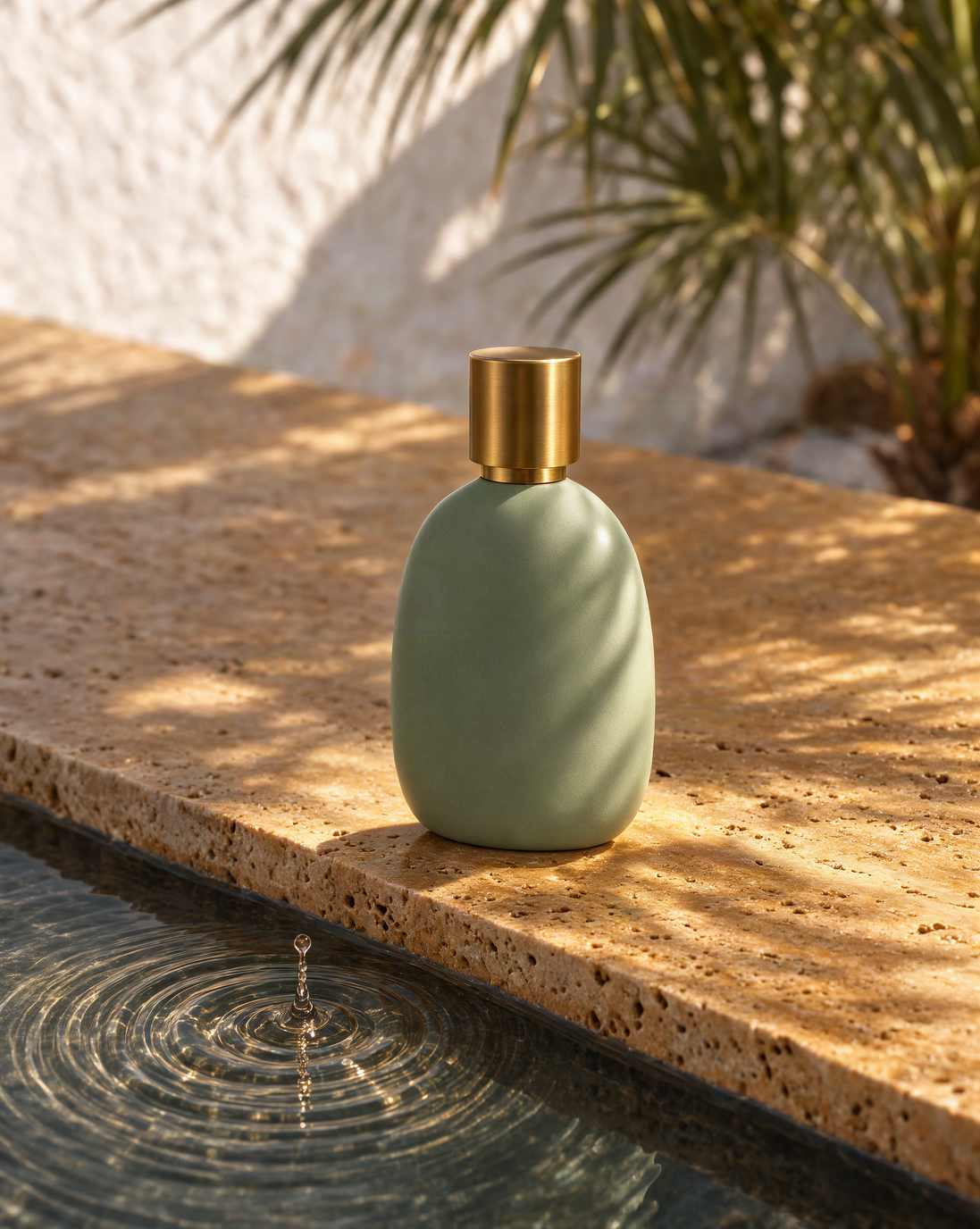
Krea 3, Berry, imageSize auto, negativePrompt “text, logo, label, watermark, clutter”: a clean, unbranded product shot with hard sunlight and water ripples · Open on Scenario
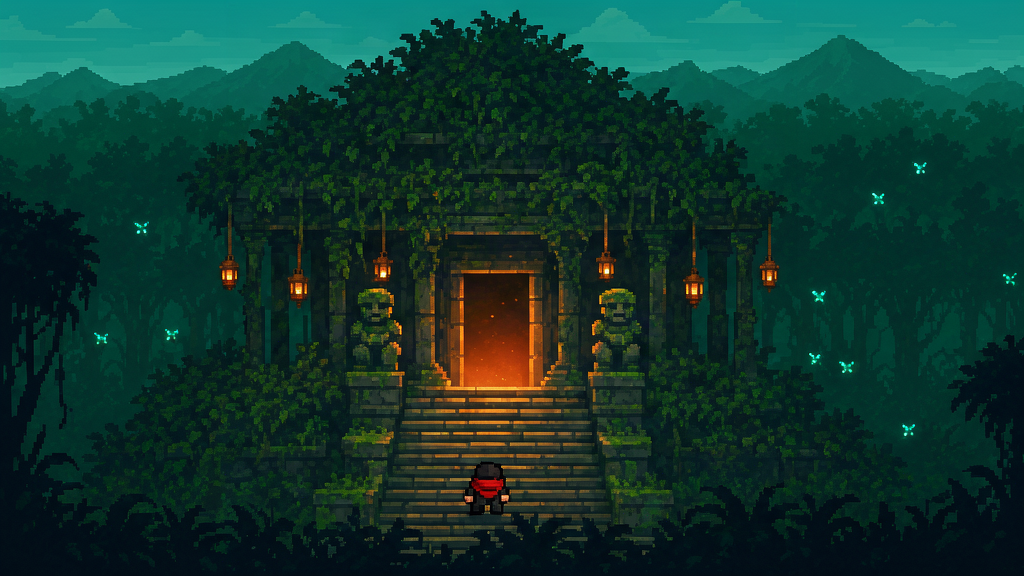
Krea 3, Jam, imageSize landscape_16_9: a pixel-art jungle temple with a consistent pixel grid and a limited palette · Open on Scenario
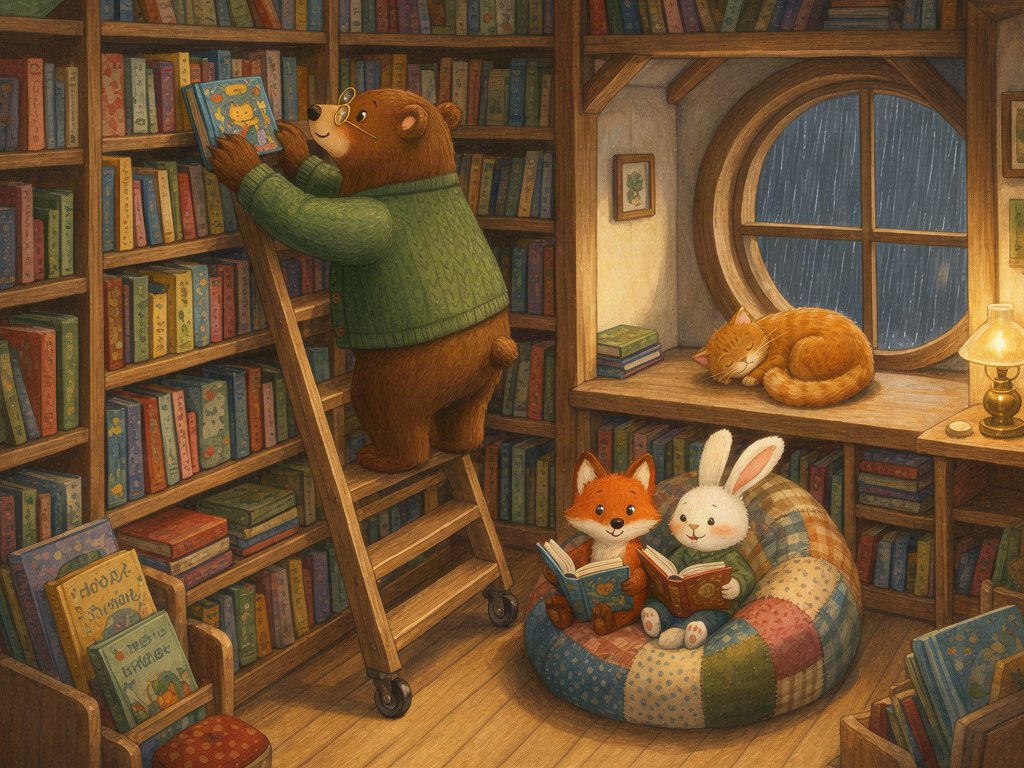
Krea 3, Berry, imageSize landscape_4_3: a warm storybook illustration with a hand-painted finish · Open on Scenario
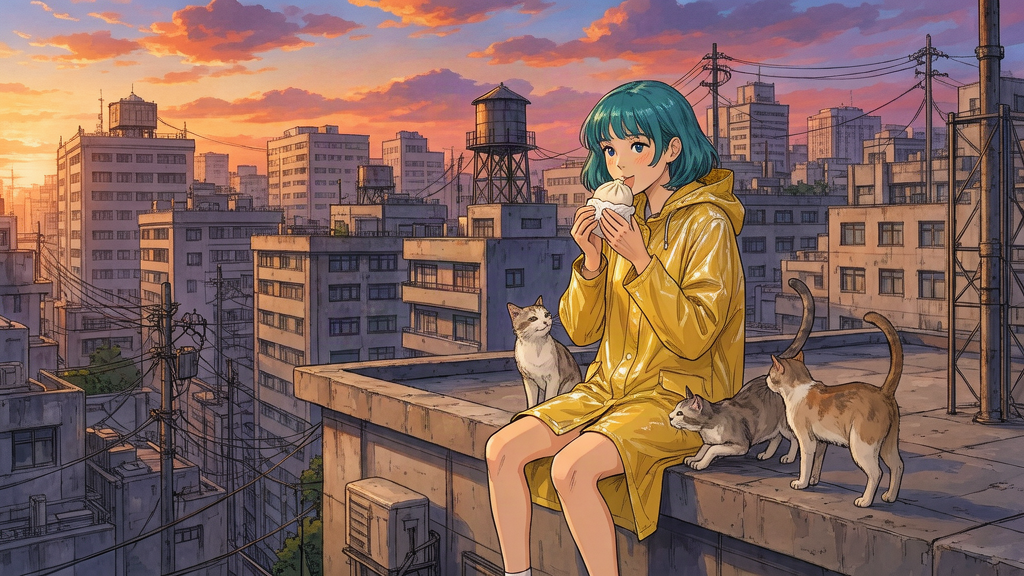
Krea 3, Berry, imageSize landscape_16_9: an anime rooftop scene at sunset with clean linework and cel-style shading · Open on Scenario
Krea 3 Edit: Edit and Combine Images
Krea 3 Edit takes one to eight referenceImages plus an instruction, and changes only what the instruction names. Refer to each image by its position (<image-1>, <image-2>, and so on), say what must change, and say what must stay. It shares the Berry and Jam engines and imageSize with Krea 3, and adds a High thinkingLevel that plans the edit with segmentation, web search, and reference photos, keeps the unedited areas of a single input image, and fixes required text.
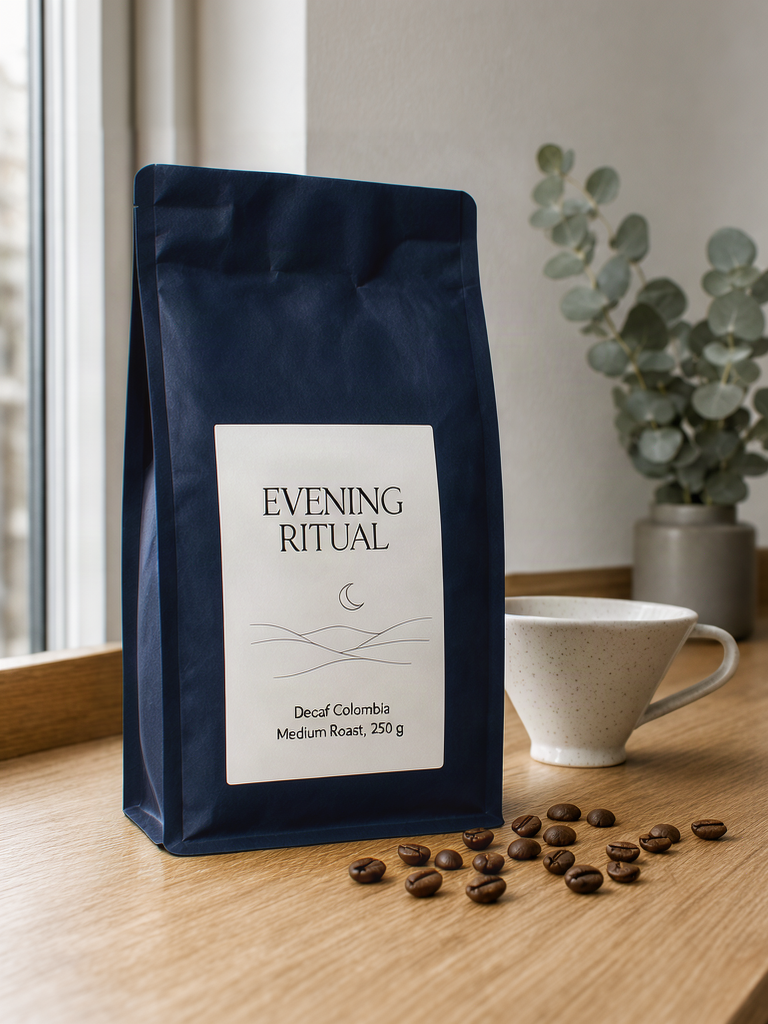
Krea 3 Edit, Berry, thinkingLevel high, input: the Morning Ritual bag above. Text swap and recolor: the bag turns navy and the label now reads “EVENING RITUAL”, “Decaf Colombia” and “Medium Roast, 250 g”, with a crescent moon in place of the sunrise, while the beans, dripper and light stay as they were · Open on Scenario
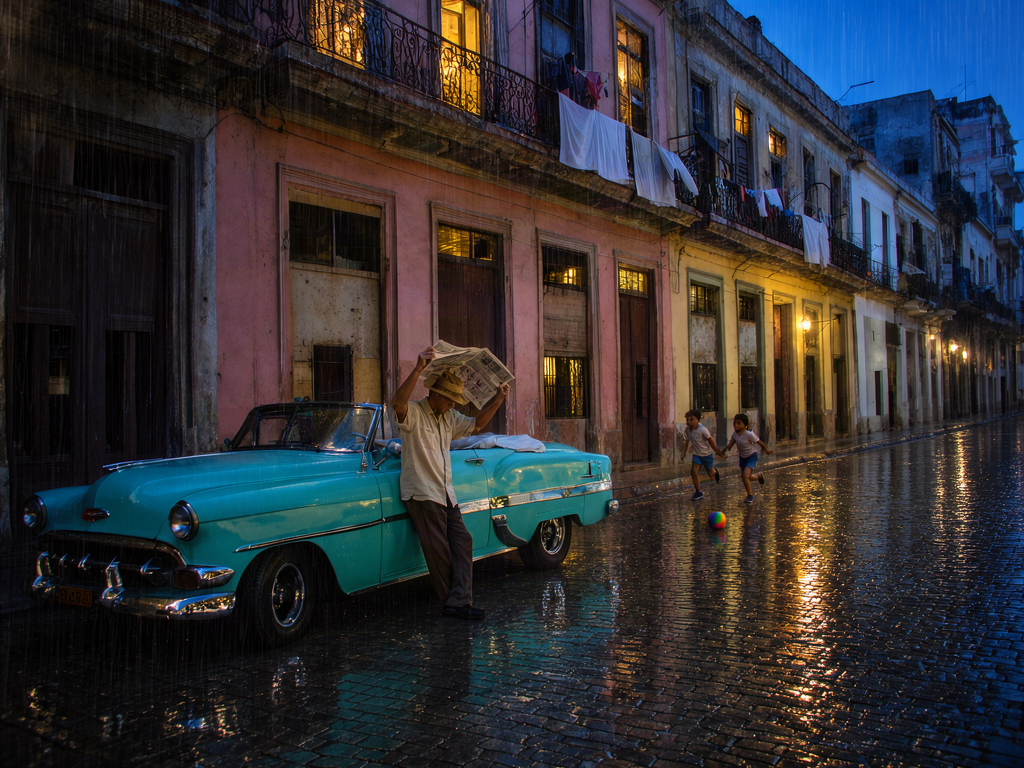
Krea 3 Edit, Berry, thinkingLevel medium, input: the street photograph above. Relight: a rainy blue-hour evening with wet cobblestones and lit windows, the man now holding the newspaper over his head, on the same street with the same car and composition · Open on Scenario
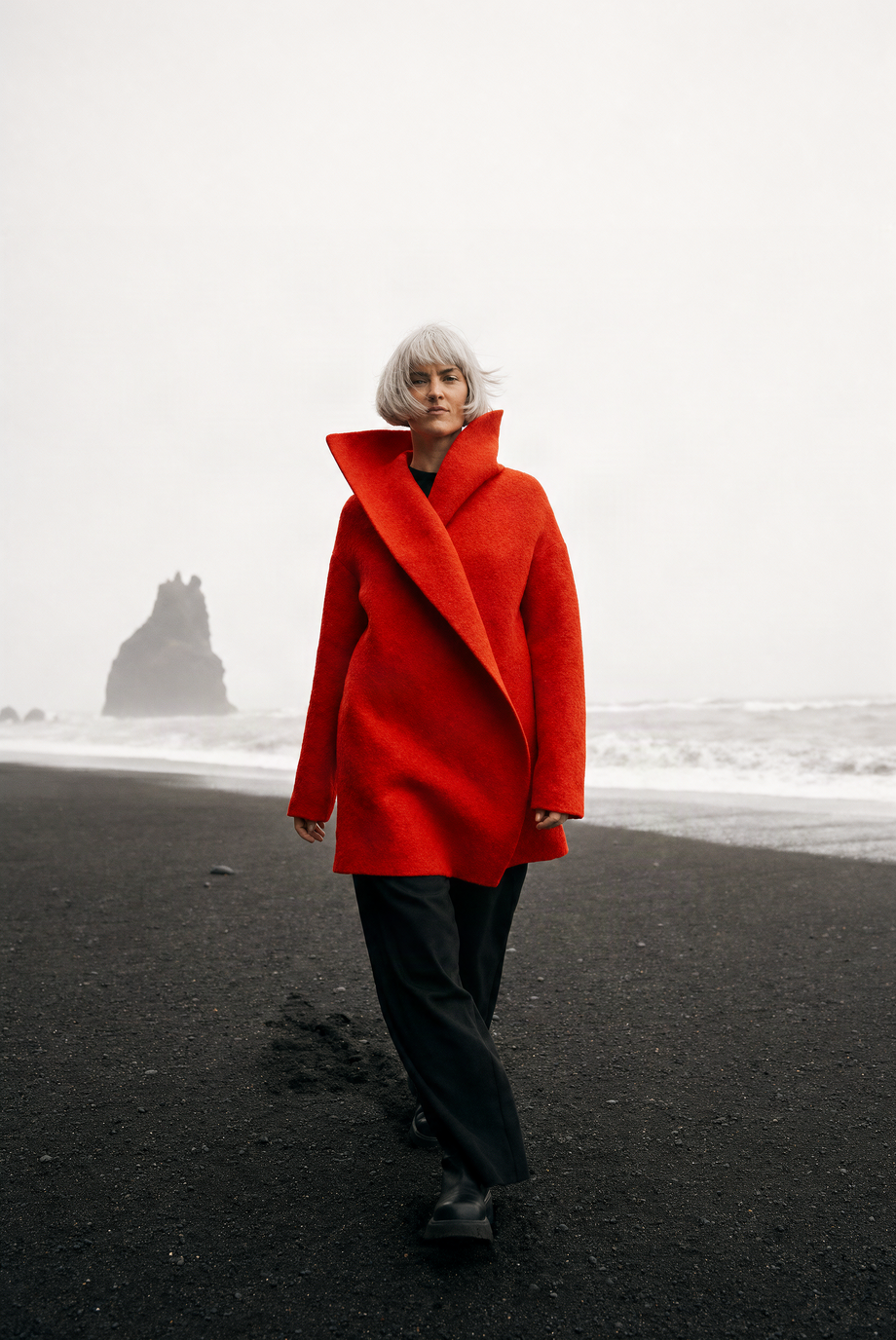
Before: Krea 3, Berry, imageSize auto, the source photograph for the recolor edit below · Open on Scenario
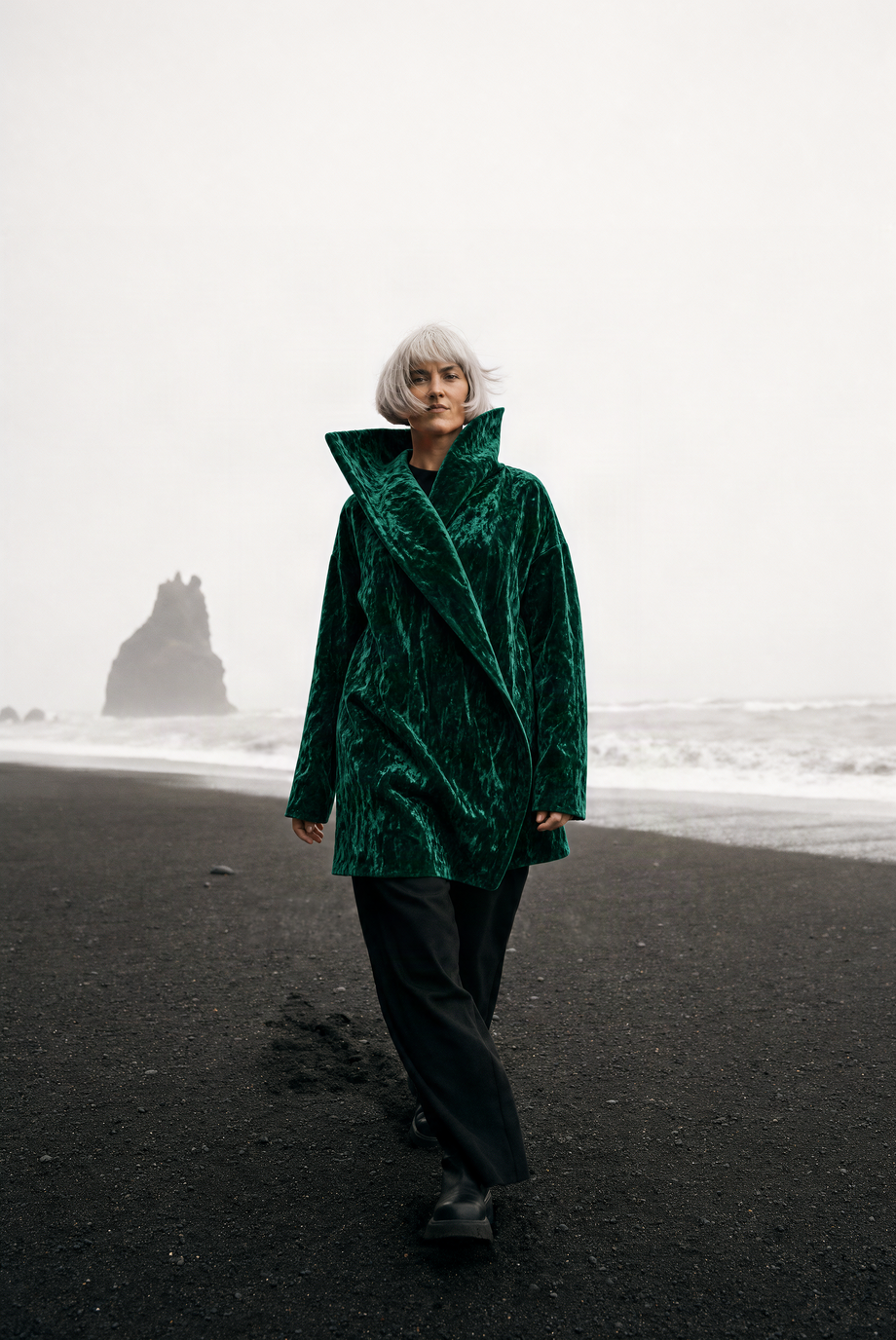
After: Krea 3 Edit, Berry, thinkingLevel high. Recolor and material change: the red wool coat becomes emerald crushed velvet with the same cut and collar, while the woman, the beach and the sea stack are unchanged · Open on Scenario
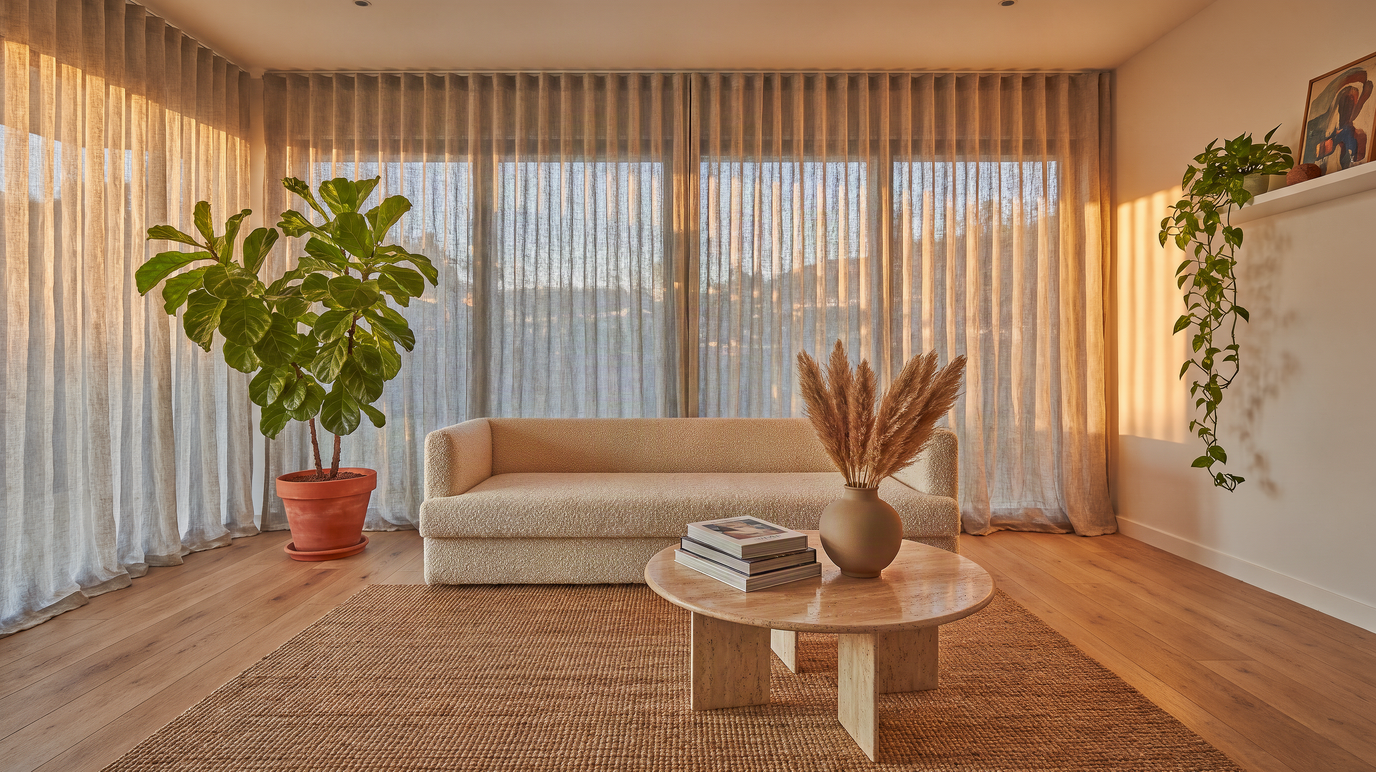
Before: Krea 3, Berry, imageSize auto, a living room with a potted fig on the left and a stack of books on the coffee table · Open on Scenario
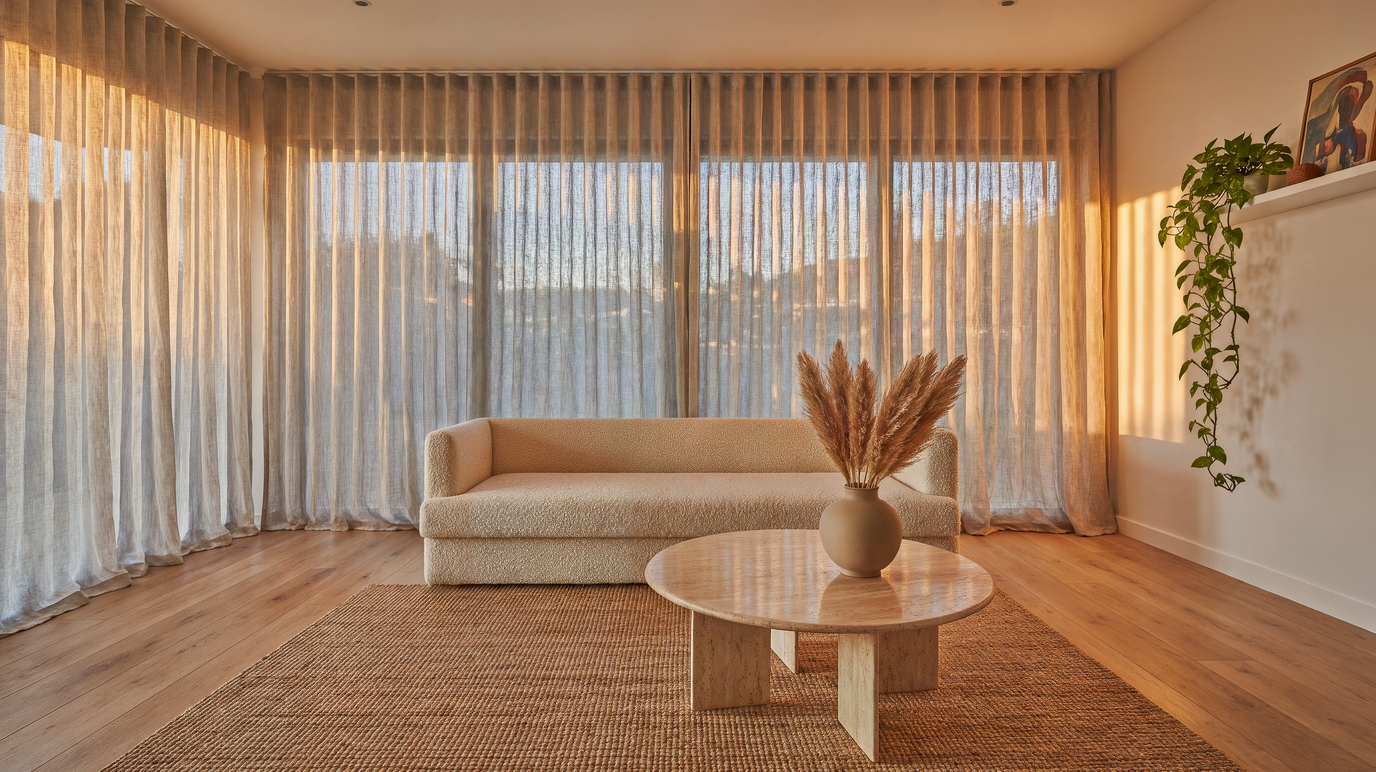
After: Krea 3 Edit, Berry, thinkingLevel high. Object removal: the plant and the books are gone, and the curtains, floor and table top are filled in naturally · Open on Scenario
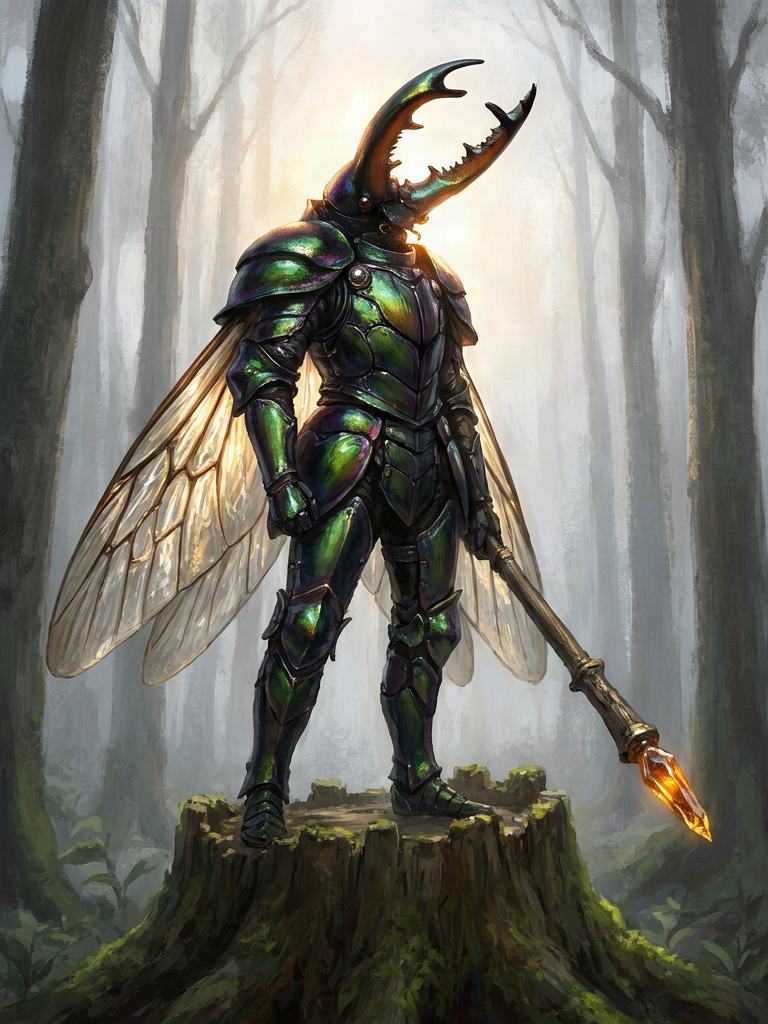
Input <image-1>: a beetle knight generated with Krea 3, Berry, imageSize portrait_4_3 · Open on Scenario
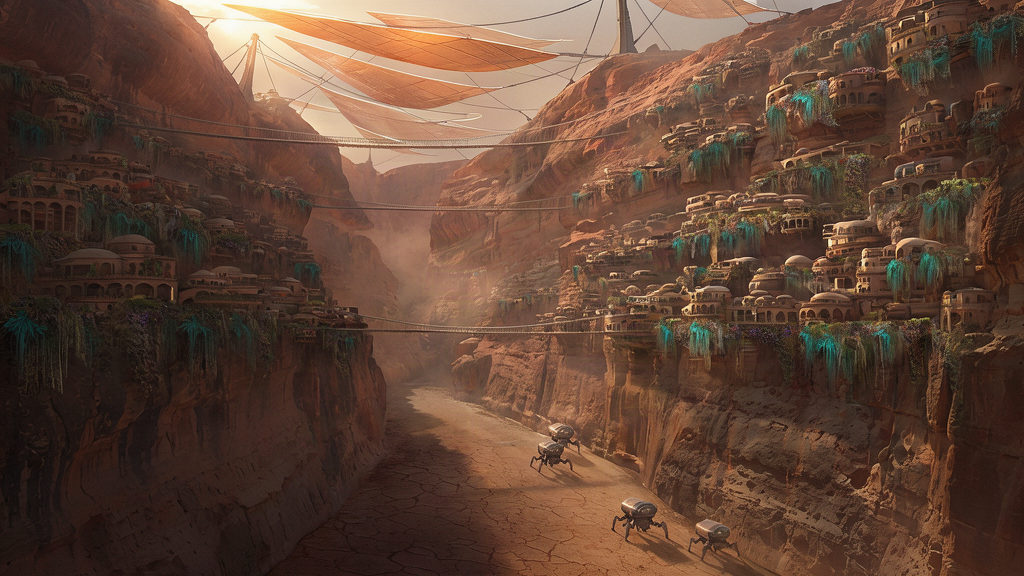
Input <image-2>: a desert canyon city generated with Krea 3, Berry, imageSize landscape_16_9, thinkingLevel medium · Open on Scenario
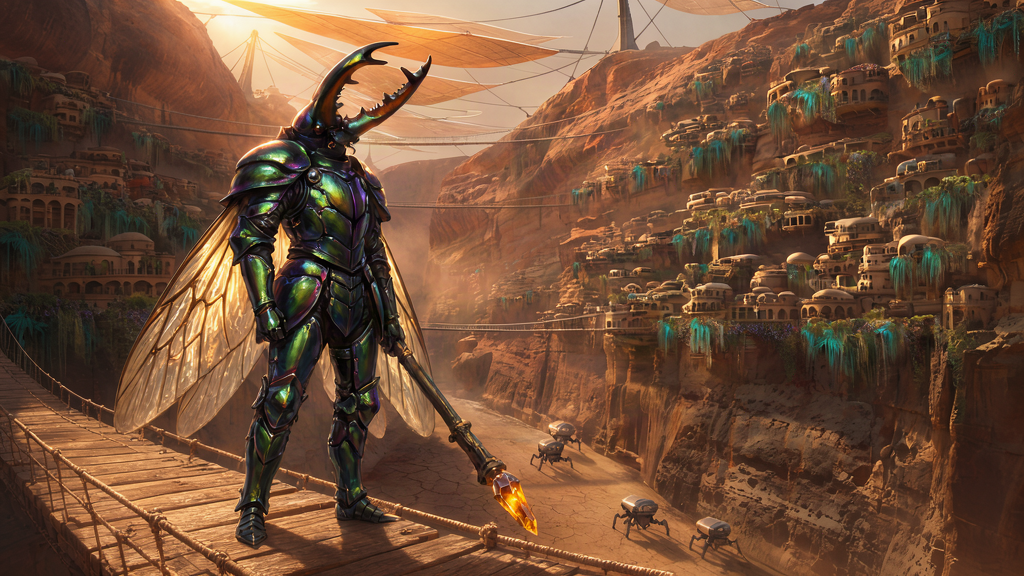
Krea 3 Edit, Berry, thinkingLevel high, two reference images. Combining images: the knight from <image-1> stands on a rope bridge in the canyon from <image-2>, relit to match its warm haze, with his armor, wings and lance unchanged · Open on Scenario
The Krea 2 Family
The five Krea 2 models remain available for workflows built around them. They do not render text as reliably as Krea 3, but they offer controls Krea 3 does not: style reference images, named aspect ratios with a creativity dial, and batches of up to four images on the Turbo tier. All five read the same natural language prompt.
Krea 2 Medium: Illustration and Anime
Medium is the strongest of the five Krea 2 models for illustration, anime, and painterly concept art. It exposes aspectRatio (eight presets from square to 2.35:1 cinema) and creativity (raw, low, medium, high) alongside the optional style references.

Krea 2 Medium, aspectRatio 16:9, creativity high: painterly fantasy concept art rewards the higher creativity setting with looser, more atmospheric interpretation · Open on Scenario
Krea 2 Large: Photorealism
Large is tuned for camera-true aesthetics: visible grain, motion blur, and natural dynamic range instead of the cleaned-up look most image models default to. Keep creativity low when the brief calls for a specific, believable photograph.

Krea 2 Large, creativity low: motion blur and film grain render as a photographer would actually capture the moment, not as a post-processed effect · Open on Scenario
Krea 2 Medium Turbo: Fast Illustration
Medium Turbo shares Medium's illustration and anime strengths and its exact parameter set, but generates in a fraction of the time. Reach for it when iterating through several character or poster concepts before committing to Medium for a final pass.
Krea 2 Turbo: Fastest General Purpose
Turbo trades the aspectRatio and creativity controls for imageSize presets, an acceleration toggle, and numOutputs up to 4 per run. It has no style reference input at all, it is the pure speed tier, equally comfortable with photoreal and illustrated prompts.
Krea 2 Turbo Style: Style Transfer
styleReferenceImages is required here, not optional, one to three images. The model extracts each reference's palette, linework, texture, and composition and applies it to the new scene described in prompt. styleScale (0 to 4, default 1) controls how strongly the references dominate; combining two or three references blends their aesthetics rather than picking one.

Krea 2 Turbo Style, 1 style reference (ukiyo-e woodblock print), styleScale 1: a single strong reference gives a faithful, consistent style match · Open on Scenario
Parameters
Krea 3 and Krea 3 Edit share one compact parameter set built around the Berry and Jam engines. The Krea 2 models split theirs by tier: Medium, Large, and Medium Turbo share one set; Turbo and Turbo Style share another, built around resolution presets instead of aspect ratio and creativity. Each entry below says which models it applies to.
prompt
Every model. Required, up to 5000 characters. Write a full descriptive sentence covering subject, style, lighting, and composition, not a keyword list. On Krea 3, put any text the image must show in quotation marks, as in the Morning Ritual and Visit Saturn examples above. On Krea 3 Edit, describe the change, say what stays, and refer to each reference image by its position, as in the beetle knight example.
referenceImages
Krea 3 Edit only. Required, 1 to 8 images to edit or combine. Their order sets the <image-N> tags you use in the prompt, and each image is billed by its size, up to the output size. The text swap, relight, recolor, and object removal examples above each used one image; the beetle knight example used two.
model
Krea 3 and Krea 3 Edit only. berry (quality, the default) or jam (speed). The neon alley and pixel-art temple examples above used Jam; the other Krea 3 examples used Berry.
thinkingLevel
Krea 3 and Krea 3 Edit only. How much the model plans before it generates; higher levels are slower. Krea 3 offers low (the default) and medium. Krea 3 Edit adds high, which plans the edit with segmentation, web search, and reference photos, keeps the unedited areas of a single input image, fixes required text, and costs more. The Morning Ritual and Visit Saturn examples used medium for their text; the Evening Ritual text swap and the object removal used high.
negativePrompt
Krea 3 and Krea 3 Edit, Berry engine only: Jam ignores it. Up to 1024 characters describing what to keep out of the image. The perfume bottle example above used text, logo, label, watermark, clutter to keep the product shot clean and unbranded.
imageSize
Krea 3, Krea 3 Edit, Krea 2 Turbo, and Krea 2 Turbo Style. Six shared presets: square (512x512), square_hd (1024x1024), landscape_4_3, landscape_16_9, portrait_4_3, portrait_16_9. Krea 3 and Krea 3 Edit add auto, their default, which picks the aspect ratio at about 2048x2048 (the perfume bottle, red coat, and living room examples); larger images cost more. The Turbo models default to square_hd. The Visit Saturn poster above used portrait_4_3 and the anime rooftop used landscape_16_9.
styleReferenceImages
Krea 2 only. Optional on Medium, Large, and Medium Turbo (up to 10 images, each with its own strength from 0 to 1). Required on Turbo Style (1 to 3 images, no per-image strength, controlled instead by the shared styleScale). Not available on Krea 2 Turbo, Krea 3, or Krea 3 Edit. The ukiyo-e Turbo Style example above used a single reference.
styleScale
Krea 2 Turbo Style only. Range 0 to 4, default 1. Higher values push the output closer to the reference images' style at the expense of prompt fidelity; values below 1 help when blending two or three references so none of them overpowers the scene. The ukiyo-e example above used the default of 1.
aspectRatio
Krea 2 Medium, Large, and Medium Turbo only. Eight presets: 1:1, 4:3, 3:2, 16:9, 2.35:1 (cinema), 4:5, 2:3, 9:16. Default 1:1. The Krea 2 Medium fantasy example above used 16:9.
creativity
Krea 2 Medium, Large, and Medium Turbo only. One of raw, low, medium, high, default medium. Lower values stay close to a literal reading of the prompt: the Krea 2 Large motion-blur example above used low to stay camera-true. Higher values let the model take more artistic liberty: the Krea 2 Medium fantasy example used high for a looser, more atmospheric take.
numOutputs
Krea 2 Turbo and Turbo Style only. 1 to 4, default 1. Each additional image adds to the cost. Krea 3 and Krea 3 Edit generate one image per run.
acceleration
Krea 2 Turbo and Turbo Style only. none or regular, default none. Use regular for faster drafts while exploring.
enablePromptExpansion
Krea 2 Turbo and Turbo Style only. Boolean, default false. When true, an LLM expands a short prompt into a more detailed one before generation, falling back to the original prompt if expansion fails. Useful for quick, underspecified briefs; skip it when the prompt is already a full detailed paragraph.
seed
Every model. 0 to 2147483647, leave blank for a random seed. On Krea 2 Turbo and Turbo Style, output i in a multi-image batch uses seed + i. On Krea 3 Edit, use a new seed when you edit a previous output again.
Use Cases
Packaging, posters, and signage with real text: Krea 3 renders the exact words you quote in the prompt, so a product label, a headline, or a shop sign comes out readable, as in the Morning Ritual and Visit Saturn examples.
Product and campaign variants: Krea 3 Edit turns one approved shot into a new colorway, edition, or time of day while the rest of the image stays put, as in the Evening Ritual and blue-hour street edits.
Cleanup and compositing: Krea 3 Edit removes props from a scene or places a character from one image into the world of another, as in the living room and beetle knight examples.
Game concept art: Krea 2 Medium and Medium Turbo's illustration range covers character sheets, environment key art, and creature design in one prompt-driven pass.
Marketing and advertising stills: Krea 2 Large's camera-true grain and motion blur produce imagery that reads as shot, not generated, for product and lifestyle campaigns.
Rapid concepting and pitch decks: Krea 2 Turbo's speed and 4-image batches make it a fast way to put several visual directions in front of a client in one sitting.
Brand-consistent content at scale: Krea 2 Turbo Style locks a moodboard or an existing piece of key art in as a style reference, then reapplies it across many new scenes without re-briefing the look each time.
Children's and educational publishing: Krea 3 handles storybook illustration from a prompt alone, and Krea 2 Medium's optional style references can lock one specific illustration style across an entire set of pages.
Tips for Better Results
Write a full paragraph, not a keyword list. Every example in this article used a complete descriptive prompt covering subject, medium, lighting, and composition, and that is what Krea models respond to.
On Krea 3, quote the exact words and say where they go. Spell out every line of a label or poster in quotation marks, as the Morning Ritual prompt did, and raise
thinkingLeveltomediumwhen there is a lot of text.Explore on Jam, finish on Berry. Jam is the faster engine for trying directions; switch to Berry for the version you keep, and remember that
negativePromptonly applies to Berry.On Krea 3 Edit, name what changes and what stays. The edits above all end with what must remain untouched (the beans and the light, the woman and the beach), and with several images, say what each
<image-N>contributes.Use a new seed when you edit an edit. Feeding a Krea 3 Edit output back in for a second pass works better with a fresh
seed.Match the Krea 2 model to the aesthetic, not the other way around. Forcing a photoreal brief through Krea 2 Medium or an illustrated brief through Krea 2 Large works against each model's tuning.
Keep
creativitylow on Krea 2 Large for anything that has to look like an actual photograph, and usehighon Medium and Medium Turbo for exploring concept art rather than locking in final assets.On Krea 2 Turbo Style, start at
styleScale1 and adjust from there. Push it above 1 for a bolder style match, or below 1 when blending several references so none of them overwhelms the scene.
Known Limitations
Check rendered text letter by letter. Krea 3 and Krea 3 Edit render text far more reliably than Krea 2, but accents and less common spellings can still come out wrong, even at a high
thinkingLevel. Proofread every word before you ship an image.No style references or batches on Krea 3. Krea 3 and Krea 3 Edit generate one image per run and have no style reference input. To carry a specific look onto new scenes, use Krea 2 Turbo Style or the Krea 2 style references, or restyle an existing image with Krea 3 Edit.
negativePromptdoes nothing on Jam. Only the Berry engine reads it, so switch to Berry when you need to keep something out of the image.No style references on Krea 2 Turbo. If a brief needs a style reference and Turbo's speed, Krea 2 Turbo Style is the closer fit, though it makes the reference mandatory rather than optional.
Krea 2 Turbo Style has no per-image reference strength. Krea 2 Medium, Large, and Medium Turbo let each style reference carry its own
strength; Turbo Style only exposes one sharedstyleScaleacross all of its references.Krea 2 is not a text renderer. Incidental text in a scene (shop signage, labels) is not guaranteed to be legible on any Krea 2 model; use Krea 3 when the image has to carry words.
Framing controls differ between models. Krea 2 Medium, Large, and Medium Turbo use named aspect ratios; Krea 3, Krea 3 Edit, Krea 2 Turbo, and Turbo Style use
imageSizepresets instead. Swapping models in a pipeline can mean re-specifying framing in a different parameter.