Train a Custom Texture Model
Last updated: June 17, 2026
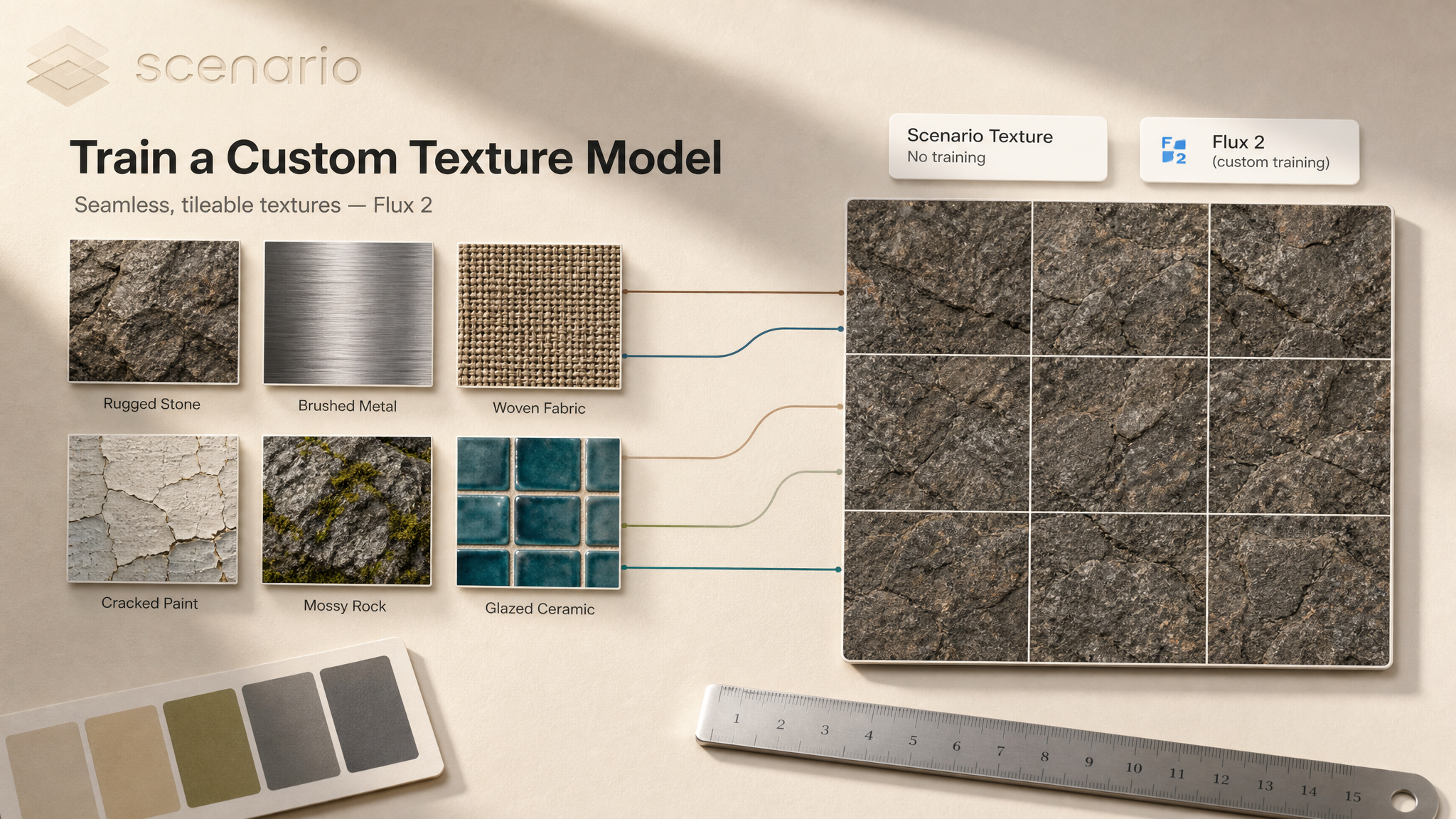
Custom texture models let you generate seamless, on-style textures from a small dataset of reference images. This guide walks through when to train a custom model versus using the platform's built-in texture generator, how to prepare and train a dataset, and how to refine the result for production use.
Which Model Should I Use?
Model | ID | Input | Best for |
|---|---|---|---|
Scenario Texture No training |
| Up to 10 reference images + prompt | Fast iteration, validating a style before committing to training, one-off texture needs. |
Flux 2 (custom training) Custom | Trained on Flux 2 base | 10 to 15 training images + captions | Locking in a consistent material or style across many generations, production texture libraries. |
If you need a few textures in a specific style, try Scenario Texture first. If you need to reproduce that style reliably across dozens or hundreds of generations, train a Flux 2 custom model. The references you tested with Scenario Texture can become the starting point for your training dataset.
Flux2Edit is not the right base for texture model training. That model is designed for edit LoRAs trained on before/after image pairs, a different use case.
Getting Started
Try Scenario Texture First
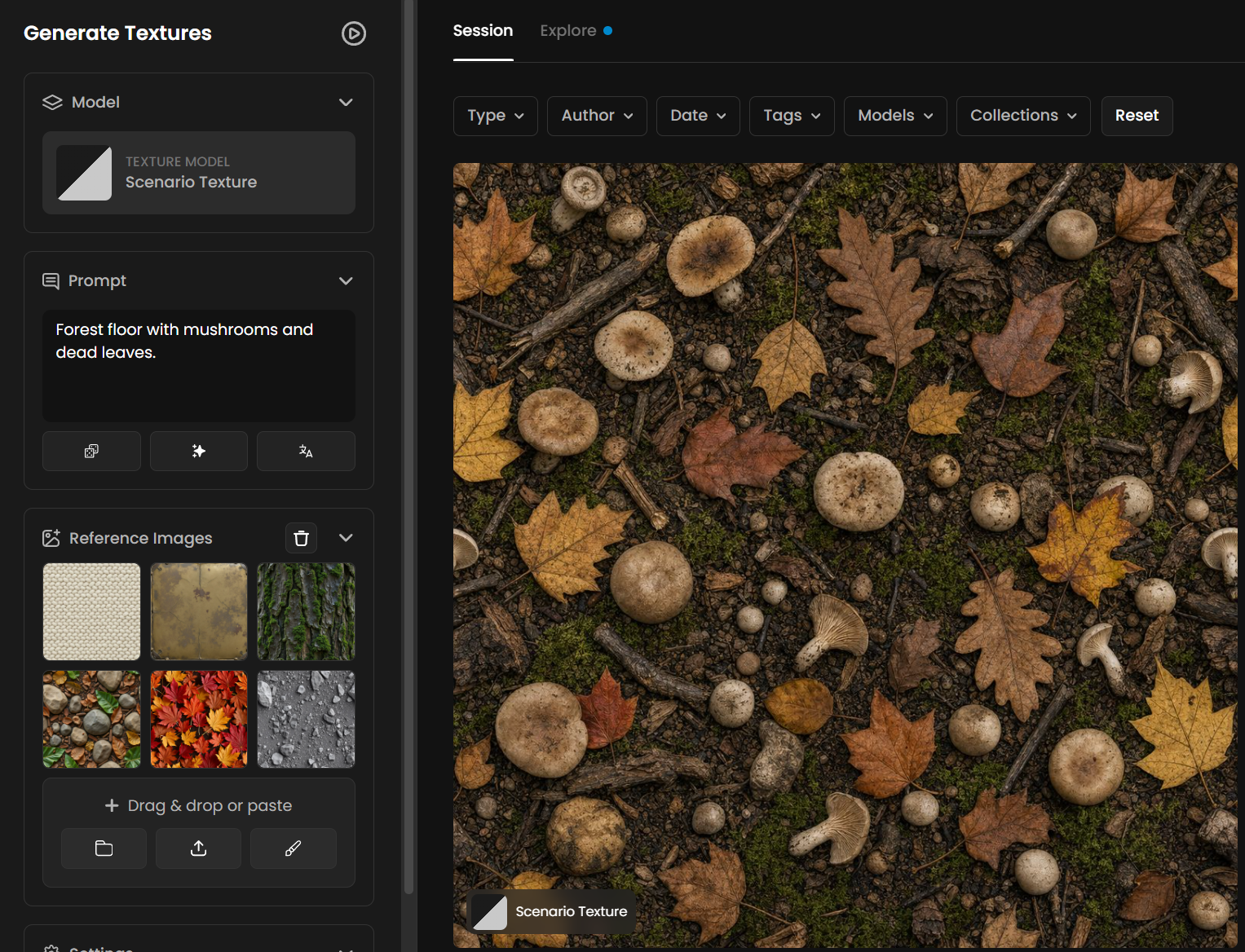
Before committing to a training run, generate a few textures with Scenario Texture. Upload up to 10 reference images, write a short descriptive prompt, and review the output. If the results match your target style and you only need a handful of textures, you can stop here.
Start a Custom Training
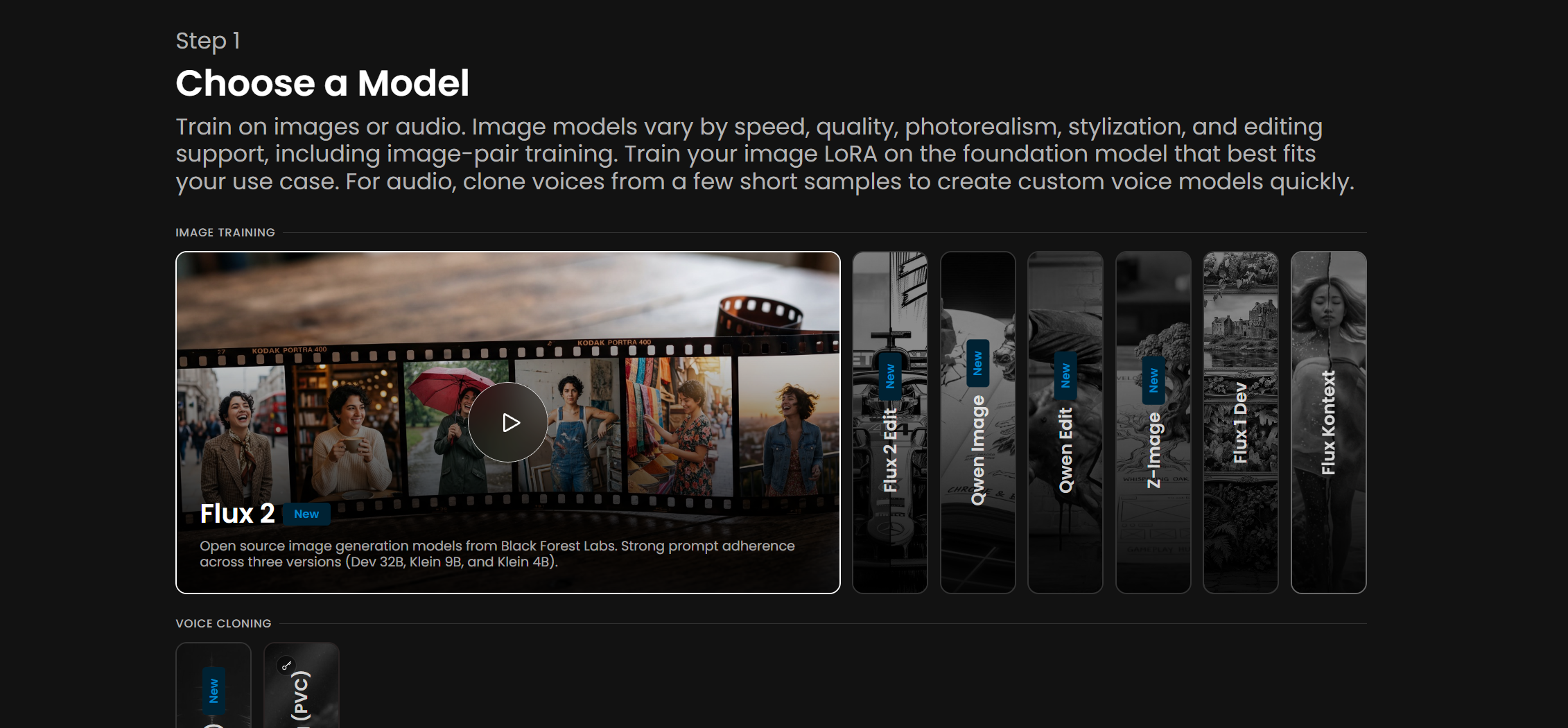
There are two entry points to start a custom training:
Main menu: Go to the Create category, then Train.
Models page: click + Create.
On the training page, select Flux 2 as the base. It produces the strongest seamless and tileable results for texture work today.
Prepare Your Dataset
Your dataset is the single most important factor in the quality of the final model.
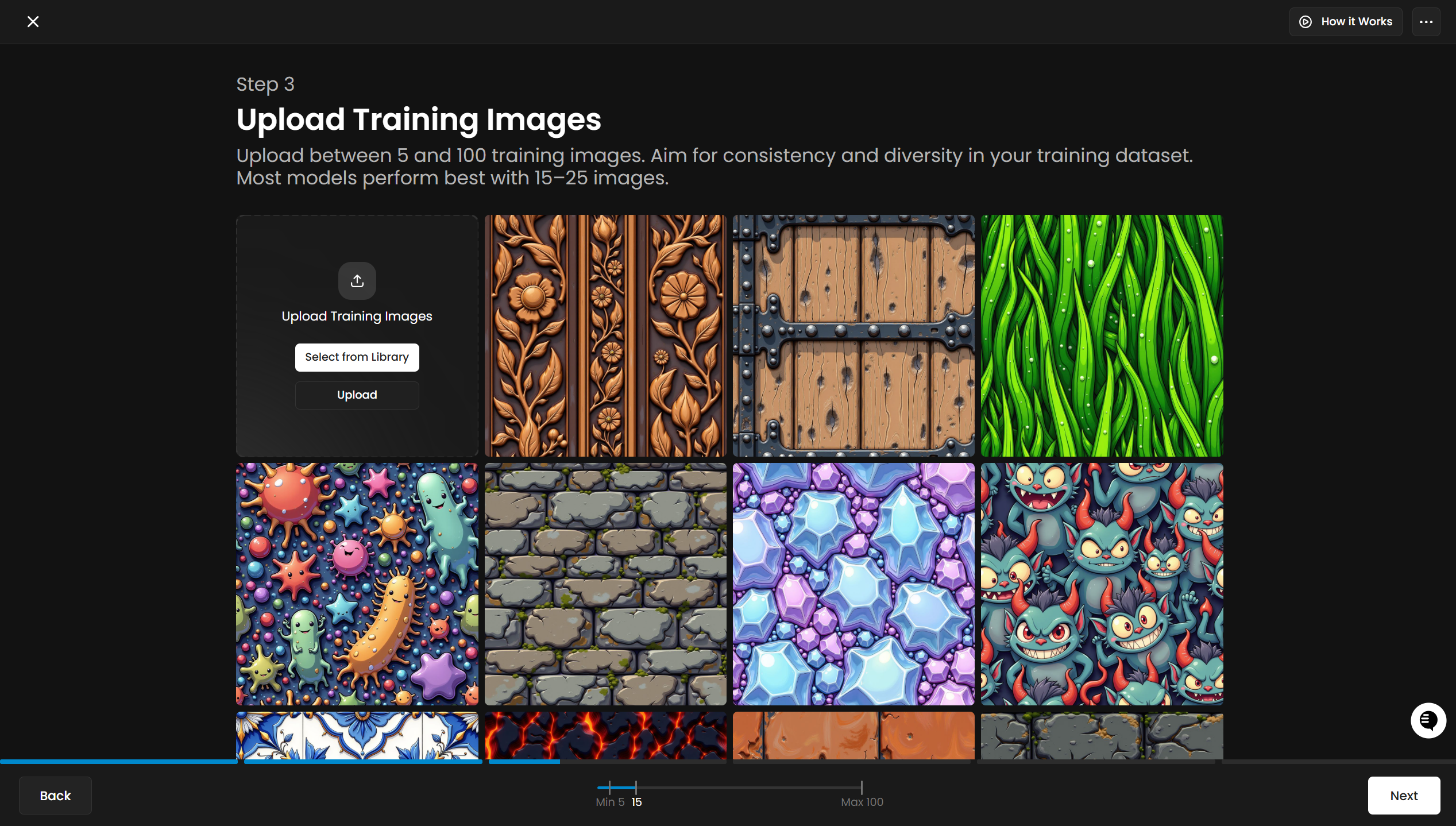
Use 10 to 15 high-quality images minimum. More images can help, but a tight, consistent set of 10 to 15 usually outperforms a noisy set of 30.
Images should be sharp and at least 1024 pixels on the shortest side.
If resolution is too low, use Upscale 2x from the three-dot menu on the uploaded thumbnail.
Avoid strong directional lighting in the source images. Neutral, ambient light keeps the texture relightable downstream.
Drop duplicates and near-duplicates. They reduce the model's versatility without adding information.
Pick images that share a clear style, material, or pattern. Mixed datasets produce mixed results.
Training images do not need to be seamless. Focus on the style or pattern, the model handles tiling.
Captioning
Scenario auto-generates captions for every uploaded image. In practice the defaults are good enough for most texture datasets.
Only edit a caption if it is clearly incorrect.
When you do edit, focus on describing variable elements (surface wear, color shifts, pattern density) rather than fixed features that appear in every image.
You do not need to describe every detail. Stick to the key characteristics that define the style.
Launch the Training
Click Train to start. Training time varies with dataset size, typically 20 minutes to a few hours.
Tag the Model
Tag your model with sc:texture either on the training page or after training completes. This makes the model recognizable as a seamless texture generator and ensures it appears in the right filters in the Model Hub.
Generate Textures with Your Model
Start with a descriptive, direct prompt:
a rugged stone walla polished metal plate with subtle scratchesUse Prompt Spark for prompt suggestions based on your captions. If you run into visible seams or the trained style is not coming through, add seamless-style keywords to reinforce the behavior:
a rugged stone wall, seamless tileable texture, no visible seams
Refine the Model
Once you have a working model, you can lock in style consistency without retraining:
Open the model page and go to the Details tab.
Add a Prompt Embedding with your preferred style anchors. Every generation will automatically include those terms.
Pin your best results in the Generations tab. Prompt Spark uses these to learn what good output looks like for this model.
Update the description and tags to make the model easier for teammates to find.
Parameters
Two training parameters have a meaningful effect on the final model:
Training Steps: how many iterations the model goes through. Leave Automatic Training Steps enabled to let Scenario pick the right number for your dataset size. Only override this if you have a specific reason.
Learning Rate: the size of adjustments made on each step. Start with the default. If you raise the training steps, you usually want to lower the learning rate, and vice versa.
At generation time, the standard parameters you tune are:
Dimensions: 1024 x 1024 is the safe default for tileable textures.
Quality: Low, Medium, or High. Use High for production-ready output.
Erase Seam: on or off. Enable to remove visible tiling seams. Useful when the prompt alone is not enough.
Overlap: controls how much the tile edges blend during seam removal. Default 128 works for most cases.
Use Cases
Game environments: generate consistent ground, wall, and prop textures across an entire level, all matching a single trained art direction.
Material libraries: build a reusable library of stone, metal, fabric, or organic surfaces in a custom style.
3D asset texturing: feed trained textures into Scenario's 3D pipeline (Tencent UV Unwrapping, Trellis 2 Retexture, Tripo 3 Texturing) for game-ready meshes with on-brand surfaces.
Marketing and packaging: generate brand-consistent backgrounds and surface patterns for product mockups, ads, and key art.
Concept and previs: rapidly produce mood textures for set design, illustration backgrounds, or visual development boards.
Education and prototyping: quickly build cohesive texture sets for student projects, jam games, or rapid client mockups.
Tips for Better Results
Validate the style with Scenario Texture before training. A 10-minute test with reference images tells you whether your dataset is on the right track before you commit to a full training run.
Aim for 10 to 15 images, not 5. Smaller datasets can train but tend to overfit on individual images. The 10 to 15 range gives the model enough variation to generalize while staying on-style.
Prioritize consistency over volume. A tight, on-style dataset of 12 images outperforms a noisy 30-image dataset every time.
Trust the auto-captions. Only edit a caption when it is clearly wrong. Manual rewrites rarely move the needle and often introduce inconsistencies.
Start prompts plain, then anchor seamless if needed. Begin with a simple subject description. Add "seamless tileable texture" or similar only if the output shows visible seams or style drift.
Use a Prompt Embedding to lock the style. Once you find a prompt structure that consistently triggers the trained style, save it as the model's embedded prompt so you only need to type the subject each time.
Pin your best generations. Pinned images steer Prompt Spark and serve as a visible benchmark for what the model should produce.