Scenario Texture: The Essentials
Last updated: June 8, 2026
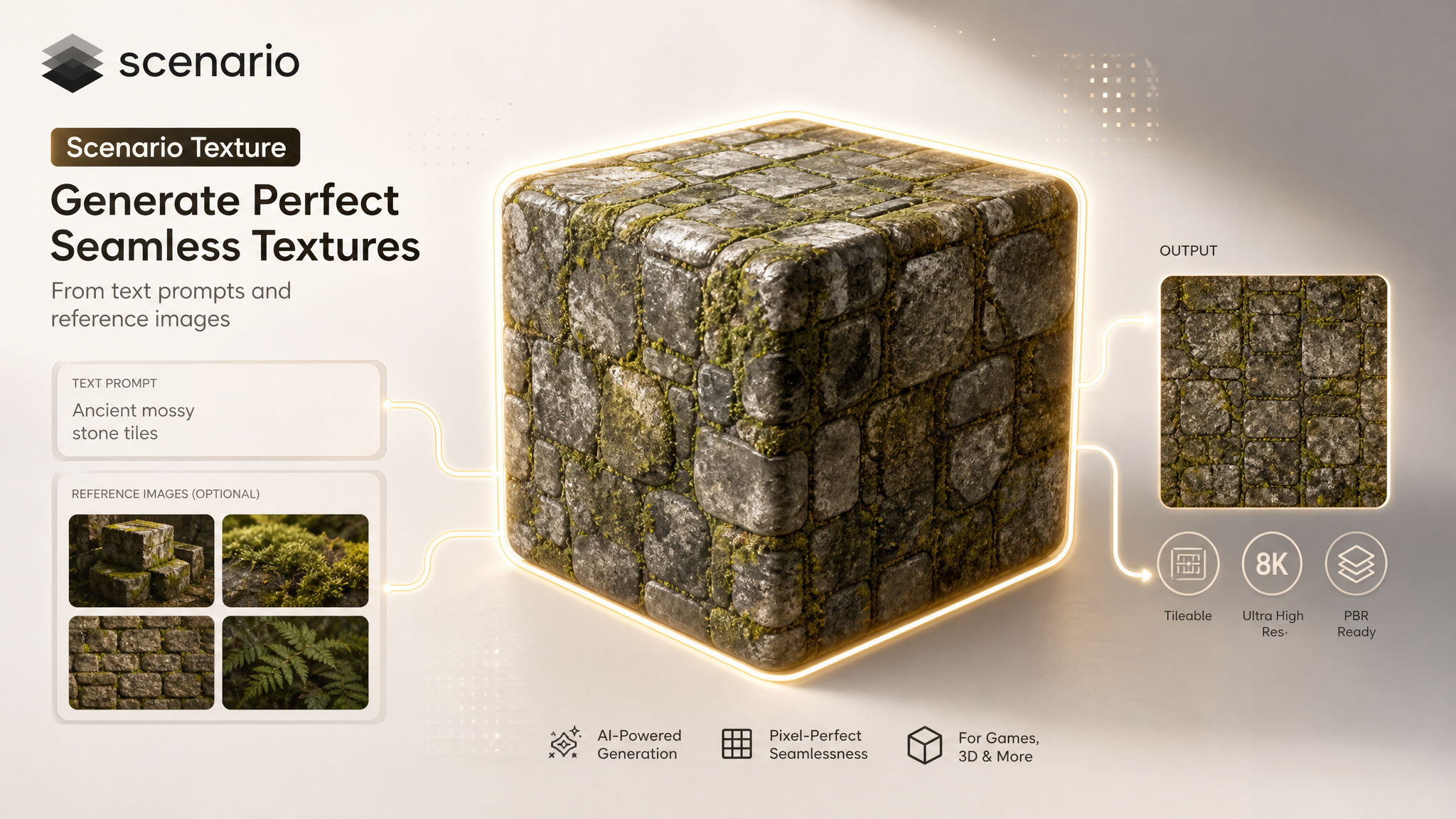
Scenario Texture is the new in-house tileable texture generator on Scenario. Give it a prompt (or a reference image, or both), pick a resolution, and get back a top-down material that can repeat seamlessly across a surface. It plugs directly into the Textures flow alongside any custom texture models you have trained.
Overview
Scenario Texture is built for one job: generating clean, tileable surface materials. The prompt is automatically wrapped with a tileable-top-down hint, so you can write what the material is ("aged terracotta tile, hand-painted edges") without manually adding "seamless texture" or "top-down" to every prompt. Output goes up to 4K UHD area.
The model accepts an optional reference image, which is passed to the GPT Image 2 edit pipeline so the result inherits the palette, surface character, or motif of the source while staying tileable. When the optional Erase Seam pass is on, the generated image is processed once more to remove both the left/right and top/bottom discontinuities so it tiles cleanly in 2D.
What It Does
Generates tileable textures from a text prompt, optionally guided by up to ten reference images.
Erases both horizontal and vertical seams with a dedicated inpainting pass when Erase Seam is enabled.
Outputs up to 4K UHD area (about 8.3 megapixels total), in any aspect ratio with sides as multiples of 16.
Exposes seam-control parameters (overlap width and feather radius) for fine-tuning the seamless pass.
How to Use It
Prompt: describe the material, not the scene. "Mossy cobblestone with cracked grout" works. "A cobblestone street at night with a streetlamp" does not, because the model is built to produce a flat tile, not a perspective render. The tileable and top-down framing is added for you under the hood.
Reference Images: optional. When supplied, the prompt is automatically rewrapped to tell the engine to draw inspiration from the attached image (palette, motif, surface character) while still producing a tileable top-down result. Useful when you have a swatch you want to match, a hand-painted style guide, or a photo of a real-world surface to riff on. Up to ten images.
Width and Height: default 1024 by 1024. Push to 2048 by 2048 for hero assets. The maximum is governed by total area rather than each side, capped at 4K UHD (about 8.3 megapixels). In practice that means 3840 by 2160 for widescreen, or 2880 by 2880 for a square. Both sides must be multiples of 16. Non-square ratios are allowed and tile correctly when Erase Seam is on.
Quality: high is the default and the right call for almost any production use. Medium is fine for fast iteration on the prompt. Low is best when you are sweeping seeds or A/B testing variants and do not need final fidelity.
Erase Seam: the toggle that turns a regular texture into a tileable one. Off, the image is generated as-is and may show visible seams when tiled. On, a post-process pipes the output through a seam-removal pass on both axes. Keep it on for anything destined for a real surface.
Overlap: half-width in pixels of the inpainting band centered on each seam. Default is 128. Raise it (up to 1024) when the texture has large repeating features that need a wider blend region. Lower it for fine-grained materials where 128 pixels is too aggressive.
Feather Radius: width in pixels of the outward blend ring around the inpainting band. Default 64. Set to 0 for a hard cut at the seam boundary (rare, useful for vector-like patterns). Raise it for materials with soft gradients that should bleed gradually into the seam region.
Examples
Game-ready stone wall: Prompt: "Weathered medieval stone wall, irregular blocks, deep grout lines, faint moss." Width and Height: 2048. Quality: high. Erase Seam: on. Default overlap and feather. Result: a stone-block texture that tiles cleanly across an entire facade.
Stylized hand-painted leaves: Prompt: "Hand-painted forest floor, fallen autumn leaves, visible brush strokes, warm palette." Reference Images: one swatch from your color guide. Quality: high. Erase Seam: on. Overlap: 192 (raised for the larger leaf shapes). The result keeps the painted character of your guide and tiles without visible repetition lines.
Sci-fi metal panel: Prompt: "Brushed titanium panel, rivets along the seams, faint scratches, no logos." Width: 4 to 1 aspect ratio (3840 by 960) for a long horizontal surface. Quality: high. Erase Seam: on. Output ready to drop on a corridor wall or spaceship hull.
Fabric for product mockups: Prompt: "Cream linen, fine weave, soft natural light, no folds." Reference Images: a photo of the actual fabric you want to match. Erase Seam: on. Feather: 32 (tighter than default for fine weave). The result is a clean swatch you can drop into product compositing.
Tips for Better Results
Describe the material, not the scene. "Wet sand at low tide, ripple marks" is a texture. "A beach at sunset" is not.
Leave Erase Seam on by default. Turn it off only when you specifically want a non-tiling decorative image.
Reference images are the fastest way to lock down a palette or stylistic direction. One clean swatch beats five paragraphs of color description.
Push width and height to 2048 once you have the prompt right. Below that you may lose surface detail that needs the extra pixels to render properly.
For materials with very fine repeating detail (woven fabric, fine stippling), reduce Feather Radius to 16 or 32 to keep the texture crisp at the seam.
For materials with large features (cobblestones, planking, mosaic), raise Overlap to 192 or 256 so the seam-removal pass has room to blend a full feature width.
Known Limitations
The model is built for flat, top-down tileable surfaces. Perspective scenes, characters, props, or anything that is not a material will fight the auto-applied tileable hint.
Reference images run through the GPT Image 2 edit pipeline, which has a cost impact. Keep the reference set tight if you are iterating quickly.
Erase Seam is a post-process. It will not save a texture whose underlying generation is poor. If the result before the seam pass already looks wrong, refine the prompt rather than tuning Overlap and Feather.
Very large outputs (3840 by 3840) take longer and cost more. Reserve them for hero assets, not iteration.
Use Cases
Games: ground materials, walls, fabrics, weapon textures, environment kit pieces. Drop straight into Unity, Unreal, or any engine that accepts seamless materials.
3D production: background materials for product renders, set dressing, architectural visualization.
Film and motion graphics: tileable surfaces for compositing, large-area backgrounds, motion design loops.
Product and marketing: fabric swatches, packaging surfaces, branded materials matched to a reference.
Design and concept: rapid generation of mood-board materials when you need ten variations of a surface to compare.