Quality Gate - Score Generations for Brand Fit and AI Quality
Last updated: October 2, 2026

Quality Gate is an Enterprise add-on that scores your generated images on two things: how closely they follow your brand brief, and how free they are of the tells that make an image look machine-made. Every scored image gets a mark out of 100 and a verdict of Pass, Review or Fail, with the reasons behind it and concrete suggestions to fix it.
Despite the name, it is a review tool rather than a barrier: Quality Gate never blocks a generation. If you need generations stopped before they run, that is IP Detection. Run Quality Gate on a handful of images on demand, or turn it on for every new image in your organization.
1. What Quality Gate Does
Each check scores an image on two independent dimensions.
Dimension | What it measures |
Brief compliance | Adherence to your written brief and consistency with your reference images. Scored only when a brief applies. |
AI quality | Freedom from the usual giveaways: malformed hands and anatomy, garbled text, waxy skin, muddy or oversaturated color, watermarks and fake signatures, melted or duplicated detail, incoherent backgrounds, uncanny symmetry. Always scored. |
The two are deliberately kept apart, because a perfectly on-brief image can still have obvious artifacts, and a flawless image can be completely off-brand. Each dimension returns its own score out of 100, its reasons, and its suggestions.
The overall score weighs brief compliance at 60% and AI quality at 40%. When no brief applies, the AI quality score is the overall score on its own.
2. Requirements and Permissions
Available on the Enterprise plan.
Organization settings live in Settings > Organization > Quality Gate and require an organization admin.
Project settings live in Settings > Project > Quality Gate and require an organization or project admin. Everyone else sees a notice instead of the controls.
Only images are scored.
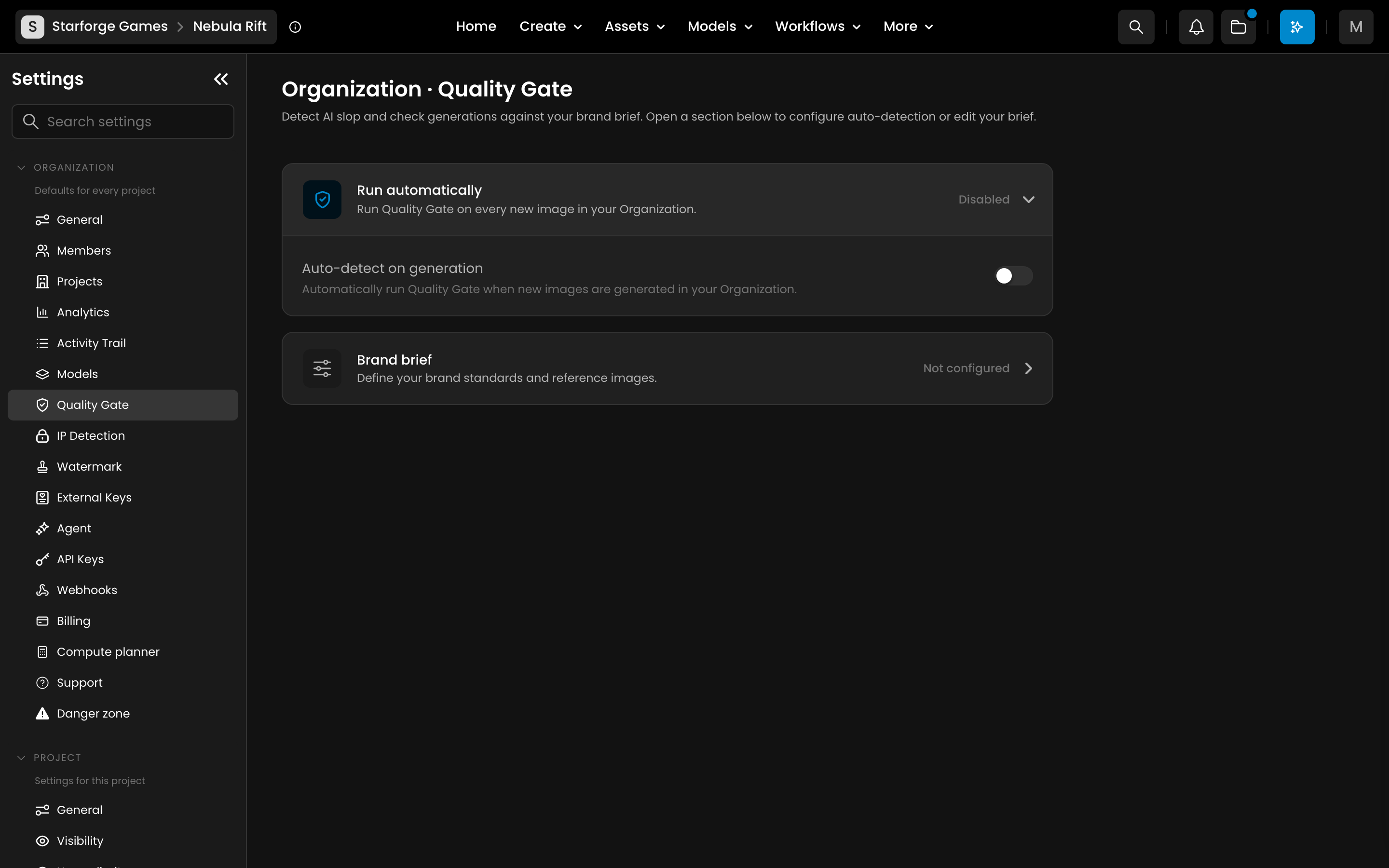
The Quality Gate settings page, under Organization > Add-ons: this is where automatic scoring and the brand brief get configured.
3. Write Your Brand Brief
The brief is what brand fit is judged against. Without one, checks still run, but they score AI quality only.
Open Settings > Organization > Quality Gate, expand Brand brief, and select Create Brief.
The text, up to 8,000 characters. Describe what an on-brand generation looks like: palette, lighting, rendering style, level of stylization, subject rules, and what should never appear.
Reference images, up to 10 per brief, picked from your library or uploaded. Choose images that represent the style you want matched. An image that closely matches your references scores high on brief compliance.
Enable brief, which decides whether the brief is included in checks. Turning it off keeps the brief without applying it.
Briefs exist at two levels, and both apply when both are enabled: the organization brief carries your broad brand rules, and a project brief refines it for one project's campaign or art direction. The organization brief is read first, the project brief second, so the more specific rules take precedence.
A project brief's references must live in that project. An organization brief can reference images from any project in the organization.
Saving replaces the whole brief, so edit it as one document rather than expecting fields to merge.
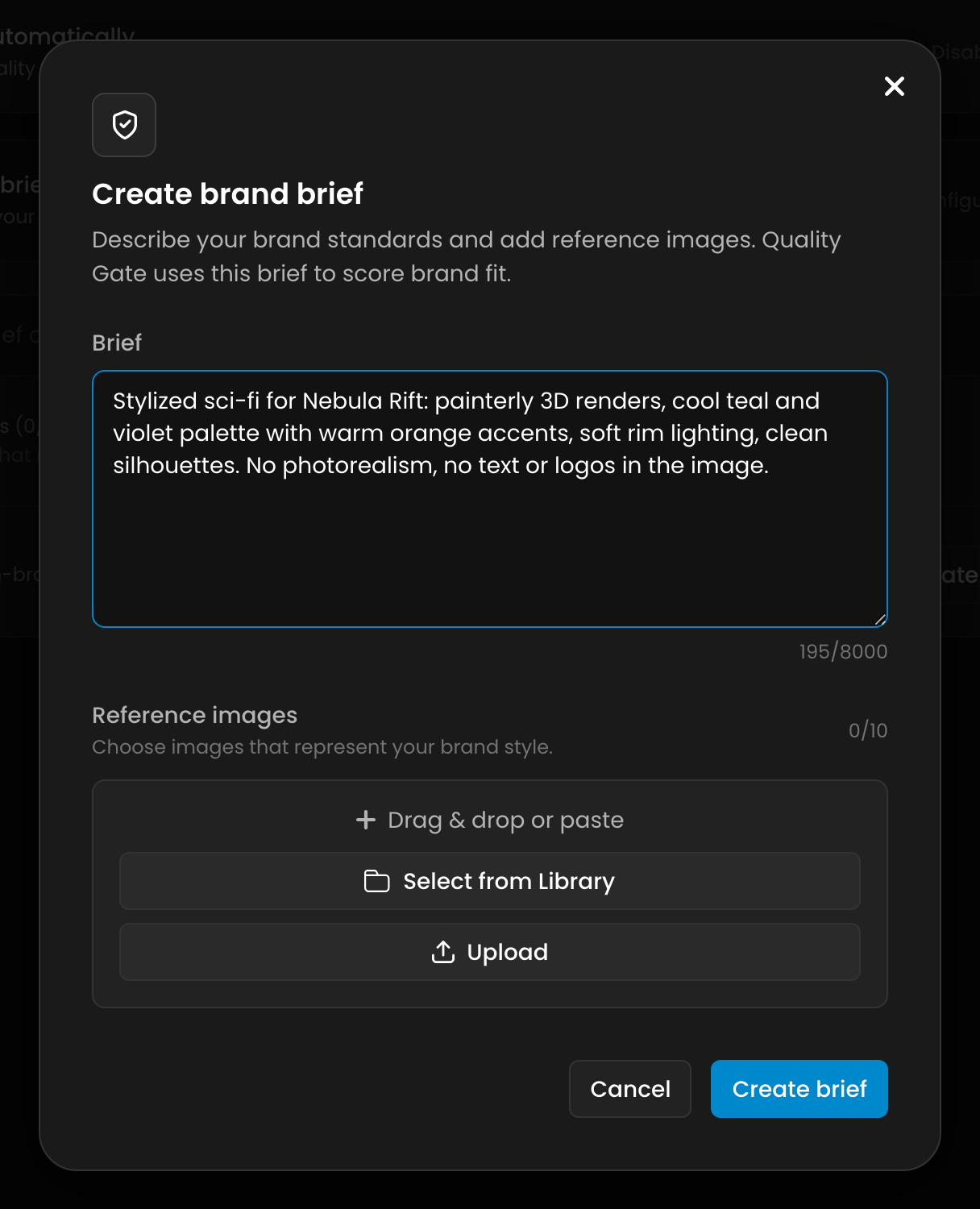
The Create brand brief modal: the brief text plus up to 10 reference images that brief compliance gets judged against.
4. Choose a Sensitivity
Sensitivity decides where the pass, review and fail lines fall. It does not change the scores themselves, only how strictly they are read.
Sensitivity | Fail | Review | Pass |
Low | Below 40 | 40 to 59 | 60 and above |
Medium | Below 50 | 50 to 69 | 70 and above |
High | Below 60 | 60 to 79 | 80 and above |
Low flags only clear mismatches. Medium is the balanced setting most brand briefs want, and is what Default resolves to. High is stricter, and borderline images land on Review or Fail.
Sensitivity is set per brief. When a project brief sets one, it wins over the organization's.
5. Run Quality Gate on Demand
This is the fastest way to see how your brief behaves before you turn it on for everything.
Open Settings > Organization > Quality Gate (or Settings > Project > Quality Gate) and expand Brand brief.
Select Run Quality Gate.
Pick up to 10 images from your library, or upload them, and run the check. Each image is scored, and charged, individually.
Scores come back in the modal. If no brief is enabled at either level, the run tells you so and scores AI quality only.
An on-demand run on an image that already has a verdict replaces it, which is how you re-score work after tightening the brief.
6. Run It on Every Generation
Open Settings > Organization > Quality Gate, expand Run automatically, and turn on Auto-detect on generation. Every new image generated in the organization is then scored, from the web application and from the API alike.
Scoring happens after the generation finishes, so a verdict appears on the image a short moment after the image itself.
A project can override the organization setting from its own Settings > Project > Quality Gate page:
Inherit from organization, the default.
Enabled, to score a project's generations even when the organization does not.
Disabled, to leave one project out.
Whether an image will be scored is decided when its generation is submitted. Turning auto-detect off mid-flight cannot leave an already-paid image unscored, and turning it on does not reach back to work that is already done.
7. Read a Verdict
A scored image carries a small verdict badge on its card in the file manager. Open the image and the Quality Gate panel gives you the whole picture:
The overall score out of 100, colored by verdict, next to the Pass, Review or Fail badge.
AI quality and Brief compliance, each with its own score, the Reasons behind it, and Suggestions for improving it.
Read Review as "worth a human look" rather than a rejection. It is the band where the score is neither clearly on-brand nor clearly off.
For the wider view, Organization > Analytics has a Quality Gate verdicts panel counting Pass, Review and Fail over the selected period. Reporting starts when scoring starts: there is no backfill for images generated before you turned the add-on on.
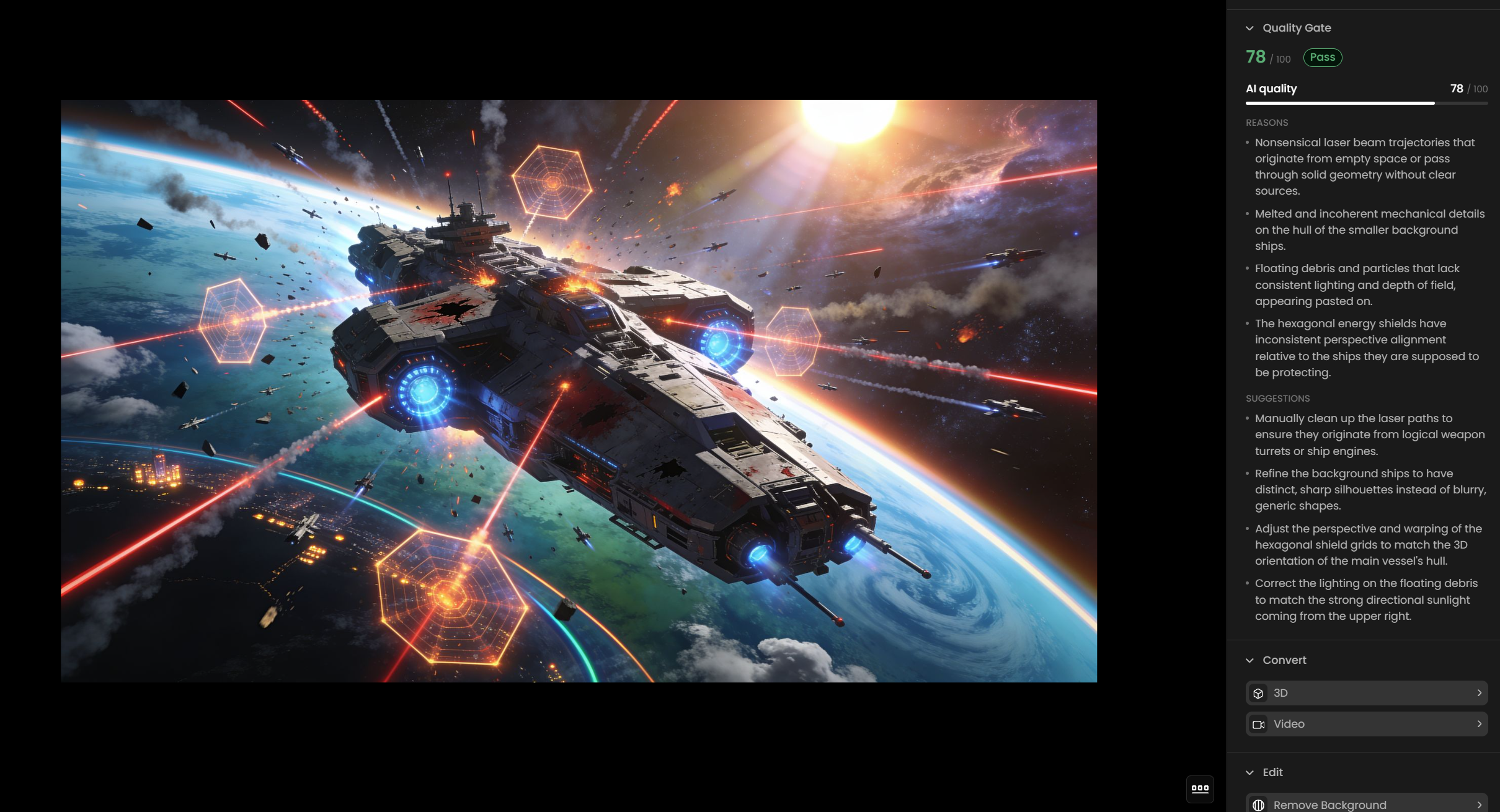
Here is what each verdict looks like in practice, from a clean Pass to a Fail with clear anatomical breaks:
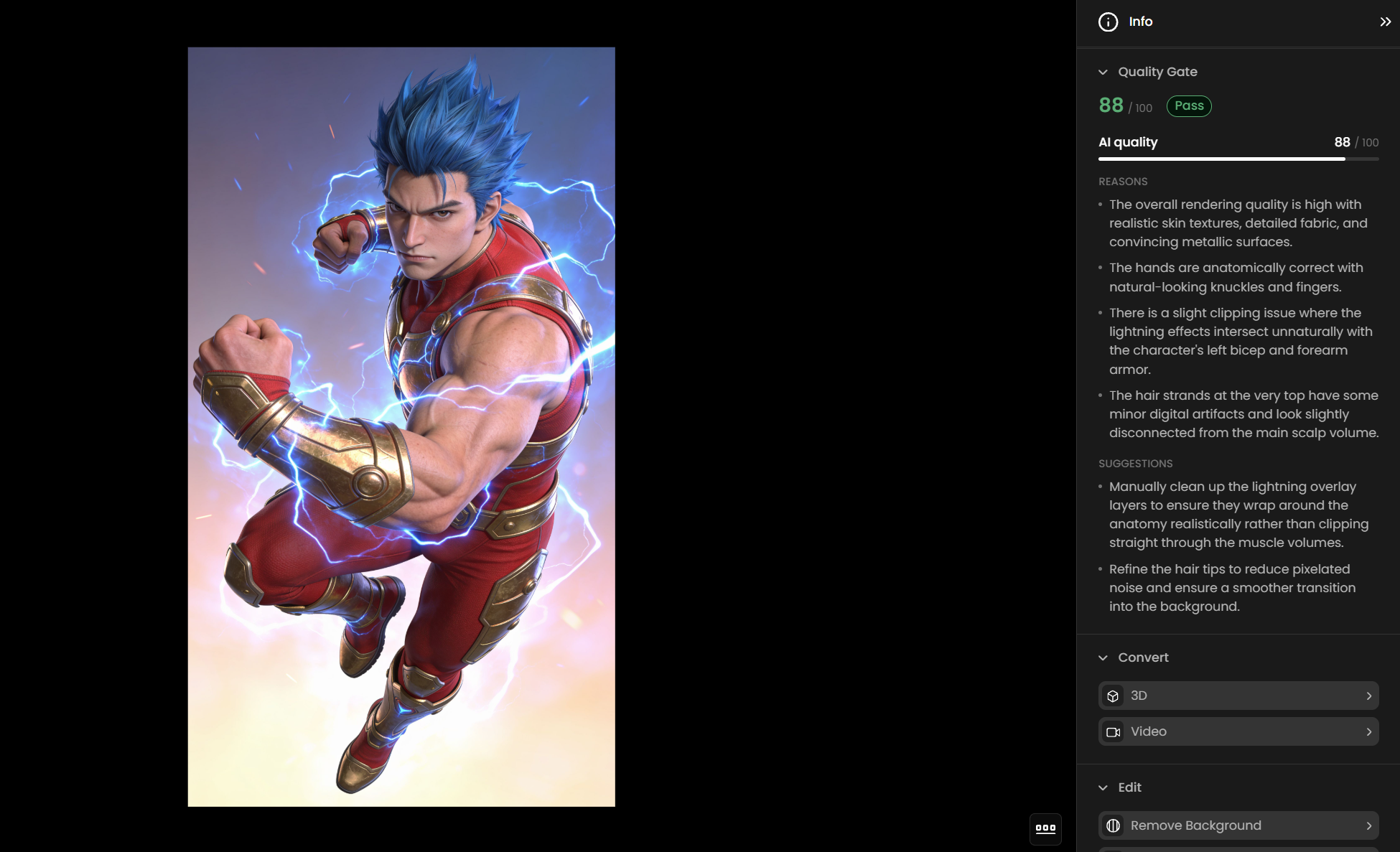
A Pass verdict at 88/100: clean anatomy and rendering, with only minor suggestions like softening the lightning overlay and refining the hair tips.

A Review verdict at 68/100: flagged for a blurry, melted foreground foot and malformed fingers on the raised hand.

A Fail verdict at 35/100: a figure floating with no supporting leg, an incoherent mirror reflection, and melted hands.
8. What It Costs
Checks are billed in Compute Units per image scored, separately from the generation itself, and reported as their own Quality Gate line in your usage.
The price rises with the length of your brief and with the number of reference images it carries, because every reference is sent alongside the image being scored. A working brief with a handful of references costs a few CU per image.
The Quality Gate page shows an Estimated cost for your current configuration, and it updates as you edit the brief, so you can see the effect of adding references before you save them.
An on-demand check is charged only once it scores successfully. Automatic checks are staged with the generation that triggered them, so if that job fails or is cancelled they are refunded along with it.
9. Run a Check From the API
Post an image to POST /v1/generate/quality-gate with an optional sensitivity of low, medium or high that overrides the stored setting for that call.
The
imagefield takes either an asset id or a data URL. An asset id is re-scored in place, replacing its stored verdict. A data URL is uploaded into the project as an asset, deduplicated on content, and the verdict is stored on it.Add
?dryRun=trueto get the price of the call without scoring anything and without creating an asset.The response carries both dimensions, the briefs that were applied, and the scored asset.
{
  "overallScore": 78,
  "verdict": "pass",
  "briefCompliance": {
    "score": 82,
    "reasons": ["Palette and rim lighting match the reference set."],
    "suggestions": ["Warm the shadows to match the third reference."]
  },
  "aiQuality": {
    "score": 72,
    "reasons": ["The left hand has a malformed finger."],
    "suggestions": ["Regenerate with the hand out of frame, or inpaint it."]
  },
  "appliedBriefs": [
    { "id": "brief_2f9c1a7b4e8d0356", "level": "team" },
    { "id": "brief_8c41de60a7b92f15", "level": "project" }
  ],
  "sensitivity": "medium",
  "creativeUnitsCost": 2.5
}
Two more endpoints round out the surface:
Reasons and suggestions are served on request rather than on every asset read: call
GET /v1/assets/{assetId}?withQualityGateDetails=true. The asset itself always carries the summary, which is the scores and the verdict.Briefs are managed with
GET,PUTandDELETEon/v1/teams/{teamId}/briefand/v1/projects/{projectId}/brief. APUTreplaces the brief in full, so an omitted field is cleared, andreferenceAssetIds: []clears the references.
10. Good to Know
Quality Gate scores, it never blocks. A low score does not stop a generation, delete anything, or hold work for approval. IP Detection is the add-on that blocks.
Only images are scored. Video, audio and 3D generations are left alone and are not charged.
Automatic scoring happens once per image. Editing your brief does not re-score existing work; run an on-demand check on the images you care about.
Ten reference images per brief means up to twenty across an organization brief and a project brief. Every one of them travels with every check, which is the main thing that moves the price.
A reference image that cannot be read, because it was deleted or is not an image, is skipped rather than failing the check.
If a single check cannot complete, the panel reports Scoring failed with the reason. Compute Units are returned when a whole generation job fails or is cancelled, not for an individual check that errors.
The add-on is Enterprise-only, and the entitlement is what decides. After a downgrade, checks stop running even if the toggles are still on.