Usage Alerts: get notified before you run low on Compute Units
Last updated: October 2, 2026
Usage Alerts let your team set low-balance warnings on your Compute Unit (CU) balance, so you find out you're running low before it interrupts your work. You can set several alerts at once, and each one can be expressed either as a percentage of your plan allowance or as a fixed CU value. When your balance drops below an alert you've set, Scenario emails your organization's admins.
This article explains what Usage Alerts are, how they differ from usage limits (the hard caps that actually block generations), how to set them up, and exactly when and to whom notifications are sent.
Alerts vs. limits, in one line. A Usage Alert warns you (it sends an email, nothing is blocked). A usage limit caps spending (generations stop when the cap is hit). This article is about alerts. For the caps, see Usage limits and Compute Units.
What a Usage Alert is (and isn't)
A Usage Alert watches your team's remaining CU for the current billing period and sends an email notification the moment your balance falls below a threshold you chose.
It is a warning, not a cap. An alert never blocks a generation, a training run, or an API call. It only notifies. Your team keeps working exactly as before; you just get an early heads-up.
It applies to your whole organization's shared CU balance. Alerts are not set per member, per project, or per API key. (Those per-scope controls are hard limits, not alerts, and are covered in the usage limits article.)
Notifications go to your organization's admins by email. Regular members don't need to configure anything.
If you need spending to actually stop at a threshold rather than just warn, that's a usage limit (a CU cap), not an alert. See Usage limits and Compute Units.
Where to find Usage Alerts
Open Settings → Organization → Billing. In the current-plan card, alongside your Compute Unit balance, Auto-Refill, and "Buy compute units," you'll find the Usage Alerts row.
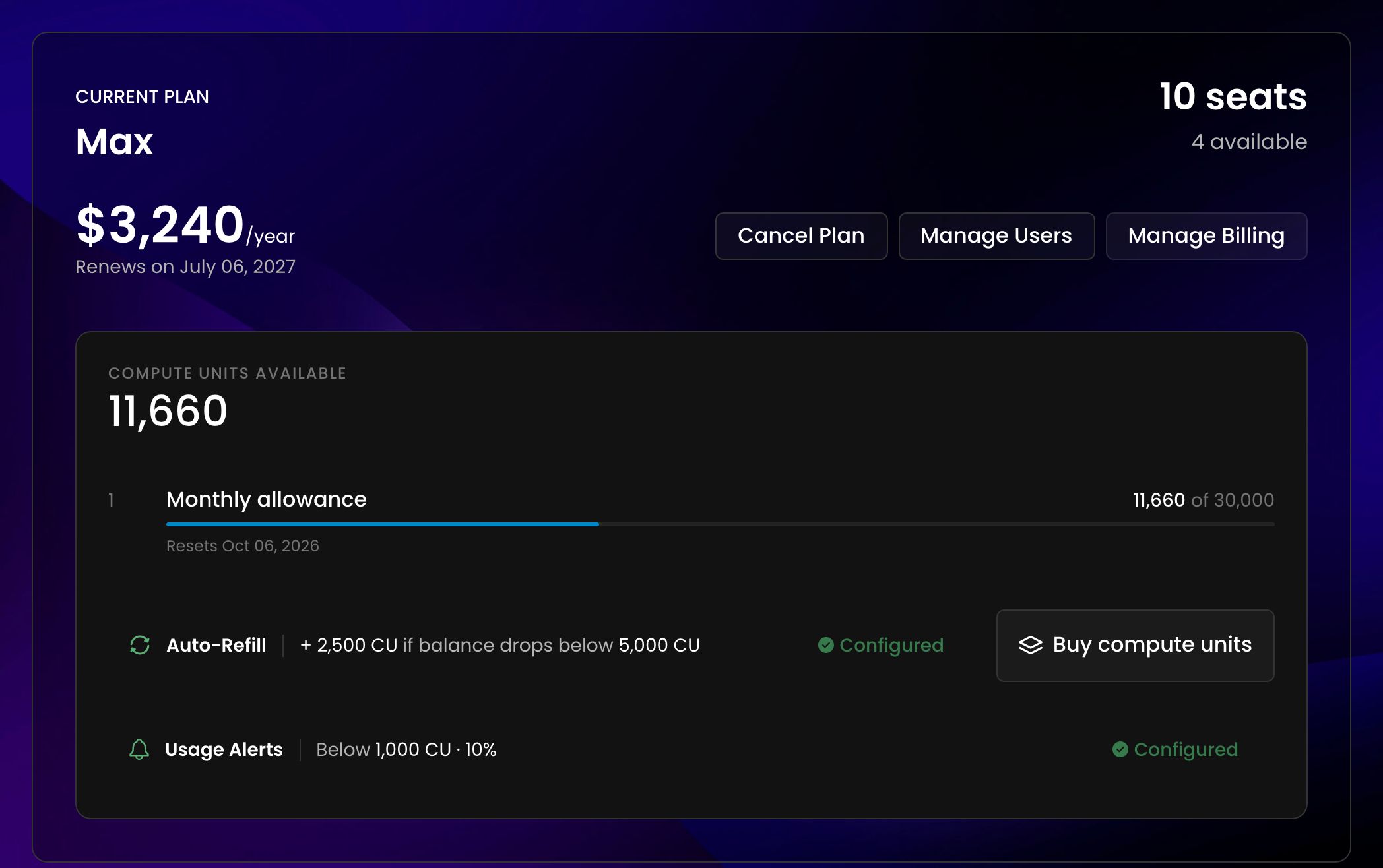
If no alerts are set yet, it reads "Disabled: set up low-balance alerts" with a Set up button.
Once alerts are configured, the row shows a Configured badge and a short summary of your thresholds (for example, "Below 20% · 5,000 CU · 1,000 CU"). Hover over the row to replace the badge with Edit and Remove buttons.

Usage Alerts require an active paid subscription. The section is not available on the Free plan.
Setting up your alerts
Click Set up (or Edit) to open the Usage Alerts dialog: "Get notified when your team is running low on compute units."
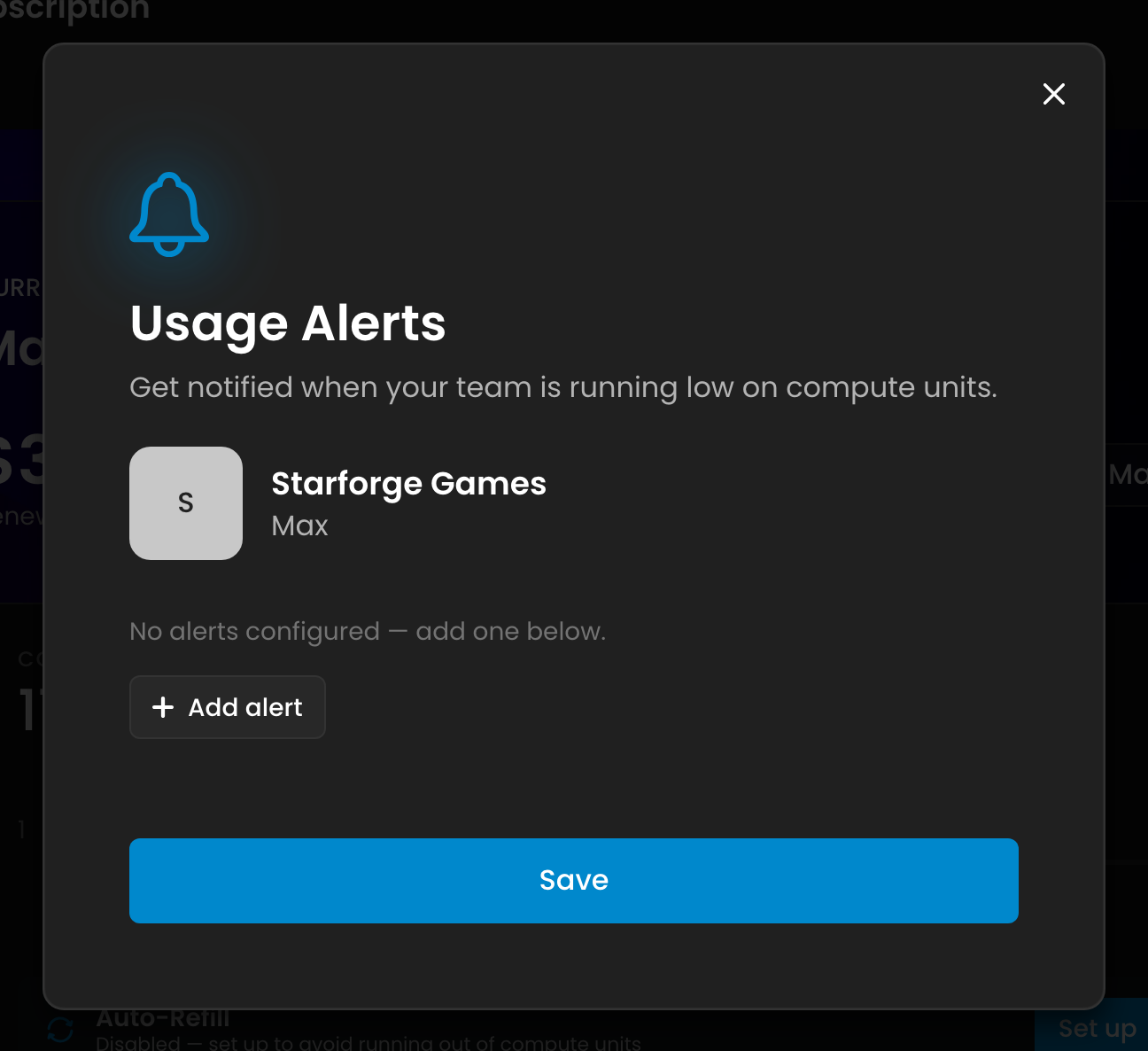
Each alert is a single row with three parts:
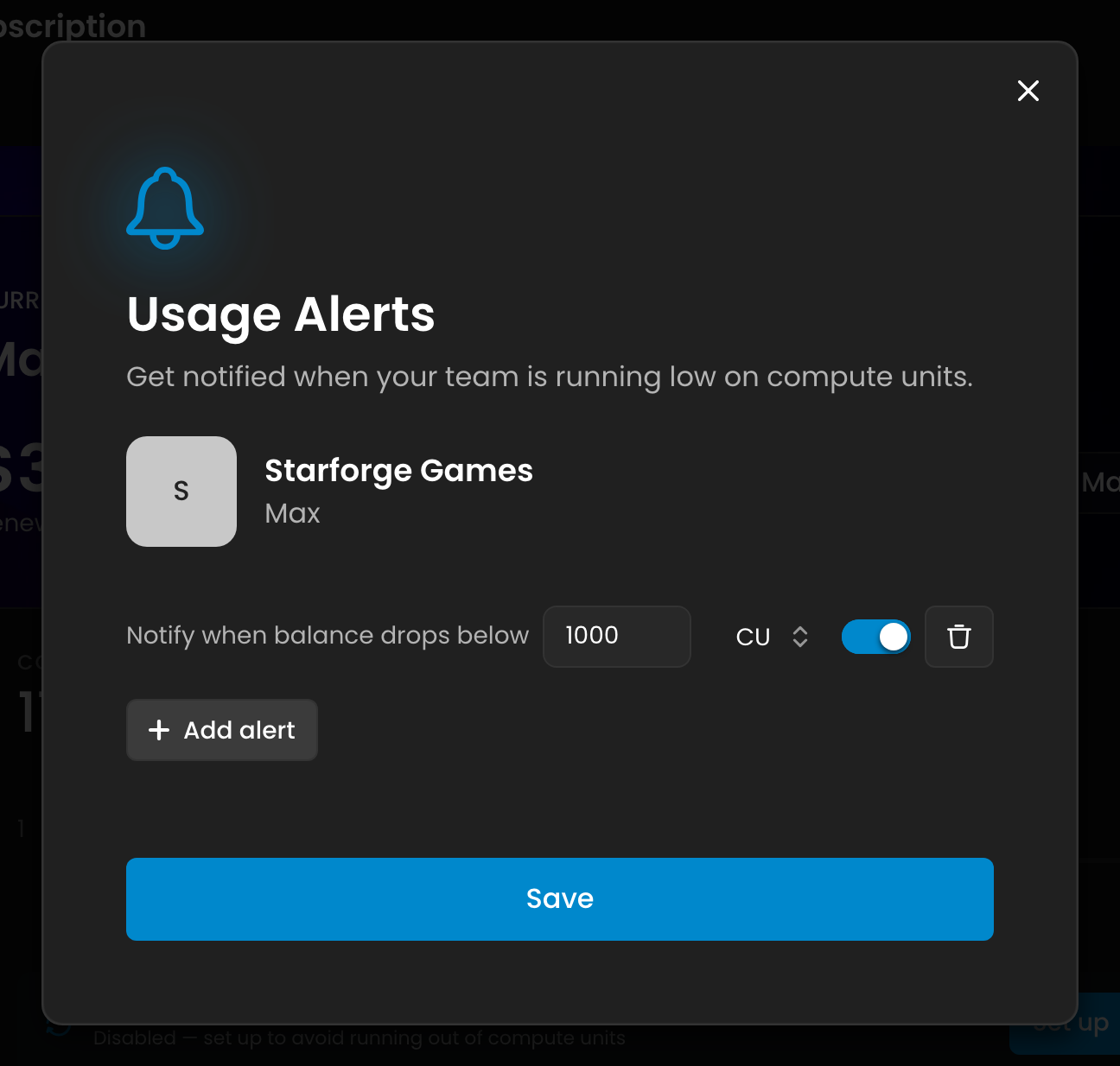
A threshold value — the number to watch for. Each row starts with the label "Notify when balance drops below."
A unit — a dropdown to choose how that number is read:
CU — a fixed Compute Unit amount. The alert fires when your remaining balance drops below this exact number (for example, "below 1,000 CU").
% — a percentage of your plan's CU allowance for the period. The alert fires when your remaining balance drops below that share of your allowance (for example, "below 20%" of a 10,000 CU plan fires under 2,000 CU remaining).
An on/off switch — enable or disable that alert without deleting it.
Use the trash icon to remove an alert, Add alert to create another, and Save to apply your changes.
Setting multiple alerts
You can layer several alerts to get staged warnings as your balance falls. A common setup is one early percentage warning plus one or two low fixed-CU warnings, for example:
50% — a mid-period heads-up.
20% — time to plan a top-up.
1,000 CU — nearly empty, act now.
A few rules to know:
You can configure up to 10 alerts.
Values must be whole numbers. Percentages must be between 1 and 100; CU alerts must be at least 1.
You can't create two identical alerts (same value and same unit). Change the value or the unit to make it distinct.
If a value is invalid, the dialog shows a short error explaining what to fix (for example, "Percentage alerts must be a whole number between 1 and 100.") and won't save until it's corrected.
When alerts fire, and who gets notified
Recipients: all organization admins receive the email. There's no per-alert recipient list.
Trigger: an alert fires when your remaining balance drops strictly below its threshold. Crossing several alerts at once (say a big generation batch takes you past two thresholds in one go) sends a single email for the most urgent one (the lowest remaining balance), not one email per alert, so you're never spammed.
The email has the subject "[Action Needed] - Low compute units on Scenario" and tells you which threshold was crossed, your remaining CU, and includes a link straight to Settings → Organization → Billing with an Add More Compute Units button.
Setting an alert that's already below your current balance notifies right away, so you'll immediately know if you set one lower than where you already are.
How alerts reset (re-arming)
Each alert fires once per billing period to avoid repeat emails, then re-arms:
At the start of each new billing period, every alert re-arms automatically (your balance has refreshed).
Within a period, if your balance climbs back above a threshold (for example after buying a top-up or an Auto-Refill), that alert re-arms and can fire again if you dip below it a second time.
So each threshold notifies you at most once on the way down, and again only after your balance recovers past it. For how the billing period itself is determined (monthly cycle anchored to your subscription date, daily on Free), see Usage limits and Compute Units.
Managing alerts over time
Edit — reopen the dialog to change values, switch units, toggle individual alerts on or off, or add and remove rows. A saved change shows "Usage alerts saved."
Pause without deleting — flip an alert's switch off to keep it configured but silent. Handy for a threshold you only want active in certain months.
Remove all — the Remove button on the Billing card clears your alerts entirely (*"Usage alerts removed"*).
Tips
Pair alerts with Auto-Refill. Alerts tell you you're low; Auto-Refill (also on Settings → Organization → Billing) can top you up automatically so you're never interrupted. Many teams set an alert a little above their Auto-Refill trigger as a sanity check.
Use a percentage for the early warning, fixed CU for the urgent one. A percentage scales with your plan if you upgrade or downgrade; a fixed CU value is a clear, absolute "almost empty" line.
Remember alerts don't stop spending. If you need generations to actually halt at a threshold, set a usage limit (a CU cap), not an alert. See Usage limits and Compute Units.
Keep an eye on the reset date. Alerts re-arm each billing period, so an early-period email means very different things than a late-period one. Your reset date is on Settings → Organization → Billing.
FAQ
Do Usage Alerts block generations?
No. They only send an email. To block spending at a threshold, use a usage limit (a CU cap). See Usage limits and Compute Units.
Who receives the alert email?
Your organization's admins. Regular members don't get the email and don't need to set anything up.
Can I set alerts per member, per project, or per API key?
No. Usage Alerts apply to the team's overall CU balance. Per-member, per-project, and per-API-key controls are hard limits (caps), described in the usage limits article.
How many alerts can I set?
Up to 10, each either a percentage (1 to 100) or a fixed CU value (1 or more), and no two can be identical.
Will I get an email every time I generate while low?
No. Each alert fires once per billing period, then re-arms at the next period (or if your balance recovers above it). If one action crosses several alerts at once, you get one email for the most urgent.
I'm on the Free plan and don't see Usage Alerts.
Usage Alerts require an active paid subscription, so the section is hidden on Free. Upgrade from Settings → Organization → Billing to use them.
What's the difference between the percentage and CU options?
A percentage is measured against your plan's CU allowance for the period (20% of a 10,000 CU plan means "under 2,000 CU remaining"). A fixed CU value is an absolute number ("under 1,000 CU remaining") regardless of plan size.