Ideogram V3: The Essentials
Last updated: April 22, 2026
Covers Ideogram V3 Generate Transparent and Ideogram V3 Layerize Text
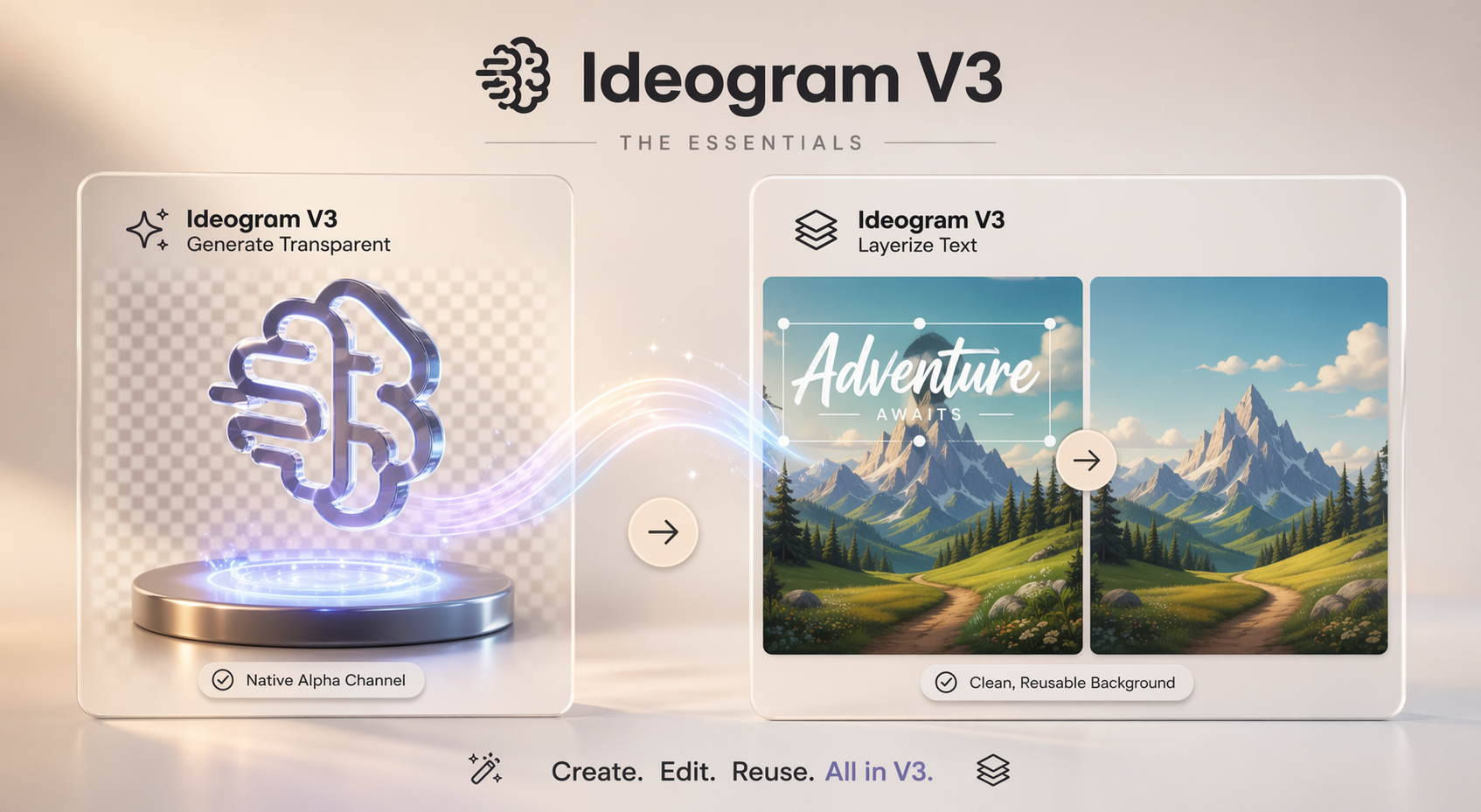
Two Ideogram V3 tools on Scenario serve different stages of a design pipeline. Generate Transparent creates new images with a native alpha channel, so no background removal step is needed. Layerize Text takes an existing image with text and removes the text, returning a clean background image ready for new copy to be placed on top.
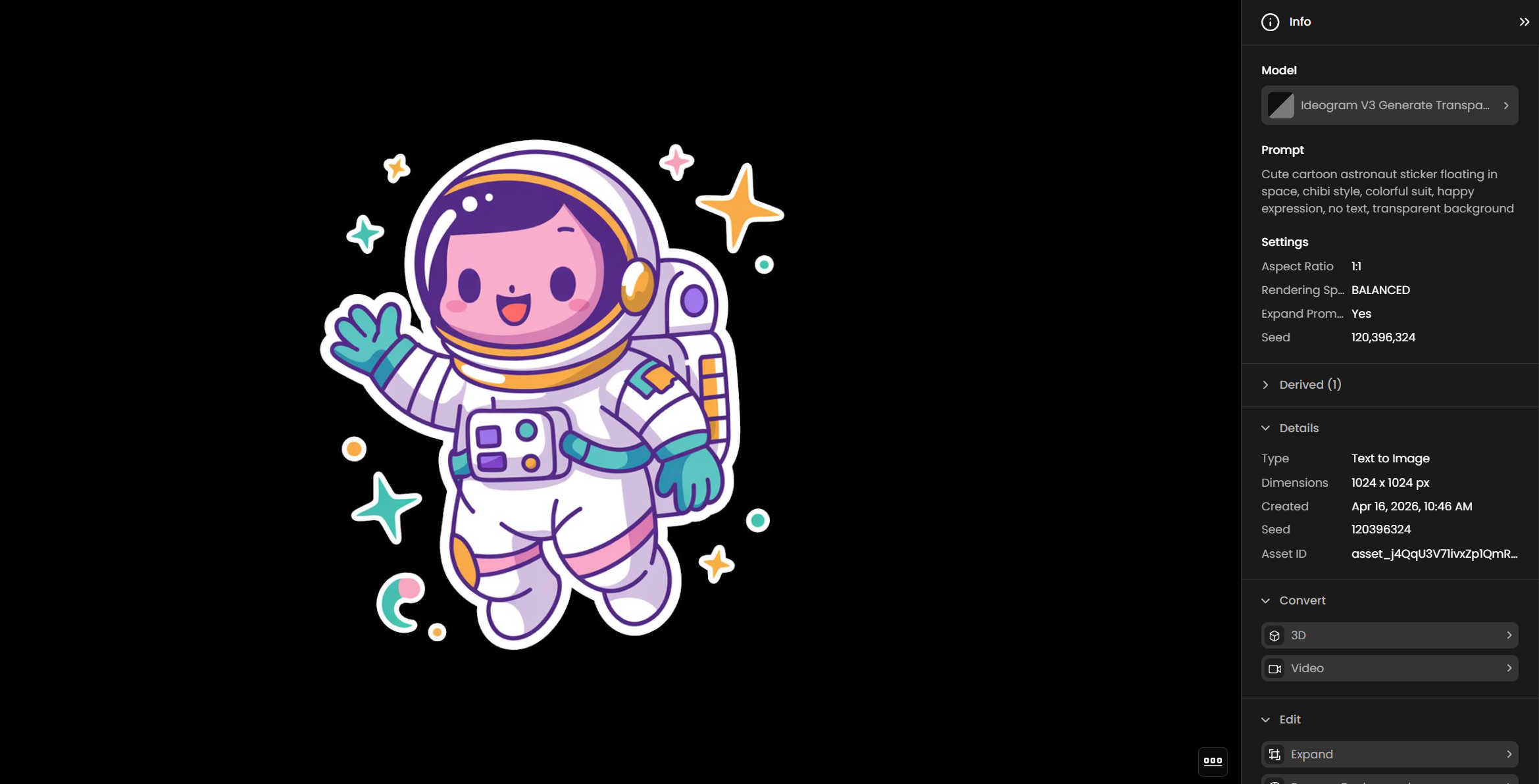
Which Model Should I Use?
ModelID | Input | Best for | |
Ideogram V3 Generate Transparent Generation | model_ideogram-v3-generate-transparent | Text prompt | Creating logos, icons, stickers, overlays, and UI assets with a built-in transparent background |
Decomposition | model_ideogram-v3-layerize-text | Single image | Removing text from an existing image to produce a clean background, ready for new copy to be placed on top |
The two models work well in sequence. Generate Transparent produces the source asset with a transparent background; Layerize Text strips the text from any image, leaving a clean background ready for new text to be placed on top in a design tool.
Parameters
Ideogram V3 Generate Transparent
Parameter | Required | Default | Range / Options | Description |
Prompt | Yes | Max 2,048 chars | Text description of the image to generate. Describe the subject, style, and color. The model generates the image with an alpha channel automatically. | |
Negative Prompt | No | Max 2,048 chars | Elements to exclude from the output. Useful for avoiding specific styles, colors, or content types. | |
Rendering Speed | No | BALANCED | FLASH, TURBO, BALANCED, QUALITY | Controls the trade-off between generation speed, cost, and output detail. QUALITY produces the highest detail at higher CU cost. FLASH is fastest and lowest cost. |
Aspect Ratio | No | 1:1 | 1:3, 1:2, 9:16, 10:16, 2:3, 3:4, 4:5, 1:1, 5:4, 4:3, 3:2, 16:10, 16:9, 2:1, 3:1 | Canvas proportions for the output image. Set explicitly for platform-specific outputs such as 9:16 for Stories or 16:9 for banners. |
Expand Prompt | No | true | true / false | When enabled, the model runs Magic Prompt to automatically expand your description before generation. Disable when prompt precision matters more than richness. |
Image Count | No | 1 | 1 to 8 | Number of images to generate per job. |
Seed | No | random | 0 to 2,147,483,647 | Fixed seed for reproducible output. Use when iterating on a prompt to control variation. |
Ideogram V3 Layerize Text
Parameter | Required | Default | Range / Options | Description |
Image | Yes | Single image asset | The image to remove text from. Works best on designs with clearly legible, typeset text on a distinct background. No prompt required for standard use. | |
Prompt | No | Max 2,048 chars | Optional guidance to influence how the model identifies and removes text from the image. | |
Seed | No | random | 0 to 2,147,483,647 | Fixed seed for reproducible layerization output. |
Layerize Text Font Settings
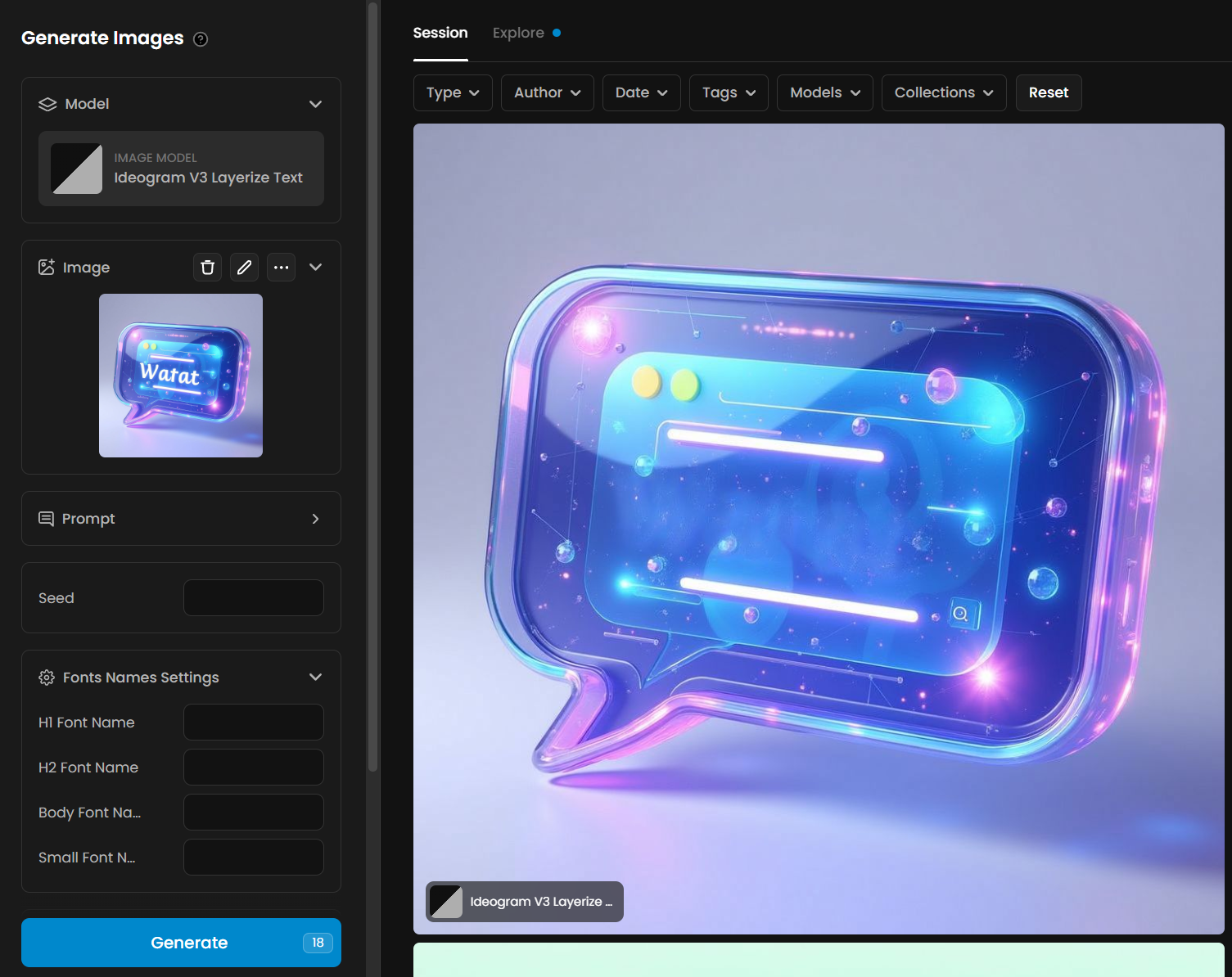
The schema exposes font name and font file URL parameters for H1, H2, body, and small text levels. These are passed to the underlying model but do not affect the image output returned by Scenario. The output is always the background PNG with text removed, regardless of font settings provided.
Note: Font name and font file URL parameters are visible in the UI but have no visible effect on the output image in Scenario's current implementation. Leave them empty for standard text removal use.
How Ideogram V3 Generate Transparent Works
Generate Transparent runs the Ideogram V3 image model with transparency enabled at the generation level. The alpha channel is produced natively during generation, not by post-processing. This means the cutout is clean and part of the original render, rather than an approximation applied after the fact.
Magic Prompt (the Expand Prompt setting) runs before generation when enabled. It rewrites your prompt to add descriptive detail that improves image quality. If you need the output to match a specific brief exactly, disable it so the model uses your text verbatim.
Rendering Speed controls both cost and output quality. QUALITY uses more diffusion steps and produces more detailed output; FLASH uses fewer steps and generates faster at lower cost. BALANCED is a good default for most production work.
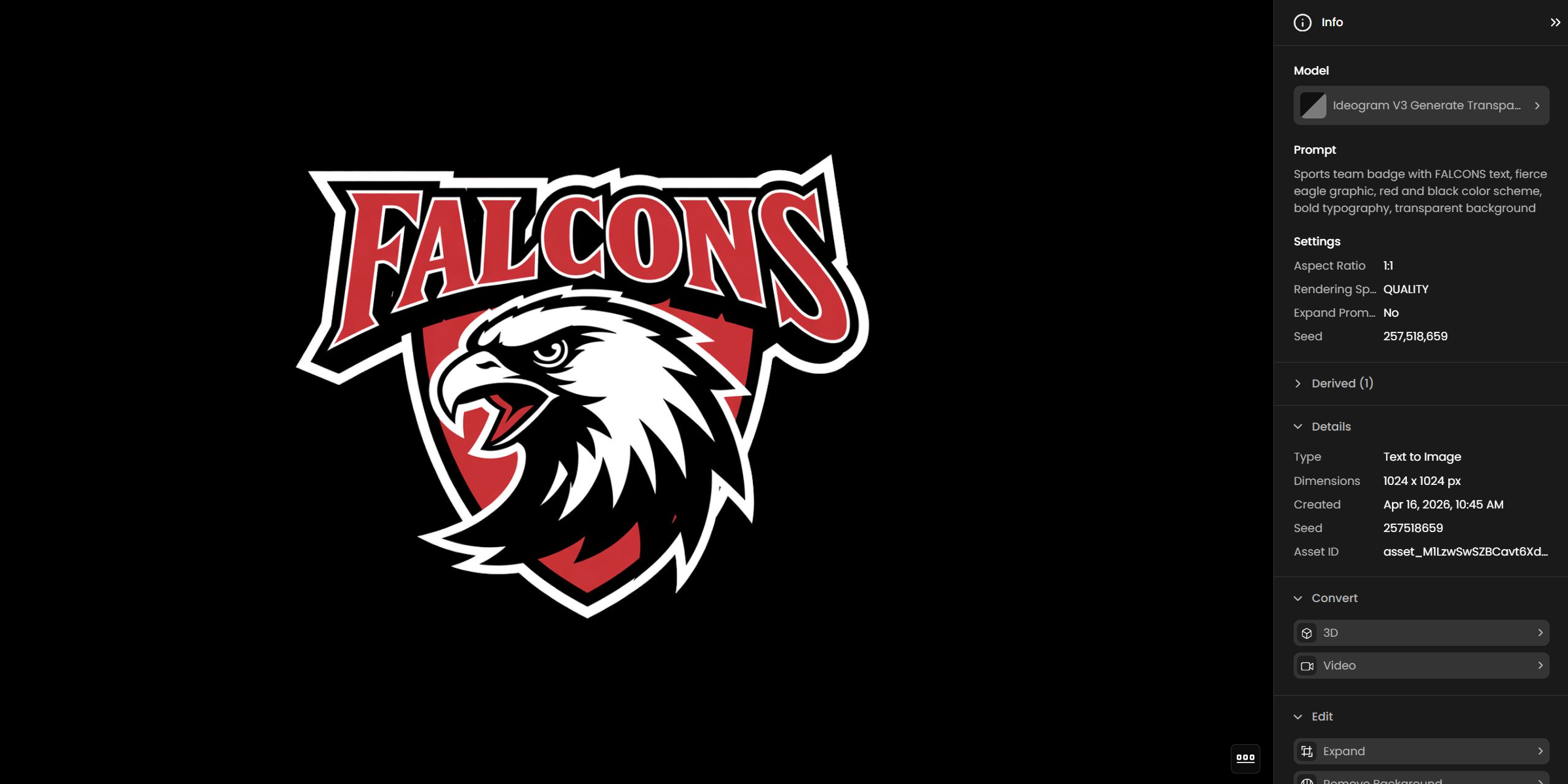
How Ideogram V3 Layerize Text Works
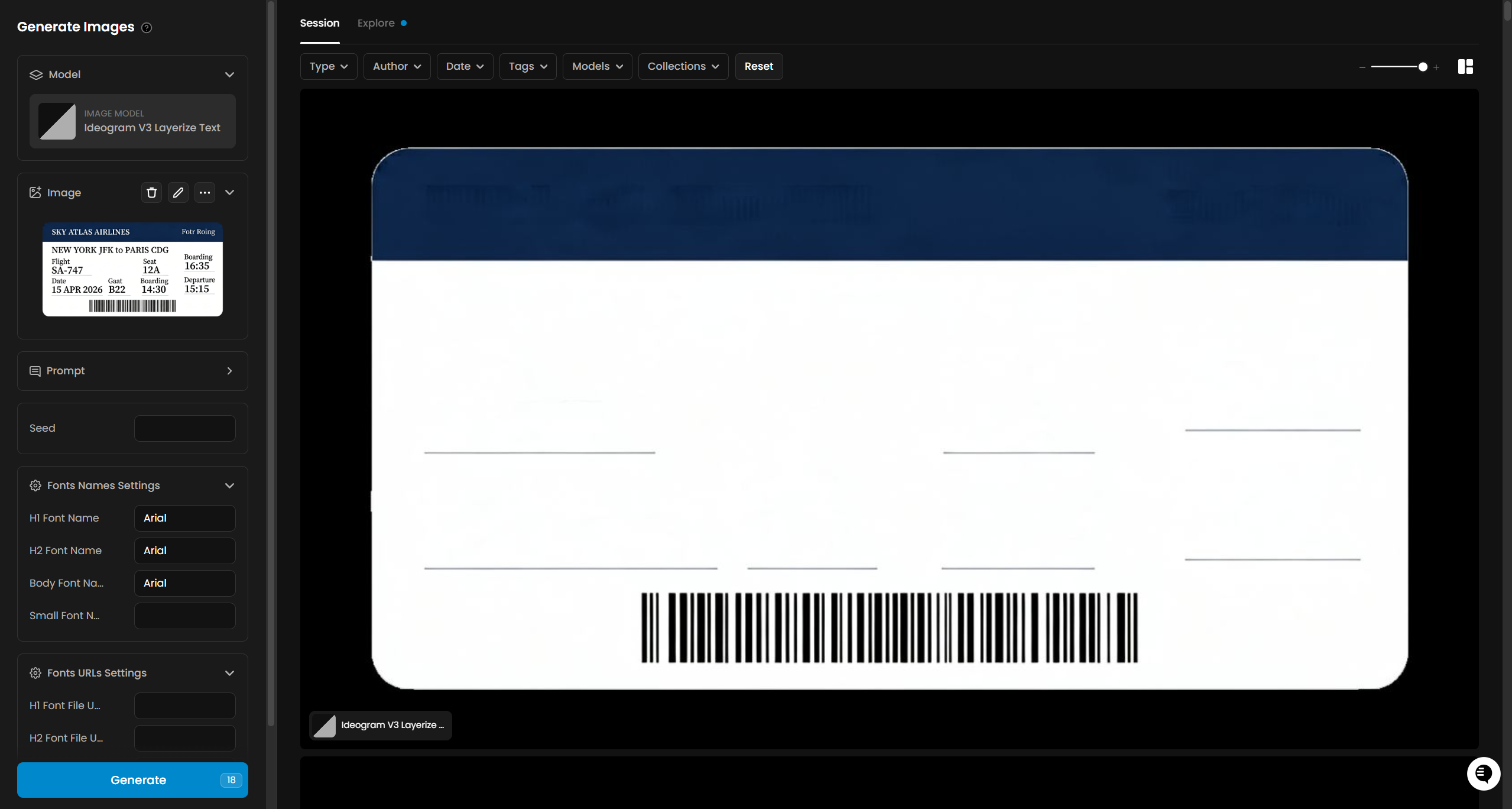
Layerize Text analyzes the image you provide, identifies which elements are text, and removes them — returning the background as a clean PNG. You do not select a mask or draw a region. The model reads the full image and infers what to remove automatically.
The output is a single image: the original scene or design with the text elements erased and the background reconstructed beneath. This gives you a reusable base that you can bring into any design tool and place new copy on top, in any language, font, or size.
The underlying Ideogram API also returns structured text data (HTML and JSON with position, font, and color for each extracted text block), but this data is not exposed in Scenario's current implementation. Only the background image is returned as an asset.
The model works best on images with clearly readable, typeset text on a distinct background — ad creatives, posters, product labels, game UI, and similar designs. Results on heavily stylized lettering, hand-lettering deeply integrated into the illustration, or very small text may be less complete.
Using the Two Models Together
A common pipeline is to generate a design with Generate Transparent, then pass it to Layerize Text to strip the text and produce a clean background. You can then re-composite the background with new copy in a design tool.
Example pipeline for an ad creative:
Use Generate Transparent to produce a base ad visual with a headline and CTA on a transparent background.
Feed that image into Layerize Text to remove all text, leaving the scene clean.
Import the clean background into Figma, Photoshop, or your compositing tool and place new copy on top — different market, different language, different offer.
Use Cases
Logo and brand asset creation: Generate logos, wordmarks, and brand icons with transparent backgrounds ready for use on any surface. No clipping required before placing on backgrounds in Photoshop, Figma, or a compositing pipeline.
Sticker and overlay packs: Produce sticker sheets, emoji-style icons, and overlay graphics at scale. Use Image Count up to 8 to generate multiple variants per job.
Design template extraction: Feed an existing poster, label, or ad creative into Layerize Text to strip the text and produce a clean background. Use that background as a reusable template for new copy variants.
Localization workflows: Remove text from a finished design with Layerize Text, then re-composite the clean background with translated copy in a design tool. The visual layout stays consistent; only the text changes.
Game UI and HUD assets: Generate interface elements such as buttons, badges, and frames with native transparency for direct integration into a game engine sprite sheet.
Ad creative variation: Strip the headline and CTA from an existing ad creative with Layerize Text. Use the clean background to produce market-specific or seasonal variants without rebuilding the scene.
Tips for Better Results
Describe the subject clearly and add style and color details. "Coffee shop logo with BREW text, vintage badge style, warm brown and cream tones, circular design, transparent background" produces a well-defined output. Short prompts produce less controlled results.
Disable Expand Prompt when prompt precision matters. Magic Prompt adds detail but may shift the interpretation of a carefully worded brief. Turn it off when generating brand assets that need to match a specific style guide.
Use BALANCED for iteration, QUALITY for final output. BALANCED is faster and lower cost. Develop your prompt and composition first, then switch to QUALITY for the asset you want to keep.
Use the negative prompt to exclude unwanted content. If the model is adding backgrounds, shadows, or specific colors you do not want, list them in the negative prompt rather than trying to override them in the main prompt.
Use a fixed seed with prompt variations. Lock the seed when exploring different wordings for the same concept. This isolates the effect of prompt changes from random variation between runs.
Feed designs with clear text into Layerize Text. Typeset text on a contrasting background produces the cleanest removal. Hand-lettering, decorative scripts, or text deeply embedded in illustration detail may be removed partially or inaccurately.
Use Layerize Text on real ad creatives and posters, not just generated images. The model handles any image with readable text — uploaded photos, screenshots, or rendered designs all work as input alongside assets generated on Scenario.