API keys and scopes
Last updated: October 2, 2026
API keys let you (or your integrations) call the Scenario API without logging in as a user. Every key is issued with a set of scopes, which control exactly what that key is allowed to do. This article explains what scopes are, the two kinds of API keys, how to configure scopes in the webapp, and what happens if a key tries to do something it isn't scoped for.
API keys are available on the Starter plan and above.
Who can manage API keys
Creating, editing, or deleting API keys requires being a team admin or a project owner. Other team members with API access can view that a key exists but will need to ask an admin or owner to make changes.
Two kinds of API keys
Scenario has two independent kinds of keys, each with its own set of scopes. A key is one or the other, never both.
- Project keys control access to content inside a specific project: assets, models, workflows, and so on.
- Team keys (the Organization type in the app) control access to team-level administration: team info, members, usage, IP Detection filters, the brand brief, the watermark, model access, and webhooks.
Because they cover different things, project scopes (like assets.write) and team scopes (like team.read) never mix on the same key.
Where to configure scopes
1. Go to Settings → Organization → API Keys.
2. Click Add API Key.
3. Give the key a name, and choose its type: Project or Organization (non-admins can only create Project keys).
4. If it's a Project key, pick which project it applies to.
5. Set the key's scopes (see below for each type).
6. Optionally set a usage limit: a compute unit (CU) cap for the key, or leave it unlimited. This is a spend cap, not a permission, and is independent from scopes.
7. Click Create API key. Your key's secret is shown once, immediately after creation. Copy it or download the CSV right away. Scenario never stores the secret in a retrievable form, so if you lose it, you'll need to delete the key and create a new one.
You can come back and edit a key's scopes at any time after creation by clicking its edit (pencil) icon in the API Keys list and saving new values. Only the secret itself is create-once; scopes are not locked in.
Project key scopes
When creating or editing a Project key, choose a role:
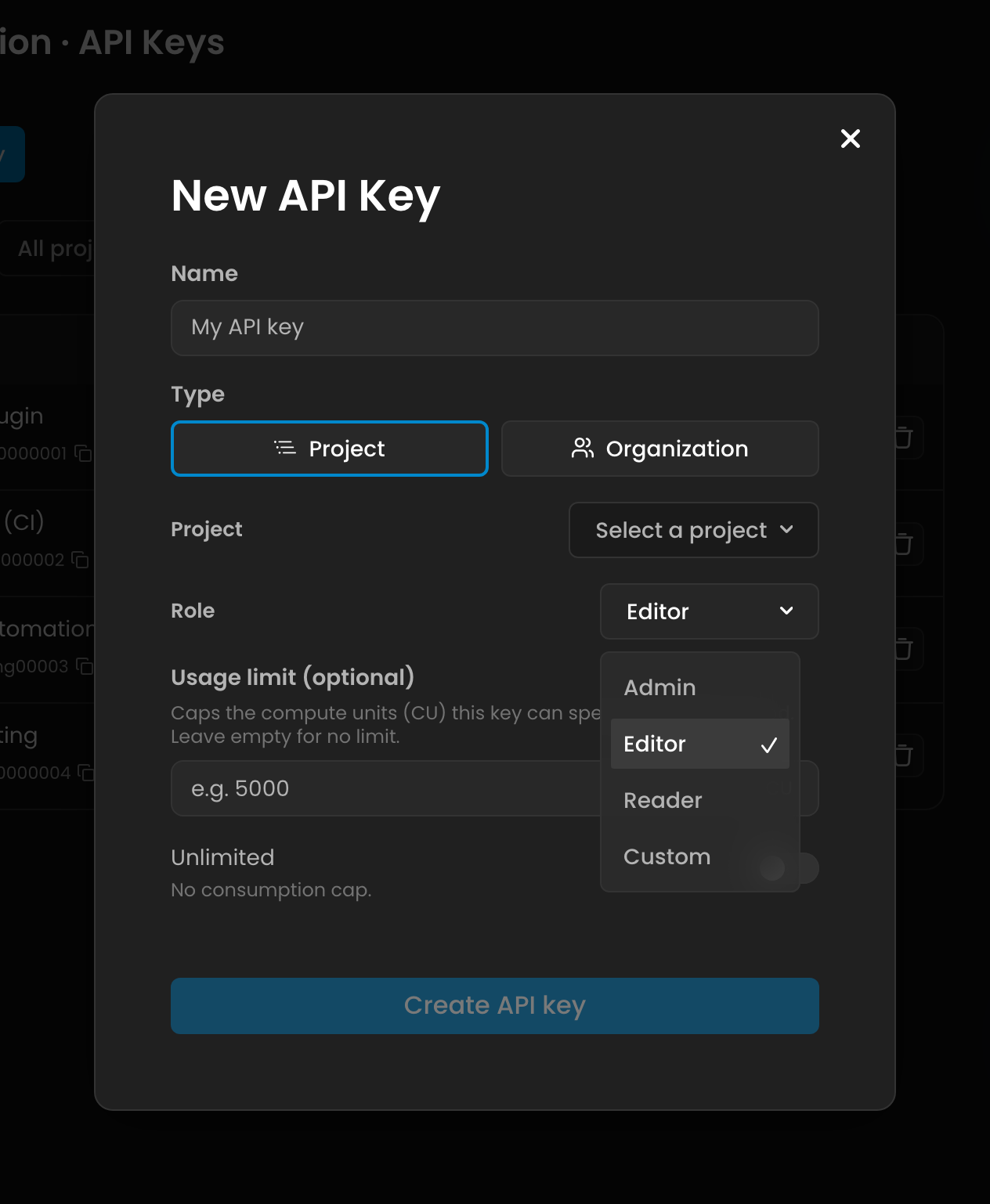
Role | What it grants |
Admin | Every scope, including usage reporting. |
Editor (default) | Every scope needed to create, run, and manage content: assets, models, workflows, and the assistant. Does not include usage reporting. |
Reader | Read-only access to everything except usage reporting. Read-only keys can also perform a small set of safe actions like bulk downloads and search. |
Custom | Pick access per resource, described below. |
Choosing Custom shows a matrix where you set an access level for each resource:
Resource | Access levels | What it covers |
Assets | No access / Read / Write / Delete | Viewing, downloading, uploading, tagging, and deleting assets |
Models | No access / Read / Run / Write / Delete | Viewing models and jobs, running generations/inference/training, creating or updating models, deleting models |
Workflows | No access / Read / Run / Write / Delete | Viewing, running, creating/updating, and deleting workflows |
Projects | No access / Read | Reading project information (project settings, members, and key management are always admin-only, regardless of scopes) |
Assistant | No access / Read / Write | Viewing and creating/editing assistant threads |
Usage | No access / Read | Reading usage and consumption data. Not included in Editor or Reader by default; add it explicitly if a key needs it |
Access levels are cumulative for a resource: Write includes Read, Delete includes Write, and so on.
Team key scopes
Team keys don't have preset roles. Instead, you turn on the individual scopes you need:
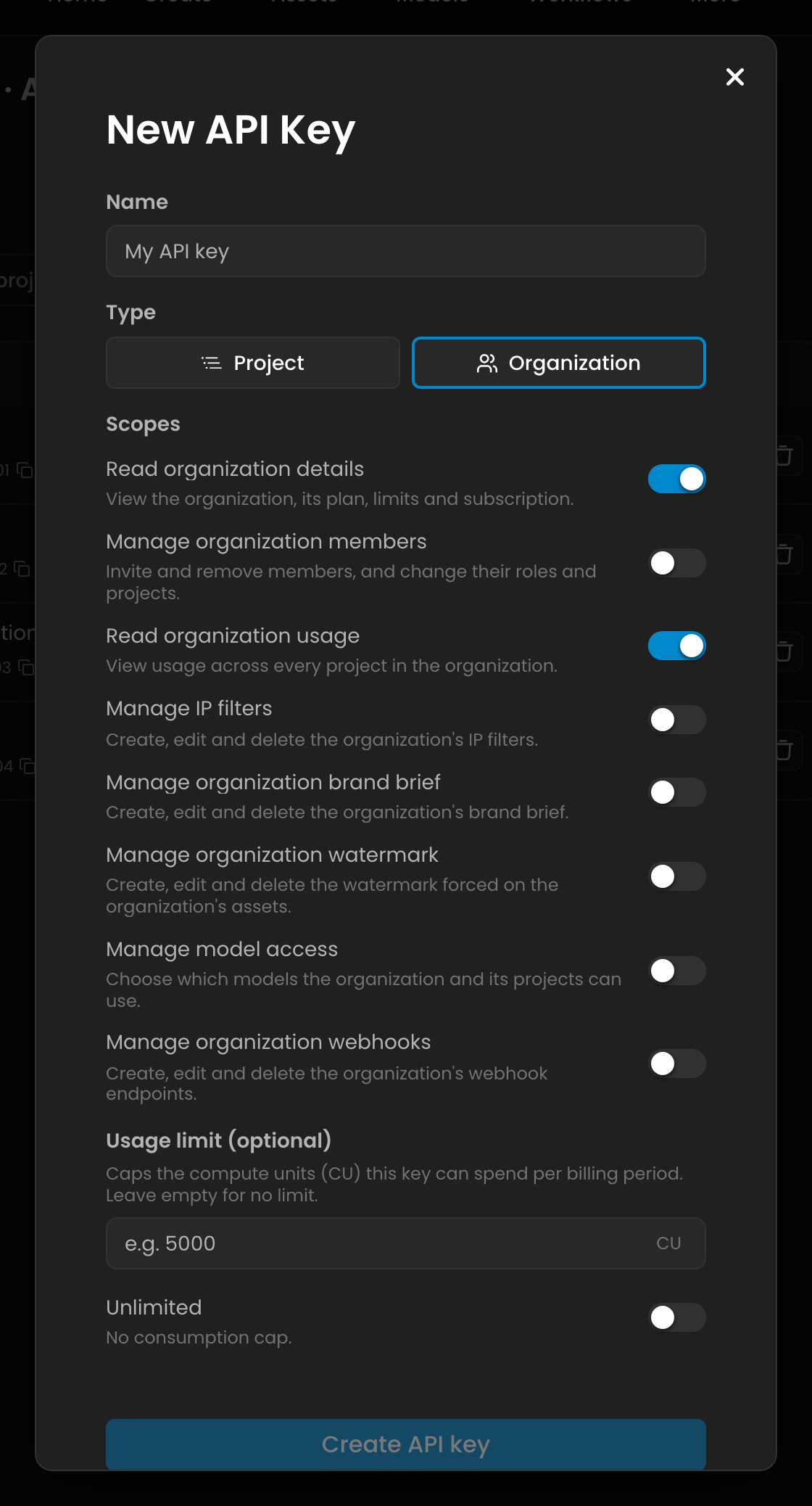
Scope | What it grants |
Read organization details ( | Read team info, limits, and subscription details |
Manage organization members ( | Manage team members, their project access, and invitations |
Read organization usage ( | Read usage across every project in the team |
Manage IP filters ( | Create, edit, and delete the IP Detection filters |
Manage organization brand brief ( | Create, edit, and delete the Quality Gate brand brief |
Manage organization watermark ( | Create, edit, and delete the watermark applied to the organization's assets |
Manage model access ( | Choose which models the organization and its projects can use |
Manage organization webhooks ( | Create, edit, and delete webhook endpoints |
The default for a new team key is team.read and team.usage.read.
What happens if a key is used outside its scopes
Every API request made with a key is checked against that key's scopes. If the endpoint you're calling isn't covered by any scope the key holds, the request is rejected with a 403 Forbidden response. If you're integrating against the API and hitting unexpected 403s, check the key's scopes first, most often it just needs an extra resource or access level enabled.
Good practices
Give each integration its own key, scoped to only what it needs, rather than sharing one Admin key everywhere.
Set a usage limit on keys used by third-party tools or scripts you don't fully control.
Rotate keys periodically, and delete any key you're no longer using. Deleting a key is immediate and can't be undone.
Never commit a key's secret to a repository or store it in plaintext.