Physic Edit: The Essentials
Last updated: May 13, 2026
Provider: Academia / Open Source via Fal | Modality: Image to Image
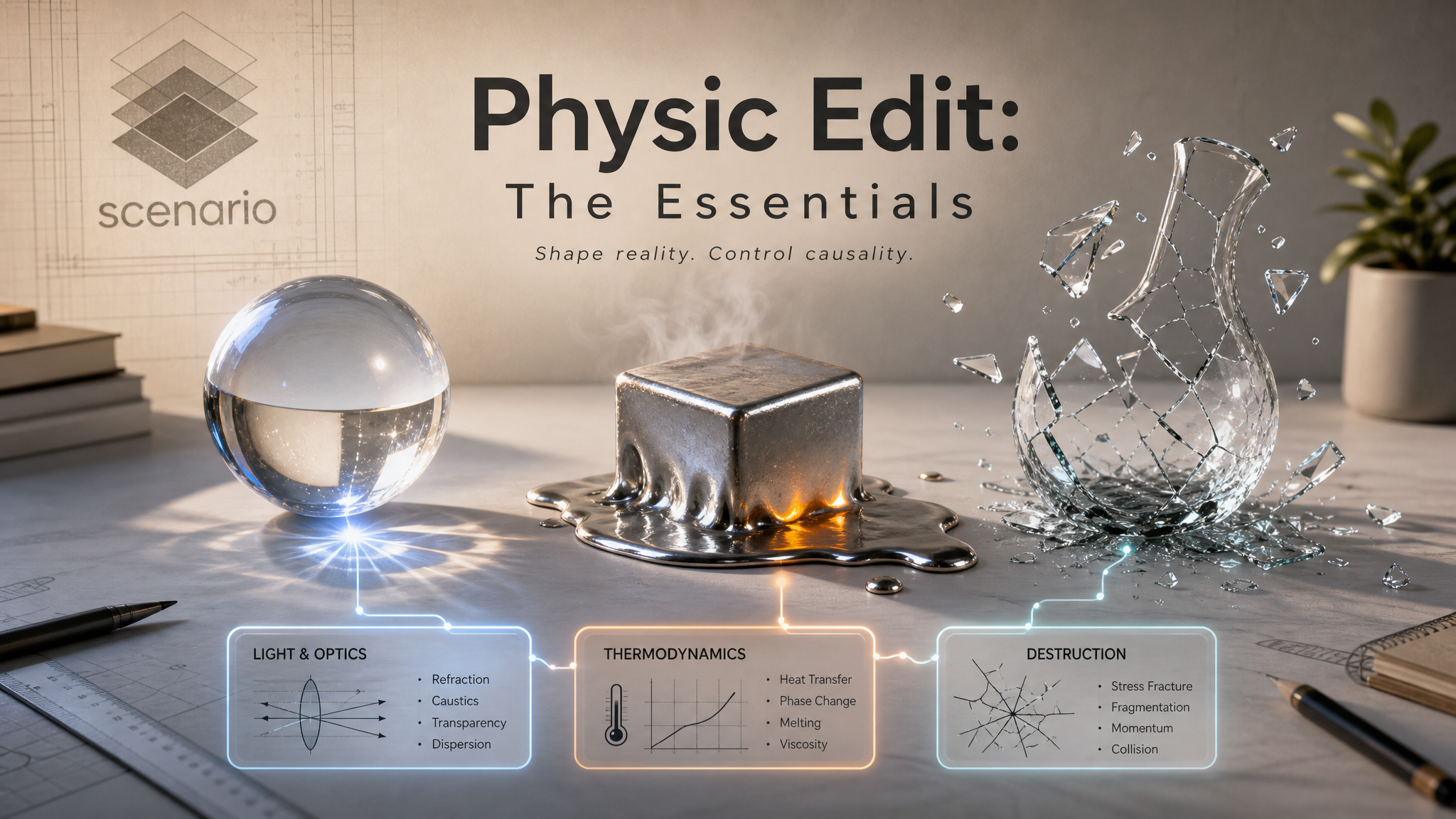
Physic Edit is a physics-aware image editing model. Upload any image, write an instruction describing a physical transformation, and the model produces a result that follows the actual laws of optics, thermodynamics, and material science. Flood a room with water. Melt a figurine into a liquid puddle. Shatter a glass mid-air. Encase armor in frost. Add refraction through a crystal sphere. These are not approximate visual effects: they are physically grounded simulations derived from a training dataset of 38,000 real physical transition trajectories.
Standard editing models learn to produce plausible-looking results. Physic Edit was trained specifically on the causal dynamics of how things physically change, making it the right tool whenever the physics of the edit needs to look genuinely correct.
What It Does
Refraction: Add or transform transparent surfaces to produce accurate light bending, caustic patterns, and optical distortion. Crystal balls, glass submerged in water, ice at a window, light beams through haze.
Material change: Transform the physical properties of a surface or object. Metal to molten, plastic to liquid, paper to wet and heavy, dry fabric to soaked and clinging.
Water and flooding: Add physically accurate water bodies to any scene. Rising water levels with correct reflections, waterline submerging objects with visible refraction distortion, rain on glass with rivulets and beading.
Heat and fire: Apply thermal effects: heat distortion shimmer, glowing red-hot metal, wildfire with correct atmospheric haze, steam rising from a hot surface.
Ice and frost: Freeze surfaces with accurate frost crystal formation, icicles on edges, and the optical properties of ice over underlying materials.
Deformation and shattering: Break objects with physically plausible fracture patterns, melt objects mid-collapse with the upper structure still intact, or bend materials as they would in physical reality.
The Settings That Matter
Prompt
Write the editing instruction as a description of the physical state you want to achieve, not a list of visual style changes. The model responds to physical causality: what happened, what material is involved, where the effect starts, and how far it has progressed. "The sword blade glows red-hot, heat distortion waves rising from the metal surface" works because it describes a physical state. "Make the sword look cool and dramatic" does not give the model a physical target.
Include the specific surface, material, or object the transformation applies to. For water or flooding effects, include the water level relative to objects in the scene. For heat effects, describe whether the material is beginning to deform, glowing but intact, or already flowing.
Guidance Scale (cfgScale)
Default is 4. This controls how tightly the model follows your instruction versus applying its own physical interpretation. At 4, the model balances fidelity to the prompt with physical plausibility. Raise to 6 or 7 for dramatic transformations where you want the model to commit fully to the stated effect, such as a full melt or a complete flood. Keep at 3 or below for subtle effects where the rest of the image should remain largely unchanged.
Inference Steps
Default is 40. Increasing to 50 gives the model more time to work out the physical details of complex transformations: multi-object deformations, detailed fracture patterns, or scenes with many interacting elements. For simple single-effect edits, 40 is sufficient.
Seed
Physic Edit supports a seed parameter, which means outputs are reproducible. If a particular run produces a result you want to iterate on (adjusting the guidance scale or prompt) without losing the composition, fix the seed from that run and vary only the parameters you want to change.
Negative Prompt
Use to suppress unwanted elements that appear in test runs. If the model adds visual noise or applies the transformation to unintended parts of the image, naming the element in the negative prompt reduces its presence in subsequent runs.
Tips for Better Results
Describe a physical state, not a visual style. Physic Edit responds to physical causality. "The metal is glowing red-hot, heat distortion rising from the surface" gives the model a physical target. "Make it look dramatic" does not. Think in terms of material state: temperature, wetness, structural integrity, optical transparency.
Include where the effect has reached. For progressive transformations like flooding, melting, or freezing, specify how far the process has progressed. "Water rising to knee level" is more precise than "flooded." "The lower half pooled into liquid while the upper half remains intact" describes an intermediate physical state that the model can reproduce.
Raise cfgScale for dramatic transformations. A full melt, a complete flood, or a total frost encasement needs the model to commit to the transformation. Use cfgScale 6 to 7 for these. Keep it at 3 to 4 when the transformation should be subtle and the rest of the image needs to stay clean.
Use 50 inference steps for complex multi-element edits. Scenes with multiple interacting physical effects (fire and smoke, water with caustic patterns, fracture with mid-air fragments) benefit from the additional computation. For single-effect edits, 40 is sufficient.
Fix the seed to iterate on a good result. When a run produces a composition you like but the effect is not quite right, note the seed from that job and adjust only the cfgScale or prompt in the next run. The physical composition will stay consistent while the effect adjusts.
Name the object and the material explicitly. "The paper crane" rather than "the object." "The metal armor" rather than "the suit." Physic Edit applies transformations to specific materials. The more precisely you identify what is being transformed, the less likely it is to apply the effect to surrounding elements you want to preserve.
Use Cases
Game concept art: Apply material and environmental transformations to character and environment concepts without re-generating from scratch. Turn a standard armor render into a frost-encased, molten, or battle-damaged variant from the same base image.
Film and commercial pre-visualization: Generate physically accurate VFX previews directly from reference photography. Test how a flooding effect, fire spread, or glass shatter will look in a specific environment before committing to production.
Product photography variants: Create wet, iced, heated, or submerged versions of product shots for seasonal or atmospheric campaign variants.
Editorial and advertising: Transform a clean studio image into a weather-affected, dramatically lit, or physically transformed scene for editorial impact without a reshoot.
Illustration and concept iteration: Apply physical dynamics to AI-generated or illustrated characters and environments to explore how they look under different physical conditions, rapidly iterating through states like fire, ice, water, and deformation.