ERNIE Image: The Essentials
Last updated: April 22, 2026
Covers ERNIE Image and ERNIE Image Turbo

ERNIE Image is an 8-billion-parameter Diffusion Transformer from Baidu, purpose-built to solve three failures common to standard diffusion models: legible text rendered inside images, instruction-faithful multi-object composition, and page-level layout generation. ERNIE Image Turbo is the fast variant, trained with DMD and RL distillation to produce comparable quality in approximately 8 inference steps instead of 50 — roughly 6 times faster at a fraction of the cost.
Which Model Should I Use?
ModelID | Steps | Best for | |
Quality | model_ernie-image | Default 50 (1 to 100) | Final-quality output, complex layouts, detailed text rendering, editorial and production use |
Speed | model_ernie-image-turbo | Fixed ~8 (not configurable) | Rapid iteration, high-volume batch jobs, drafts, and workflows where speed matters more than peak quality |
Both models share the same text rendering and composition capabilities. Use ERNIE Image Turbo for iteration and ERNIE Image for final production output. ERNIE Image Turbo costs approximately 3 CU per generation versus 11 CU for ERNIE Image at default settings.
Parameters
ERNIE Image
Parameter | Required | Default | Range / Options | Description |
Prompt | Yes | Max 2,048 chars | Text description of the image to generate. For text-in-image outputs, describe the text content directly in the prompt as it should appear — e.g. "poster with the title 'ECLIPSE' in bold white serif font". | |
Width | No | 1024 | 64 to 2048, step 16 | Output width in pixels. Use one of the recommended presets for best results. |
Height | No | 1024 | 64 to 2048, step 16 | Output height in pixels. Use one of the recommended presets for best results. |
Inference Steps | No | 50 | 1 to 100 | Number of denoising steps. The model is tuned for 50 steps. Reducing steps speeds up generation but lowers quality. Increasing above 50 produces diminishing returns. |
Guidance Scale | No | 4 | 0 to 20 | How closely the output adheres to the prompt. Higher values produce more literal interpretations. Default of 4 balances prompt adherence with natural output. Values above 8 can produce over-saturated or rigid results. |
Prompt Enhancer | No | true | true / false | When enabled, automatically expands your prompt into a richer, more structured description before generation. Recommended for short prompts. Disable when prompt precision is required. |
Image Count | No | 1 | 1 to 4 | Number of images to generate per job. |
Seed | No | random | Any integer | Fixed seed for reproducible output. Use when iterating on a prompt to isolate the effect of prompt changes from random variation. |
ERNIE Image Turbo
Same parameters as ERNIE Image with two differences:
The Inference Steps parameter is not available. Generation runs at a fixed ~8 steps.
The Guidance Scale parameter is not available. The guidance behavior is fixed in the deployment.
Recommended Dimension Presets
Label | Width | Height | Use case |
Square | 1024 | 1024 | Social media feed, icons, product thumbnails |
Portrait | 848 | 1264 | Posters, book covers, mobile-first assets |
Landscape | 1264 | 848 | Banners, YouTube thumbnails, widescreen |
Portrait (tall) | 768 | 1376 | Stories, TikTok, narrow portrait formats |
Landscape (wide) | 1376 | 768 | Cinematic, desktop banners, wide-format ads |
Portrait (mid) | 896 | 1200 | Magazine covers, product pages |
Landscape (mid) | 1200 | 896 | Editorial, hero images, wide product shots |
Text Rendering in Images
Text rendering accuracy is ERNIE Image's primary differentiator. Most diffusion models produce garbled or hallucinated text when asked to render words inside an image. ERNIE Image is specifically trained to solve this and handles dense, long-form, and layout-sensitive text reliably in both English and Chinese.
To use this capability, write the text content directly in your prompt as it should appear in the image:
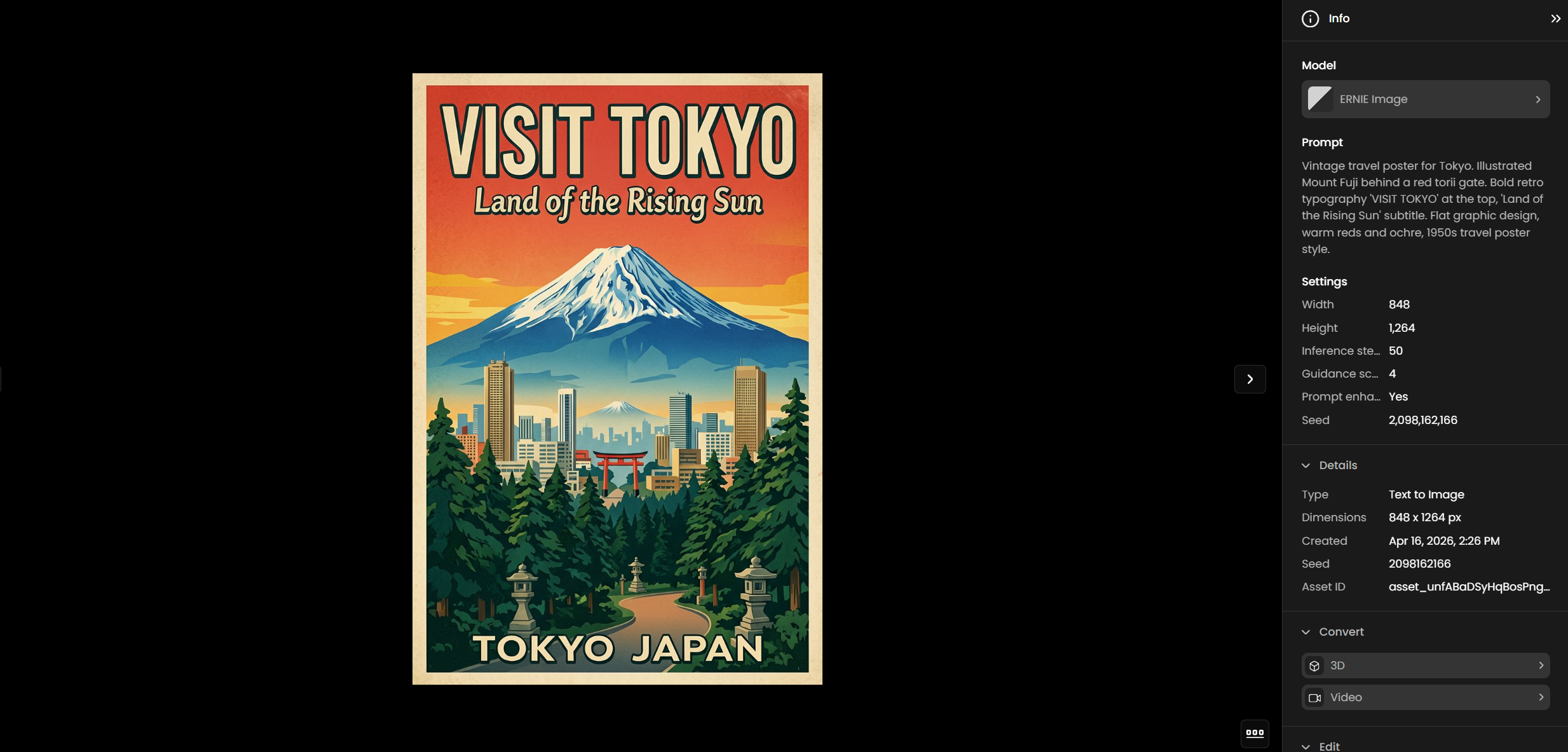
Movie poster with the title 'ECLIPSE' in bold white serif font at the top, tagline 'The truth has two sides' in smaller italic text at the bottom.Infographic titled 'THE WATER CYCLE' with four labeled sections: Evaporation, Condensation, Precipitation, Collection, connected by arrows.Mobile app screen showing 'Good morning, Alex' at the top and the stat '8,432 STEPS' in a large circular progress ring.The more specific the text content and its placement, the more accurately the model renders it. Include information about font style, size relative to other elements, and position when precision matters.
How Prompt Enhancer Works
When Prompt Enhancer is enabled (the default), the model runs a lightweight text expansion step before generation. Your short prompt is rewritten into a longer, more structured description that includes visual details, lighting, composition, and style information. This consistently improves output quality for brief prompts.
Disable Prompt Enhancer when:
Your prompt specifies exact text that must appear in the image verbatim. The enhancer may paraphrase or expand the text content, changing what gets rendered.
You need the output to match a precise visual brief. The enhancer interprets and expands the prompt, which can shift the result away from a specific art direction.
You are iterating with a fixed seed and want full control over what changes between runs.
Use Cases
Marketing and advertising: Generate fully-composed ad creatives, sale banners, and promotional materials with headline text, pricing, and calls to action baked into the image. Produce multiple variants quickly using Turbo for iteration, then finalize with ERNIE Image.
Posters and print design: Create event posters, concert flyers, movie posters, and book covers with accurate title text, subtitles, and descriptive copy rendered at production quality.
Infographics and educational content: Generate labeled diagrams, step-by-step process visuals, and data visualization illustrations where section labels and titles need to be legible and correctly positioned.
Game UI and interface mockups: Produce HUD layouts, menu screen mockups, stat panels, and inventory UI wireframes with readable text labels, numbers, and icon callouts directly in the image.
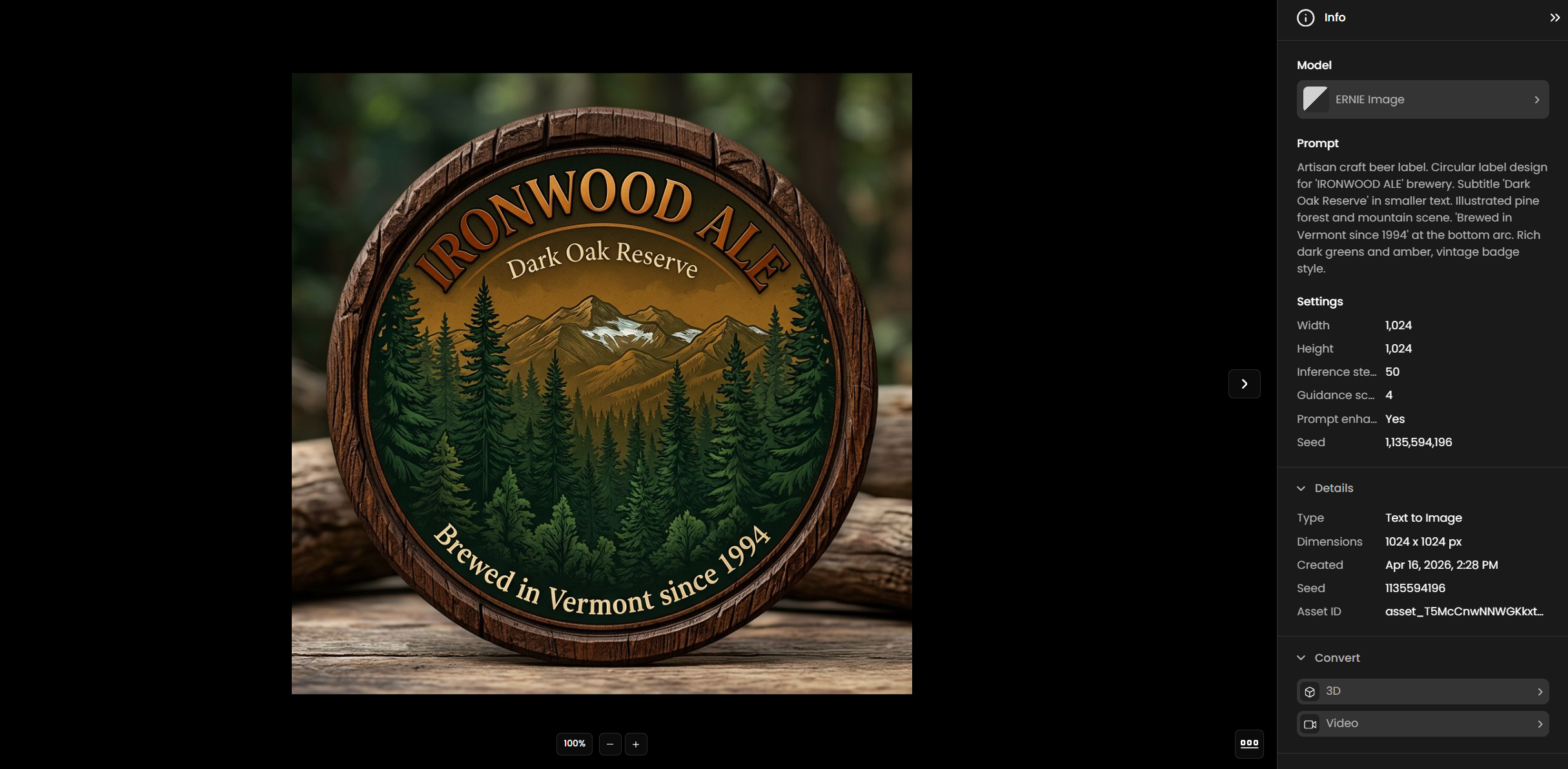
Product and packaging design: Generate product labels, beer labels, packaging boxes, and brand identity materials with brand names, taglines, and descriptive copy accurately rendered.
Signage and retail: Create storefront signs, menu boards, wayfinding graphics, and retail point-of-sale materials with legible text integrated into the visual design.
Tips for Better Results
Write text content directly into the prompt as it should appear. Use quotes around the exact words: "poster with 'NEON NIGHTS' in large glowing letters at the top". The model interprets quoted text as content to render verbatim.
Describe text hierarchy explicitly. Specify which text is large, which is small, and where each element sits. "Bold 40px title 'IRONWOOD ALE' centered, smaller subtitle 'Dark Oak Reserve' below" produces more accurate layout than a generic description.
Disable Prompt Enhancer for exact text. The enhancer improves visual quality but may rephrase your prompt, altering the text content rendered in the image. Turn it off when the exact wording matters.
Use ERNIE Image Turbo for iteration. At 3 CU per generation versus 11 CU for the standard model, Turbo lets you test prompts, layouts, and compositions cheaply. Switch to ERNIE Image for the final output once the prompt is working.
Use Guidance Scale 4 to 6 for most outputs. The default of 4 works well for general generation. Increase to 6 or 7 for outputs where you need the model to follow a complex layout description more precisely. Avoid values above 10 for realistic imagery.
Use a fixed seed when refining a prompt. Set a seed to hold the composition constant between runs. This lets you isolate the effect of prompt changes without introducing new random variation.
Use the recommended dimension presets. The model is tuned for specific width and height combinations. Arbitrary dimensions may produce unexpected crops or stretched outputs. Stick to the seven standard presets unless you have a specific requirement.
Known Limitations
Chinese text is weaker than English. ERNIE Image performs well on English text rendering. Chinese text accuracy is also strong, but English outperforms Chinese on standard benchmarks. For Chinese-language text-in-image work, test outputs carefully and use Prompt Enhancer off to preserve the exact Chinese characters in your prompt.
No negative prompt. Neither ERNIE Image nor ERNIE Image Turbo accepts a negative prompt parameter. Use the main prompt to describe what you want rather than what to exclude.
No reference image input. Both models are text-to-image only. They do not accept a reference image for style or composition guidance.
Turbo quality ceiling is lower than the standard model. ERNIE Image Turbo produces good results quickly, but at high steps counts ERNIE Image consistently delivers more detail, more accurate text rendering, and better instruction fidelity. Use Turbo for drafts and ERNIE Image for final output.
Very small text in dense layouts may be inaccurate. Text at small relative sizes within complex compositions may render with minor character errors. Keep critical text large and central in the composition for best accuracy.
Prompt Enhancer can alter text content. When enabled, the Prompt Enhancer may reinterpret or paraphrase the text specified in your prompt, resulting in different words appearing in the image than you wrote. Disable it when exact text is required.