Happy Horse: The Essentials
Last updated: September 23, 2026
Covers Happy Horse 1.1, Happy Horse 1.1 R2V, and Happy Horse Video Edit, plus the legacy 1.0 generators.
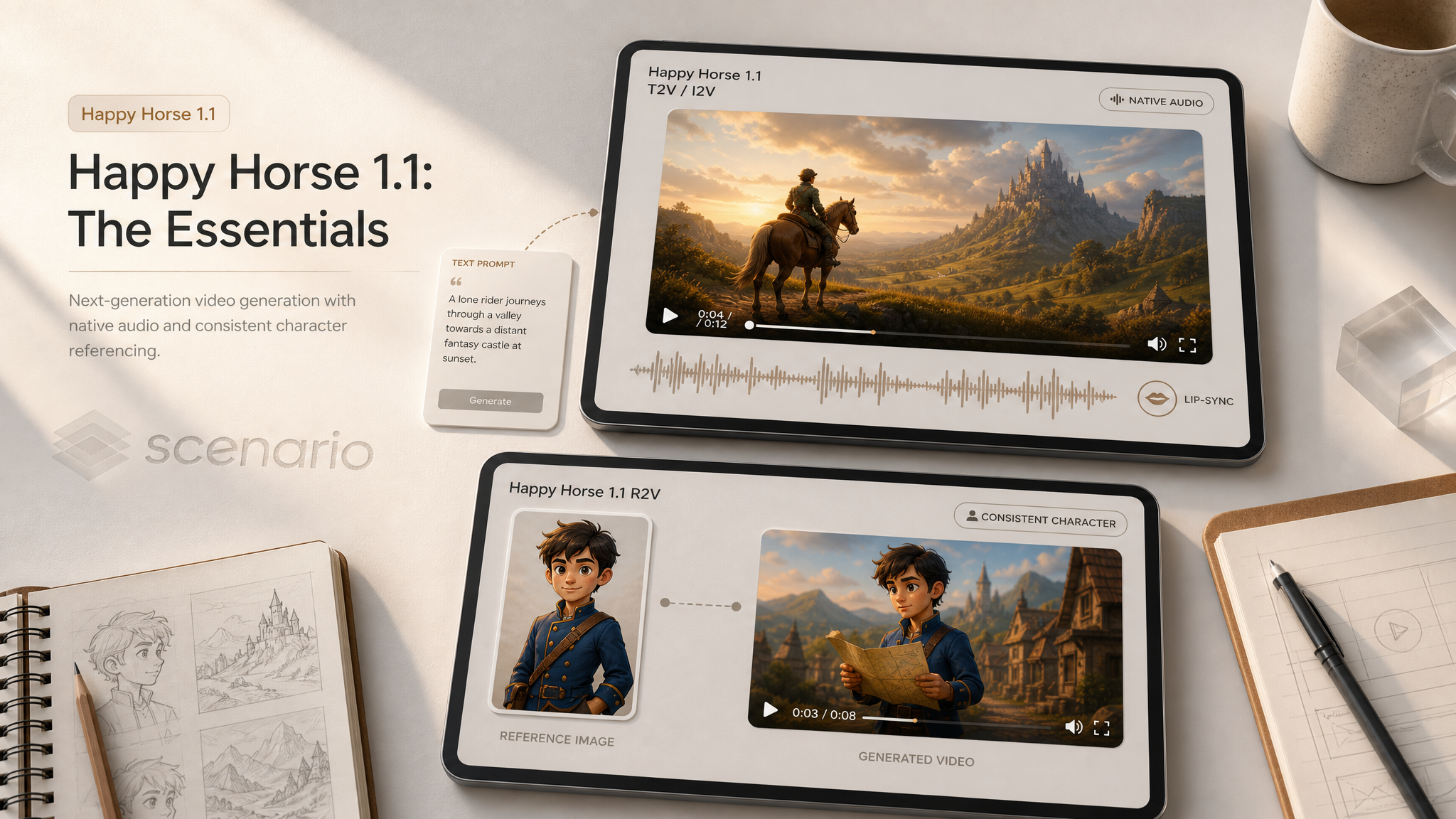
Happy Horse by Alibaba (Taotian Lab) is a video family with synchronized native audio and multilingual lip-sync generated in a single pass. No separate dubbing or lipsync step. Three models are live on Scenario: Happy Horse 1.1 for text-to-video and first-frame image-to-video, Happy Horse 1.1 R2V for reference-driven generation with up to 9 character images for consistent identity across clips, and Happy Horse Video Edit for transforming an existing clip (style, characters, or scene) with a text instruction. Clips run 3 to 15 seconds at 720p or 1080p.
Note on versioning. 1.1 is the current generation. The 1.0 generators (model_alibaba-happy-horse and model_alibaba-happy-horse-reference-to-video) are legacy: superseded by 1.1 and no longer listed in the model picker, though existing workflows that reference them keep running. Happy Horse Video Edit (model_alibaba-happy-horse-video-editing) is built on the 1.0 engine and has no 1.1 equivalent yet, so it remains the family's editing model.
Video generated using Happy Horse 1.1
Model | ID | Best for |
|---|---|---|
| Text-to-video, or image-to-video from a first-frame still. 720p or 1080p, 3 to 15 seconds, nine aspect ratios. Native audio with multilingual lip-sync. | |
| Reference-to-video. Pass 1 to 9 character images to keep identity consistent across the clip. Refer to subjects as | |
| Video-to-video editing. Source clip (up to 15 s) plus a text instruction, with up to 5 optional style references. Keeps the source motion and timing while swapping style, characters, or setting. Built on the 1.0 engine; no 1.1 version yet. | |
Happy Horse 1.0 T2V / I2V (legacy) |
| Previous-generation text and first-frame video. Superseded by Happy Horse 1.1 and unlisted; existing workflows keep running. |
Happy Horse 1.0 R2V (legacy) |
| Previous-generation reference-to-video. Superseded by Happy Horse 1.1 R2V and unlisted; existing workflows keep running. |
Default to Happy Horse 1.1 for new T2V and I2V work. Switch to 1.1 R2V when specific faces or characters must stay recognizable across the clip, especially for multi-character scenes. Use Video Edit when you already have footage and want to restyle or re-set it while keeping its motion.
How to Use the Models
Happy Horse 1.1: Text and Image to Video
The minimum call is a prompt. Add a first-frame image to anchor the opening shot.
prompt: "A character walks into a sunlit ramen shop, the bell on the door
jingles, and they nod to the chef behind the counter. Warm afternoon light."
image: asset_first_frame    // optional: anchors the opening
aspectRatio: "16:9"          // default; nine ratios available
resolution: "1080P"          // 720P or 1080P
duration: 5                  // 3 to 15 seconds
Without an image, the model generates from text alone. With an image, the clip animates forward from that frame. The first-frame image only sets the opening: the model continues from there based on the prompt. The clip carries native audio with multilingual lip-sync, all in the same render.
Text-to-Video with Native Audio
Write one prompt that covers visuals, camera, dialogue, and sound. Mention lip-sync when a subject speaks to camera. Clips from 11 to 15 seconds give talking heads room to breathe.
prompt: A professional news anchor at a studio desk speaks directly to camera with clear lip-sync, saying welcome to tonight's briefing, subtle camera push-in, broadcast lighting, confident delivery with native studio ambience
duration: 12
resolution: 1080P
aspectRatio: 16:9
Broadcast lip-sync from text only.
prompt: A punk rock singer screams into a microphone on a packed stage, strobe lights, crowd surfing energy, raw live performance with native audio and crowd roar
duration: 14
resolution: 1080P
aspectRatio: 16:9
Live performance with native crowd audio.
Image-to-Video from a First Frame
Upload or generate a still, pass it as image, and describe how the scene should move and sound. Omit image for pure text-to-video.
image: asset_PAeSfqoohnPELrqZvh9YWXBs
prompt: The fantasy knight raises a sword triumphantly, cape billowing in wind, epic orchestral energy, slow dramatic camera orbit, particles and light flares, game cinematic trailer mood
duration: 13
resolution: 1080P
aspectRatio: 9:16
Scene animated from a Gemini 3.1 still.
image: asset_beqrRp91ddfYj7rCv1siupa2
prompt: The surfer rides a towering wave, carving through spray as the camera tracks alongside, ocean roar and wind native audio, epic sports cinematic
duration: 14
resolution: 1080P
aspectRatio: 16:9
Sports action from a wave still. asset_4QuuyxRD3WQP7QC8eNXnXRog
Aspect Ratios
Nine ratios are supported: 16:9 (default), 4:3, 1:1, 9:16, 3:4, 4:5, 5:4, 9:21, 21:9. Match the deliverable surface: 16:9 for landscape video, 9:16 for vertical social, 1:1 for feeds, 21:9 for premium hero placements.
Happy Horse 1.1 R2V: Reference to Video
R2V is the variant for consistent characters. Provide 1 to 9 reference images, then refer to them in the prompt as character1, character2, ... character9. The numbers match the order of your reference images.
referenceImages: [
  asset_actor1,      // becomes character1
  asset_actor2,      // becomes character2
  asset_dog          // becomes character3
]
prompt: "character1 enters the bar and waves at character2 at the counter.
character3 is sitting at character2's feet, ears up. Warm tungsten lighting."
aspectRatio: "16:9"
resolution: "1080P"
duration: 8
Reference order matters. If you swap the images, swap the character numbers in the prompt. Each reference set should be unique per generation when you need distinct showcase examples.
R2V Examples
referenceImages: [asset_EKQofgsyhB6QQ6JPrzGAutvY]
prompt: character1 floats inside a space station module and delivers a calm mission briefing to camera, Earth visible through the window, subtle zero-gravity movement, native audio with lip-sync
duration: 11
resolution: 1080P
aspectRatio: 16:9
Single-character briefing with lip-sync. asset_7ogTYb8XLY9BerqkYDkDMHxF
referenceImages: [asset_cRVp3B98JPsUYL18V8TeJpzV, asset_LKPMzeg32Qs6NAqxqmGu4gUW]
prompt: character1 interrogates character2 across a desk in a smoky noir office, venetian blind shadows, tense lip-sync dialogue, rain on window native audio
duration: 14
resolution: 1080P
aspectRatio: 16:9
Two-character dialogue scene. asset_4sxJKXNqJ1GvUxAoRari4pKQ
Chef + cyclist duo · asset_nFUNtZoUfDojrKjyeSEymGXG
Three-character royal ball · asset_jYj9HjqwGAYbPpYqv1Bvry33
Building Reference Portraits
R2V is only as good as its reference images. The cleanest references share these traits:
At least 400 px on the shortest side. 10 MB maximum.
Single clear subject per image. No crowds. One character per reference slot.
Front-facing or three-quarter view. Profile-only references work less well.
Even lighting and clean background. The model picks up the lighting from the reference; busy backgrounds can leak into the result.
Consistent style across references. Mixing photo-real and stylized references in the same call produces inconsistent output.
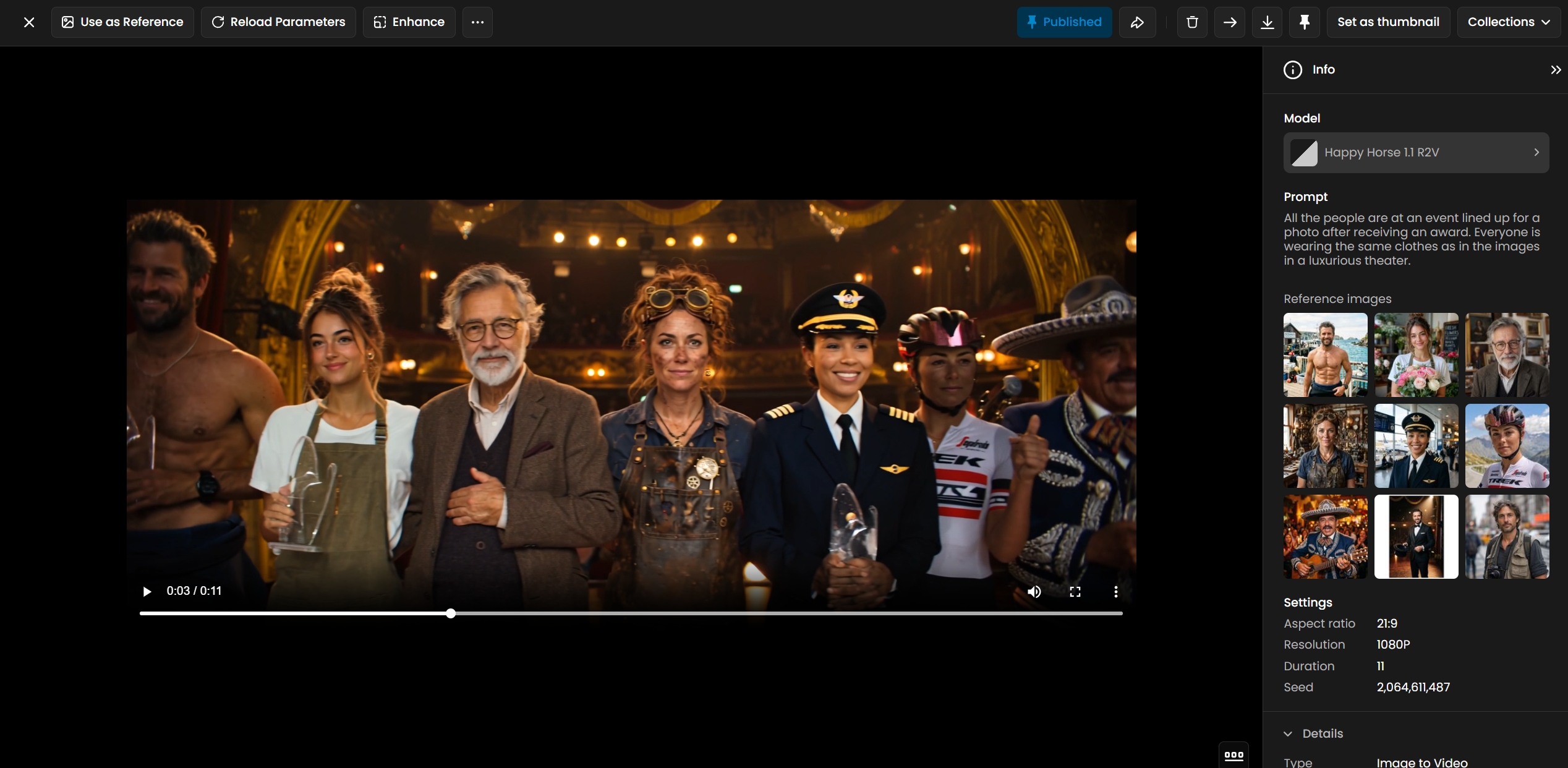
Generate references with GPT Image 2 or Gemini 3.1 Flash for character portraits; both produce front-facing, well-lit subjects that map cleanly into R2V.
Happy Horse Video Edit: Video to Video
Happy Horse Video Edit takes an existing video as input and transforms it according to a text prompt. The source video provides the motion, timing, and structure of the scene. The prompt tells the model what visual world, style, or atmosphere to apply to that motion. The result is a new video that follows the movement of the original but looks completely different.
Video Edit prompts describe the visual transformation to apply. The source video handles all motion. Your prompt does not need to describe what is happening in the scene. It only needs to describe what the output should look like visually.
Prompt structure:
[Target world or style], [key visual elements], [lighting and color palette], [atmosphere]
Works well:
Remove the black background and add an industrial background with machines working
to manufacture parts of the same robot.
The model preserves the motion from the source video and applies the described visual world to it. A character walking in the source video will still walk in the output, but through a cyberpunk alley instead of wherever they were in the original.
Video Edit Best Practices
Source video quality determines output quality. A well-lit, clear, high-quality source produces better edits than a dark, blurry, or compressed source. The model cannot add detail that is not present in the motion data.
Use source videos with clear, readable motion. Simple, steady motion (a character walking, a camera pan across a scene) transforms more reliably than fast cuts, heavy motion blur, or chaotic handheld footage.
Describe the target world, not the action. The action comes from the source. Your prompt only needs to define the visual style, setting, and color palette.
Use audioSetting origin to preserve source audio. If the source video has meaningful audio (music, dialogue, ambient sound), set audioSetting to "origin" to keep it. The default "auto" may replace or alter audio.
Keep source videos under 15 seconds. Sources longer than 15 seconds are truncated. Plan your source clips accordingly.
Use referenceImages for style anchoring. If you want the output to match a specific visual style or color scheme, upload a style reference image and use @Image1 in the prompt to link it. This helps the model match a particular look more precisely.
Submit edits in small batches. Video Edit is the most demanding model in the family. Run 2 to 3 edit jobs at a time rather than a large burst.
Parameters
Happy Horse 1.1 and 1.1 R2V share the same output controls. R2V replaces the optional image field with required referenceImages. Video Edit takes a source video instead.
Happy Horse 1.1 (T2V / I2V)
prompt
Required. Up to 2500 characters. Describe scene, motion, camera, dialogue, and native audio together. See the news-anchor and punk-stage examples above.
image
Optional first-frame image. Up to 10 MB. The clip animates forward from this frame. Leave empty to generate from the prompt only. See the knight and surfer examples above.
aspectRatio
One of nine ratios: 16:9 (default), 4:3, 1:1, 9:16, 3:4, 4:5, 5:4, 9:21, 21:9. If you pass a first-frame image, the result may follow that image's aspect instead.
resolution
720P or 1080P (default). 1080P is sharper; 720P is faster for iteration.
duration
3 to 15 seconds, default 5. For talking heads and dialogue, 11 to 15 seconds tested best, so speech is not cut off mid-sentence.
Happy Horse 1.1 R2V
prompt
Required. Up to 2500 characters. Use character1, character2, ... character9 to refer to your reference subjects in the order they were uploaded. Plain names without the character labels will not bind to the references.
referenceImages
Required. 1 to 9 reference images. Order matters: the first image is character1, the second is character2, and so on. Minimum 400 px on the shortest side, max 10 MB each.
aspectRatio
Same nine ratios as T2V/I2V.
resolution
720P or 1080P (default).
duration
3 to 15 seconds, default 5.
Happy Horse Video Edit
video
Required. The source video to edit. Up to 100 MB. Output duration follows the source, truncated to 15 seconds for processing.
prompt
Required. Up to 2500 characters. The edit instruction: describe the target style, world, characters, or atmosphere. When reference images are provided, refer to them as @Image1 through @Image5.
referenceImages
Optional. Up to 5 style or look reference images, referenced in the prompt as @Image1, @Image2, and so on.
resolution
720P or 1080P (default).
audioSetting
auto (default) lets the model regenerate audio; origin preserves the source clip's audio.
Examples
Happy Horse 1.1
21 pinned outputs on the model page. Four featured here.
Happy Horse 1.1 R2V
51 pinned outputs on the model page. Four featured here.
More pinned outputs on the Happy Horse 1.1, Happy Horse 1.1 R2V, and Happy Horse Video Edit model pages.
Use Cases
Short-form social with native audio. 9:16 vertical clips for TikTok, Reels, Shorts, with synced ambient or character audio in one pass.
Character-driven cinematics. Pass character portraits as R2V references and write the scene around them. Identity stays consistent across the clip.
Multilingual marketing reels. Native lip-sync supports multiple languages. Brief a script in any language; the character's mouth matches.
Story prototypes and animatics. Quick-turn scene generation for storyboarding. Use Happy Horse 1.1 for environment shots and R2V for character scenes.
Game in-world cinematics. NPC dialogue scenes, intro sequences, cutscenes that need consistent character look between shots.
Ad spots with talent stand-ins. Use R2V with a brand spokesperson or character likeness across multiple variant clips.
Multi-character ensemble scenes. Up to 9 references means small-cast scenes are possible without juggling separate generations.
Education and explainers. Instructor-style clips and multilingual lip-sync demos from a single prompt.
Animate existing stills. Turn GPT Image 2 or Gemini 3.1 renders, concept art, or architectural visualizations into motion clips with sound via the first-frame input.
Style transfer and world replacement (Video Edit). Take existing footage (a product shot, a fashion walk, a lifestyle clip) and move it into a different visual world without re-shooting: film noir, cyberpunk, fantasy, or watercolor.
Tips for Better Results
Lead with the moment, not the setup. "A chef tastes the broth and nods" beats "a kitchen scene with cooking activity". The model handles single moments and short sequences best.
Pair visuals and audio in one prompt. Name dialogue, ambience, and music cues explicitly; the model generates them together.
Use 11 to 15 seconds for speech. Shorter clips cut off mid-sentence on talking-head scenes.
Mention lip-sync for speakers. Phrases like "clear lip-sync" or "delivers a briefing to camera" improve mouth movement.
For R2V, use clean front-facing references. Profile shots and busy backgrounds degrade the identity hold. Generate references with GPT Image 2 if you do not have suitable photos.
Number references consistently. The reference image order maps to
character1,character2, etc. Plan the order before uploading; renaming after the fact is not possible.Specify the language for lip-sync. The model supports multilingual lip-sync; mention the language in the prompt ("the character says in Japanese: ...") to lock the result.
Match aspect ratio to surface. Vertical for social, landscape for hero placements, 21:9 for premium cinematic, 1:1 for product feeds.
1080P for the deliverable, 720P for iteration. 720P is faster for testing prompts. Move to 1080P when the brief is locked.
Migrate from 1.0 for new work. 1.1 produces cleaner audio, better lip-sync, and stronger identity hold on R2V. Existing 1.0 outputs continue to work.
Scale R2V to the full nine references. Ensemble scenes such as feasts, war councils, talk-show panels, and red carpets hold up at six to nine characters. Give each character1…characterN its own line of quoted dialogue so every face lip-syncs.
Use full-body references for wide shots. Square headshots are best for close dialogue; for group scenes or full-body action, supply full-body portraits on a plain neutral background so the model has the whole character to place.
Build a reusable cast. Generate a consistent set of characters once with GPT Image 2, then reuse the same reference asset IDs across many clips for a recurring ensemble.
Known Limitations
3 to 15 seconds per clip. Longer scenes need to be split into multiple clips and joined in an editor.
I2V uses first-frame only. Happy Horse 1.1's image input is the opening still. There is no end-frame or multi-keyframe support; for that, look at Luma Ray 3.2.
No 1.1 Video Edit yet. Happy Horse Video Edit (
model_alibaba-happy-horse-video-editing) runs on the 1.0 engine and is the family's only video-to-video model.R2V identity hold is not absolute. Strong character drift can still happen, especially with stylized references or under heavy occlusion. Use cleaner references and shorter durations to mitigate.
Aspect ratio may shift with first-frame image. If
imageis set, the model may use the image's aspect instead of the explicitaspectRatiovalue.Reference image cap is 9. Scenes that need more than 9 distinct characters need to be staged across multiple clips.
R2V requires character labels. Plain names in the prompt without character1 syntax will not bind to reference images.
References are subjects, not sets. A background or environment image passed as a reference is not reliably treated as the scene. Describe the location in the prompt and reserve references for characters and objects.
High character counts take longer. Eight- and nine-reference clips are the most demanding to generate; if a generation does not return, run it again.
Platform auto-captions are not reliable for QA. Review lip-sync and audio by watching the clip, not the auto-generated caption text.
Video Edit source truncated at 15 seconds. Longer sources are cut, with no warning before the job starts. Trim the source first.
Rate limits on bursts. Submitting many Happy Horse jobs in a short window can trigger a temporary cooldown on new submissions. Keep bursts small, especially for Video Edit.
No custom training. Happy Horse models are third-party models hosted on Scenario; LoRA training or fine-tuning is not supported.
Provider subprocessor. Flows through Alibaba as a subprocessor with temporary retention. Review Alibaba Cloud terms for compliance details.
Legacy: Happy Horse 1.0 Prompting Notes
The guidance in this section comes from testing the 1.0 generators (model_alibaba-happy-horse and model_alibaba-happy-horse-reference-to-video), which are now unlisted. It is kept for users with existing 1.0 workflows. The 1.0 models support five aspect ratios (16:9, 4:3, 1:1, 9:16, 3:4) and the same 3 to 15 second, 720P/1080P range. Happy Horse 1.0 is built on a unified 15-billion-parameter Transfusion architecture. For new work, use the 1.1 models above.
1.0 T2V: Describe the Scene, Not the Shot
Happy Horse 1.0 T2V reads your prompt as a scene description, not a set of camera instructions. Writing explicit camera directions as commands (such as "the camera begins at ground level and rises") or very long prompts (over about 200 words) could cause a processing error on 1.0. Describe what the scene looks like and let the model infer the motion.
Prompt structure:
[Subject + action], [environment], [lighting], [atmosphere], [visual style]
Works well:
Luxury treehouse spiraling around a giant redwood, glass balconies
with tropical ferns, warm golden interior lights, morning mist
drifting through pine forest, small waterfall in background,
golden hour, cinematic, photorealistic
Causes processing errors (too long, camera as instruction):
A breathtaking multi-story luxury treehouse spiraling around an ancient
giant redwood, circular glass balconies wrapped in lush ferns and tropical
plants, warm golden interior lights glowing through floor-to-ceiling windows,
a slow cinematic drone shot begins at ground level in misty forest and rises
steadily upward along the trunk, revealing each level one by one...
The key difference: the working version describes the scene. The failing version gives the model a shooting script. Keep prompts to 2 to 4 short sentences or a compact list of descriptors. The model handles camera movement, pacing, and framing on its own.
1.0 I2V: Using a First Frame
I2V prompt structure:
[What the character or subject does], [how the environment responds], [atmosphere]
Example I2V prompts:
A fox, owl, rabbit, and bear gather around a campfire,
cooking stew together. The owl reads from a book while the bear tastes soup.
1.0 R2V: Prompt Formats
On 1.0 R2V, full-body references on a plain background (neutral stance, clean art style, at least 400 px on the shorter side) animated most reliably, and motion-first, body-specific descriptions worked best. Characters animated somewhat independently; coordinated multi-character interaction was not guaranteed.
Format 1: Individual actions (showcase reel)
Each character gets its own sentence describing a distinct movement. Best for animation demos, character ability showcases, and game trailers where you want to see each character perform independently.
character1 walks slowly down a sidewalk, glancing over one shoulder with a calm
and composed expression, coat moving gently with each step.

character2 sits down on a low surface, crosses the legs casually, rests both hands
on the knees, and looks forward with a relaxed smile.

character3 stands with hands in pockets, shifts weight to one side, nods the head
slightly, and glances around with a laid-back and confident posture.

character4 leans back against a surface, tilts the head slightly to one side, then
straightens up and brushes the hair back with one hand in a natural, effortless
motion.
Format 2: Shared scene (all characters together)
All characters appear in the same environment and interact within a single narrative moment. Best for group shots, party scenes, ensemble reveals, and moments where the relationship between characters matters.
character1 and character2 enter mossy forest ruins at sunrise as character3 flies
beside them. An ornate treasure chest with a blue crystal lock opens beside a
glowing stone portal arch, blue light spilling across wet stone, leaves swirling,
slow mobile RPG trailer push-in, magical ambience.
Multi-character action
character1 and character2 face off in a dramatic, high-stakes battle for survival,
with character1 wielding a long range weapon as character2 charges and lashes out
with sharp limbs, sparks flying and debris scattering as their movements clash,
intense energy and determination in the air, distant thunder and the heavy sound of
metal striking carapace echo around them, cinematic lighting highlighting sweat and
tension on character1 while menacing growls and screeches from character2 fill the
soundscape, fast camera moves to heighten the epic, life-or-death atmosphere.