P-Image Ideogram: The Essentials
Last updated: July 24, 2026
P-Image Ideogram is Pruna AI's take on text-to-image, pairing Ideogram-grade in-image text rendering with a fast, cost-aware pipeline. It is built for work where the words matter: posters, logos, packaging, menus, book covers, album art, and social graphics, where letters have to come out clean and correct. It is also a capable general image model, comfortable with cinematic photography and a wide spread of art styles. A single Thinking control lets you dial quality up or down against speed and cost, and it renders at 1K or 2K across seven aspect ratios plus a custom size.
At a Glance
Model | ID | Type | Best for |
|---|---|---|---|
P-Image Ideogram | model_pruna-p-image-ideogram | Text to image | Designed graphics with accurate in-image text: posters, logos, packaging, menus, plus general and stylized imagery |
It takes a text Prompt only. There is no image input, negative prompt, or style-preset library: you describe the scene, the exact words you want rendered, and the look, and the model composes it.
Parameters
Parameter | Required | Default | Range / Options | Description |
|---|---|---|---|---|
Prompt | Yes | - | Up to 2048 characters | Describe the image, including any text you want rendered in it. Put the exact words in quotes. |
Thinking | No | High | Very Low / Low / Medium / High | How much reasoning effort the model spends. Higher improves quality (especially text) but costs more and takes longer. |
Image Size | No | 1K | 1K / 2K | Output resolution. Ignored when Aspect Ratio is set to Custom. |
Prompt Upsampling | No | true | true / false | Automatically enriches your prompt with extra detail before generating. Keep it on for clean text (see below). |
Aspect Ratio | No | 1:1 | 9:16, 2:3, 3:4, 1:1, 4:3, 3:2, 16:9, Custom | The shape of the image. Choose Custom to set exact dimensions with Width and Height. |
Width | Only in Custom | - | 1 to 2560 px | Exact width in pixels. Required when Aspect Ratio is Custom. Width times height cannot exceed 6 megapixels. |
Height | Only in Custom | - | 1 to 2560 px | Exact height in pixels. Required when Aspect Ratio is Custom. Width times height cannot exceed 6 megapixels. |
Seed | No | - | 0 to 4294967295 | Makes results repeatable. Reuse the same Seed and settings to get the same image; leave it empty for variety. |
In-Image Text Rendering
This is the model's headline strength. Put the words you want in quotation marks inside the Prompt, describe where they sit and how they look, and the model lays out clean, correctly-spelled type. It handles a title plus supporting lines in one image: headline, subtitle, credits, prices, and taglines.
A cinematic adventure movie poster. A tiny mountaineer on a knife-edge ridge below a colossal summit above a sea of clouds, dawn alpenglow, sun bursting over the peak. Bold title text at the top reading "APEX" and a tagline at the bottom reading "CONQUER THE IMPOSSIBLE". Vertical composition.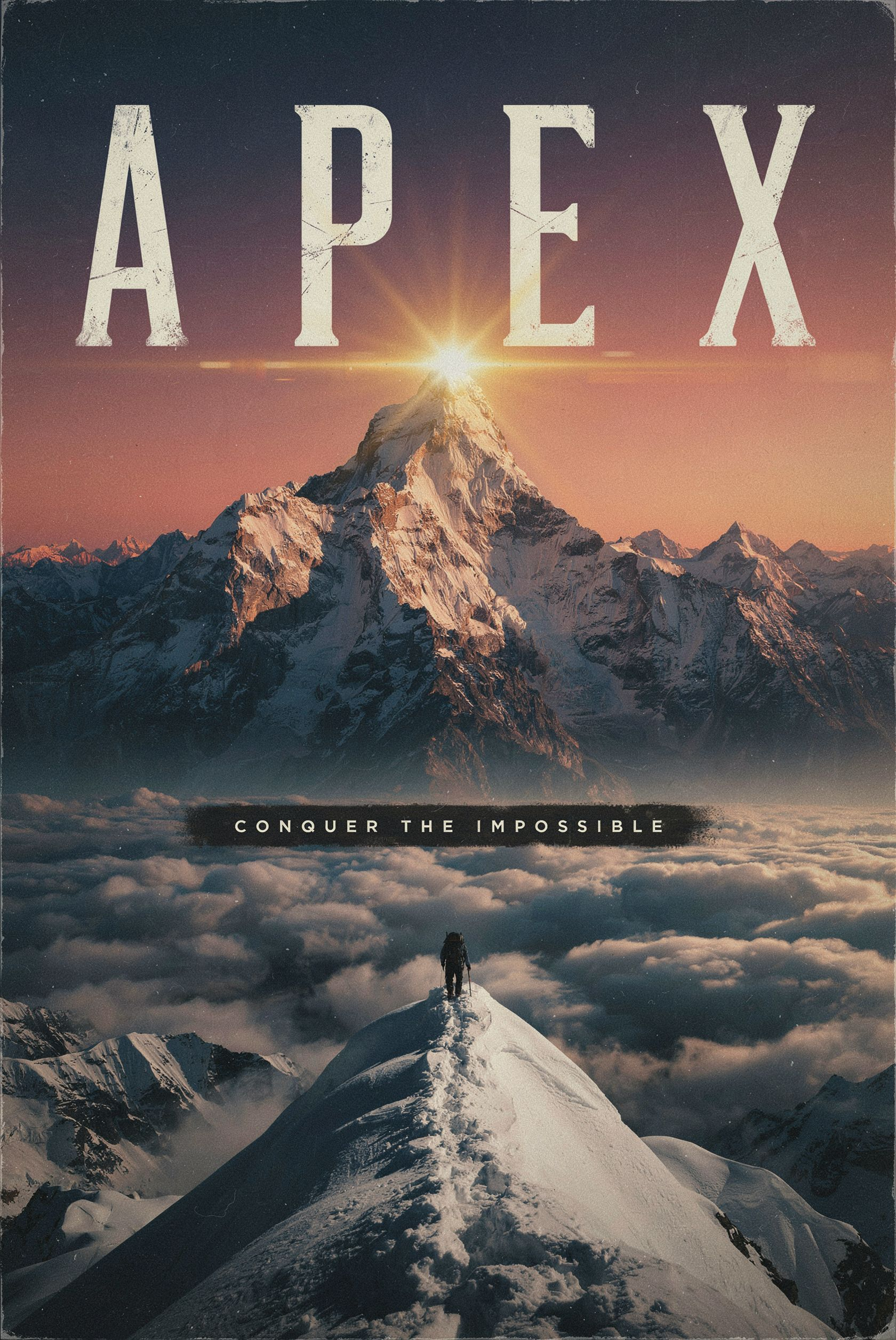
Movie poster with a clean two-line title and tagline · 2:3, 2K, Thinking High · Open on Scenario
It holds up across formats and layouts: a vintage travel poster with a title and banner, an infographic with a heading and four labeled stages, and product packaging with a logo lockup and fine print.
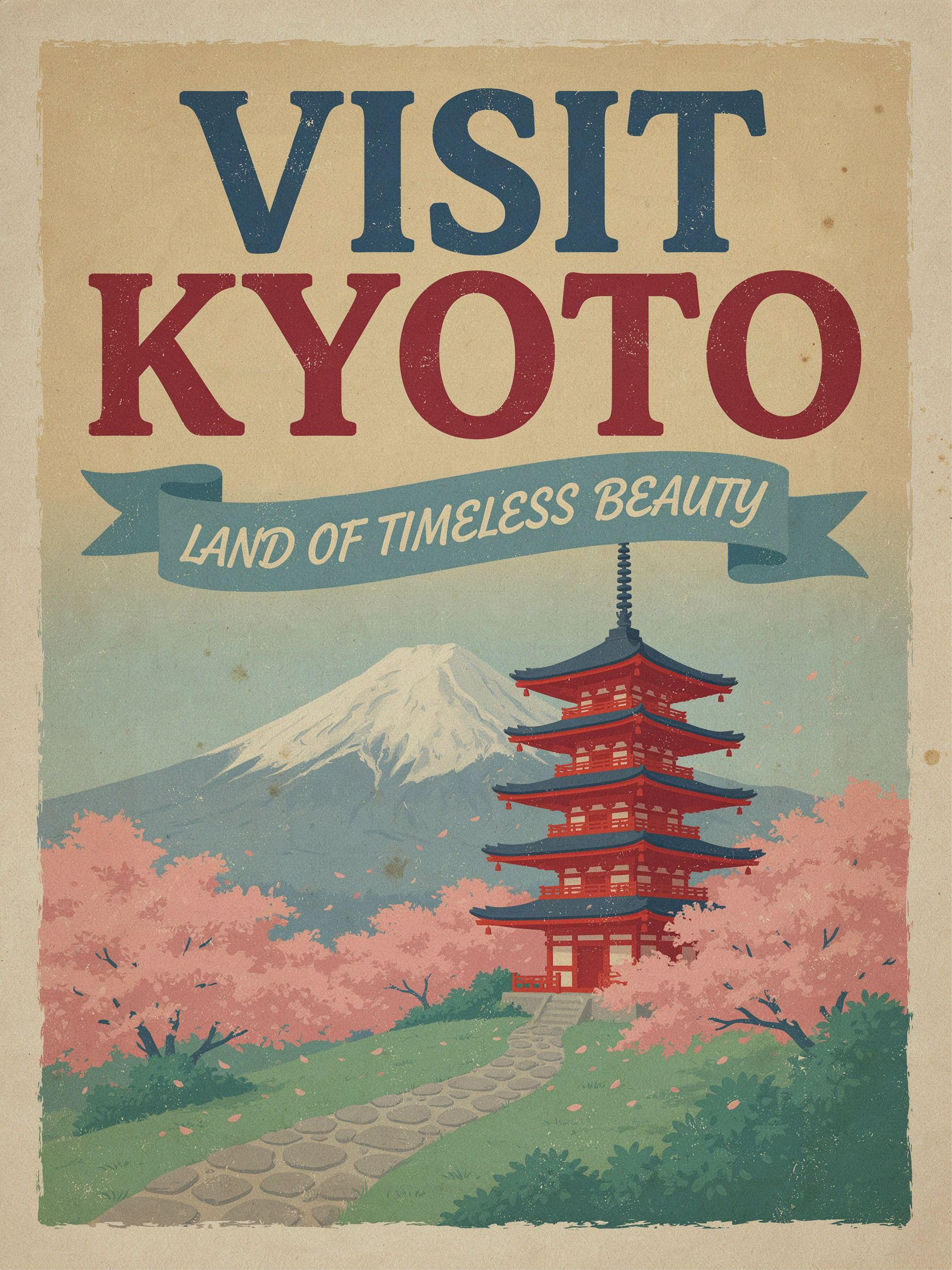
Vintage travel poster: title plus a curved banner subtitle · 3:4, 2K · Open on Scenario
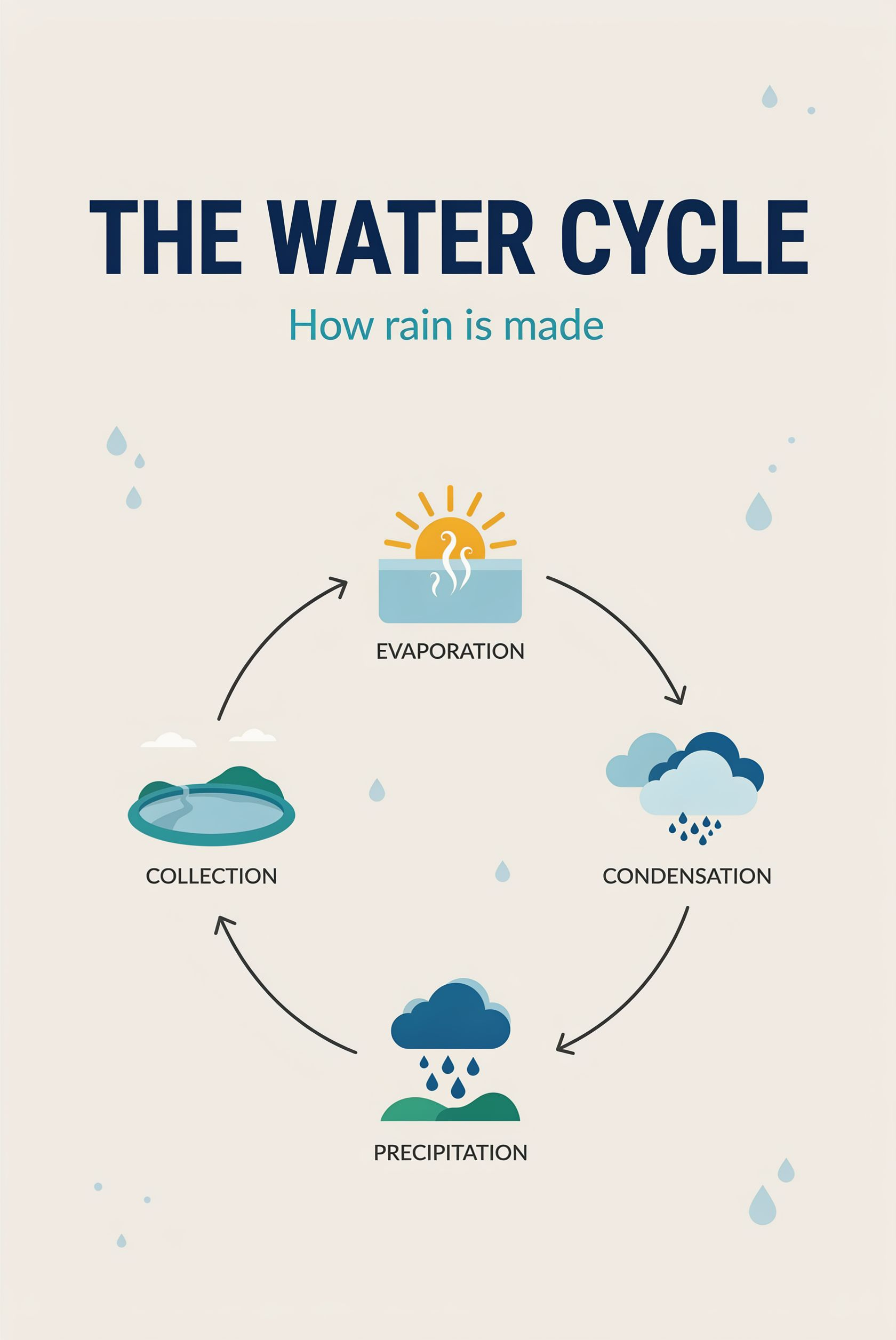
Educational infographic: heading, subheading, and four labeled stages · 2:3, 2K · Open on Scenario
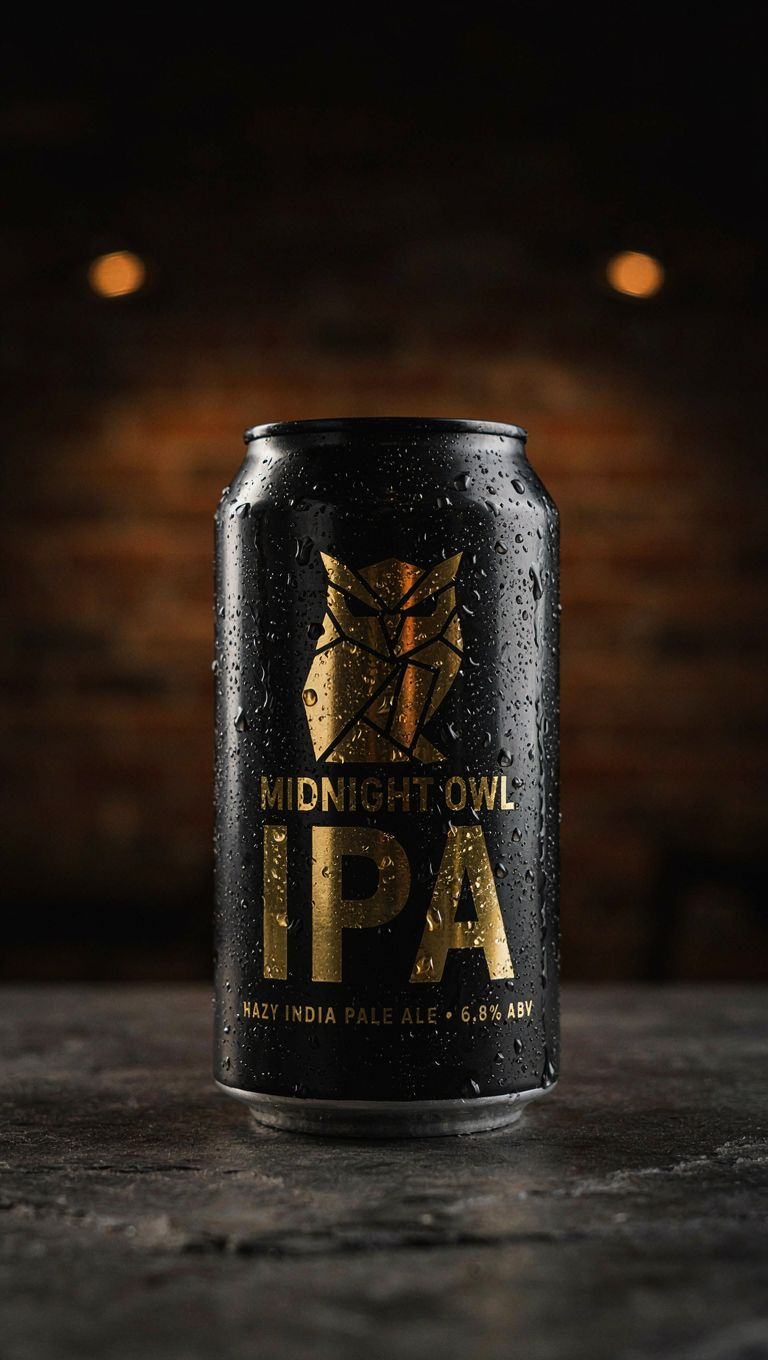
Craft-beer can: logo lockup plus small print rendered cleanly · 9:16, 1K · Open on Scenario
The Thinking Control
Thinking sets how much reasoning effort the model spends before it renders, and it is the main quality-versus-cost dial. High is the default and the safest choice for anything with text or fine detail. Lower tiers are faster and cheaper and are fine for simple, large-type layouts, but small or dense text degrades as you drop the effort: at Very Low, big headlines stay crisp while small secondary lines start to ghost or smear.
High: best quality, best text accuracy. Use for final art, posters, packaging, and anything with small type.
Medium: a good balance for illustrative work; occasional single-letter slips can appear in longer words.
Low / Very Low: fastest and cheapest, best for quick drafts and bold single-word designs. Expect small text to suffer.
Prompt Upsampling
Prompt Upsampling enriches your prompt with extra detail before generating, and it is on by default. On this model it matters a lot for text: keeping it on produced clean typography, while turning it off (same prompt, same Seed, same everything else) collapsed the lettering into gibberish. Leave it on unless you have a specific reason not to. The pair below is identical except for this one setting.
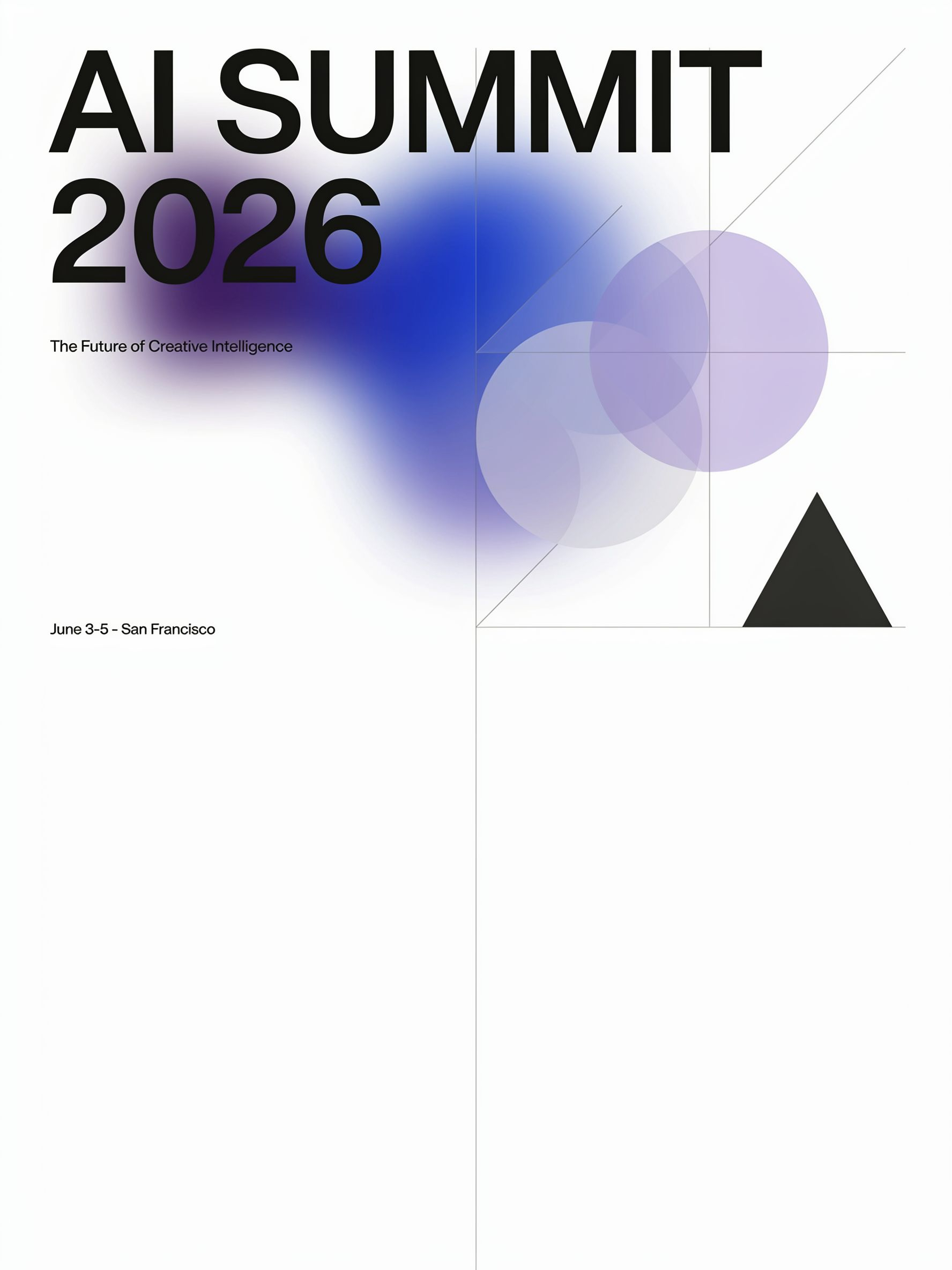
Prompt Upsampling ON: title, subtitle, and footer all render correctly · Open on Scenario
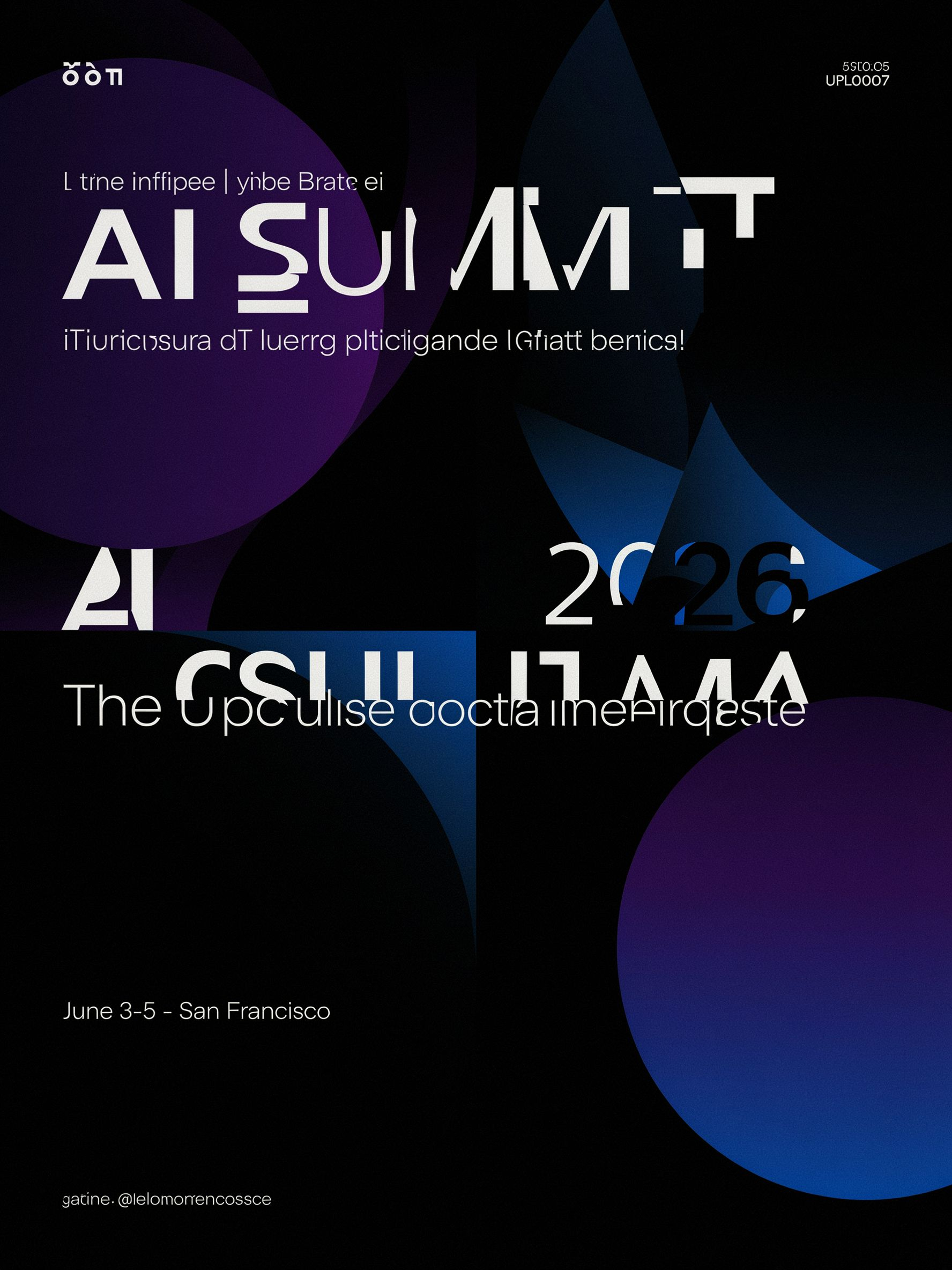
Prompt Upsampling OFF, same Seed: the type breaks down into gibberish · Open on Scenario
One trade-off to know: because upsampling rewrites the prompt, it may also add plausible extra copy you did not ask for (a poster can gain invented credits or a date). That is usually a feature for mockups, but if you need only your exact words, keep the prompt tight and specific.
Sizes, Aspect Ratios, and Seeds
Image Size switches between 1K and 2K. Use 2K for final art and anything with small text; 1K is faster and cheaper for drafts. Aspect Ratio covers seven presets from tall 9:16 to wide 16:9. For an exact size, set Aspect Ratio to Custom and give Width and Height in pixels (up to 2560 each, and width times height must stay under 6 megapixels); in Custom mode the 1K/2K setting is ignored. Seed makes a result repeatable: note the Seed of an image you like, keep it and the settings fixed, and you get the same image back, which is how the Prompt Upsampling comparison above was made.
Cinematic Range and Camera Control
Beyond design work, the model responds well to photographic and cinematic direction. Camera and lens language in the Prompt (low angle, Dutch angle, fisheye, over-under split, telephoto compression, aerial top-down) is respected and shapes the composition.
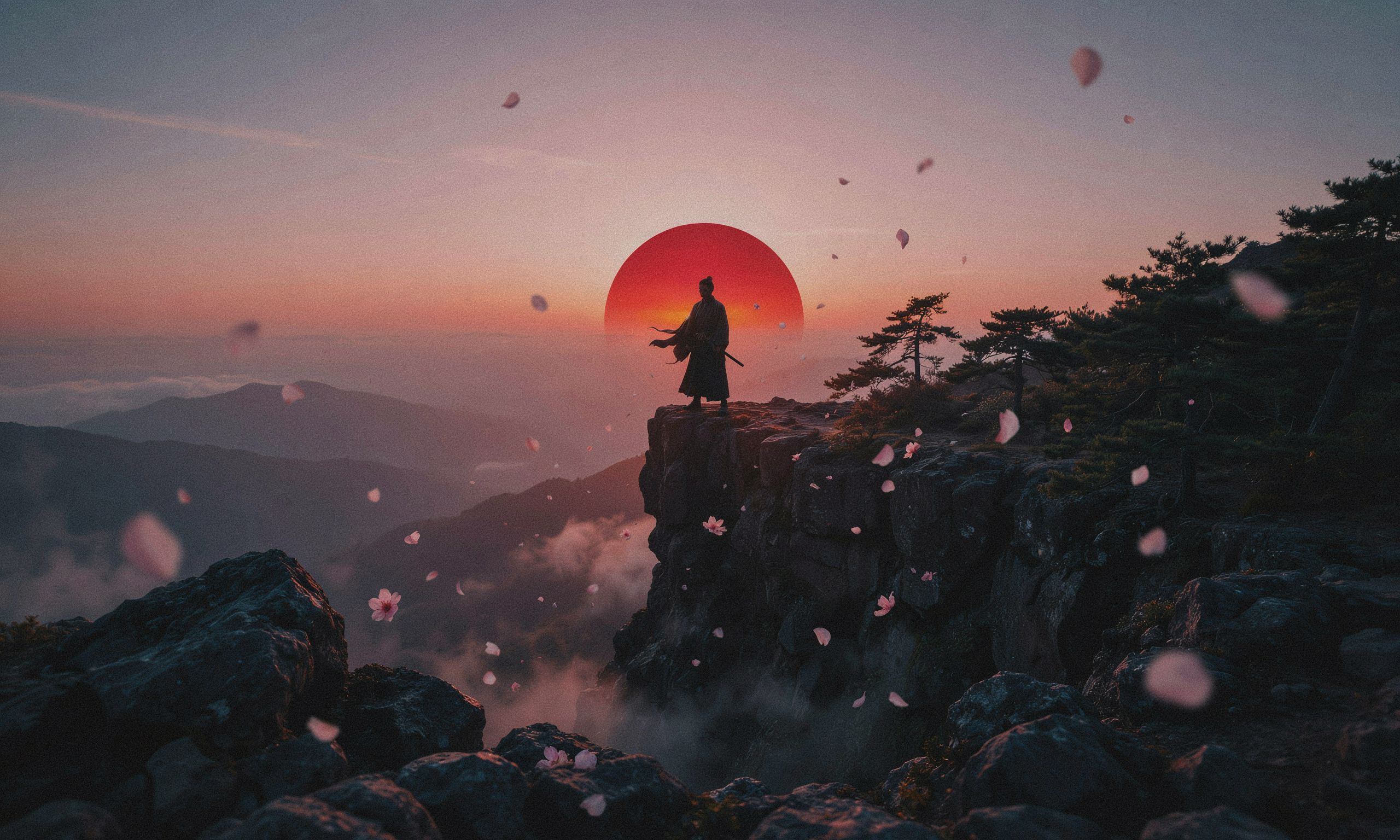
Low-angle hero shot, sweeping 16:9 composition · Open on Scenario
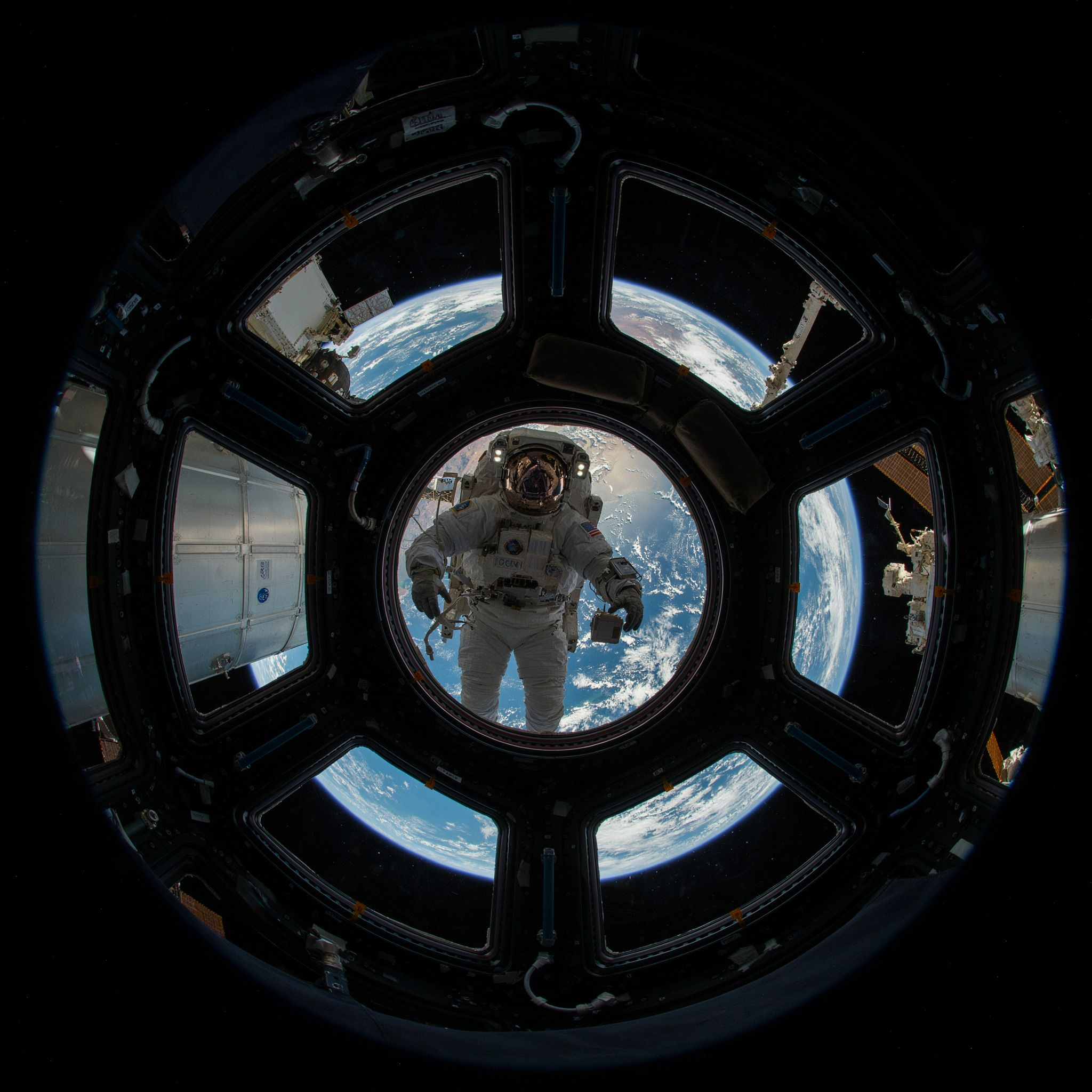
Fisheye view from a space-station cupola · 1:1, 2K · Open on Scenario
Art Styles
Name a medium in the Prompt and the model commits to its visual language, which makes it useful for game and product concepting across looks. Low-poly renders come out with clean faceted geometry, claymation with plasticine texture and sculpting marks, and papercraft with layered cut-paper edges and drop shadows.
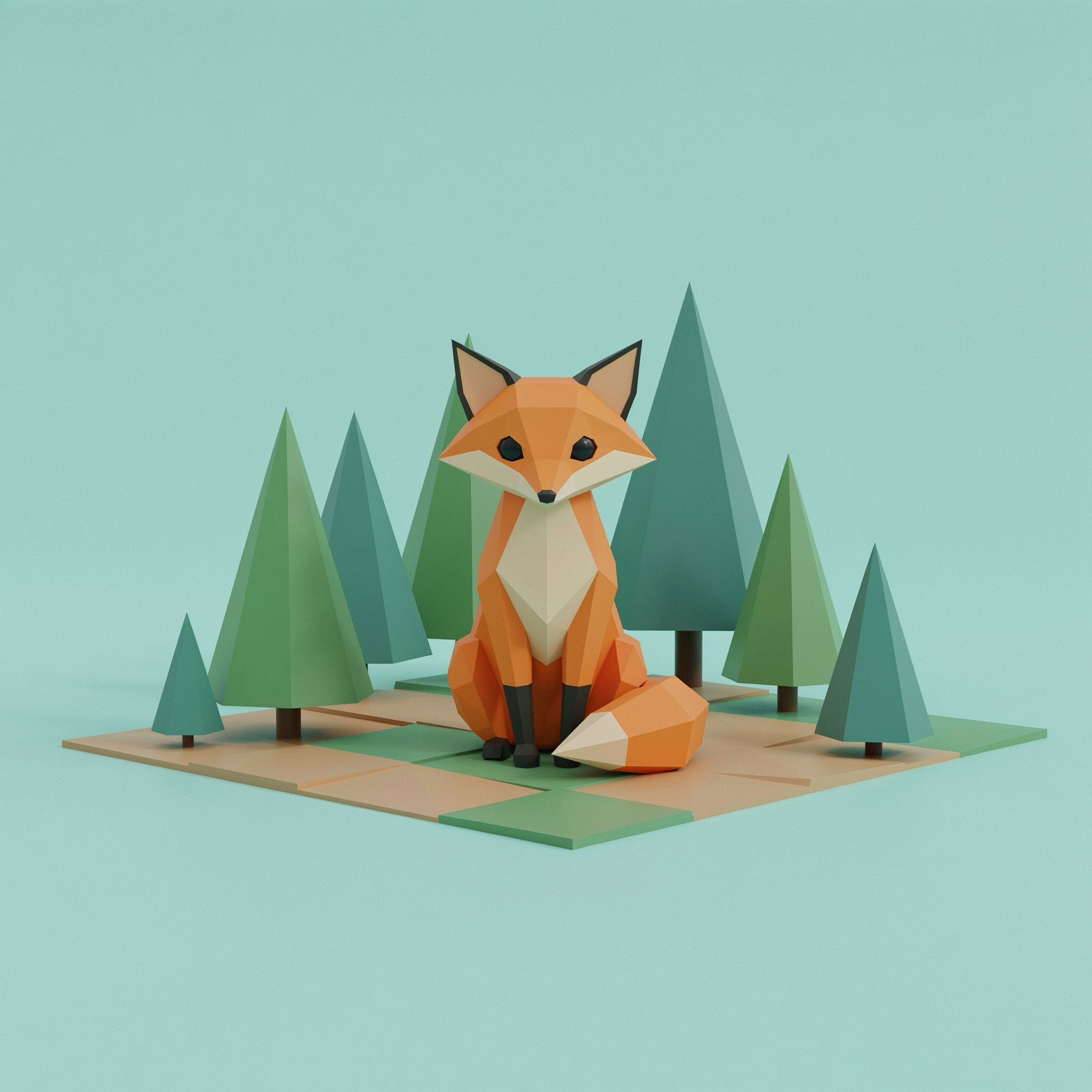
Low-poly game art, faceted geometry · Open on Scenario
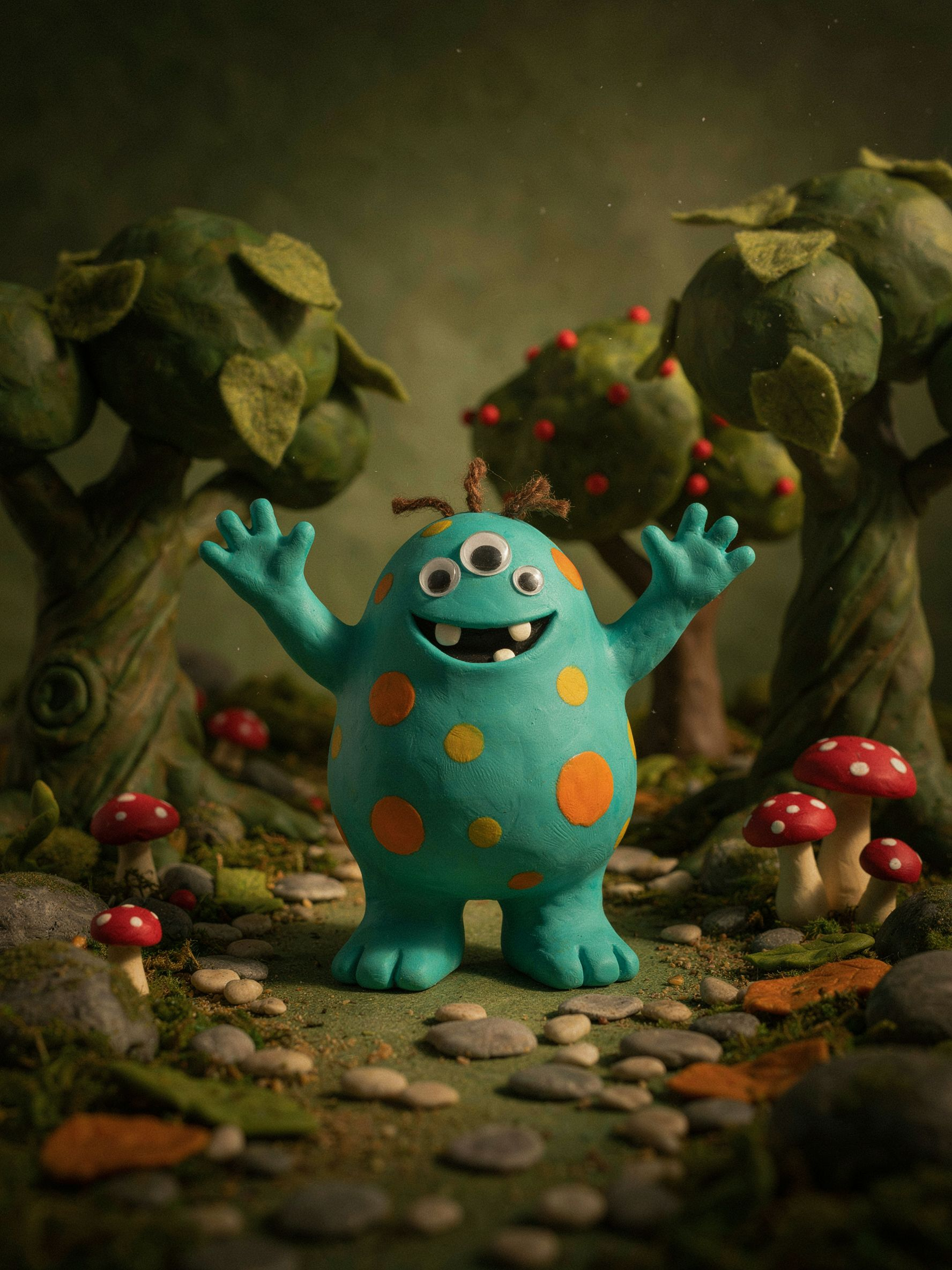
Claymation character with plasticine texture · Open on Scenario
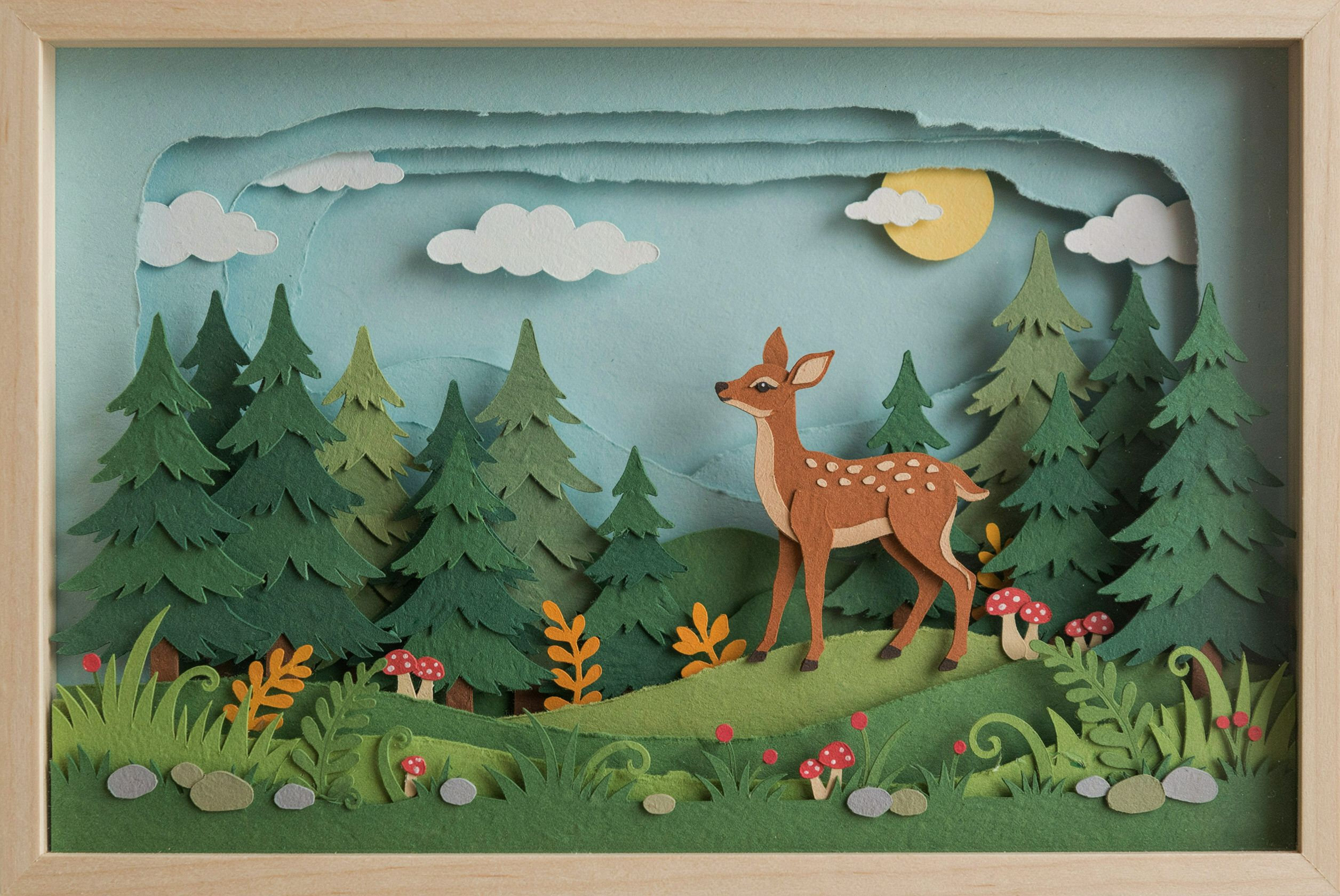
Layered papercraft diorama with cut-paper edges · Open on Scenario
Use Cases
Marketing and social: event posters, promo banners, and ad creative with a headline and supporting copy already laid out.
Packaging and branding: product labels, box fronts, and logo lockups with legible names and small print.
Games: title logos, key art, and concept pieces across styles, from low-poly to painterly.
Film and publishing: movie posters, book and album covers, and comic covers with title treatments.
Education: infographics and diagrams with clear headings and labeled steps.
E-commerce: menu boards, price lists, and clean product hero shots.
Tips for Better Results
Put exact text in quotes. Write the words you want as "LIKE THIS" in the Prompt, and say where they go (top, bottom, banner). The model renders quoted text far more reliably than described text.
Keep Prompt Upsampling on for text. Turning it off badly degraded typography in testing, even with everything else identical.
Use Thinking High for anything with small type. Save Low and Very Low for quick drafts and bold single-word designs.
Render text-heavy work at 2K. The extra resolution keeps fine print and multi-line layouts sharp.
Limit how much text you ask for at once. A title plus a few short lines is reliable; long dense lists (six-plus items of small text) start to slip on the lower lines.
Lock a Seed to iterate. Once a layout works, fix the Seed and change one thing at a time to compare cleanly.
Direct the camera. For photographic looks, name the angle and lens (low angle, fisheye, telephoto, aerial top-down); the model follows it.
Known Limitations
Small and dense text can slip. Tiny captions, nutrition-style fine print, and long lists are where errors show up first. Keep critical copy large, or fix it in an editor afterward.
Prompt Upsampling may add copy you did not request. It can invent plausible extra lines (credits, dates). Great for mockups, but keep the prompt tight when you need only your exact words.
Lower Thinking tiers trade away text accuracy. Very Low keeps big type crisp but tends to ghost small secondary text.
Text only, no image input. There is no reference image, negative prompt, or style-preset library. Guide the look entirely through the Prompt, or pair it with a dedicated editing model afterward.
Custom size ignores Image Size and has a ceiling. In Custom mode the 1K/2K setting does not apply, each side maxes at 2560px, and width times height must stay under 6 megapixels.
Exact subject counts are not guaranteed. Asking for one subject can occasionally yield two; specify counts and re-roll the Seed if it matters.