Advanced Editing with Qwen Models
Last updated: April 22, 2026
Last updated: April 13, 2026
Introduction
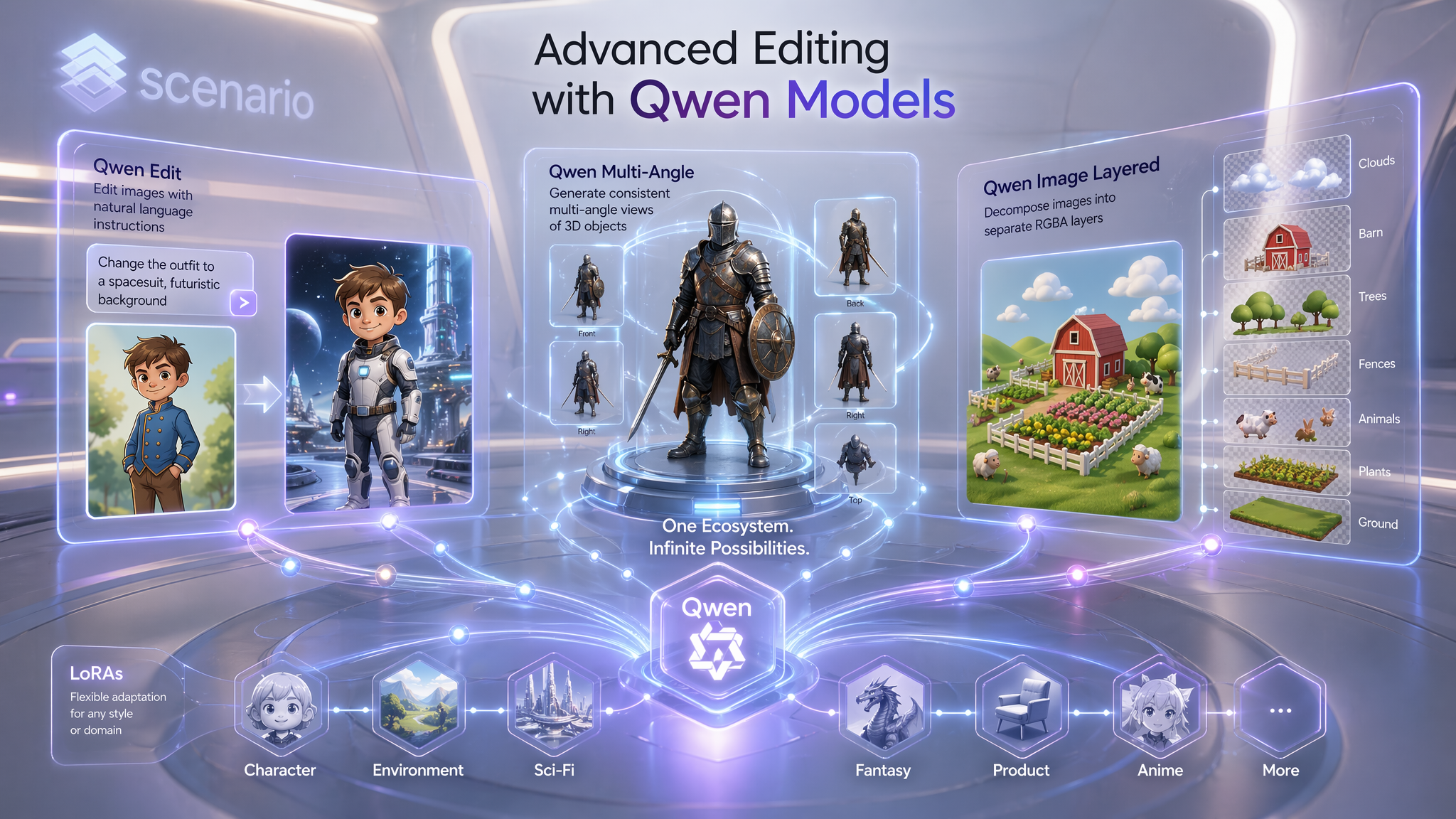
The Qwen suite on Scenario provides a comprehensive ecosystem for image generation, instruction-based editing, camera-aware viewpoint synthesis, and RGBA layer decomposition. This guide details the eight available models, their specific parameters, and optimal use cases for each.
The Qwen ecosystem supports LoRAs (Low-Rank Adaptations). You can leverage both Scenario's built-in platform LoRAs for specialized effects and your own custom-trained LoRAs to maintain strict brand identity, character consistency, or unique artistic styles across all your edits.
Model Overview
Model | Mode | Input | Primary Use |
txt2img + img2img | Text + optional image | Base generation with LoRA support | |
txt2img + img2img | Text + optional image | Photorealistic humans (Dec 2025) | |
img2img | Multiple images + prompt | Instruction editing (Sep 2025 version) | |
img2img | Multiple images + prompt | Recommended default for instruction editing | |
img2img | Single image + prompt | High-fidelity surgical editing | |
img2img | Single image | Camera orbit (Original version) | |
img2img | Single image | Camera orbit via absolute coordinates | |
img2img | Single image | RGBA layer decomposition |
Qwen Image & Qwen Image 2512
These models serve as the foundational text-to-image generators. They are highly receptive to stylistic guidance, making them ideal for applying custom LoRAs.
Qwen Image: best for stylized and artistic outputs. Excellent for applying custom artistic LoRAs to achieve specific illustrative styles.
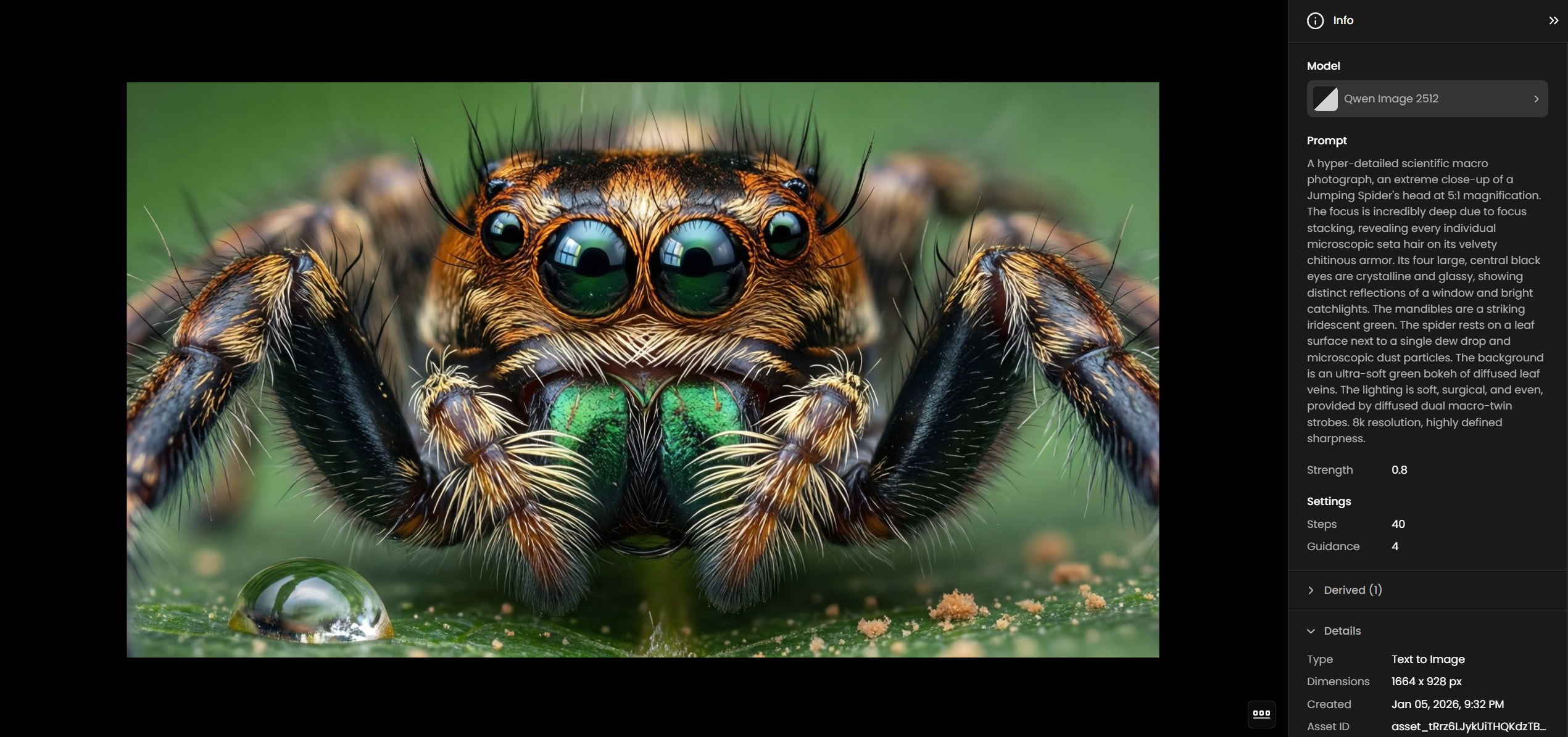
Qwen Image 2512: optimized for photorealistic humans and superior text-in-image accuracy. Ideal for use with custom character LoRAs to generate consistent, photorealistic brand ambassadors or models.
Parameters
Prompt: required. Defines the generation. Max 2048 characters.
Image: optional. Reference image for img2img variations.
Strength: 0 to 1, default 0.6. Controls faithfulness to the reference image. Lower values stay closer to the input; higher values allow more creative freedom.
LoRAs: apply up to 6 LoRA models simultaneously. Mix platform LoRAs with your own custom-trained models for branded results.
LoRA Scale: 0 to 2. Controls the influence of each LoRA.
Guidance: 1 to 10, default 4. Determines how strictly the model follows the prompt.
Number of Outputs: 1 to 4, default 4.
Steps: 1 to 100, default 28.
Width / Height: 128 to 2048 (must be a multiple of 16).
Seed: optional. For reproducible results.
Qwen Edit 2509 & Qwen Edit 2511
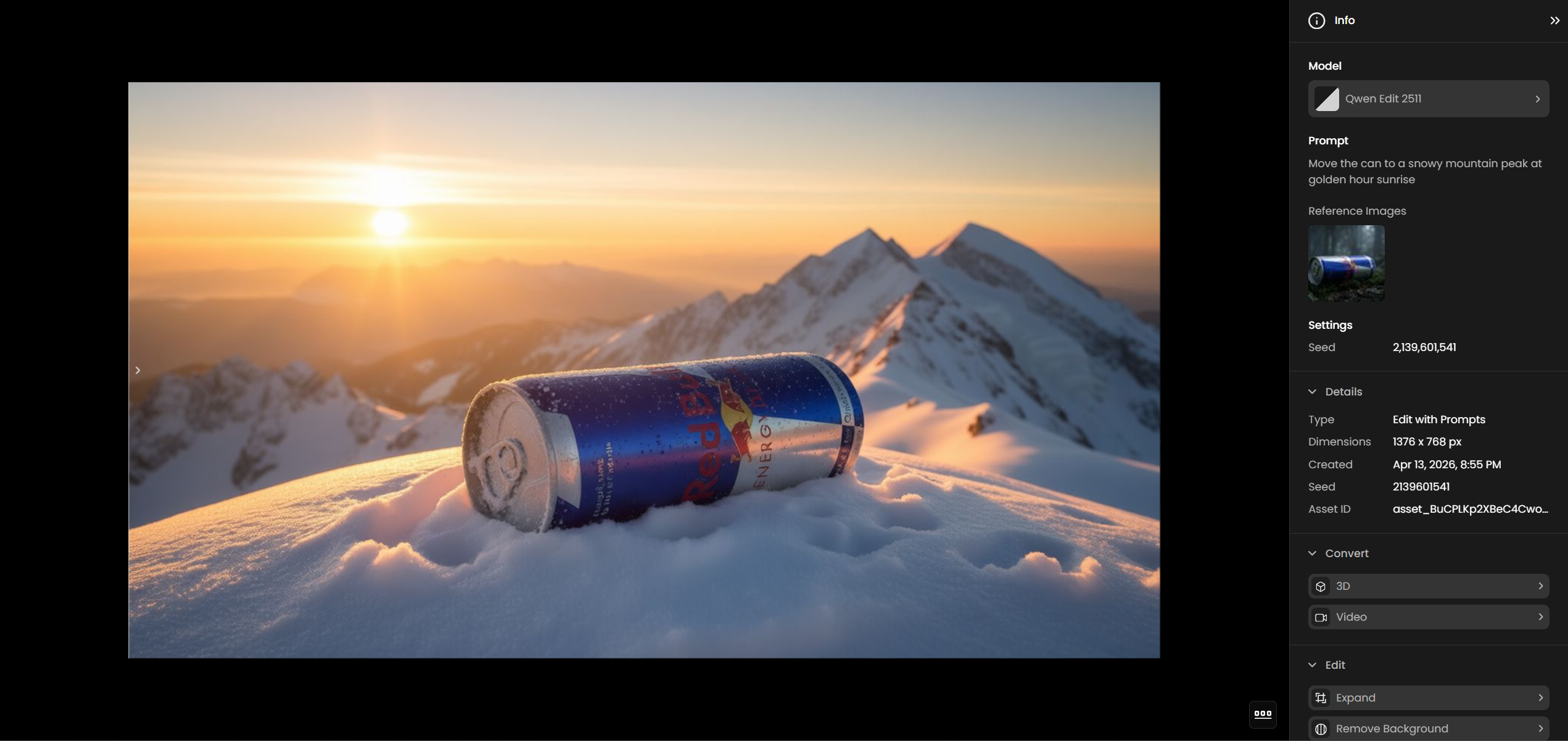
Instruction-based models that apply changes semantically. Qwen Edit 2511 (November 2025) is the current standard, offering superior instruction following and identity preservation. Both models accept multiple reference images, making them well suited for combining elements from different sources. These models become especially powerful when combined with LoRAs, allowing you to instruct the AI to edit an image into a specific custom style.
Prompting Patterns
Style changes: "Change the lighting to golden hour" or "Make this look like a watercolor painting."
Object-level edits: "Change the color of the jacket to dark green."
Composition: "Place the person from image 1 into the environment from image 2."
[TIP] LoRA Scale: For Qwen Edit LoRAs, a scale between 0.65 and 0.85 is the "sweet spot" to balance specialized effects with the base model's reasoning.
Qwen Edit Plus
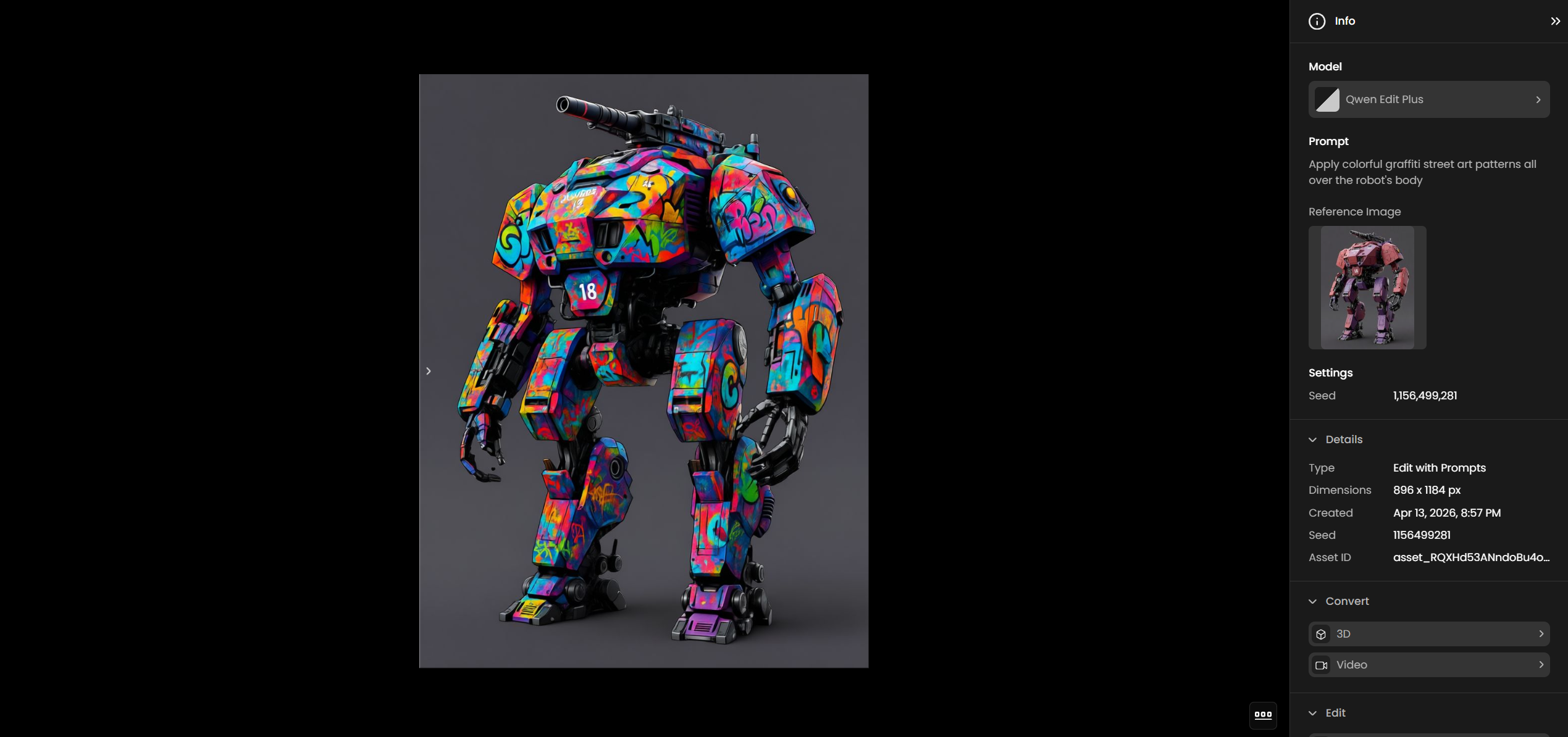
The high-capability choice for single-image surgical edits.
Constraint: unlike 2511, it accepts only a single image as input. It cannot combine elements from multiple images.
When to use: final-pass refinements or complex object manipulations where precise control over a single image is needed. Use custom LoRAs to ensure edited parts match the intended style or character identity.
Camera Control: Multi-Angle Models
These models re-shoot an image from a new camera position using latent view synthesis.
Qwen Edit Multi-Angle (Relative)
Rotate Degrees: -90 to +90. Positive values orbit left; negative values orbit right.
Move Forward: 0 to 10. Higher values zoom the camera in toward the subject.
Vertical Tilt: -1 to +1. -1 is bird's-eye; +1 is low-angle.
Use Wide Angle: boolean toggle for wider framing.
Aspect Ratio: match input image, 16:9, 4:3, 1:1, 3:4, or 9:16.
LoRA Scale: 0 to 4, default 1.25. Controls the strength of the camera control LoRA.
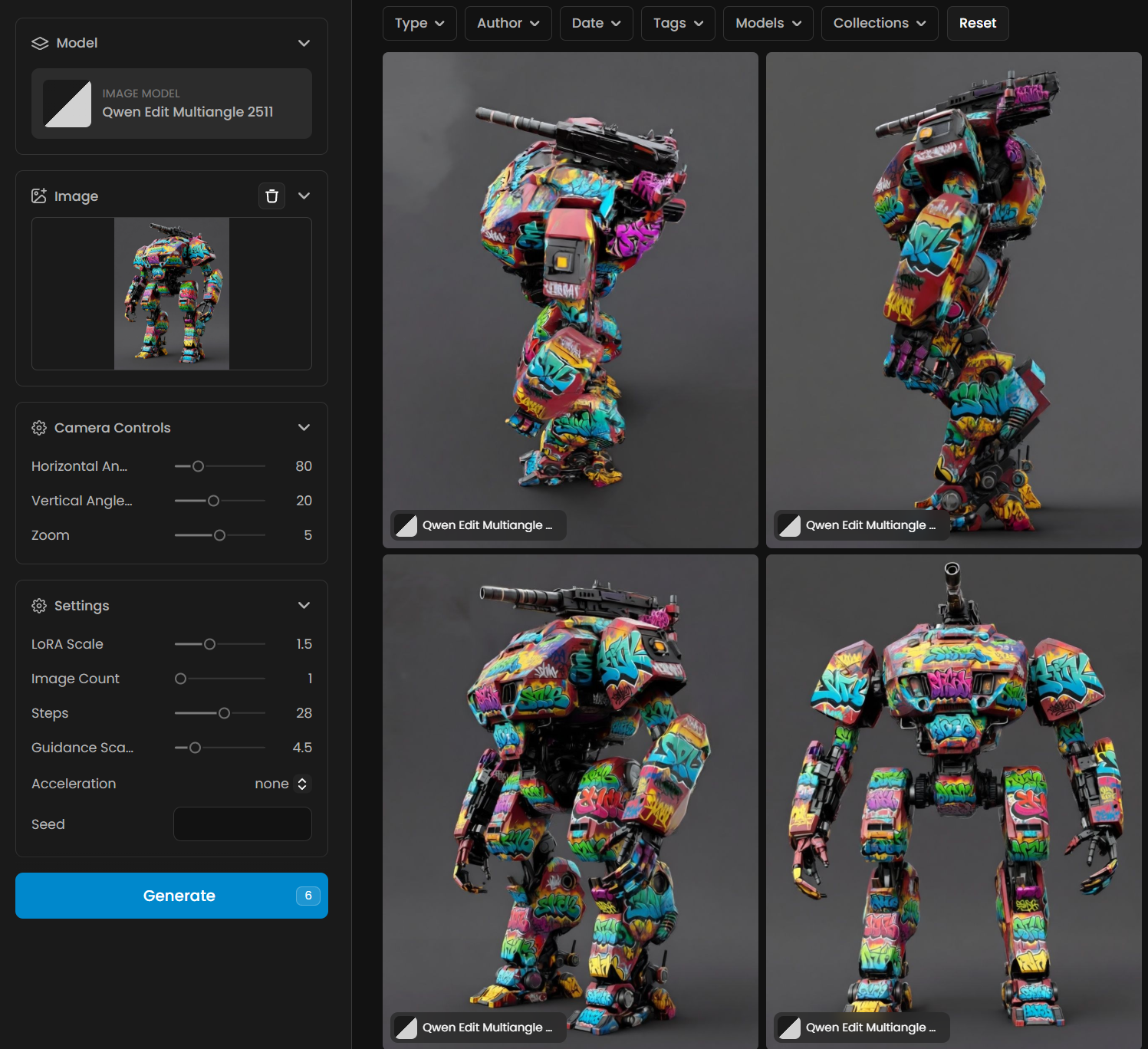
Qwen Edit Multiangle 2511 (Absolute)
Horizontal Angle: 0 to 360. 0 = front, 90 = right, 180 = back, 270 = left.
Vertical Angle: -30 to 90. -30 = low-angle, 0 = eye-level, 90 = bird's-eye.
Zoom: 0 to 10, default 5. 0 = wide shot, 5 = medium, 10 = close-up.
LoRA Scale: 0 to 4, default 1.5.
Number of Outputs: 1 to 4, default 1.
Steps: 1 to 50, default 28.
Guidance Scale: 1 to 20, default 4.5.
Qwen Image Layered
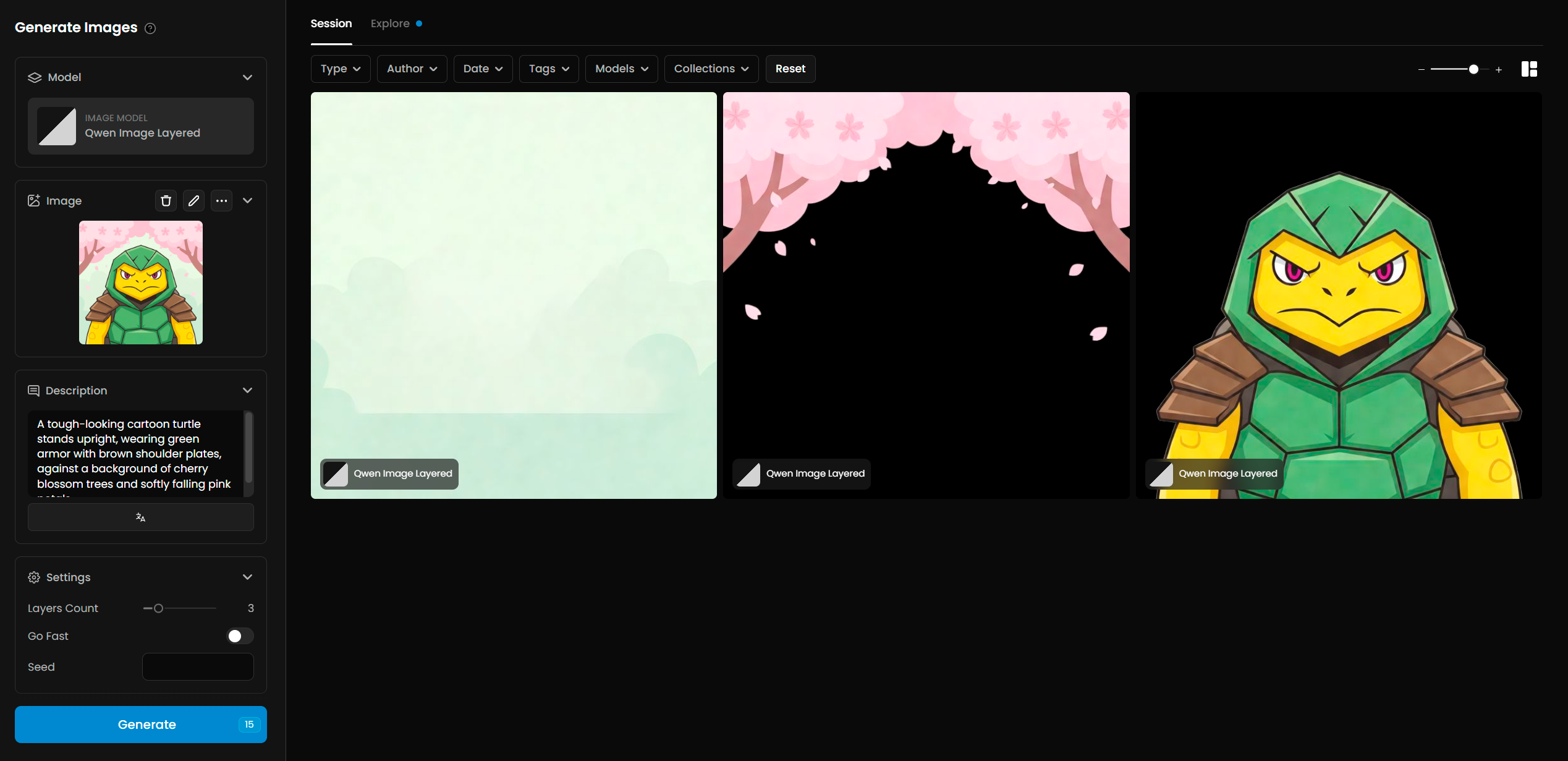
Decomposes a single image into multiple transparent RGBA layers based on depth.
Number of Layers: 2 to 8, default 4. Separates background, far mid-ground, near mid-ground, and foreground.
Description: optional text description of the image. Use "auto" for automatic captioning (default).
Go Fast: boolean, default true. Enables 8-step Lightning generation. Disable for final production to ensure edge quality.
Seed: optional. For reproducible results.
Known limitations:
Cleanup: fine edges like hair or fur often require manual masking post-export.
Inpainting: background gaps left by lifted elements may require manual repainting.
Practical Examples
Here are some practical examples of how to use Qwen models:
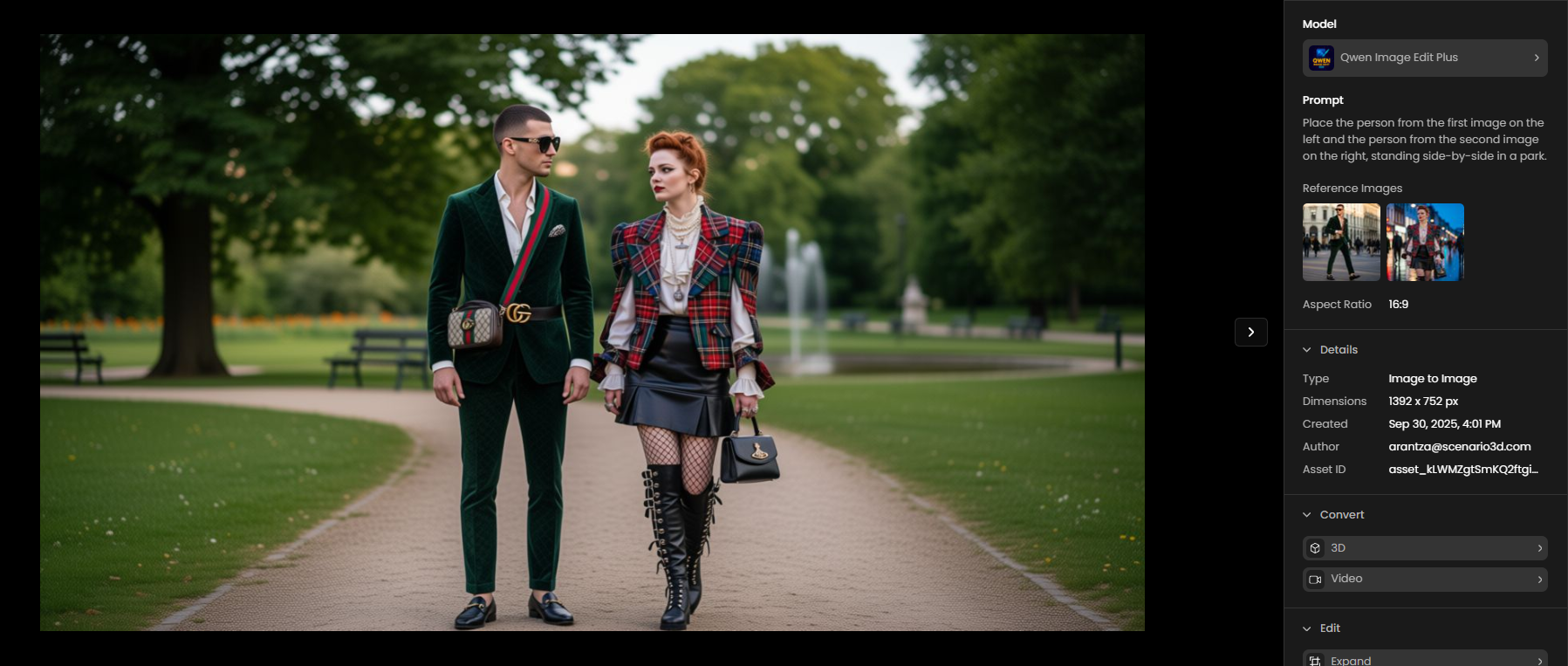
1. Multi-Person Image Combination
Model: Qwen Edit 2511
To combine two separate photos of people into a single coherent scene:
Upload both images in the Reference Images field.
In the prompt box, write: "Place the person from the first image on the left and the person from the second image on the right, standing side-by-side in a park."
Generate the edit. Qwen Edit 2511 accepts multiple reference images and will combine the two individuals into a new, coherent scene.
2. Controlled Camera Motion Using First and Last Frames
In this example, the Qwen Edit – Camera Control model was used to generate several key frames simulating different camera positions around the same scene. These images were then combined using a video generation model such as Seedance 1 Pro to create smooth, continuous camera motion.
Rather than manually animating each frame, this workflow demonstrates how Qwen Edit can be used to produce consistent multi-angle views of a subject — for instance, starting from a wide shot, transitioning into a mid-range view, and ending with a close-up. By assigning these images as the first and last frames, models like Seedance automatically interpolate the in-between motion, resulting in a natural zoom or pan effect.
Models: Qwen Edit Multi-Angle + Seedance 1 Pro (for animation)
Output Settings:
Duration: 5 seconds
Resolution: 1080p
Aspect Ratio: 16:9
This example illustrates how Qwen Edit’s precise camera controls - such as rotation, forward movement, or tilt - can be combined to generate a sequence of dynamic perspectives. When assembled into video, these frames produce elegant, cinematic camera moves ideal for design showcases, environment visualization, or storytelling.
Choosing the Right Model
Task | Recommended Model |
Generate images from text | Qwen Image 2512 |
Edit an image with a text instruction | Qwen Edit 2511 |
Combine elements from multiple images | Qwen Edit 2511 |
High-precision single-image edit | Qwen Edit Plus |
Re-shoot from a specific absolute angle | Qwen Edit Multiangle 2511 |
Re-shoot with aspect ratio / wide-angle control | Qwen Edit Multi-Angle |
Separate image into layers for animation | Qwen Image Layered |