Grok Imagine Video 1.5: The Essentials
Last updated: August 17, 2026
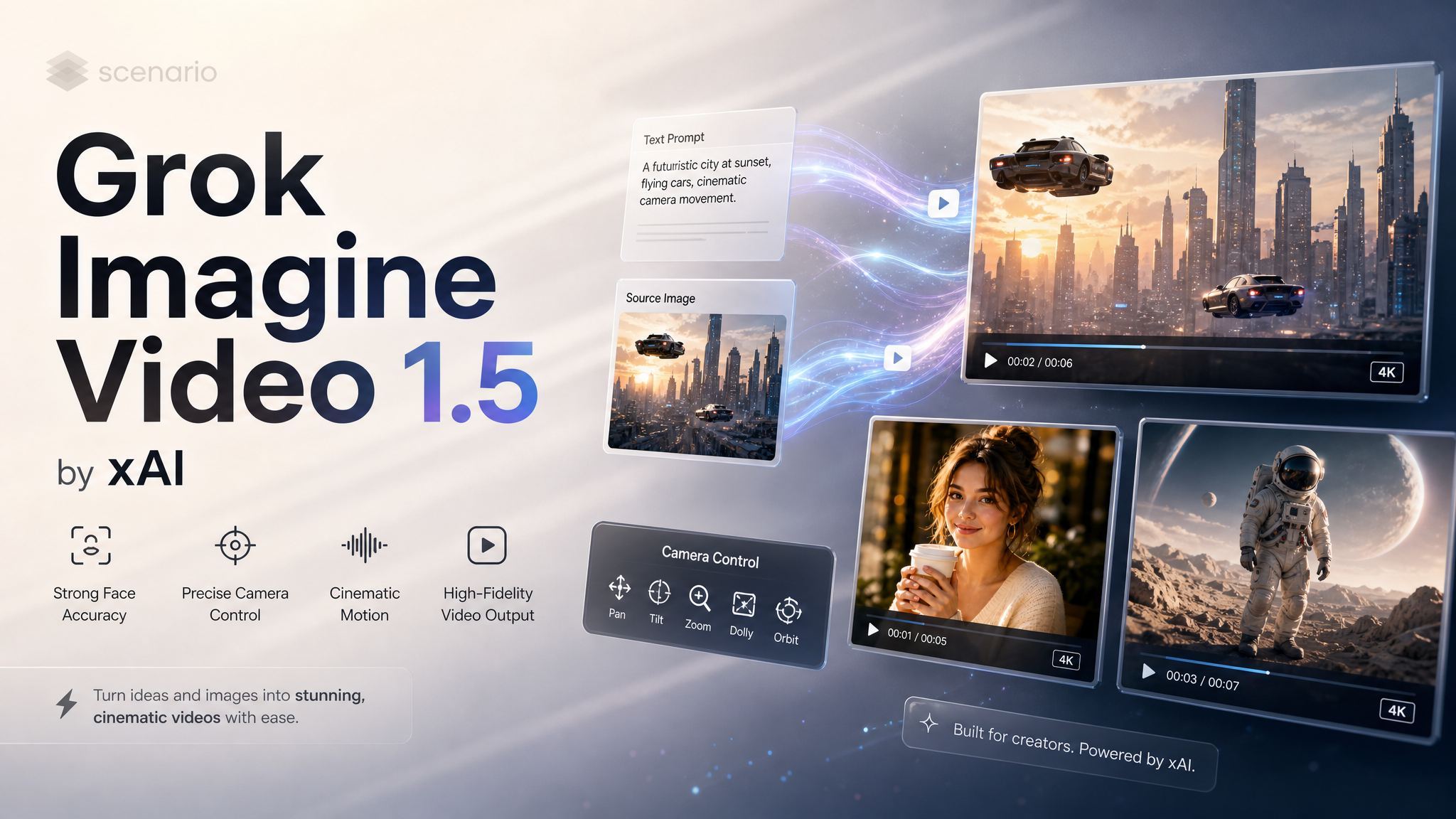
Grok Imagine Video 1.5 is xAI’s cinematic video family on Scenario. It turns a text prompt, a single source image, or a set of reference images into short clips with native audio, strong face and identity accuracy, and precise camera control. Clips run up to 15 seconds with resolution up to 1080p on the base model. The family has two models that share one prompt style, so you can move between them without relearning anything.
Two Models, One Family
Pick the model that matches the input you have.
Grok Imagine Video 1.5 (
model_xai-grok-imagine-video-1-5) is the base model. Generate from a text prompt alone (text to video), or lock the opening shot with one source image (image to video). Supports 480p, 720p, and 1080p, aspect ratios from 16:9 to 9:16, and up to 15 second clips with native audio. Best when you want the highest resolution or spoken dialogue.Grok Imagine Video 1.5 Reference to Video (
model_xai-grok-imagine-video-1-5-reference-to-video) takes up to seven reference images and fuses them into a single moving scene. Tag each reference as@image1,@image2, and so on up to@image7in the prompt to control what each one contributes (character, product, environment, or a keyframe in a sequence). Outputs at 480p or 720p. Best for consistent characters, product and brand shots, and keyframed motion.
How to Use the Base Model
The base model works in two input modes:
Text to video. Describe the scene in the Prompt and generate directly. This mode handles spoken dialogue best, since there is no source frame to fight against.
Image to video. Add one image as the first frame and let the Prompt describe only what moves. Aspect ratio follows the source image. Keep the prompt short and focused on the change, not on redescribing what is already in the picture.
Set duration, aspect ratio, and resolution to match your delivery. Native audio (dialogue, sound effects, ambience) is generated in the same pass, so plan the sound in the prompt.
How to Use Reference to Video
Reference to Video is built for control across multiple inputs. The workflow is:
Prepare up to seven clean reference images. A single subject per image reads best: a full body character on a plain background, a product isolated on white, an empty environment, or one frame of a motion sequence.
Pass them in order and reference them in the Prompt by tag:
@image1for the first,@image2for the second,@image3for the third.Write one Grok-style prompt that says how the tagged references combine, add a single camera move, and close with an audio line.
Two patterns work especially well. Fusion: combine a character, an object, and a location into one shot. Keyframe sequence: generate three frames of the same subject in motion (frame two and three made as image to image from frame one so the identity stays fixed), then pass all three so the clip interpolates a clean, controlled move.
Writing Prompts for Grok
Grok responds to compact, action-led prompts. A reliable structure:
Lead with subject, action, and one camera move in the first 20 to 30 words. Example: “A lone inventor lifts a glowing orb as the camera slowly pushes in.”
Use strong, specific verbs (lifts, sprints, shatters, drifts) instead of static description. Motion words drive motion.
Pick a single camera move per clip: push in, pull back, pan, tilt, orbit, or track. Stacking moves muddies the result.
Close with an AUDIO block. Put spoken lines in quotes for lip-sync, then list sound effects and ambience, and write “no music” when you want it clean.
For image to video and reference to video, keep the prompt short and describe only what changes. Do not restate what the images already show.
Examples
All clips below were generated on Scenario in Public Data. Base model clips use model_xai-grok-imagine-video-1-5; reference clips use model_xai-grok-imagine-video-1-5-reference-to-video.
Base, text to video: inventor dialogue (1080p)
A single text prompt with spoken dialogue and a slow push in, rendered at 1080p with native audio. Text to video handles lip-sync better than a locked first frame.
Inventor Dialogue · Text to Video, 1080p · Open on Scenario
Base, text to video: rally car action
High-speed action from text alone, with a tracking camera and engine and gravel sound effects generated in the same pass.
Rally Car Action · Text to Video · Open on Scenario
Base, image to video: street food stall
One source still animated into a living scene. The prompt describes only the motion and ambience, so the original composition stays intact.
Street Food Stall · Image to Video · Open on Scenario
Reference to Video: fusion (character, mount, environment)
Three separate reference images (a rider, a dragon, and a mountain sky) fused into one cinematic shot with a single orbiting camera move.
Dragon Rider Fusion · 3 References · Open on Scenario
Reference to Video: outfit-swap lookbook
The same character keeps an identical walk while each cut changes the outfit and background. Three looks of one person (look A generated first, B and C as image to image from A) drive a fashion lookbook in a single vertical clip.
Outfit-Swap Lookbook · 3 References, 9:16 · Open on Scenario
Reference to Video: keyframe sequence (product unboxing)
Three ordered frames of a single product interpolated into a smooth unboxing move. The identity stays locked because frames two and three were built from frame one.
Product Unboxing Sequence · 3 Frame References · Open on Scenario
Parameters
Prompt
The scene description. Lead with subject, action, and one camera move, then close with an AUDIO block. For reference clips, tag inputs as @image1, @image2, @image3.
Image (base model)
Optional first frame for image to video. When set, the clip opens on this image and aspect ratio follows it.
Reference Images (reference model)
Up to seven images fused into the clip. One clean subject per image reads best.
Duration
Clip length from 1 to 15 seconds. For polished results aim for 10 seconds or more so the motion and audio have room to develop.
Aspect Ratio
Choose from auto, 16:9, 3:2, 4:3, 1:1, 3:4, 2:3, or 9:16. In image to video the ratio follows the source image.
Resolution
480p, 720p, or 1080p on the base model. Reference to Video outputs at 480p or 720p.
Number of Outputs
Generate 1 to 4 variations per run to compare takes.
Use Cases
Brand films and product spots with native sound.
Talking-character clips and dialogue scenes at 1080p.
Consistent-character storytelling across multiple shots (reference model).
Fashion lookbooks and outfit or scene swaps with a fixed subject.
Keyframed motion design from a small set of stills.
Social verticals in 9:16 and cinematic 16:9 hero shots.
Tips for Better Results
Put the action and camera move in the first sentence; save mood and detail for after.
Use one camera move per clip. Combine moves only when you truly need them.
For dialogue, prefer text to video and keep spoken lines short and in quotes.
For image to video, describe only what changes so the source composition holds.
For reference clips, use clean single-subject images and name each one by tag in the prompt.
Generate at 10 seconds or longer so motion and audio feel complete.
Known Limitations
Reference to Video tops out at 720p; use the base model when you need 1080p.
Reference to Video does not lock a first frame the way image to video does; it fuses references instead of animating one still.
Very busy or multi-subject reference images reduce control. Keep one subject per image.
Stacking several camera moves or actions in one prompt can produce muddy motion.
Long 720p reference clips can take several minutes to render; allow time and retry if a job stalls.