Phota: The Essentials
Last updated: April 22, 2026
Covers Phota Text to Image, Phota Edit, and Phota Enhance
Introduction
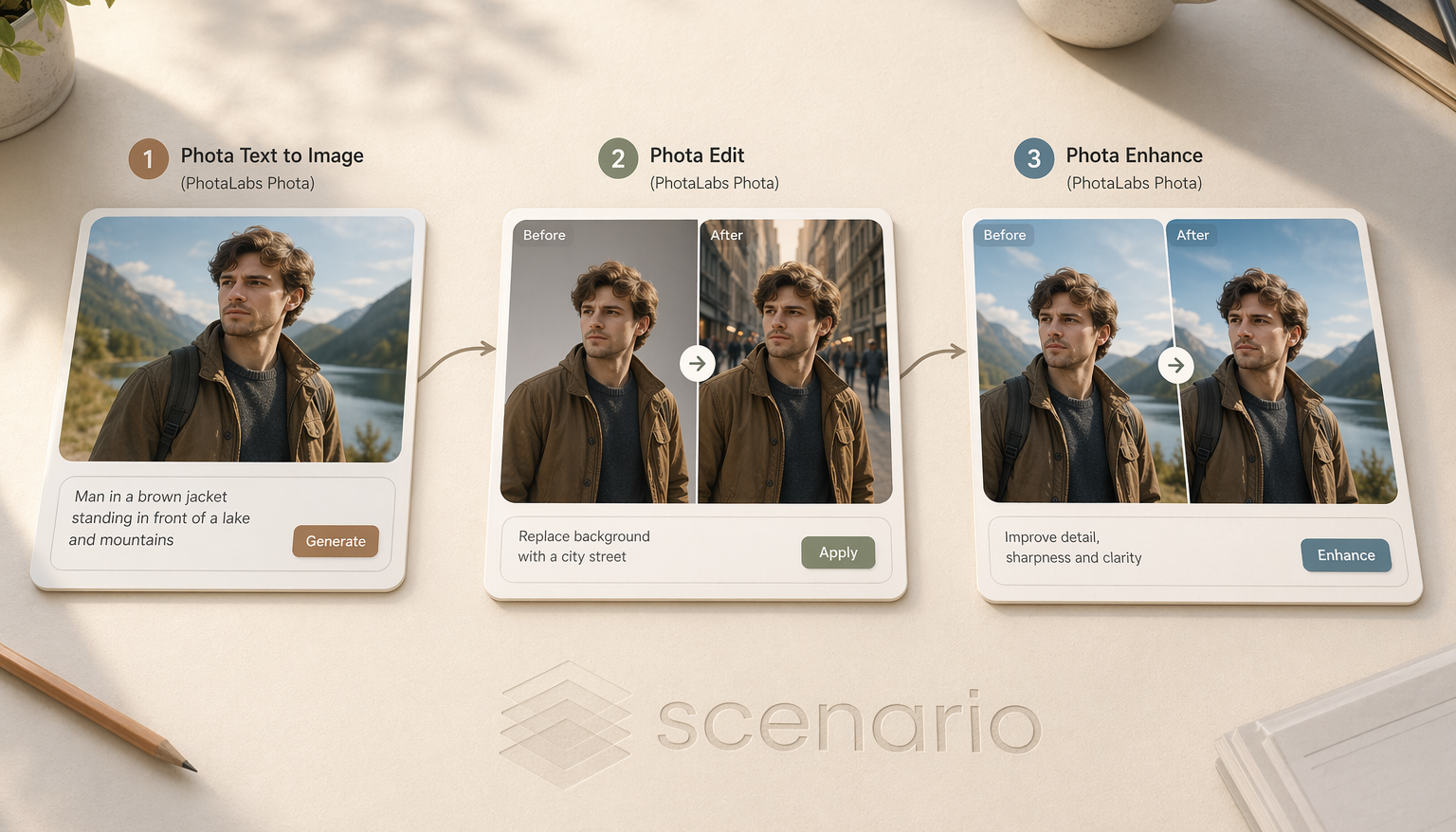
Phota is a photorealistic image generation suite by PhotaLabs, built by former Adobe AI researchers. Three models form a complete photo production workflow: generate a new image from text, edit an existing image with a plain-language instruction, or enhance any image to improve quality and sharpness. All three models are optimized for human subjects and photorealistic output.
Which Model Should I Use?
ModelID | Input | Best for | |
Generation | model_phota | Text prompt | Creating new photorealistic images from a description |
Edit | model_phota-edit | Up to 10 images + text prompt | Changing backgrounds, outfits, lighting, or environment in an existing photo |
Enhancement | model_phota-enhance | Single image | Sharpening, upscaling, and quality improvement with no prompt needed |
The three models are designed to work together. A common workflow is: generate a base image with Phota Text to Image, refine it with Phota Edit, then apply a final quality pass with Phota Enhance before publishing.
Parameters
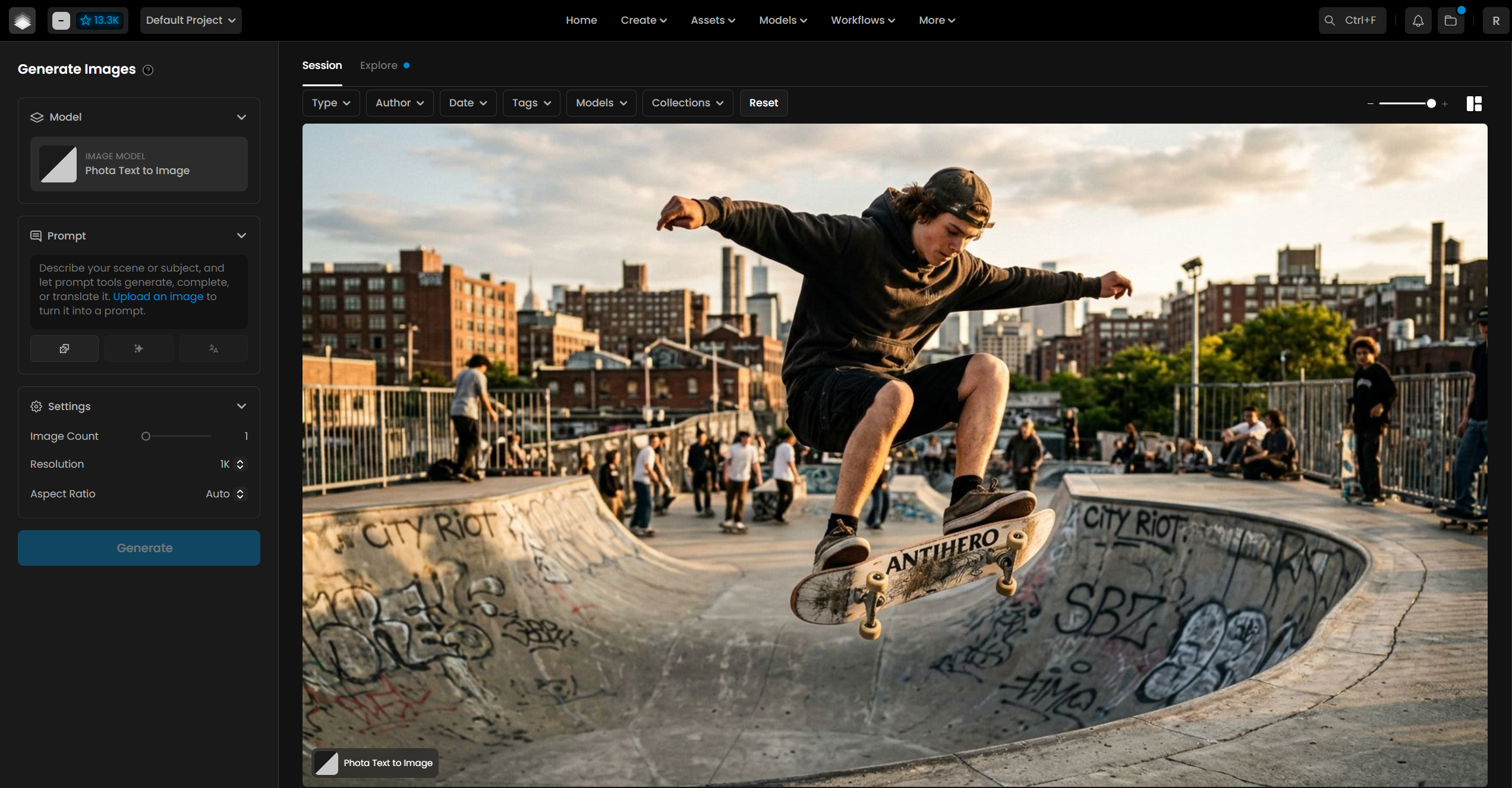
Phota Text to Image
Parameter | Required | Default | Range/Options | Description |
Prompt | Yes | Max 2,048 chars | Text description of the image to generate. Describe subject, scene, lighting, mood, and composition. The model is optimized for photorealistic human subjects. | |
Resolution | No | 1K | 1K, 4K | Output image resolution. 4K produces a significantly larger file and takes roughly twice as long to generate. |
Aspect Ratio | No | auto | auto, 16:9, 4:3, 1:1, 3:4, 9:16 | Canvas proportions. |
Image Count | No | 1 | 1 to 4 | Number of images to generate per job. |
Phota Edit
Parameter | Required | Default | Range/Options | Description |
Reference Images | Yes | 1 to 10 images | Images to edit. The first image is used as the primary source. Additional images provide the model with more visual context about the subject, which improves consistency. | |
Prompt | Yes | Max 2,048 chars | Plain-language instruction describing the edit. Examples: "Change the background to a Paris street at night", "Replace the jacket with a casual denim outfit", "Move the person to a beach at sunset". | |
Resolution | No | 1K | 1K, 4K | Output resolution. Set to 4K for final production assets. |
Aspect Ratio | No | auto | auto, 16:9, 4:3, 1:1, 3:4, 9:16 | Output canvas proportions. Defaults to the source image proportions when set to auto. |
Image Count | No | 1 | 1 to 4 | Number of edited variants to generate per job. Useful for comparing different interpretations of the same edit instruction. |
Phota Enhance
Parameter | Required | Default | Range/Options | Description |
Image | Yes | Single image | The image to enhance. No prompt is required. The model automatically detects subjects and applies quality improvements. | |
Image Count | No | 1 | 1 to 4 | Number of enhanced variants to generate. Useful when you want slight variation in the enhancement result. |
Note: Phota Enhance does not accept a text prompt. The enhancement is fully automatic. Resolution and aspect ratio parameters are also not available for Enhance; the model determines output dimensions from the input image.
How Phota Edit Works
Phota Edit reads the visual content of your reference images and uses the edit instruction to transform the scene while keeping the subject recognizable. You are not selecting a region to mask or inpaint; you are describing the change you want in plain language and the model applies it holistically.
The first image in the reference list is the primary source. Any additional images you provide give the model more angles, expressions, and lighting conditions to understand the subject, which leads to more consistent output across edits.
Common edit types that work well:
Background swap: "Move the person to a Paris street at night with warm cafe lights"
Outfit change: "Change the jacket to a casual denim outfit, keep the same pose"
Lighting adjustment: "Change the lighting to warm golden hour, same outdoor setting"
Environment change: "Move the person to an autumn forest with dappled light"
Season change: "Change to a winter setting with snow falling"
How Phota Enhance Works
Phota Enhance automatically improves the quality of any image. The model sharpens fine details, reduces noise, improves clarity, and upscales the output without modifying the subjects or scene content. It is identity-aware, meaning faces and distinguishing features are preserved rather than smoothed out or altered during the enhancement process.
Enhance is most useful as a final step after generation or editing to prepare an asset for print, high-resolution display, or publishing. It also works well on its own to improve the quality of existing photos from external sources.
Use Cases
Marketing asset creation: Generate placeholder talent images for campaigns before a photoshoot is scheduled. Use Phota Text to Image to produce diverse subjects across different settings and demographics at any resolution.
Ad variation production: Take a single source photo and use Phota Edit to produce multiple versions for different markets or platforms. Change the background, season, or styling without re-shooting.
Social media content: Generate lifestyle and portrait content in 9:16 or 1:1 at 4K for feed or story formats. Cover any setting, season, or mood without location constraints.
E-commerce product photography: Reposition models into different environments to match seasonal promotions or regional campaigns. Use Phota Edit to change backgrounds while keeping the product and subject consistent.
Asset quality improvement: Use Phota Enhance to upscale and sharpen low-resolution images before publishing. Particularly useful for older photo libraries or AI-generated images that need a quality pass before use in print or large-format display.
Game and film pre-production: Rapid character and location concept photography using Phota Text to Image. Generate photorealistic reference images for casting, wardrobe, or location scouting without leaving the desk.
Tips for Better Results
Describe subject, scene, and lighting together in the prompt. Phota is tuned for photorealistic output, so prompts that read like photography briefs produce the best results. "Woman, 30s, warm golden hour sunlight, outdoor park, shallow depth of field" outperforms "woman outside".
Use 4K for final assets, 1K for iteration. 1K generates roughly twice as fast and at lower cost. Develop your prompt and composition at 1K, then switch to 4K for the final output.
Provide multiple reference images in Phota Edit. A single reference image limits what the model knows about the subject. Upload 3 to 5 images showing different angles or lighting conditions to improve consistency across edits.
Write edit instructions as scene descriptions, not commands. "Move the person to a moody rain-soaked street with dark sky" produces better results than "add rain". Describe the desired output rather than the operation.
Use Phota Enhance as the last step. Run Enhance after editing rather than before. Starting from a clean generation or finished edit produces better enhancement output than starting from a noisier source.
Use Image Count to compare edit interpretations. For Phota Edit, generating 2 to 3 variants of the same instruction often surfaces a better interpretation. The model does not produce identical results each run.
Set aspect ratio explicitly for platform-specific outputs. Use 9:16 for TikTok or Instagram Stories, 1:1 for feed posts, 16:9 for YouTube thumbnails or desktop banners. The
autodefault may not match your delivery spec.
Known Limitations
Profile-based identity preservation is not available on Scenario. Phota's full API supports training a personal profile from 30 to 50 photos to generate consistent depictions of a specific real person across multiple jobs. This profile feature is not exposed in Scenario's implementation. The Reference Images parameter in Phota Edit provides partial consistency within a single edit job but does not replace a trained profile.
No negative prompt. None of the three Phota models accept a negative prompt parameter. Use the main prompt to describe what you want rather than what to avoid.
No seed or steps control. Output variation between runs cannot be controlled with a fixed seed. If a generation produces a good result, save it before re-running, as the exact output cannot be reproduced.
Phota Enhance output dimensions are not configurable. The model determines the output resolution from the input. There is no way to specify a target resolution or scale factor.
Edit consistency decreases with aggressive transformations. Background swaps and lighting changes work reliably. More aggressive edits (complete outfit changes that alter body proportions, or moving a close-up portrait to a full-body environment shot) may produce inconsistent subject rendering. Use multiple reference images and generate 2 to 3 variants when attempting complex edits.
Not designed for non-photorealistic styles. Phota is built specifically for photorealistic output. Prompts requesting illustration, anime, oil painting, or other artistic styles will produce inconsistent or degraded results. Use Flux, Stable Diffusion, or other generative models on Scenario for stylized image generation.