The Gemini Omni Family: The Essentials
Last updated: October 6, 2026
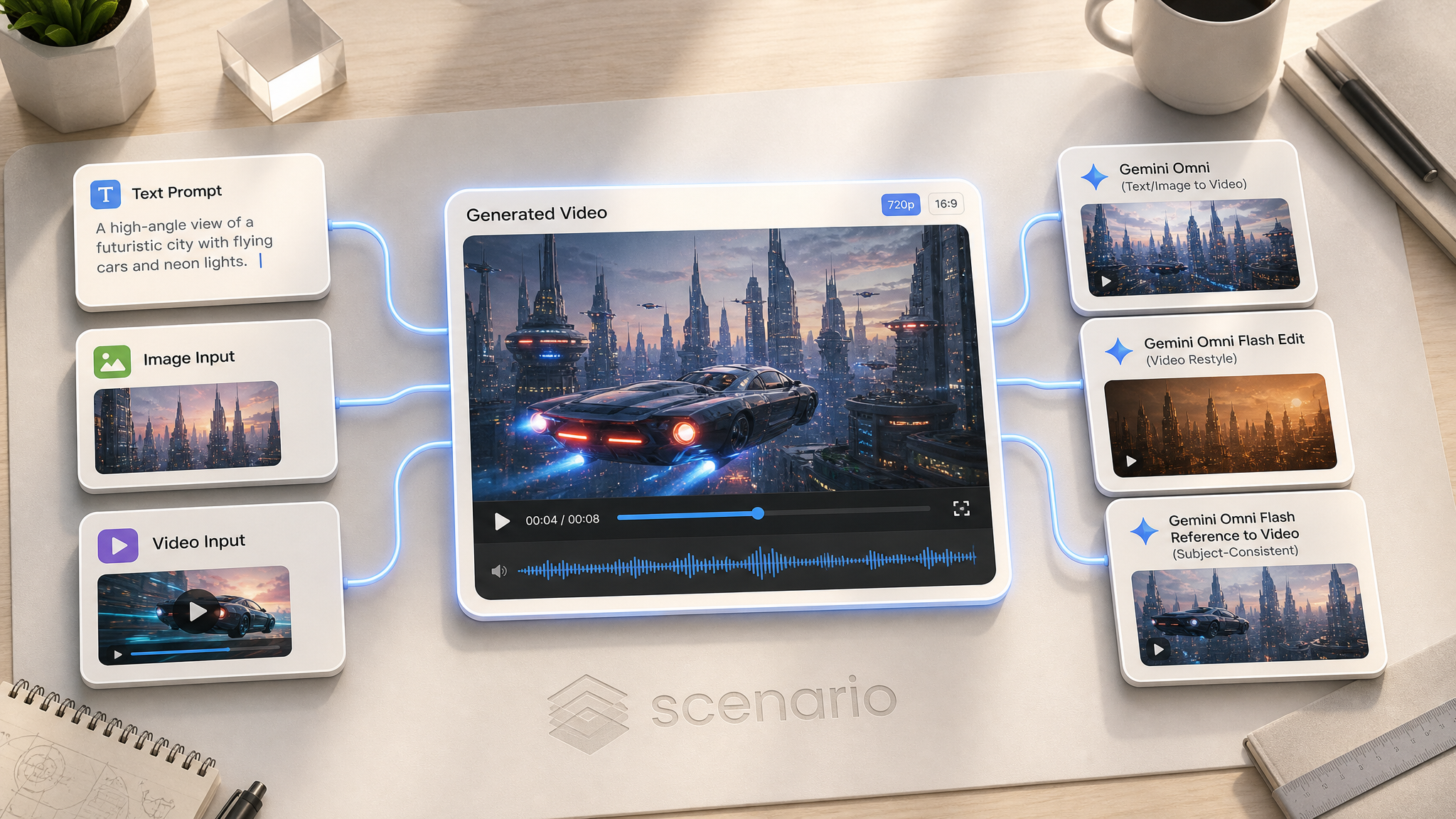
Gemini Omni is Google's breakthrough any-input video family on Scenario, and the current flagship generation is Gemini Omni 1.1 Flash: four sibling models covering the full generation, edit, and continuation surface. Create a clip from text or an image up to 4K, restyle an existing clip in plain English including full style and setting reinvention, drop a specific subject into a fresh scene with reliable spoken dialogue, or extend any clip, including outputs from other models, with matching motion and native audio.
This article leads with the four Gemini Omni 1.1 Flash models and their worked examples: Gemini Omni 1.1 Flash (text-to-video and image-to-video), Gemini Omni 1.1 Flash Edit (video-to-video restyle), Gemini Omni 1.1 Flash Reference to Video (subject-consistent video with dialogue), and Gemini Omni 1.1 Flash Extend (continue any video). The original Gemini Omni Flash family remains available and is covered further down under Previous Generation.
Full art-style transfer: griffin to Studio Ghibli watercolor
Prompt: "Restyle this entire clip as a hand-painted Studio Ghibli-style animation. Preserve the original camera motion and timing exactly. Convert the griffin's photoreal feathers and fur into soft painterly watercolor-style linework with visible brushstroke texture, the rocky cliff and overcast sky becoming a hand-painted pastel background with soft cel-shaded lighting. Keep the griffin's exact pose, wing motion, and the overall composition identical, just change the rendering style."
Before: Photoreal griffin. After: Ghibli watercolor griffin
A full art-style transfer with Gemini Omni 1.1 Flash Edit, motion and pose held exactly, only the look changed.
Which Model Should I Use?
Google shipped a full version bump on top of the original Gemini Omni Flash family covered above. Gemini Omni 1.1 Flash upgrades the base, Edit, and Reference to Video models with a wider output range (360p through 4K, up from a 720p ceiling) and adds a brand-new sibling: Gemini Omni 1.1 Flash Extend, which appends new footage onto any existing clip. Native audio, including full lip-synced dialogue, carries through all four models.
Model | Input | Best for |
|---|---|---|
Text prompt, optional first and last frame, up to 7 reference images | Everything the original Gemini Omni does, now up to 4K, with precise first-to-last-frame interpolation and reliable lip-synced dialogue | |
An existing video plus an edit instruction, optional 1 to 5 reference images | Everything Gemini Omni Flash Edit does, plus full art-style transfer (painted animation, comic ink) and complete setting swaps, not just color grade and season changes | |
1 to 7 reference images and/or a short reference video (3 seconds or less), plus an optional prompt | Subject-consistent scenes up to 4K, now also accepting a reference video and handling full spoken dialogue reliably | |
Any existing video, optional prompt to steer the continuation | Appending 3 to 10 seconds onto a clip that cut a beat short, including clips from other models entirely |
Gemini Omni 1.1 Flash: Text and Image to VideoNew
Same core idea as the original base model, now rendering at 360p through 4K with an optional last-frame target for precise beginning-to-end shots. Scripted dialogue in quotes now lands with reliable, natural lip sync, which makes the 1.1 base model a strong pick for anything with a speaking character: a spokesperson, a game NPC, or a narrative beat with a line of dialogue.
Ship captain, scripted dialogue
A weathered ship's captain in a navy peacoat stands at the bow of a sailing ship, raises a brass telescope to scan the horizon, then turns to the crew and calls out in a booming voice: "Land ho! Prepare to make port!" The crew erupts into muffled cheering as he turns back to the horizon, coat billowing in the wind.
Settings: Text-to-video, 16:9, 10 seconds, 1080p. Watch: Open on Scenario
Comedic slow motion, no dialogue needed
A golden retriever stands on its hind legs at a backyard grill, a stolen sausage hanging from its mouth. It freezes mid-bite as it hears a sound, ears pinning back, tail sinking guiltily, then backs slowly off the table in exaggerated slow motion, sausage still clenched triumphantly in its jaws.
Settings: Text-to-video, 16:9, 10 seconds, 1080p. Watch: Open on Scenario
Gemini Omni 1.1 Flash Edit: Full Style and Setting ReinventionNew
The 1.1 Edit model handles the same season and object swaps as before, but pushes noticeably further: complete art-style transfer and full setting replacement, both while holding the source clip's exact pose and motion. Two transforms tested end to end below: a photoreal creature repainted as hand-drawn animation, and a character's entire environment swapped for a different one.
Full setting swap: space station to deep-sea dive
Prompt: "Change the entire setting and the astronaut's suit from a space station module to a deep-sea diving environment, without altering their pose, floating motion, or hand movement toward the droplet. Replace the spacesuit with a similarly proportioned vintage brass diving suit and round porthole helmet, the space station's cables and panels becoming underwater rock formations and swaying kelp illuminated by shafts of blue-green light from above, the floating water droplet becoming a small school of tiny fish. Keep their exact pose and the timing of every movement identical."
Before: Astronaut in space station. After: Deep-sea diver
Gemini Omni 1.1 Flash Reference to Video: Now With Reliable DialogueNew
Subject consistency works the same way as the original R2V model. What changed in 1.1: scripted dialogue in the prompt now comes through with natural, well-timed lip sync, which opens up spokesperson and character-performance use cases that were unreliable on the original model.
Reference character speaking a scripted line
The reference photo is a head chef in a white toque. In the generated clip he stands behind the pass counter presenting a plated dish with both hands, looks at camera, and says warmly: "Bon appetit, enjoy every bite," before setting the plate down with a satisfied nod.
Settings: 1 reference image, 16:9, 10 seconds, 1080p. Watch: Open on Scenario
Reference character performing, no dialogue
The reference photo is a jazz vocalist in a sequined gown. In the generated clip she stands at a vintage microphone in a dim smoky club, swaying gently as she sings a held note, sequins catching the amber stage light, a faint upright bass line underneath.
Settings: 1 reference image, 16:9, 10 seconds, 1080p. Watch: Open on Scenario
Gemini Omni 1.1 Flash Extend: Continue Any VideoNew
Extend is the newest sibling in the family: feed it any existing video and it appends 3 to 10 seconds of new footage that continues the same subject, camera style, and native audio, rather than starting a fresh generation. It works from any source clip, including outputs from entirely different models. Both examples below started as clips from Seedance 2.5 and were extended here.
Extending a Seedance 2.5 clip: fighter jet
Prompt: "Continue the scene exactly as it ends: the fighter jet continues its steep ascent into the clear blue sky, punching through a thin wisp of cloud as a bright contrail begins to form, then levels off at altitude with sunlight glinting off its fuselage."
Source: Seedance 2.5 clip, extended by 6 seconds. Watch: Open on Scenario
Extending a Seedance 2.5 clip: noir dog with whiskey
Prompt: "Continue the scene exactly as it ends: the dog in the trench coat and fedora lifts the whiskey glass in one paw and takes a slow sip, then sets it back down with a satisfied exhale and leans back into the desk chair, tipping its fedora down with the other paw."
Source: Seedance 2.5 clip, extended by 6 seconds. Watch: Open on Scenario
Gemini Omni 1.1 Flash: Parameters
Resolution
360p, 720p, 1080p, or 4K on the base, Edit, and R2V models (360p is a faster draft tier; 1080p and 4K are upscaled). The original Omni Flash family is fixed at 720p.
First Frame, Last Frame, and Reference Images Combine (base model)
These three inputs are independent and can all be used in the same generation. A first-frame image locks the opening shot, an optional last-frame image (see below) locks the ending, and up to 7 reference images keep specific subjects consistent throughout, none of them require turning the others off. Confirmed by generating with a first frame, a last frame, and a reference image together in one call: the clip opened on the first frame, incorporated the reference subject mid-shot, and closed on the last frame.
Last Frame (base model)
Optional closing frame the clip interpolates toward. Requires a first frame. Useful for a precise beginning-to-end shot instead of letting the model choose where it lands. Reference images can be added alongside it.
Reference Video (R2V)
Optional short reference clip, 3 seconds or less, usable on its own or alongside up to 5 reference images. Video references are not supported on the original R2V model.
Input Video and Extension Duration (Extend)
Any Scenario video asset works as the source, including clips from other models. Extension Duration is 3 to 10 seconds of new footage appended after the source's last frame: an 8-second source with a 6-second extension produces about 14 seconds of continuous output.
Cross-Model Pipeline
The four Gemini Omni 1.1 Flash siblings compose. A typical high-impact workflow chains them together, with Nano Banana 2 Lite upstream and Extend as the finishing step:
Nano Banana 2 Lite generates a hero image (character portrait, product hero, or scene still) from text or refs.
Gemini Omni 1.1 Flash (base) animates that image into a clip up to 4K with native audio, using the image as the first frame.
Gemini Omni 1.1 Flash Edit produces stylistic or seasonal variants, or a full style and setting reinvention, without regenerating the performance.
Gemini Omni 1.1 Flash Reference to Video places the same character in additional scenes using the original hero image as a reference, now with reliable spoken dialogue.
Gemini Omni 1.1 Flash Extend appends extra seconds onto whichever clip cut a beat short, even one generated by a different model entirely.
Result: a full multi-scene story with a locked-in cast, dialogue, native audio throughout, and no fixed length ceiling, generated end-to-end on Scenario.
Previous Generation: Gemini Omni Flash
The original Gemini Omni Flash family (base, Edit, and Reference to Video) remains live on Scenario and is documented below for anyone still building on it. It is capped at 720p and does not include Extend or the reliability improvements to dialogue and style transfer described above; for new work, Gemini Omni 1.1 Flash above is the recommended starting point.
Which Model Should I Use? (Previous Generation)
Model | Input | Best for |
|---|---|---|
Text prompt, an optional first-frame image, and up to 7 reference images | Free-form scenes, one-shot ads with baked voice-over, animating a single hero image, multi-shot cinematic sequences, keeping specific subjects consistent | |
An existing video plus an edit instruction | Restyle season, palette, weather, genre, or a specific object without changing motion. Native audio is regenerated to match | |
1 to 7 reference images, plus an optional prompt | Keep a character, product, or place identical across a new scene. Multi-character scenes and material-transfer effects |
All three pair naturally with Nano Banana 2 Lite upstream to produce the source image or reference. The pipeline stays fully in-house on Scenario.
Gemini Omni: Text and Image to Video
The base model turns a text prompt (with optional first-frame image) into a 720p clip of 3 to 10 seconds, widescreen or vertical, with native audio in the same pass. Dialogue, ambience, score, and sound effects arrive together, so you skip the separate voice-over and sound-design steps.
It now also accepts up to 7 reference images. Add them to keep specific subjects (a character, a product, or a place) consistent in the generated clip, alongside or instead of a first-frame image.
How to Use Gemini Omni
Open the model page and write a prompt that describes the scene, the motion, and the sound. Two prompting habits that make a difference:
Write the audio, not just the visuals. Put dialogue in quotes, name ambient sounds, and cue the score. "A confident warm-toned male voice-over says: 'Feel time.'" performs better than describing sound abstractly.
Name the moment, not the setup. "The ranger raises her hand for silence. The tracker slowly raises his rifle" beats "two rangers alert in the woods".
For complex sequences, script the prompt like a shot list with a beat every 2 seconds. Omni Flash packs a lot of narrative into 10 seconds when the prompt directs the camera and sound per beat.
Parameters
Prompt
Scene, action, mood, and audio. Include quoted dialogue for any spoken line. Optional if you provide a first-frame image.
First Frame
Optional image to animate. The clip opens from that exact frame. Best paired with an image produced by Nano Banana 2 Lite or GPT Image 2 upstream.
Duration
3 to 10 seconds, default 8. Push to 10 for beats that need setup, turn, and land. Keep to 3 to 5 for punchy social loops.
Aspect Ratio
16:9 for widescreen, 9:16 for vertical social. No 1:1, 4:5, or 21:9 native.
Reference Images
Optional, up to 7. Reference subjects you want to appear in the clip (a character, a product, or a location), used to hold identity across the shot. Combine with a first-frame image when you want both a locked opening frame and consistent subjects.
Examples: Gemini Omni
American thriller: undercover operatives in a North African market
Two operatives in linen shirts move through spice stalls, exchanging quiet English dialogue about a package. Vendors call out prices, kettles clink, distant call to prayer. Handheld cinema, warm afternoon light.
Settings: Text-to-video, 16:9, 10 seconds. Watch: Open on Scenario
Transparent smartwatch product spot
A fully transparent glass smartwatch rotates against matte black. Interior mechanisms and cyan UI pulse through the case. Warm male voice-over: "Introducing the watch you can see right through. Feel time." Subtle synth pad, mechanical whir.
Settings: Text-to-video, 16:9, 8 seconds. Watch: Open on Scenario
Fantasy dragon boss reveal
The colossal red-scaled ancient dragon rises further from a mountain fissure, wings unfurling to their full span with a leathery snap that echoes down the valley. It arches its long neck, inhales deeply with a resonant sucking sound, then unleashes a roaring wave of orange flame directly at the camera. Knights scream and scatter across the cliffside. Full symphonic orchestral score with brass and choir, dragon roar overlapping thunder, chunks of stone tumble past the frame.
Settings: Image-to-video from a Nano Lite dragon key art, 16:9, 10 seconds. Watch: Open on Scenario
Gemini Omni Flash Edit: Restyle a Video
Feed a clip and describe the change in plain English. The camera path, timing, and motion stay intact. Native audio is regenerated to match the new look.
How to Use Gemini Omni Flash Edit
Open the model page, upload the video, and write the edit instruction. You can now also attach up to 5 reference images to steer the new subject or look. There are no duration or aspect controls: the output inherits both from the source.
Four instruction shapes that work well:
Object swap. "Replace the red car with a matte black vintage motorcycle. Keep the exact drift motion, twilight lighting, and camera path."
Season, weather, or time-of-day. "Change the season to a heavy snowstorm." "Move the entire scene to late night with neon lighting."
Full style transfer. "Restyle as hand-painted Studio Ghibli animation, watercolor backgrounds, cel-shaded characters."
Film grade or medium. "Convert the look to 1970s Kodachrome: warm palette, visible grain, halation glow."
Always end the prompt with a preservation clause: "Keep the exact motion, timing, and camera path unchanged."
Parameters
Prompt
The change you want, in plain English. Long, specific edit prompts outperform vague ones.
Input Video
Any Scenario video asset works, including outputs from Seedance, Veo, Kling, and other Omni Flash siblings. Longer sources cost more and take longer.
Reference Images
Optional, 1 to 5. Inject reference images into the edit so a new subject or look stays consistent, for example the exact product, character, or style you want the clip restyled toward. Name in the prompt what each reference represents.
Examples: Gemini Omni Flash Edit
Astronaut restyled as pen-and-ink noir comic
Prompt: "Restyle as a pen-and-ink noir comic panel: high-contrast pure black and white, thick expressive linework, halftone shading and Ben-Day dots for mid-tones, dramatic hatching for shadows, no colors at all. Keep the exact floating motion and space station corridor geometry identical."
Before: . After:
Full-scene voxel restyle: pub as chunky voxel art
Prompt: "Convert the entire pub scene into a 3D voxel-art aesthetic: characters, table, tankards, hearth flames, stone walls rendered as pixelated blocks retaining colors. Keep motion, laughter, table-slapping, and camera path identical."
Before: Photoreal pub. After: Voxel pub.
Sci-fi cockpit to Studio Ghibli watercolor
Prompt: "Restyle as a Studio Ghibli hand-painted watercolor animation: cel-shaded characters with clean expressive outlines, painterly cloud and space textures, saturated but soft palette, hand-drawn light effects and dust motes, whimsical warm interior tones. Keep the exact motion, character, and cockpit geometry identical."
Before: . After:
Gemini Omni Flash Reference to Video: Subject-Consistent
Upload 1 to 7 reference images of the subject you want in the video, optionally describe the new scene, and the model renders a 720p clip with native audio where that subject holds identity from first to last frame.
How to Use Gemini Omni Flash R2V
Three reference patterns worth knowing:
Single hero reference. One clean portrait or product shot locks identity in a single new scene. Fastest option.
Multiple angles of the same subject. Several shots (up to 7) of the same character from different angles reduce drift when the new scene needs a different camera.
Multiple distinct subjects. Character A plus character B (or subject plus material). The model places both in the same scene, or applies one to the other for material-transfer effects.
Parameters
Prompt
Optional. Describes the scene, action, and audio. Even without a prompt, the reference subjects appear in a generated context.
Reference Images
1 to 7 required. Order matters: reference them in the prompt as "the first image", "the second image", or by content. More references help with multiple distinct subjects or tighter identity locking.
Duration
3 to 10 seconds, default 8.
Aspect Ratio
16:9 or 9:16.
Examples: Gemini Omni Flash R2V
Multi-image material transfer: rose becomes crystal
References: 2 refs, Rose subject and Crystal material.
The rose petals transform into translucent quartz facets, rainbow light dispersion, dew droplets freeze into diamonds.
Watch: Open on Scenario
Facial locking with 3 refs: architect interview
References: 3 refs of the same character from three angles: Front, Three-quarter, Profile.
Close-up interview shot, she speaks directly to camera, gentle key light, room-tone ambience.
Watch: Open on Scenario
Multi-character: ranger and tracker riding horses at dawn
References: 2 refs, Ranger and Tracker.
Wide tracking shot at dawn, hooves crunching frost, wind through pines, distant wolf howl.
Watch: Open on Scenario
Previous Generation Pipeline
The three siblings compose. A typical high-impact workflow chains them together with Nano Banana 2 Lite upstream:
Nano Banana 2 Lite generates a hero image (character portrait, product hero, or scene still) from text or refs.
Gemini Omni (base) animates that image into a 720p clip with native audio, using the image as the first frame.
Gemini Omni Flash Edit produces stylistic or seasonal variants of that clip without regenerating the performance.
Gemini Omni Flash R2V places the same character in additional scenes using the original hero image as a reference.
Result: a full multi-scene story with a locked-in cast, native audio throughout, generated end-to-end on Scenario in under ten minutes.
Tips for Better Results
Script the audio in the prompt. Dialogue in quotes, ambient sounds by name, mood cues for score. Omni Flash sings when the audio is scripted and drifts when left to implication.
For hero shots, feed a controlled first frame. Text-only can drift in composition. Producing the opening image in Nano Banana 2 Lite or GPT Image 2 first, then handing it to Omni, gives you a locked launch point.
For edits, always end with a preservation clause. "Keep the exact motion, timing, and camera path unchanged." Otherwise the model may reinterpret the beat.
For R2V, one clean reference beats three noisy ones. A single sharp portrait with the subject clearly visible locks identity better than three references with occlusion or motion blur.
Describe camera moves as verbs, not presets. "The camera slowly pushes in" beats "35mm lens, shallow depth of field". Preset language often bakes into the frame as visible text or misfires as style.
Multi-shot sequences work if you script them beat by beat. Break a 10-second clip into five 2-second beats in the prompt (0 to 2s, 2 to 4s, and so on) and describe what changes each time. Match-cuts and whip pans are honored when explicitly asked.
Non-English dialogue may vary in accent. For non-English lines, name the language and accent explicitly in the prompt, or feed a spoken audio reference through a separate TTS model.
Known Limitations
720p ceiling and 10-second maximum. Master output is 720p, 10 seconds. Upscale downstream if you need higher; concatenate multiple clips for longer beats.
Only 16:9 and 9:16. No 1:1, 4:5, or 21:9 native.
Native audio is one pass. You cannot separately request instrumental-only or dialogue-only. If you need clean stems, add audio in post.
Every clip has audio. No Gemini Omni model has a switch to turn audio off. For a silent video, mute or remove the track after download, or use a model whose Generate Audio switch you can turn off, such as Kling V3 or Veo 3.1.
Edit inherits duration and aspect from the source. No override.
Multi-turn editing is not supported. Each Edit run is one-shot. To iterate, re-run with a revised prompt on the original source.
Audio input is not accepted. None of the siblings take audio references. The launch demos that used audio as a driver are not exposed on Scenario yet.
Video as motion reference is not accepted by R2V. R2V only accepts image references (1 to 7), not video.
Additional Limitations for Gemini Omni 1.1 Flash
Extend expects a standard aspect ratio. Source clips at 16:9 or 9:16 extend reliably. Unusual source aspect ratios (21:9, 4:3) failed in testing. Re-crop or regenerate the source at 16:9 or 9:16 first.
R2V's content filter can false-positive on photoreal portraits. A reference image that happens to resemble a real person, even an entirely AI-generated one, can trip a "prominent individuals" rejection. Regenerate the reference with more distinct features rather than retrying the same image.
Duration ceiling is still 10 seconds per generation. Use Extend to go beyond it by chaining generations rather than requesting a single longer clip.
Use Cases
Advertising: product spots with native voice-over, brand vignettes, seasonal ad variants of an approved cut, market-specific restyles, hero social clips.
Games: in-game cinematics, character reveal trailers, marketing shorts with dialogue, episodic character content, restyled trailer variants (photoreal to anime, day to night).
Film and animation: pre-vis with sound, animatics with scratch dialogue, mood exploration on live-action plates, style testing on hero shots.
Marketing: repurposing existing clips for new campaigns without reshooting, spokesperson consistency across market variants, mascot in multiple contexts.
Education: narrated micro-lessons, historical reconstructions with ambient sound, recurring on-screen host across a lesson series.
Social media: vertical hero clips with dialogue and ambience baked in, one-pass content workflow.