Troubleshooting Image Generation Failures
Last updated: October 6, 2026
Even with advanced AI models, image generations can occasionally fail, stall, or return unexpected errors. This guide covers the most common issues and how to resolve them quickly.
1. Generation Failed with No Output Returned
Some models — particularly Gemini, Veo, and Seedream — run on third-party infrastructure. High traffic, provider-side outages, or temporary quota limits can cause a generation to fail before producing any result.
Try these steps in order:
Try generating again immediately. Most transient failures resolve on a second attempt.
Switch to a comparable model. If Gemini 3.1 is failing, try Seedream 5.0 Lite or Grok Imagine Image Pro. If Seedream is failing, try some other image editing model. If Veo 3.1 is failing, try Kling V3 Omni or Seedance 1.5 Pro.
Check the Scenario status page for any active incidents affecting a specific provider.
If the issue persists for more than a few hours on a specific model, it is likely a provider-side disruption. The Scenario team monitors this and communicates updates through your shared support channel.
2. Credits Were Deducted but No Image Was Returned
Compute Units (CU) are deducted when a generation starts. If the generation fails, Scenario gives them back automatically: you do not need to contact support. The failed card in your gallery says Generation failed and Your credits have been automatically refunded.
When are credits refunded?
Failed generations are refunded automatically, whatever caused the failure: a provider outage, a timeout, an invalid input, or a provider content filter.
Jobs that never finish are refunded too. A generation still running after about an hour is marked as failed and its CU are returned.
Failed trainings are refunded automatically. A training you cancel yourself is not refunded.
Refunds are always returned as CU to your organization's balance, never as money to your card.
When are credits not refunded?
Grok models. The provider charges for failed requests, so failed Grok generations are not refunded. The generation form warns you before you start, and the failed card says Credits for this generation were not refunded.
The IP detection fee, even when the check blocks the generation.
Results you are not happy with. A generation that completes uses its CU, even if the output is not what you wanted, or fewer images came back than you asked for.
Cancelled trainings. Stopping a training keeps the CU it was charged.
Find the error message
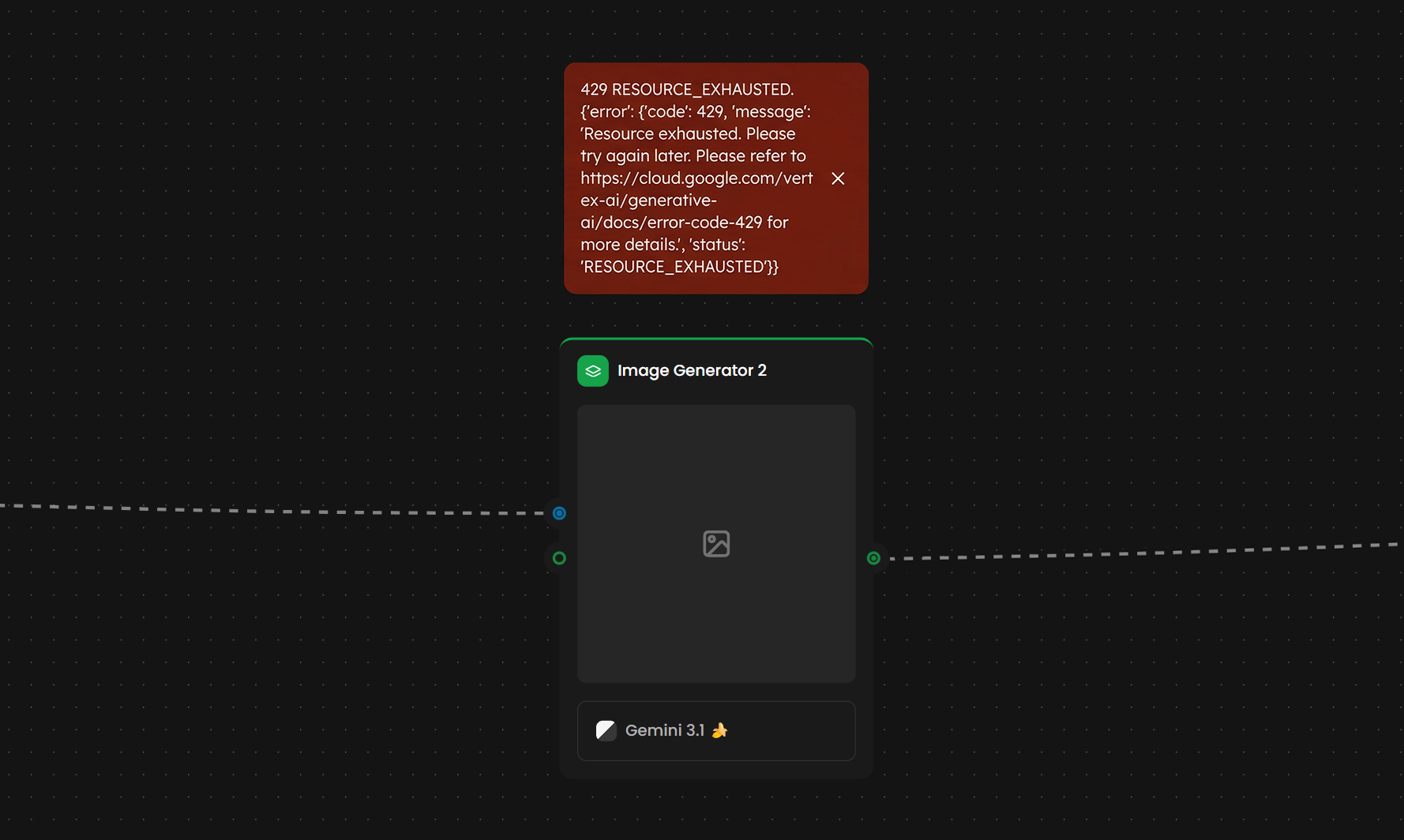
Click the bell icon in the top bar to open Recent Tasks, then View All. A failed task has a Failed tag: hover the info icon to read the error, or click Copy error message. If the error includes an Error ID, include it when you contact support.
Looking for a job or generation ID? The app does not show job IDs. For a failed task, the error message and its Error ID are what support needs: the Error ID leads us to the job. For a generation that finished, open it and copy its Asset ID from the Details panel, from Share > Copy Asset ID, or with Shift+I. For a task that is still running, give us the model name and the time you started it, with your time zone.
If your credits were deducted for a failed generation and not returned, contact support via the in-app chat with the error message and the model name.
3. "Resource Exhausted" or "Quota Exceeded" Errors
These two errors look similar but have different causes and different solutions.
Resource Exhausted means your organization has hit its generation rate limit for the current period. This affects only your org. Check your plan's limits under Settings > Organization > Billing, and consider spacing out bulk generation jobs or upgrading your plan.
Quota Exceeded (Google) means the shared Google-provider quota across all Scenario users is temporarily saturated. This affects everyone using Gemini or Veo at the same time. Wait 5 to 10 minutes and retry, or switch to a non-Google model while the quota resets.
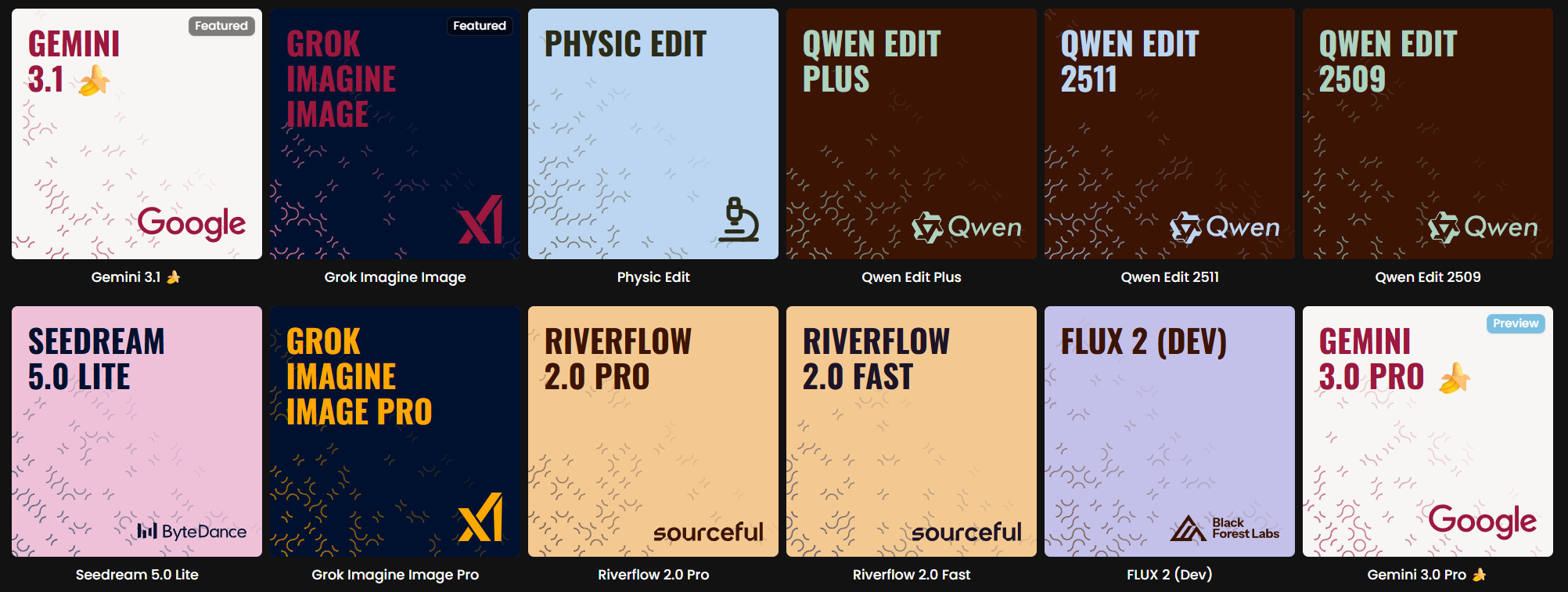
Scenario offers a wide variety of image editing models to choose from.
4. Generation Triggers a Content Policy Warning
Third-party providers (Google, ByteDance, OpenAI) enforce their own content policies independently. Prompts containing references to copyrighted characters, real people, trademarked brands, or certain graphic content may be blocked — even if the content is your own licensed IP.
What to do:
Rephrase the prompt to describe visual characteristics rather than naming the IP directly. For example, instead of referencing a specific superhero by name, describe the costume colors, silhouette, and art style.
Switch to a model with lighter content filtering. Flux 2 and Recraft are generally more permissive than Google or Seedream models.
If you are working with your own licensed IP and consistently hitting false positives, reach out to your Scenario account manager — there are options available for verified enterprise accounts.
5. Generation Is Stuck in "Processing" Indefinitely
Rarely, a generation job can stall in the queue — usually during peak traffic or when a Workflow node fails silently.
For standalone generations, refresh the page. If the job is still processing after 5 minutes, cancel it and try again. You can also leave it: a generation that has not finished after about an hour is marked as failed and its credits are refunded automatically. For Workflow-based generations, use Run Node on each node individually to identify where the chain is stalling.
6. Image Quality Is Much Lower Than Expected
The most common causes and fixes:
Resolution set too low. Check that you are selecting the highest resolution tier available for the model you are using.
Guidance slider set too high or too low. Flux models perform best between 3 and 5. Going above 7 often causes oversaturation and artifacts.
Prompt is too complex or contradictory. Simplify. Focus on the most important visual elements and remove ambiguous or conflicting descriptions.
Wrong model for the style. Each model has different strengths. See Third-Party Image Models on Scenario for guidance on matching the right model to your use case.
7. Still Having Issues?
Use the Ask the Scenario AI Bot, available in the bottom right of every page, for real-time guidance. For unresolved issues, contact support via in-app chat and include the error message (with its Error ID, if it shows one) and the model name you were using. Enterprise customers can reach their account manager directly via the shared Slack channel.