Hy Wu Edit: The Essentials
Last updated: May 5, 2026
Covers model_hy-wu-edit | Provider: Tencent via Fal | Modality: Image to Image
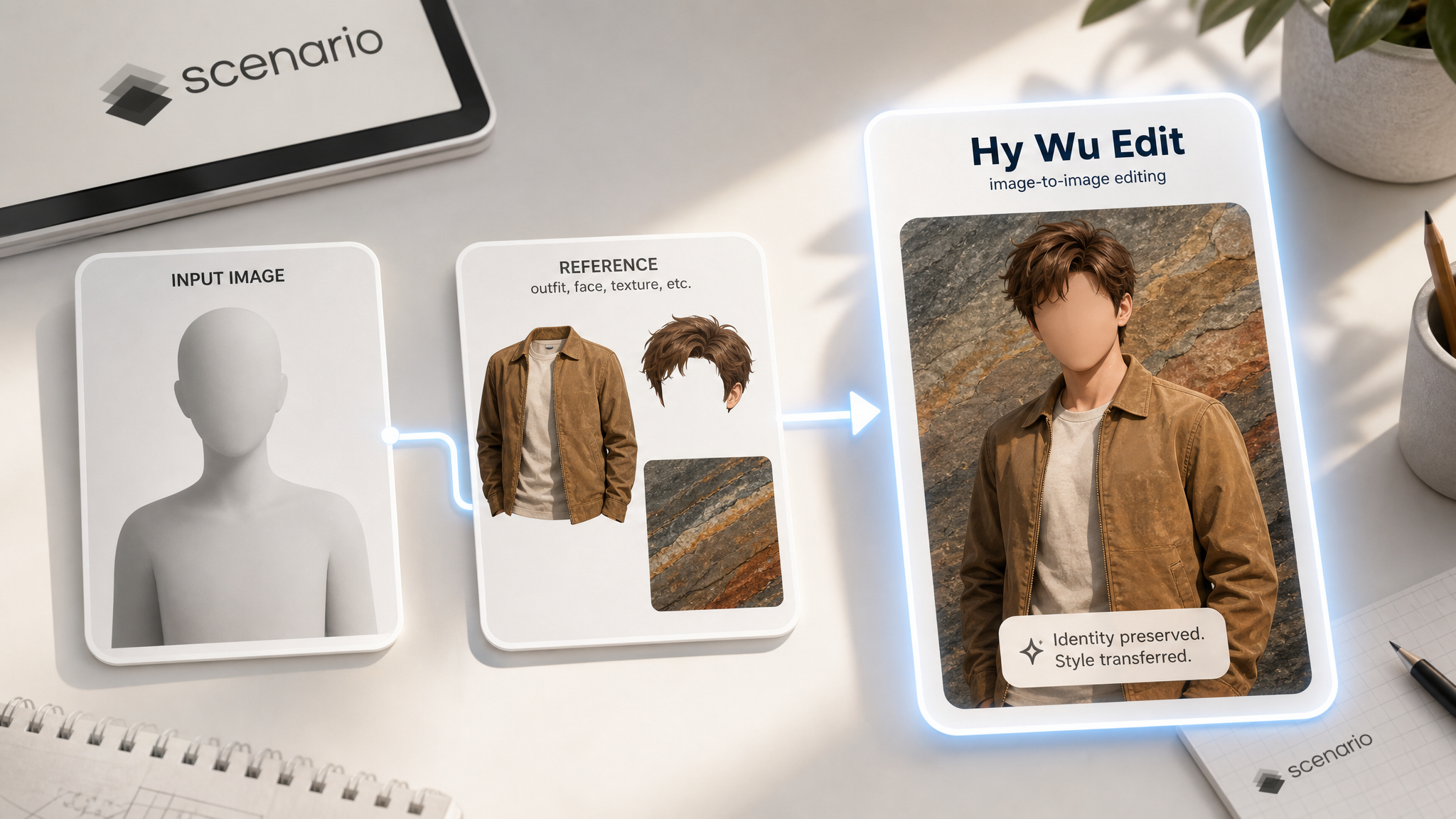
Hy Wu Edit lets you transfer outfits, swap faces, and blend textures from one photo onto another using a text prompt and reference images. No training or fine-tuning is required. You describe the edit, provide the images, and the model figures out the rest.
How It Works
Most image editing tools apply a fixed set of pre-trained behaviors to every request. Hy Wu Edit works differently: it generates a fresh set of custom adapter weights for each individual request, tailored to your specific subject and reference images. This means the model adapts to your inputs rather than forcing your inputs to fit a template.
The result is sharper identity preservation and more accurate transfers. The person in your base image stays recognizably themselves; only the parts you asked to change are modified.
When you turn on Thinking mode, the model reasons through the edit before generating. This adds processing time but tends to produce cleaner results, especially for complex transfers like overlapping outfit layers or multi-person scenes.
Image order matters. The first image in your upload is always treated as the subject to be edited. The second and third images are the references the model draws from. Uploading them in the wrong order is the most common cause of unexpected results.
What You Can Edit
Below are some examples of what you can create using the Hy Wu Edit model.
Outfit and Clothing Transfer
Upload a photo of a person as your first image and a photo of any outfit as your second image. Write a prompt telling the model to dress the person in the reference outfit. The model preserves the subject's face, body proportions, and background while replacing the clothing.
Show the person from the first image wearing the full costume from the second image. Keep their face and hair. Match the costume's colors and details as closely as possible.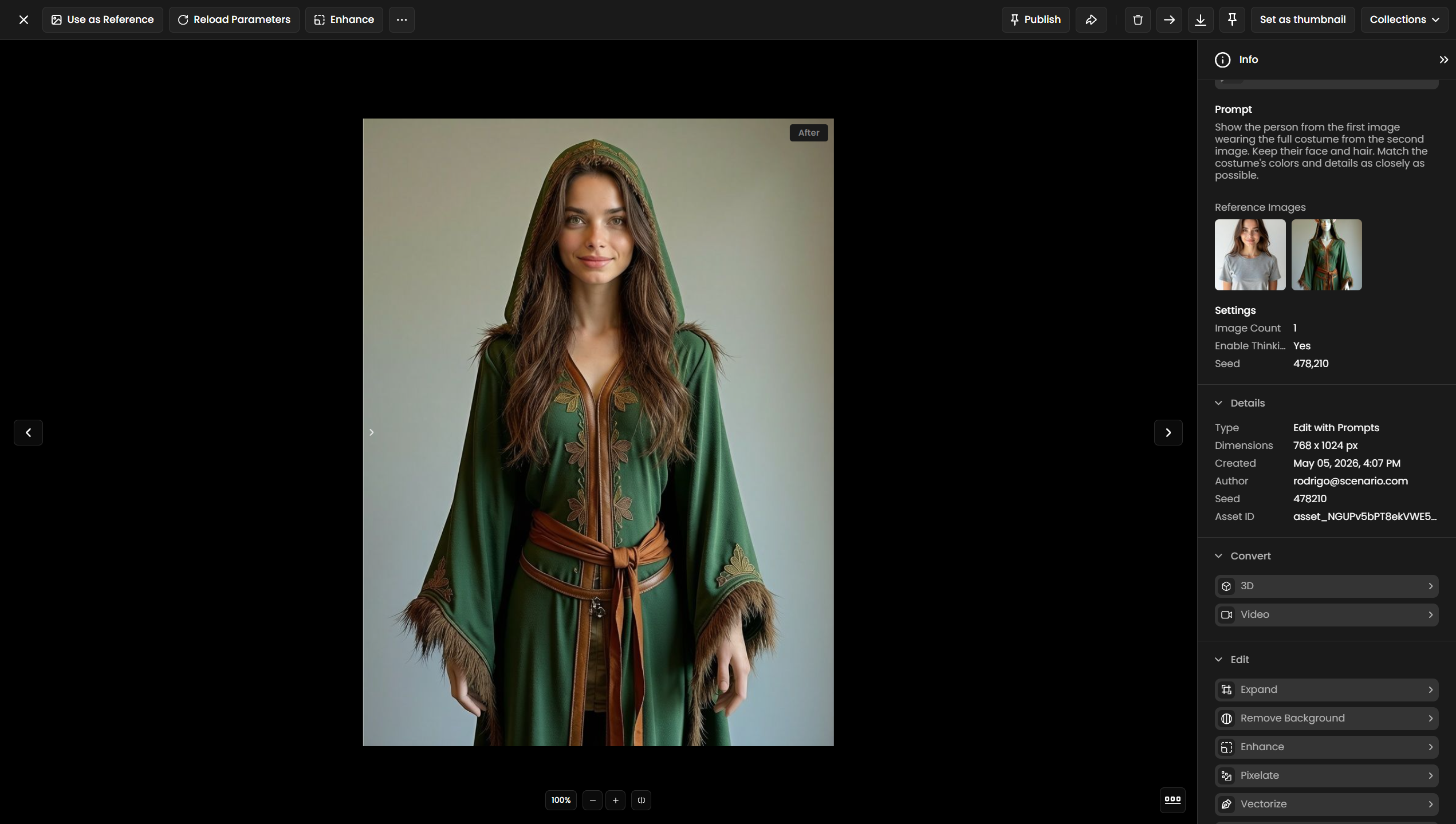
Face Swap
Provide a base scene as the first image and a clear face photo as the second image. The model transfers the face identity while preserving the lighting, expression angle, and surrounding scene.
Face identity transfer: apply the face and facial identity of the woman from the vintage car reference — chestnut wavy hair, black-rimmed glasses, freckled warm complexion — onto the base woman in the sunlit apartment. Keep the apartment setting, lavender shirt, plants, and overall composition of the base image fully intact. Replace only the face with the reference's features, blending naturally under the soft sunlit light.Texture Blending
Use a base image and a texture reference to restyle surfaces: change a leather bag to canvas, a concrete wall to brick, or a plain shirt to a patterned fabric. The model maps the texture onto the target surface while preserving the shape and shadows.
Apply the fabric texture from the second image to the jacket in the first image. Preserve the original fit and folds.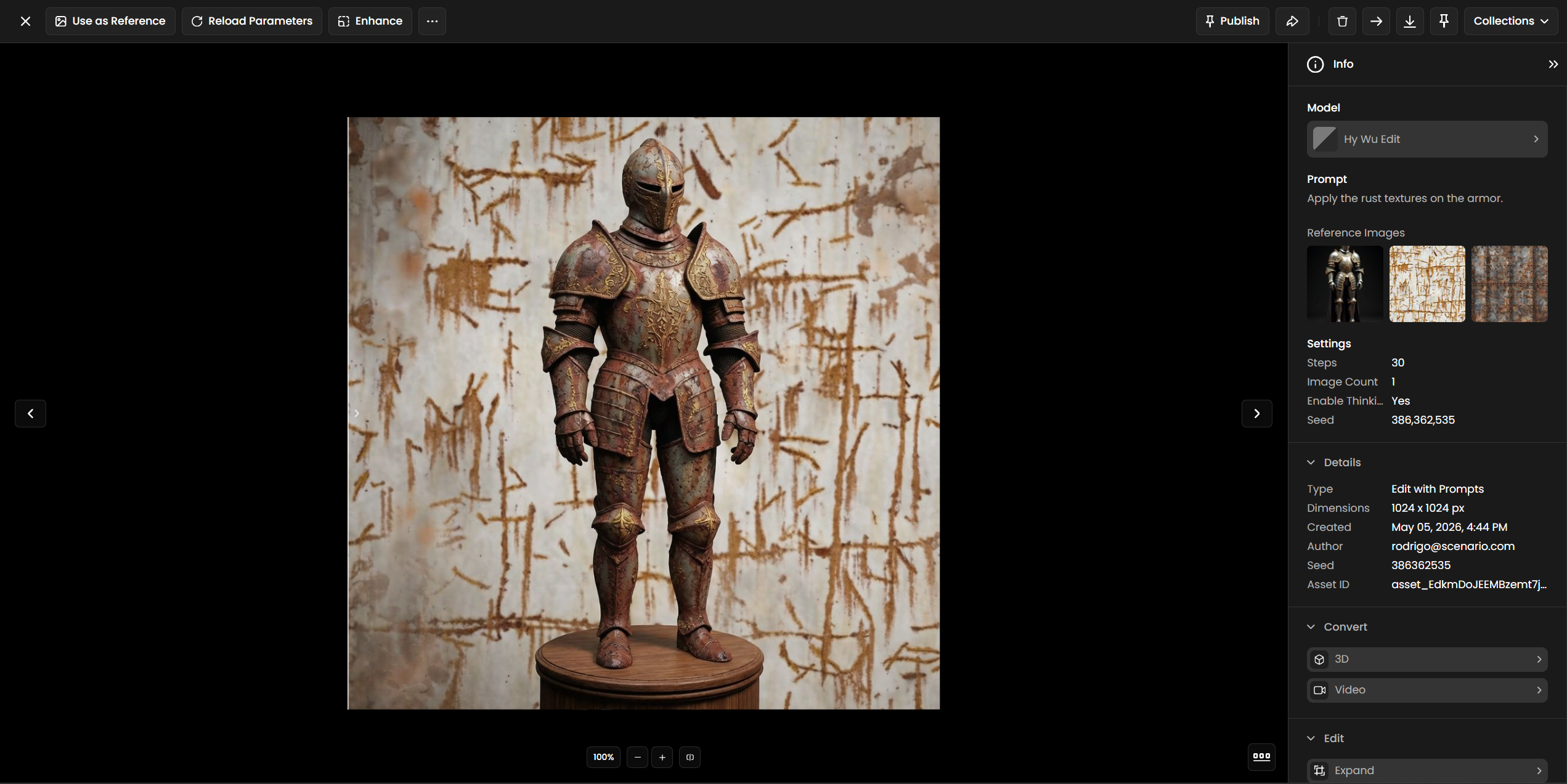
Use Cases
Virtual try-on: Let customers see products on a person before buying. Works for clothing, accessories, and footwear.
Game character customization: Preview costume sets, skins, or armor variants on a base character without re-rendering from scratch.
Cosplay and character design: Mock up costume ideas on a real subject quickly before committing to production.
Fashion campaigns: Show a single garment across multiple models or in different settings without re-shooting.
Digital doubles and film production: Quickly test wardrobe options on a cast member's reference photo during pre-production.
Social media content: Create styled variants of a photo for different platforms, seasons, or brand partnerships.
Tips for Better Results
Put your subject first. The model always treats the first uploaded image as the base to edit. If you want to change how a specific person looks, their photo must be image 1.
Be specific in your prompt. Instead of "change the outfit," write "replace the red jacket in the first image with the denim jacket from the second image." The more precisely you describe the transfer, the cleaner the output.
Use Thinking mode for complex edits. Outfit layers, overlapping elements, and multi-reference edits benefit most from Thinking mode. For simple single-element swaps, you can turn it off to save time.
Generate multiple outputs. Set Image Count to 2 or 4 to get variations in one run. The model's output can vary, and picking from a small batch is faster than re-running from scratch.
Use clean reference images. Reference photos with a clear, unobstructed view of the element you want to transfer produce better results than cluttered or partially hidden subjects. A front-facing, well-lit reference is ideal.
Keep Steps at 30 for most edits. The default of 30 steps is well-calibrated for this model. Increasing it above 50 rarely improves output and adds processing time. Reduce to 15 to 20 for fast previews.
Known Limitations
Maximum 3 input images. You can upload 1 subject image and up to 2 reference images. Edits requiring more than 2 references need to be broken into separate runs.
Thinking mode increases wait time. There is no progress indicator during reasoning. Longer or more complex edits with Thinking mode enabled can take noticeably more time than a standard run.
Complex background preservation. Highly detailed or busy backgrounds may shift slightly during an edit, especially around the edges of the transferred element. A follow-up inpainting step can correct this.
Multi-person scenes. When the base image contains more than one person, the model may apply the edit to the wrong subject. Crop to isolate the target subject before uploading when possible.
Prompt language: English and Chinese prompts are supported by the underlying provider API. Other languages may produce inconsistent results.