Clarity Pro Upscaler: The Essentials
Last updated: May 8, 2026
Provider: Clarity AI via Replicate | Modality: Image to Image
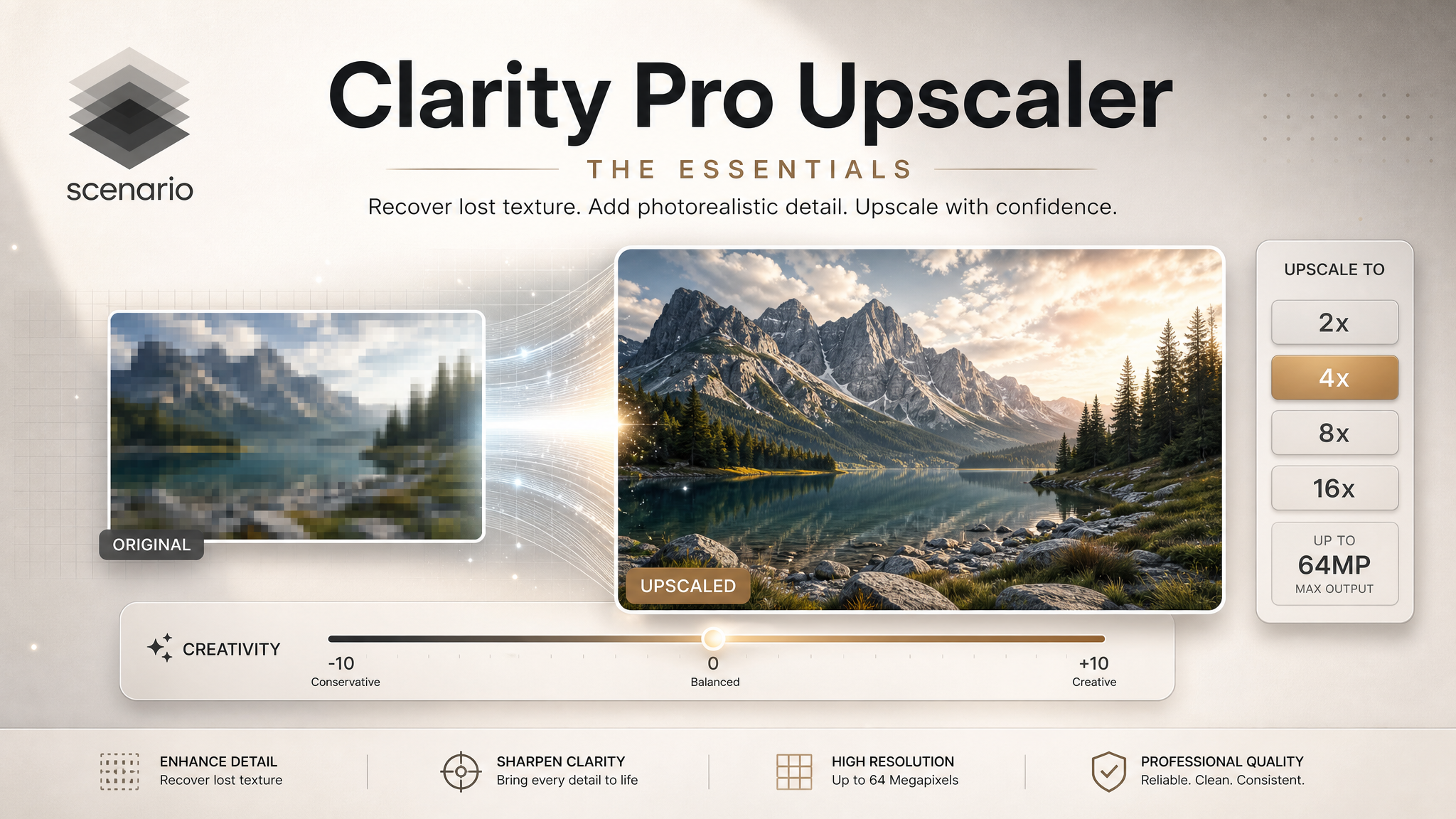
Clarity Pro Upscaler enlarges images to 2x, 4x, 8x, or 16x their original size using a diffusion-based engine that adds photorealistic detail rather than stretching pixels. Unlike standard resizers, it runs a ControlNet tile pass over the image, recovering lost texture and sharpness at scale. Output is capped at 64 megapixels, approximately 8K. A single creativity parameter controls how much the model invents versus how closely it preserves the source.
There is no prompt field. Clarity Pro Upscaler is a pure image-to-image model: you provide the image, choose the scale factor and creativity level, and the model handles the rest.
The Three Settings That Matter
Scale Factor
Choose from 2x, 4x, 8x, or 16x. The scale factor multiplies both the width and height of the output, so a 2x upscale of a 1000x1000 image produces a 2000x2000 result. At 16x, a 512x512 input produces an 8192x8192 output. The 64 megapixel cap applies regardless of scale factor: if your input image is large enough that the multiplied output would exceed 64 megapixels, reduce the scale factor first.
Both image size and scale factor affect cost. Larger inputs at higher scale factors cost more than smaller inputs at lower scale factors.
For large scale factors, the model uses a multi-stage tiled approach internally: instead of attempting a single large jump, it performs multiple smaller upscaling passes and blends the results. This is why high scale factors take longer to process.
Creativity
The creativity parameter runs from -10 to +10, with a default of 0. It controls the model's diffusion strength: how much it is allowed to deviate from the source image when adding detail.
Negative values (-1 to -10): The model stays close to the source. Useful for portraits, faces, product shots, and any image where identity and accuracy matter more than added sharpness. Use -3 to -5 when you cannot afford drift.
Zero (default): Balanced starting point. Works well for most images as a first pass.
Positive values (1 to 10): The model adds texture, detail, and sharpness beyond what the source contains. Useful for landscapes, environments, fabric, hair, and architectural surfaces where richer texture is the goal. Values above 5 risk hallucinating detail that was not in the original, especially in faces and skin.
How to Choose Settings for Your Image Type
Portraits and faces
Faces are the most sensitive image type for upscaling. Diffusion models can hallucinate skin texture, shift facial features, or add wrinkles and pores that were not in the source. For portraits, keep creativity at 0 or negative. Start with -3 for a clean 2x upscale of a face. Only increase creativity if the output looks soft and you are willing to accept minor detail invention.
Image: portrait photograph
Scale Factor: 2
Creativity: -3
Product shots
Product photography needs faithful reproduction: logos, embossed text, surface finish, and label details must be preserved exactly. Use a negative creativity value to keep the model from inventing texture on packaging or reflective surfaces.
Image: product photograph with label
Scale Factor: 2
Creativity: -3 to -5
Landscapes and environments
Natural environments respond well to positive creativity. Grass, foliage, rock, water, and sky all benefit from added texture. The model rarely hallucinates new objects in environments the way it might alter a face, so creativity values of 3 to 5 are safe for most landscape shots.
Image: landscape or environment concept
Scale Factor: 4
Creativity: 3 to 5
Game art and illustrations
Illustrated and AI-generated images often benefit from moderate positive creativity, which adds texture and definition to rendered surfaces that can look smooth at original resolution. A creativity value of 2 to 3 sharpens detail without pushing the model toward hallucination.
Image: AI-generated character or environment art
Scale Factor: 2 or 4
Creativity: 2 to 3
Large format output
When the goal is a large print or a high-resolution asset for video or broadcast, start with 2x at creativity 0 to validate quality, then apply a second 2x pass if you need 4x total. Two sequential 2x upscales often produce cleaner results than a single 4x pass, particularly for fine detail like hair and fabric.
Pass 1 — Scale Factor: 2, Creativity: 0
Pass 2 — Scale Factor: 2, Creativity: 1
Tips for Better Results
Start at creativity 0 and adjust from there. The default is a reliable starting point for most images. Run one output at 0, inspect the result, then decide whether you need more fidelity (go negative) or more detail (go positive). Do not start at the extremes.
Use negative creativity for anything with a face. Faces are the most prone to hallucination at positive creativity values. If your image contains a person, begin at -3 and only increase if the output looks unacceptably soft.
Check the output resolution before choosing a scale factor. At 16x, even a modest input image can produce a file with tens of millions of pixels. The 64 megapixel cap means a 1920x1080 source reaches the limit at roughly 5.5x. If you need 8x or 16x from a large input, resize the source image down first.
Use 4x or lower for most practical workflows. The quality gain from 8x and 16x is real, but the cost and processing time increase significantly. For web and screen use, 2x is usually sufficient. For print, 4x covers most use cases. Reserve 8x and 16x for billboard-scale or broadcast-quality outputs.
Upscale before adding any overlay or composite layer. Clarity Pro Upscaler works on pixel content. If your image has a text or graphic overlay added after generation, the model will treat that overlay as source content and may alter it. Upscale the base image first, then apply overlays in your editing tool.
Use Cases
Print production: Upscale AI-generated images or photographs to the resolution required for large-format printing. Use 4x at creativity 0 to 2 for most print workflows.
Game asset preparation: Enlarge concept art, textures, and character portraits to the resolution required for in-engine use. Moderate positive creativity (2 to 3) adds texture detail that benefits rendered surfaces.
Video and broadcast: Upscale still images or frames to 4K or higher for use in video timelines. Keep creativity at 0 or lower when the image contains a person on screen.
E-commerce product photography: Enlarge product images to high resolution for zoom views and large display formats. Use negative creativity to preserve label text, logo detail, and surface finish exactly.
Archival and restoration: Enlarge older or lower-resolution photographs to modern display standards. The diffusion engine recovers detail that bicubic resizing cannot, particularly in fine textures like fabric, foliage, and architectural surfaces.