SAM 3.1 Video by Meta
Last updated: April 23, 2026
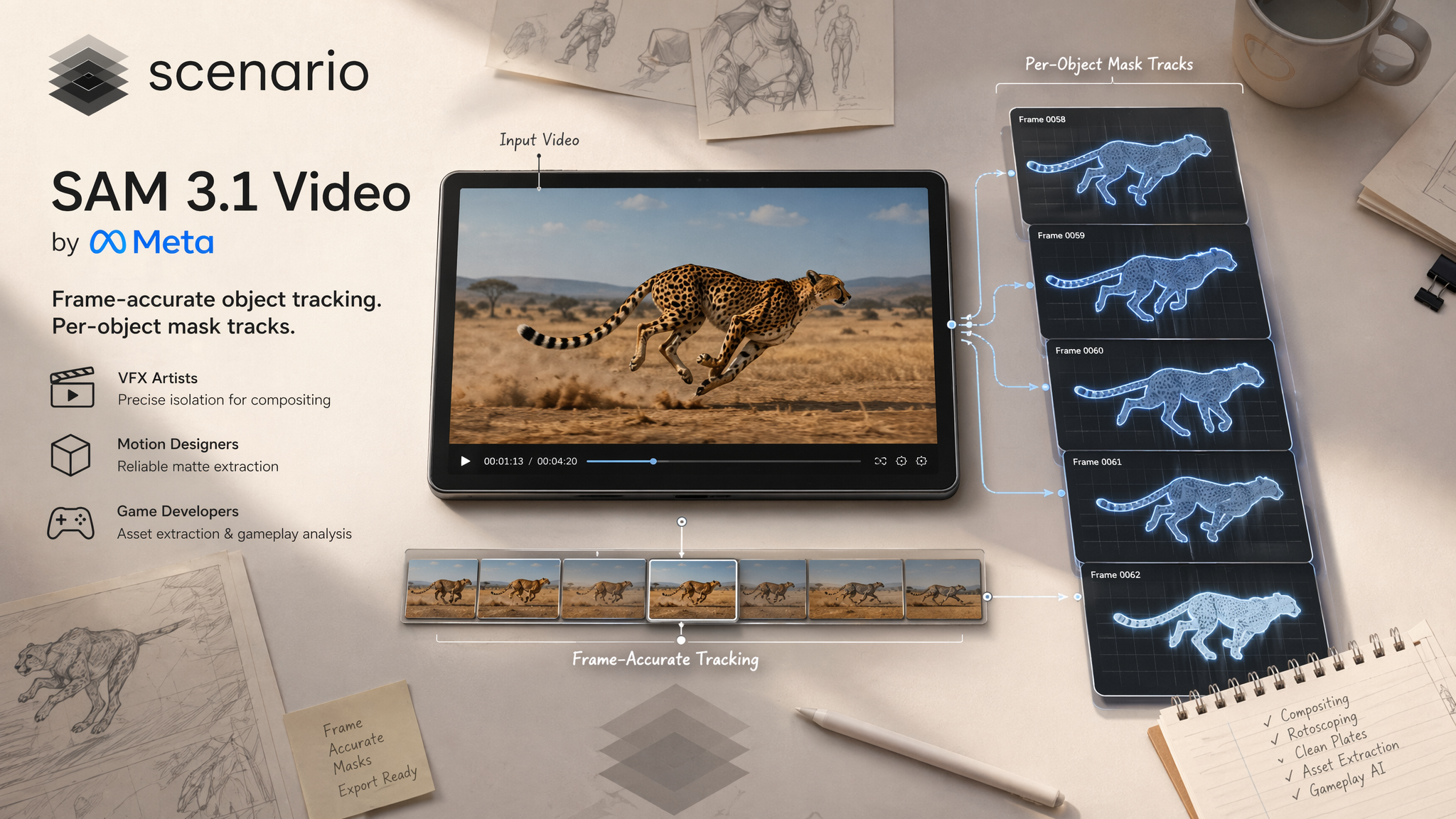
SAM 3.1 Video is Meta's precision video segmentation utility, available on Scenario. It takes any video clip as input, tracks target objects frame by frame across the full duration, and returns one isolated video mask track per detected subject. A text prompt naming the object category is required. The model can track up to 16 simultaneous objects per clip.
Overview
SAM 3.1 Video is not a generative model. It does not create video from a text prompt. Instead, it analyzes an existing video and delivers a clean mask track for every object it detects and tracks. This makes it a utility step inside a larger production pipeline: the starting point is always an existing video clip.
Unlike its image counterpart, the text prompt is mandatory for the video variant. You must name the object category you want to track. The model then locates and follows every matching subject across all frames, handling fast motion, partial occlusion, and complex backgrounds automatically.
SAM 3.1 Video is available as a third-party model on Scenario. It is designed for VFX artists, motion designers, game developers, and pipeline engineers who need frame-accurate object isolation from video without manual rotoscoping work.
What It Does
Frame-accurate object tracking: The model follows every detected subject across all frames of the input clip, maintaining a consistent mask track even through motion, occlusion, and camera movement.
Per-object mask tracks: Each detected object is returned as its own separate video file, one mask track per subject. A clip with 5 detected characters produces 5 separate mask video outputs.
Multi-object tracking: Up to 16 objects can be tracked simultaneously in a single run. Detection threshold is adjustable to tune how aggressively the model searches for matching subjects.
Key Features
Frame-accurate object tracking across the full video duration
One video mask track per detected object
Up to 16 simultaneous object tracks per clip
Adjustable detection threshold to tune sensitivity (default 0.5)
Handles fast motion, partial occlusion, and complex backgrounds
Text prompt is required: no auto-detection mode is available
Parameters
Here is a quick rundown of what each setting does and how to get the most out of it.
Video
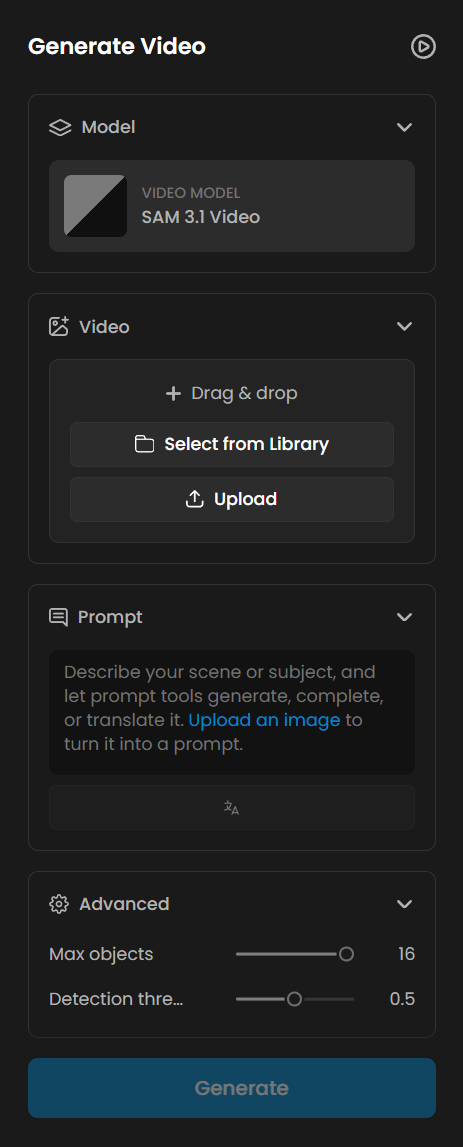
The source video to segment. Required. The model processes every frame of the clip and produces a matching mask track for each detected object. Any video file format is accepted. Clips with a clear, consistent subject and visible motion produce the most stable and reliable tracks. Very fast cuts, extreme motion blur, or very low resolution may reduce tracking accuracy.
Text Prompt
The object category to detect and track across frames. This field is required. The model will not process a video without it. Use broad, visual category terms: "character", "person", "jellyfish", "robot", "car", "animal". Specific names, fictional descriptors, and overly narrow phrases cause the model to return a "No objects detected" error. When unsure, pick the nearest common noun for the object type. See Known Limitations for details.
Max Objects
The maximum number of objects to track simultaneously. Default is 16, the maximum allowed. The model detects up to this many matching subjects in the first frame and returns one mask track per object. Lower this setting if you only need the dominant subject and want to avoid picking up background elements of the same category. For example, set it to 1 to track only the most prominent character in a scene with multiple characters.
Detection Threshold
Controls how confident the model must be before including a detection. The value ranges from 0.0 to 1.0, with a default of 0.5. Higher values return fewer but more reliable tracks. Lower values include more candidates but may introduce noise or spurious detections. If a crowded scene returns fewer tracks than expected, lower the threshold to 0.3. If you are seeing noisy or incorrect tracks on a simple scene, raise it to 0.7 and re-run.
Tips for Better Results
Always use generic category terms in your text prompt. Terms like "character", "person", "jellyfish", "robot", "car", and "animal" work reliably. Specific names, fictional descriptors, and overly narrow phrases cause the model to return a "No objects detected" error. When in doubt, use the nearest common noun for the object type.
Set Max Objects to match the expected subject count. If a scene contains exactly 3 characters, set Max Objects to 3. This prevents the model from picking up background elements in the same category and keeps the output set clean and predictable.
Tune the detection threshold for crowded scenes. The default of 0.5 works well for scenes with a small number of clear subjects. For dense scenes such as swarms or crowds where you expect many detections, lower the threshold to 0.3. For minimal-subject scenes where you want cleaner output with less noise, raise it to 0.7.
Plan for a variable number of output videos. SAM 3.1 Video returns one mask video per tracked object. A clip with 16 jellyfish tracked simultaneously produces 16 separate output video files. Build your compositing pipeline to ingest multiple mask inputs rather than a fixed count.
Pair with a video generation model for automated VFX prep. Generate a clip with any video model on Scenario, feed it into SAM 3.1 Video with the relevant object category as the text prompt, and receive ready-to-use matte tracks without any manual rotoscoping. This pipeline works on realistic, animated, and stylized footage equally.
Use shorter clips when testing a new prompt or threshold. Processing time scales with clip length. Test your prompt and threshold settings on a short excerpt first, then run the full clip once you confirm the detections are correct.
Use Cases
Film and VFX: Generate clean object mattes for rotoscoping, background replacement, and visual effects compositing. SAM 3.1 Video produces per-object mask tracks ready for import into compositing software, replacing hours of manual roto work on complex scenes.
Games: Extract animated character cutouts from rendered video sequences or cinematic footage. Feed the mask tracks into a game engine compositor or sprite pipeline for background replacement and asset isolation.
Content creation: Remove or replace backgrounds in video clips without a green screen setup. Isolate a subject using SAM 3.1 Video and composite them into a new environment in post-production, regardless of the original shooting or rendering conditions.
AI training data: Annotate video datasets automatically at scale. The per-object video mask output is directly usable as segmentation ground truth for video object detection and instance segmentation model training pipelines.
Motion design: Isolate animated elements from a generated or live-action clip to reuse them on new backgrounds, combine them with other assets, or apply per-object effects in a compositing tool.
Known Limitations
Specific or fictional object names cause detection failures. The model relies on broad visual categories. Prompts like "ice goblin", "crystal warrior", or highly specific descriptors return a "No objects detected" error. Use the nearest generic category: "character" instead of "ice goblin", "person" instead of a character name, "vehicle" instead of a fictional vehicle type.
Text prompt is required with no fallback. Unlike the image variant, SAM 3.1 Video has no auto-detection mode. Every job must include a text prompt. Jobs submitted without one will not run.
Maximum of 16 simultaneous object tracks per clip. Scenes with more than 16 matching objects are capped at 16 tracks. The model selects the 16 highest-confidence detections and ignores the remainder.
Output count is not directly controllable beyond the Max Objects cap. The model returns as many mask tracks as it detects up to the Max Objects limit. You cannot request exactly N tracks from a scene that contains more matching objects. Lower the Max Objects setting or raise the detection threshold to reduce the output count.
SAM 3.1 Video is a segmentation utility, not a generative model. It cannot generate video from a text prompt. An input video clip is always required. It is a step inside a pipeline, not the starting point of one.
Very fast motion or heavy scene cuts may reduce tracking accuracy. Frame-to-frame tracking works best on clips with smooth, consistent motion. Rapid camera cuts, extreme motion blur, or very low frame rates can cause track drift or lost detections between frames.
No fine-tuning or LoRA training is supported. SAM 3.1 Video is a third-party model available as-is on Scenario. Custom training is not available for this model.