Wan 2.2 Animate Models - The Essentials
Last updated: April 9, 2026
1. Overview of Wan 2.2 Animate
Wan 2.2 Animate consists of two separate video models. Given a character image and a reference video, the model will either:
Animate the character image to follow the motion and expressions from the video - using Wan 2.2 Move model
Or replace the person in the video with the character image while preserving lighting, environment, and performance - using Wan 2.2 Replace
This allows content creators to both animate static characters and embed them seamlessly into existing video footage.
2. Move vs Replace
Mode Purpose How it works Key strengths / trade-offs | |||
Wan 2.2 Animate Move | Animate a static character image | Uses the reference video’s motion and pose skeleton to drive the image, transferring the source image’s characteristics and style to match the video’s timing and movements. | Good for generating original animations, avatar motion, expressive content. Because the background is newly generated around the character, the scene context is less constrained. |
Wan 2.2 Animate Replace | Substitute the original person in a video with a character image | Keeps the original video as background, including lighting and environment. The character image is inserted and rendered to match that context | Excellent for video editing or compositing: you maintain the original scene, and only swap the subject while preserving realism. |
3. How to start
To use either Wan 2.2 Animate Models in Scenario, you’ll need to provide two inputs:
a reference video
and a reference image.
These determine how the model generates the final output depending on whether you choose Move or Replace models.
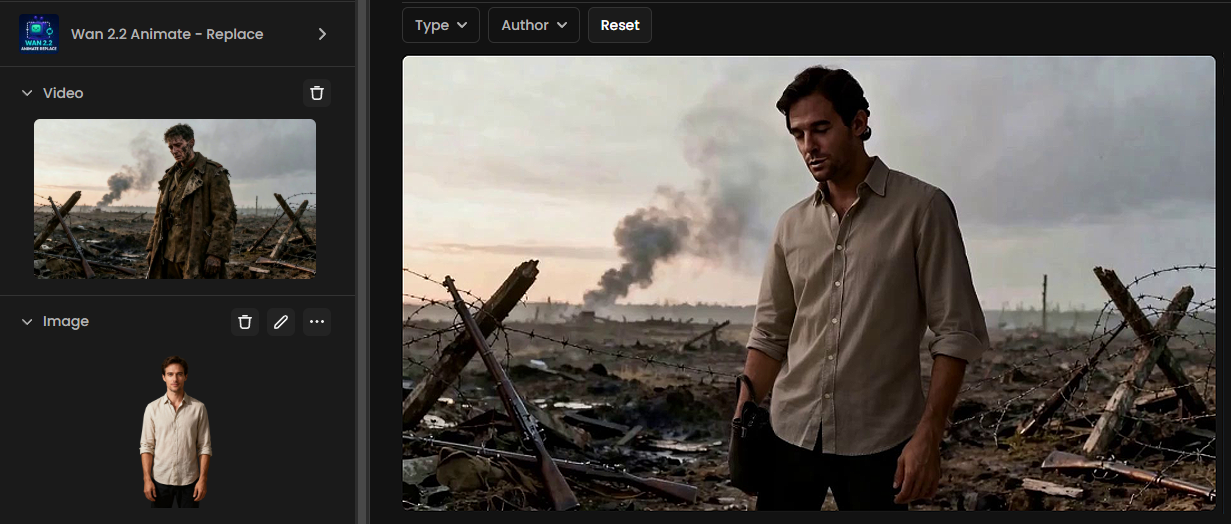
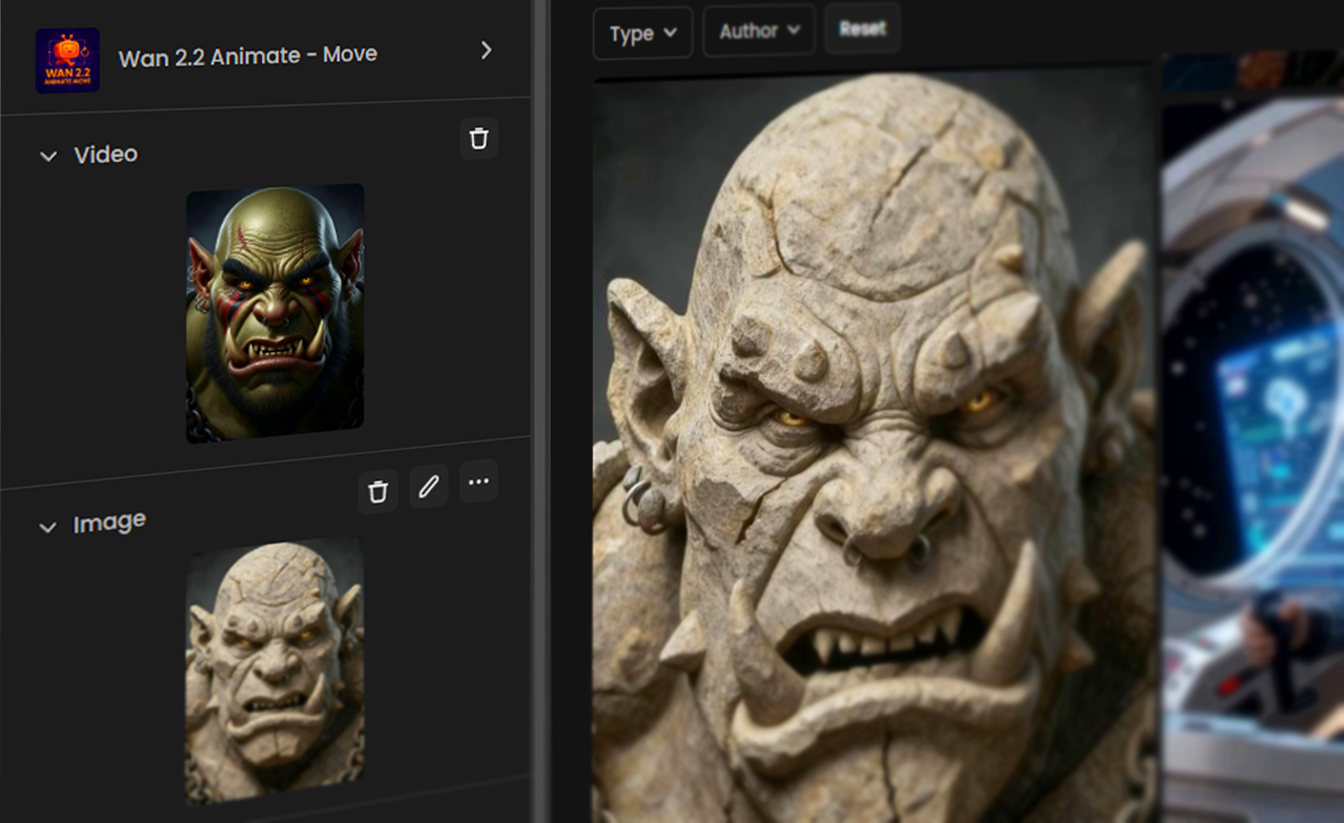
Reference Video
Wan 2.2 Replace: The video must contain a character that will be replaced by the one in your reference image. The background and environment of the video are preserved.
Wan 2.2 Move: Both the character and the environment of the video will be replaced by the content of your reference image. The video is used only to drive the motion and timing.
Reference Image
Wan 2.2 Replace: The image should contain the character you want to insert into the reference video. For best results, the body proportions of this character should be similar to the person in the video being replaced.
Wan 2.2 Move: The model uses both the character and the environment from the image. It is recommended that the framing of the image is similar to the first frame of the reference video to improve alignment.
4. Generation Settings in Scenario
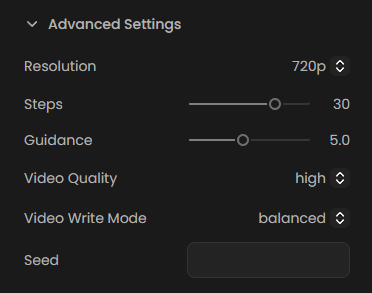
When running Wan 2.2 Animate (Move or Replace) inside Scenario, you can customize the generation with several advanced parameters, including:
Resolution
Choose the output resolution of the generated video in one single setting: 720p, 580p, or 480p - higher resolution produces sharper results but requires longer generation time.
Steps
Controls the number of denoising steps during diffusion (default: 30). More steps generally improve detail and stability, while fewer steps generate faster but may reduce sharpness.
Guidance
Adjusts how strongly the model follows the input references (default: 5). Higher guidance makes the output more faithful to the input image/video, while lower guidance allows for more creative variation but potentially less accurate results.
Video Quality
Controls processing quality and resource usage: Maximum (best fidelity), High (default), Medium (faster), or Low (fastest).
Video Write Mode
Defines how the video file is written. You can choose Balanced for standard output (recommended for most cases), Fast for quicker export with potentially lighter encoding, or Small for output optimized for smaller file size.
Seed
Optional numeric value that determines the randomization pattern used during generation. Setting a specific seed makes generations reproducible with identical results each time you run the model with the same parameters. Leaving it blank produces random variation with each generation, which is useful for exploring different creative possibilities.
5. Use Cases & Applications
Avatar / Character Animation — bring a static avatar to life by applying motion from a reference performance
Video Editing / Compositing — replace actors in existing footage while preserving background, lighting, and timing
Creative Content / Social Media — animate stylized personas for short clips
Previsualization & Prototyping — test movements or acting before shooting
Advertising / Marketing — generate dynamic character-centric visual content that blends into real settings
6. Limitations & Best Practices
Occlusion & Complex Motion
If parts of the subject are occluded or move out of frame frequently, pose extraction may fail to provide stable guidance.
Appearance Drift & Identity Stability
Over long sequences, there is a risk of small identity shifts or blending artifacts.
Input Framing & Quality
Better quality and alignment of the input image and reference video lead to much better outputs.
Realistic Input References
These models work best with realistic images and videos as references. Stylized or highly abstract inputs may produce unpredictable results.
Motion Complexity
Avoid videos with extremely fast movements or multiple scene changes, as they can confuse the model's ability to track and transfer motion accurately.
7. Practical Examples
Ex 1: Simple Character Swap (Wan 2.2 Move)
In this example, a reference video of a young girl is combined with a reference image of a cyberpunk-styled character. By using Wan 2.2 Animate Move, both the character and the background from the image are transferred into the output video, while the motion is driven by the input video.
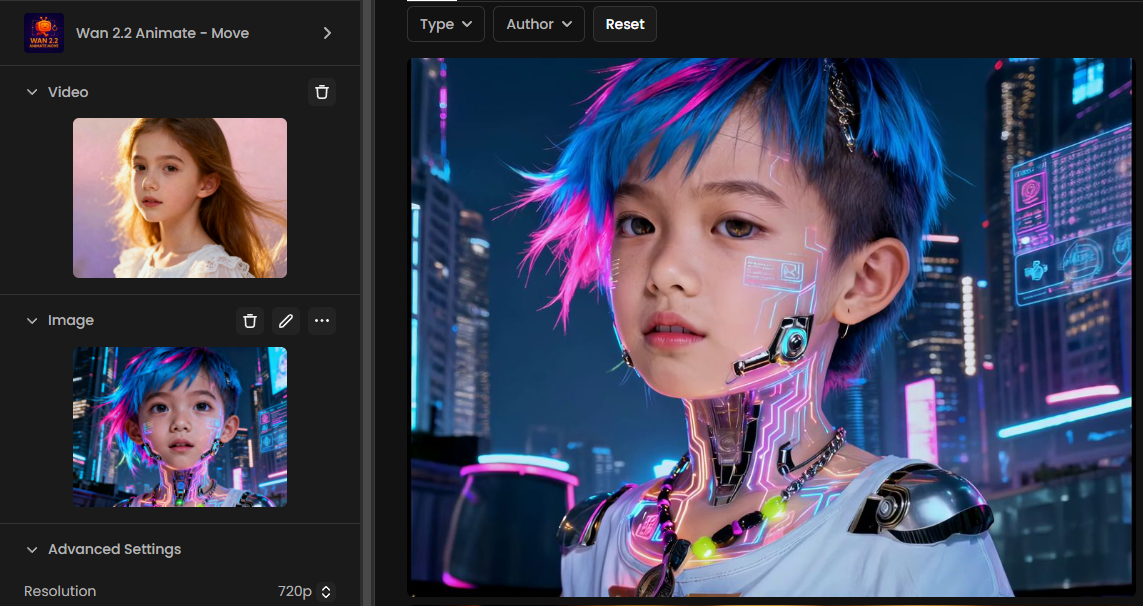
The video was generated using the Wan 2.2 Animate – Move model at 720p resolution, 40 steps, guidance 6, and Maximum video quality, while the video write mode was set to Balanced. This results in a seamless transformation where the new character inherits the movements and timing from the source footage:
Ex 2: Character Replacement in a Realistic Scene (Wan 2.2 Replace)
In this example, a reference video of a soldier walking through a war-torn battlefield is combined with a reference image of a futuristic armored character. By using the Replace model, the subject in the video is seamlessly substituted with the new character, while the background, environment, and lighting from the original video are preserved.
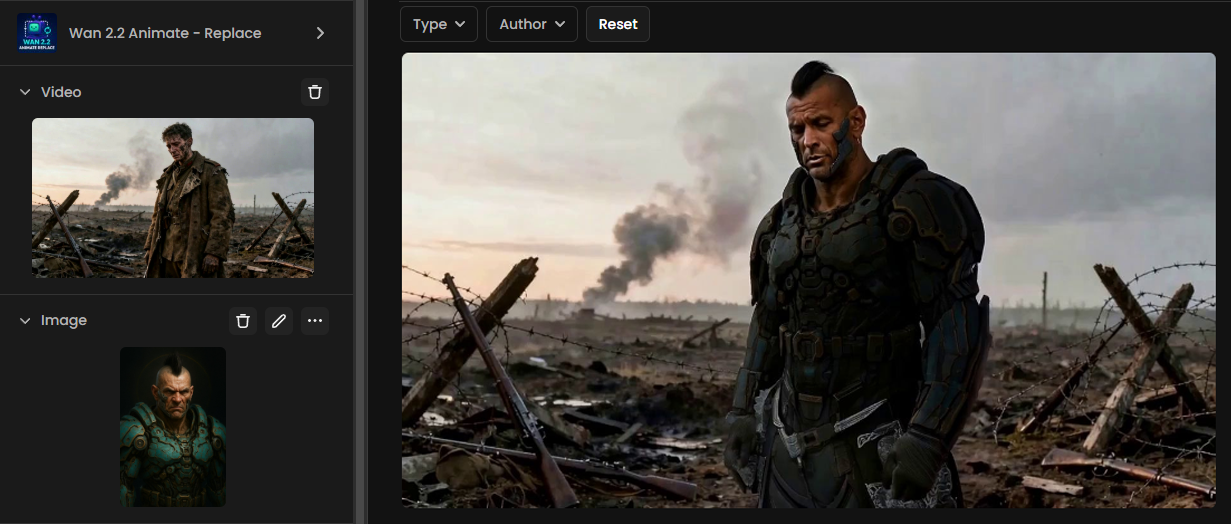
The video was generated using the Wan 2.2 Animate – Replace model at 720p resolution, with 40 steps, a guidance of 6.5, and maximum video quality, while the video write mode was set to Balanced. The result maintains cinematic realism while introducing a completely new persona into the scene:
8. Conclusion
Wan 2.2 Animate introduces a powerful dual-mode approach to video generation: Move for breathing life into static characters, and Replace for seamlessly embedding characters into existing footage. With flexible generation settings in Scenario, creators can strike the right balance between quality, speed, and style — whether the goal is fast prototyping, polished production, or creative experimentation.
By combining ease of use with advanced control, Wan 2.2 Animate offers a versatile toolkit for animation, editing, and storytelling.