Watermark - Brand Every Image and Video Your Team Generates
Last updated: September 28, 2026
Watermark is an Enterprise add-on that stamps your text or your logo on every image and video generated in your organization, or in a single project. Anyone who views or downloads those assets gets the watermarked version: in the web application, through the API, in bulk exports and on shared links.
It is a policy you set once, not an option each member has to remember. Your originals are kept intact, so turning the watermark off serves your images clean again.
1. Requirements and Permissions
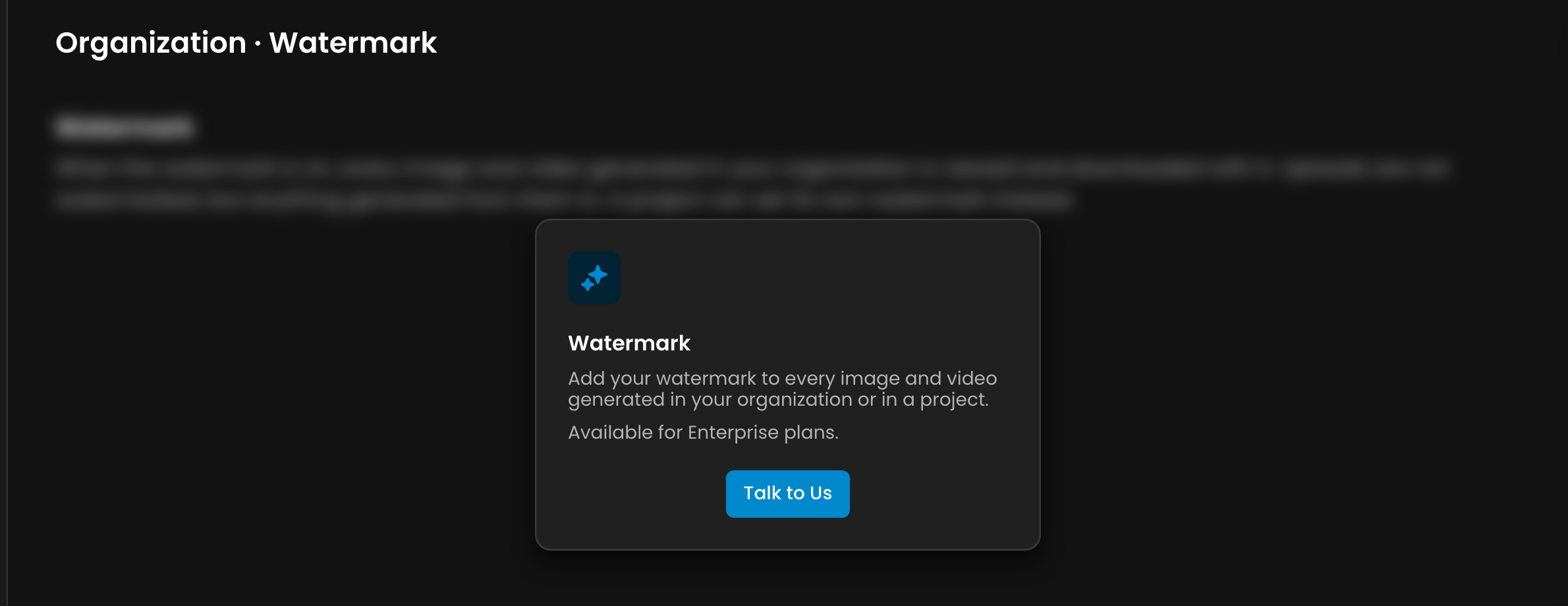
Available on the Enterprise plan. On other plans the page shows what the feature does and a Talk to Us button.
The organization watermark can be changed by an organization admin.
A project watermark can be changed by an organization admin or by an admin of that project.
Other members see the page with a note that only admins can change it.
2. Set Up Your Organization Watermark
The organization watermark applies to every project that does not set its own.
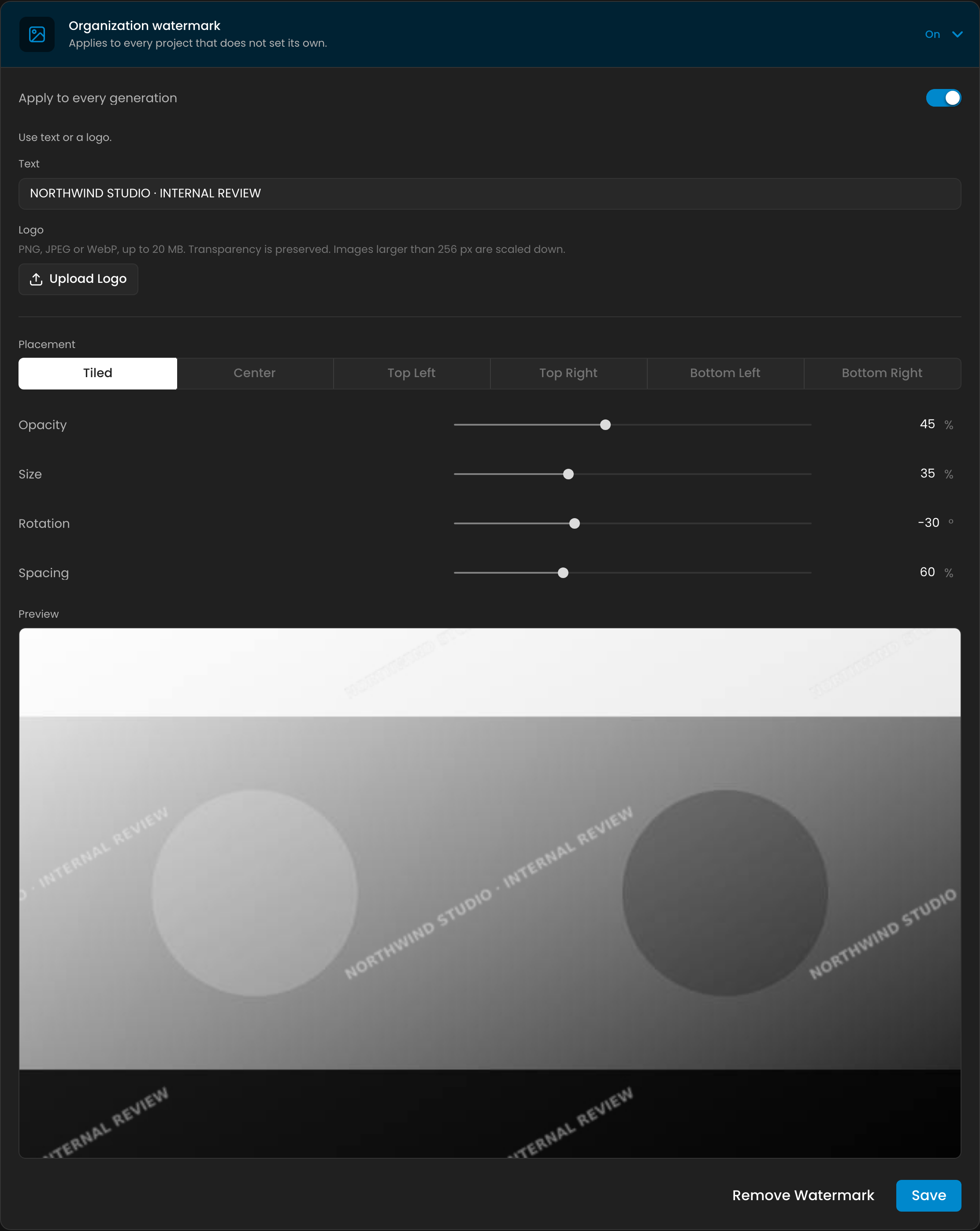
Open Settings > Organization > Watermark and expand Organization watermark.
Enter a Text, or select Upload Logo. You need one of the two before the watermark can be turned on.
Pick a Placement and adjust Opacity, Size and Rotation. The Preview updates as you go, drawn by the same engine that marks your real assets, so what you see is what your team will get.
Turn on Apply to every generation and select Save. The header of the section switches from Off to On.
Setting | What it does |
Text | The words to stamp, up to 64 characters, for example your studio name or "CONFIDENTIAL". |
Logo | A PNG, JPEG or WebP image up to 20 MB. It is scaled down to 256 px on its longest side, and transparency is preserved. While a logo is uploaded it is used instead of the text. |
Placement | Tiled repeats the mark across the whole image. Center, Top Left, Top Right, Bottom Left and Bottom Right draw it once. |
Opacity | From 5% (barely visible) to 100% (solid). Default 25%. |
Size | The width of the mark as a percentage of the image width, from 5% to 100%. Default 20%. |
Rotation | Tilts the mark from -90° to 90°. -45° gives the classic diagonal. |
Spacing | Only for Tiled: the gap between repetitions, from 0% to 200% of the mark's size. |
Tip: use a logo with a transparent background. An opaque logo is drawn as a full rectangle, which shows as a block behind the mark (and a tilted block once rotated). The page warns you when the uploaded logo has no transparency.
3. Give a Project Its Own Watermark
A project uses the organization watermark until it defines its own. This is useful when one project needs a different mark, for example a client's logo on work delivered to that client.
Open the project, then go to Settings > Project > Watermark. When the organization watermark applies, the page tells you which one is in use.
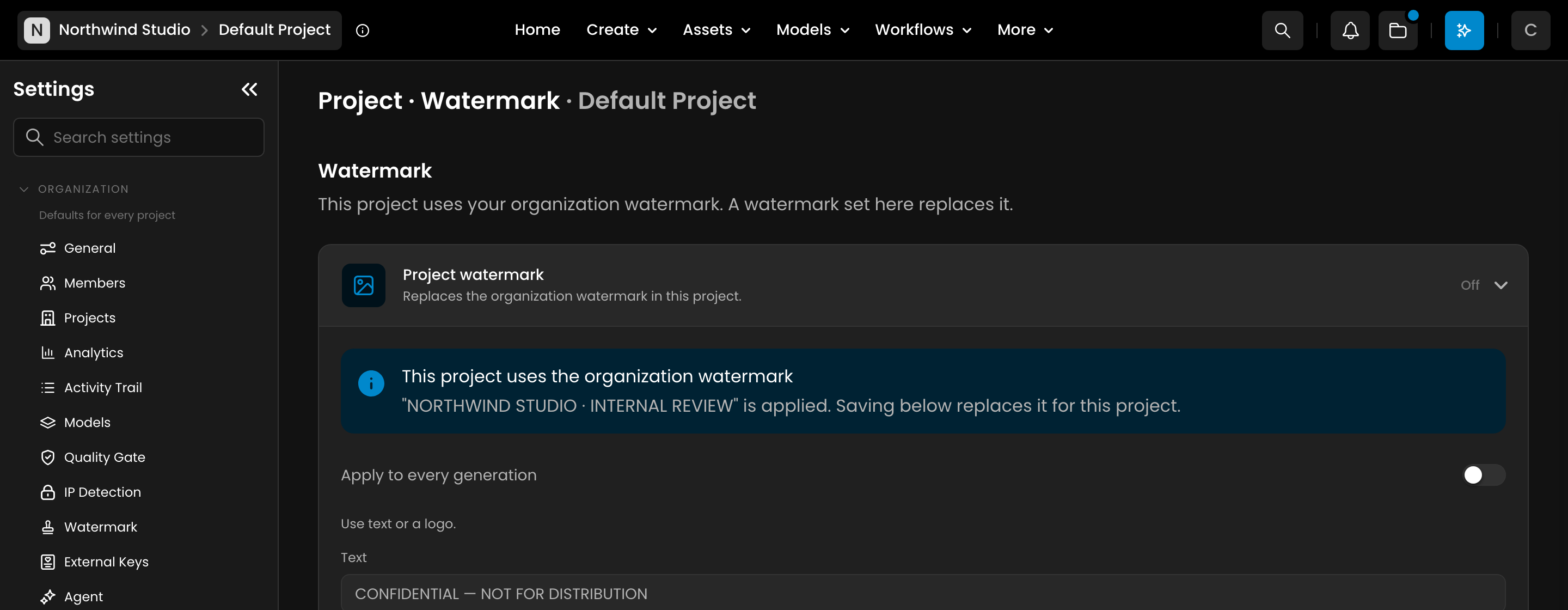
Set the text or logo and the placement as above, turn on Apply to every generation, and select Save.
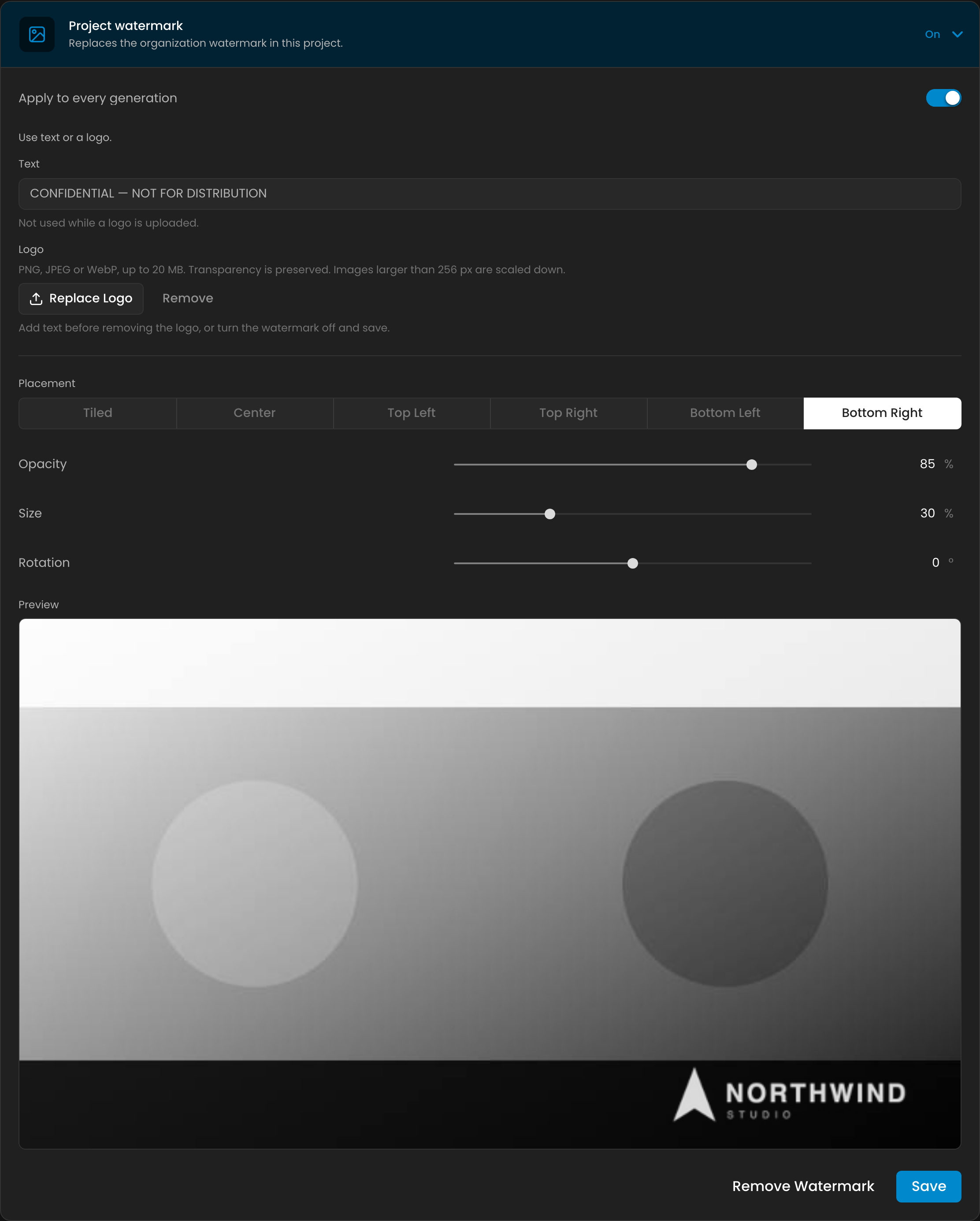
Two things to keep in mind:
A project watermark replaces the organization one entirely. Settings are not mixed, so a project never ends up with the organization's text at its own opacity.
To go back to the organization watermark, select Remove Watermark on the project page.
4. What Your Team Sees
Once the watermark is on, assets are displayed and downloaded with it. Nothing changes in how people generate: the mark is applied automatically.
Asset | Watermarked? |
Images (generations, edits, uploads, training samples) | Yes |
Videos | Yes, for videos created while the watermark is on |
Video covers | Yes |
3D models and audio | No |
Texture maps (normal, height, roughness and so on) and segmentation masks | No. Their pixels are data, not a picture, and a mark would break them |
Small gallery thumbnails | No, they are too small to be reused |
The mark follows the project that owns the asset, not the person looking at it. A public or shared asset from a watermarked project stays watermarked wherever it is opened.
5. When Changes Take Effect
Images are stamped each time they are served, so a change applies to all of them, including images created before you turned the watermark on. Allow about a minute, then refresh the page.
Videos are stamped once, when they are created. A new video stays in its processing state a little longer while its watermarked copy is prepared. Changing the settings later does not re-stamp existing videos, and videos created before the watermark was turned on are not watermarked.
Turning the watermark off serves your images and videos without it again. Your originals were never altered.
6. Reusing Watermarked Assets
When you use a watermarked image as a reference, edit it, or train a model on it, Scenario works from the clean original. The watermark never leaks into what you create next: the new output simply receives its own watermark, like any other generation in the project.
7. API
There is nothing to change in your integration. The asset URLs returned by the API, bulk exports and image responses all carry the watermark of the project that owns the asset.