Generator Nodes
Last updated: October 8, 2026

Generator nodes create new content - images, video, 3D models, audio, and text. Every model available on Scenario is accessible as a generator node in workflows - all of them. This includes the Gemini family, Seedream family, GPT family, Flux family, Kling family, Seedance family, Veo, Wan, and any custom-trained or uploaded models in your project. For the full, up-to-date list of models, see scenario.com/models.
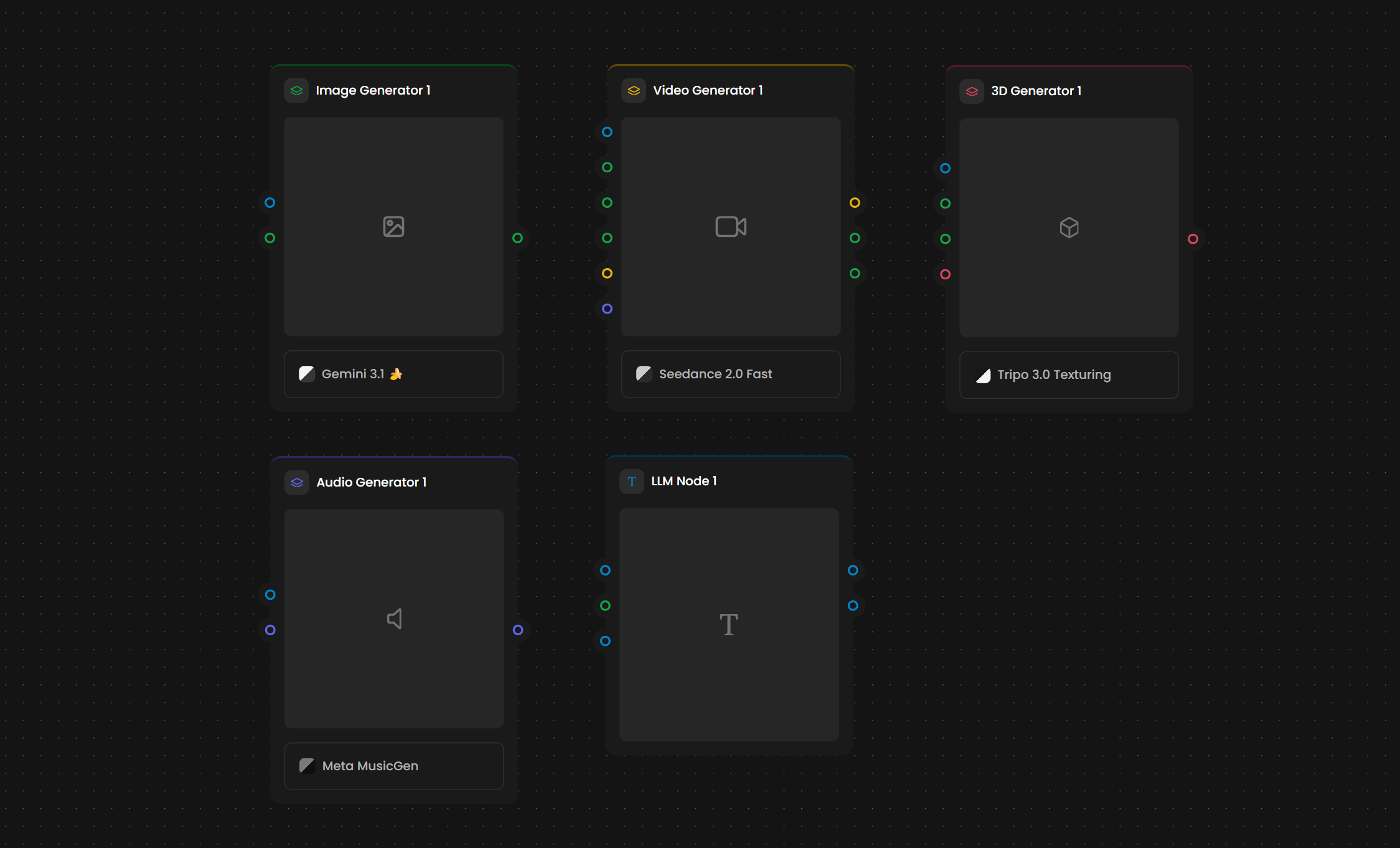
📷 [Screenshot: The Generator nodes section of the Nodes Panel showing Image Generator, Video Generator, 3D Generator, Audio Generator, and LLM Node]
Image Generator
Creates images from text prompts, reference images, or a combination of both. Supports both generation (creating new images) and editing (modifying existing images).
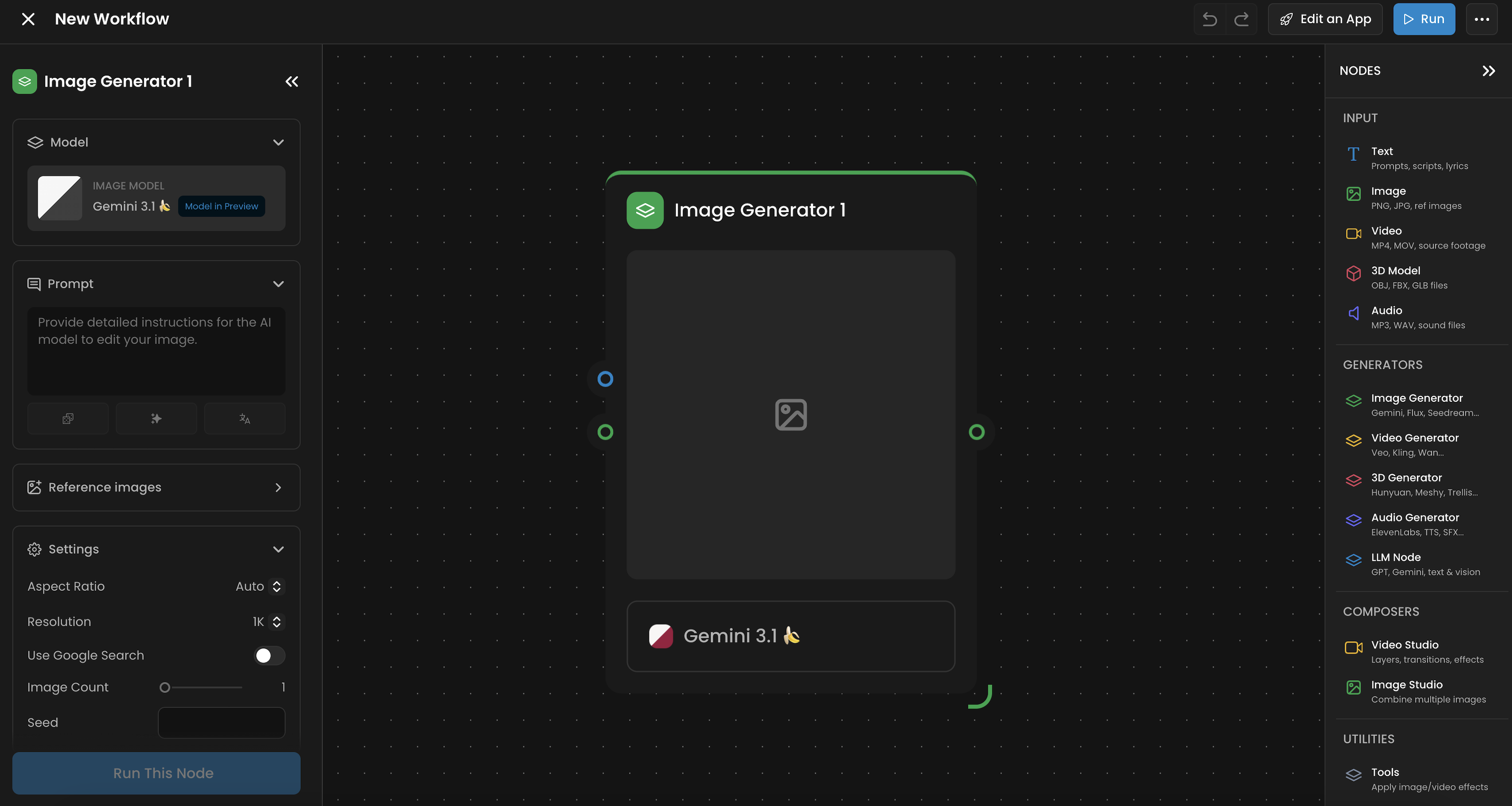
Inputs
Input | Type | Color |
Prompt | Text | 🔵 Blue |
Reference Images | Images | 🟢 Green |
An Image Input node with several images passes up to 10 of them to Reference Images. How many a generation uses depends on the model: for example, GPT Image 2.5 Sunburst takes up to 10 and Gemini 3.1 Flash up to 14.
Outputs
Output | Type | Color |
Generated Images | Images | 🟢 Green |
Settings
Model: Every image model on Scenario is available here: the Gemini family (Gemini, Gemini 3.1), the Flux family (Flux, Flux 2 Pro), the Seedream family, GPT Image, Ideogram, and any custom-trained or uploaded models in your project. New models are added regularly.
Aspect Ratio: Output dimensions (1:1, 16:9, 9:16, 3:2, 2:3, and more)
Resolution: Pixel dimensions, varies by model (up to 2048x2048)
Image Count: Number of images to generate per run (1 to 10)
Seed: Optional. Set a specific seed to reproduce identical results. Leave blank for variation.
Use Google Search: When enabled, the model can reference web search results to improve prompt understanding.
The Image Generator handles both generation (text-to-image or reference-guided creation) and editing (modifying an existing image based on a text instruction such as "change the background to a beach"). Connect a reference image and provide an editing instruction in the prompt to use editing mode.
Key Models
Gemini / Gemini 3.1 - Strong at following complex, multi-part prompts
Seedream - Specialized for photorealistic outputs
Flux / Flux 2 Pro - Fast, high-quality general-purpose generation
Ideogram - Excels at text and typography in images
GPT Image - OpenAI's image generation model
Custom-trained and uploaded models - Any LoRA or fine-tuned model you have trained or uploaded in your Scenario project is available in the model dropdown
🎬 Video Generator
Creates video from text prompts, start/end frames, reference images, or existing video. Supports text-to-video, image-to-video, and video-to-video workflows. Over 90 video models are available.
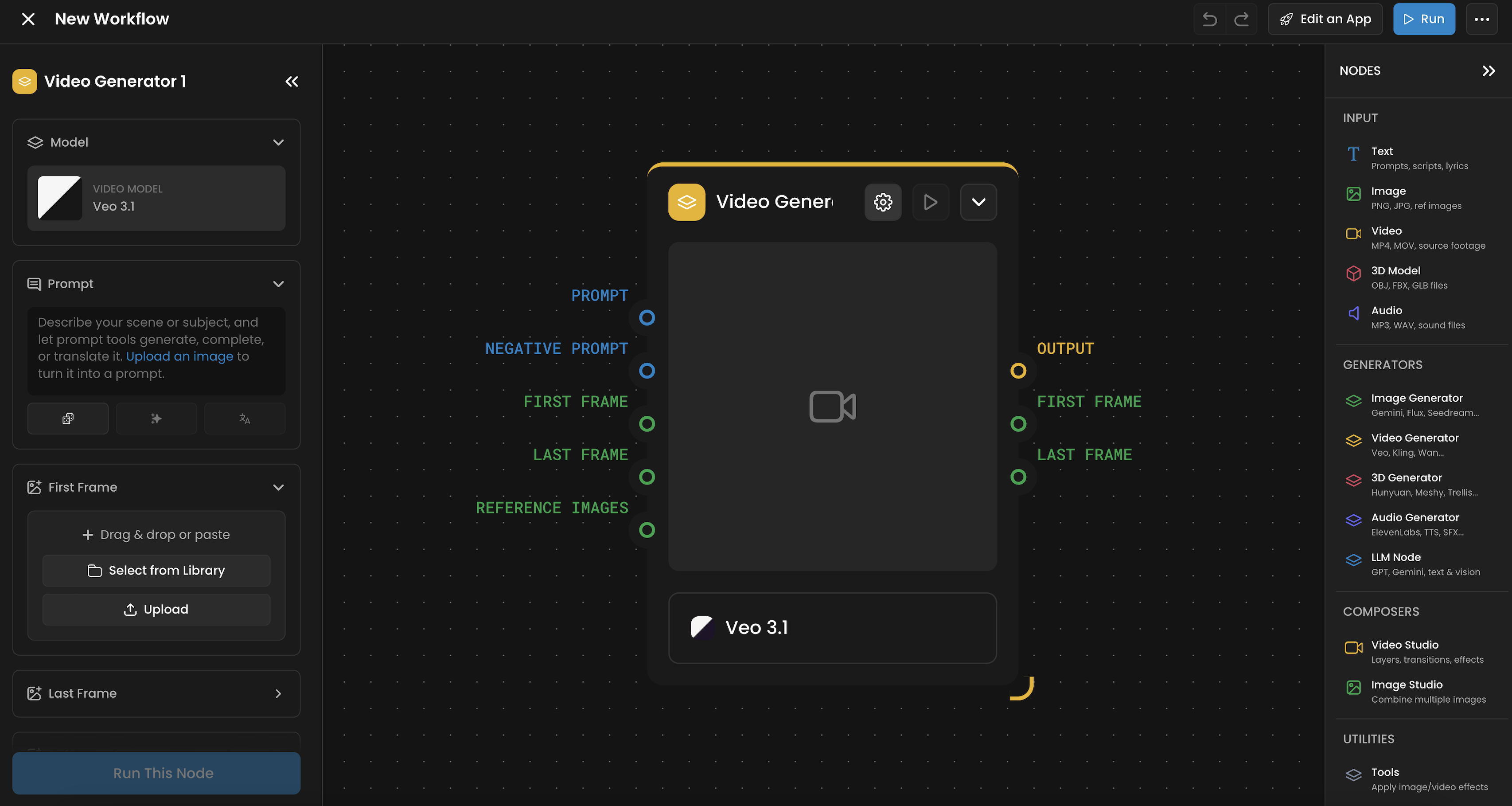
Inputs
Input | Type | Color |
Prompt | Text | 🔵 Blue |
Negative Prompt | Text | 🔵 Blue |
First Frame | Image | 🟢 Green |
Last Frame | Image | 🟢 Green |
Reference Images | Images | 🟢 Green |
Outputs
Output | Type | Color |
Output | Video | 🟡 Yellow |
First Frame | Image | 🟢 Green |
Last Frame | Image | 🟢 Green |
The First Frame and Last Frame outputs extract the opening and closing frames of the generated video as images. These can be fed into downstream nodes. For example, chaining the Last Frame of one video into the First Frame of the next creates continuous sequences.
Settings
Model: 90+ video models available across all major model families: Kling (Kling O1, Kling V3, Kling O1 Video Editing), Seedance, Veo (from Google), Wan, LTX, Pika, P-Video, and more. New models are added regularly.
Duration: Video length (typically 4 to 8 seconds, varies by model)
Aspect Ratio: Output dimensions (1:1, 16:9, 9:16, and more)
Negative Prompt: Describe what you do not want in the video
Reference Frames: Connect First Frame and/or Last Frame images to control the start and end points of the generated video
Workflow modes:
Text-to-video: Provide only a prompt
Image-to-video: Connect a start image (First Frame) to animate from a specific frame
Video-to-video: Connect an existing video as input for style transfer or editing (for example, Kling O1 Video Editing)
Frame-guided: Provide both First Frame and Last Frame to control start and end points
Some models support combining video with additional elements such as audio, images, or overlays. For example, Kling elements allow you to attach reference images or audio that influence the generated video. Check model-specific settings for available element inputs.
🧊 3D Generator
Creates 3D models from reference images, text prompts, or existing 3D assets. Supports generation, editing, texturing, rigging, retopology, and splitting models into parts.
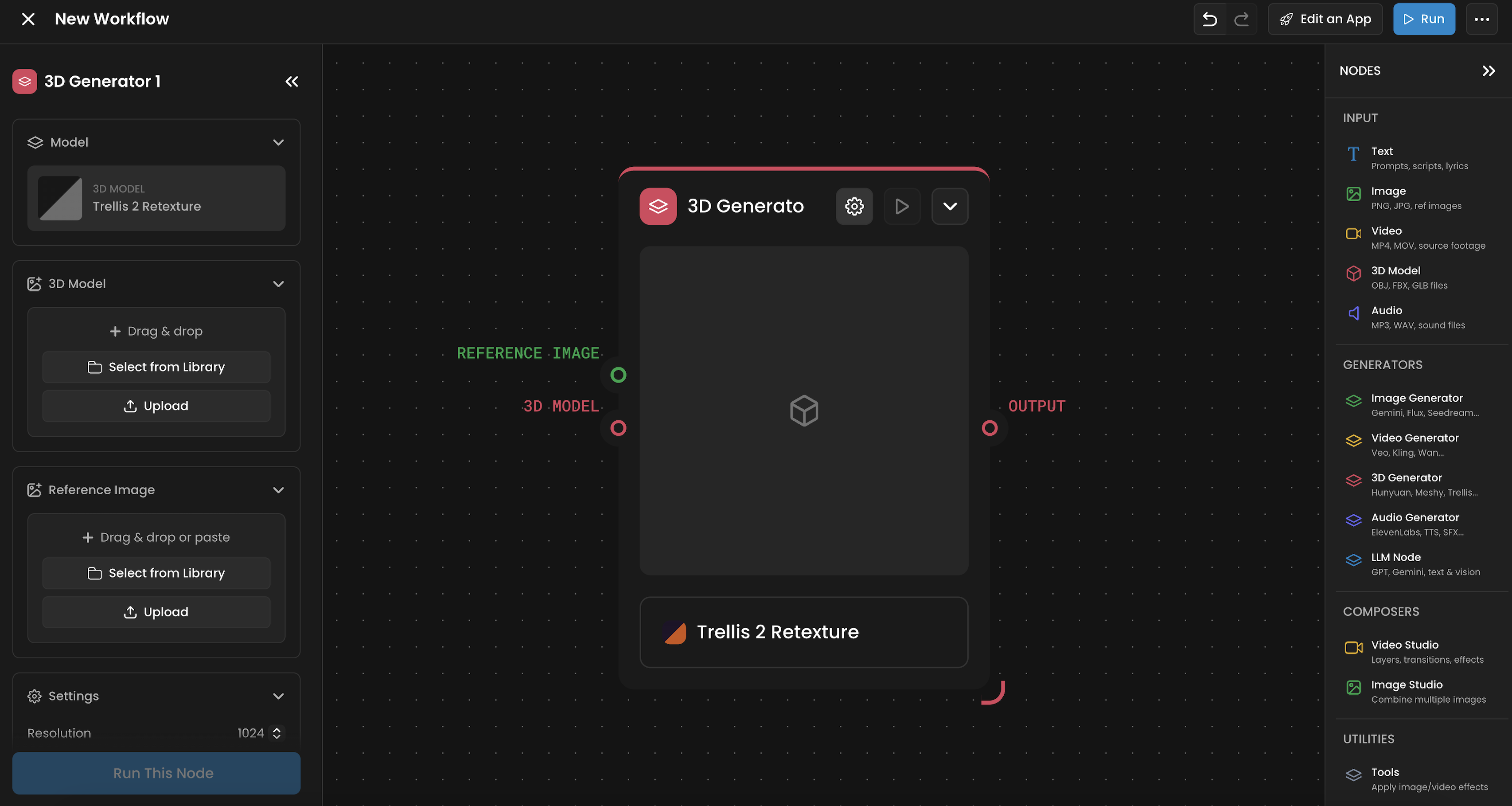
Inputs
Input | Type | Color |
Reference Image | Images | 🟢 Green |
Prompt | Text | 🔵 Blue |
3D Model | 3D | 🔴 Red |
Outputs
Output | Type | Color |
3D Model | 3D | 🔴 Red |
Settings
Model: Options include Hunyuan, Meshy, Trellis, Tripo P1, Tripo 3.1, Polygen 1.5, Tencent Texture Edit, Tencent UV Unwrapping, Tripo Retopology, Tripo 3.0 Texturing, and more
Resolution: Output quality and detail level
Output Format: FBX or GLB depending on model
The 3D Generator covers multiple operations depending on the selected model:
Generation: Create a 3D model from a reference image or prompt
Multi-image view: Generate from multiple reference angles
Editing: Modify an existing 3D model
Texturing: Apply or refine PBR textures on a model
Rigging: Add skeletal rigs for animation
Retopology: Optimize mesh topology for game engines or real-time use
UV Unwrapping: Generate UV maps for texture painting
Splitting in parts: Decompose a model into separate components
Not all models support all operations. Tencent Texture Edit requires FBX input specifically.
Operations Supported
Generation: Image-to-3D or Text-to-3D using Trellis or Tripo 3.1.
Post-Processing: Tencent UV Unwrapping, Tripo Retopology (for game-ready meshes), and Rigging.
Texturing: Apply PBR materials or use Tencent Texture Edit for specific re-texturing tasks.
Rigging: Generate rigs for bipedal characters using the Meshy Rigging or Tripo Rigging models.
Unwrapping: Optimize the UV maps of the textures to make editing easier.
🎵 Audio Generator
Creates audio content from text, images, or existing audio. Covers voice generation, music, sound effects, and voice cloning.
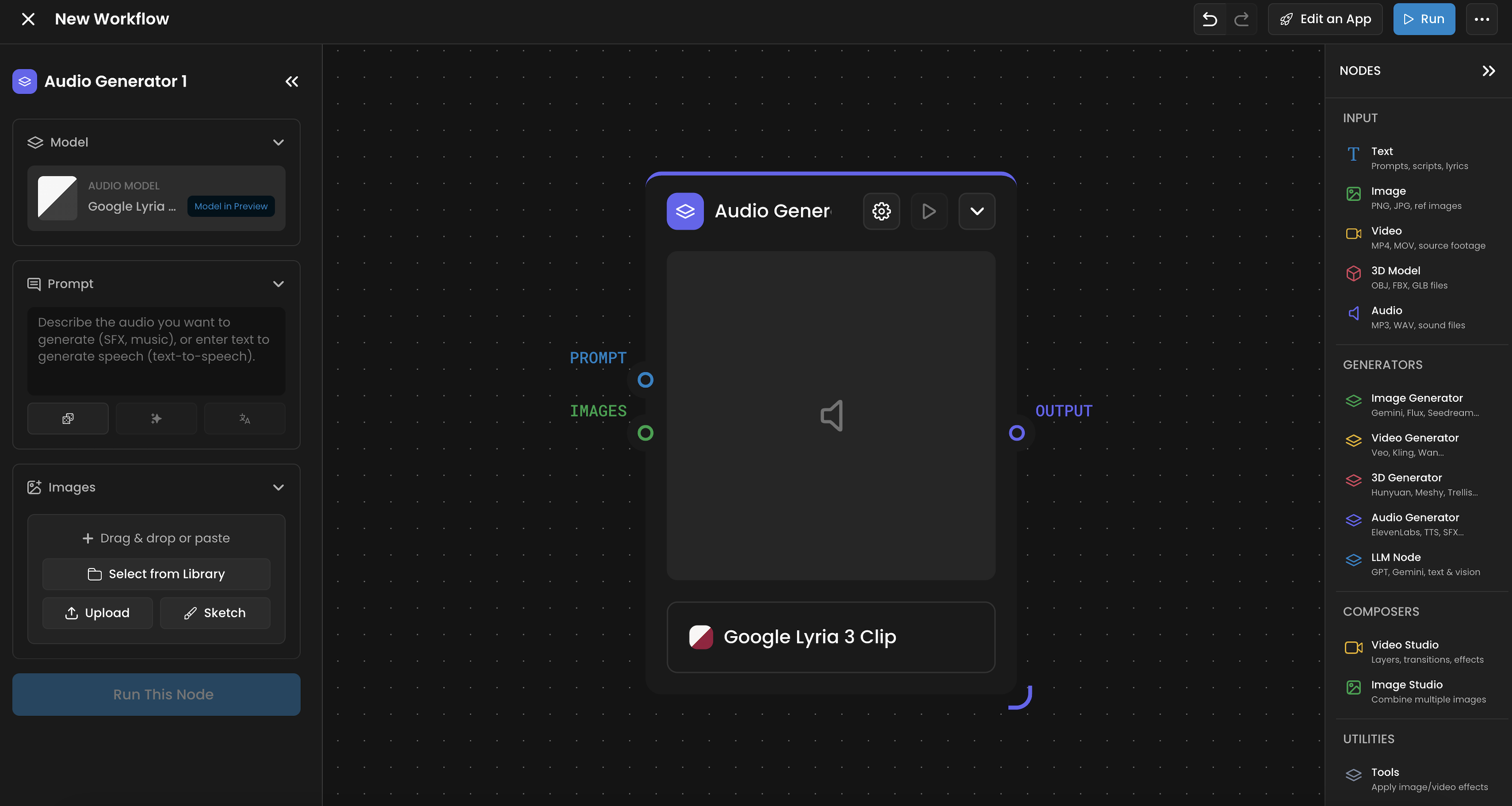
Inputs
Input | Type | Color |
Prompt / Script | Text | 🔵 Blue |
Images | Images | 🟢 Green |
Reference Audio | Audio | 🟣 Purple |
Outputs
Output | Type | Color |
Generated Audio | Audio | 🟣 Purple |
Settings
Model: Options include ElevenLabs, Beatoven, TTS, Lux TTS, Tada, MMAudio 2, HeyGen Video Translate, and more
Voice Selection: Available for TTS models
Duration: For music generation
Additional parameters vary by model
Generation modes:
From text: Text-to-speech or text-to-music. Provide a script or description.
From image: Generate audio that matches or describes an image (using multimodal audio models like MMAudio 2)
From audio (voice cloning): Provide a reference audio sample to clone a voice or match a style
Modes of Operation
Text-to-Speech (TTS): Using ElevenLabs or Lux TTS.
Multimodal (Image-to-Audio): Use MMAudio 2 to generate soundscapes that match the visual content of an image.
Music Generation: Create full tracks via Beatoven or MiniMax Music.
🧠 LLM Node: The Workflow Brain
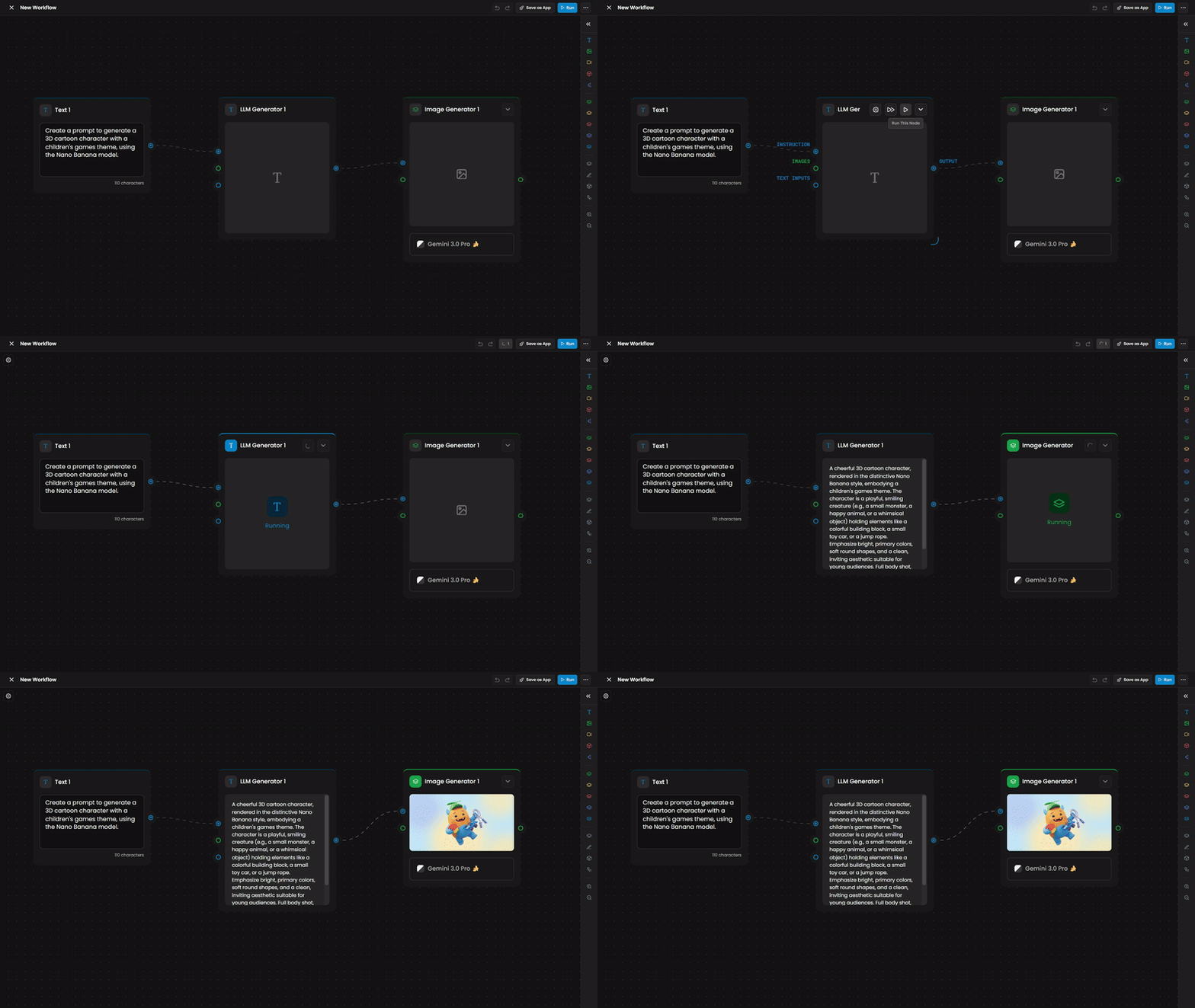
Runs a large language model within the workflow to generate, transform, or analyze text and images. Often used for prompt engineering: analyzing reference images and generating detailed prompts that feed into other generators.
Inputs
Input | Type | Color |
Instruction | Text | 🔵 Blue |
Text Inputs | Text | 🔵 Blue |
Images | Images | 🟢 Green |
Outputs
Output | Type | Color |
First Result | Text | 🔵 Blue |
All Results | Text | 🔵 Blue |
Settings
Model: Anthropic (Claude Fable 5.1, Claude Opus 5.5, Claude Sonnet 5.5, Claude Haiku 4.5), OpenAI (GPT-6 Astra, GPT-5.6 Sol, GPT-5.6 Terra, GPT-5.6 Luna, GPT-5.4 Mini), and Google (Gemini 3.7 Flash, Gemini 3.5 Flash Lite). The default is Gemini 3.5 Flash Lite: nothing changes unless you pick another model. New models are added regularly.
Number of Results: How many text outputs to generate (1 to 5)
Thinking Level: Controls reasoning depth, balancing cost, speed, and output quality:
Minimal: Fastest. Best for simple formatting or basic text transformations.
Medium: Balanced. Ideal for standard prompt generation and style analysis.
High: Best reasoning. Necessary for complex world-building, intricate character descriptions, and deep logical branching.
Retired models
Twelve older models have been retired from the LLM node. Nothing to migrate, nothing to fix: your workflows, apps, and API integrations keep running. A request that still references a retired model now runs on its successor automatically:
Previously | Now runs on |
Claude Fable 5 | Claude Fable 5.1 |
Claude Opus 5, Claude Opus 4.8 / 4.7 / 4.6 | Claude Opus 5.5 |
Claude Sonnet 5, Claude Sonnet 4.6 | Claude Sonnet 5.5 |
GPT-5 Mini, GPT-4.1 Mini | GPT-5.6 Luna |
Gemini 3.5 Flash | Gemini 3.7 Flash |
Gemini 3 Flash Preview, Gemini 2.5 Flash | Gemini 3.5 Flash Lite |
Each replacement is priced at or below the model it replaces, including the cost of reasoning. This is checked automatically at every reasoning level as the list evolves, so your costs will not go up.
Two models never produce identical text. If a workflow depends on precisely tuned wording, run it once and confirm the output still fits. Selecting a model explicitly pins it, so it will not be swapped later.
If you were using Gemini 2.5 Flash, its Thinking Level setting is now shown as None. Gemini 2.5 had no thinking control: the setting was displayed but never applied, so this reflects what your workflow was already doing rather than changing it. Raise the level yourself if you now want the reasoning that Gemini 3.5 Flash Lite can provide.
The Instruction field is the core configuration. Write it as a system prompt: define a role, describe the task, and set constraints. It now accepts up to 100,000 characters (up from 10,000), enough to pass a full document, style guide, or ruleset inline instead of splitting it across text inputs.
Common patterns:
Prompt generation: LLM analyzes a reference image, generates a detailed prompt, feeds it into Image Generator or Video Generator
Content-aware style transfer: LLM compares a style reference and content image, generates a transfer prompt
Text transformation: LLM rewrites, summarizes, or reformats text
Image analysis: LLM describes or captions images (requires a vision-capable model)
Multi-step reasoning: Chain multiple LLM Nodes for iterative refinement
Style Guard: Set up an LLM as a style guard agent by providing a style reference image and instruction. The LLM analyzes the reference and generates prompts that ensure every image in the workflow stays within the project's visual language.
Thinking Levels
Minimal: Lightning-fast. Best for formatting or simple rewrites.
Medium: The standard for prompt engineering and style analysis.
High: Maximum reasoning. Use this for complex world-building or when you need the node to act as a Style Guard to ensure visual consistency across a 50-node graph.
Example Workflow
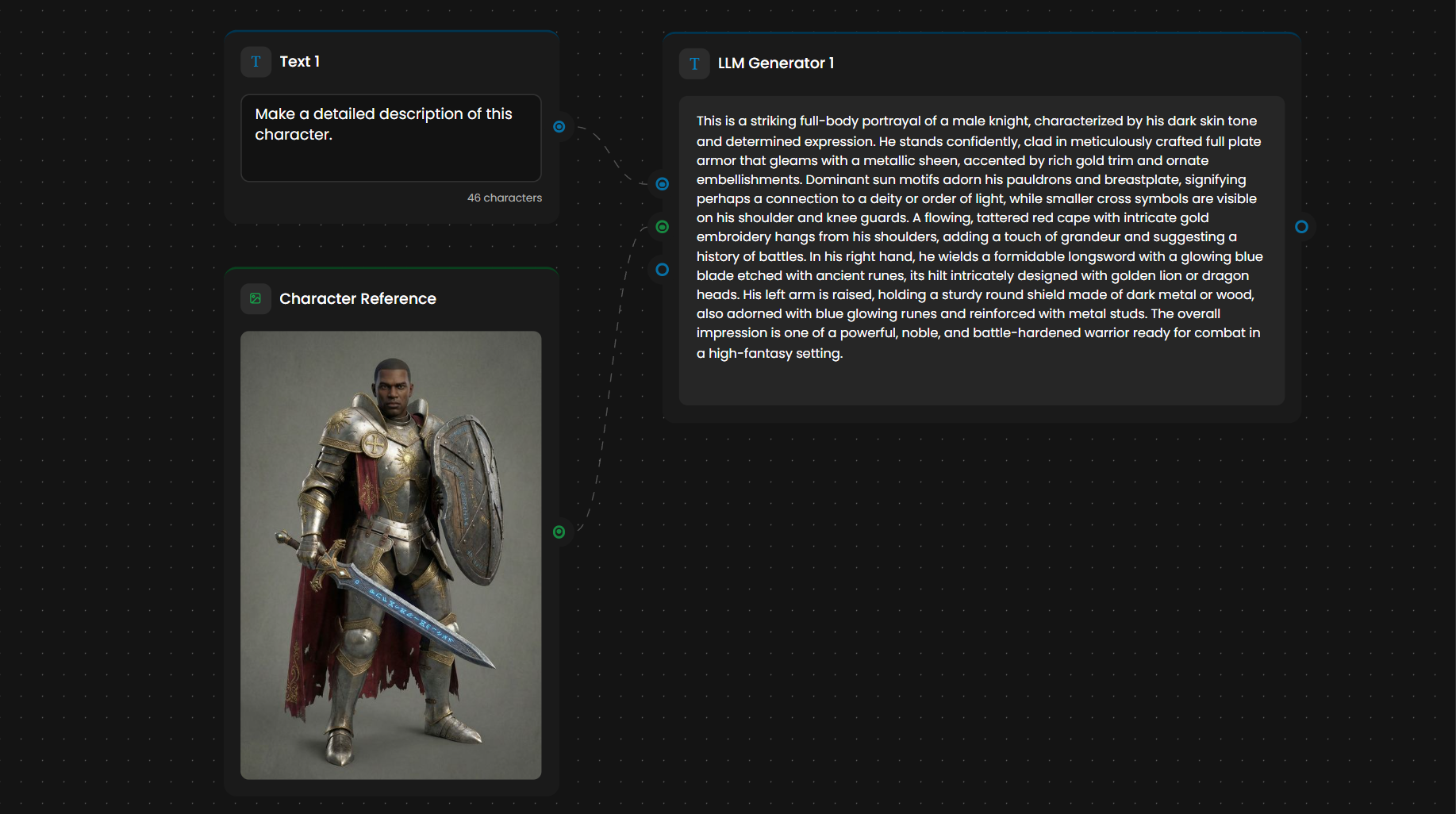
The LLM analyzes a "Character Reference" image of a warrior. Based on its Instruction, it generates a highly detailed output: "A female elven battle mage, with long silver hair... wearing agile, form-fitting armor... only the same art style and design as the reference image should be used".
This detailed output is then automatically fed into an Image Generator node, ensuring the final asset perfectly matches your project's aesthetic.
Using the API
The model input's allowedValues lists only the models above, and retired ids no longer appear in the documentation. Requests carrying a retired id still succeed: they are mapped to the replacement before validation, and the job's recorded input reflects the model that actually ran.
Choosing a Generator
Task | Generator |
Create images from prompts or references | Image Generator |
Edit or modify existing images | Image Generator |
Create video from prompts, images, or video | Video Generator |
Edit video lighting, style, or content | Video Generator (video-to-video mode) |
Convert images to 3D models | 3D Generator |
Rig, texture, or retopologize 3D models | 3D Generator |
Generate voiceover, music, or sound effects | Audio Generator |
Clone a voice from a reference sample | Audio Generator |
Generate or transform text | LLM Node |
Analyze images and engineer prompts | LLM Node |
Use LLM output to guide another generator | LLM Node connected to any Generator |