Composer Nodes
Last updated: April 29, 2026
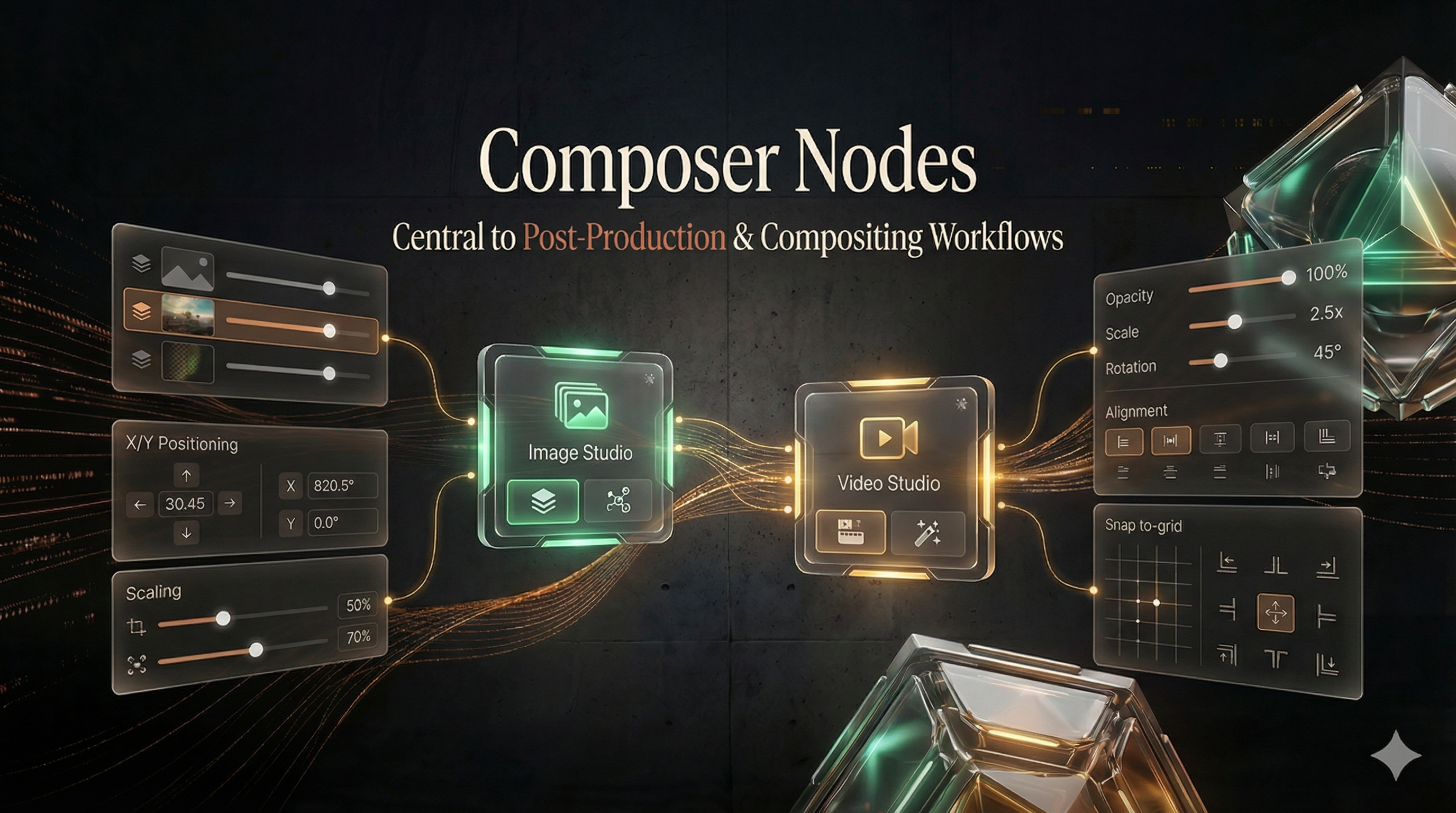
Composer nodes handle post-production - compositing, layering, and assembly of content that has already been generated or imported. They take existing assets and combine them into final outputs.
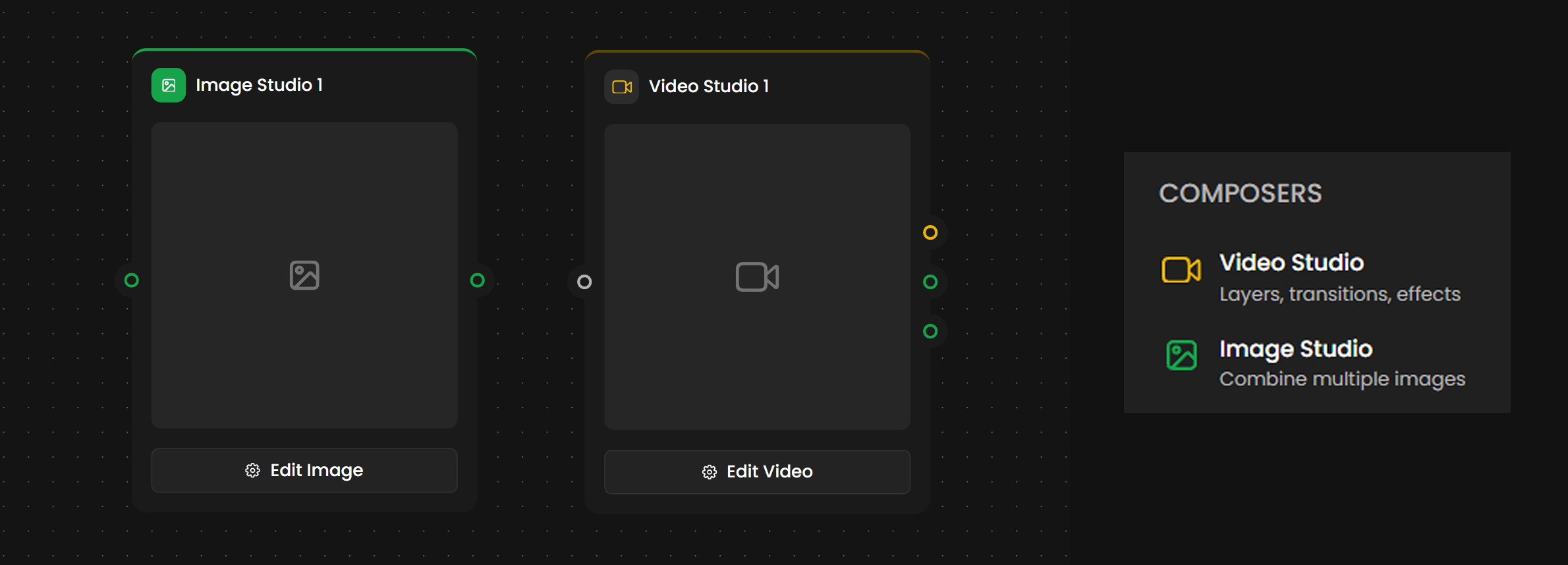
Compose Image vs. Compose Video
Compose Image - Used for static image compositions. The output is a single image file.
Compose Video -Automatically activated when a video layer is connected. It composites layers frame-by-frame, applying all settings (opacity, position) across the full duration.
Image Studio
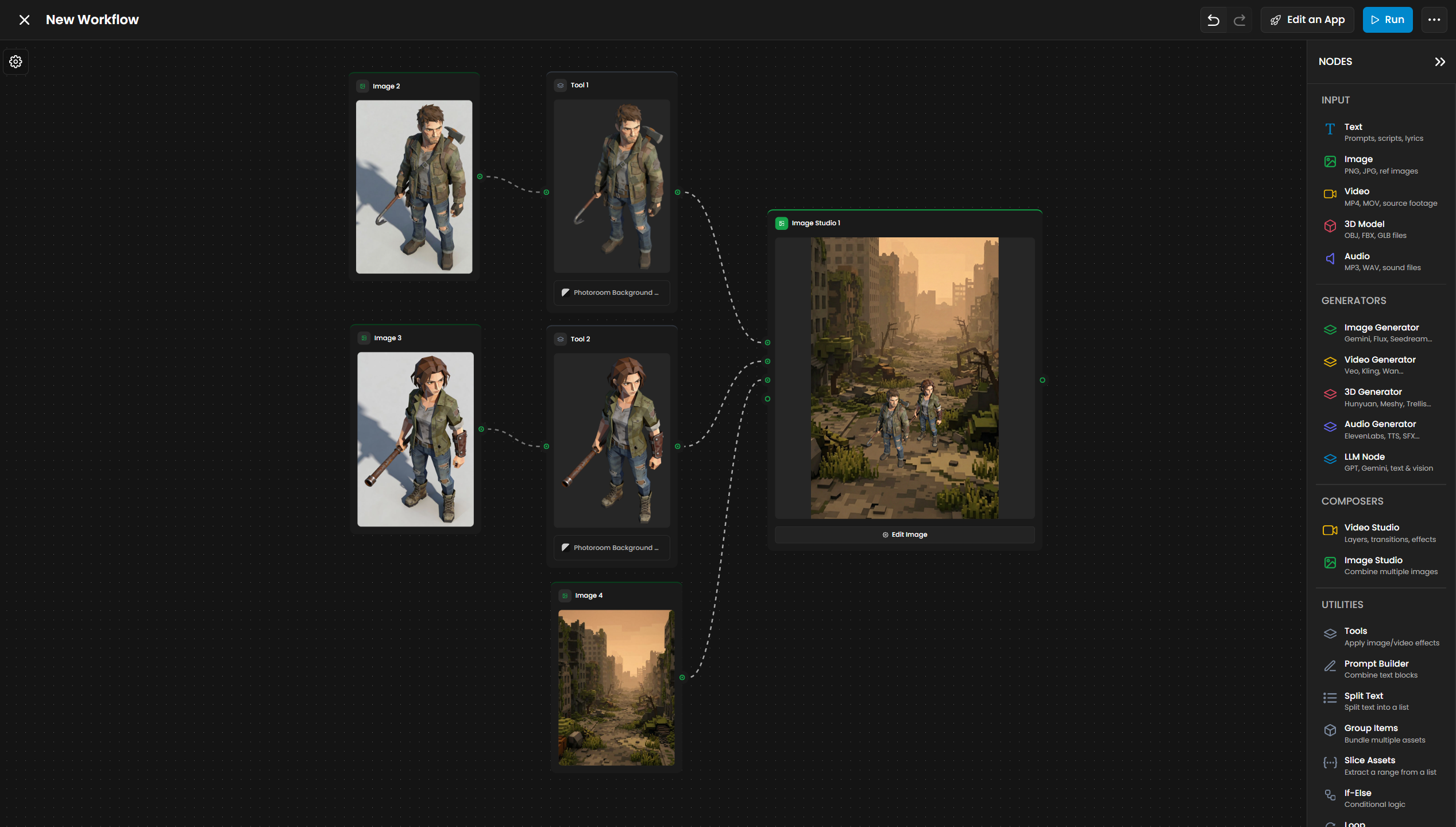
Combines multiple images into a single composite. Use it for layering, positioning, and blending multiple image sources.
Inputs
Multiple image inputs (green handles). Add as many layers as needed.
Outputs
OutputTypeColor | ||
Composed Image | Image | Green |
Layer Stacking Order
The Image Studio treats each input as a separate layer. Layers are stacked in order, with the first input at the bottom and subsequent inputs placed on top. The connection order determines the stack (Input 0 = Bottom).
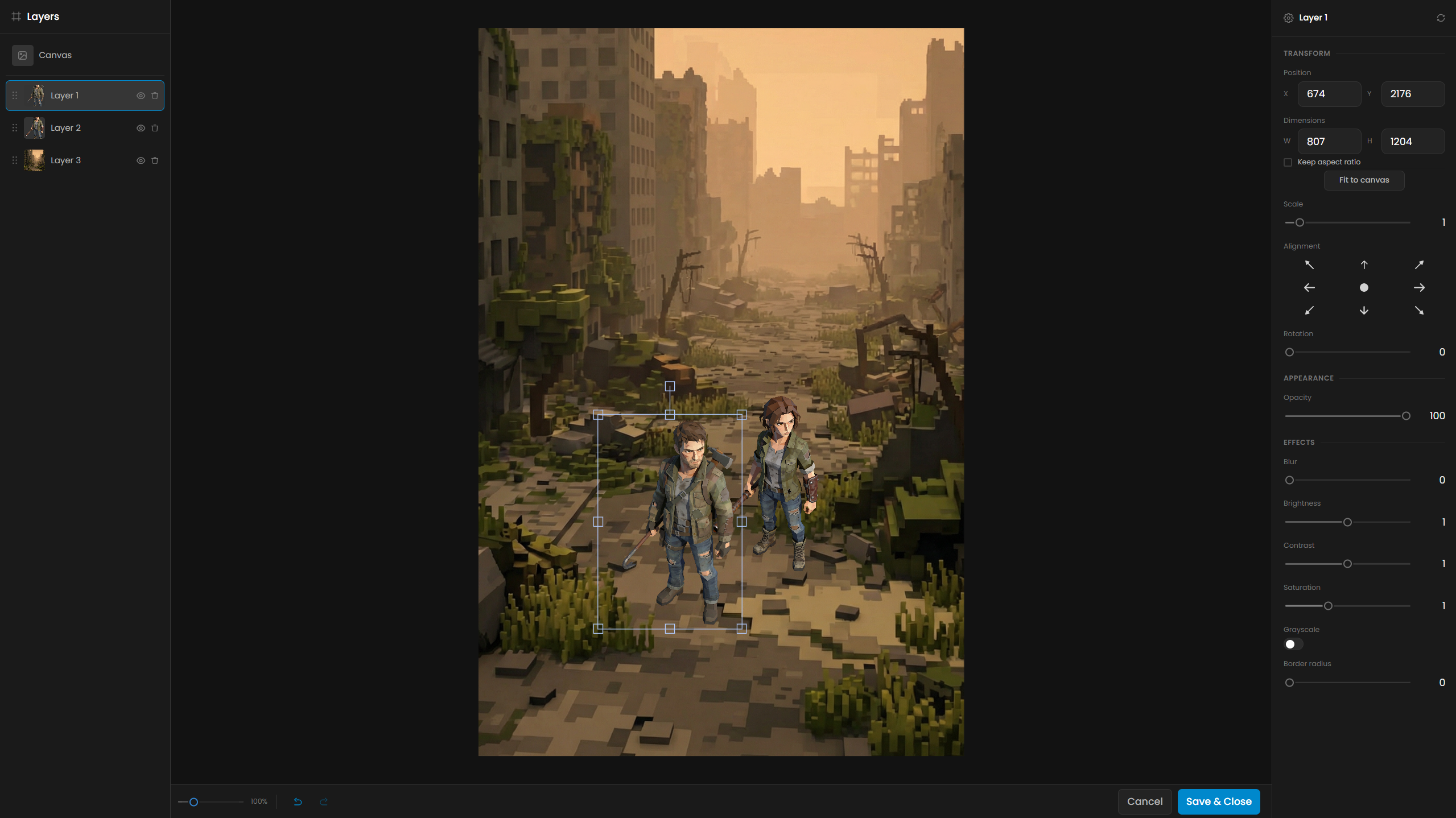
Canvas Editor
The Image Studio opens a canvas editor with the following controls:
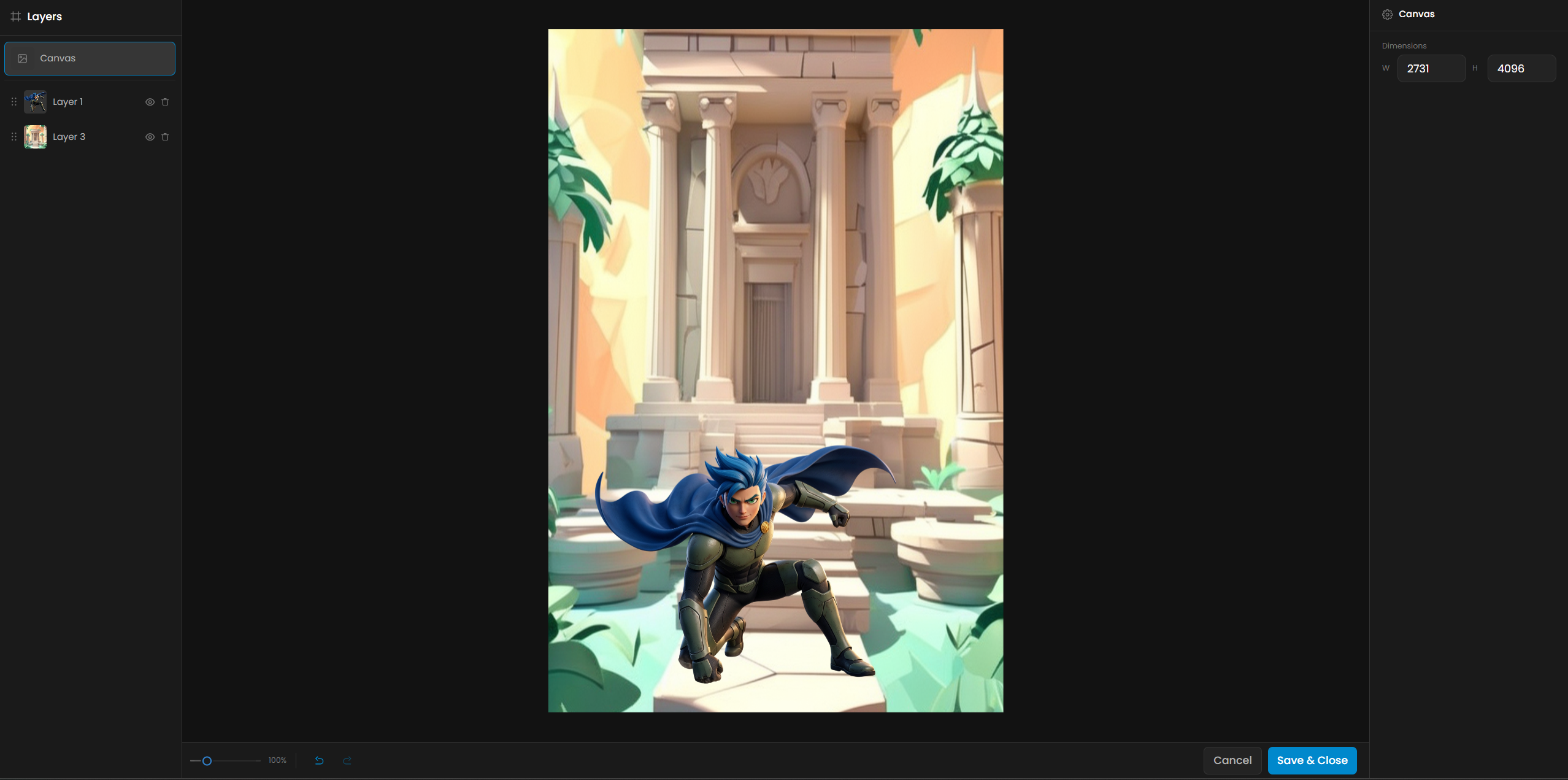
Canvas dimensions -Click "Canvas" at the bottom of the layer list to set the output size of your composed image
Layer management -Add, remove, and reorder image layers. Any Image Generator or Image Input node connected to Image Studio appears automatically as a layer in the editor.
Positioning -Move layers by X/Y coordinates or drag on the canvas. Enter exact pixel values for precision, or drag to position visually.
Sizing - Scale layers independently, with aspect ratio lock
Opacity - Per-layer transparency (0â100%)
Blend modes - Normal, Multiply, Screen, Overlay, and more - controls how each layer interacts with layers beneath it
Alignment tools - Snap to alignment grid, align multiple layers, distribute spacing
Canvas resolution - Define your final canvas size (e.g., 1920Ã1080) before running to ensure correct positioning. The preview updates in real-time as you adjust settings.
How It Works as a Node
Because Image Studio lives inside a workflow, the composition you build applies to every image that flows through that pipeline. This is what makes it different from a standalone image editor - the layout is reusable and automated.
When to Use
Compositing outputs from multiple generators into one image
Layering a generated subject over a generated background
Combining reference images with generated content
Building multi-element layouts (e.g., product + text + background)
Tips
Place your base/background layer first, then add elements on top.
Target Resolution - Always work at the final target resolution from the start to avoid quality loss during scaling.
Transparency - Generate foreground elements with transparent backgrounds using Scenario's background removal tools for seamless integration.
Video Durations - For Compose Video, ensure clip durations match. A shorter background will leave your foreground in a void once it ends.
Use consistent resolutions across inputs to avoid scaling artifacts.
Use PNG inputs with transparency for clean blending of overlapping elements.
Video Studio
Multi-track video editor integrated into the workflow. Supports layering, transitions, effects, and frame extraction across mixed media â combine video, image, and audio sources on a single timeline.
Inputs
Add as many layers as needed and mix formats freely. The Video Studio accepts video, image, and audio inputs side by side, letting you stack footage, overlay still graphics, and lay down music or voiceover tracks within the same node.
Video Layer (Layer 1) note: The primary Video Layer input accepts standard video files, still image files (treated as a single-frame source), and video without an audio track. You do not need fake silence: connect separate audio on the Audio Layer when required.
Input Type | Color | |
Video Layer | Video, still image, or silent video (primary timeline) | Green |
Image Layer | Image | Green |
Audio Layer | Audio | Purple |
Outputs
Output Type | Color | |
Output | Video | Yellow |
First Frame | Image | Green |
Last Frame | Image | Green |
The First Frame and Last Frame outputs are useful for thumbnails, downstream image processing, or feeding into subsequent Video Generator nodes.
Editor Sections
Layers panel (left): Lists all video tracks. Toggle layer visibility, reorder tracks, add or remove layers.
Canvas preview (center): Full-size preview with checkerboard for transparent areas. Scrub through the timeline. Drag layers to reposition.
Properties panel (right):
Transform:
Position (X, Y)
Dimensions (W, H) with aspect ratio lock
Fit to canvas button
Scale slider
9-point alignment grid
Rotation
Appearance:
Opacity (0â100%)
Effects (per-layer):
Blur
Brightness
Contrast
Saturation
Grayscale
When to Use
Compositing multiple video clips with layering and transitions
Picture-in-picture layouts
Color grading and effects on generated video
Extracting specific frames for downstream use
Adding watermarks or overlays
Tips
Use the 9-point alignment grid for quick positioning.
Preview at normal playback speed to catch timing issues.
Keep layer count manageable - pre-composite intermediate results for complex compositions.
Opacity cross-fades between overlapping clips create smooth transitions.
Use brightness and contrast adjustments to match tones across clips from different sources.
Practical Examples
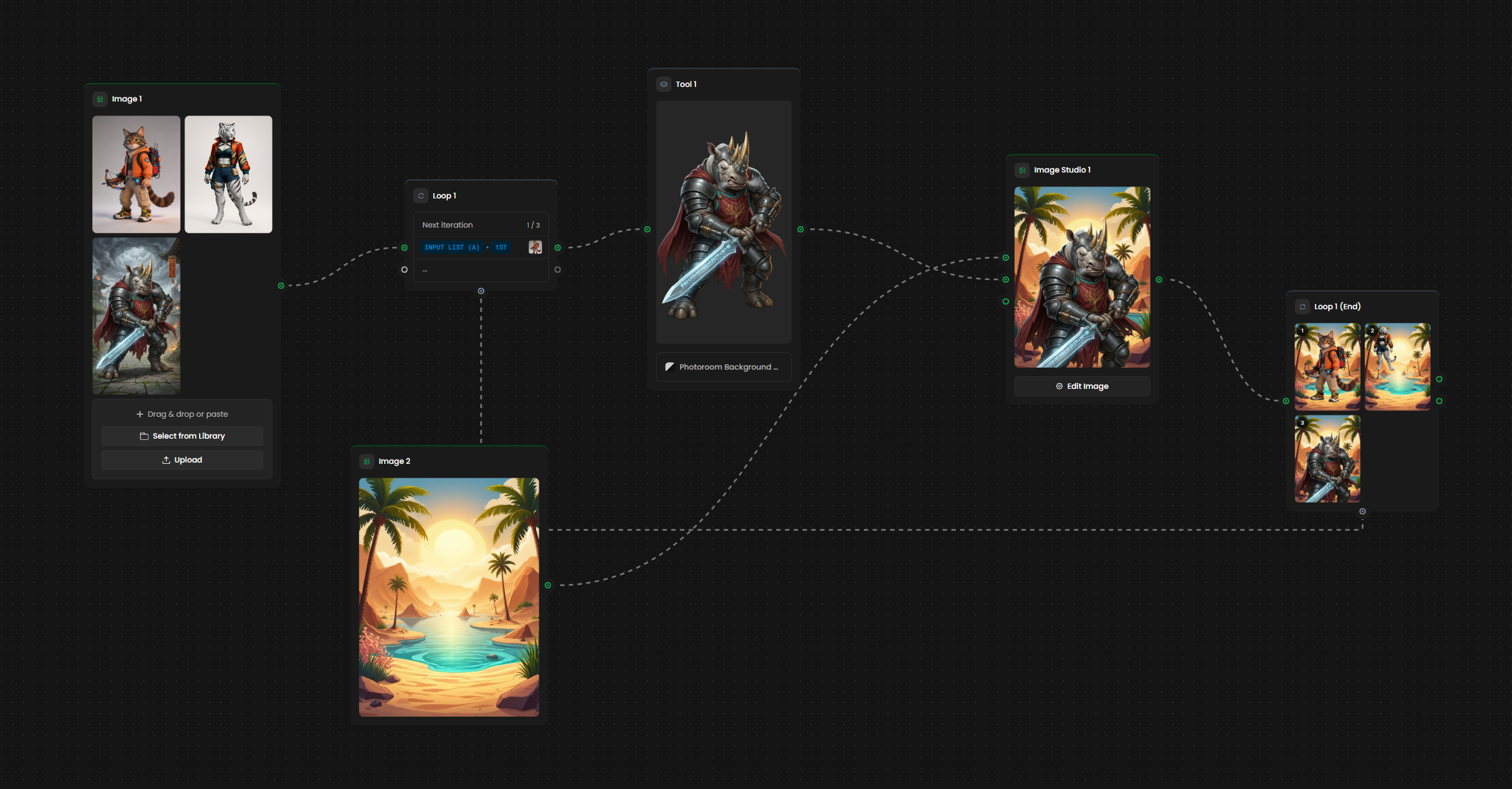
Character over Environment - Layer 0 (Background) + Layer 1 (Character with transparent background)
Animated Product Demo - Layer 0 (Animated background loop) + Layer 1 (Static product) + Layer 2 (Logo)
Batch Compositing - Combine with a Loop node to generate an entire roster of characters against a shared branded backdrop