Node Agent: The Essentials
Last updated: May 12, 2026
Type: AI agent for node-based workflows | Surface: Node editor at app.scenario.com/workflow
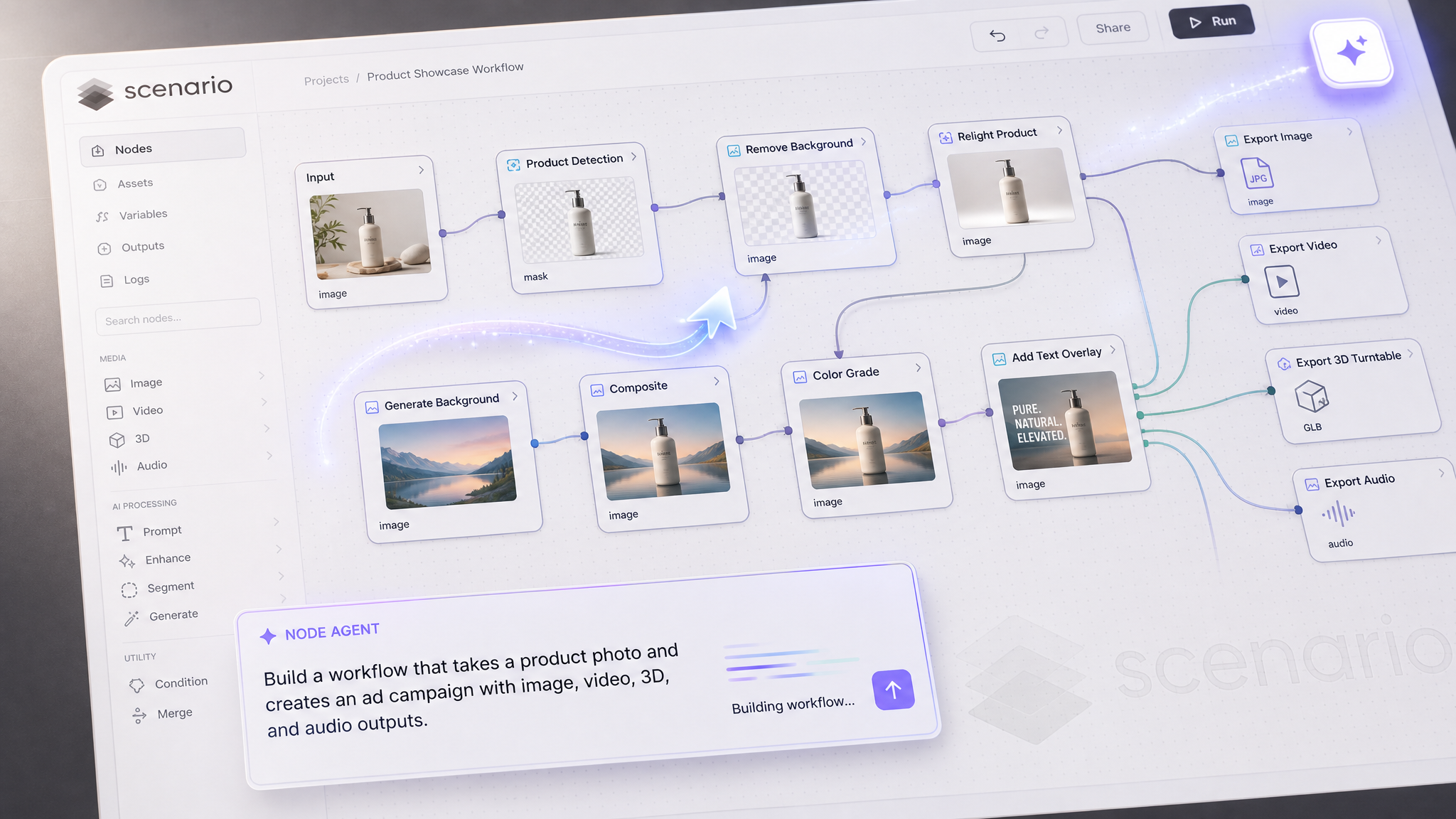
Node Agent builds and edits Scenario node workflows from plain text. You describe what you want, and the agent creates the nodes, connects them, picks the models, sets the parameters, and reports back what it built. The same agent can then keep iterating on the graph: add steps, swap models, rewire sections, or branch with logic, all from follow-up prompts in the same chat.
It is not a separate node you drop on the canvas. It is an assistant layered onto the node editor itself, with access to every model in the Scenario catalog (image, video, 3D, audio, and your custom-trained models). It also reads context from your workspace: the workflows you have already built, the models you tend to use, and the settings you prefer. That context shapes the graphs it produces, so two users asking the same question often get different starting points tuned to their pipeline.
What It Does
Builds full node workflows from a single text instruction, in seconds.
Edits existing workflows on prompt: add nodes, swap models, rewire connections, change parameters, add If/Else branches.
Accepts reference images dropped into the canvas as additional context, and wires them into the right nodes (input, style reference, conditioning, etc.).
Picks models from the full Scenario catalog, including image, video, 3D, audio, and your custom-trained models.
Reads your workspace: existing workflows, most-used models, preferred settings, and uses that context to scaffold sensible graphs.
Explains the graph it built in plain text, node by node, so you can verify before running.
Opening the Node Agent
Open the node editor at app.scenario.com/workflows. On the right-hand toolbar (between the add-node and pan tools) there is a sparkle icon. Click it to open the agent chat panel on the right side of the canvas.
The chat panel has three controls in its header:
New conversation (+): start a fresh thread with no prior context.
History (clock icon): revisit previous agent conversations for this workflow.
Close (x): hide the panel. The agent state is preserved.
The agent works on the workflow currently open on the canvas. You can run it on a new, empty workflow or on an existing one with nodes already in place. Both modes are supported.
How to Use It
Starting from text
Type a description of the workflow you want. Be specific about three things: the inputs the workflow should accept, the transformations or steps in between, and the format of the final output. The agent will pick the models, place the nodes, connect them, and configure parameters on the canvas while you watch. As soon as the graph is ready, it will also write a short explanation of what it built.
"Build a workflow that takes a product photo as input, removes the background, upscales the result to 4K, and outputs a transparent PNG ready for an e-commerce listing."Starting from images
Drag one or more reference images onto the canvas before prompting. Then describe the workflow and mention how each image should be used. The agent will wire the images into the right nodes (some as direct inputs, some as style references, some as conditioning images for image-to-image steps).
"Drop both images on the canvas. Use Image A as a character reference and Image B as a style reference. Build a workflow that produces new images in the same style, featuring the character in different poses."Editing an existing workflow
Open any workflow you already have, then prompt the agent to modify it. The agent reads the current graph and applies your change without starting over. You can iterate in plain text instead of dragging nodes manually.
"Replace the Flux generator with Seedream 5.0 Lite, add an upscale node after it, and add a background removal step at the end."Conversational refinement
The chat is a conversation, not a one-shot prompt. After the agent builds the initial graph, keep going. Each follow-up message edits the same workflow.
First message:  "Build a workflow that generates fantasy weapon icons."
Follow-up:      "Add an If/Else node that routes axes to one style LoRA and swords to another."
Follow-up:      "Add an upscale step at the end and export as PNG."
Follow-up:      "Actually remove the style reference image. Use a text prompt instead."
You can also take over manually at any point. The canvas remains fully editable: drag nodes, change parameters, run a subset of nodes, or convert the result into a Scenario App for your team. The agent is a faster way to scaffold, not a replacement for the editor.
Reading the Agent's Response
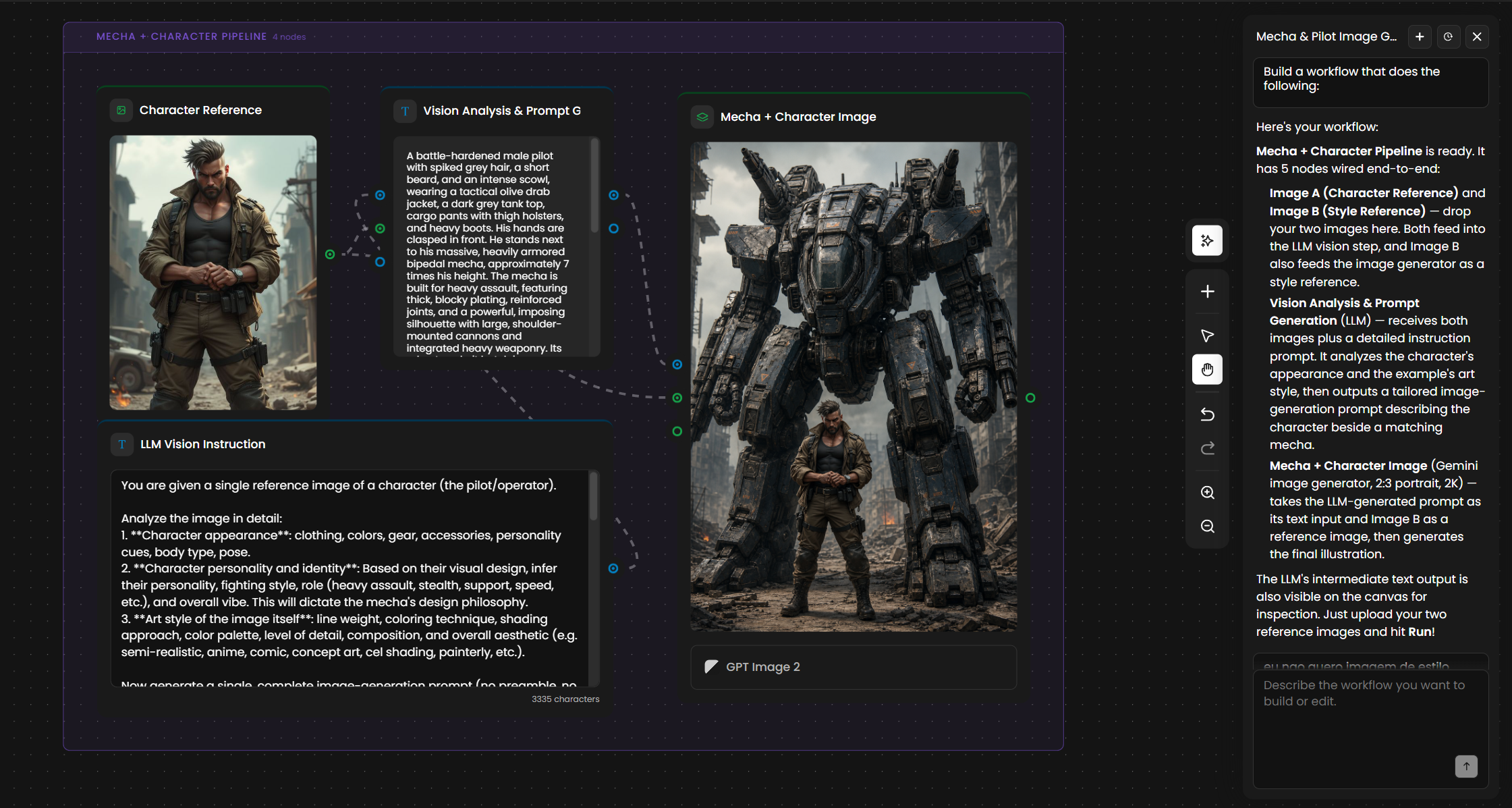
After the agent finishes building, it writes a short report in the chat. The report describes every node in the graph and how the data flows between them. Read this before hitting Run, especially the first time you use the agent on an unfamiliar pattern. If something is wired wrong, the simplest fix is a follow-up prompt.
A typical report from a structured prompt looks like this:
Mecha + Character Pipeline is ready. It has 5 nodes wired end-to-end:

- Image A (Character Reference) and Image B (Style Reference): drop your two images here.
  Both feed into the LLM vision step, and Image B also feeds the image generator as a
  style reference.

- Vision Analysis & Prompt Generation (LLM): receives both images plus a detailed
  instruction prompt. It analyzes the character's appearance and the example's art style,
  then outputs a tailored image-generation prompt describing the character beside a
  matching mecha.

- Mecha + Character Image (Gemini image generator, 2:3 portrait, 2K): takes the
  LLM-generated prompt as its text input and Image B as a reference image, then generates
  the final illustration.

The LLM's intermediate text output is also visible on the canvas for inspection. Just
upload your two reference images and hit Run.
The report names every node, the model behind each generator, the aspect ratio and resolution it chose, and explains where intermediate outputs are exposed on the canvas. Use that as your verification step. If a model choice or parameter does not match your pipeline, ask the agent to change it before running.
The Nodes the Agent Tends to Use
The Node Agent draws from the same node library you have when building manually. It tends to favor a small set of nodes that compose well across many tasks.
Node type | When the agent uses it |
|---|---|
Image input | For any reference, character, style, or product image. Color-coded green on the canvas. |
Text or prompt input | For instructions to an LLM, generation prompts, captions, or any text the user supplies. Color-coded blue. |
LLM node (vision and text) | As the "workflow brain": analyzes images and text, then writes a tailored prompt or decision for downstream nodes. |
Image generator | Flux, Seedream, GPT Image, Gemini, Ideogram, or any custom-trained model in your workspace. |
Image utilities | Background removal, upscale, vectorize, color grading, post-processing. |
If/Else node | For deterministic branching: route inputs based on conditions like "is empty," "contains," equality, or threshold. |
Video and 3D nodes | For pipelines that end in a video clip, a 3D model, or a turntable render. |
Audio nodes | For TTS, music generation, and lipsync chains. |
If you want a specific model in a step, name it in the prompt. The agent will use it. If you do not specify, the agent picks a sensible default based on the task and your workspace history.
Examples
Mecha + character pipeline (headline example)
Two reference images and a structured brief produce a five-node pipeline: image inputs, a vision LLM step that analyzes the character and the art style, and an image generator that produces a final illustration of the character with a matching mecha in the same art style. Use the structured prompt shown in the "How to Write a Prompt" section above. The agent picks Gemini for the image generator, 2:3 portrait at 2K, and routes Image B both into the LLM analyzer and as a style reference for the generator.
Weapon-Based Character Design
One reference image go in, a new character come out, all consistent with the art style.
Create a workflow in which a character is generated based on a reference image of a
weapon or tool. These weapons can include firearms, bladed weapons, and accessories.
Make the character’s personality exaggerated and consistent with the accessory or
weapon. Include a dynamic pose and a neutral background with a color or texture
related to the character.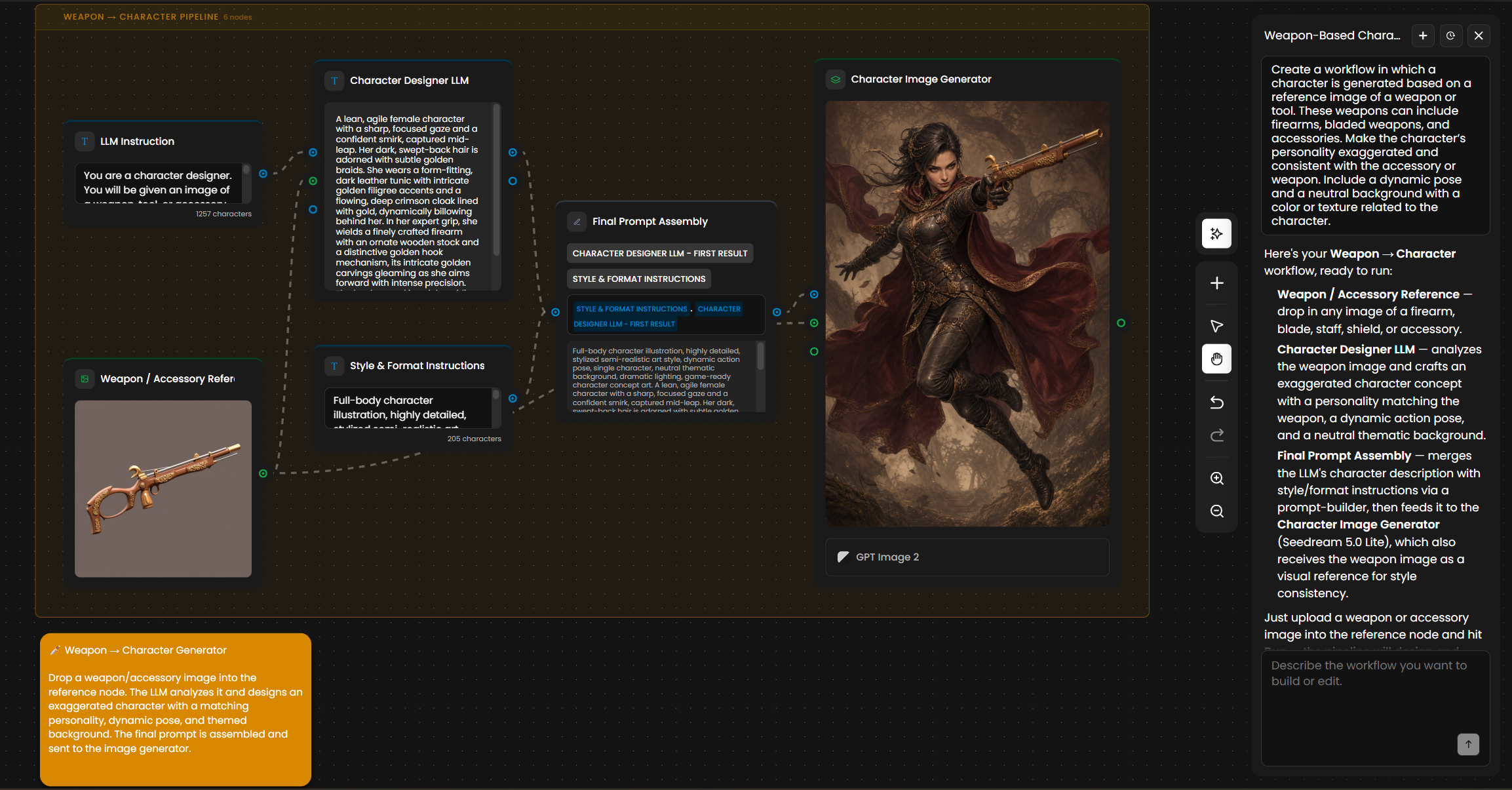
Image to talking video
Generate a character portrait, dub a line of dialogue, and produce a lip-synced talking-head video from one prompt.
"Build a workflow that generates a character portrait from a text prompt, generates a line
of dialogue with a TTS model, and feeds both into a lipsync model to output a talking-head
video."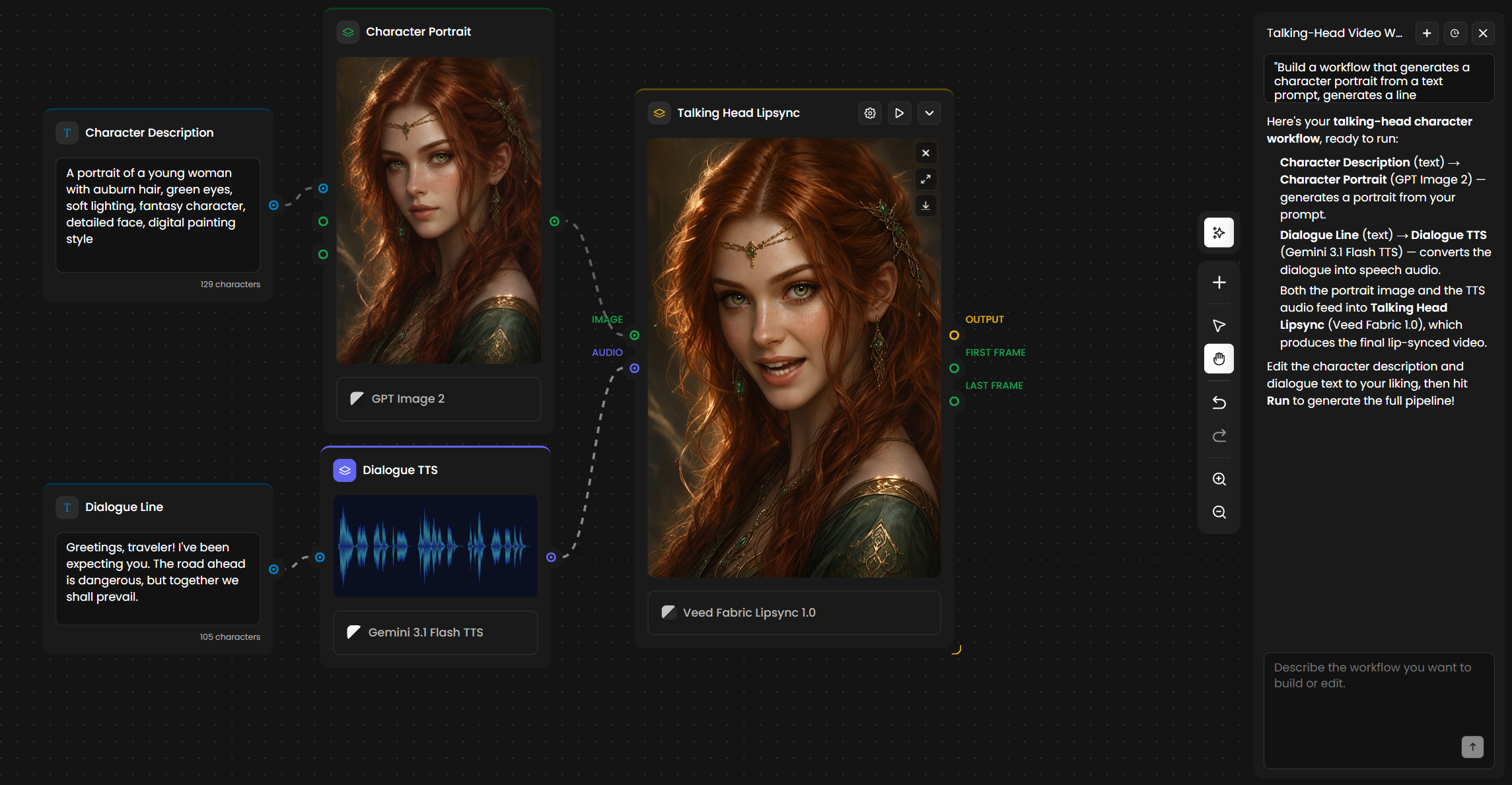
Product cutout pipeline with conditional upscale
A pipeline that adapts to the input size: smaller images get an extra upscale pass, larger ones skip it.
"Take a product photo, run background removal, and output a transparent PNG. Add an
If/Else node so that images smaller than 1024px get an extra upscale pass to 4K before
background removal."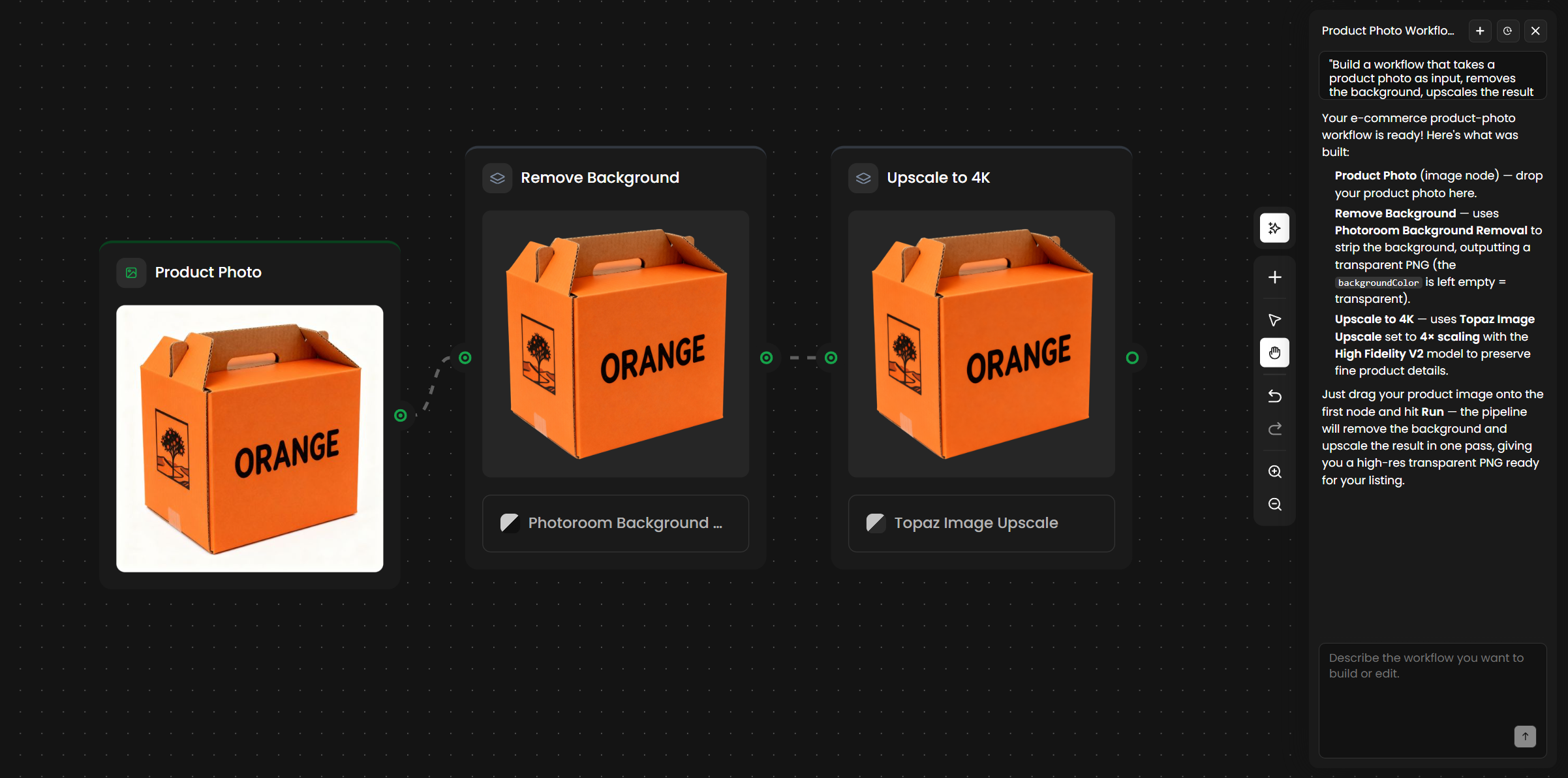
Concept art to 3D turntable
Image-to-3D pipelines that previously took a dozen nodes scaffold in one prompt.
"Build a workflow that turns a 2D concept art image into a textured 3D model, then renders
a 360 turntable video of the result at 1080p."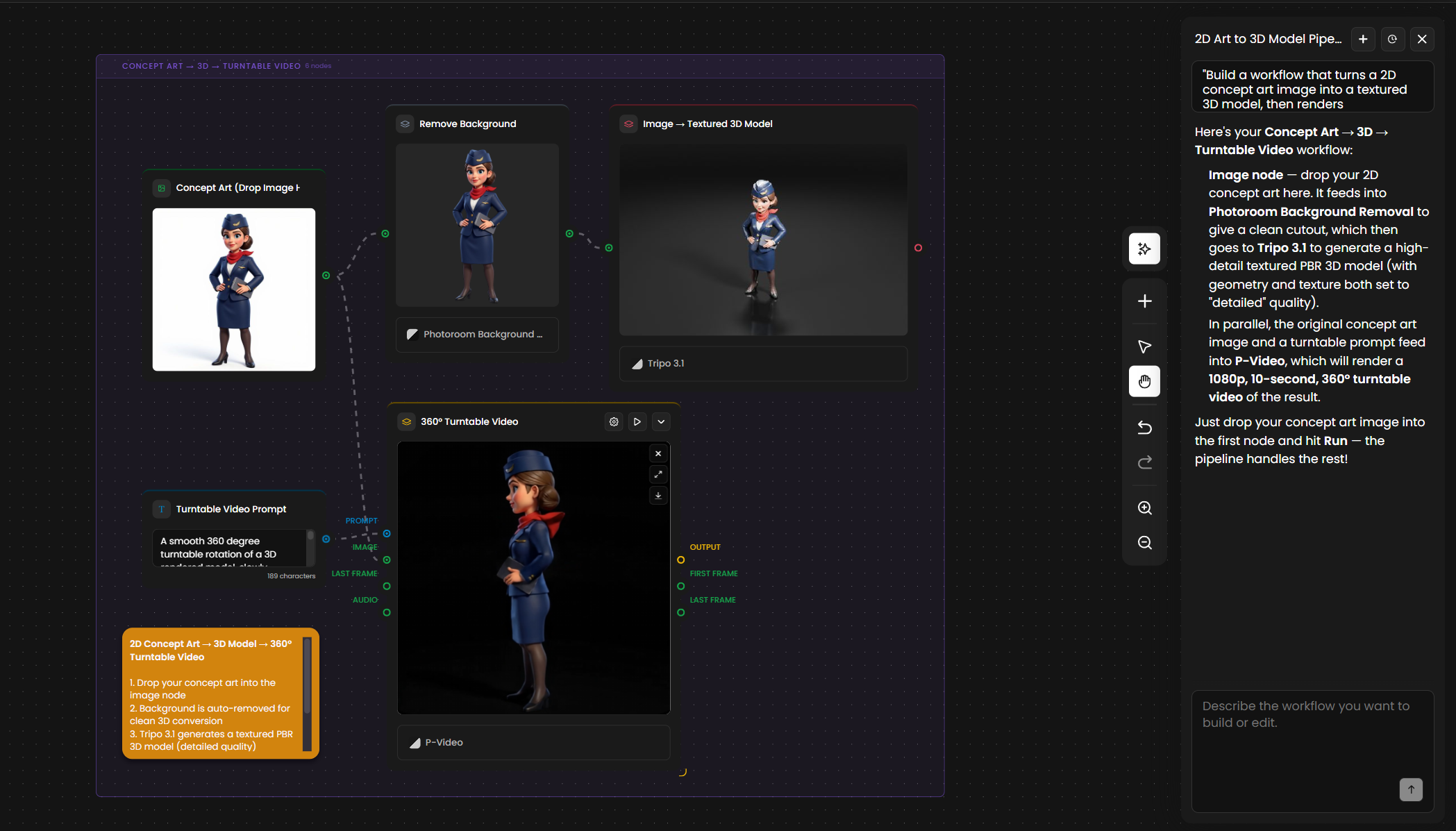
Tips for Better Results
Structure the prompt with Inputs, Steps, Output, and Notes. The agent rarely misses a node when the brief is sectioned. A four-section prompt produces a working graph the first time; a loose paragraph often needs follow-ups to fix.
Label your images by role in the prompt. "Image A is the character, Image B is the style reference" is clearer than "use these images." The agent will wire each image to the correct node when the role is stated.
Name aspect ratios, resolutions, and formats explicitly. If you need 9:16 at 2K as a PNG, say so. The agent picks defaults when you do not, and the defaults may not match your pipeline.
State what must not change in a "notes" section. Hard constraints (matching art style, exact aspect ratio, certain model family, intermediate outputs preserved for inspection) belong at the end of the brief so the agent treats them as non-negotiable.
Iterate in plain text rather than dragging nodes. Once a graph exists, refining it through the chat is faster than manual editing for most changes. "Swap this model," "add an upscale," "branch on input size."
Read the agent's report before clicking Run. The report describes every node and parameter. If a model choice or resolution is wrong, a single follow-up prompt fixes it before you spend credits on a bad first run.
Use the agent to discover models. If you do not know which model fits a step, ask. The agent has access to all 500+ models in the catalog and will pick one based on the task and your workspace history.
Drop reference images on the canvas when style or composition matters. A reference image gives the agent a stronger anchor than any verbal description of the style.
Convert successful graphs into Apps. Once a workflow built by the agent runs well, save it as a Scenario App so the rest of your team can use it without opening the node editor.
Use If/Else when you need determinism. The agent will happily wire a deterministic branching path (is empty, contains, equals, threshold) when you ask for it. Use this when LLM reasoning is overkill for the decision.